Jira and Microsoft Teams Integration: Benefits, Uses, and Quick Setup
 Conclude Team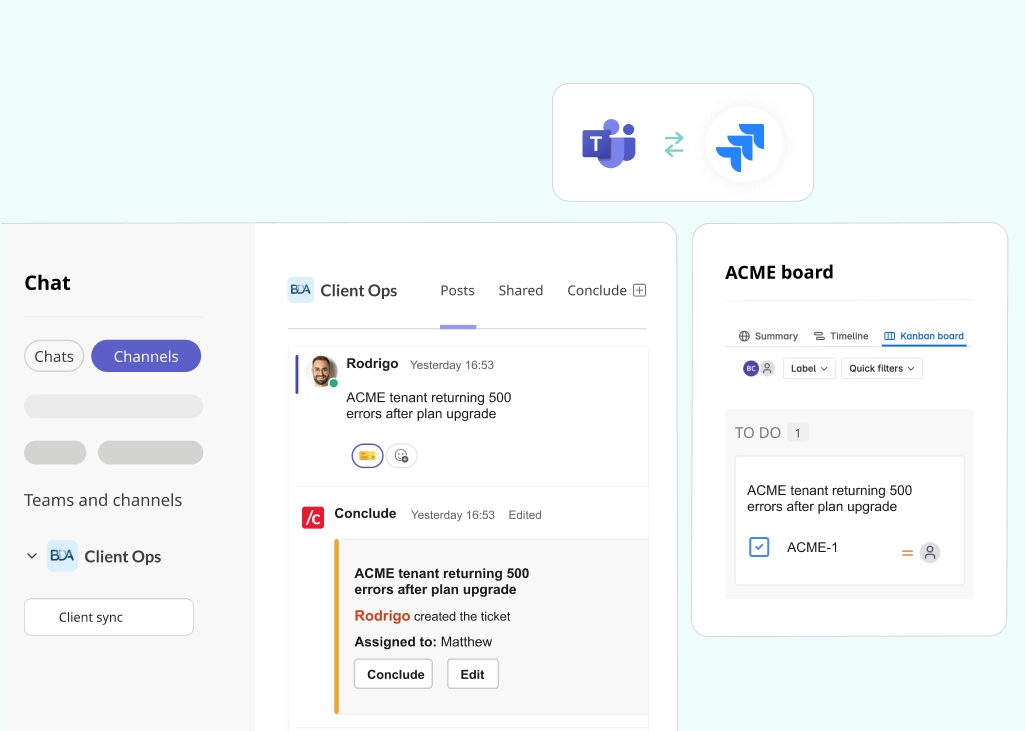
Microsoft Teams and Jira are both central to how modern teams manage work, but they aren’t naturally built to handle ticketing together. Teams or Slack may be where issues are raised and discussed, whereas Jira is where they’re formally tracked and resolved. Keeping tickets aligned between the two isn’t straightforward, which is why a Jira Teams integration becomes essential.
According to a 2025 Lokalise survey, workers lose an average of 51 minutes per week to tool fatigue, totaling more than 44 hours per year. Much of this time is lost switching between tools, manually updating tickets, and trying to keep conversations and work aligned. While native integrations are available, they often focus on notifications and basic actions, leaving the workflow divided and requiring ongoing manual effort.
With Conclude’s Jira and Teams integration, teams can manage tickets directly from Microsoft Teams – or Slack – to keep conversations connected, while updates sync automatically with Jira.
In this guide, we’ll break down the benefits of integrating Jira with Microsoft Teams, how different teams use both tools together in real workflows, and how to set up Conclude to manage Jira tickets directly from Teams.
Working with Jira and Slack instead? See our Jira and Slack integration guide or learn How to Create a Jira Ticket from Slack.
Benefits of Integrating Microsoft Teams and Jira
Without a good integration, managing tickets and issues across Teams and Jira often creates unnecessary friction and increases the risk of outdated information being treated as up to date.
By integrating Microsoft Teams and Jira, teams can keep their work aligned and move issues forward faster.
Here are some of the main benefits of connecting Microsoft Teams with Jira:
- Get Real-Time Jira Updates Directly in Teams: Teams can stay informed as issues are created, updated, or resolved without needing to check Jira separately. Everyone stays aligned on progress, and tickets get resolved faster
- Maintain Shared Context Across Tools: Discussions in Teams or other chat programs provide important context for Jira tickets. When both tools are connected, context stays linked to the work and avoids miscommunication
- Improve Collaboration Across Teams: Engineering, Development, and IT Operations teams can work more effectively when updates and conversations are visible where they already communicate. Silos are reduced, and coordination speeds up
- Increase Visibility Without Leaving Teams: Teams can track work and stay up to date without switching platforms, reducing interruptions, improving focus, and minimizing productivity loss from constantly switching between tools
- Reduce Manual Work and Duplicate Updates: Without an integration, teams often copy information between Teams and Jira. Connecting both tools removes that extra effort and reduces the risk of outdated or inconsistent information
Use Cases for Using Microsoft Teams and Jira
Different teams rely on Jira and Microsoft Teams in different ways, depending on how they manage work, communicate, and collaborate across the business. From tracking bugs and features to coordinating projects and handling incidents, the way these tools are used varies by team, but the goal is the same: keeping work moving while staying aligned.
Here’s how teams typically use a Microsoft Teams and Jira integration in practice:
DevOps and Engineering Teams
DevOps and Engineering teams deal with a constant flow of bugs, feature updates, and internal tasks that need to be tracked, prioritized, and resolved quickly. Speed and clarity matter, especially when multiple people are involved in diagnosing and fixing issues.
By using Teams and Jira together, engineers can create, update, and close tickets directly from any channel while keeping Jira as the system of record. When a bug is reported or a feature is discussed in Teams, it can quickly become a tracked issue in Jira. Updates can then be shared back into Teams, so everyone involved, including non-technical teams, stays informed without needing direct access to Jira.
Product Teams
Product teams handle feature requests, backlog prioritization, and feedback from across the business. Much of this input comes through conversations in Teams with sales, support, or leadership, but needs to be structured and tracked in Jira.
Connecting Teams and Jira allows product managers to capture ideas and feedback as they come in, turning discussions into actionable tickets without losing context. Instead of going back later to recreate conversations in Jira, product teams can link feedback directly to backlog items and keep stakeholders updated through Teams as priorities evolve.
Project Management Teams
Project managers are responsible for keeping work on track across teams, timelines, and dependencies. That means constantly following up on progress, identifying blockers, and making sure everyone is aligned.
By integrating Microsoft Teams and Jira, project managers can keep communication and execution in sync without chasing updates. Conversations around timelines and blockers stay connected to the actual work, progress is easier to track in real time, and teams stay aligned without relying on constant check-ins or status meetings.
IT Operations Teams
IT Operations teams handle incidents, system updates, and internal support requests, often under time pressure where fast response and clear communication are critical.
Using Teams and Jira together allows IT teams to respond to issues as they arise while keeping everything properly tracked. Requests can be turned into tickets instantly, updates shared as progress is made, and resolution stays visible to everyone involved. This helps teams move faster during incidents while keeping a clear, reliable record of what’s been done.
Atlassian’s Teams Jira Integration Solution
Many companies use some form of Jira and Teams integration, with Atlassian’s native solution being the most common. Their official app allows teams to connect Jira Cloud to Teams, bringing in notifications, issue previews, and basic ticket actions directly into chat.
For many, this works as an initial setup: it adds visibility and makes it easier to stay aware of what’s happening in Jira without leaving Teams. But in practice, work and conversations are partially disconnected, so keeping everything aligned still requires manual effort. This includes:
- No Full Bi-Directional Sync: Updates from Jira can be pushed into Teams, but conversations in Teams don’t automatically sync back into Jira. Users can comment, assign, or update ticket status in Teams, but there’s no automatic, ongoing thread sync
- Manual Effort is Still Required: Even with the integration in place, teams often need to trigger actions, add comments, or update tickets themselves. This creates extra steps and increases the risk of missed or outdated information
Conclude’s Jira and Teams integration takes a different approach, focusing on full bi-directional syncing and connected workflows rather than simply extending Jira into Teams.
Conclude’s Microsoft Teams and Jira Integration
Conclude’s Jira integration is built for Teams-first workflows, allowing teams to manage Jira tickets inside Teams without shifting their way of working. Instead of treating Teams as a place for notifications, it becomes the space where tickets are created, discussed, and progressed, while Jira stays in sync in the background as the system of record.
Connected Apps is a new integrated ticketing solution that goes one step further. It connects Teams, Jira, and Slack, so teams can collaborate on the same tickets across platforms, without needing to standardize on a single tool. Teams and Slack users can work together on Jira issues in parallel, with updates reflected on all platforms.
This is the first solution of its kind on the market. Let’s break down exactly how it works.
Key Features of Conclude’s Jira Integration
Conclude builds on standard Jira Teams integrations by enabling teams to create, manage, and keep tickets in sync, directly within Microsoft Teams conversations.
- True, Bi-Directional Syncing: Tickets can be created in either Jira or Teams, and once they’re linked, everything stays synced both ways. There’s no need to push or copy information, as changes made in Teams appear in Jira, and updates in Jira are reflected in Teams, creating a fully connected workflow
- Work on Issues Without Leaving Teams: You can create a ticket directly from a Teams message using a ticket emoji. From that point, the entire thread becomes part of the ticket, ensuring that all context is captured from the start. Replies, edits, status changes, assignments, and resolutions all sync automatically to Jira
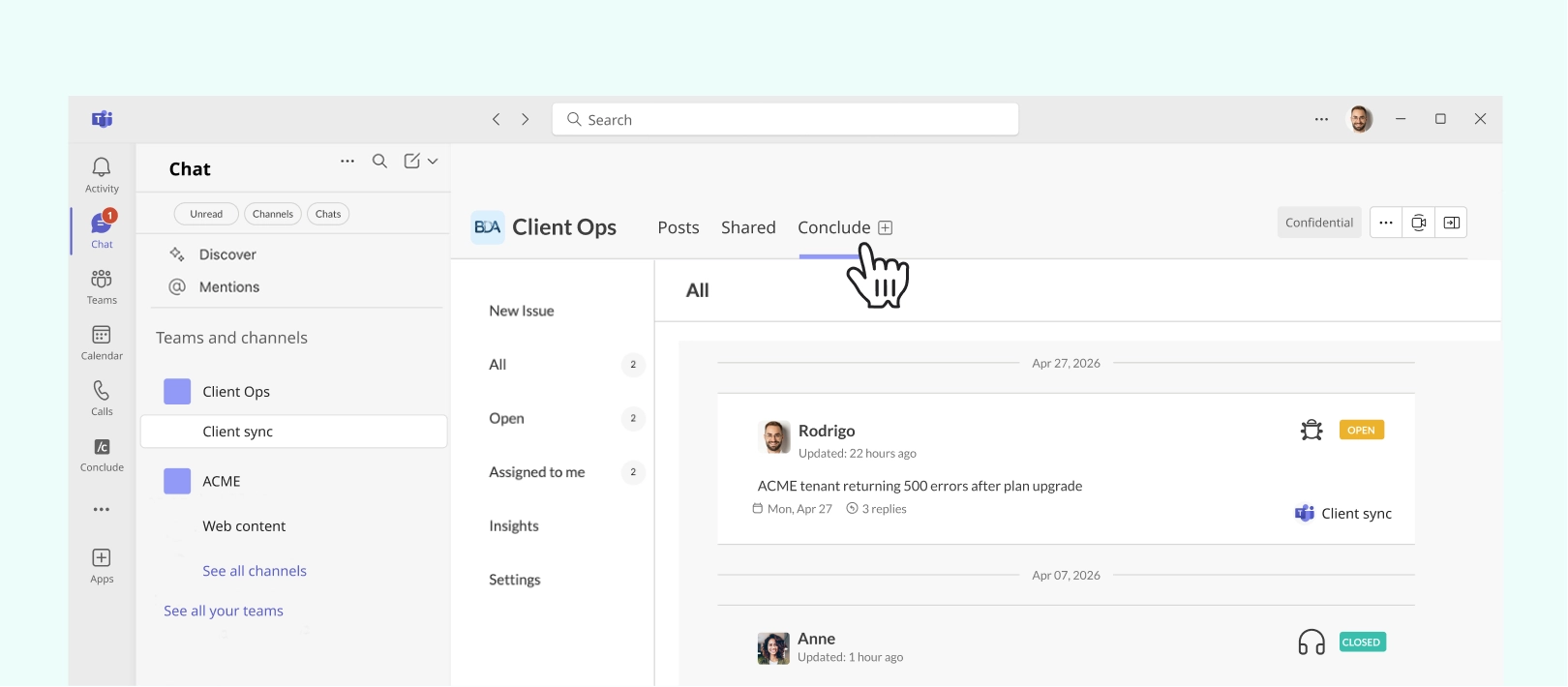
- Ticketing Dashboard Available in Teams: Once Conclude is added to Teams (see Step 3), a tab appears. From there, you can view and manage all your tickets in one place without switching between tools or opening a browser
- Cross-Platform Ticketing on Slack & Teams: Link Slack to Teams and Jira using Connected Apps. Teams can now collaborate on the same Jira tickets from Slack or Teams, with updates synced across all three platforms. Learn more
How to Connect Microsoft Teams and Jira with Conclude
Setting up the Microsoft Teams and Jira integration with Conclude is straightforward. For full details, see our Jira Integration Quickstart guide.
Before You Begin
Before setting up the integration, you’ll need:
- A Conclude account – get started here
- Access to the Admin console (admin permissions)
- A Jira Cloud account with the necessary integration permissions enabled
- A Microsoft Teams tenant account
Step 1: Activate the Jira integration
Start in the Admin console by navigating to the Solutions section.
From there, enable Integrations – Jira and Zendesk. During this step, Conclude Apps will be activated automatically, so you don’t need to configure this separately.

Step 2: Select the Integration
Once the setup wizard opens, select the Jira integration, then click Continue. If you prefer to come back to this later, you can always complete it from the Integrations tab in the Admin console.
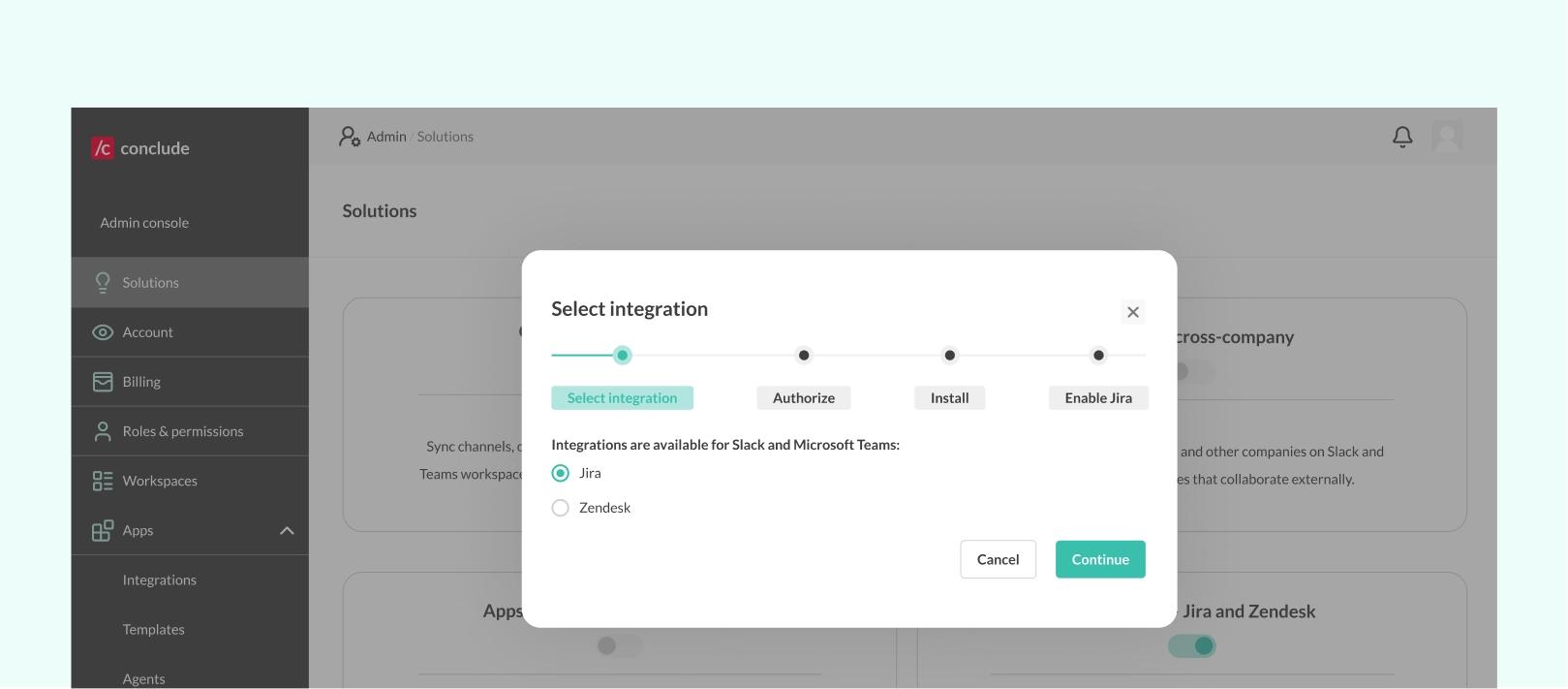
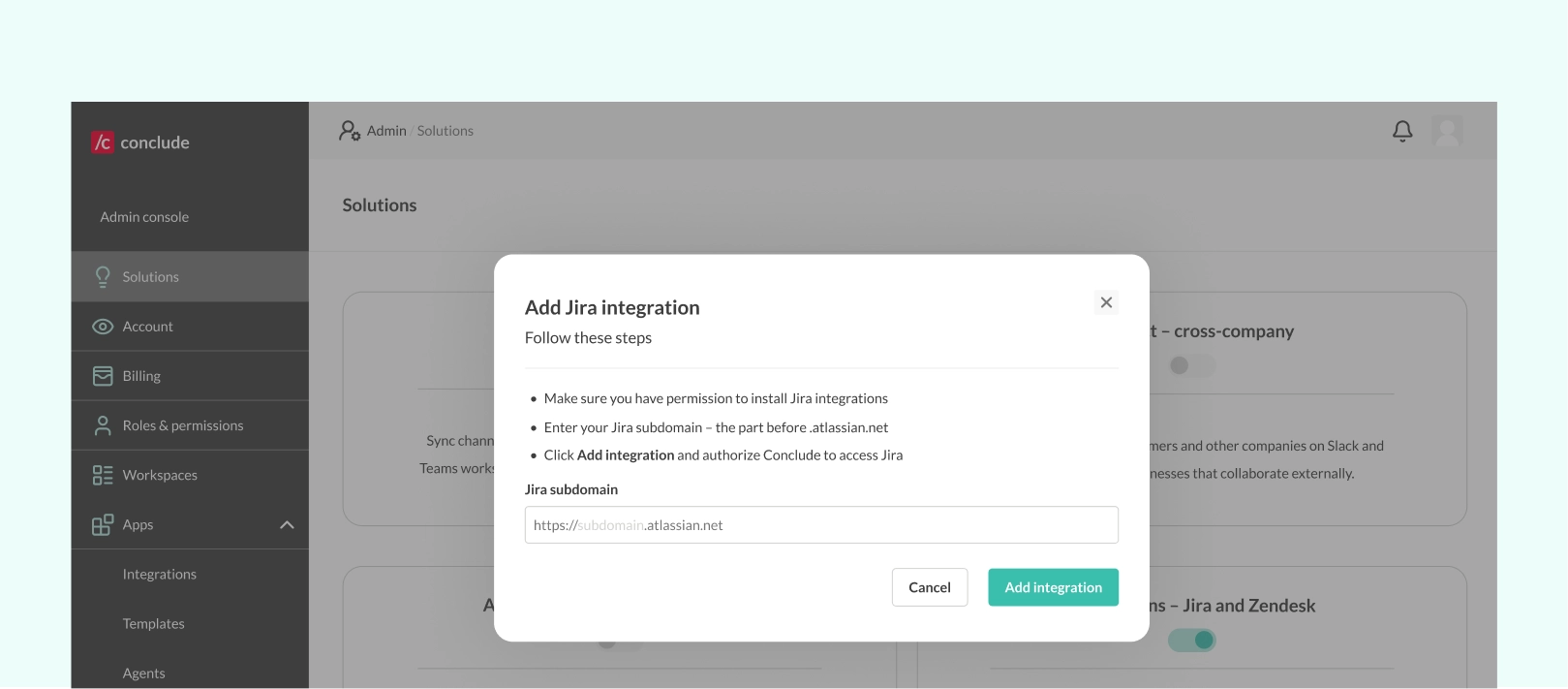
Step 3: Authorize and Add Your Jira Account
Next, you’ll need to connect your Jira account. Enter your Jira subdomain, without https or .atlassian.net, and add the integration. You’ll be redirected to Atlassian to authorize the connection securely.
Step 4: Install a Conclude App
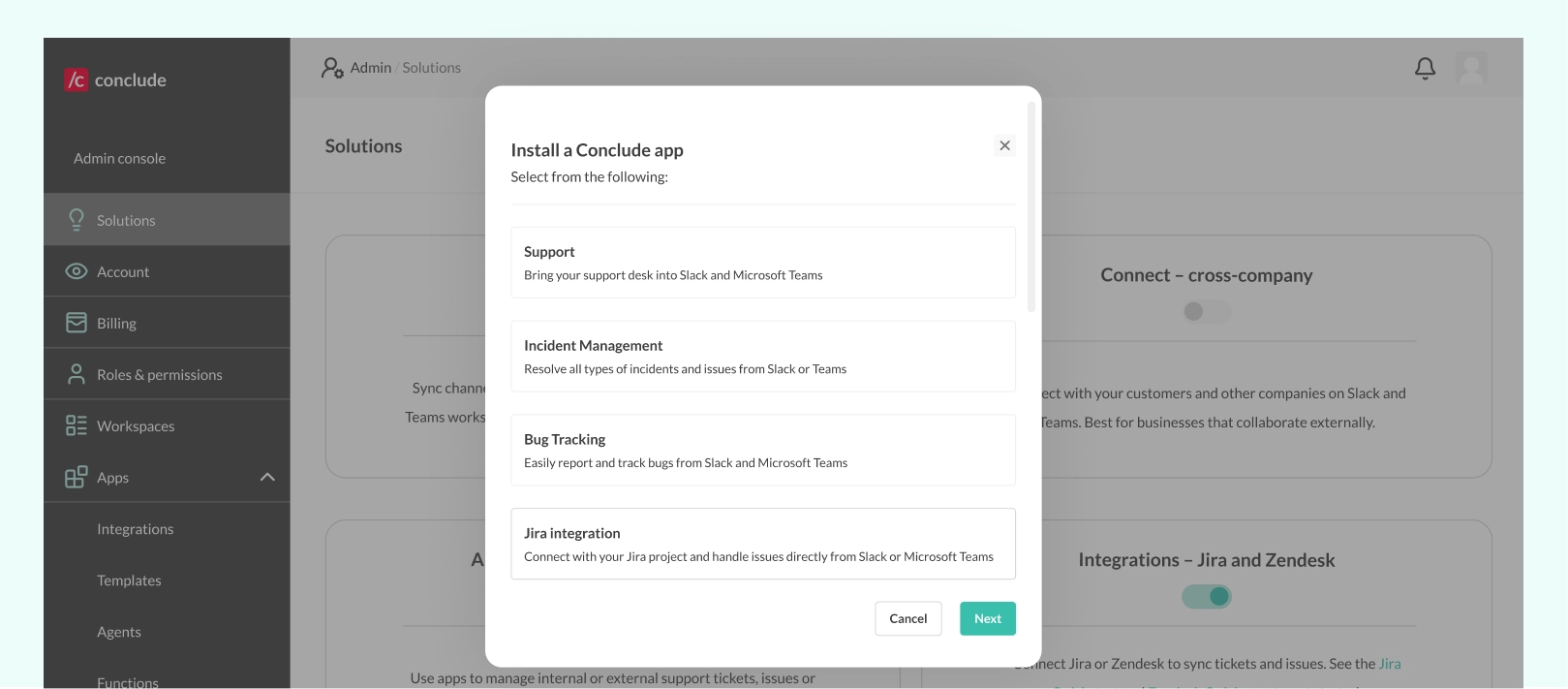
Next, install a Conclude app to bring the integration into Teams.
Select a template that fits your use case, such as bug tracking, incident management, or the Jira Integration template, then choose the Microsoft Teams channel where you want to enable the Jira integration.
Step 5: Configure the App
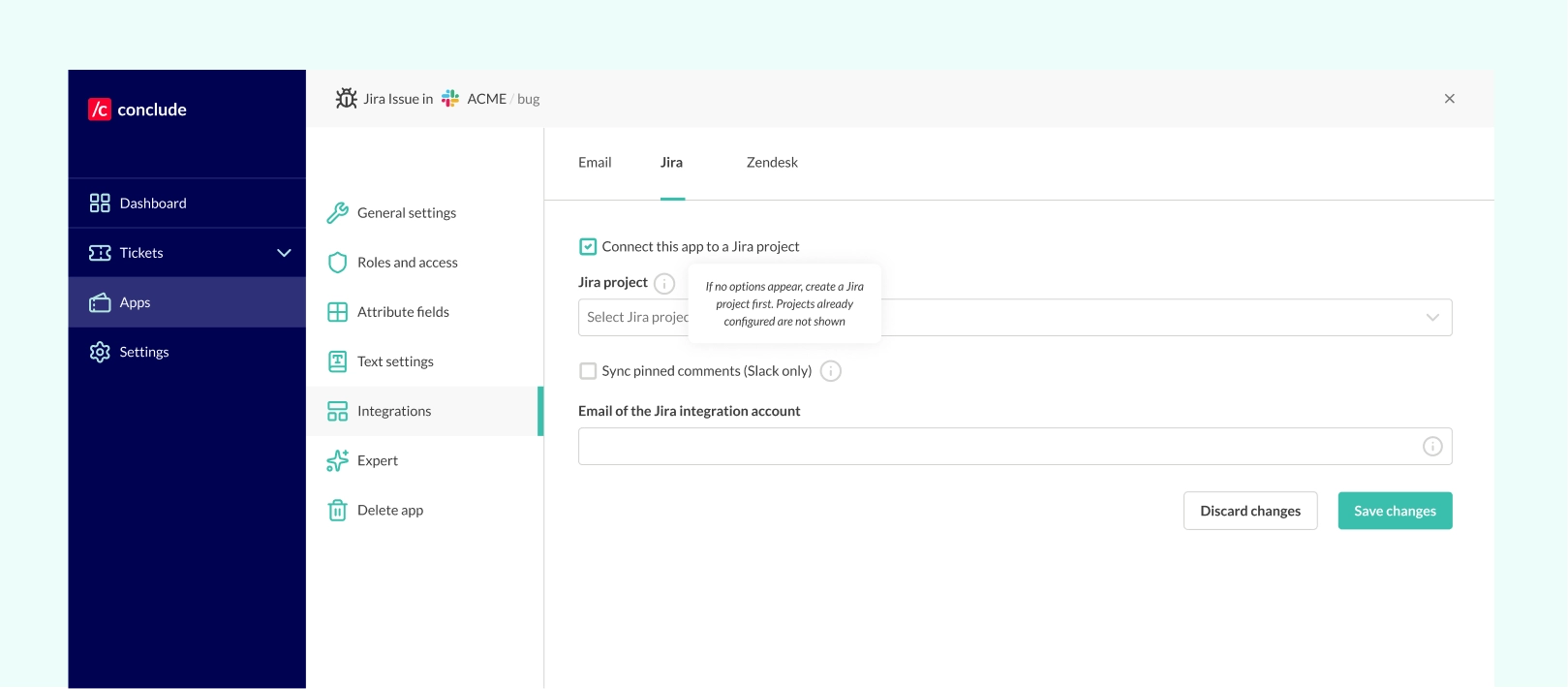
After installation, open the app settings and go to the Integrations tab in the Dashboard.
Here, you can connect the app to a specific Jira project.
Step 6: Create a Jira Ticket from Teams
Once everything is set up, you can start working directly from Teams. Go to the channel where the Conclude app is installed, write a new message or select an existing one, and simply add a ticket emoji. Conclude will automatically create a Jira ticket and sync it to the Teams channel.
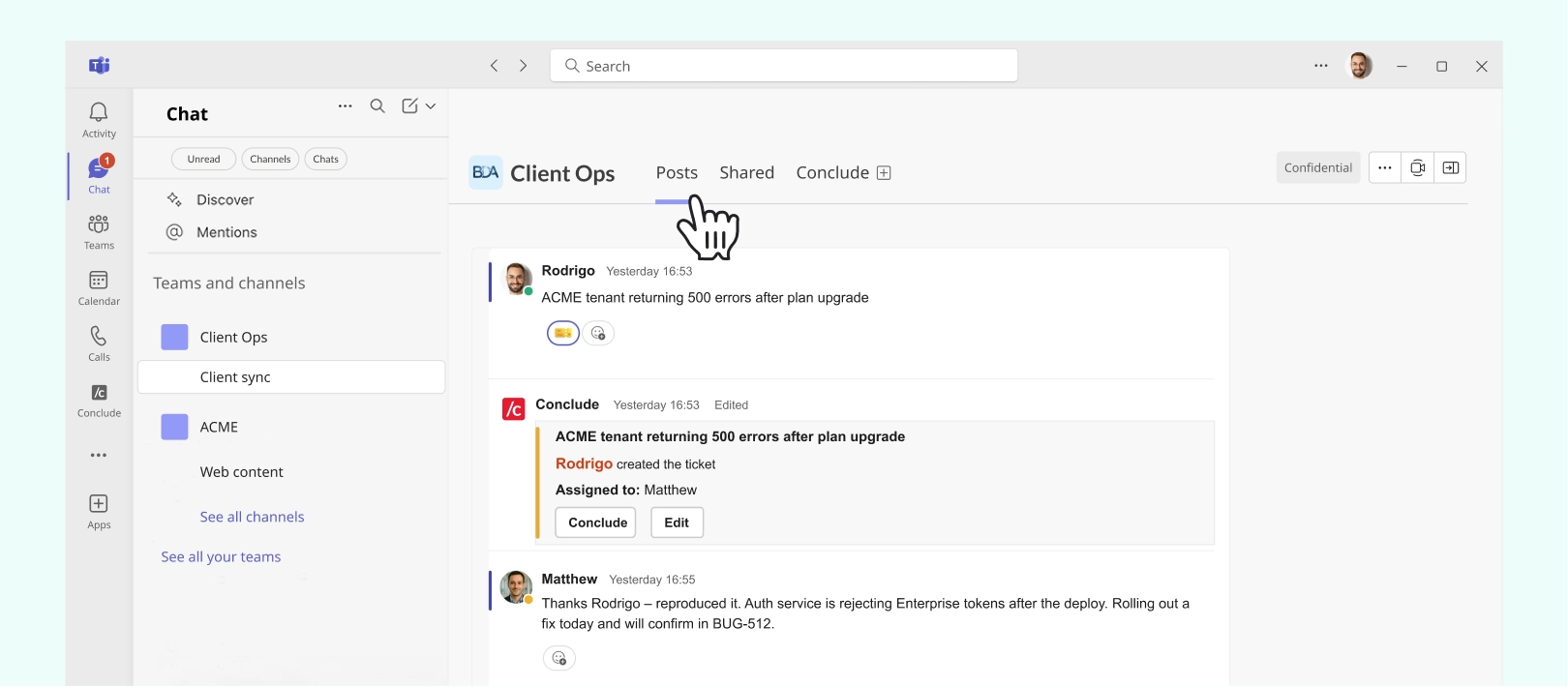
From that point on, all updates, including comments, status changes, and reassignments, stay synced between Teams and Jira in real-time. No commands or extra steps are needed.
For a complete walkthrough and additional setup options, read the Jira Integration Quickstart guide.
Step 7: Add Conclude to the Teams UI
To view your tickets inside Teams, go to the Apps section in the Teams sidebar and search for Conclude (see “Adding Conclude to a team”). Click the app, then click the arrow next to the Open button and select Add to a team. Select the team you want to add Conclude to and press Set up.
When the installation dialog appears, press Save. A tab will be added to your team’s general channel, where you can view and manage all your tickets in one place.
Reduce Tool Switching With a Jira Teams Integration
When conversations and ticketing live in separate tools, teams lose context, duplicate work, and slow down decision-making. Bringing them together helps teams stay aligned, move faster, and keep everything connected from discussion to delivery.
Conclude takes this a step further by enabling true bi-directional sync between Microsoft Teams and Jira. Teams can create, manage, and resolve Jira tickets directly in Teams, while every update stays automatically in sync. Conversations, ticket updates, and ownership remain fully aligned without manual effort or one-off actions.
With Connected Apps, this extends even further. Teams and Slack users can collaborate on the same Jira tickets across platforms, without needing to standardize on a single tool or duplicate work, making it easier to stay aligned in more complex, multi-tool environments.
If your team relies on Microsoft Teams but still depends on Jira to track work, Conclude brings both together in a way that fits how your team already works.
Book a demoto see Conclude in action, or try it free for 14 days.
Frequently Asked Questions
Can Jira integrate with Microsoft Teams?
Yes, Jira can integrate with Microsoft Teams. Atlassian provides a native integration that connects Jira Cloud with Teams, allowing users to receive notifications, view issue details, and take basic actions like commenting or updating ticket status directly from chat.
However, these native integrations are mostly limited to notifications and manual actions. They don’t fully connect conversations with the work itself. For teams that need deeper workflows, solutions like Conclude’s Jira integration provide two-way syncing between Teams and Jira, keeping tickets and conversations aligned in real-time, without manual updates.
How do I integrate Jira and Teams?
There are a few ways to integrate Jira with Microsoft Teams, depending on how your team works. The most common approach is using Atlassian’s native Jira Cloud app in Teams. It connects to your Atlassian account and configures notifications for specific projects or channels.
Conclude offers a more integrated setup. Through the web app, you can connect your Jira account, install an app in Teams, and start creating and managing tickets directly from chat, with updates syncing automatically in both directions. For a full step-by-step setup, follow the Jira Integration Quickstart guide.
What are the benefits of a Teams Jira integration?
A Jira Teams integration helps bring communication and execution to the same workflow. Instead of switching between tools or duplicating updates, teams keep Jira activity visible directly in Teams.
This improves alignment across Engineering, Product, and IT Operations by keeping conversations connected to the relevant tickets. It also reduces manual work, since updates don’t need to be copied between platforms, and helps teams stay focused by minimizing context switching.
Can I create or automate Jira tickets from Teams?
Yes, you can create Jira tickets directly from Microsoft Teams. With most integrations, this typically involves using commands, bots, or manual actions to create and update tickets, which can interrupt the flow of conversation.
With Conclude, tickets can be created directly from a Teams message using a ticket emoji. Once the emoji is added, Conclude creates the Jira ticket and links it to the conversation, while Jira stays updated in the background. Comments, status changes, assignments, and updates flow seamlessly between Teams and Jira, without any additional commands or manual steps.
Does Jira Cloud work with Teams?
Yes, Jira Cloud works with Microsoft Teams and is the primary version supported by most integration solutions. Once connected, teams can receive notifications, view issues, and interact with Jira tickets from within Teams.