# Apps Microsoft Teams Quickstart
How to get started with Conclude Apps from Microsoft Teams
> Get started with Conclude Apps from Microsoft Teams. Open and manage tickets for issues, incidents, support, bug tracking and more. Free for 14 days.
Canonical HTML page: https://conclude.io/quickstart/microsoft-teams/
Last updated: 2026-07-08
---
## Start here
In this guide we will cover:
* How to sign up for an account
* Navigating the admin settings
* Getting started from Microsoft Teams
* Installing and configuring an app
* Creating and concluding a ticket
## Step 1: Sign up for an account
* Click the **Get started** or **Sign up** button on our website and follow the prompts
* During this process you will be directed to a page where you can select your primary messaging platform (Slack or Microsoft Teams)
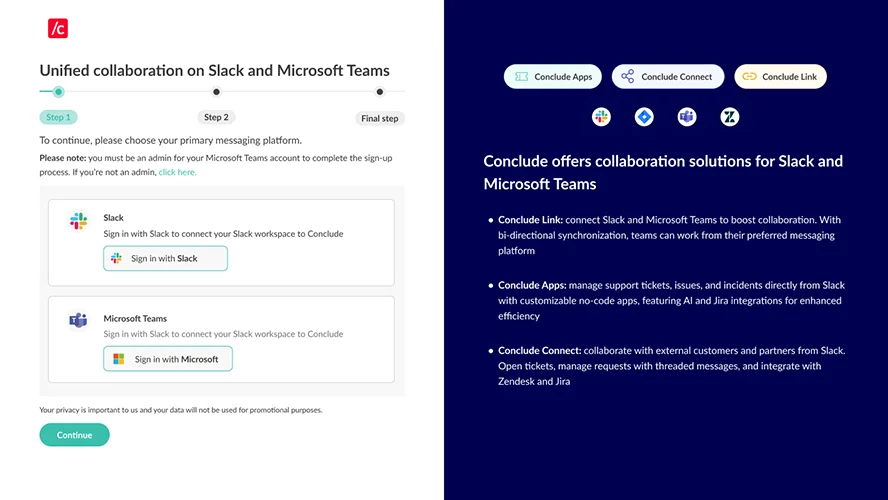
**Important:** To add Conclude to your Microsoft Teams account (or Slack workspace), you must have admin privileges. If you don’t have admin permissions, contact your admin.
* Next, select **Sign in with Microsoft** to start the authentication process
* Once you’ve successfully completed the process, you should see the following:

Next, click on **Go to Dashboard** where you can enable **Apps (internal issue management)** from the **Get started** tab [(see Step 2: Getting started from the Dashboard for more)](https://conclude.io/quickstart/dashboard/#:~:text=web%20based%20UI).-,Step%202%3A%20Getting%20started%20from%20the%20Dashboard,-The%20Dashboard%20is) **OR** **skip to the next step** **below** to install Conclude and get started from Teams
## Step 2: Getting started from Microsoft Teams
* **To install Conclude**, go to the **Apps** section on your Teams sidebar and search “Conclude”
* Click **Add** to install it into your Teams environment. You may be prompted to grant Conclude access. Click OK to enable single-sign-on (SSO) functionality with Microsoft Teams
* If prompted, approve Conclude’s requested permissions in Microsoft Graph
Note: if you have the privileges, it is recommended to approve Microsoft Graph on behalf of your organization so others do not need to handle approval requests.
* Once installed, you’ll see Conclude has been added to your Teams sidebar
* Navigate to Conclude on the sidebar to explore sections like **Get started** and **Settings**
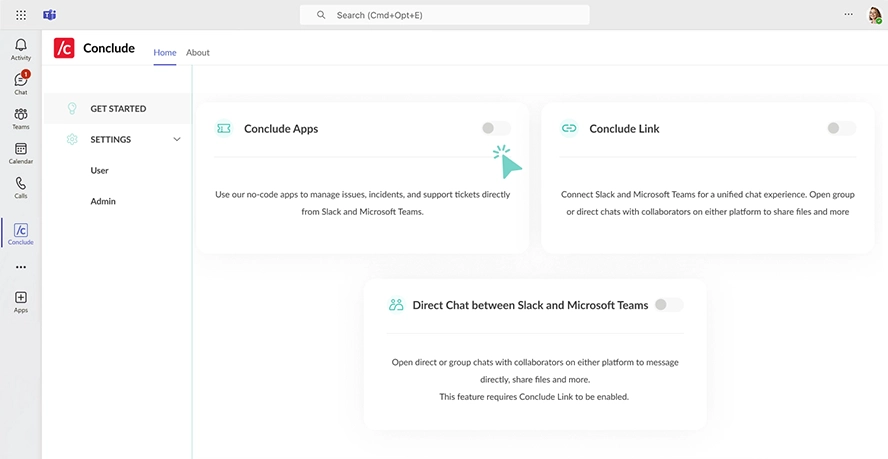
* Toggle the switch to activate Conclude Apps (internal issue management)
💡 Tip: try pinning Conclude to the sidebar to keep it accessible when switching tabs by right-clicking on the Conclude icon and selecting **Pin** .
## Step 3: Adding Conclude to a team
You are now ready to add Conclude to a team and install apps in selected channels:
* Go to the **Apps** section on the Microsoft Teams sidebar
* Click on the Conclude app and a dialog will appear
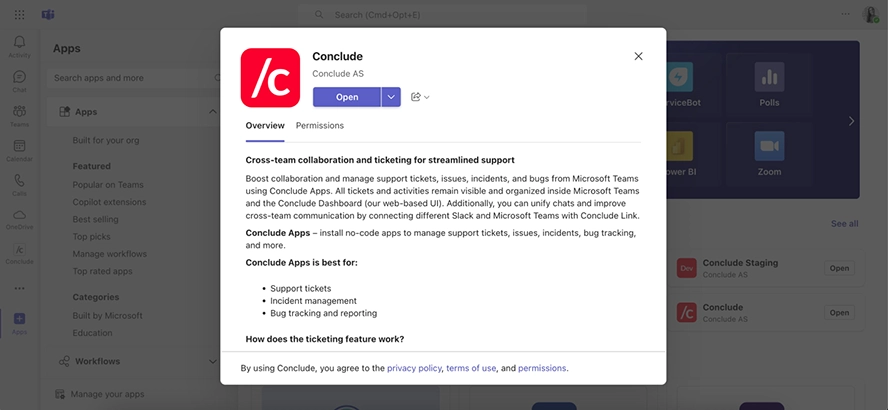
* Next, click the arrow next to the **Open/Add** button and select **Add to a team**
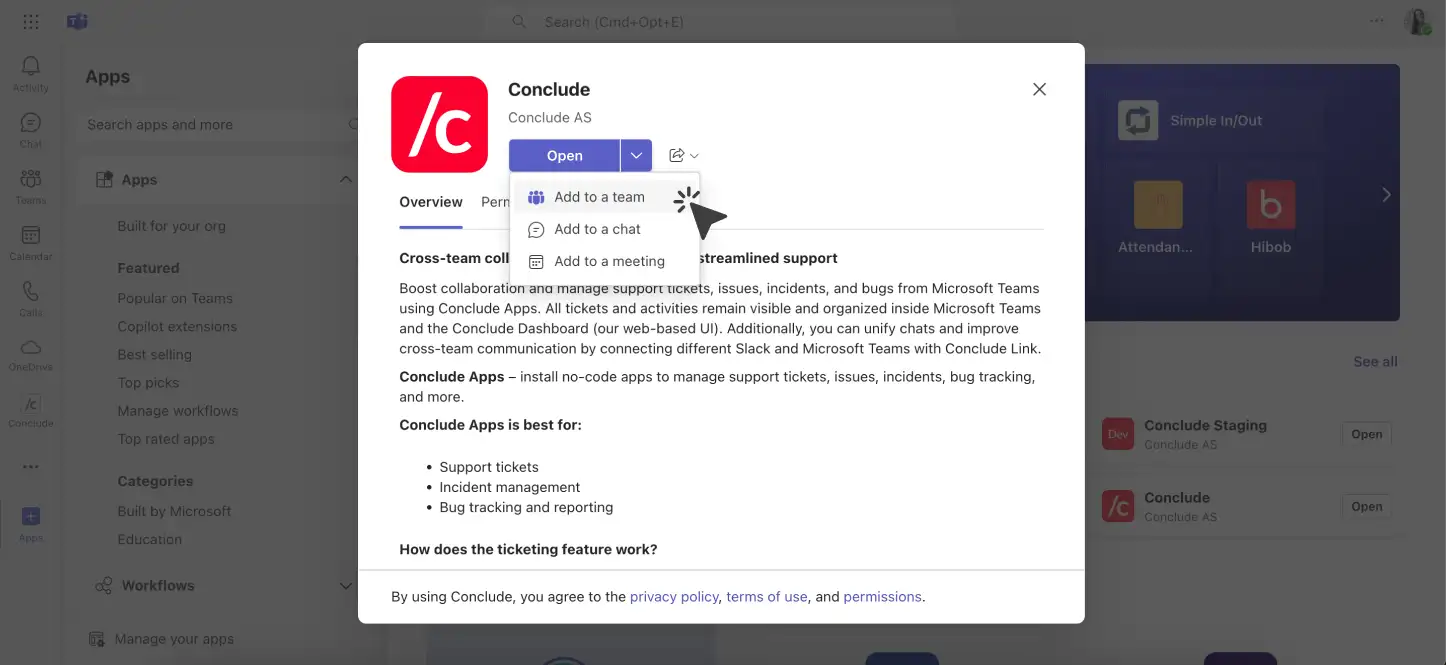 * Select the team you want to add Conclude to, and press **Set up**
* A Conclude installation dialog will appear; press **Save**
* This will **add a tab to the general channel** of your team containing a (currently empty) Dashboard
* You can now add a Conclude app to any standard channel in this team
## Step 4: Installing a Conclude app
* Navigate to the channel where you want to install the app
* Click the “+” button to add a new tab and select the Conclude app
* Select the team you want to add Conclude to, and press **Set up**
* A Conclude installation dialog will appear; press **Save**
* This will **add a tab to the general channel** of your team containing a (currently empty) Dashboard
* You can now add a Conclude app to any standard channel in this team
## Step 4: Installing a Conclude app
* Navigate to the channel where you want to install the app
* Click the “+” button to add a new tab and select the Conclude app
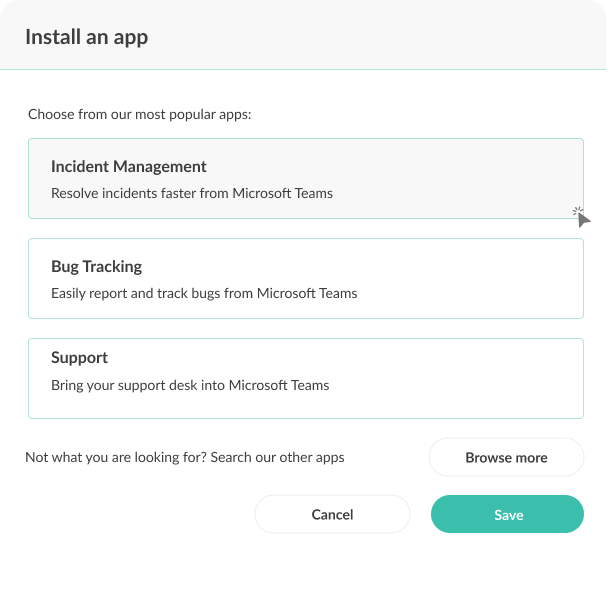
 * Choose from available app templates, such as **Incident Management**, and click **Save** to install it
* If you have Conclude pinned to the Microsoft Teams sidebar, click on it
* To see the **Apps** section in the Conclude sidebar, ensure **Conclude Apps** is enabled on the **Get started** page
* Navigate to the Apps section
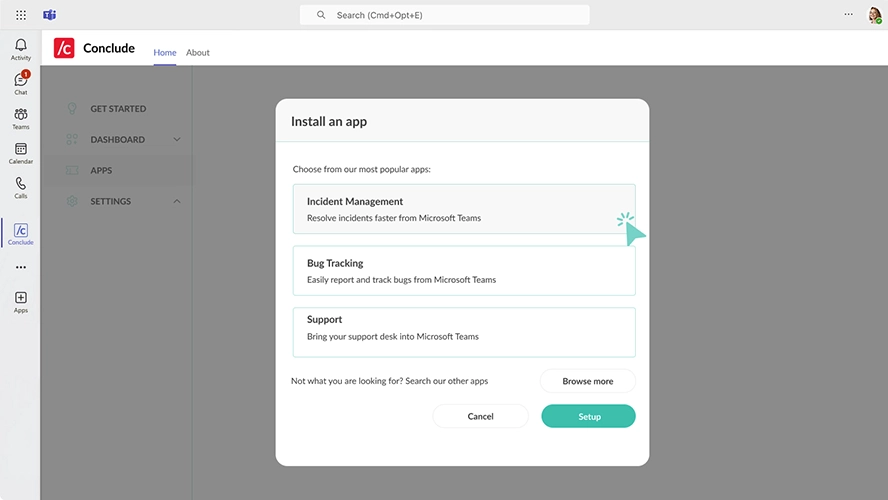
* Click the **Install app** button in the upper right corner to start the installation process.
* Follow the prompts to install a new app (for this example, select the Incident Management template and click **Setup**)
* Choose the channel in the team where you want to install the app. (If necessary, create a new channel by clicking **Create channel**)
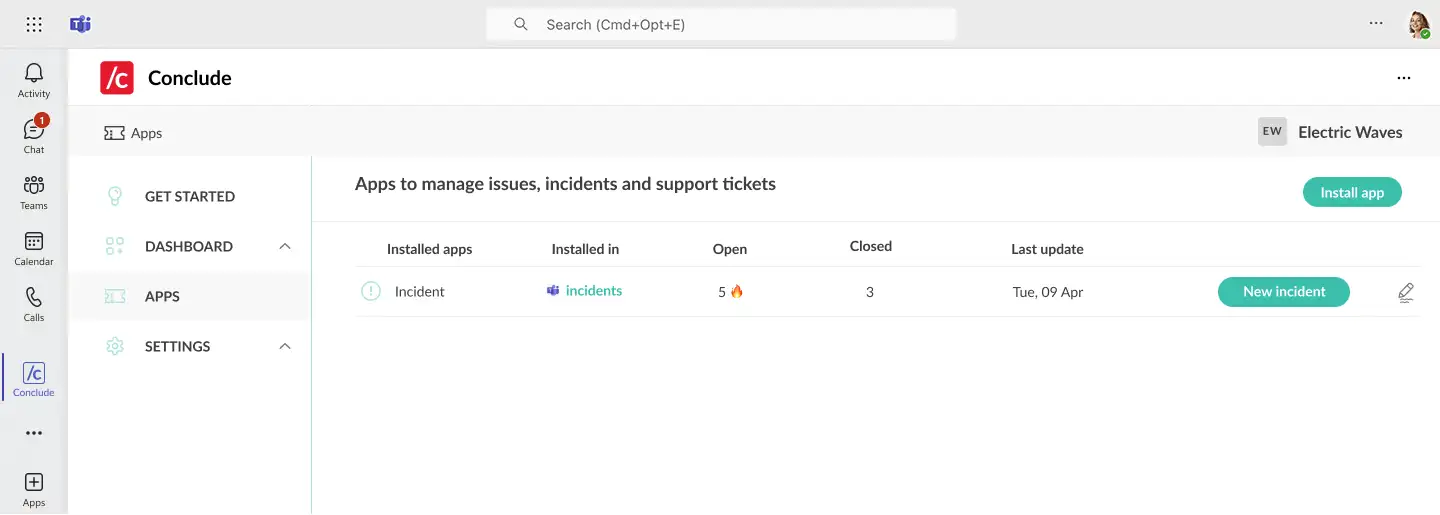
* Once installed, the app will be listed in the **Apps** section
* Choose from available app templates, such as **Incident Management**, and click **Save** to install it

* If you have Conclude pinned to the Microsoft Teams sidebar, click on it
* To see the **Apps** section in the Conclude sidebar, ensure **Conclude Apps** is enabled on the **Get started** page
* Navigate to the Apps section
* Click the **Install app** button in the upper right corner to start the installation process.
* Follow the prompts to install a new app (for this example, select the Incident Management template and click **Setup**)

* Choose the channel in the team where you want to install the app. (If necessary, create a new channel by clicking **Create channel**)
* Once installed, the app will be listed in the **Apps** section
 ## Step 5: Configuring a Conclude app
To configure an app, you can access the settings from the Conclude app or the General channel of the team where Conclude has been added.
**Access settings from the Conclude app:**
* Go to the Conclude app pinned on the Microsoft Teams sidebar
* Navigate to the Apps section
* Click on the pencil (Edit) icon next to the app you want to customize
**Access settings from the General channel:**
* Go to the General channel of the team where Conclude has been added
* Navigate to the Conclude tab of that team
* Click on the pencil (Edit) icon next to the app you want to edit to open the settings
**Customize your settings**
* **General settings:** Configure the app’s name, enter a short description, determine who has access and more
* **Roles and responsibilities:** Assign an owner, specify which people and channels will be invited, and determine which channels will receive notifications
* **Review settings:** Decide who should review incoming issues, incidents, or bugs, and set up any exclusion criteria
* **Attribute fields:** Configure existing attributes or add new ones
* **Severity settings:** Enable and configure severity levels (especially useful for tracking incident metrics)
* **Text settings:** Customize different text fields, including the **Launch** button and **Owner** label
* **Expert:** View or edit the YAML source code of the app
## Step 6: Creating Your First Ticket
You can either create a ticket from a channel, or from the Apps section.
**Create a ticket from a channel**
* Navigate to the Conclude tab of the channel where the app is installed, click **New** (e.g., New incident) in the sidebar
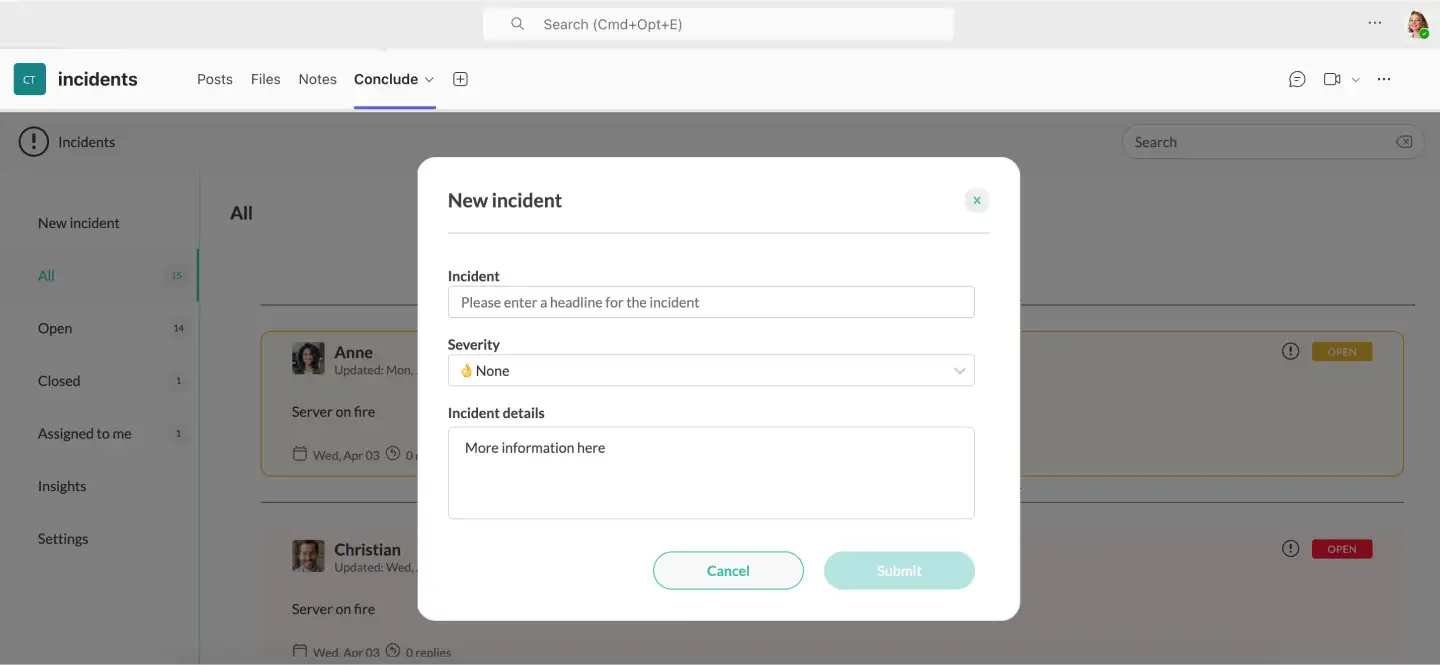
* A dialog will open where you can enter a headline, severity level, and details for the incident, then click **Submit**
## Step 5: Configuring a Conclude app
To configure an app, you can access the settings from the Conclude app or the General channel of the team where Conclude has been added.
**Access settings from the Conclude app:**
* Go to the Conclude app pinned on the Microsoft Teams sidebar
* Navigate to the Apps section
* Click on the pencil (Edit) icon next to the app you want to customize
**Access settings from the General channel:**
* Go to the General channel of the team where Conclude has been added
* Navigate to the Conclude tab of that team
* Click on the pencil (Edit) icon next to the app you want to edit to open the settings
**Customize your settings**
* **General settings:** Configure the app’s name, enter a short description, determine who has access and more
* **Roles and responsibilities:** Assign an owner, specify which people and channels will be invited, and determine which channels will receive notifications
* **Review settings:** Decide who should review incoming issues, incidents, or bugs, and set up any exclusion criteria
* **Attribute fields:** Configure existing attributes or add new ones
* **Severity settings:** Enable and configure severity levels (especially useful for tracking incident metrics)
* **Text settings:** Customize different text fields, including the **Launch** button and **Owner** label
* **Expert:** View or edit the YAML source code of the app
## Step 6: Creating Your First Ticket
You can either create a ticket from a channel, or from the Apps section.
**Create a ticket from a channel**
* Navigate to the Conclude tab of the channel where the app is installed, click **New** (e.g., New incident) in the sidebar
* A dialog will open where you can enter a headline, severity level, and details for the incident, then click **Submit**
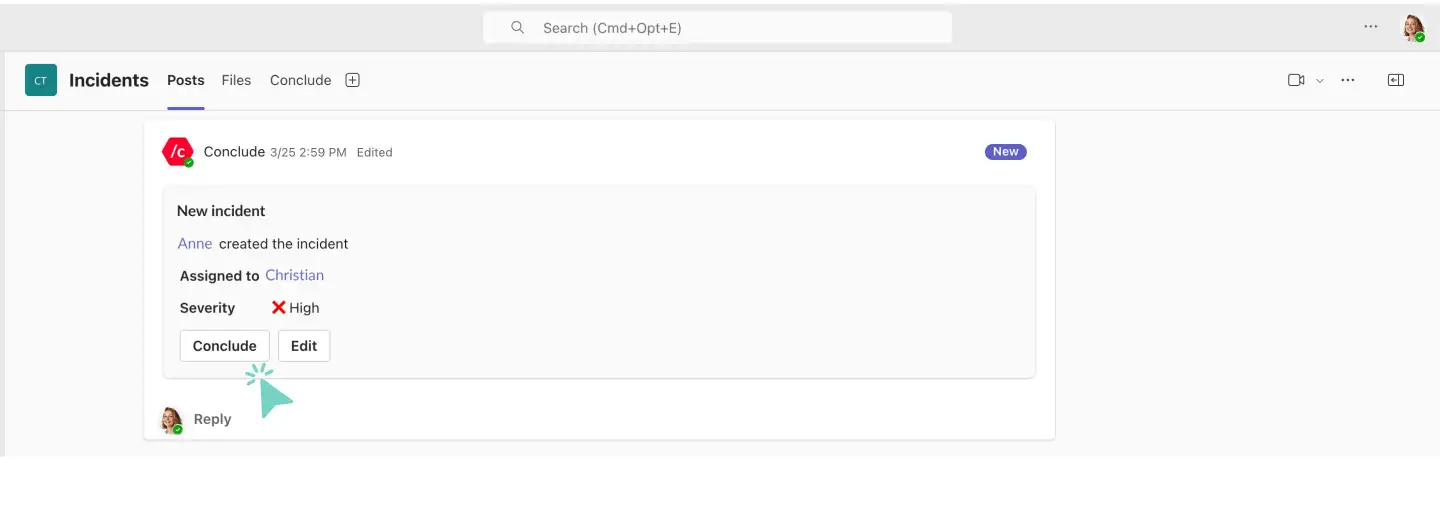
 * After submitting a new ticket, a notice will be sent to the channel
Note: Everyone in the channel can see and reply to the new ticket. To edit a ticket, click the **Edit** button. This allows you to change details such as the assignee, status, details, and add notes.
* After submitting a new ticket, a notice will be sent to the channel
Note: Everyone in the channel can see and reply to the new ticket. To edit a ticket, click the **Edit** button. This allows you to change details such as the assignee, status, details, and add notes.
 **Create a ticket from the Apps section**
* Access the **Apps** section either in the Conclude tab in the General channel where Conclude has been installed or from the Conclude app on the Microsoft Teams sidebar
* You will see a list of currently installed apps. Click the **‘New…’** button next to the app you want to create a ticket for and follow the prompts
## Step 7: Concluding a ticket
**Conclude your ticket from the channel**
* In the channel where the ticket is being managed, click the **Conclude** button
* Enter any resolution notes and click **Done**
**Create a ticket from the Apps section**
* Access the **Apps** section either in the Conclude tab in the General channel where Conclude has been installed or from the Conclude app on the Microsoft Teams sidebar
* You will see a list of currently installed apps. Click the **‘New…’** button next to the app you want to create a ticket for and follow the prompts
## Step 7: Concluding a ticket
**Conclude your ticket from the channel**
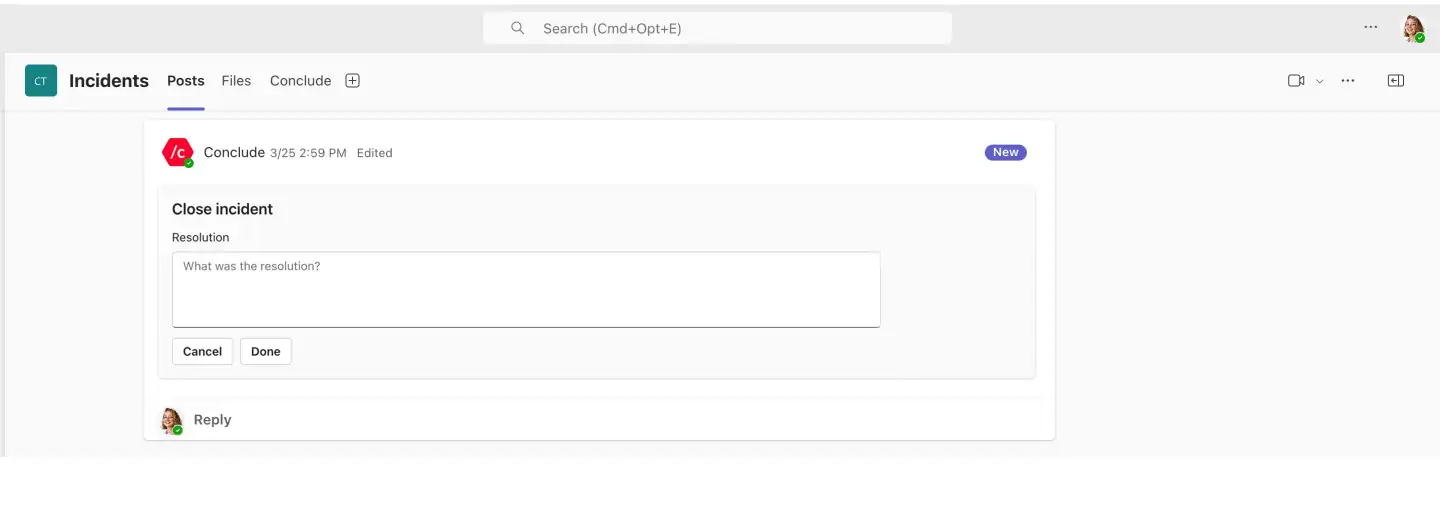
* In the channel where the ticket is being managed, click the **Conclude** button
* Enter any resolution notes and click **Done**
 The ticket label will change to indicate that it’s closed, and notifications will be sent to the relevant channel
## Step 8: Using the Conclude Dashboard in Microsoft Teams
**Access the Dashboard**
* Open the Conclude app from the sidebar and navigate to the **Dashboard** section
**Overview and Insights**
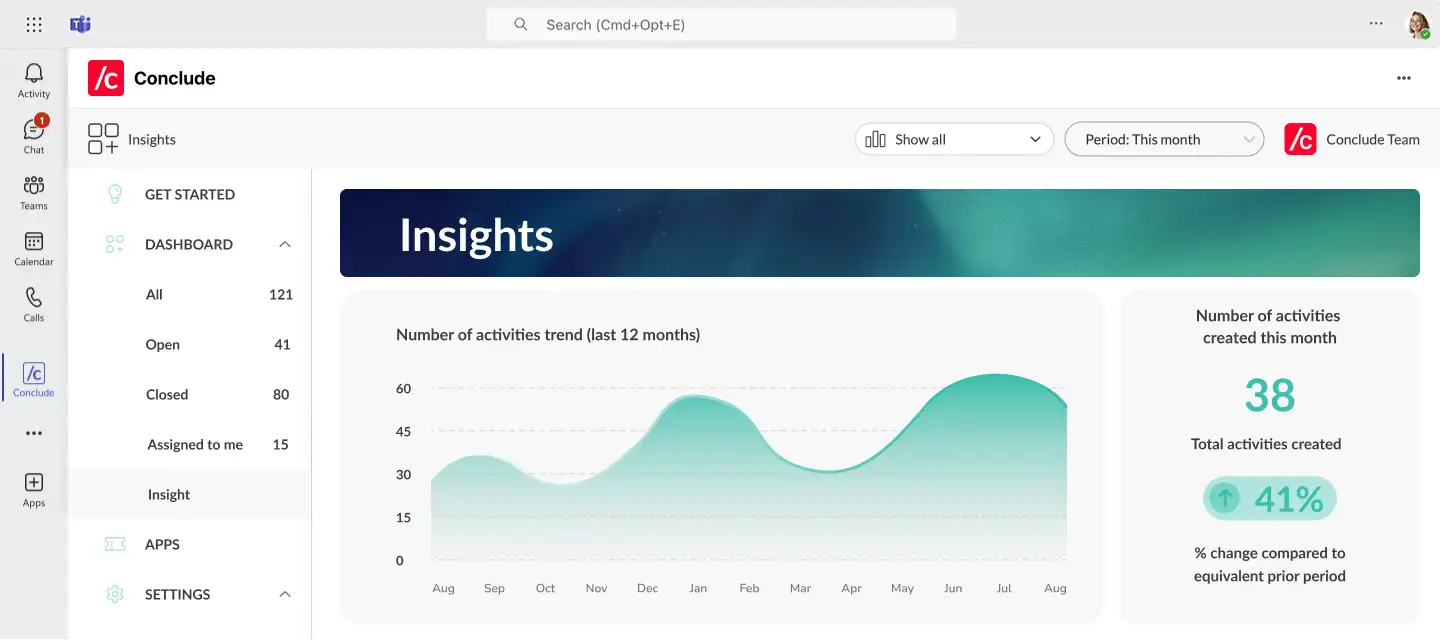
* View summaries of all tickets, including open, closed, and assigned items
* Access the **Insights** section for detailed metrics and trends
The ticket label will change to indicate that it’s closed, and notifications will be sent to the relevant channel
## Step 8: Using the Conclude Dashboard in Microsoft Teams
**Access the Dashboard**
* Open the Conclude app from the sidebar and navigate to the **Dashboard** section
**Overview and Insights**
* View summaries of all tickets, including open, closed, and assigned items
* Access the **Insights** section for detailed metrics and trends