# Microsoft Teams Quickstart – Connect
Get started with Conclude Connect from Microsoft Teams
> Set up Conclude Connect from Microsoft Teams: connect Teams and Slack channels and chats, invite external companies and set up an intercompany bridge.
Canonical HTML page: https://conclude.io/quickstart/microsoft-teams-connect/
Last updated: 2026-10-28
---
Conclude Connect links Microsoft Teams with Slack, so you can work with colleagues, external companies, and partners on their preferred platform. This guide takes you from signing up to connecting your first channels and chats, inviting an external company and setting up an intercompany bridge. To create and manage tickets in Teams, see the [Conclude Apps Microsoft Teams Quickstart](https://conclude.io/quickstart/microsoft-teams-apps/).
Conclude also works through commands in Teams, such as **@Conclude connect** or **/conclude connect** to link channels. See Step 5 and the [Teams Command Reference guide](https://conclude.io/doc/commands/general/teams/) for the full list.
In this guide, we will cover:
* How to sign up for an account and enable your solutions
* Getting started from Microsoft Teams
* Using commands in Microsoft Teams
* Connecting Teams and Slack channels and chats
* Inviting external companies and partners
* Setting up an intercompany bridge
* Setting up cross-platform ticketing
* Using the Dashboard in Microsoft Teams
## Step 1: Sign up for an account
* Click the **Get started** or **Sign Up** button on our website and follow the prompts
* During this process, you will be directed to a page where you can select your primary messaging platform (Slack or Microsoft Teams)
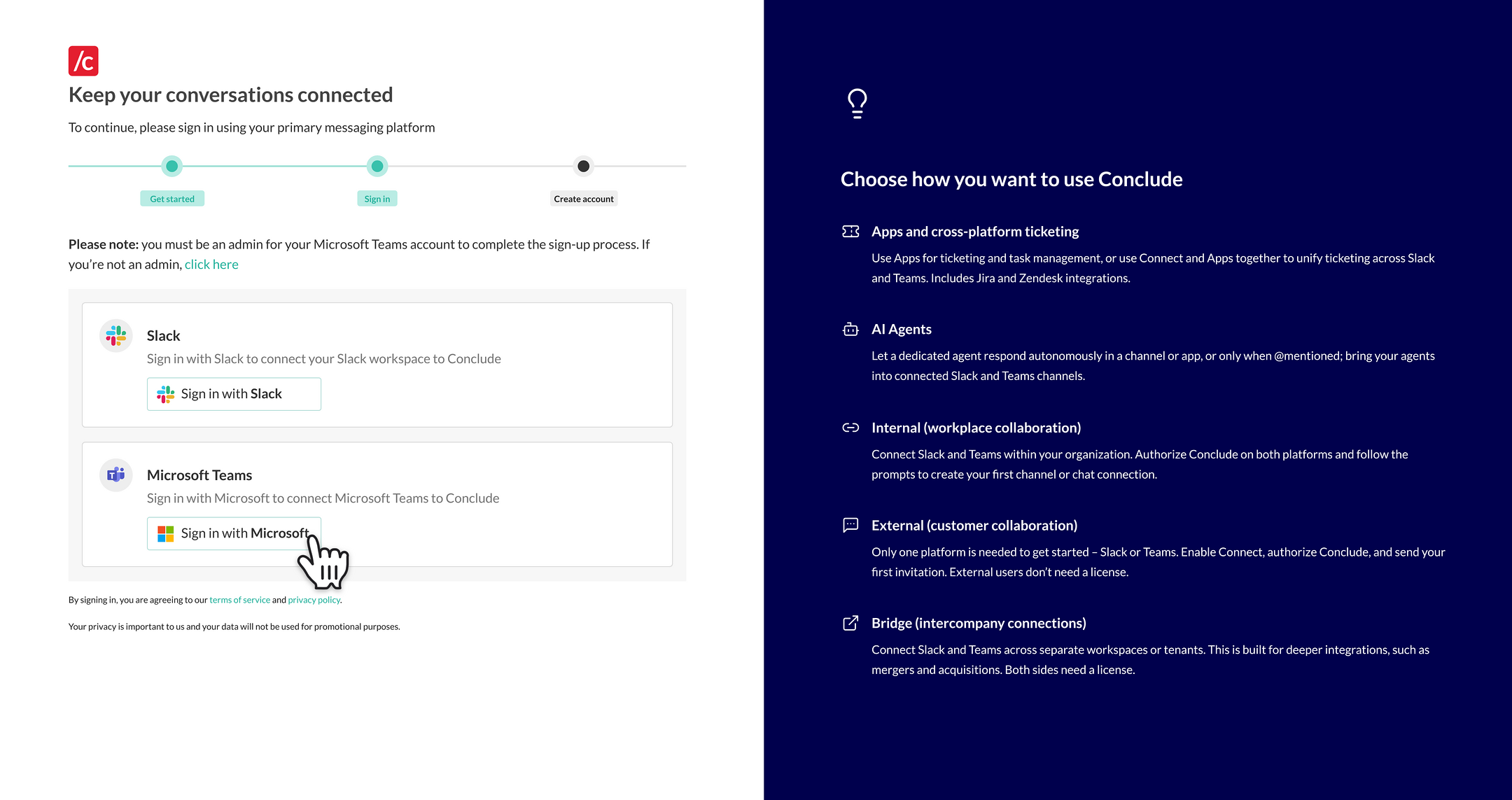 **Important:** To add Conclude to your Microsoft Teams account (or Slack workspace), you must have admin privileges. If you don’t have admin permissions, contact your admin or [click here](https://conclude.io/getstarted/request-demo/) to book a call.
* Next, select **Sign in with Microsoft** to start the authentication process
* Once you’ve completed the process, you should see the following:
**Important:** To add Conclude to your Microsoft Teams account (or Slack workspace), you must have admin privileges. If you don’t have admin permissions, contact your admin or [click here](https://conclude.io/getstarted/request-demo/) to book a call.
* Next, select **Sign in with Microsoft** to start the authentication process
* Once you’ve completed the process, you should see the following:
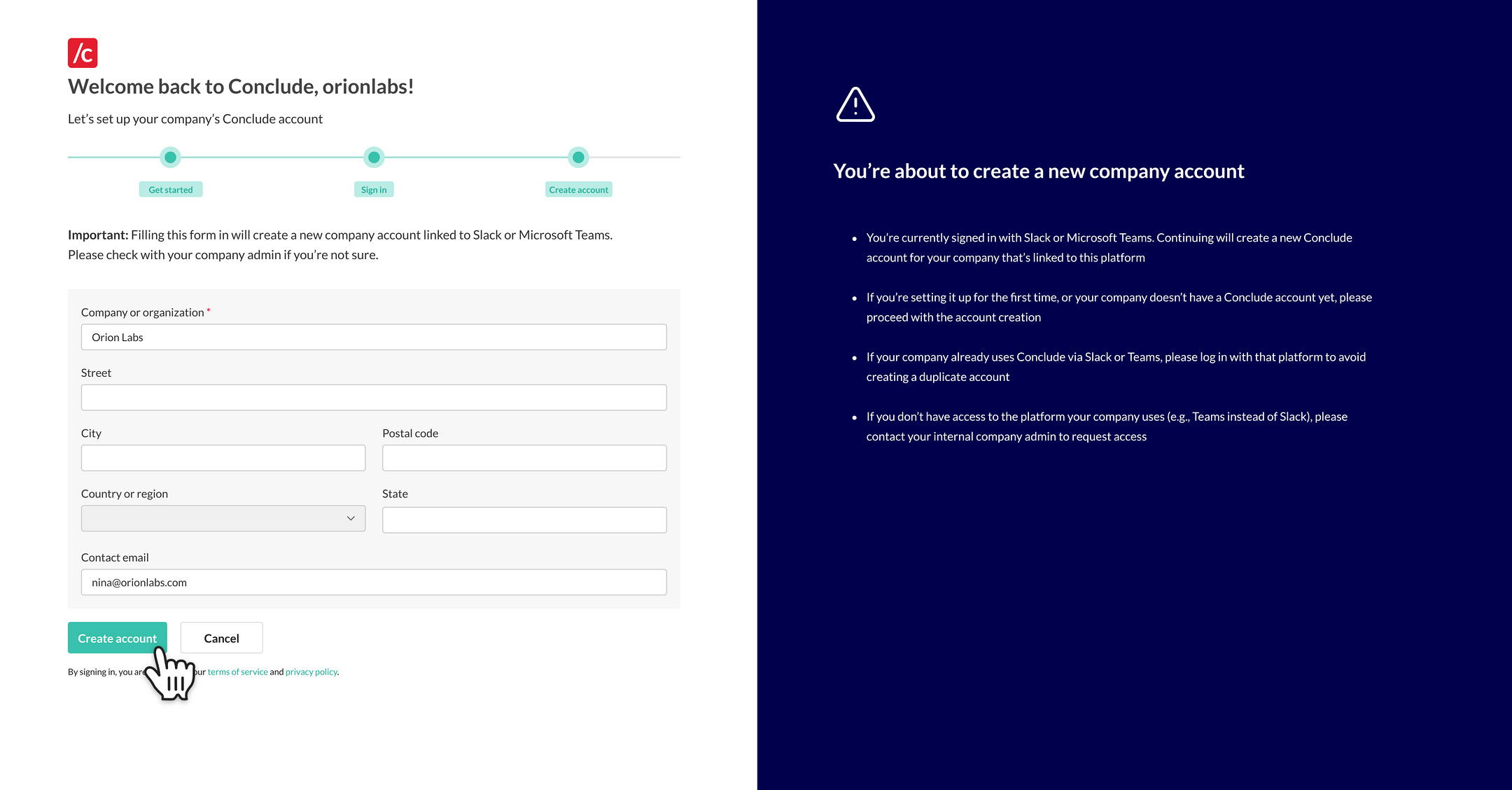 * To set up an account for your organization, provide the necessary information and click on **Create account**. You will then be directed to the Conclude Dashboard
**Note:** If you don’t have permission to do this, you will need to speak to your Microsoft Teams admin.
## Step 2: Enable your solutions
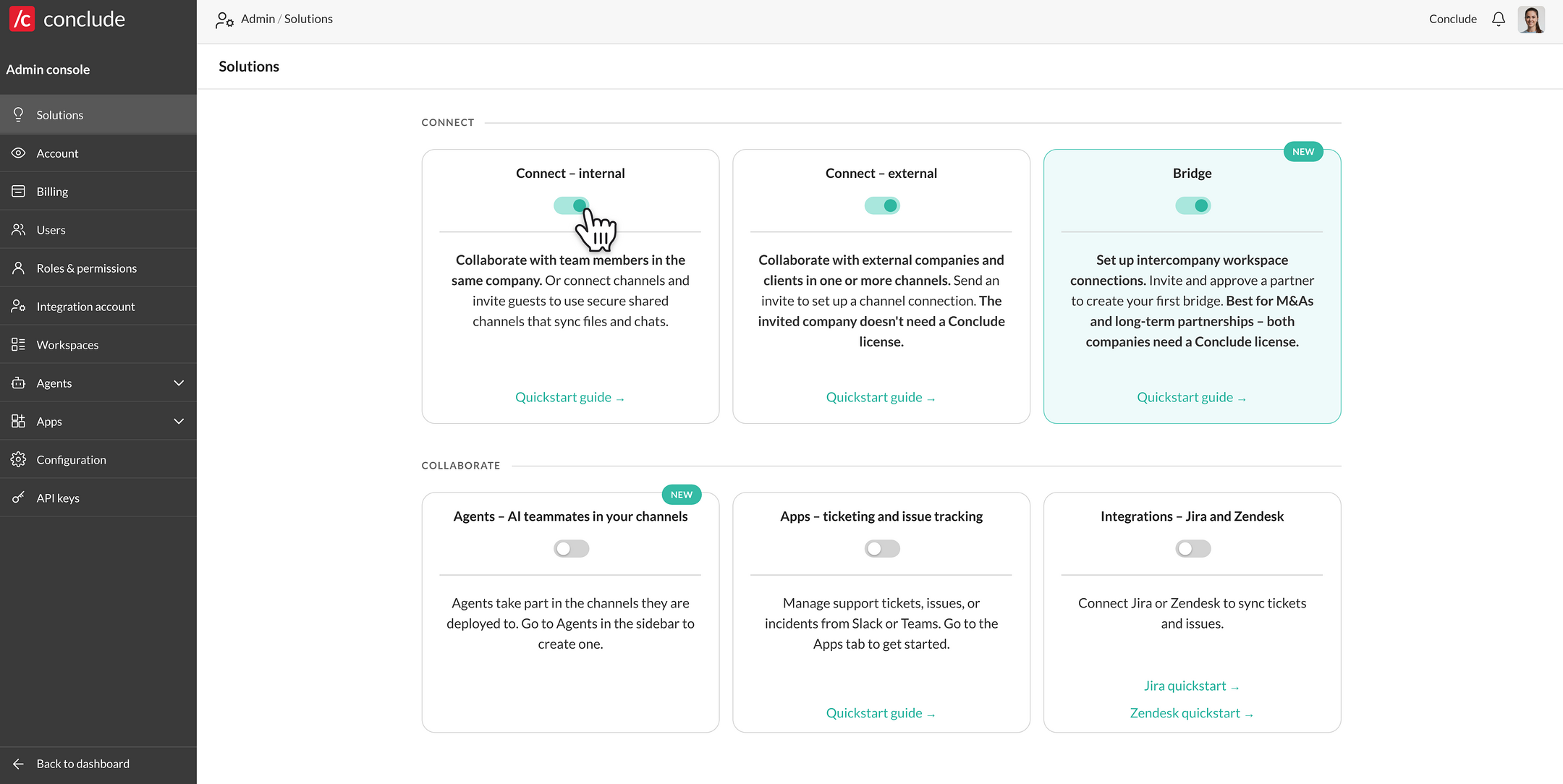
Solutions are enabled from the Conclude web UI, not inside Microsoft Teams:
* From the Dashboard, go to **Admin console → Solutions**
* Toggle on the Connect solutions you want to use (select from **Connect – internal**, **Connect – external,** and **Bridge**)
* To set up an account for your organization, provide the necessary information and click on **Create account**. You will then be directed to the Conclude Dashboard
**Note:** If you don’t have permission to do this, you will need to speak to your Microsoft Teams admin.
## Step 2: Enable your solutions
Solutions are enabled from the Conclude web UI, not inside Microsoft Teams:
* From the Dashboard, go to **Admin console → Solutions**
* Toggle on the Connect solutions you want to use (select from **Connect – internal**, **Connect – external,** and **Bridge**)
 ## Step 3: Getting started from Microsoft Teams
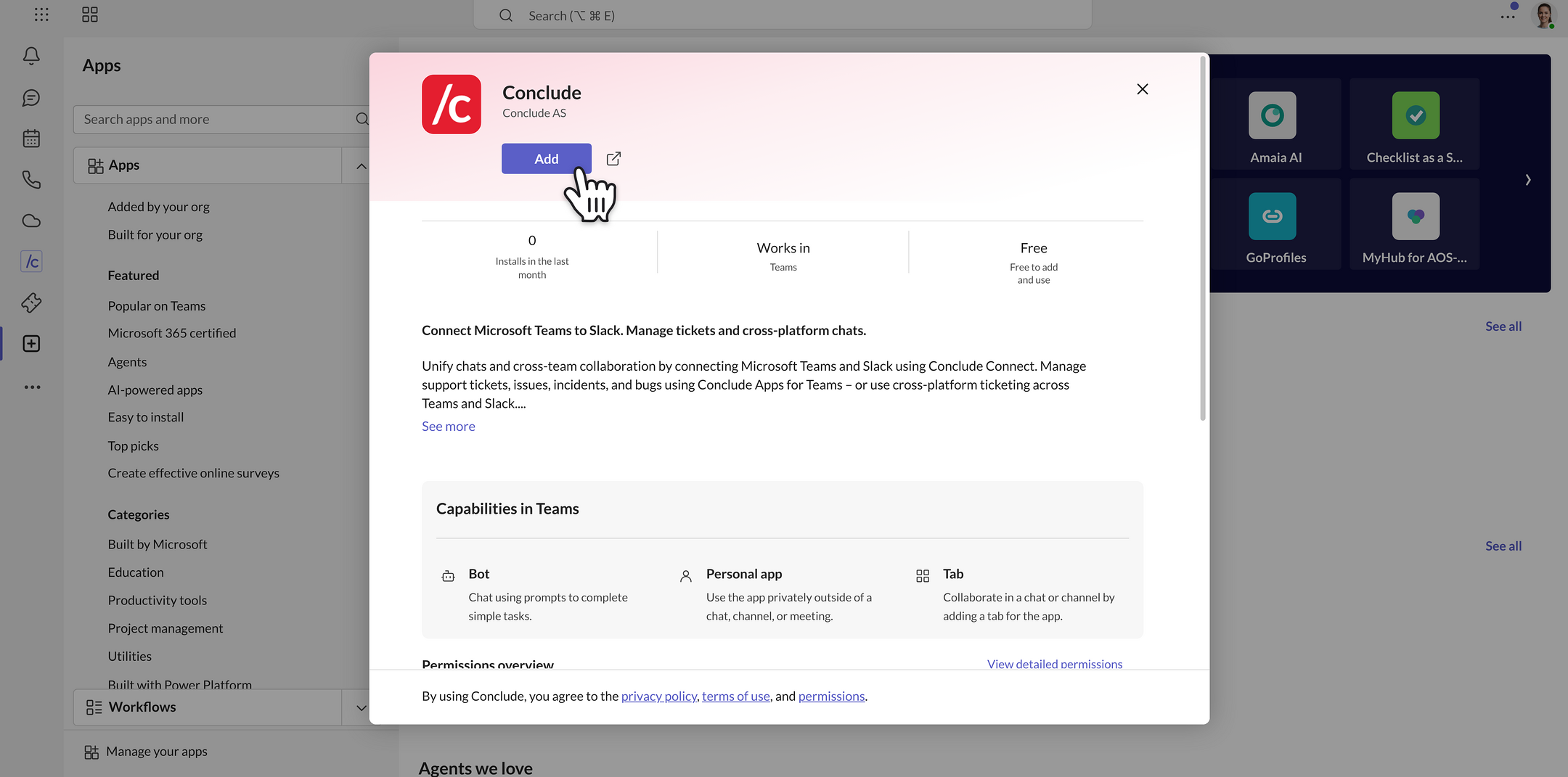
* To install Conclude in Teams, go to the Apps section on your Teams sidebar and search for “Conclude”
* Click **Add** to install it into your Teams environment. You may be prompted to grant Conclude access. Click OK to enable single-sign-on (SSO) functionality with Microsoft Teams
* If prompted, approve Conclude’s requested permissions in Microsoft Graph. If you have the privileges, **we recommend approving Microsoft Graph** on behalf of your organization so others do not need to handle approval requests
* Once installed, you’ll see Conclude has been added to your Teams sidebar
💡 **Tip:** Try pinning Conclude to the sidebar to keep it accessible when switching tabs by right-clicking on the Conclude icon and selecting Pin.
## Step 4: Adding Conclude to a team
You are now ready to add Conclude to a team, so you can start connecting channels and chats:
* Go to the Apps section on the Microsoft Teams sidebar
* Click on the Conclude app, and a dialog box will appear
## Step 3: Getting started from Microsoft Teams
* To install Conclude in Teams, go to the Apps section on your Teams sidebar and search for “Conclude”
* Click **Add** to install it into your Teams environment. You may be prompted to grant Conclude access. Click OK to enable single-sign-on (SSO) functionality with Microsoft Teams
* If prompted, approve Conclude’s requested permissions in Microsoft Graph. If you have the privileges, **we recommend approving Microsoft Graph** on behalf of your organization so others do not need to handle approval requests
* Once installed, you’ll see Conclude has been added to your Teams sidebar
💡 **Tip:** Try pinning Conclude to the sidebar to keep it accessible when switching tabs by right-clicking on the Conclude icon and selecting Pin.
## Step 4: Adding Conclude to a team
You are now ready to add Conclude to a team, so you can start connecting channels and chats:
* Go to the Apps section on the Microsoft Teams sidebar
* Click on the Conclude app, and a dialog box will appear
 * Next, click the arrow next to the Open/Add button and select Add to a team
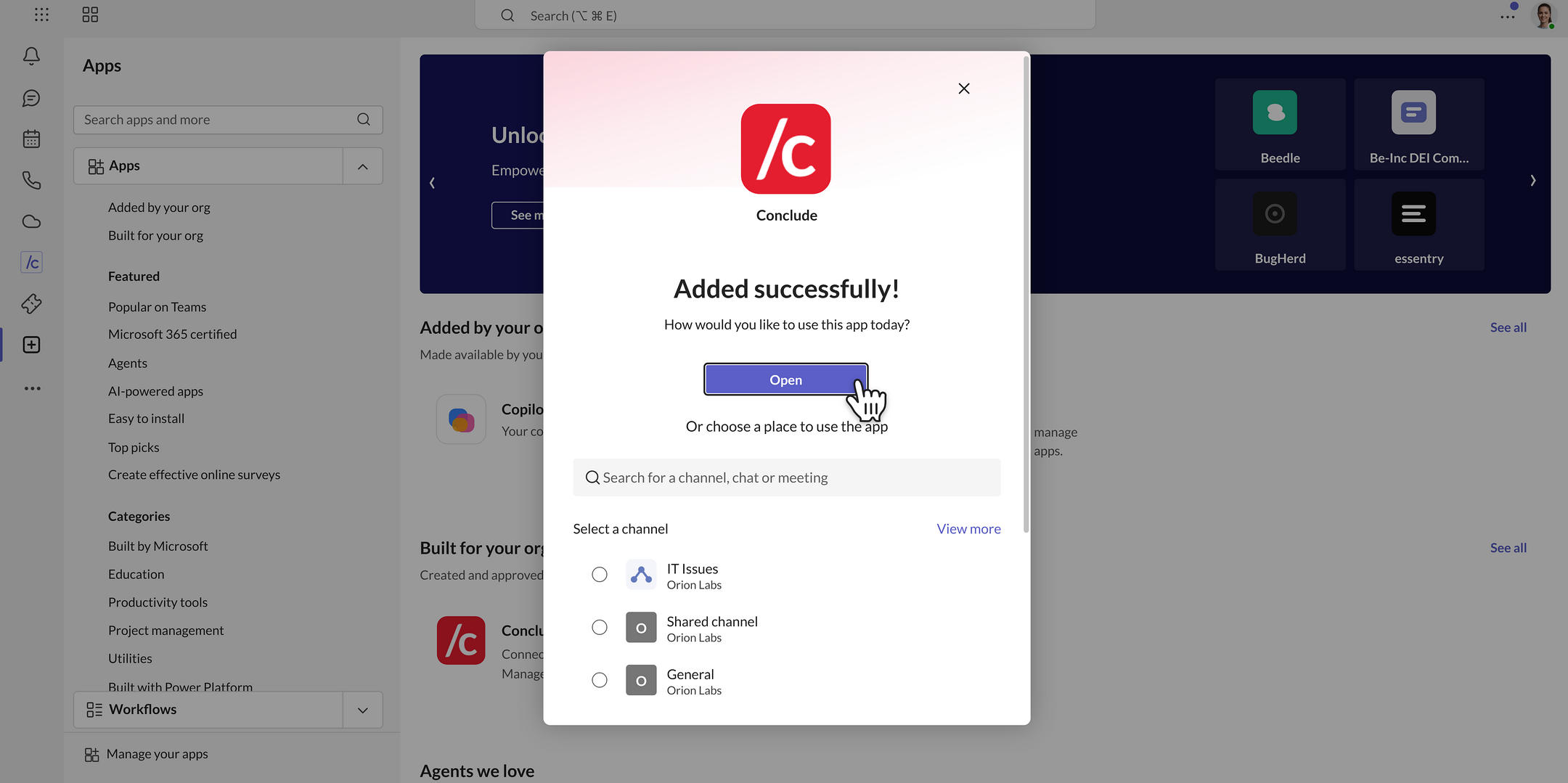 * Select the team you want to add Conclude to, and click **Set up**
* A Conclude installation dialog will appear; click **Save**
* This will add a tab to the general channel of your team containing a (currently empty) Dashboard
* You can now connect any standard channel in this team
* Conclude commands are now available in this team. To use commands in a group chat or 1:1 chat, add Conclude to that chat first
## Step 5: Using commands in Microsoft Teams
Conclude works through commands. Use them to connect channels, start cross-platform chats and check status. See the [Teams Command Reference guide](https://conclude.io/doc/commands/general/teams/) for the full list.
* **Bot commands** are plain words with no "/" (e.g. connect, chat, status). In a channel or group chat, mention @Conclude first (e.g. **@Conclude connect**)
* **Slash commands** appear in the Teams "/" menu when you type "/" in the message box. They only appear where Conclude has been added to that team or chat
General commands (work wherever Conclude is added):
| Command | What it does |
| --- | --- |
| **connect** | Connect two channels on Teams and Slack |
| **chat** | Start a cross-platform chat (Teams ↔ Slack); use **chat create** for the full form |
| **status** | Show what Conclude knows about this channel or chat |
**Note:** Ticket and app commands (e.g., **new** and **conclude**) only work in channels where a Conclude app is installed – not in group chats or 1:1 chats. See the [Conclude Apps Microsoft Teams Quickstart](https://conclude.io/quickstart/microsoft-teams-apps/) for details.
## Step 6: Connecting Teams and Slack channels and chats
With **Connect – internal** enabled, you can link Microsoft Teams channels and chats with Slack in your organization. Messages, files, reactions, and @mentions sync in both directions in real time.
### Connect a channel
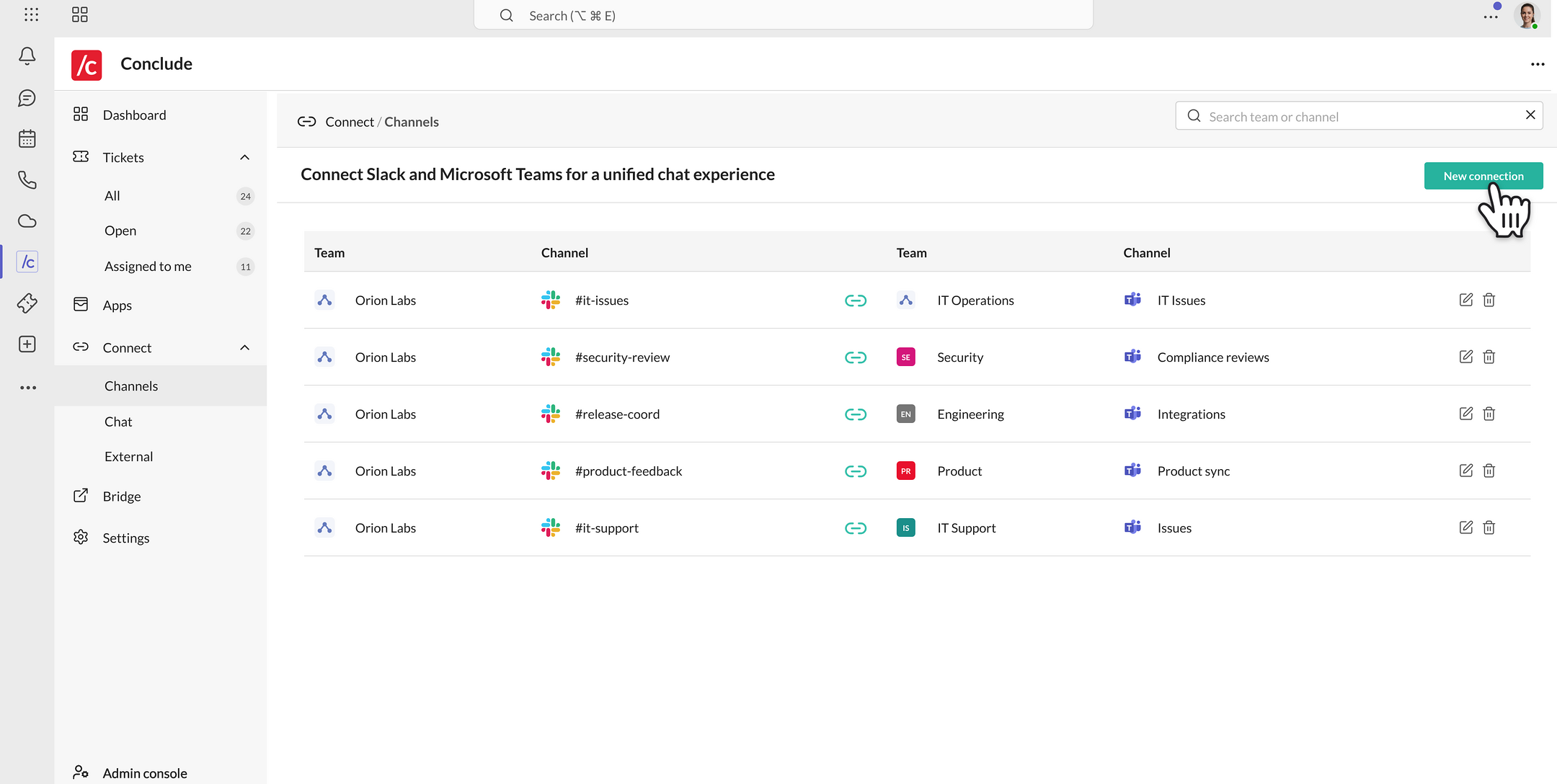
* Open the Conclude app from the Microsoft Teams sidebar and go to **Connect → Channels**
* Click **New connection**
* Select the team you want to add Conclude to, and click **Set up**
* A Conclude installation dialog will appear; click **Save**
* This will add a tab to the general channel of your team containing a (currently empty) Dashboard
* You can now connect any standard channel in this team
* Conclude commands are now available in this team. To use commands in a group chat or 1:1 chat, add Conclude to that chat first
## Step 5: Using commands in Microsoft Teams
Conclude works through commands. Use them to connect channels, start cross-platform chats and check status. See the [Teams Command Reference guide](https://conclude.io/doc/commands/general/teams/) for the full list.
* **Bot commands** are plain words with no "/" (e.g. connect, chat, status). In a channel or group chat, mention @Conclude first (e.g. **@Conclude connect**)
* **Slash commands** appear in the Teams "/" menu when you type "/" in the message box. They only appear where Conclude has been added to that team or chat
General commands (work wherever Conclude is added):
| Command | What it does |
| --- | --- |
| **connect** | Connect two channels on Teams and Slack |
| **chat** | Start a cross-platform chat (Teams ↔ Slack); use **chat create** for the full form |
| **status** | Show what Conclude knows about this channel or chat |
**Note:** Ticket and app commands (e.g., **new** and **conclude**) only work in channels where a Conclude app is installed – not in group chats or 1:1 chats. See the [Conclude Apps Microsoft Teams Quickstart](https://conclude.io/quickstart/microsoft-teams-apps/) for details.
## Step 6: Connecting Teams and Slack channels and chats
With **Connect – internal** enabled, you can link Microsoft Teams channels and chats with Slack in your organization. Messages, files, reactions, and @mentions sync in both directions in real time.
### Connect a channel
* Open the Conclude app from the Microsoft Teams sidebar and go to **Connect → Channels**
* Click **New connection**
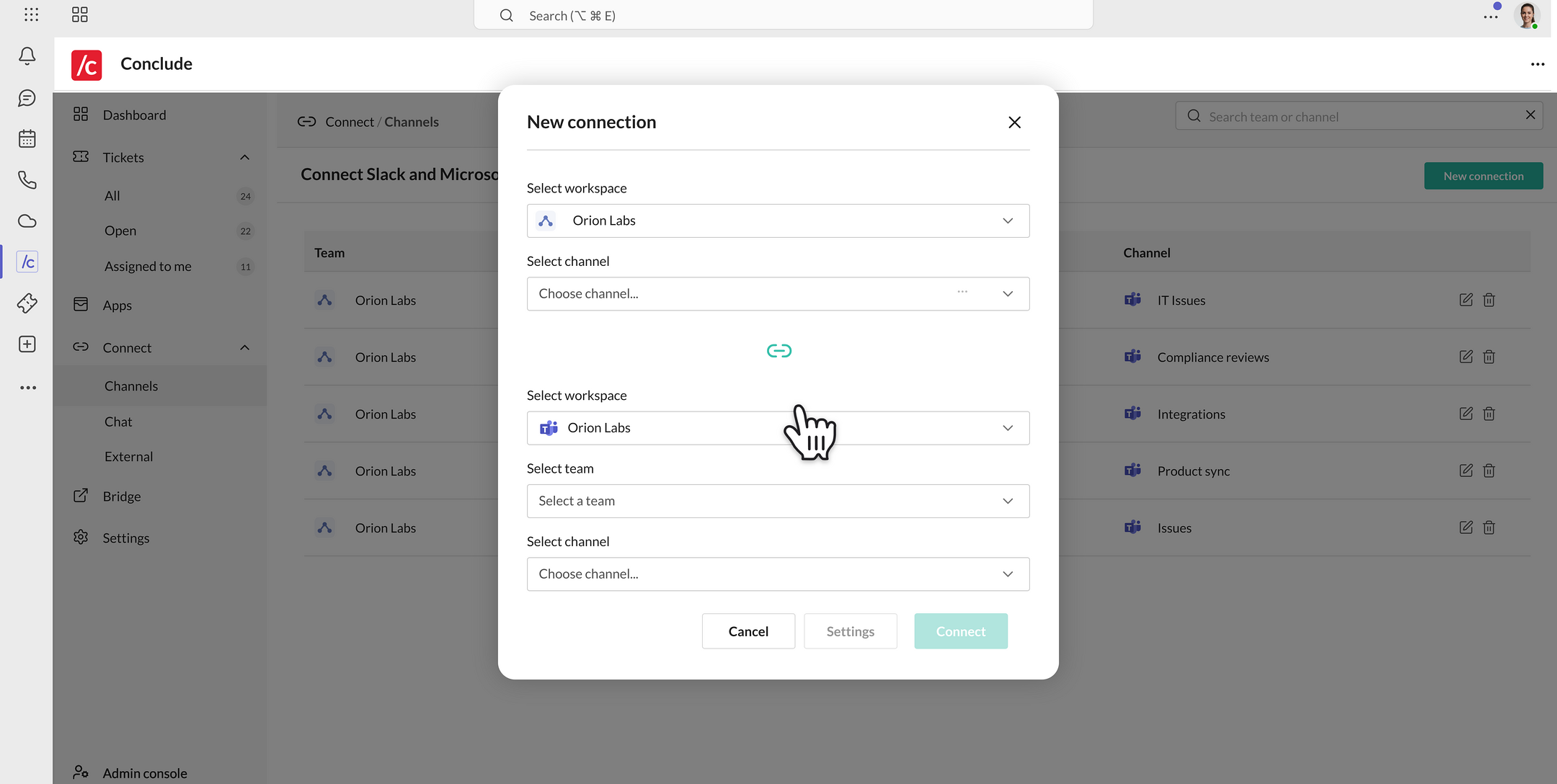
 * Select the Slack workspace and channel, then the Teams workspace, team, and channel you want to link, then click **Connect**
* You can also type **@Conclude connect** in the Teams channel you want to connect (visible to all) or **/conclude connect** (visible to you)
* Select the Slack workspace and channel, then the Teams workspace, team, and channel you want to link, then click **Connect**
* You can also type **@Conclude connect** in the Teams channel you want to connect (visible to all) or **/conclude connect** (visible to you)
 **Note:** Each channel can be connected only once (internally or externally). To check if a channel is connected, type the command **/conclude status**. To create a new connection, use a channel that isn’t already connected.
### Connect a chat
* In the Conclude app, go to **Connect → Chat** and click **New chat**
* Name the chat, add members, and click **Create**
* Conclude creates a Teams group chat and a private Slack channel for the selected members, with messages and files syncing across both
**Note:** Each channel can be connected only once (internally or externally). To check if a channel is connected, type the command **/conclude status**. To create a new connection, use a channel that isn’t already connected.
### Connect a chat
* In the Conclude app, go to **Connect → Chat** and click **New chat**
* Name the chat, add members, and click **Create**
* Conclude creates a Teams group chat and a private Slack channel for the selected members, with messages and files syncing across both
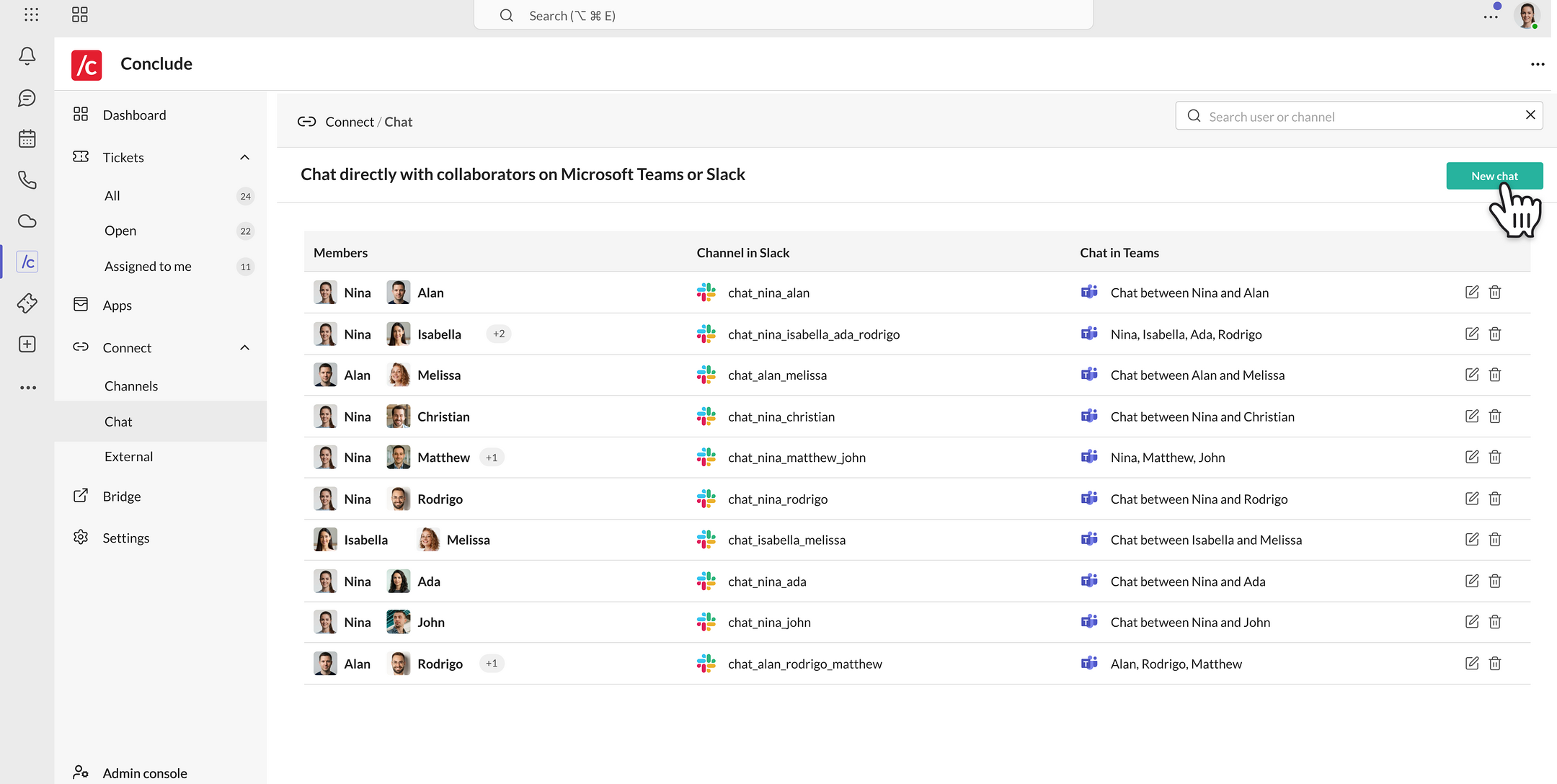 You can also mention **@Conclude,** then type **chat** for quick options or **chat create** to open the full form. Additionally, you can use the slash command /conclude chat.
## Step 7: Inviting an external company
**Connect – external** lets you connect a channel with another company. The invited company doesn’t need a Conclude license.
* In the Conclude app, go to **Connect → External** and click **Invite by email**
You can also mention **@Conclude,** then type **chat** for quick options or **chat create** to open the full form. Additionally, you can use the slash command /conclude chat.
## Step 7: Inviting an external company
**Connect – external** lets you connect a channel with another company. The invited company doesn’t need a Conclude license.
* In the Conclude app, go to **Connect → External** and click **Invite by email**
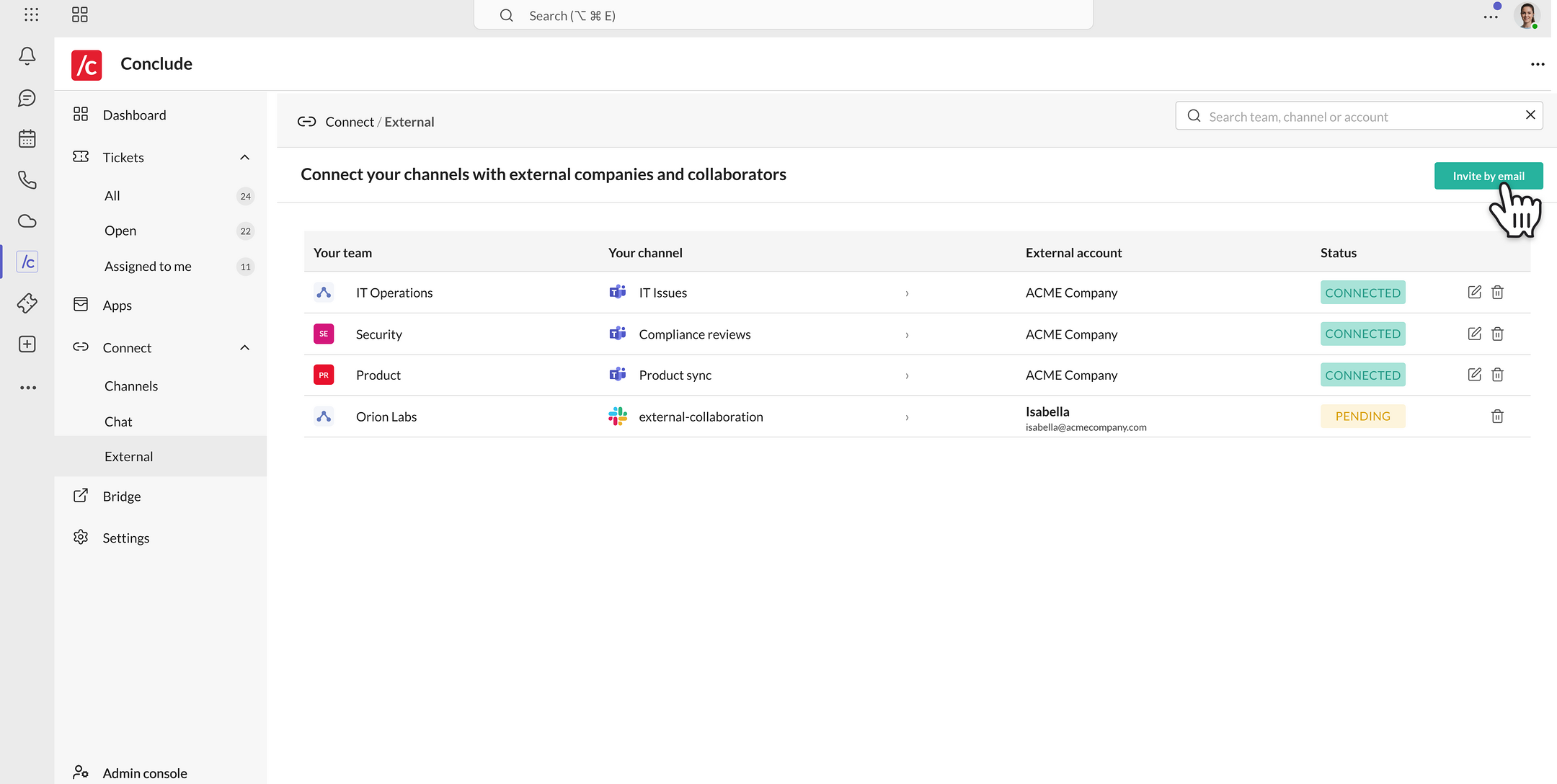 * Choose your workspace, team, and channel, enter the contact’s name and email, and click **Next**
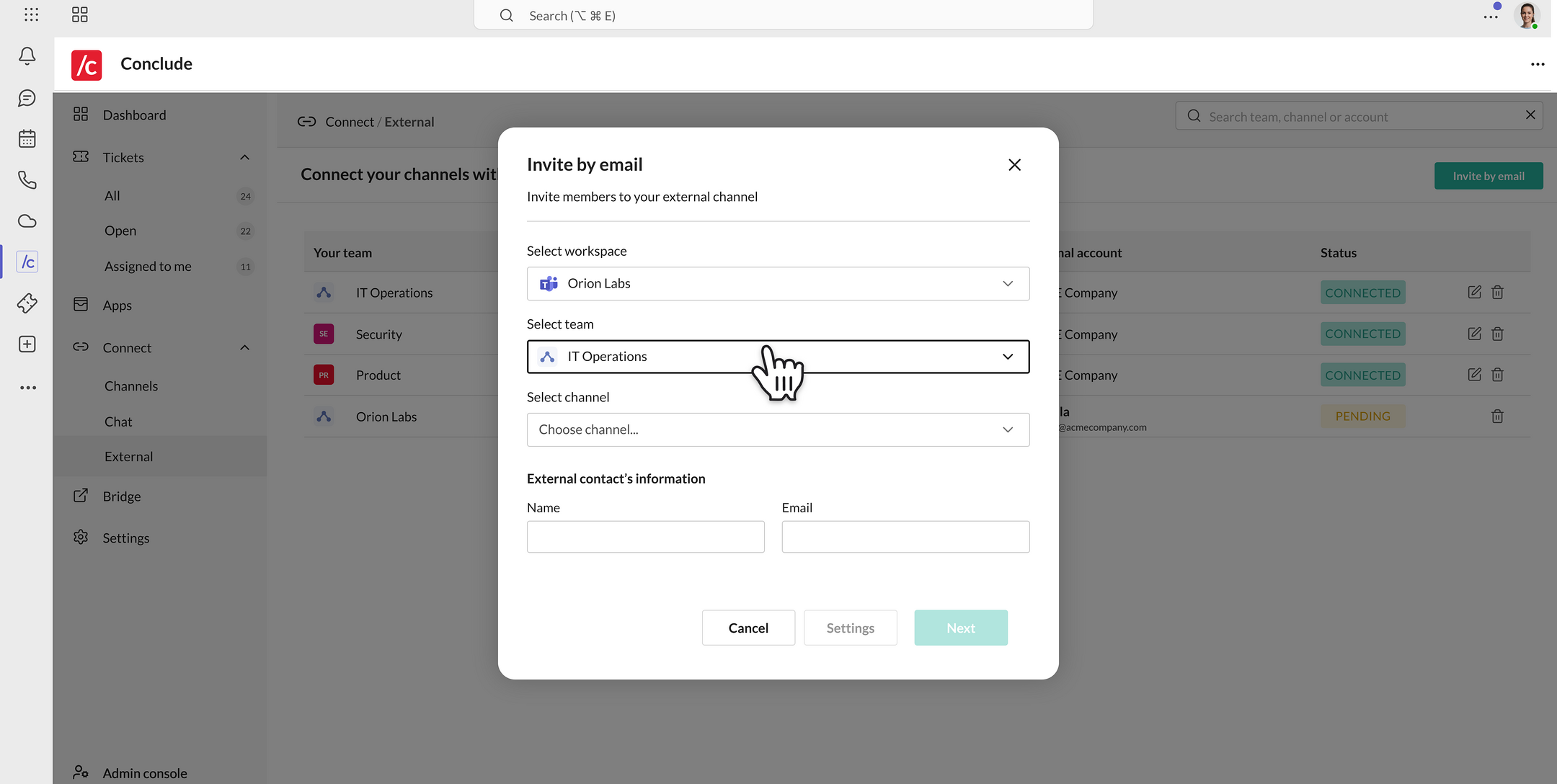 * The contact opens the emailed link, chooses Slack or Microsoft Teams, signs in, and selects the channel to connect
* Once accepted, the channel connection is created and messages sync. Pending and accepted invitations are listed under **External**
**Important:** The invitation must be accepted by the external contact using their own Slack or Microsoft Teams account – not the account that sent the invite.
## Step 8: Setting up an intercompany bridge
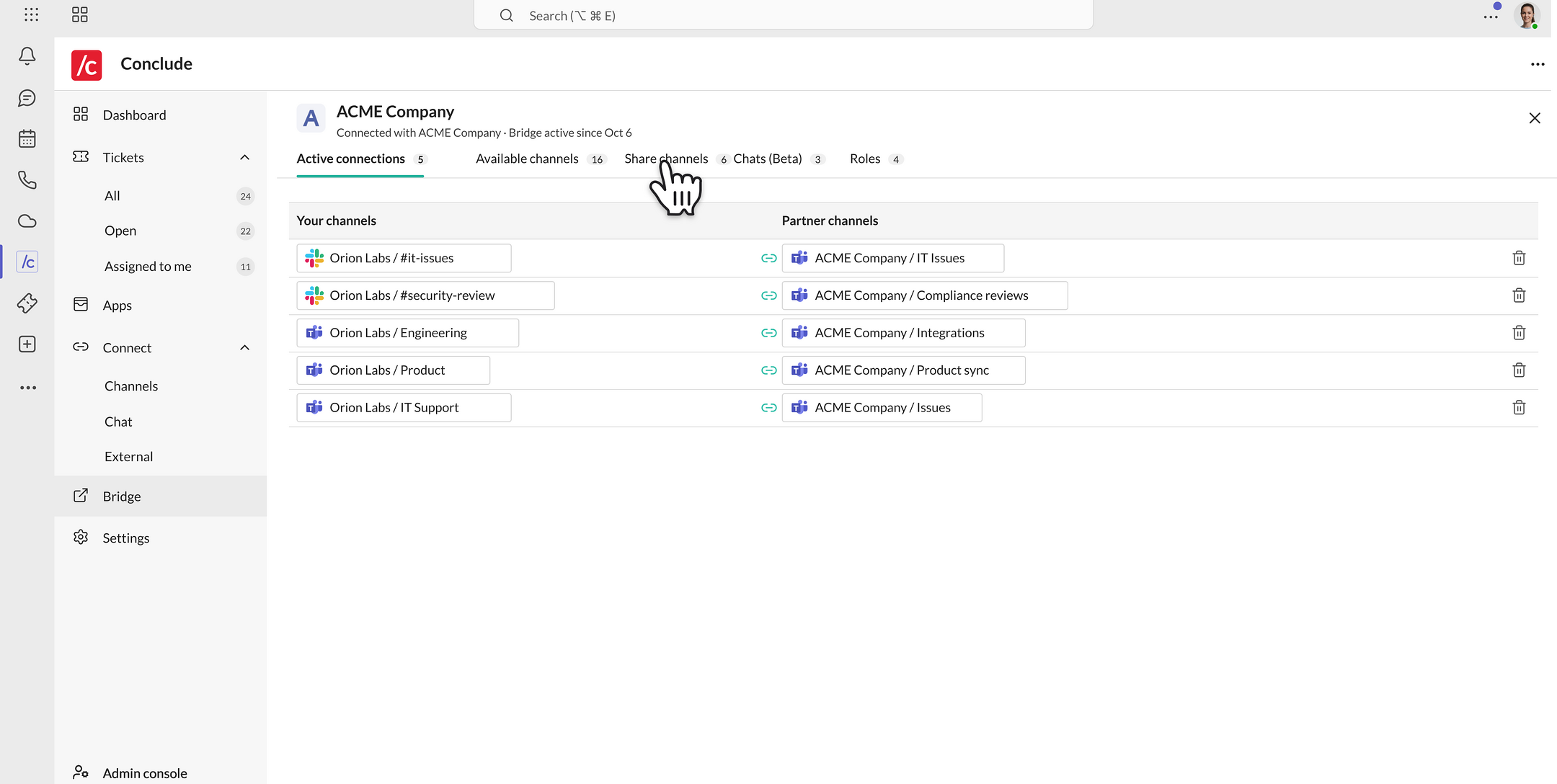
Conclude’s Bridge solution connects two companies – including subsidiary companies with different admins – using a single invite. It works between Microsoft Teams and Slack, as well as between two Microsoft Teams tenants. It then allows multiple channel connections without repeated invites, and both sides need a Conclude license.
* In the Conclude app, go to **Bridge** and click **Invite a company**
* The contact opens the emailed link, chooses Slack or Microsoft Teams, signs in, and selects the channel to connect
* Once accepted, the channel connection is created and messages sync. Pending and accepted invitations are listed under **External**
**Important:** The invitation must be accepted by the external contact using their own Slack or Microsoft Teams account – not the account that sent the invite.
## Step 8: Setting up an intercompany bridge
Conclude’s Bridge solution connects two companies – including subsidiary companies with different admins – using a single invite. It works between Microsoft Teams and Slack, as well as between two Microsoft Teams tenants. It then allows multiple channel connections without repeated invites, and both sides need a Conclude license.
* In the Conclude app, go to **Bridge** and click **Invite a company**
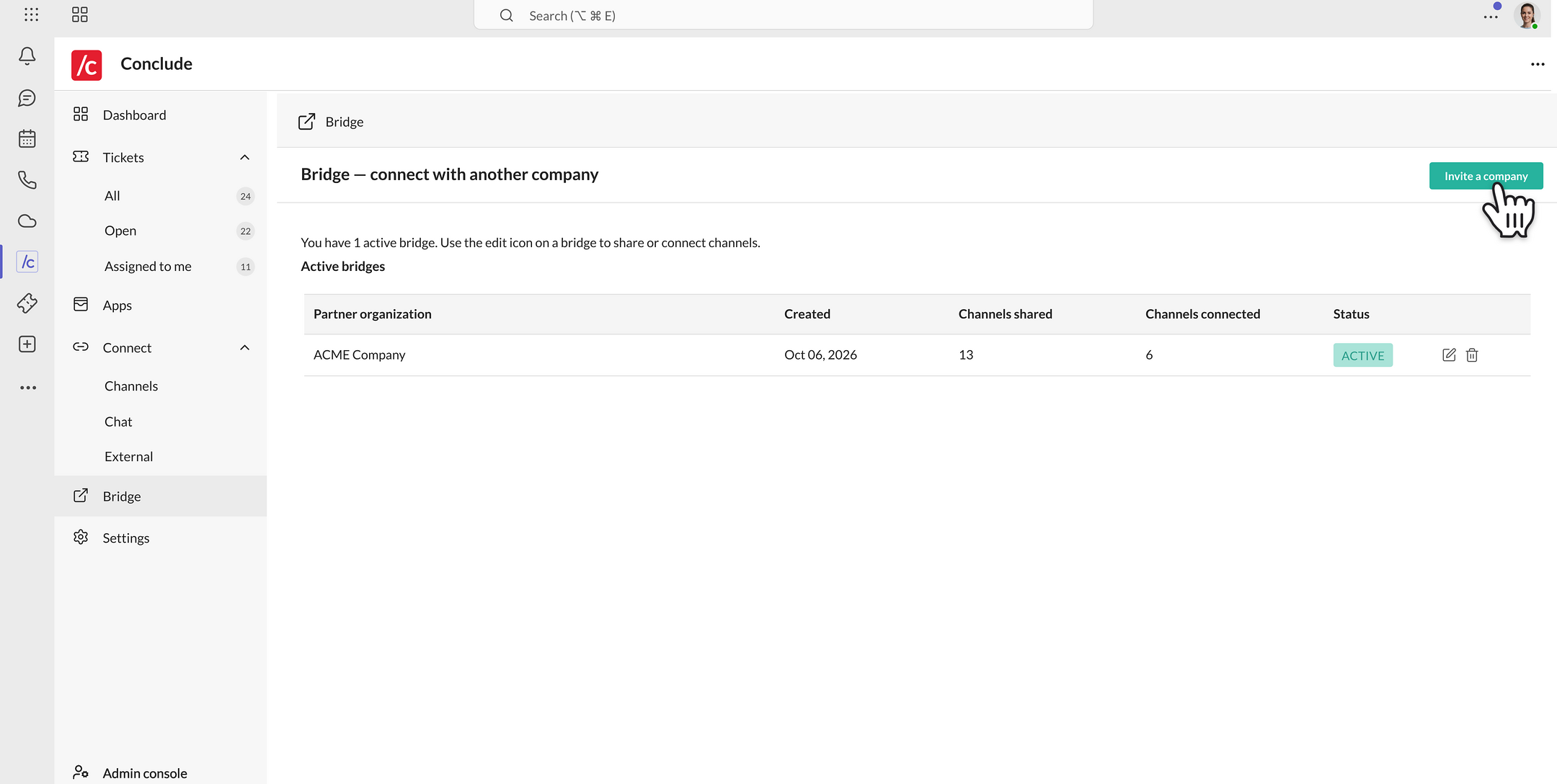 * The partner company’s admin accepts the invitation once, and the bridge becomes active
* Each side selects which channels can be shared
* Create channel connections under the active bridge – no new invites needed
* The partner company’s admin accepts the invitation once, and the bridge becomes active
* Each side selects which channels can be shared
* Create channel connections under the active bridge – no new invites needed
 **Important:** The partner company’s admin must accept the invitation from their own company’s account – not the account that sent it.
## Step 9: Setting up cross-platform ticketing
Combine the Apps and Connect solutions so a ticket opened on one platform (e.g. Teams) can be seen and actioned on the other (e.g. Slack). To set this up:
* Make sure **Apps – ticketing and issue tracking** and at least **one Connect solution** are enabled in **Admin console → Solutions**
* Either install an app in a channel and connect that channel to Slack, or connect the channels first and then install an app in one of them
* Open a ticket on either platform (e.g., use **New ticket** in Teams, or add the ticket emoji to a message in Slack)
* The ticket appears in the connected channel on the other platform, and replies sync both ways
To install apps and create tickets in Teams, see the [Conclude Apps Microsoft Teams Quickstart](https://conclude.io/quickstart/microsoft-teams-apps/).
## Step 10: Using the Dashboard in Teams
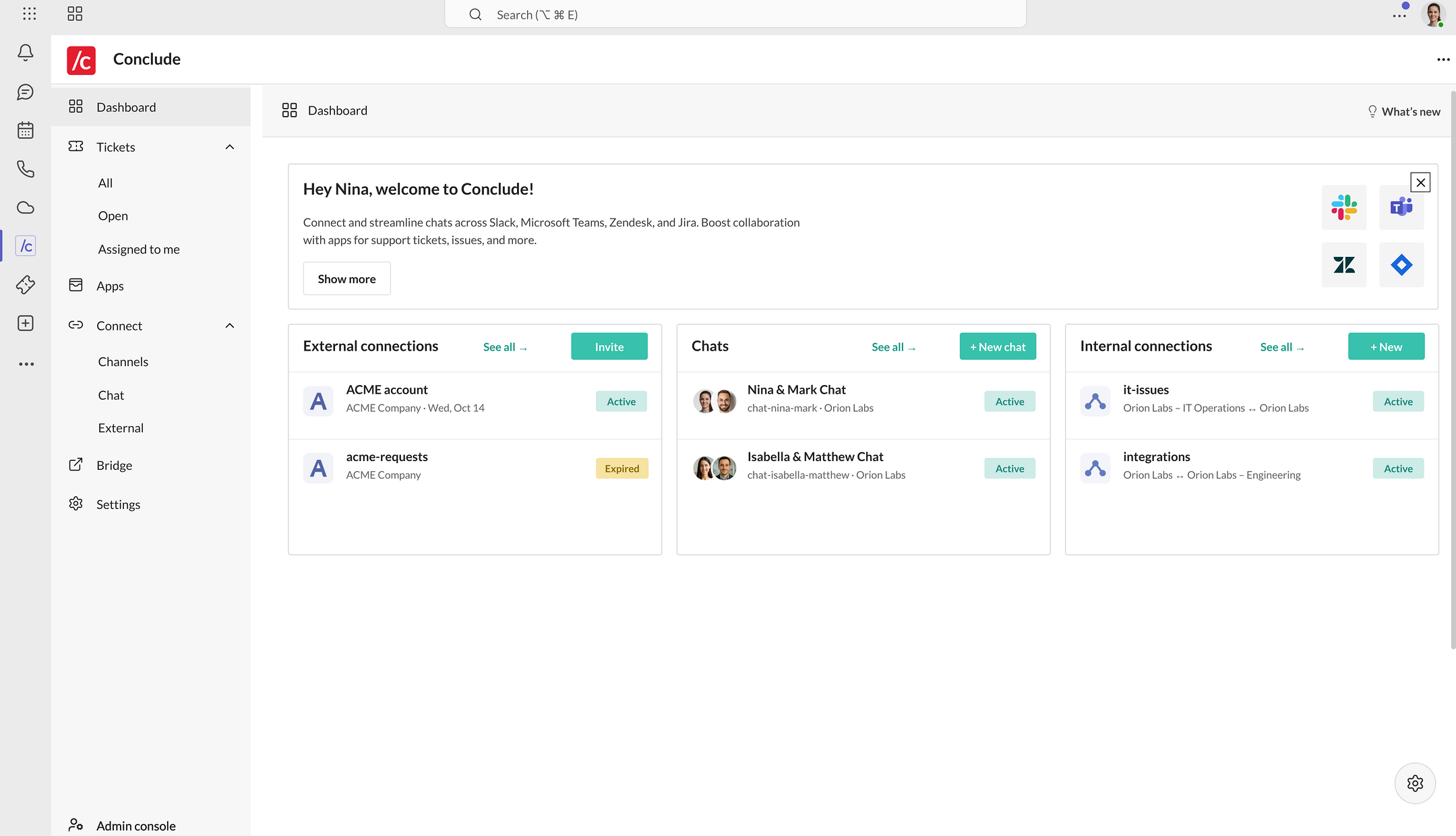
The Conclude Dashboard in Microsoft Teams mirrors the Dashboard in the Conclude web UI, so you can manage your connected channels, chats and bridges without leaving Teams.
* Open the Conclude app from the sidebar and navigate to the **Dashboard** section
* Use the sidebar to access **Tickets**, **Apps**, **Connect**, **Bridge** and **Settings**
* Go to **Connect → Channels**, **Chat** or **External**, or to **Bridge**, to view and manage your existing connections
**Important:** The partner company’s admin must accept the invitation from their own company’s account – not the account that sent it.
## Step 9: Setting up cross-platform ticketing
Combine the Apps and Connect solutions so a ticket opened on one platform (e.g. Teams) can be seen and actioned on the other (e.g. Slack). To set this up:
* Make sure **Apps – ticketing and issue tracking** and at least **one Connect solution** are enabled in **Admin console → Solutions**
* Either install an app in a channel and connect that channel to Slack, or connect the channels first and then install an app in one of them
* Open a ticket on either platform (e.g., use **New ticket** in Teams, or add the ticket emoji to a message in Slack)
* The ticket appears in the connected channel on the other platform, and replies sync both ways
To install apps and create tickets in Teams, see the [Conclude Apps Microsoft Teams Quickstart](https://conclude.io/quickstart/microsoft-teams-apps/).
## Step 10: Using the Dashboard in Teams
The Conclude Dashboard in Microsoft Teams mirrors the Dashboard in the Conclude web UI, so you can manage your connected channels, chats and bridges without leaving Teams.
* Open the Conclude app from the sidebar and navigate to the **Dashboard** section
* Use the sidebar to access **Tickets**, **Apps**, **Connect**, **Bridge** and **Settings**
* Go to **Connect → Channels**, **Chat** or **External**, or to **Bridge**, to view and manage your existing connections