Microsoft Teams Quickstart – Apps
Conclude Apps adds no-code ticketing to Microsoft Teams, so you can manage support tickets, issues, incidents, and bugs where your team already works. This guide takes you from signing up to installing your first app, then creating and closing a ticket. To connect Microsoft Teams with Slack, see the Conclude Connect Microsoft Teams Quickstart.
Conclude also works through commands in Teams, such as @Conclude new or /conclude new to create a ticket. See Step 5 and the Teams Command Reference guide for the full list.
In this guide, we will cover:
- How to sign up for an account and enable your solutions
- Getting started from Microsoft Teams
- Using commands in Microsoft Teams
- Installing and configuring an app
- Creating and concluding a ticket
- Setting up cross-platform ticketing
- Using the Dashboard in Microsoft Teams
Step 1: Sign up for an account
- Click the Get started or Sign Up button on our website and follow the prompts
- During this process, you will be directed to a page where you can select your primary messaging platform (Slack or Microsoft Teams)
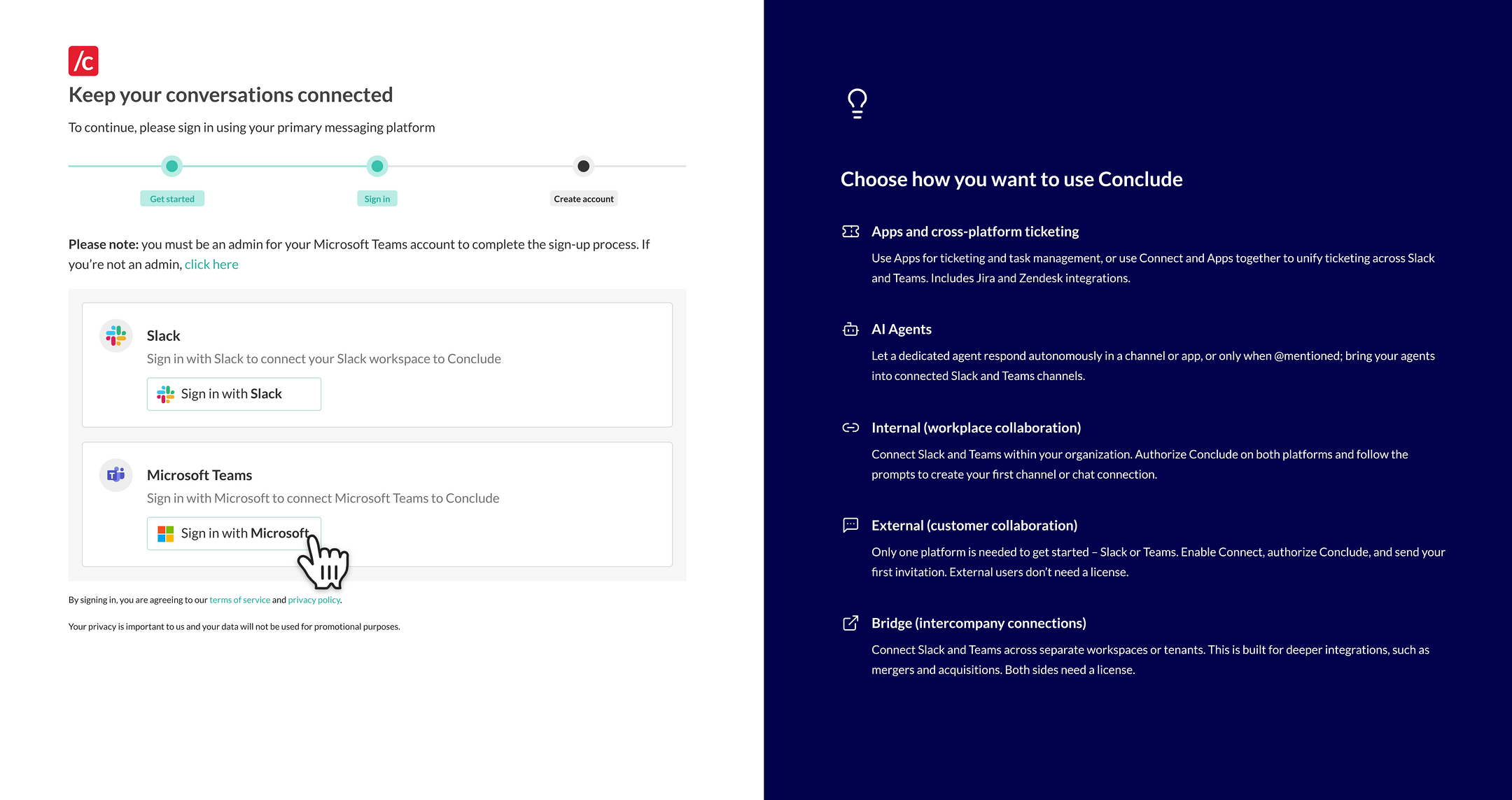
Important: To add Conclude to your Microsoft Teams account (or Slack workspace), you must have admin privileges. If you don’t have admin permissions, contact your admin or click here to book a call.
- Next, select Sign in with Microsoft to start the authentication process
- Once you’ve completed the process, you should see the following:
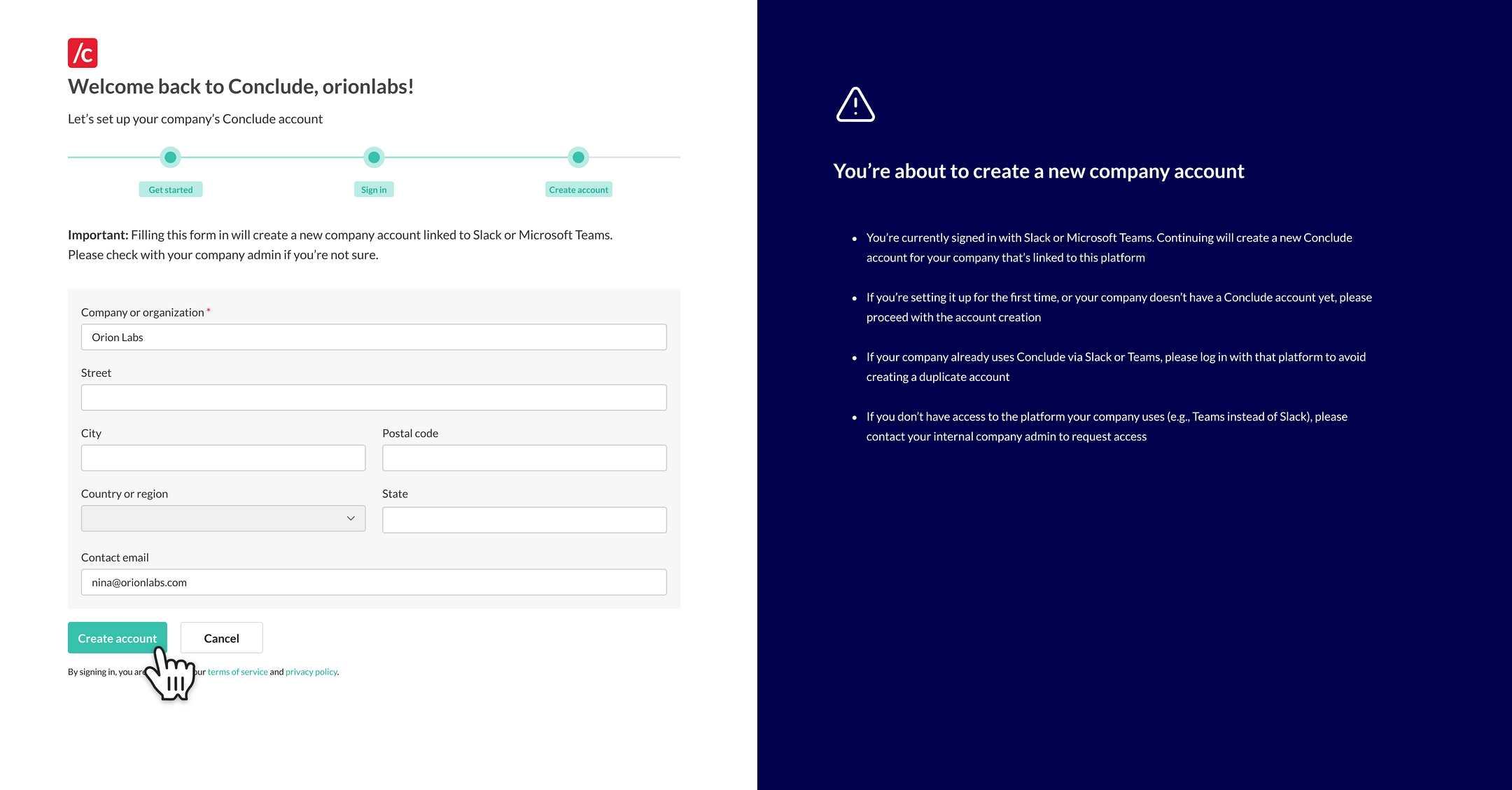
- To set up an account for your organization, provide the necessary information and click on Create account. You will then be directed to the Conclude Dashboard
Note: If you don’t have permission to do this, you will need to speak to your Microsoft Teams admin.
Step 2: Enable your solutions
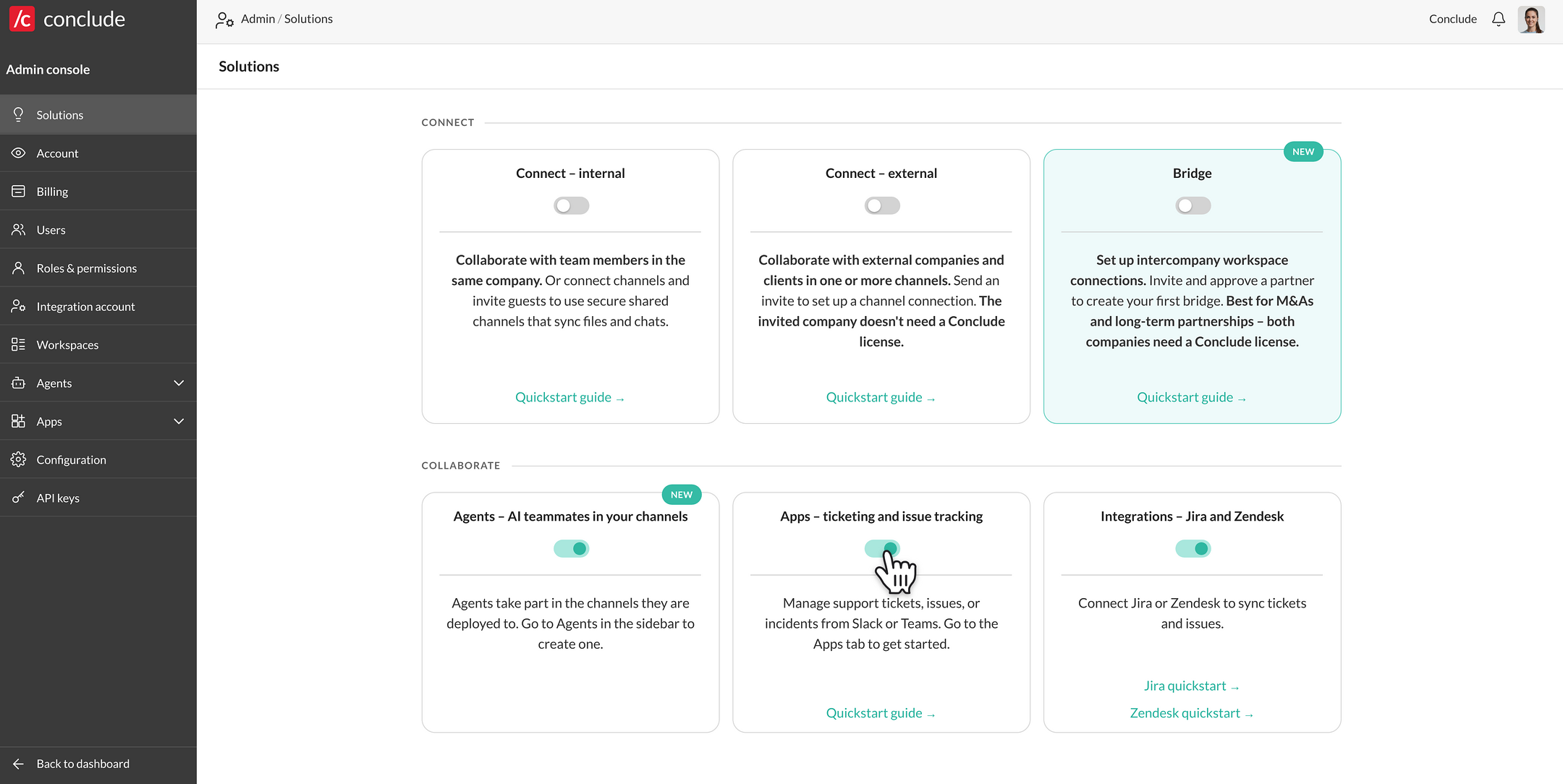
Solutions are enabled from the Conclude web UI, not inside Microsoft Teams:
- From the Dashboard, go to Admin console → Solutions
- Toggle on Apps – ticketing and issue tracking. To sync tickets with Jira or Zendesk, or attach AI agents to your apps, also toggle on Integrations – Jira and Zendesk or Agents
Step 3: Getting started from Microsoft Teams
- To install Conclude in Teams, go to the Apps section on your Teams sidebar and search for “Conclude”
- Click Add to install it into your Teams environment. You may be prompted to grant Conclude access. Click OK to enable single-sign-on (SSO) functionality with Microsoft Teams
- If prompted, approve Conclude’s requested permissions in Microsoft Graph. If you have the privileges, we recommend approving Microsoft Graph on behalf of your organization so others do not need to handle approval requests
- Once installed, you’ll see Conclude has been added to your Teams sidebar
💡 Tip: Try pinning Conclude to the sidebar to keep it accessible when switching tabs by right-clicking on the Conclude icon and selecting Pin.
Step 4: Adding Conclude to a team
You are now ready to add Conclude to a team so you can install apps in selected channels:
- Go to the Apps section on the Microsoft Teams sidebar
- Click on the Conclude app, and a dialog box will appear
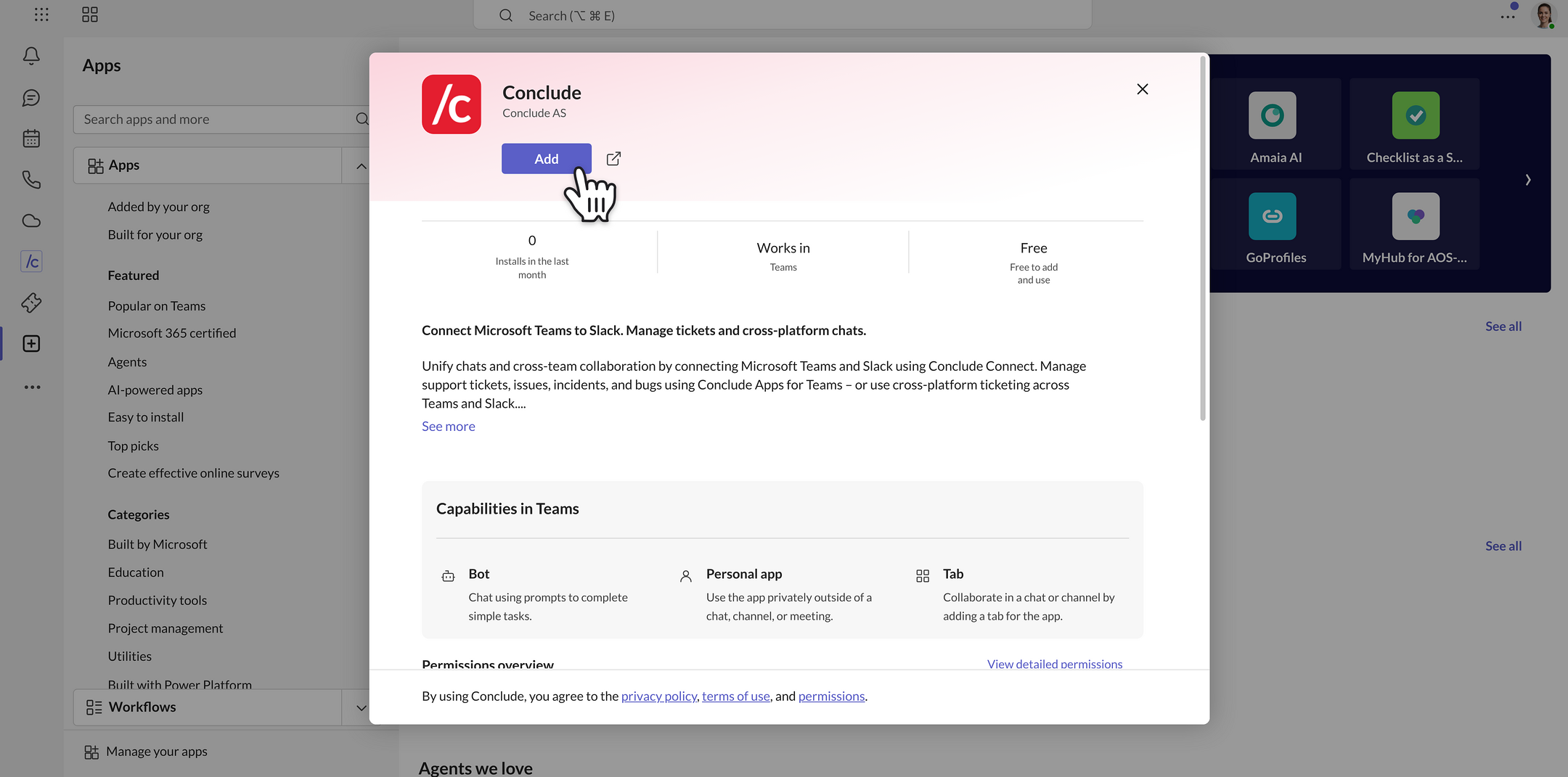
- Next, click the arrow next to the Open/Add button and select Add to a team
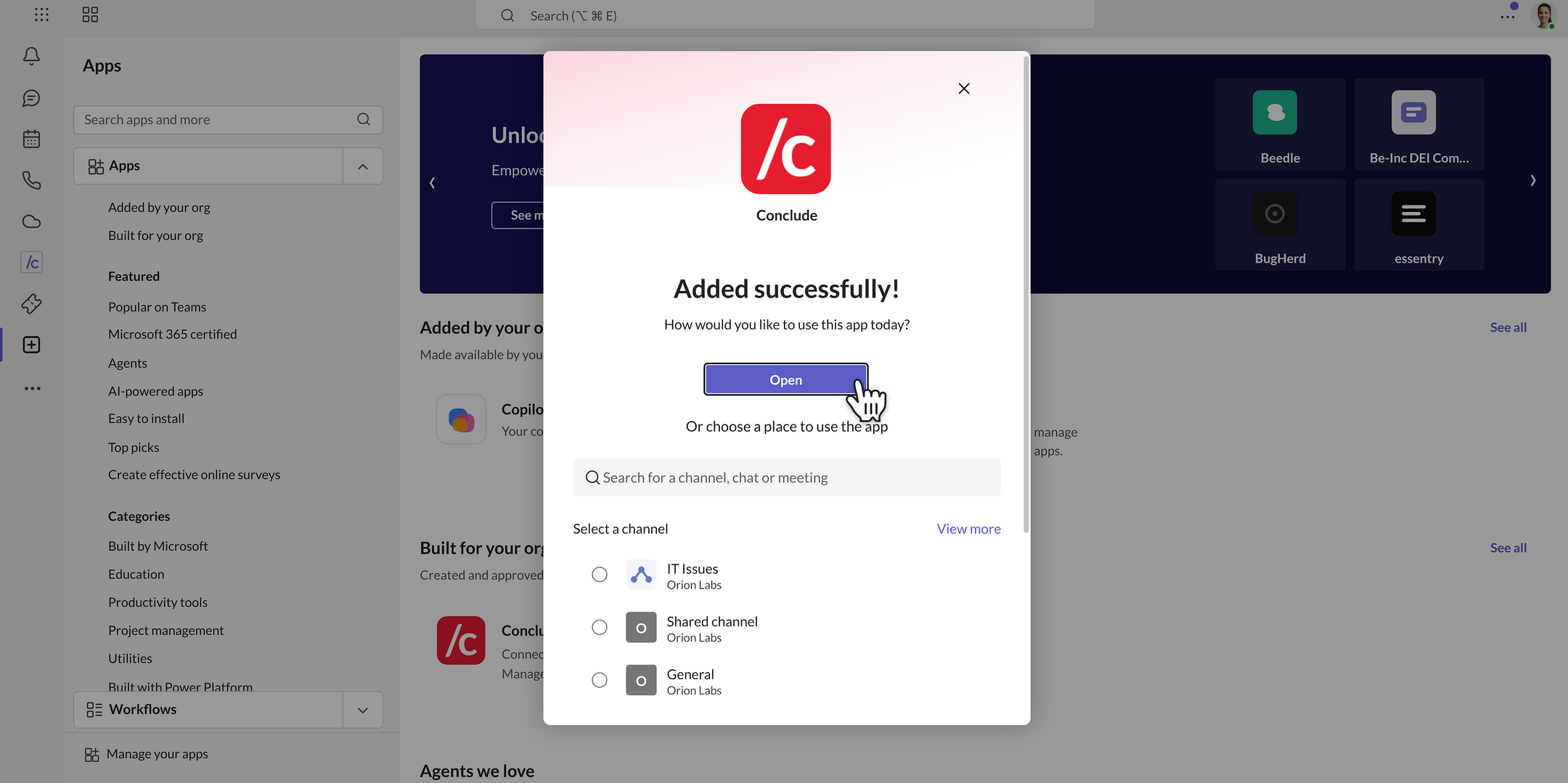
- Select the team you want to add Conclude to, and click Set up
- A Conclude installation dialog will appear; click Save
- This will add a tab to the general channel of your team containing a (currently empty) Dashboard
- You can now add Conclude apps to any standard channel in this team
- Conclude commands are now available in this team. To use commands in a group chat or 1:1 chat, add Conclude to that chat first
Step 5: Using commands in Microsoft Teams
Conclude works through commands. Use them to create, edit and conclude tickets, and manage the apps in a channel. See the Teams Command Reference guide for the full list.
- Bot commands are plain words with no “/” (e.g., new, edit, conclude). In a channel or group chat, mention @Conclude first (e.g., @Conclude new)
- Slash commands appear in the Teams “/” menu when you type “/” in the message box. They only appear where Conclude has been added to that team or chat (e.g., /conclude new)
Important: Ticket and app commands only work in channels where a Conclude app is installed (see Step 6) – not in group chats or 1:1 chats. General commands, such as status, chat, and info, work wherever Conclude is added.
| Command | What it does |
|---|---|
| new | Create a new ticket under the channel’s app; each ticket opens as its own thread |
| conclude | Close and archive the ticket (in the ticket thread) |
| edit | Change the ticket’s settings (in the ticket thread) |
| severity | View or set a severity level (in the ticket thread) |
| deadline | View or set a due date (in the ticket thread) |
| app | Show the app installed in this channel |
Step 6: Installing a Conclude app
- Navigate to the channel where you want to install the app
- Click the “+” button to add a new tab and select the Conclude app
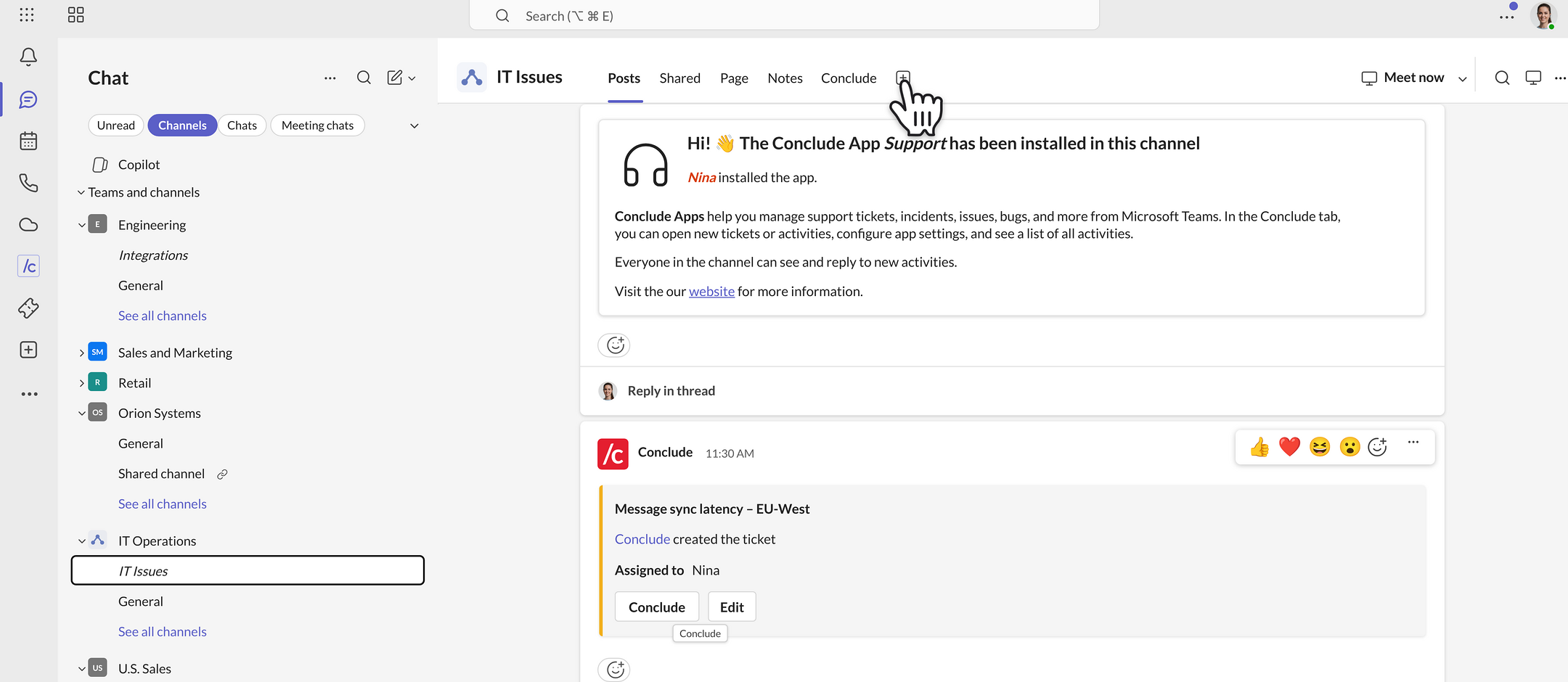
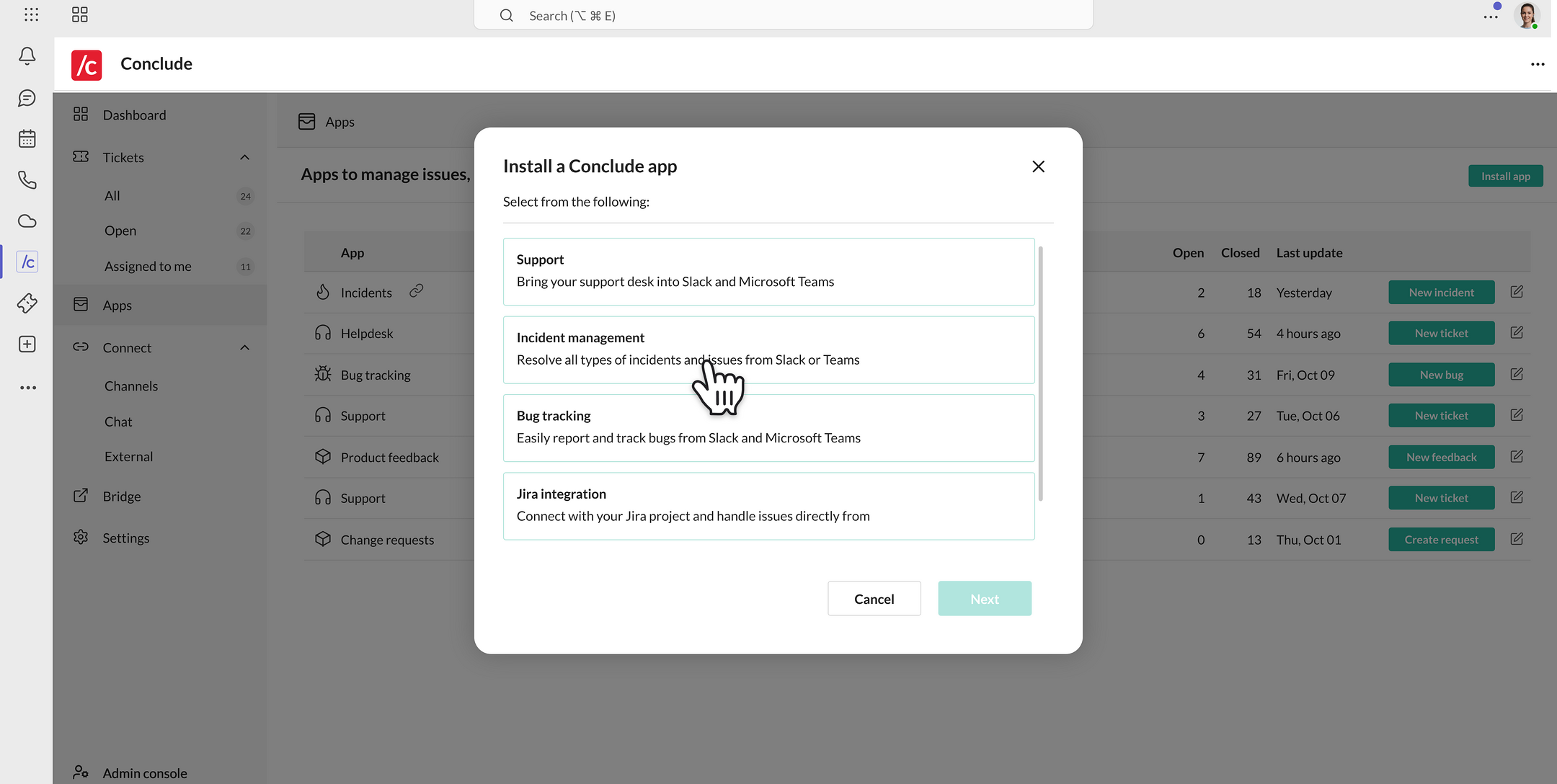
- Choose from available app templates, such as Incident Management, and click Save to install it
- If you have Conclude pinned to the Microsoft Teams sidebar, click on it
- To see the Apps section in the Conclude sidebar, ensure Apps – ticketing and issue tracking is enabled in Admin console → Solutions (see Step 2)
- Navigate to the Apps section
- Click the Install app button in the upper right corner to start the installation process.
- Follow the prompts to install a new app (for this example, select the Incident Management template and click Setup)
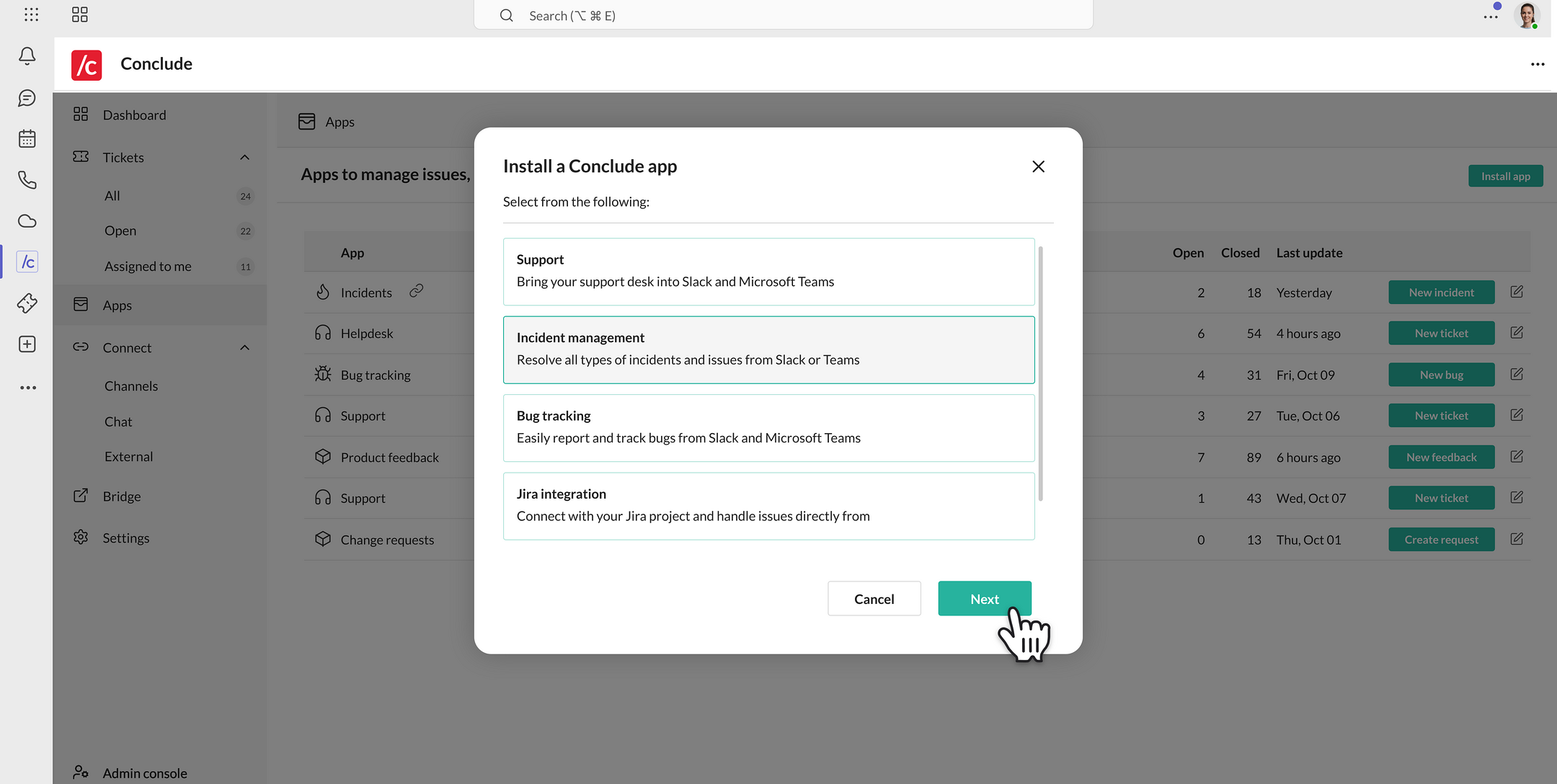
- Choose the channel in the team where you want to install the app. (If necessary, create a new channel by clicking Create channel)
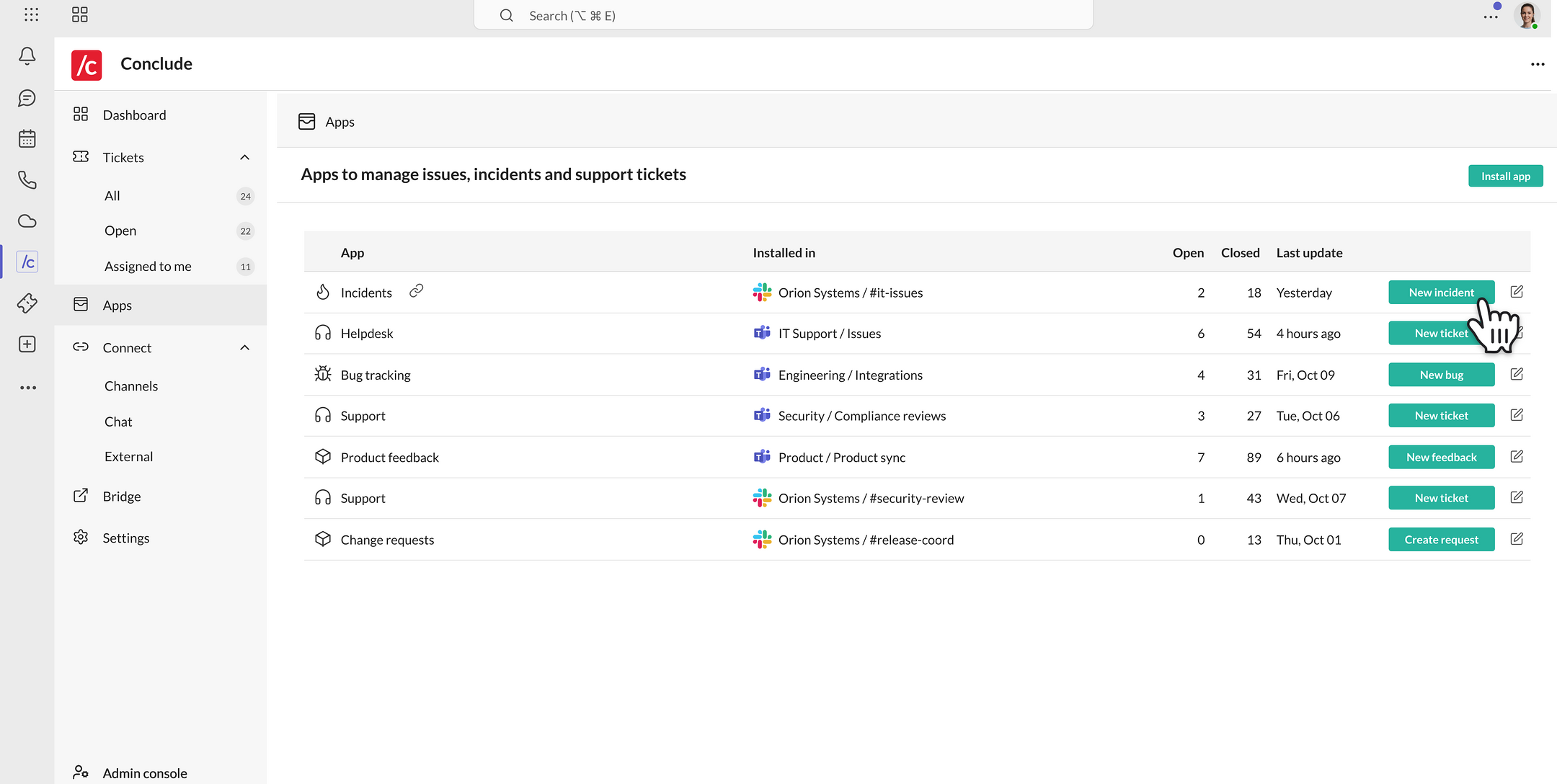
- Once installed, the app will be listed in the Apps section
Step 7: Configuring a Conclude app
To configure an app, you can access the settings from the Conclude app or the General channel of the team where Conclude has been added.
Access settings from the Conclude app
- Go to the Conclude app pinned on the Microsoft Teams sidebar
- Navigate to the Apps section
- Click on the pencil (Edit) icon next to the app you want to customize
Access settings from the General channel
- Go to the General channel of the team where Conclude has been added
- Navigate to the Conclude tab of that team
- Click on the pencil (Edit) icon next to the app you want to edit to open the settings
Customize your app settings
- General: Edit the app’s name, enter a short description, determine who has access, and more
- Agents: If agents are attached to the app you are editing, you can adjust some settings here
- Roles: Assign an owner, specify which people and channels will be invited, and determine which channels receive notifications
- Attributes: Configure existing app attributes or add new ones
- Texts: Customize different text fields or your app, including the Launch button and Owner label
- Integrations: Set up email, email summarization, translations, Jira, or Zendesk integrations
- Expert: View or edit the YAML source code of the app and make adjustments
Step 8: Creating Your First Ticket
You can either create a ticket from a channel or from the Apps section.
Create a ticket from a channel
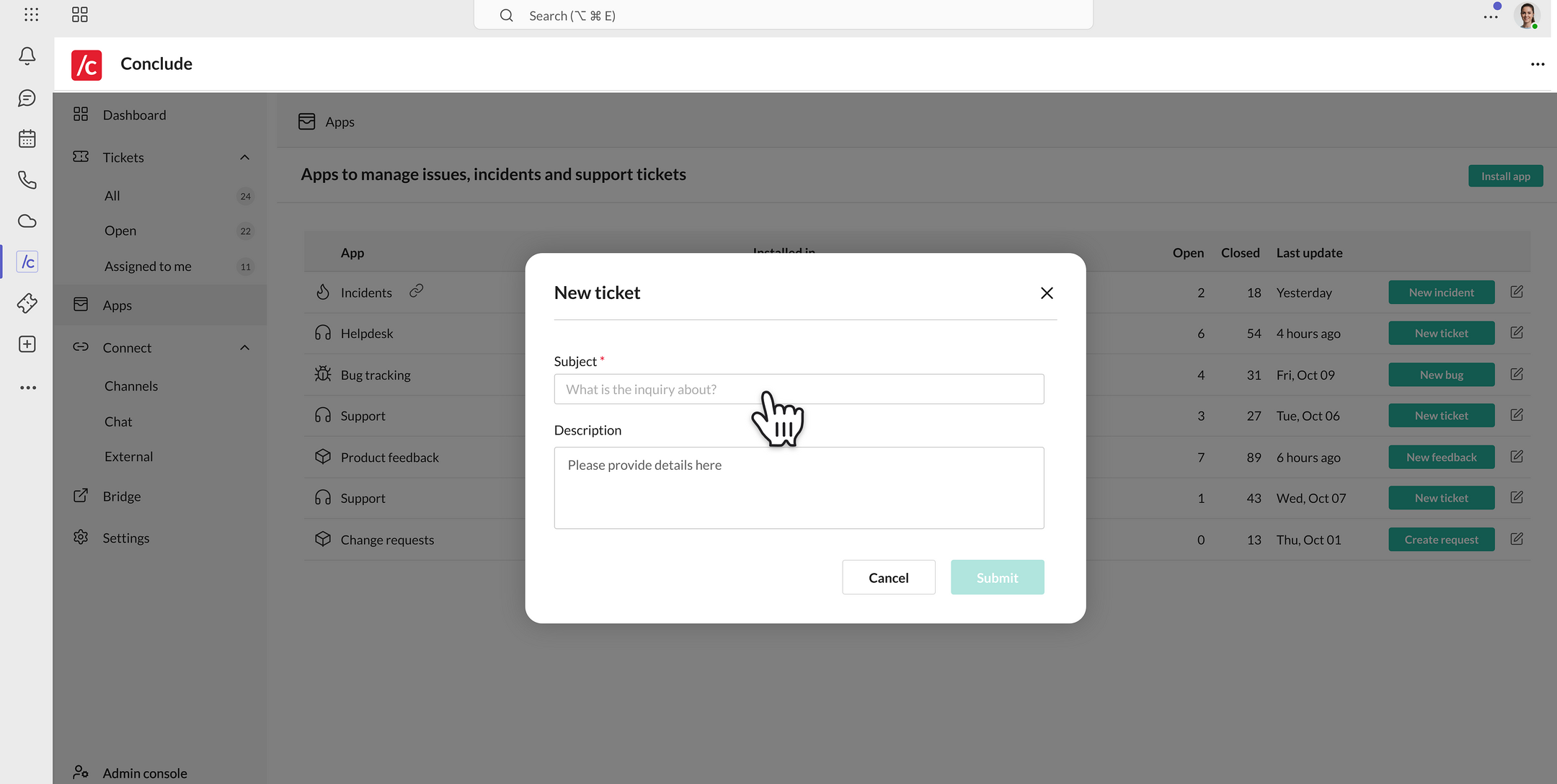
- Navigate to the Conclude tab of the channel where the app is installed, and click ‘New…’
- A dialog will open where you can open a new ticket, including the Subject and Description, then click Submit
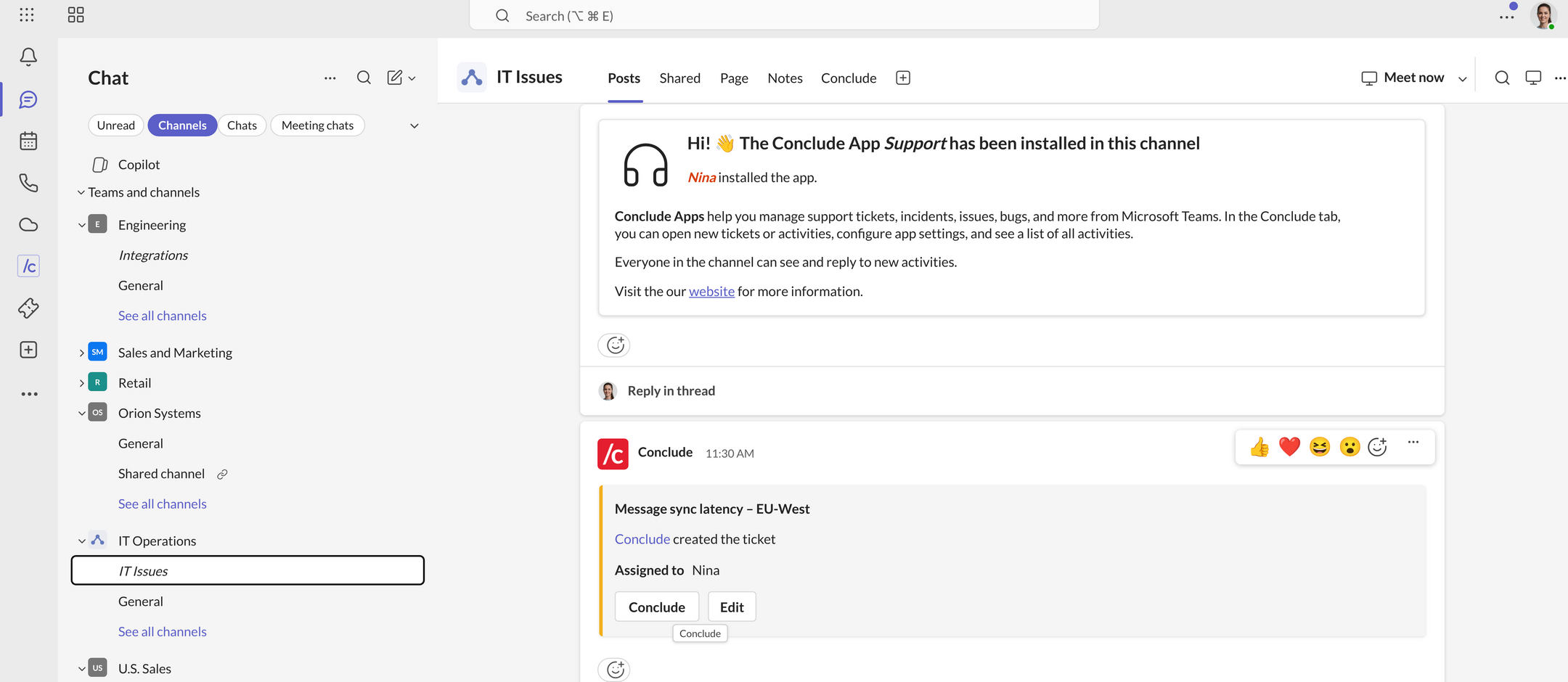
- After submitting a new ticket, a notice will be sent to the channel
- You can also type @Conclude new in the channel. Each ticket opens as its own thread, where ticket commands such as Edit and Severity will work
Note: Everyone in the channel can see and reply to the new ticket. To edit a ticket, click the Edit button. This allows you to change details such as the assignee, status, details, and add notes.
Create a ticket from the Apps section
- Access the Apps section either in the Conclude tab in the General channel where Conclude has been installed or from the Conclude app on the Microsoft Teams sidebar
- You will see a list of currently installed apps. Click the ‘New…’ button next to the app you want to create a ticket for and follow the prompts
Step 9: Concluding a ticket
Closing your ticket from the channel
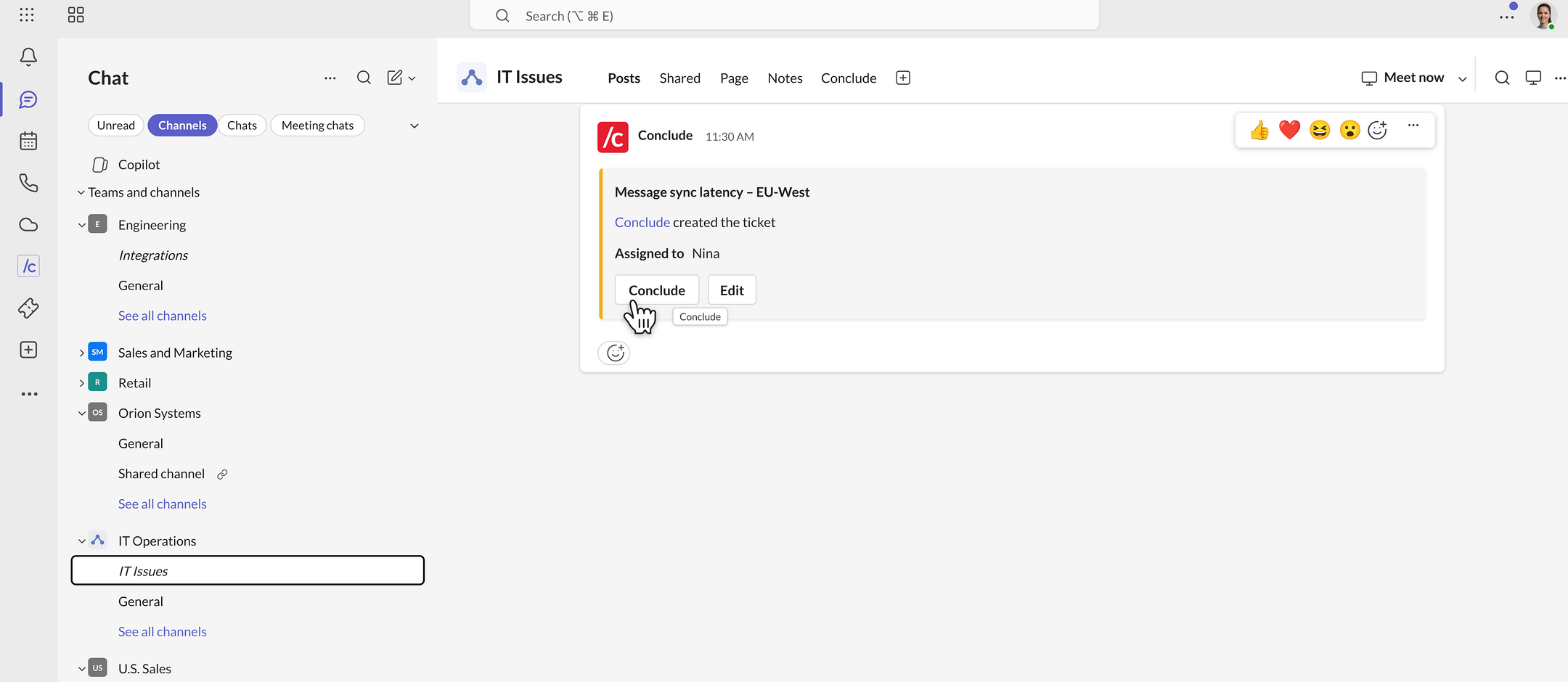
- In the channel where the ticket is being managed, click the Conclude button
- You can also close a ticket by typing @Conclude conclude or /conclude conclude in the ticket thread
- Enter any resolution notes and click Done
- The ticket label will change to indicate that it’s closed, and notifications will be sent to the relevant channel
Step 10: Setting up cross-platform ticketing
Combine the Apps and Connect solutions so a ticket opened on one platform (e.g. Teams) can be seen and actioned on the other (e.g. Slack). To set this up:
- Make sure Apps – ticketing and issue tracking and at least one Connect solution are enabled in Admin console → Solutions
- Either install an app in a channel and connect that channel to Slack, or connect the channels first and then install an app in one of them
- Open a ticket on either platform (e.g., use New ticket in Teams, or add the ticket emoji to a message in Slack)
- The ticket appears in the connected channel on the other platform, and replies sync both ways
To connect channels across Microsoft Teams and Slack, see the Conclude Connect Microsoft Teams Quickstart.
Step 11: Using the Dashboard in Teams
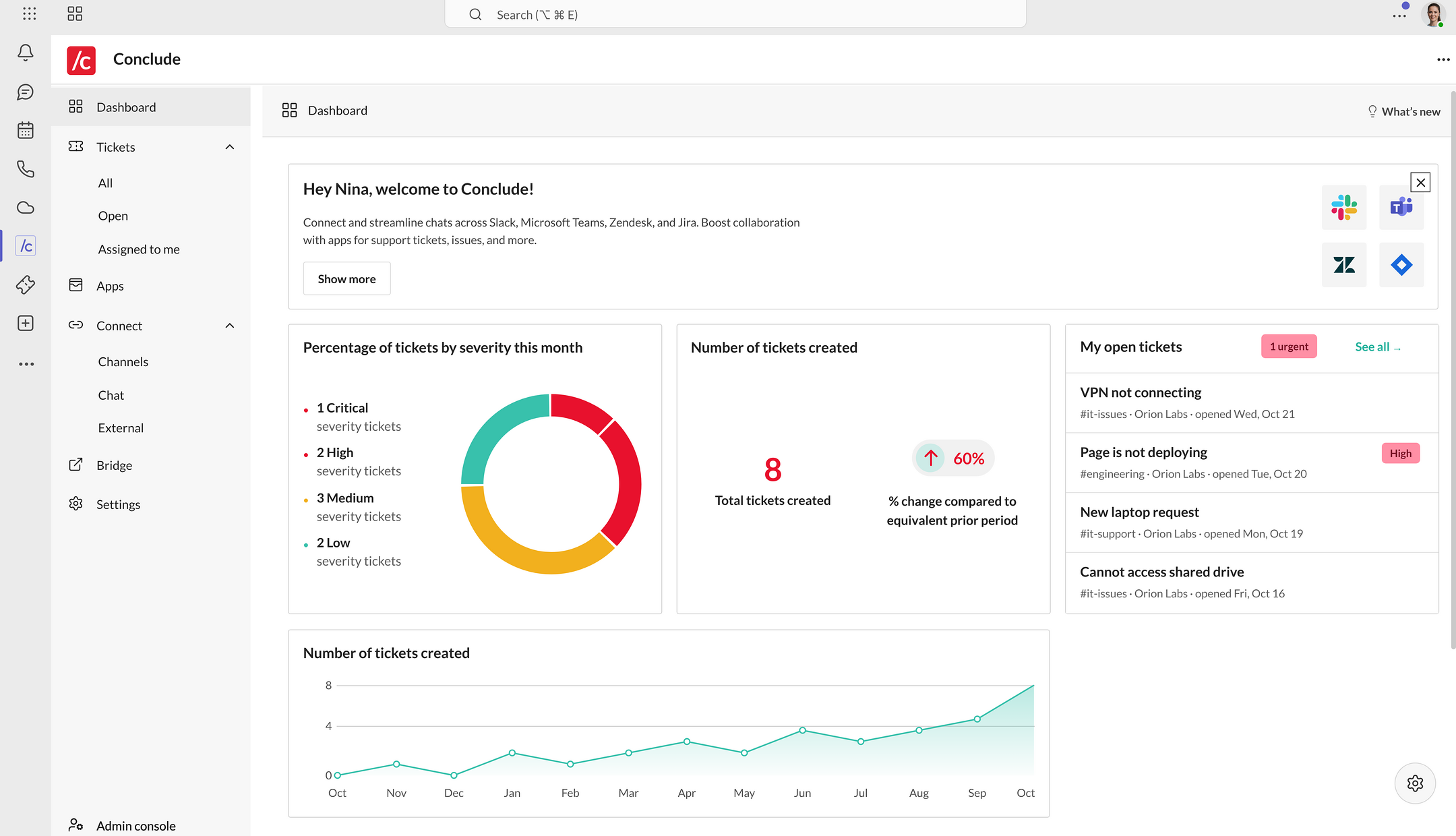
The Conclude Dashboard in Microsoft Teams mirrors the Dashboard in the Conclude web UI, so you can manage tickets and apps without leaving Teams.
- Open the Conclude app from the sidebar and navigate to the Dashboard section
- Use the sidebar to access Tickets, Apps, Connect, Bridge and Settings
- Among other metrics, here you can see:
- Tickets by severity: percentage of tickets by severity level (Critical, High, Medium, and Low) this month
- Tickets created: total number of tickets created and the change compared to the previous period
- Tickets over time: Track the number of tickets created month by month