# Connect – External Invitee Guide
Accept an invitation to connect with another company on Slack or Microsoft Teams
> Get started with Conclude as an invitee of another company. Connect your channels or chats for better collaboration on Slack and Microsoft Teams.
Canonical HTML page: https://conclude.io/quickstart/external-customer-setup-guide/
Last updated: 2026-08-17
---
If another company has invited you to collaborate through shared channels or chats, you're in the right place. This page relates to **Step 5** of the [Conclude External Quickstart](https://conclude.io/quickstart/connect-external/). For more information about what happens when you accept a connection, [read this guide](https://conclude.io/doc/developer/external-partners/).
## Step 1: Connecting with Conclude
This step explains what you, as the invited external company, need to do to get started with Conclude.
* **Click the invitation link** in the email to begin setup. If you do not have an email, check your spam folder or reach out to your contact. The link is valid for 96 hours
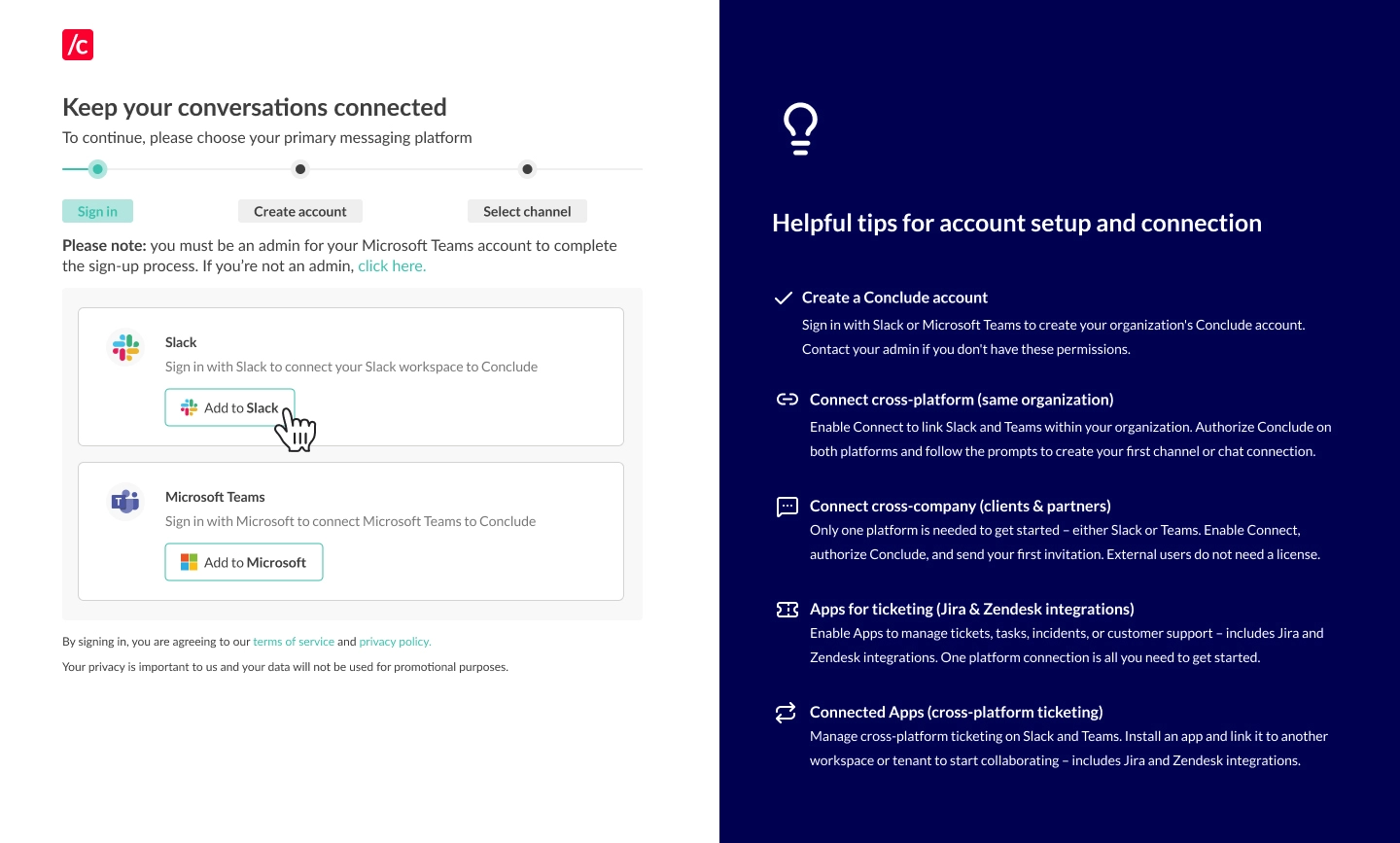
* **Select your messaging platform** – Slack or Microsoft Teams
* **Authenticate your platform** by clicking **Add to Slack** or **Add to Microsoft** and then follow the prompts
 ## Step 2: Choose a connection type
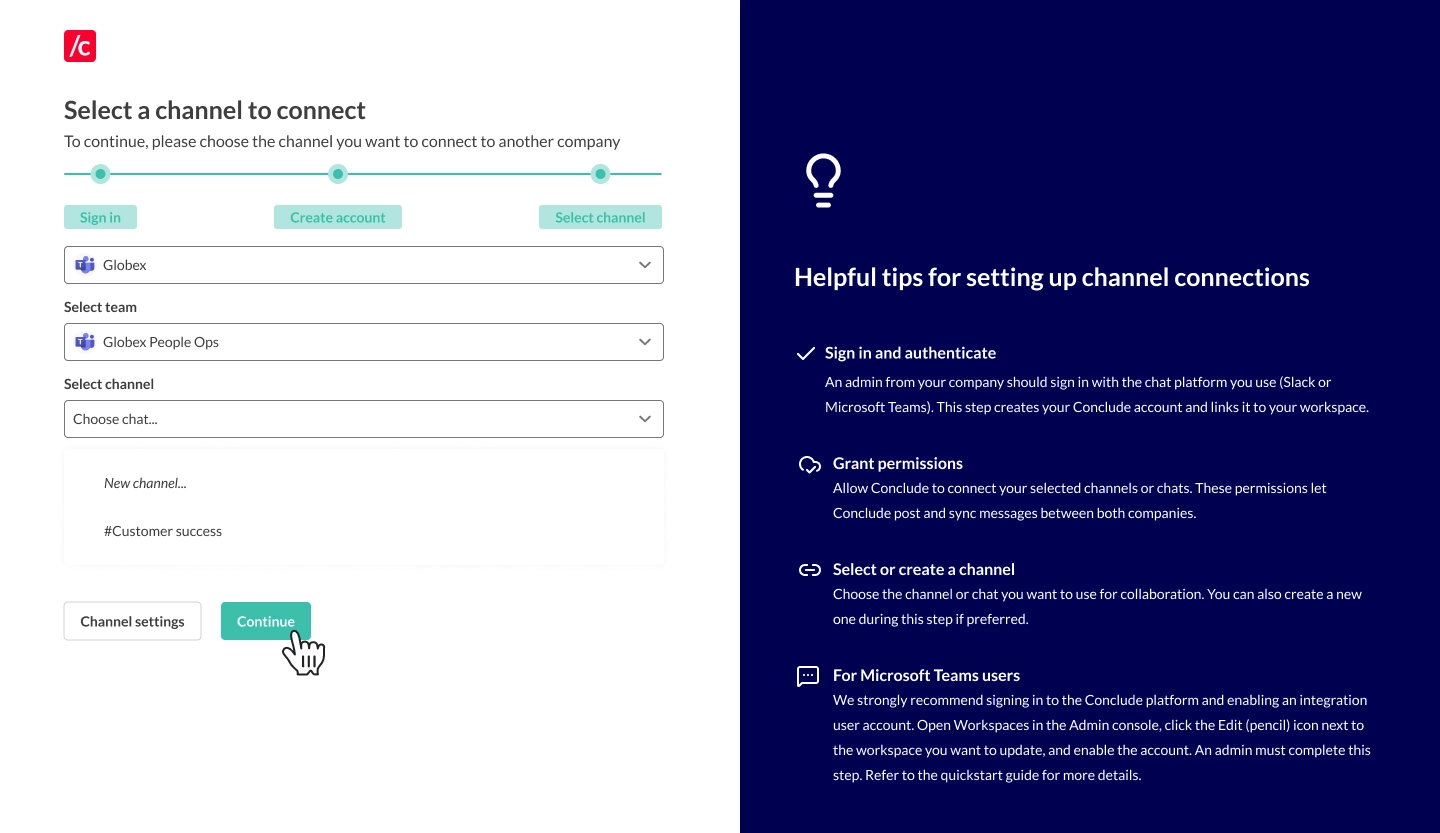
* **Slack authentication:** you’ll be asked which channels you would like to connect – select **Channels** and click **Continue**
* **Teams authentication:**
* **Select a workspace** or tenant
* **Select team** – here you can select your **team name** or **Chats**
* **Select channel** – here you can **select or create a new channel** or **create or connect a chat**
## Step 2: Choose a connection type
* **Slack authentication:** you’ll be asked which channels you would like to connect – select **Channels** and click **Continue**
* **Teams authentication:**
* **Select a workspace** or tenant
* **Select team** – here you can select your **team name** or **Chats**
* **Select channel** – here you can **select or create a new channel** or **create or connect a chat**
 ## Step 3: Connecting channels and chats
* If you selected an existing channel or chat in the previous step, click **Continue** and the connection will be set up
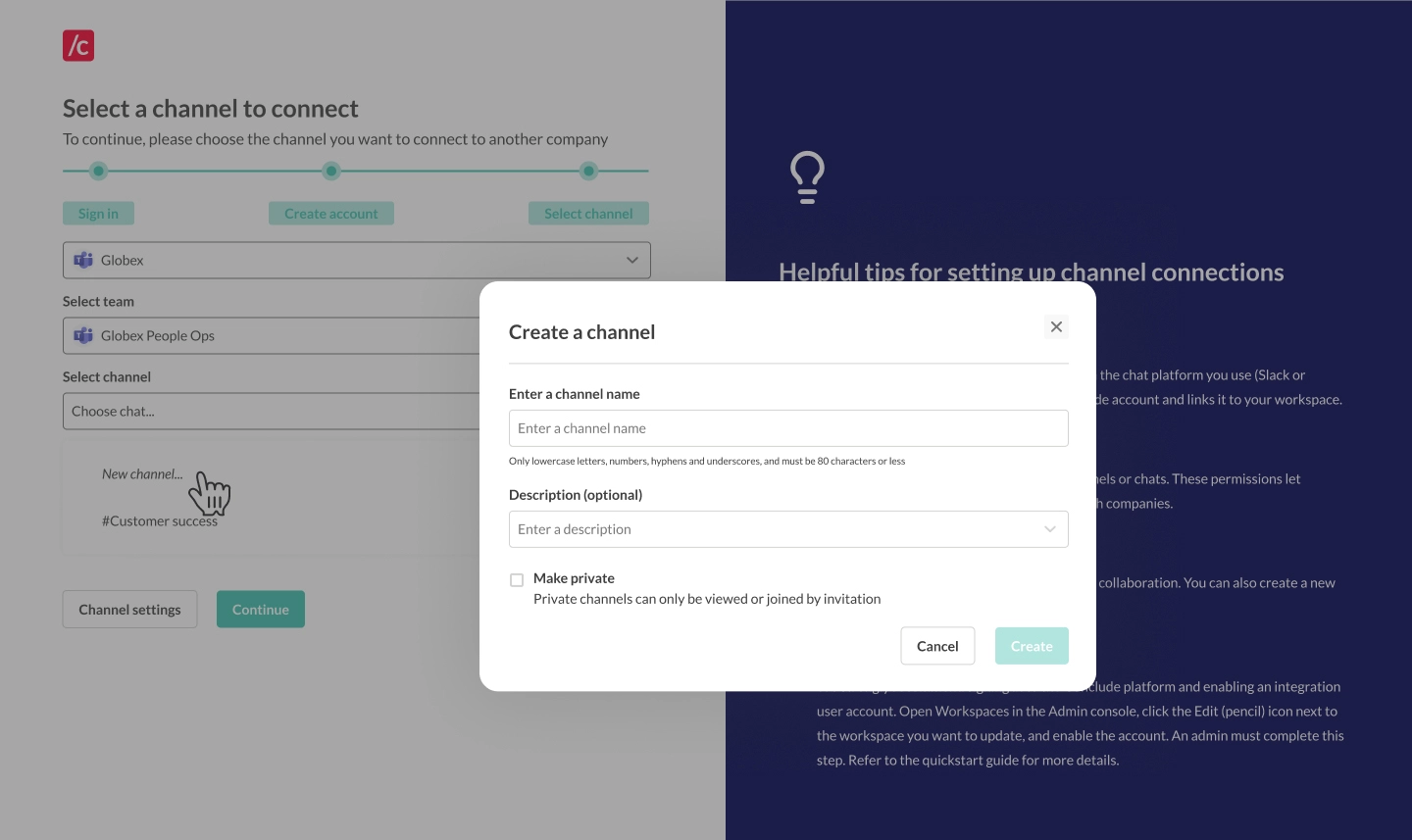
* If you selected **New channel** a dialog will appear. Enter the channel name, an optional description, and check **Make private** if you want to restrict access by invitation only. Click **Create**
Once connected, real-time synchronization begins:
* Messages sent in one platform will appear in the other
* Files shared in the conversation will be accessible on both sides
## Step 3: Connecting channels and chats
* If you selected an existing channel or chat in the previous step, click **Continue** and the connection will be set up
* If you selected **New channel** a dialog will appear. Enter the channel name, an optional description, and check **Make private** if you want to restrict access by invitation only. Click **Create**
Once connected, real-time synchronization begins:
* Messages sent in one platform will appear in the other
* Files shared in the conversation will be accessible on both sides
 ## Step 4: Navigating the web dashboard
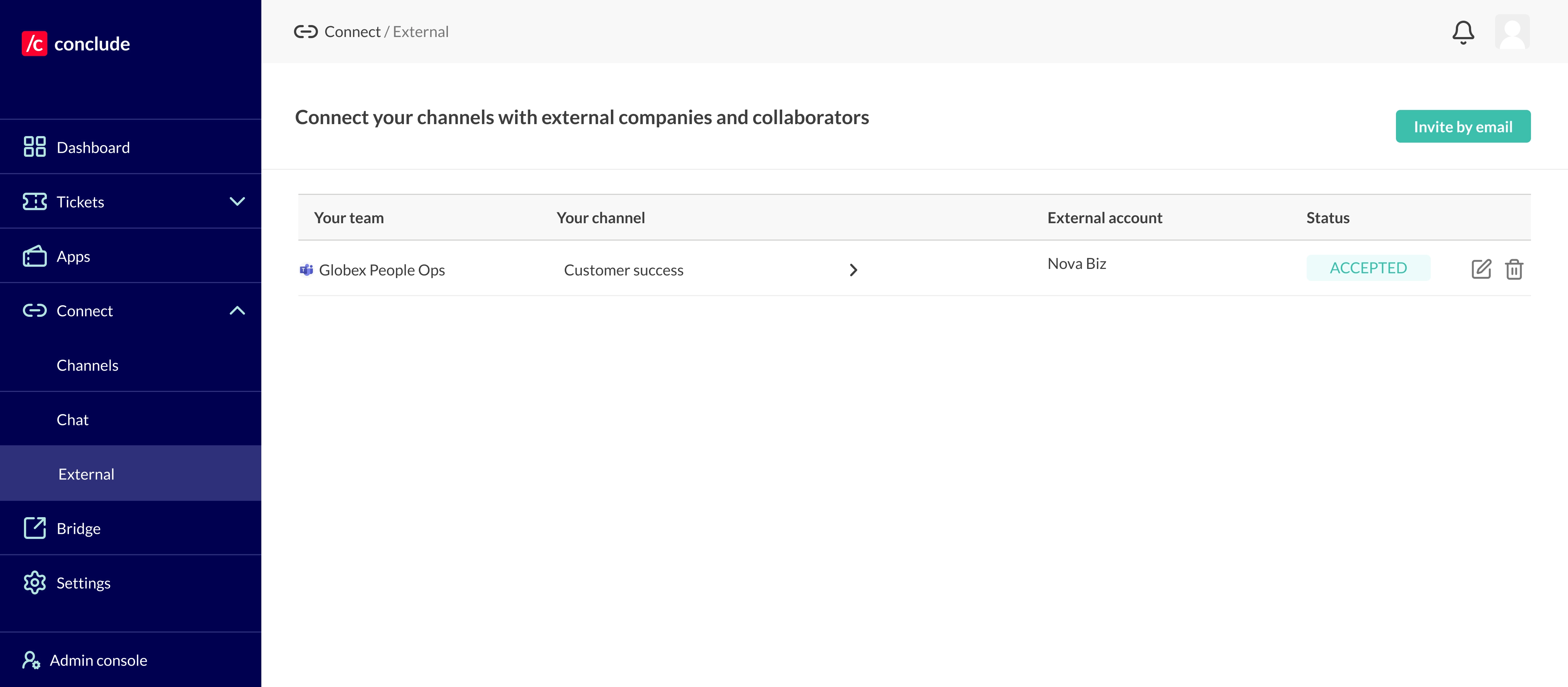
* Once you are set up, you can navigate to the web dashboard (button in the top right of the Conclude website)
* Under **Channels** you will see an overview of which channels and chats are connected with the company that has invited you to be a collaborator
* To set up new connections and invite collaborators, go to **Connect external,** then the **Channels** tab, to send email invitation links
**Important:** users from your company **are not counted as active users** and do not require a licence. However, **if you decide to set up new connections, your users will be counted as active users** (as you will be the inviting company).
## Step 4: Navigating the web dashboard
* Once you are set up, you can navigate to the web dashboard (button in the top right of the Conclude website)
* Under **Channels** you will see an overview of which channels and chats are connected with the company that has invited you to be a collaborator
* To set up new connections and invite collaborators, go to **Connect external,** then the **Channels** tab, to send email invitation links
**Important:** users from your company **are not counted as active users** and do not require a licence. However, **if you decide to set up new connections, your users will be counted as active users** (as you will be the inviting company).
 ## Step 5: Setting up an integration account
An [integration account](https://conclude.io/doc/developer/microsoft-teams-integration-account/) **enables Conclude to post messages on Microsoft Teams**. If you are using Microsoft Teams, **this step is essential**.
It acts as a fallback when no user account is available, ensuring consistent message delivery and synchronization across channels and chats. Follow the steps below or watch this guided video tutorial.
[Video](https://www.youtube.com/watch?v=YO3lKUi_Yfs)
### How it works:
* A Microsoft admin creates a generic user account (e.g. “Conclude integration” or “External user”) that isn’t associated with any physical person in the Microsoft admin system
* Use a generic account, not a real user account; messages will be posted under this identity when no user credentials are available. This helps maintain consistency and avoids confusion.
**Important information:** If the integration account is not yet signed in to Conclude, you will see a prompt to sign in and authorize Conclude to post messages on the account’s behalf. **The integration account must have a Microsoft 365 (Office 365) license that includes Teams.** It is *not* enough to have:
* Teams (free) – not compatible with enterprise apps
* Azure AD / Entra ID only – cannot use Teams
* Shared mailbox/service account without a full license – cannot post
[Read more about how to assign Teams add-on licences to users](https://learn.microsoft.com/en-us/microsoftteams/teams-add-on-licensing/assign-teams-add-on-licenses).
### To set up an integration account:
* Navigate to **Admin console > Integration account**
* Select the pre-created integration account from the drop-down, then click **Save**
**Note:** only admins can access the Admin console (located at the bottom of the sidebar)
## Step 5: Setting up an integration account
An [integration account](https://conclude.io/doc/developer/microsoft-teams-integration-account/) **enables Conclude to post messages on Microsoft Teams**. If you are using Microsoft Teams, **this step is essential**.
It acts as a fallback when no user account is available, ensuring consistent message delivery and synchronization across channels and chats. Follow the steps below or watch this guided video tutorial.
[Video](https://www.youtube.com/watch?v=YO3lKUi_Yfs)
### How it works:
* A Microsoft admin creates a generic user account (e.g. “Conclude integration” or “External user”) that isn’t associated with any physical person in the Microsoft admin system
* Use a generic account, not a real user account; messages will be posted under this identity when no user credentials are available. This helps maintain consistency and avoids confusion.
**Important information:** If the integration account is not yet signed in to Conclude, you will see a prompt to sign in and authorize Conclude to post messages on the account’s behalf. **The integration account must have a Microsoft 365 (Office 365) license that includes Teams.** It is *not* enough to have:
* Teams (free) – not compatible with enterprise apps
* Azure AD / Entra ID only – cannot use Teams
* Shared mailbox/service account without a full license – cannot post
[Read more about how to assign Teams add-on licences to users](https://learn.microsoft.com/en-us/microsoftteams/teams-add-on-licensing/assign-teams-add-on-licenses).
### To set up an integration account:
* Navigate to **Admin console > Integration account**
* Select the pre-created integration account from the drop-down, then click **Save**
**Note:** only admins can access the Admin console (located at the bottom of the sidebar)
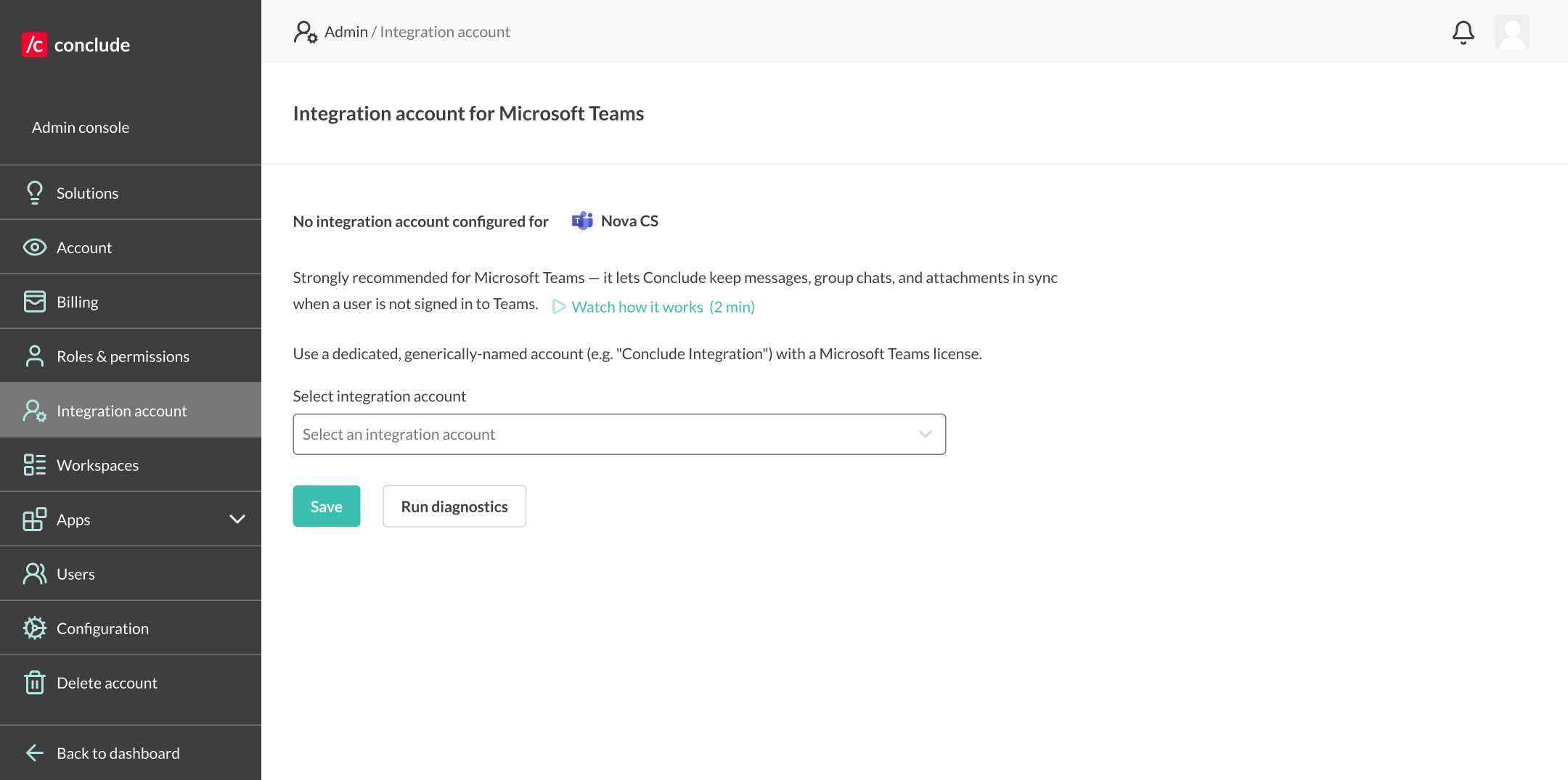
* Select **Run diagnostics** to check if the account has a valid Teams license and if they are signed in to Conclude
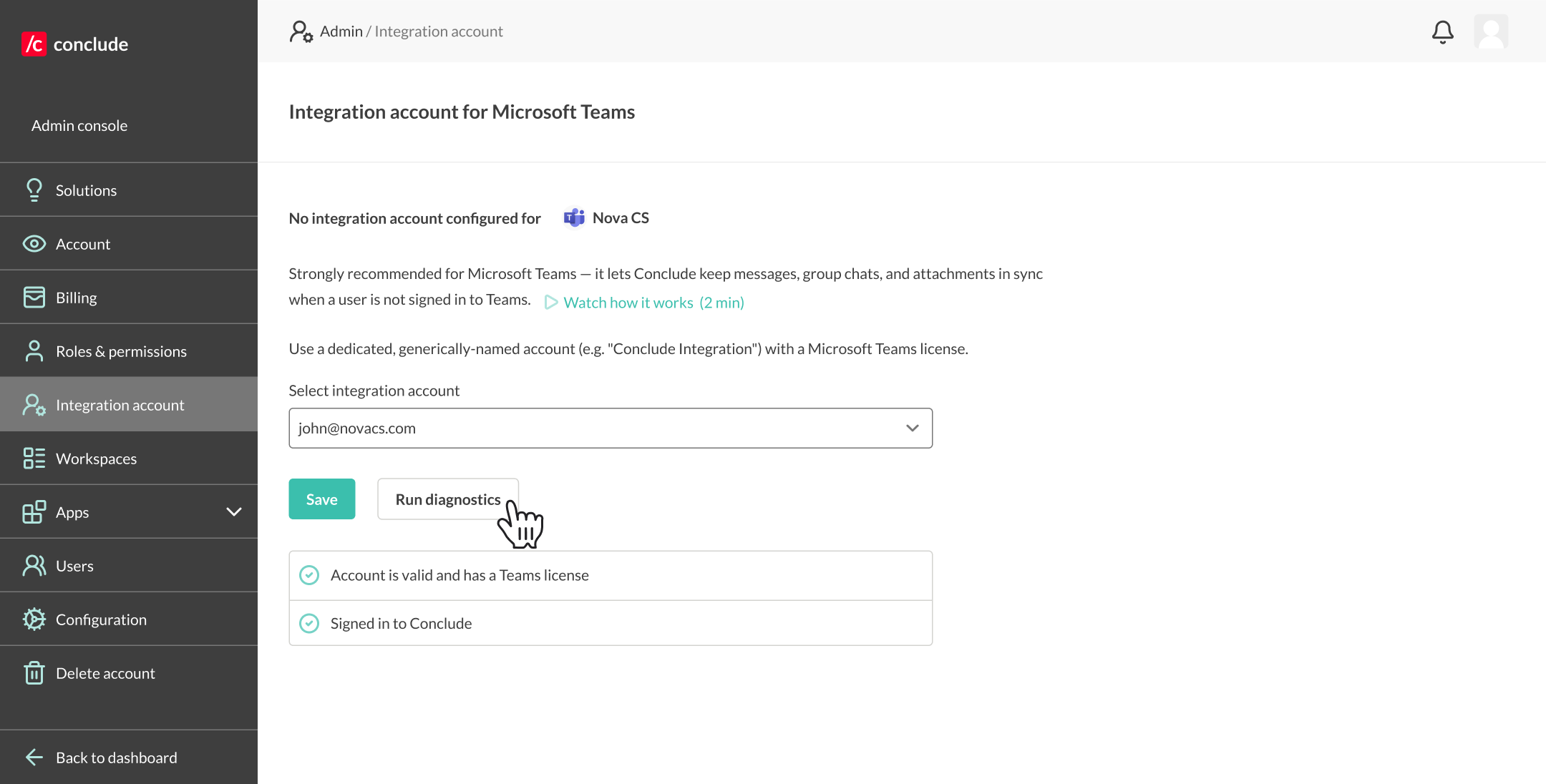
The account operates across the entire Microsoft organization. It will post any messages that don’t originate from a user with credentials in the same Microsoft tenant signed in with Conclude.
**Additional tips:**
* Ensure the integration account is added to the team containing your connected channels. For private channels, manually add this account to the channel
* This setup is recommended even when users exist on both sides, as it provides a fallback when no user credentials are available