Connect – External Invitee Guide
If another company has invited you to collaborate through shared channels or chats, you’re in the right place. This page relates to Step 5 of the Conclude External Quickstart. For more information about what happens when you accept a connection, read this guide.
Step 1: Connecting with Conclude
This step explains what you, as the invited external company, need to do to get started with Conclude.
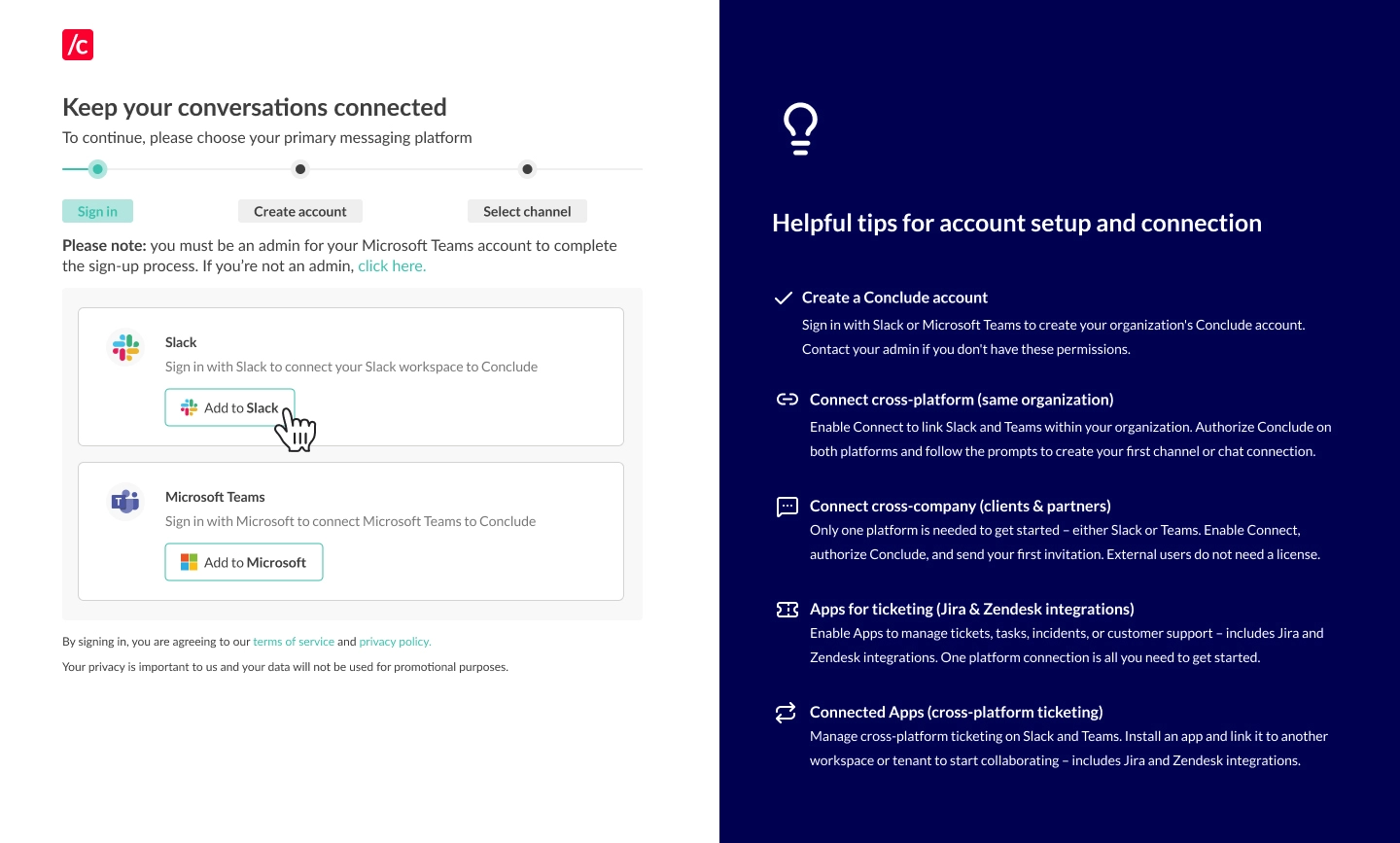
- Click the invitation link in the email to begin setup. If you do not have an email, check your spam folder or reach out to your contact. The link is valid for 96 hours
- Select your messaging platform – Slack or Microsoft Teams
- Authenticate your platform by clicking Add to Slack or Add to Microsoft and then follow the prompts
Step 2: Choose a connection type
- Slack authentication: you’ll be asked which channels you would like to connect – select Channels and click Continue
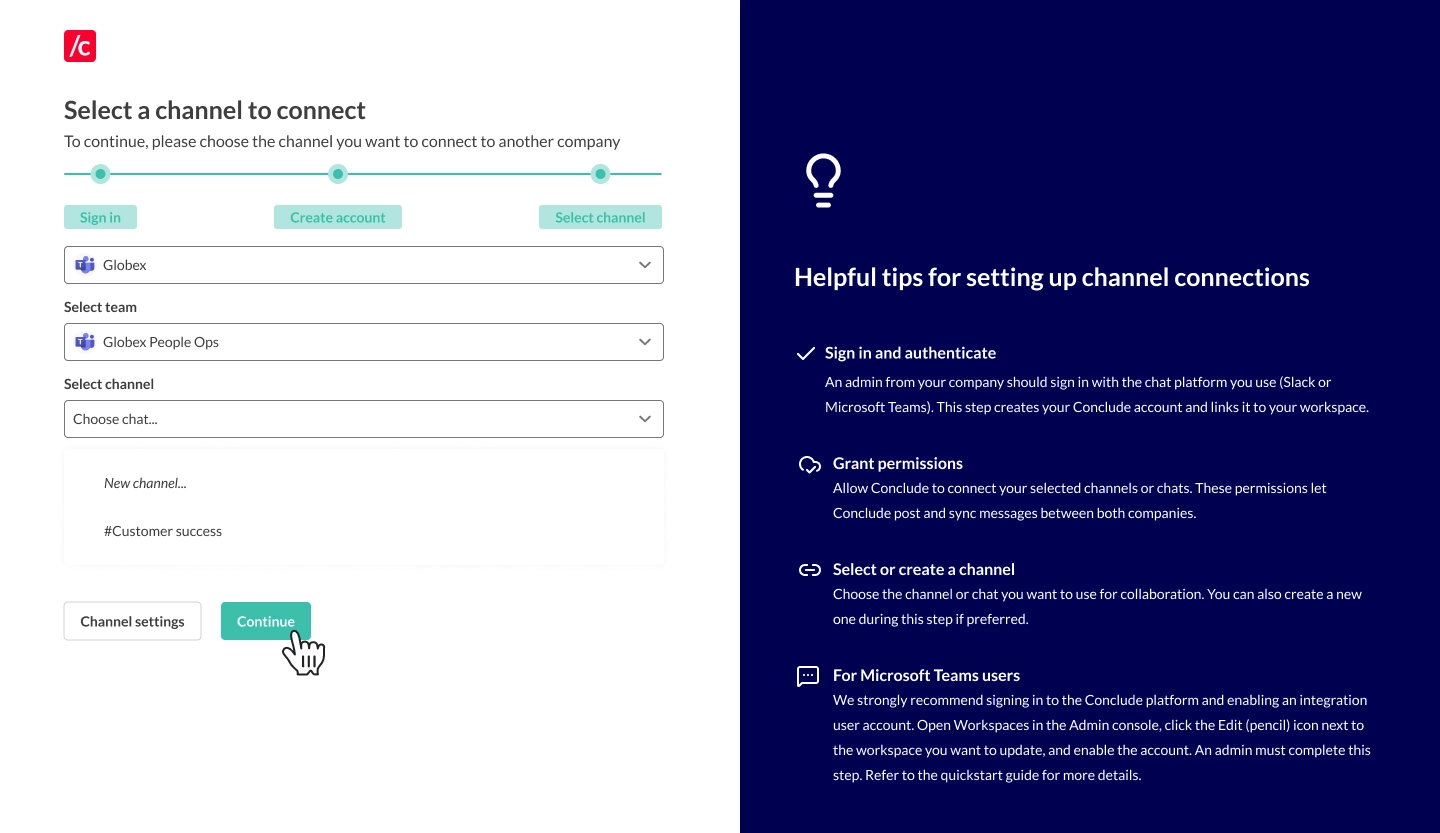
- Teams authentication:
- Select a workspace or tenant
- Select team – here you can select your team name or Chats
- Select channel – here you can select or create a new channel or create or connect a chat
Step 3: Connecting channels and chats
- If you selected an existing channel or chat in the previous step, click Continue and the connection will be set up
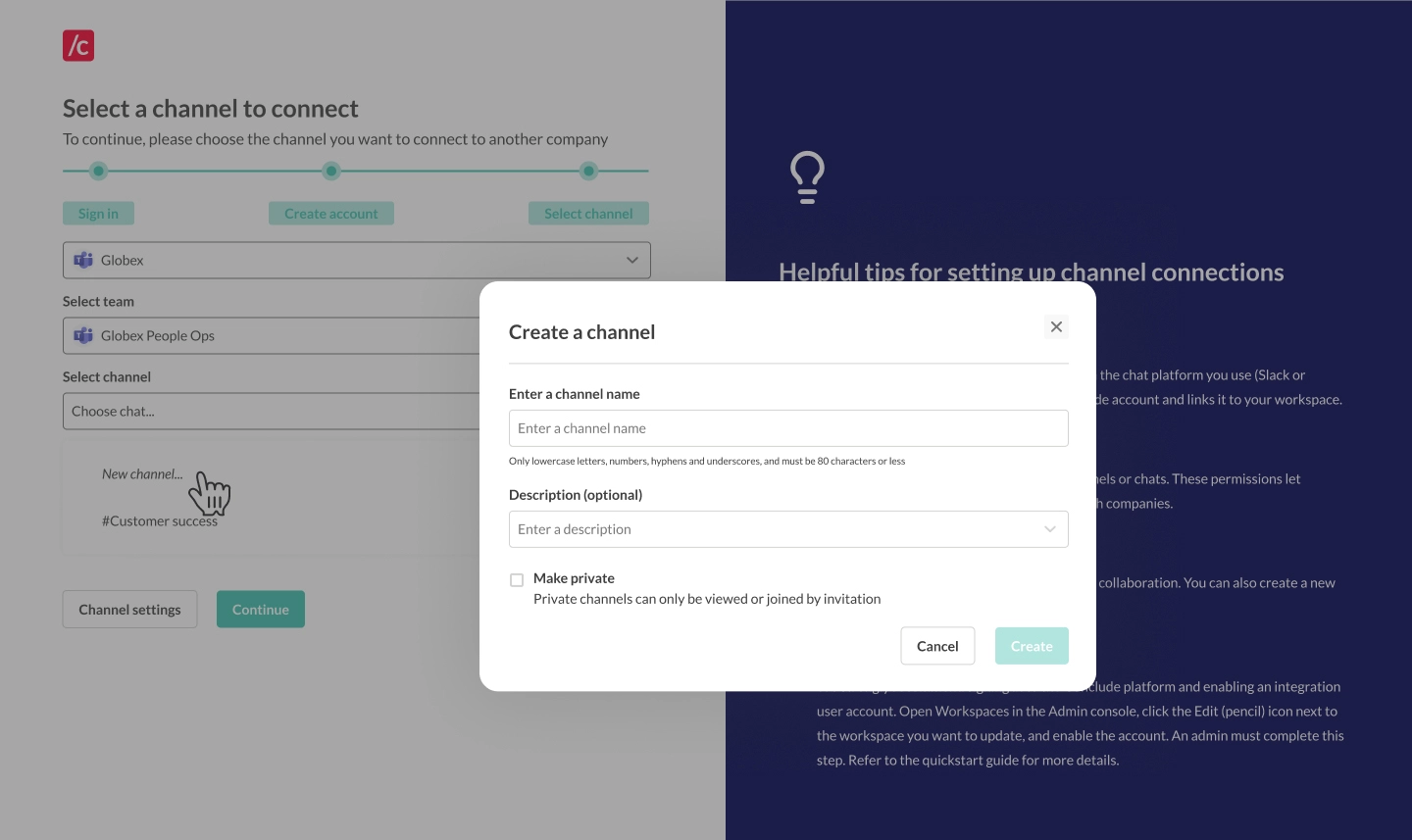
- If you selected New channel a dialog will appear. Enter the channel name, an optional description, and check Make private if you want to restrict access by invitation only. Click Create
Once connected, real-time synchronization begins:
- Messages sent in one platform will appear in the other
- Files shared in the conversation will be accessible on both sides
Step 4: Navigating the web dashboard
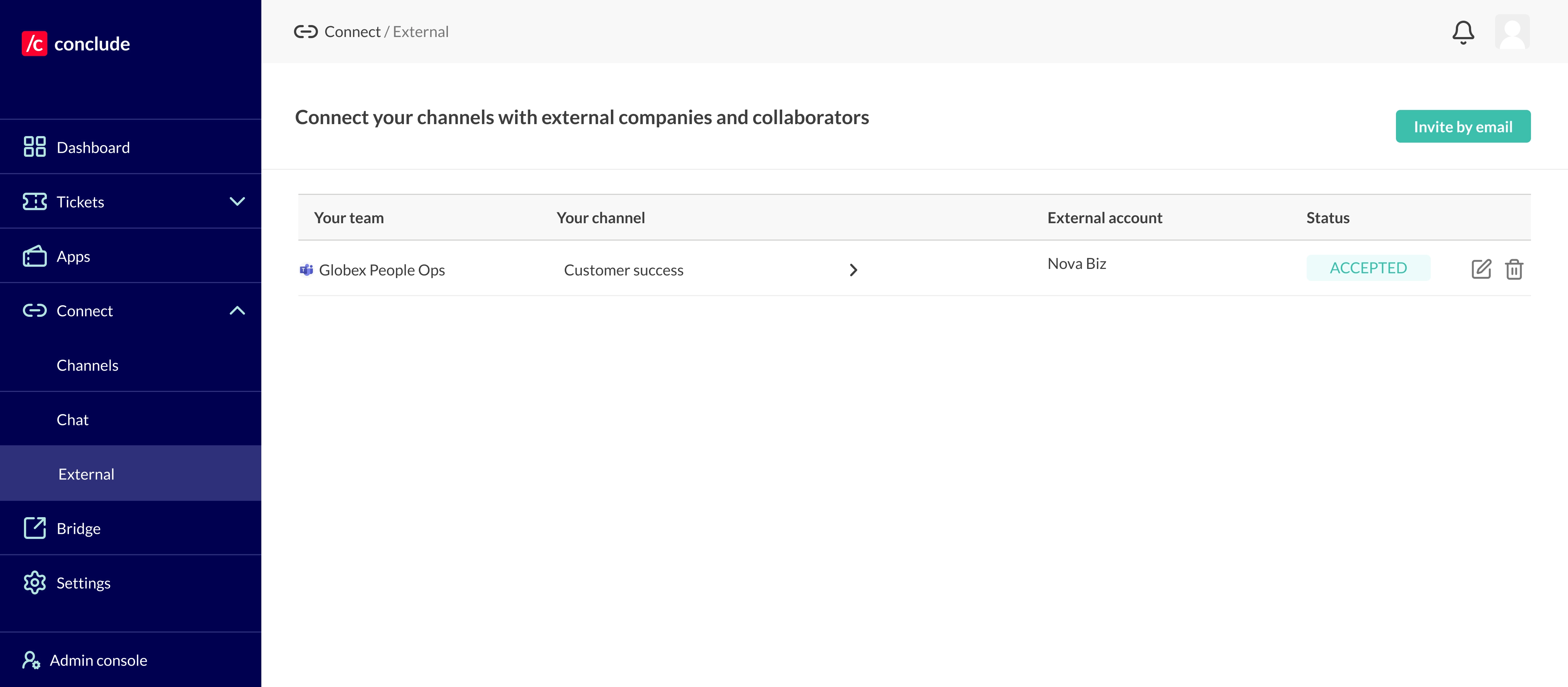
- Once you are set up, you can navigate to the web dashboard (button in the top right of the Conclude website)
- Under Channels you will see an overview of which channels and chats are connected with the company that has invited you to be a collaborator
- To set up new connections and invite collaborators, go to Connect external, then the Channels tab, to send email invitation links
Important: users from your company are not counted as active users and do not require a licence. However, if you decide to set up new connections, your users will be counted as active users (as you will be the inviting company).
Step 5: Setting up an integration account
An integration account enables Conclude to post messages on Microsoft Teams. If you are using Microsoft Teams, this step is essential.
It acts as a fallback when no user account is available, ensuring consistent message delivery and synchronization across channels and chats. Follow the steps below or watch this guided video tutorial.
How it works:
- A Microsoft admin creates a generic user account (e.g. “Conclude integration” or “External user”) that isn’t associated with any physical person in the Microsoft admin system
- Use a generic account, not a real user account; messages will be posted under this identity when no user credentials are available. This helps maintain consistency and avoids confusion.
Important information: If the integration account is not yet signed in to Conclude, you will see a prompt to sign in and authorize Conclude to post messages on the account’s behalf. The integration account must have a Microsoft 365 (Office 365) license that includes Teams. It is not enough to have:
- Teams (free) – not compatible with enterprise apps
- Azure AD / Entra ID only – cannot use Teams
- Shared mailbox/service account without a full license – cannot post
Read more about how to assign Teams add-on licences to users.
To set up an integration account:
- Navigate to Admin console > Integration account
- Select the pre-created integration account from the drop-down, then click Save
Note: only admins can access the Admin console (located at the bottom of the sidebar)
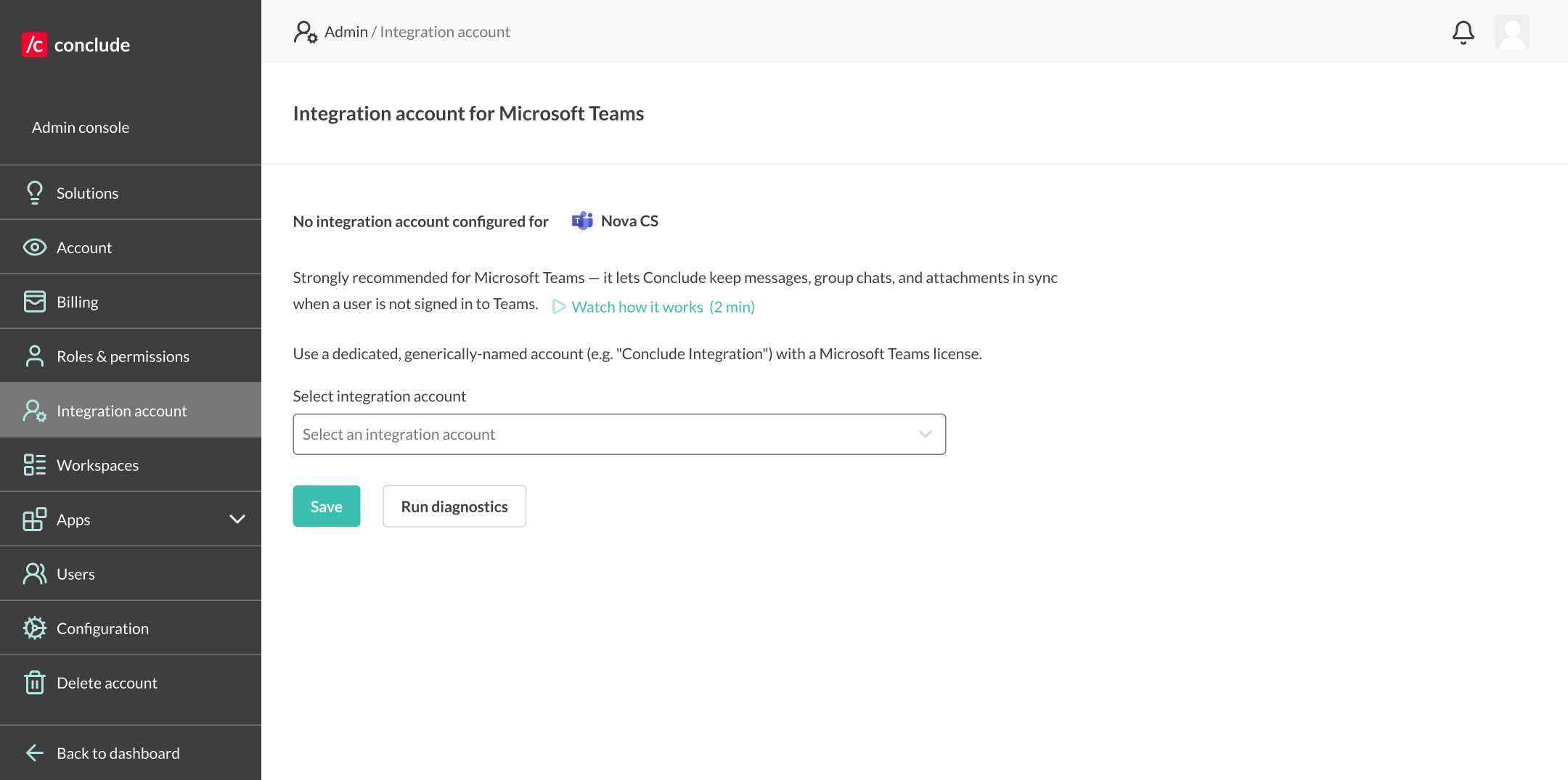
- Select Run diagnostics to check if the account has a valid Teams license and if they are signed in to Conclude
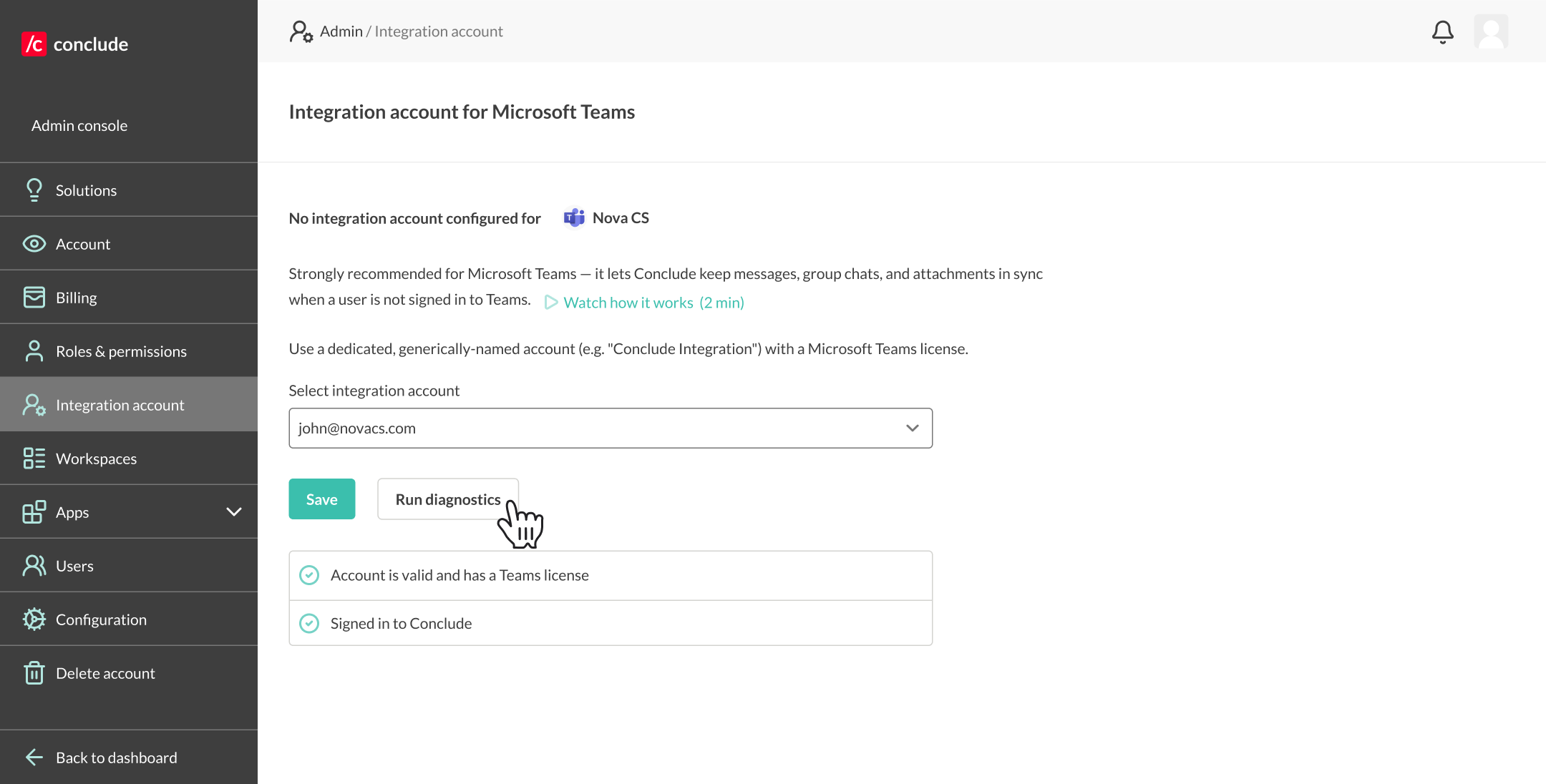
The account operates across the entire Microsoft organization. It will post any messages that don’t originate from a user with credentials in the same Microsoft tenant signed in with Conclude.
Additional tips:
- Ensure the integration account is added to the team containing your connected channels. For private channels, manually add this account to the channel
- This setup is recommended even when users exist on both sides, as it provides a fallback when no user credentials are available