Connected Apps Quickstart
Connected Apps combines Apps and Connect – so teams on Slack and Microsoft Teams can collaborate on the same tickets without switching platforms. Tickets created on one platform are instantly visible and actionable on the other.
With Connected Apps you can:
- Install an app in a channel, then connect that channel across Slack and Teams – the app syncs automatically across the connection
- Connect channels first, then install an app in one of the connected channels – it will sync to the other side
- Use this for connections in the same company across Slack and Teams and cross-company connections (with partners or clients)
- Optionally sync the connected app with Zendesk for a full customer support workflow
To use Connected Apps you will need:
- An active Conclude account – see our Quickstart Guides to get started
- Toggle on either our External, Bridge or Internal collaboration solutions in Admin console > Solutions
- Apps – ticketing and issue tracking enabled and toggled on in Admin console > Solutions
Start here
In this guide, we cover:
- How Connected Apps work
- Enabling and installing an app
- Connecting relevant channels
- Verifying the app is syncing
- Configuring the app
- Optional Zendesk integration
- Creating and managing tickets
How Connected Apps work
There are two ways to set up Connected Apps, and both ways achieve the same result – a Conclude app that is active across connected channels on Slack and Microsoft Teams. They also work across different Slack or Teams workspaces and tenants (e.g., Slack ↔ Slack)
Option A: Install the app first, then connect the channel
- Install a Conclude app into a Slack or Teams channel (see Step 2 below)
- Connect that channel to a channel on the other platform using Connect internal or Connect external (see Step 3 below)
- The app will automatically sync across the connection
Option B: Connect the channel first, then install the app
- Set up a channel connection between Slack and Teams (internal or external)
- Install a Conclude app into one of the already-connected channels
- The app syncs to the connected channel on the other side automatically
💡 Both options work for internal connections (same company, Slack ↔ Teams) and cross-company external connections (different company Slack ↔ Teams).
Step 1: Enable Apps and Connect in the Dashboard
Go to the Conclude web dashboard and navigate to Admin console > Solutions.
- Toggle on Apps – ticketing and issue tracking to enable the apps feature
- Toggle on Connect – internal for same-company use, Connect – external for different organizations, or you can use both
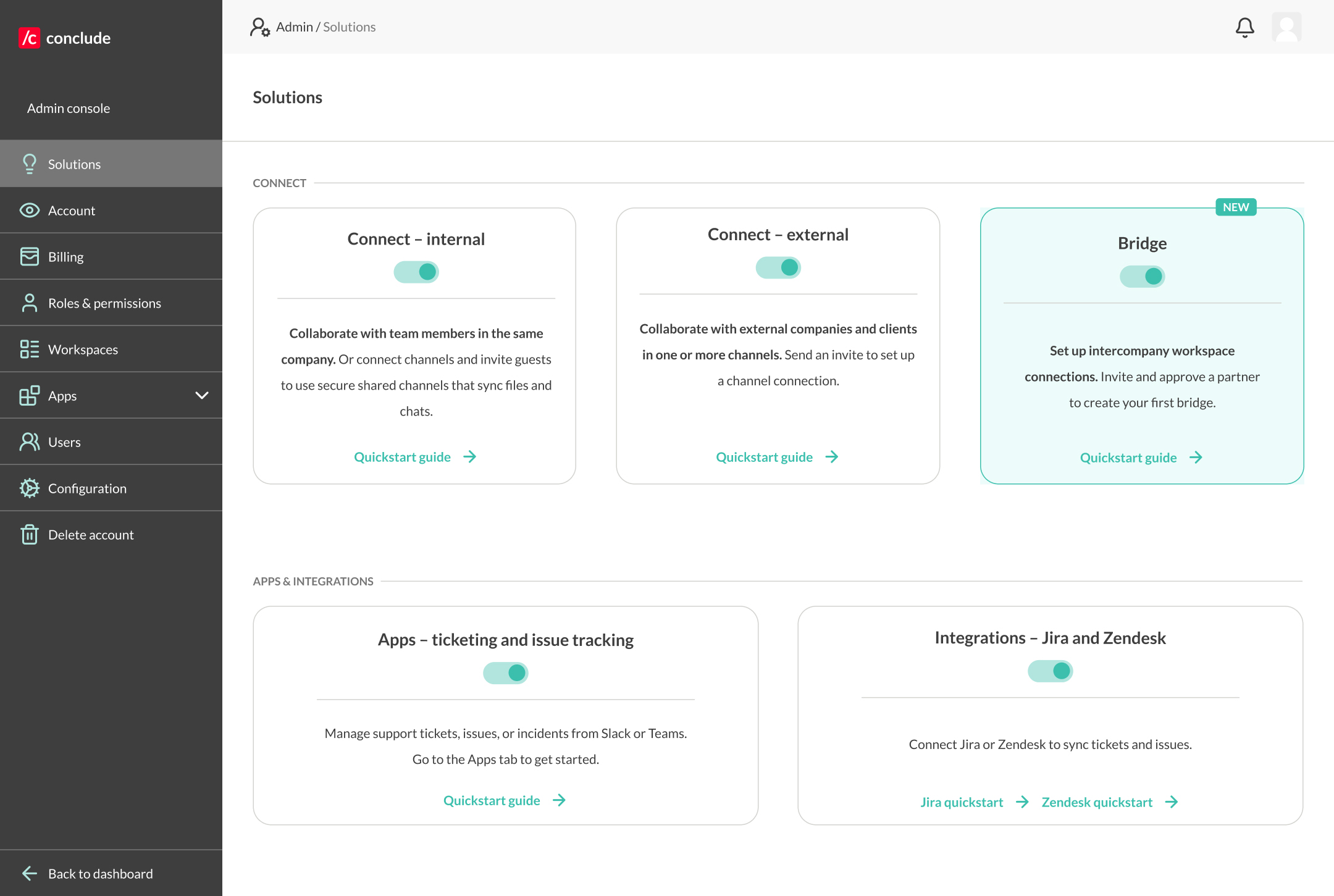
💡 If you have already enabled these solutions, go to Step 2.
Step 2: Install a Conclude app
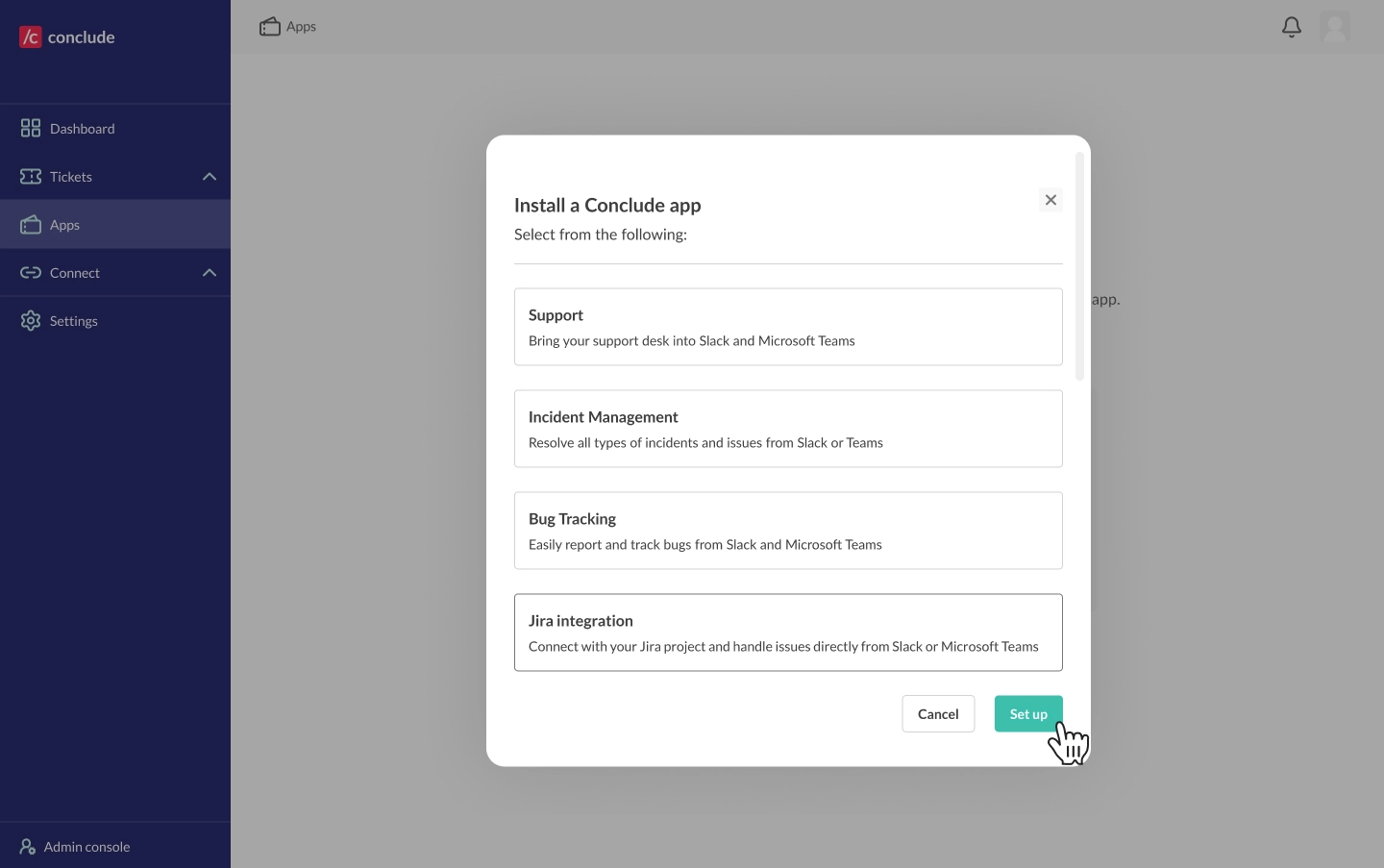
Go to Apps in the sidebar and click Install app in the upper-right corner.
- Select an app template, e.g., Support, Incident, or Zendesk Integration, and click Setup
Select a workspace (Slack or Microsoft Teams), select a team if applicable, and select or create the channel where you want to install the app.
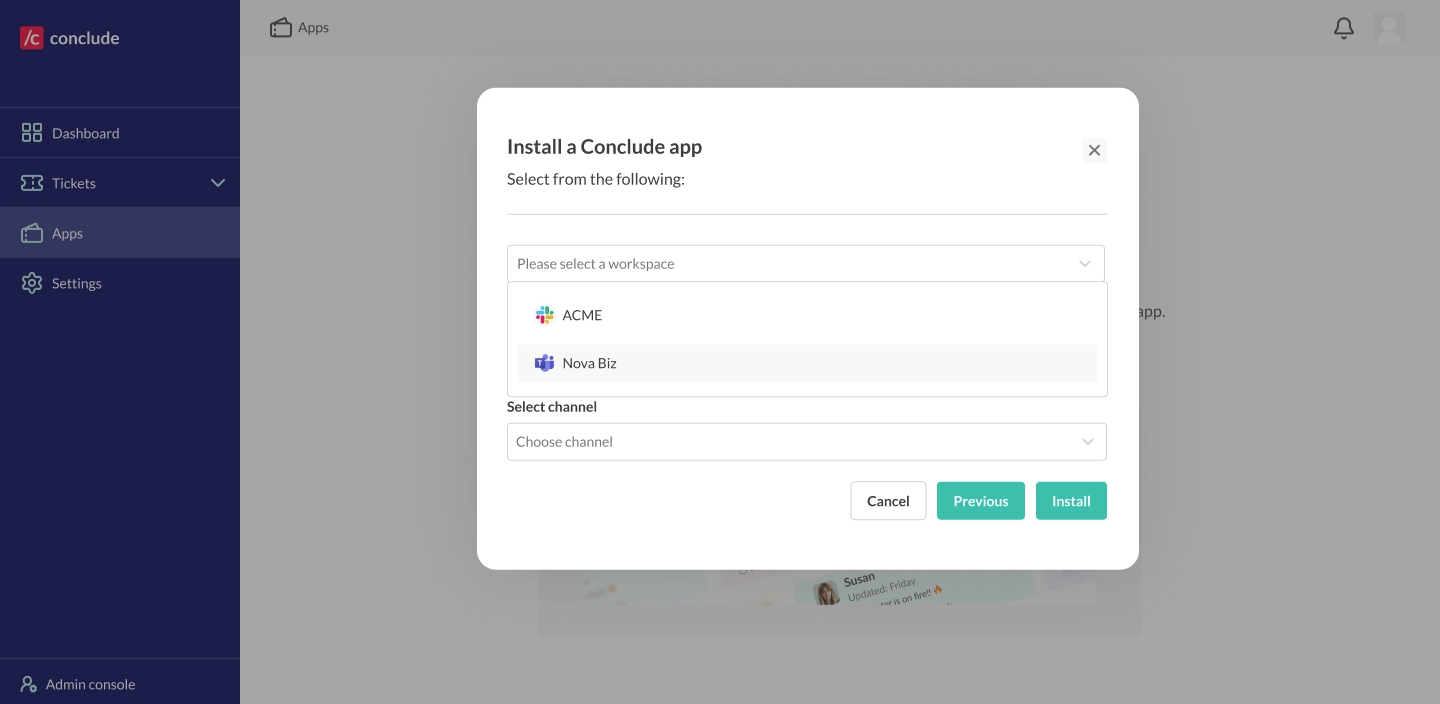
💡 You can install the app into any channel, including one that is already connected, or one you plan to connect in the next step.
Step 3: Connect the relevant channels
Once the app is installed, connect the channel to its counterpart on the other platform. This is where Apps and Connect come together.
For same company, Slack ↔ Teams
- Connect > Channels in the sidebar and click New connection
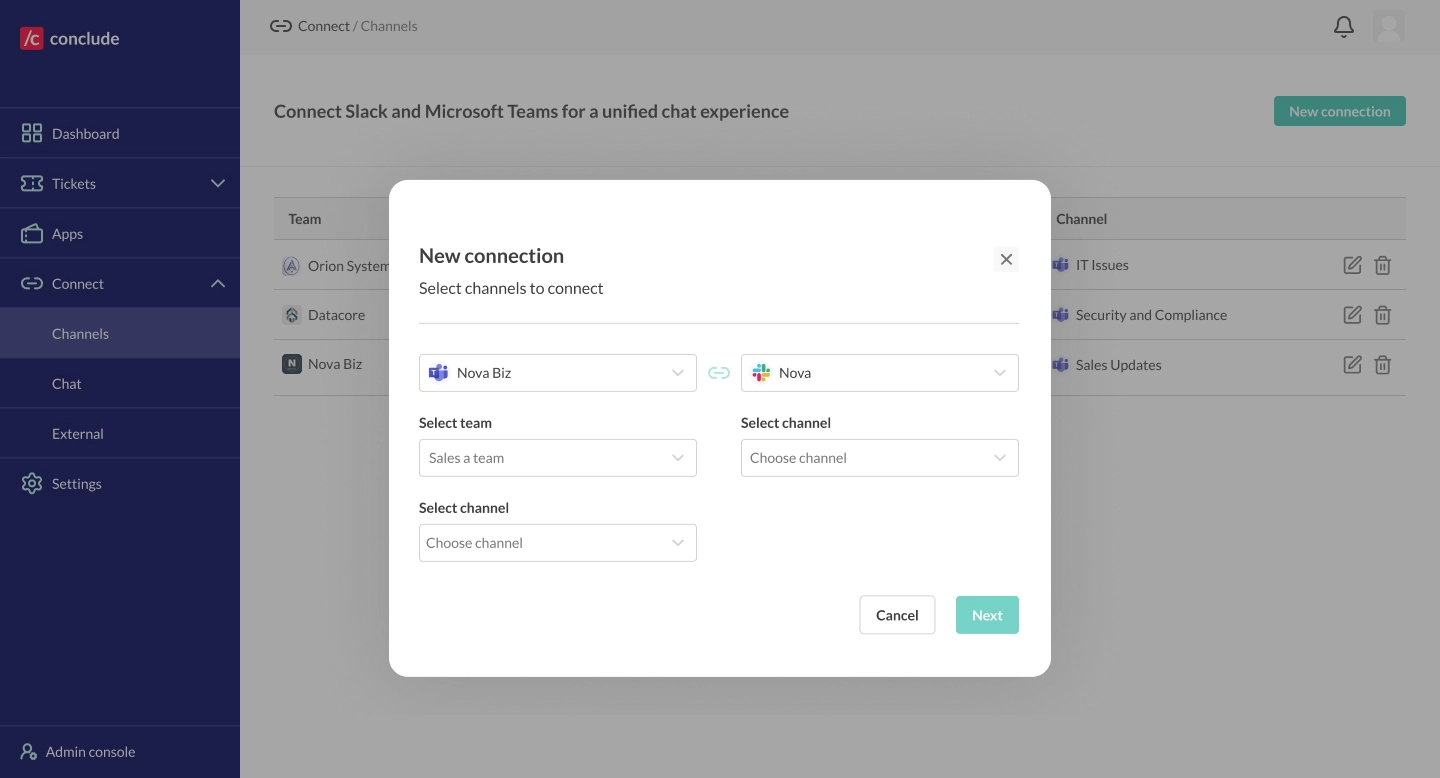
- Choose the Microsoft Teams team and Slack workspace you want to connect
- Select the specific channels to connect – including the channel where you just installed the app
- Click Create to establish the connection
💡 Once connected, all messages in the channel sync automatically between Slack and Teams – including app activity such as tickets, updates, and resolutions.
For external collaboration
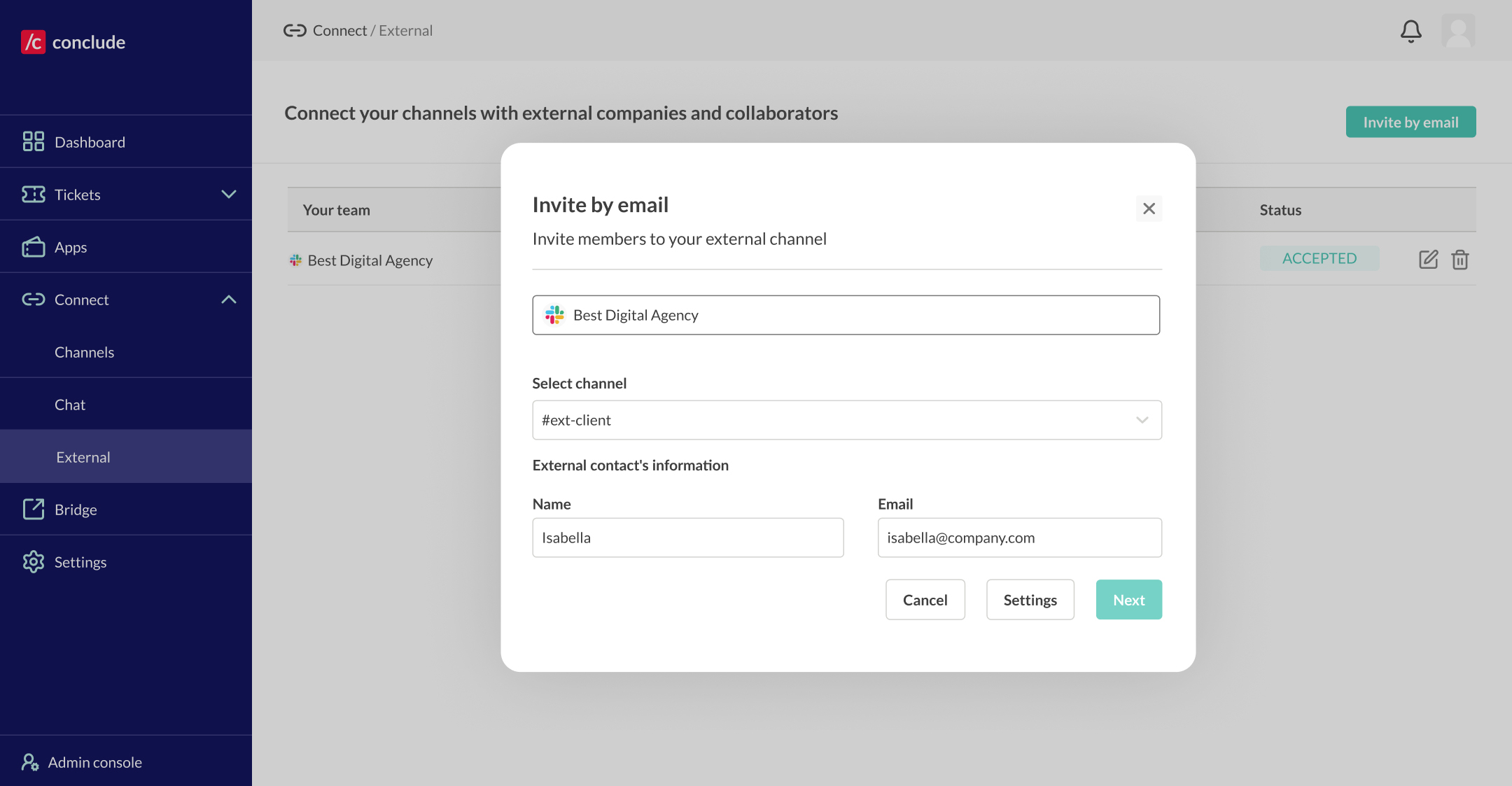
- Go to Connect > External in the sidebar and click Invite by email
- Choose the channel where your app is installed
- Enter the collaborator’s name and email address, then click Next
- Review and send the invitation. The link is valid for 96 hours
Once the invited company accepts and completes setup:
- Their channel connects to yours in real time
- The app syncs across the connection – tickets, updates, and messages are visible on both sides
- Their users are never counted as active users and do not require a Conclude license
💡 External collaborators can use either Slack or Microsoft Teams; they don’t need to be on the same platform as you.
Step 4: Verify that the app is syncing
After the connection is established, confirm the app is active on both sides:
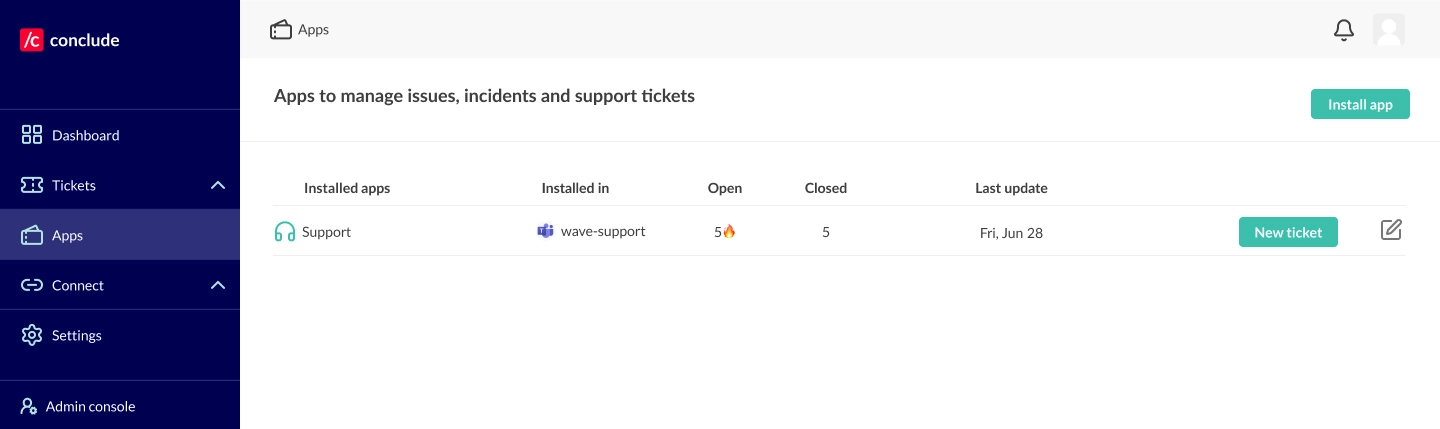
- Open Apps in the dashboard and check that the app appears with the correct channel
- Open a test ticket in the channel — it should appear on both the Slack and Teams sides
- Check that ticket updates, replies, and status changes are reflected on both platforms
💡 If you don’t see the app syncing as expected, confirm that Conclude is installed in both workspaces and that the integration account is configured (see Step 6).
Step 5: Configure the app (optional)
- Go to Apps in the sidebar and click the Edit (pencil) icon next to the app
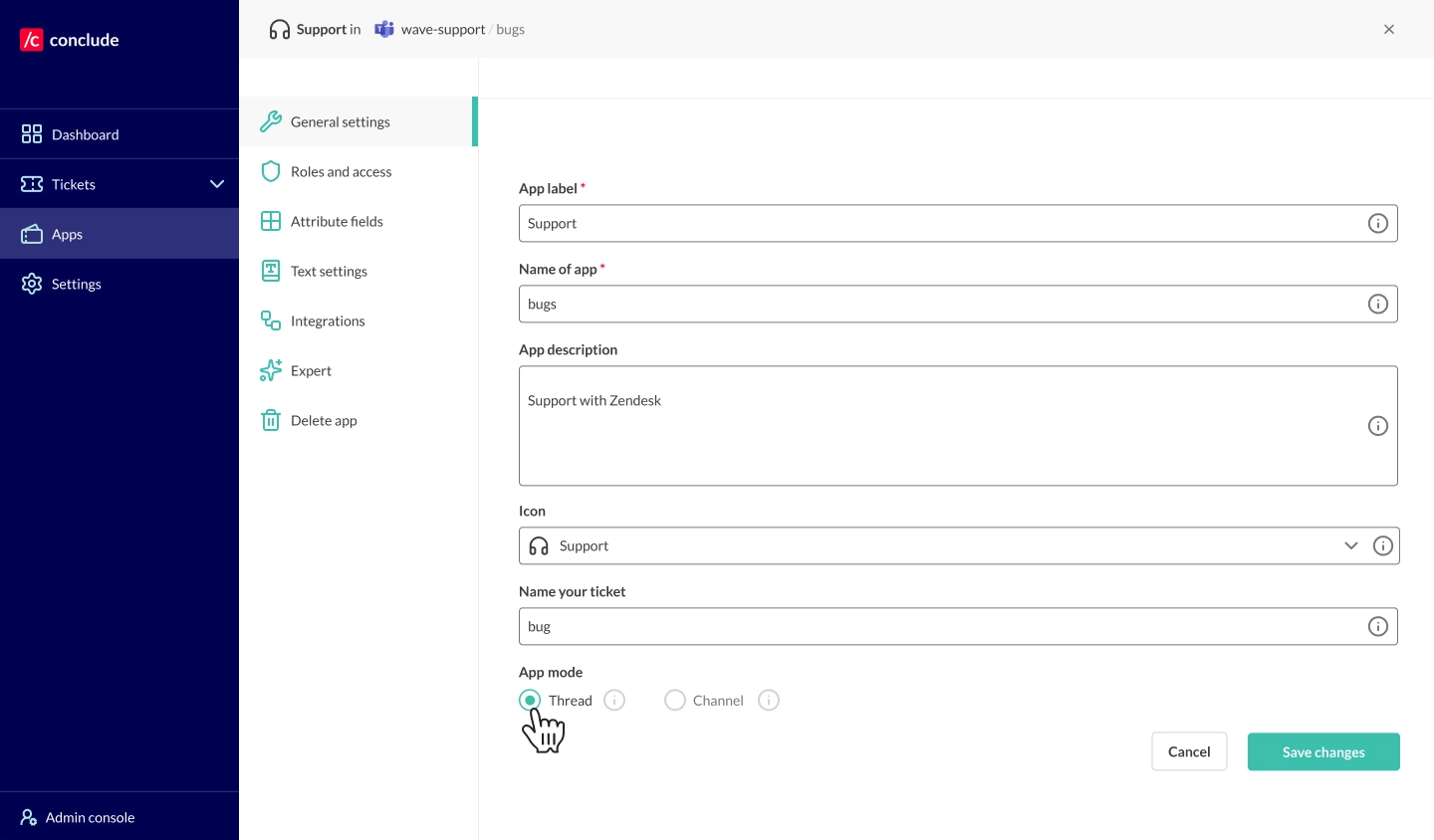
In the App editor settings, you can configure:
- General settings – name, description, access control, and app mode (Thread or Channel)
- Roles and access – assign an owner and specify which people and channels receive notifications
- Attribute fields – configure or add custom attributes for your tickets
- Text settings – customize text fields, including the Launch button and Owner label
- Integrations – connect an app to Jira, Zendesk, or email; AI email summarization and translation settings are also found here
- Expert – view or edit the YAML source code of the app directly
Step 6: Integrate with Zendesk (optional)
If you are using Conclude for customer support, you can connect the app to Zendesk so that tickets are mirrored bidirectionally between Slack or Teams and your Zendesk account.
Activate the Zendesk integration
Go to Admin console > Solutions and toggle on Integrations – Jira and Zendesk. Apps – customer support and ticketing are already enabled.
Add your Zendesk account
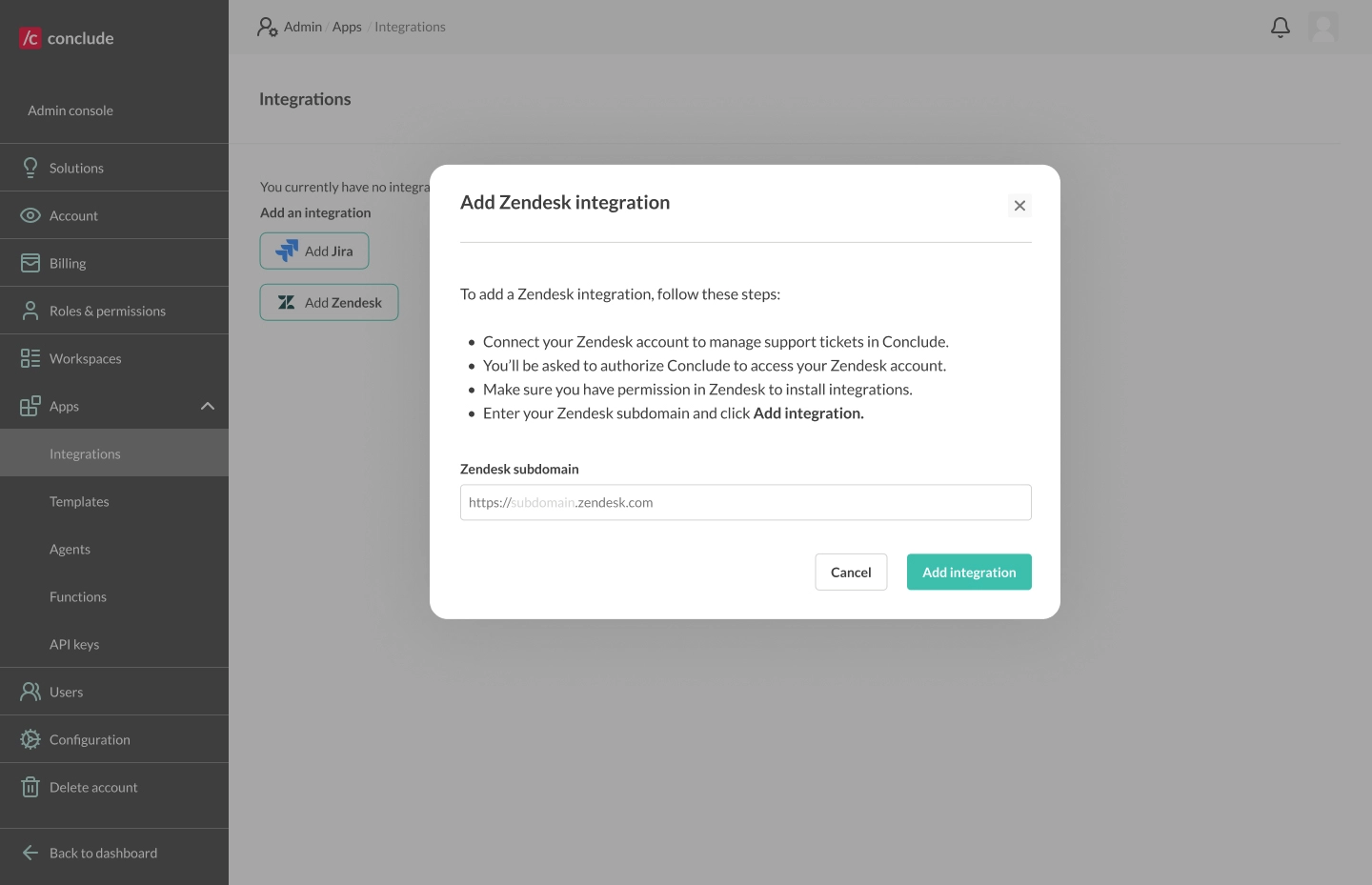
- Go to Admin console > Apps > Integrations and click Add Zendesk
- Enter your Zendesk subdomain (the part before .zendesk.com) and click Add integration
- Click Allow to grant permissions. You’ll see a confirmation screen when the connection is successful
Configure the app to sync with Zendesk
- Under Apps, select your Connected App, and click the Edit (pencil) icon
- Integrations > Zendesk, check Integrate with Zendesk, and click Save changes
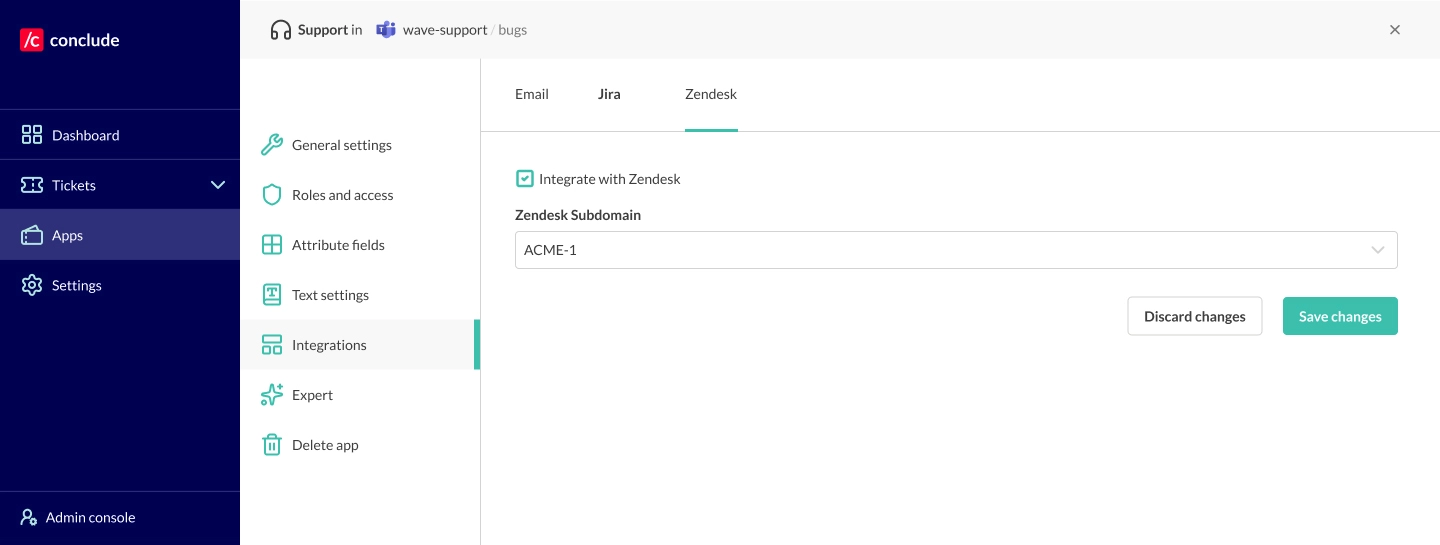
Once configured:
- Tickets created in Slack or Teams are automatically mirrored in Zendesk
- Replies and updates in Zendesk sync back to Slack or Teams
- Agents can respond from whichever platform they prefer
Slack and Zendesk setup
Change the App mode to Thread under General settings. In Thread mode, placing a ticket emoji on any message opens a new ticket as a thread, which is automatically mirrored in Zendesk.
Microsoft Teams and Zendesk setup
You will need to use the Posts layout for this to function properly. Using the Thread layout will put all new tickets into a single thread; use Posts to keep each ticket separate.
Step 7: Creating and managing tickets
Once the app is installed and the channel is connected, tickets can be opened from either platform.
Tickets – from the Dashboard (web UI)
- Go to Apps, select your app, and click the New [ticket type] button
- Fill in the details and submit. An alert is sent to the main channel, and a new activity thread or branched channel is created
Tickets – from Slack
- Place a ticket emoji on any message in the connected channel to open a new ticket (Thread mode)
- The ticket appears in the connected Teams channel automatically
Tickets – from Microsoft Teams
- Place a ticket emoji on any message in the connected channel to open a new ticket
- Use the Posts layout channel to create tickets
- Tickets sync to the connected Slack channel
Resolving tickets
- Use ✓ Conclude to close the ticket
- Add the cause and resolution, then click Done
- A summary is posted to the main channel on both platforms
- Closed tickets are archived but remain searchable from the dashboard under Tickets