# Connect – External Quickstart
Create external connections to connect with customers and clients on Slack and Microsoft Teams
> Connect with customers on Slack or Microsoft Teams using Conclude for cross-company collaboration. Chat and share files bi-directionally. Free for 14 days.
Canonical HTML page: https://conclude.io/quickstart/connect-external/
Last updated: 2026-08-17
---
This guide will walk you through getting started with Conclude and connecting with customers, partners and vendors using single channel (one invite per channel) connections. To learn more about setting up a Slack Teams bridge (approve a partner once, connect unlimited channels) see the [Bridge Quickstart](https://conclude.io/quickstart/bridge/). Watch the video below for a quick tutorial.
Note: To connect with other teams and workspaces across your organization, see the [Conclude Connect Internal Quickstart](https://conclude.io/quickstart/connect/).
[Video](https://www.youtube.com/watch?v=3B_Fo_M3ZBo)
## Start here
In this guide we will cover:
* How to sign up for an account
* Navigating the Admin settings
* Adding Conclude to Slack or Teams
* Selecting teams and inviting collaborators
* Connecting external companies
* Setting up an integration account
## Step 1: Sign up for an account
Click **Get started** or **Sign up** on our website to get started. During the sign-up process, you will be asked to select your primary messaging platform: Slack or Microsoft Teams. You only need to sign in with one platform to use Conclude Connect for external connections.
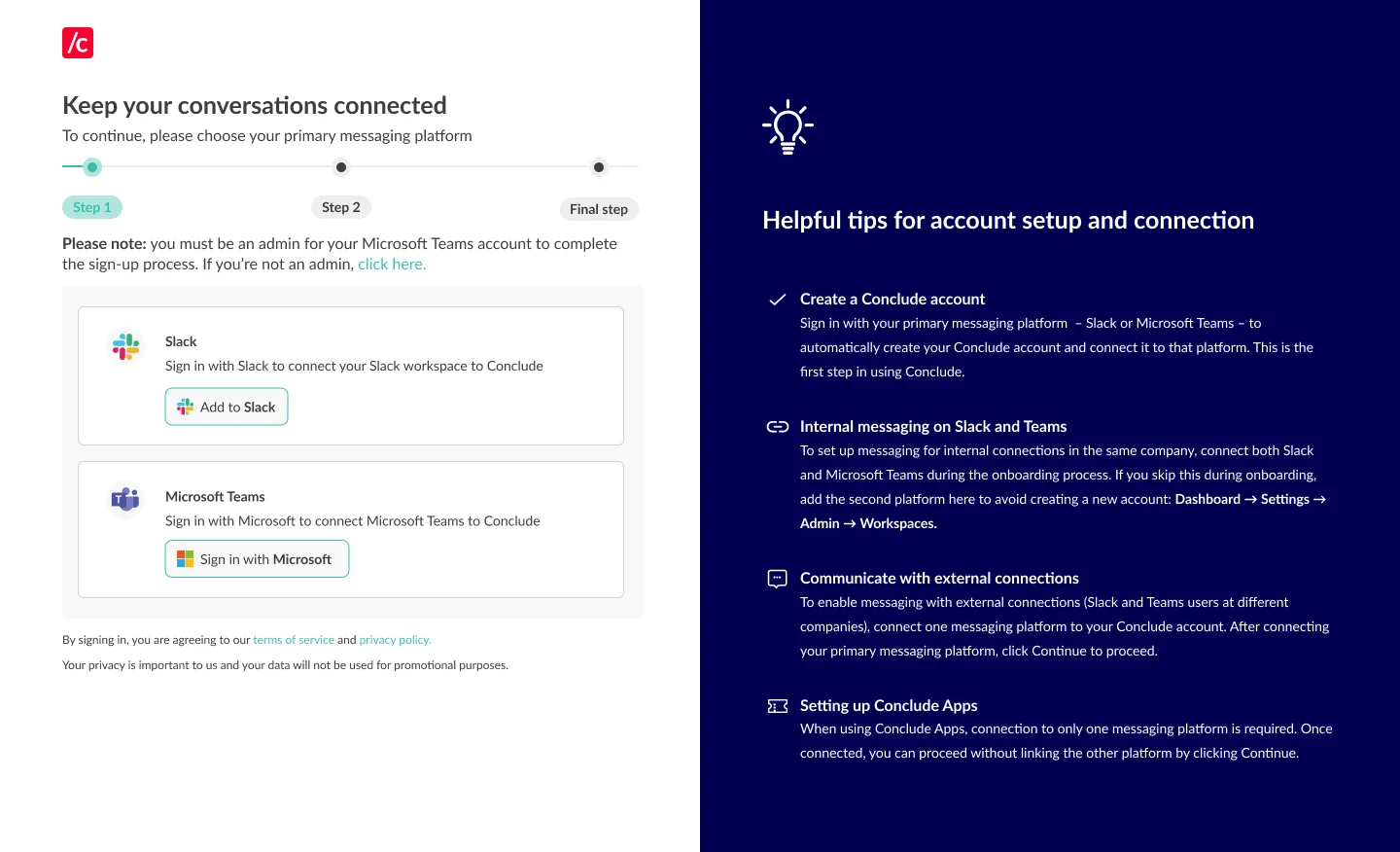
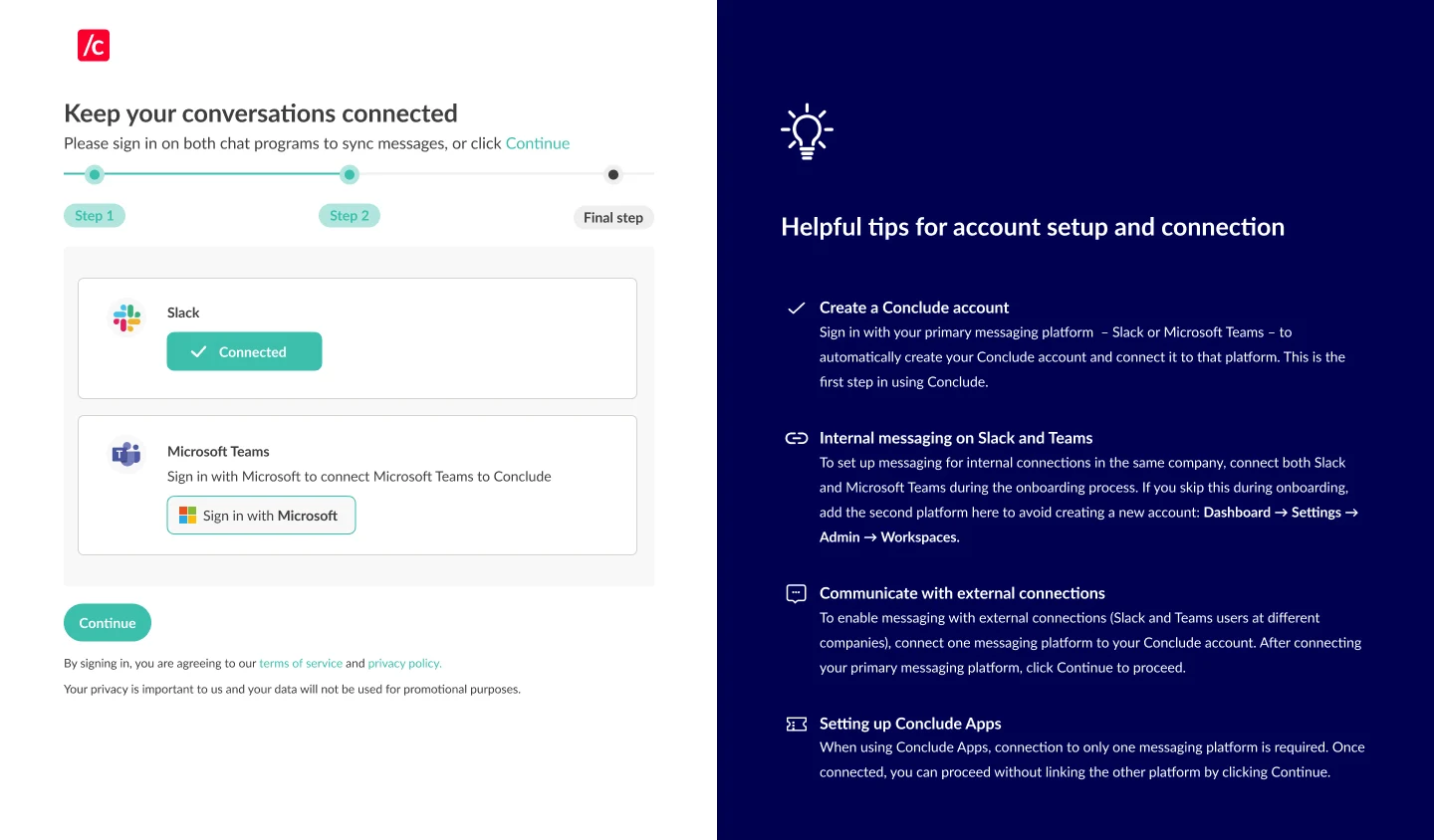
After selecting your platform, sign in and complete the authentication process. This step is for identity verification only — it won’t add Conclude to your Slack workspace. Once you’ve completed the sign-in and authentication process, you’ll see a confirmation that your account is connected.
If you do not want to connect another messaging platform, click **Continue,** and you will be taken to the web dashboard.
## Step 2: Enable external connections in the Dashboard
When you first land on the web dashboard, navigate to the **Admin console** at the bottom of the sidebar. Find the **Solutions** tab and toggle on **Connect (external)** to enable it.

## Step 3: Add Conclude to your Slack or Teams workspaces
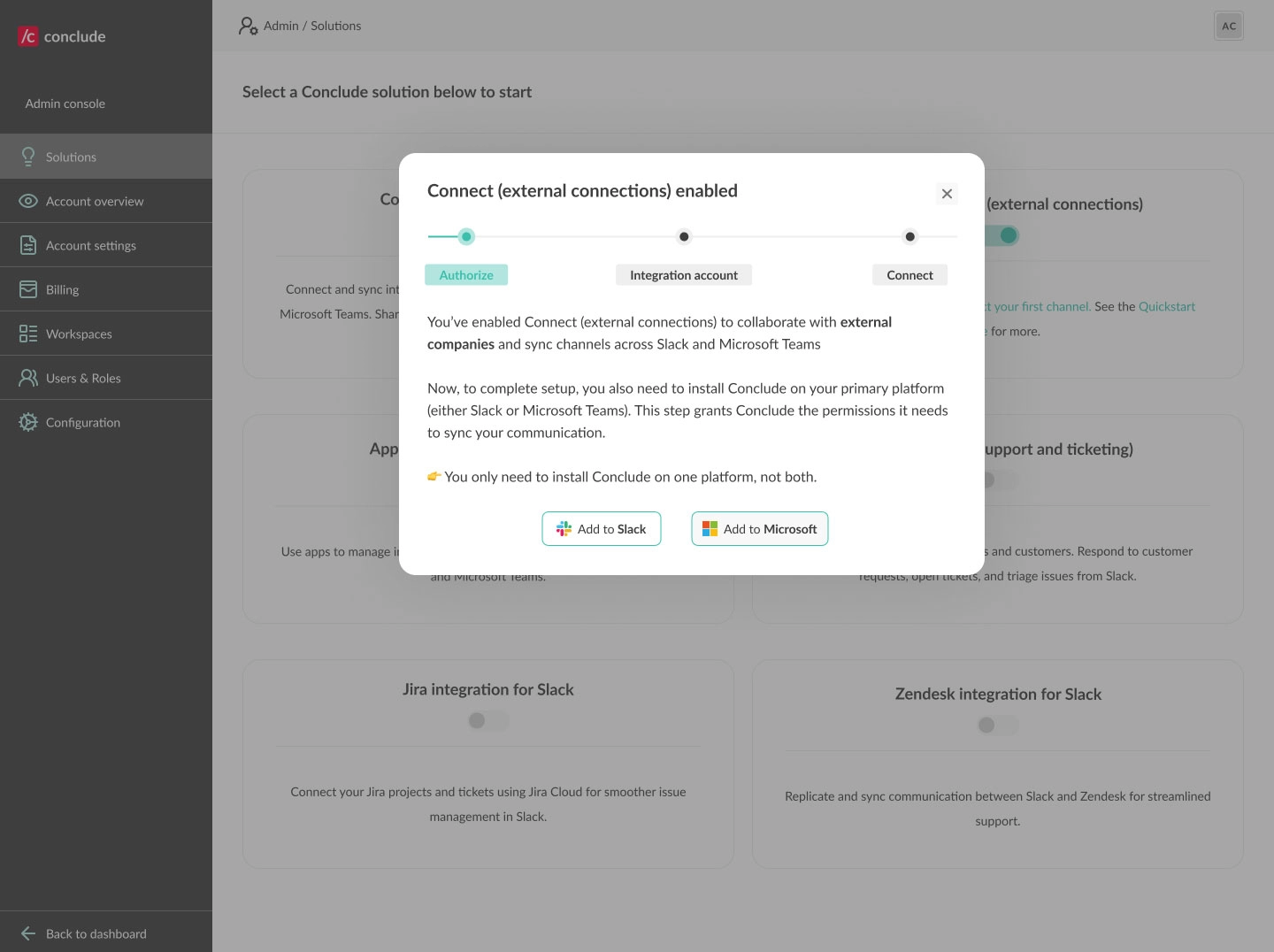
When you **enable Connect for external connections**, you’ll be prompted to add Conclude to your primary messaging platform (Slack or Teams). This installs the Conclude app on this platform and grants permissions to sync messages and conversations.
💡 For external connections, Conclude only needs to be installed on one platform - not both. Once Conclude is added to your primary messaging platform, you’ll be ready to start connecting channels or creating chats.
## Step 4: Select teams and invite external collaborators
The **Settings** section on the sidebar includes **User settings** where you can manage your personal information. The **Admin console** is found at the bottom of the sidebar. Here, admins will see the following:
* **Solutions:** enable and manage all Conclude solutions
* **Account overview:** shows an overview of Conclude features, including the number of synced channels, active users, and license type
* **Account settings:** update your organization’s name and other relevant information, such as address and country
* **Billing:** view and manage your Conclude subscription
* **Admin roles:** Account Admins and Account Owners can manage teams
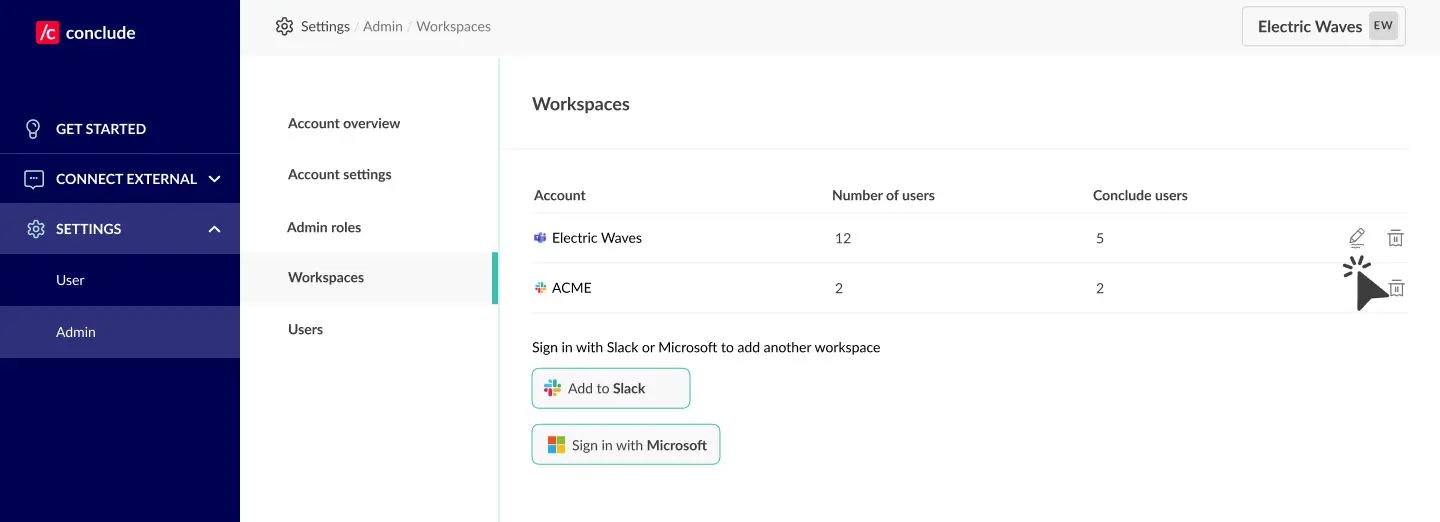
* **Workspaces:** view and manage different teams and workspaces connected to Conclude. If one isn’t listed, admins can add these by completing the sign-up process with Slack or Microsoft
* **Integrations:** see a list of active integrations and add more
* **Users:** see a list of active and inactive users and send reminders to those who still need to connect Conclude to Slack or Teams
* **Configuration:** manage advanced setup options, including how you sync and manage attachments across your organization
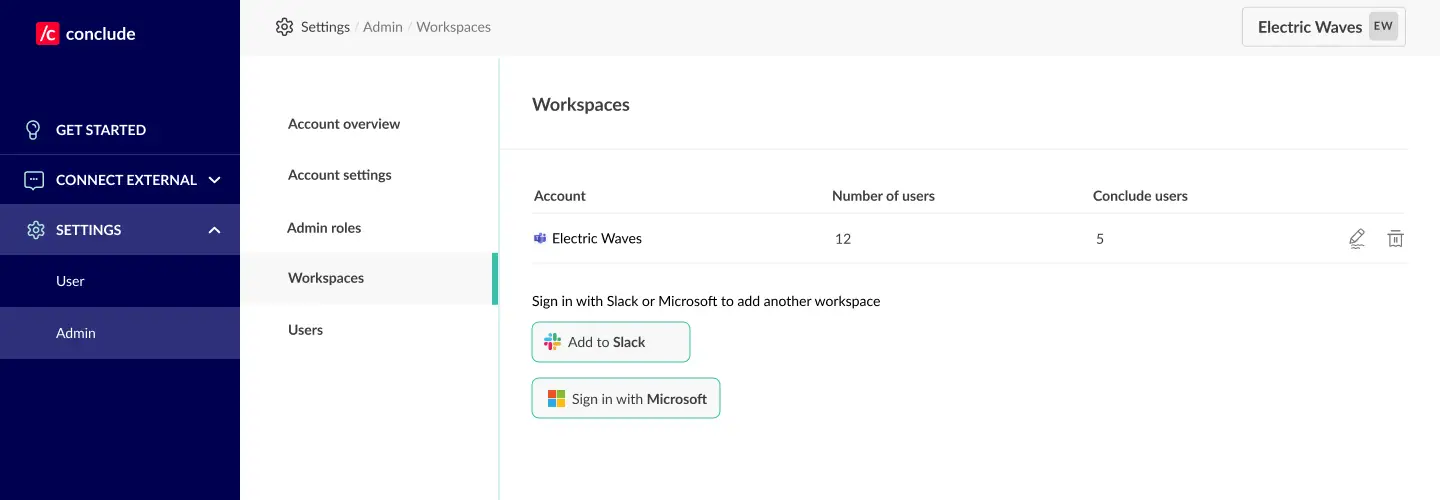
After adding your Slack workspace or Microsoft Teams account to the **Workspaces** tab, click **Back to dashboard** and navigate to the **Connect external tab** to connect channels with external companies and collaborators.
**Important:** only your team’s [active users](https://conclude.io/doc/developer/active-users-connect/) in connected channels are counted as active users. External collaborators are not counted as active users.
**To invite external collaborators**, go to the **Connect external** tab to send email invitations.
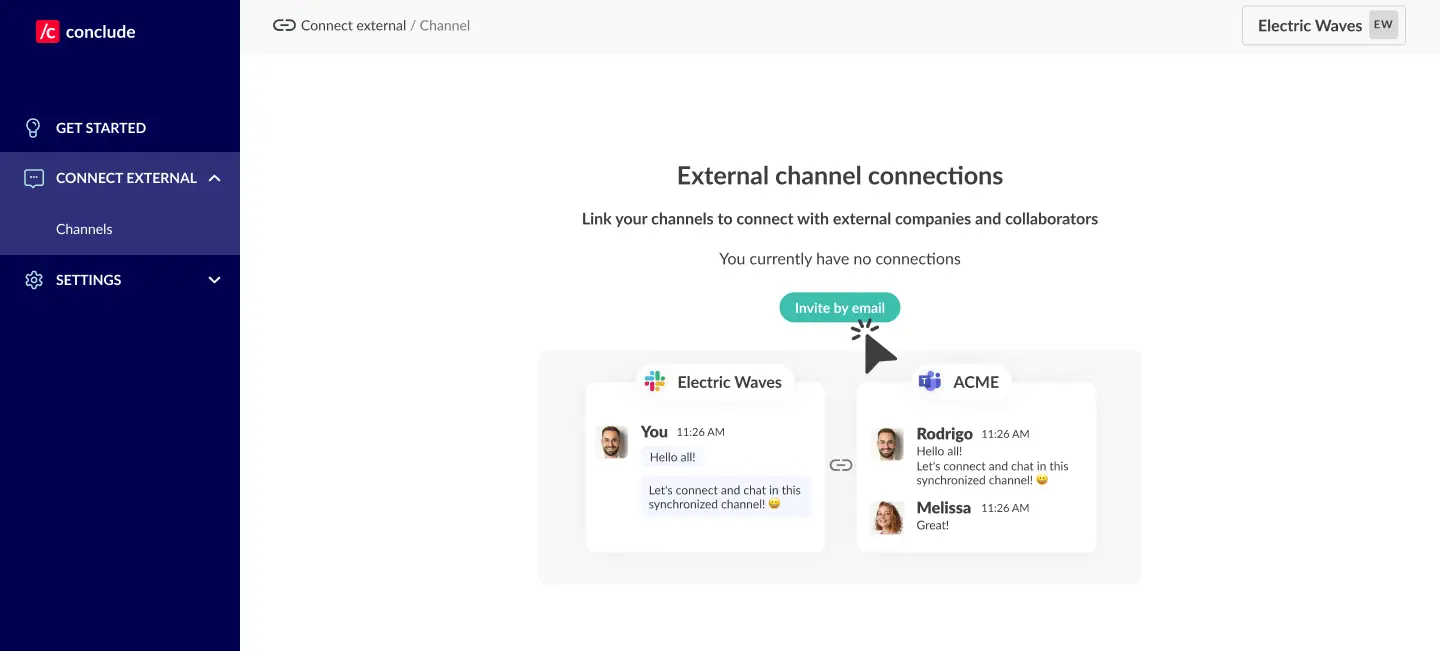
* Click **Invite by email**
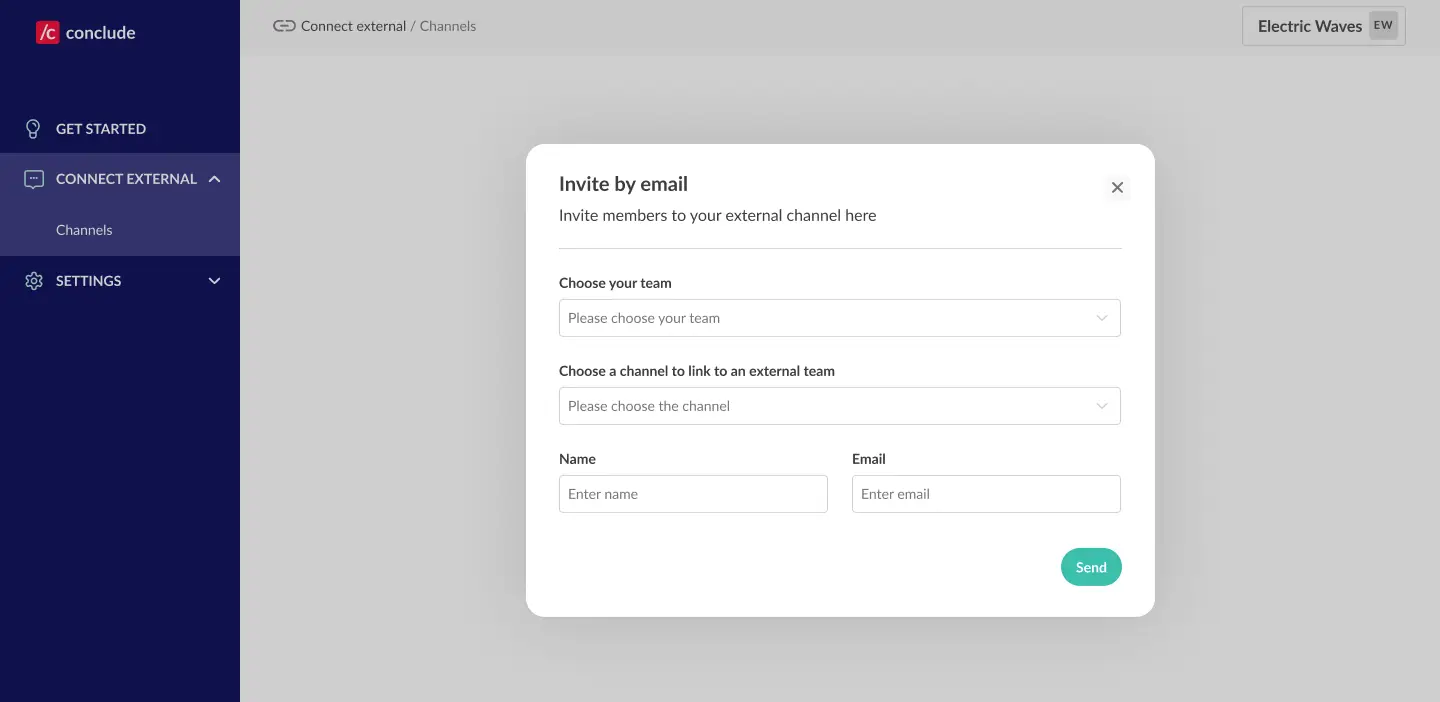
* Choose the Slack or Microsoft team you want to connect
* Select the channel you want to connect to an external team
* Enter the collaborator’s name and email, then click **Next**
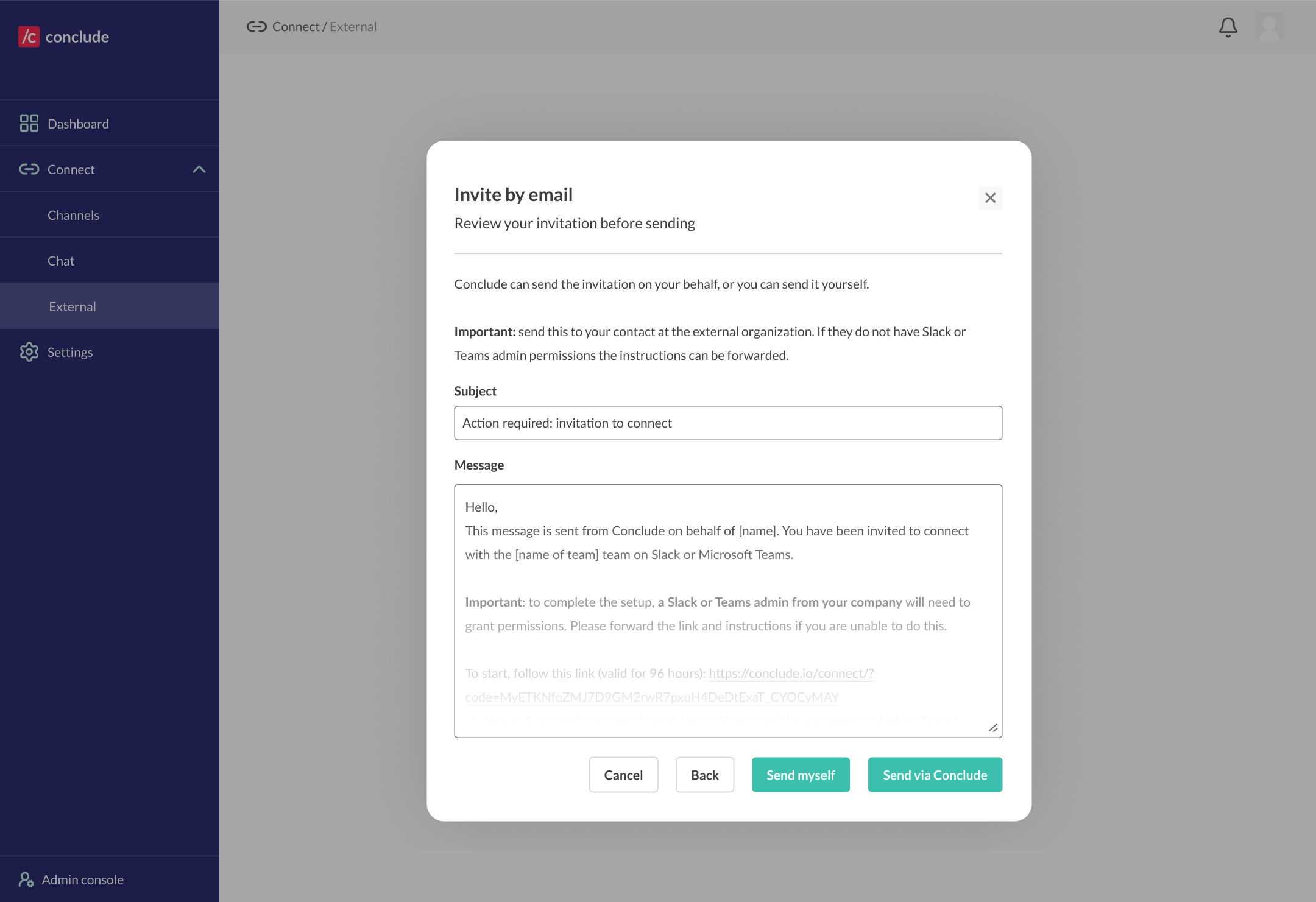
Next, review and edit the invitation message. Choose **Send myself** to send it from your own email address, or **Send via Conclude** to have Conclude send it.
**Important:** The invitation link can be sent or forwarded to the Slack or Microsoft Teams administrator at the company you want to connect with. They’ll need to complete the setup and authenticate with their platform. The link expires after 96 hours.
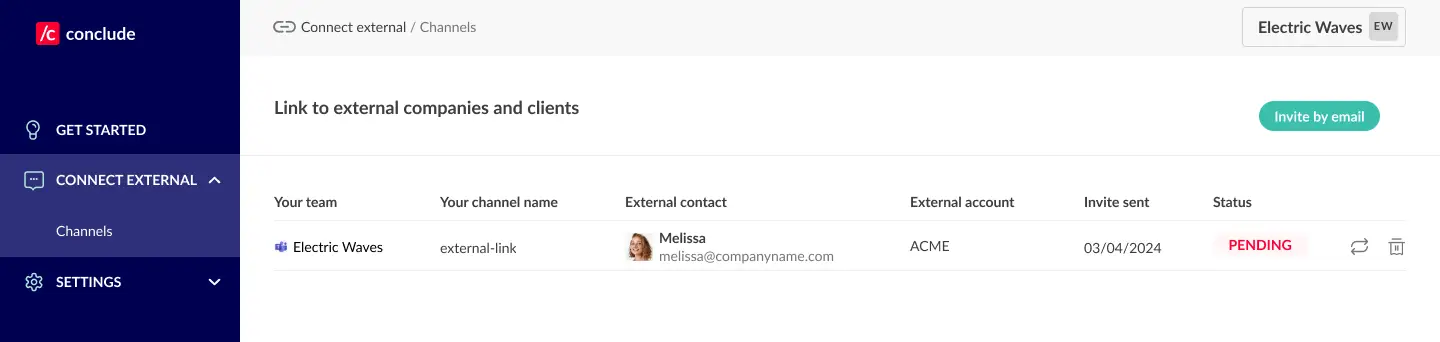
After sending the invitation, you can track the status in this tab to see if it has been accepted or pending.
## Step 5: Connecting to external companies
This step outlines the necessary steps and explains what the external company you are inviting to collaborate needs to do. You can also send them [this setup guide](https://conclude.io/quickstart/external-customer-setup-guide/).
Once the admin receives the email, they should click the invitation link to start the setup process.
* **Select the platform:** the admin will first select the messaging platform they use (either Slack or Microsoft Teams)
* **Authentication:** after selecting **Add to Slack** or **Add to Microsoft**, they’ll be guided through the authentication process
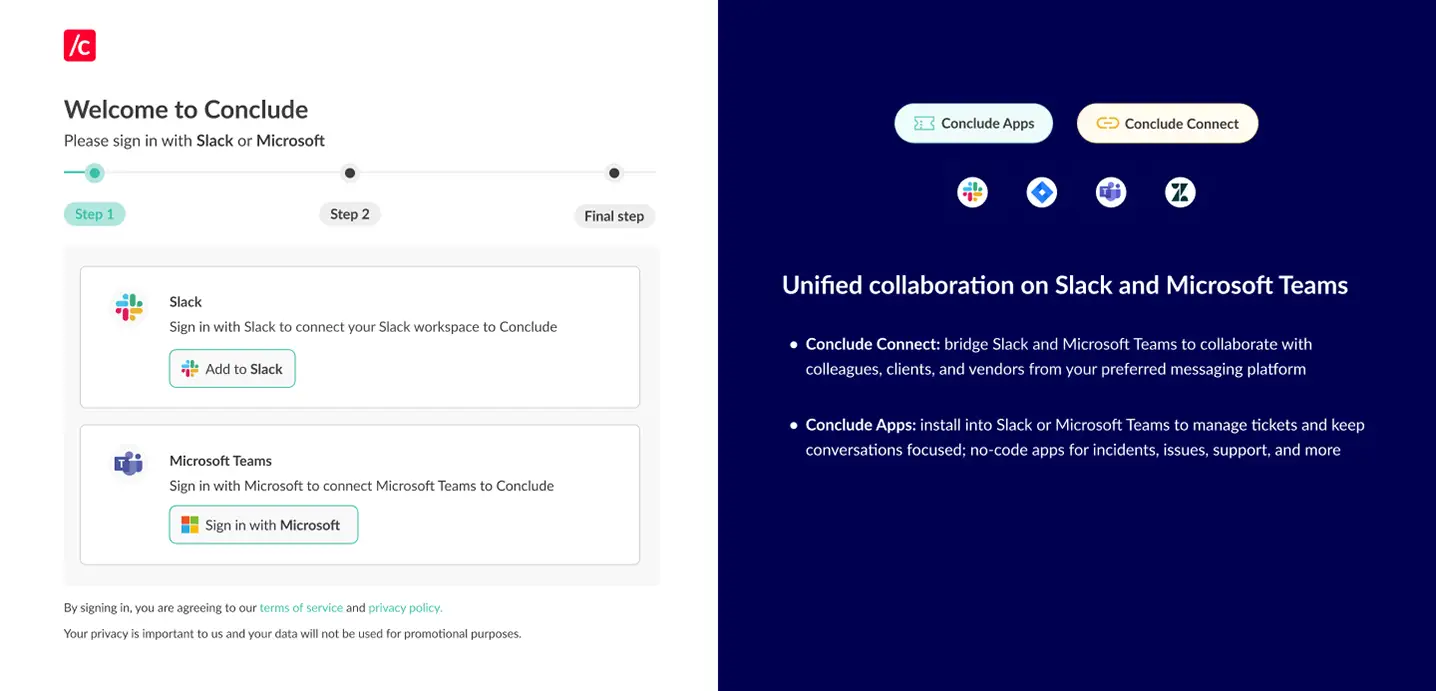
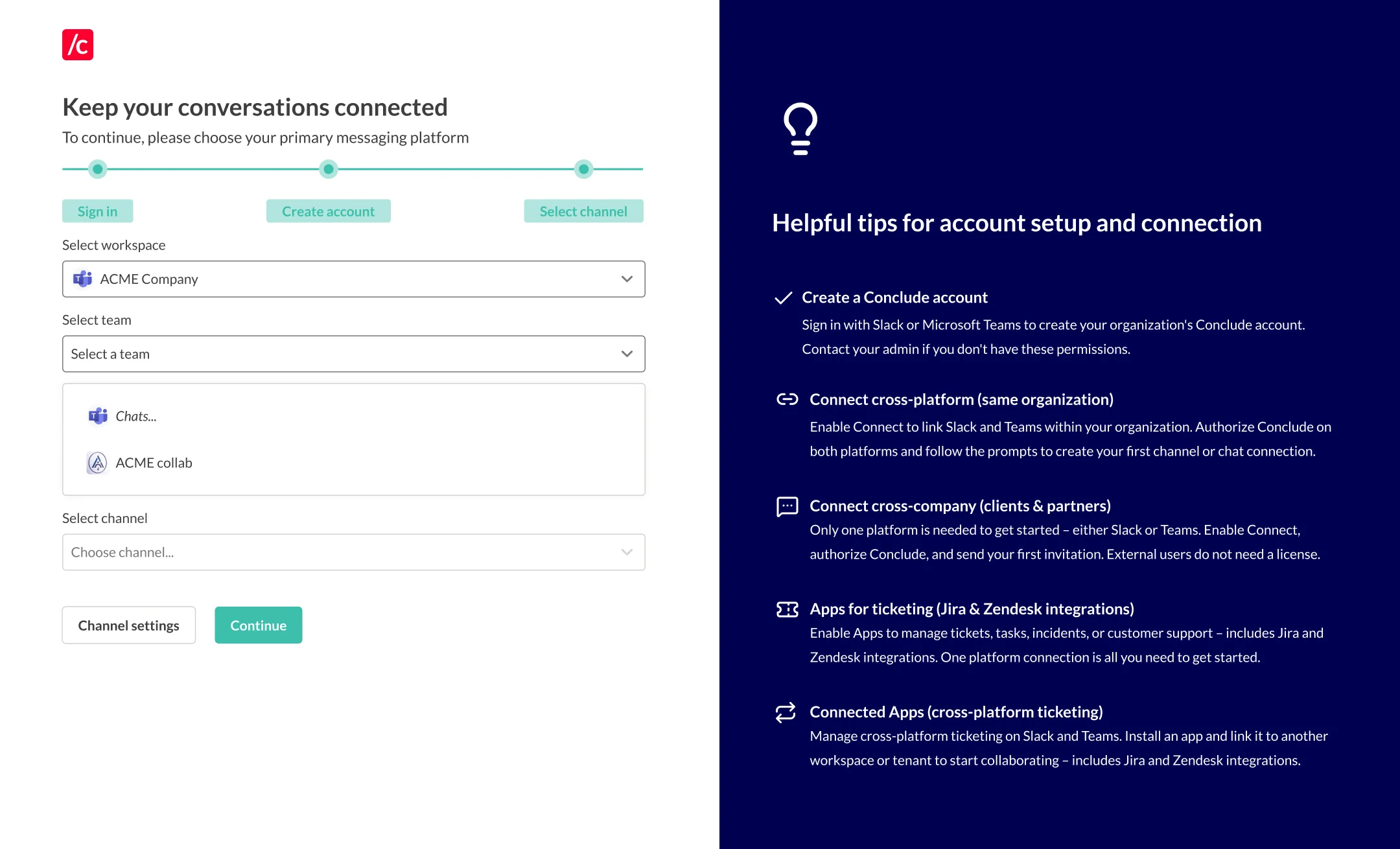
Once authenticated, invitees will see the option to select a team and channel to connect with your channel. Alternatively, they can create a new channel by clicking **Create channel**.
💡 If they authenticate and use Microsoft Teams as their messaging platform, they can choose to connect either channels *or* chats. They can select existing channels or chats or create news ones specifically for this connection.
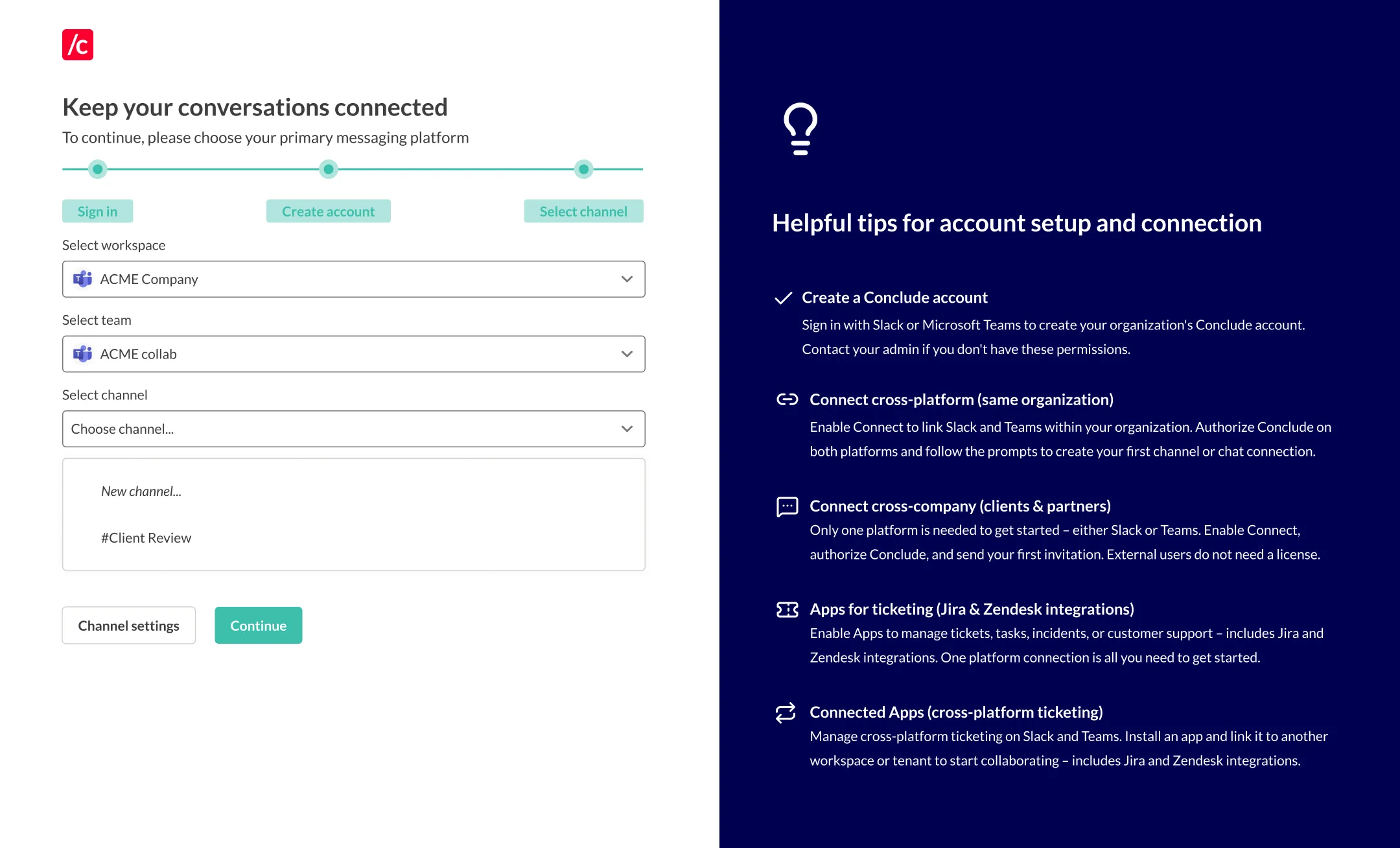
After choosing the team and channel, invitees click **Continue**. The channels will then be connected, enabling real-time message syncing (e.g., if a message is sent in a Slack channel, it will appear in the connected Teams channel). Any files shared will also be accessible on both platforms.
Once your external connection completes the setup and connects their team’s channel with yours, their invitation status will be updated to **Accepted**. This confirms that the external channel connection is active and ready. You can see their status by navigating to the **Channels** section of the **Connect external** tab.
## Step 6: Setting up an integration account
An [integration account](https://conclude.io/doc/developer/microsoft-teams-integration-account/) **enables Conclude to post messages on Microsoft Teams**. If you are using Microsoft Teams, **this step is essential**.
It acts as a fallback when no user account is available, ensuring consistent message delivery and synchronization across channels and chats. Follow the steps below or watch this guided video tutorial.
[Video](https://www.youtube.com/watch?v=YO3lKUi_Yfs)
### How it works:
* A Microsoft admin creates a generic user account (e.g. “Conclude integration” or “External user”) that isn’t associated with any physical person in the Microsoft admin system
* Use a generic account, not a real user account; messages will be posted under this identity when no user credentials are available. This helps maintain consistency and avoids confusion.
**Important information:** If the integration account is not yet signed in to Conclude, you will see a prompt to sign in and authorize Conclude to post messages on the account’s behalf. **The integration account must have a Microsoft 365 (Office 365) license that includes Teams.** It is *not* enough to have:
* Teams (free) – not compatible with enterprise apps
* Azure AD / Entra ID only – cannot use Teams
* Shared mailbox/service account without a full license – cannot post
[Read more about how to assign Teams add-on licences to users](https://learn.microsoft.com/en-us/microsoftteams/teams-add-on-licensing/assign-teams-add-on-licenses).
### To set up an integration account:
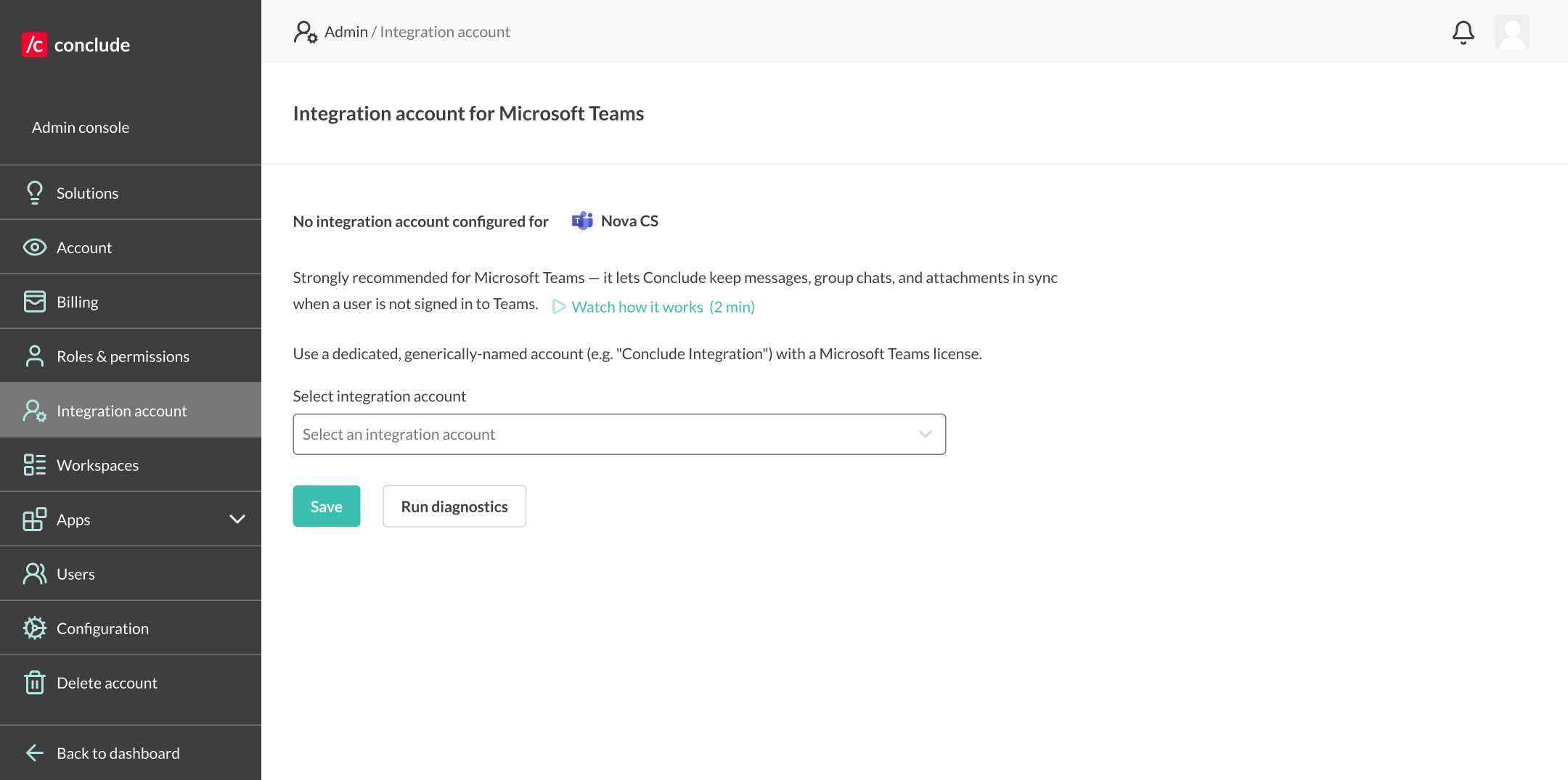
* Navigate to **Admin console > Integration account**
* Select the pre-created integration account from the drop-down, then click **Save**
**Note:** only admins can access the Admin console (located at the bottom of the sidebar)
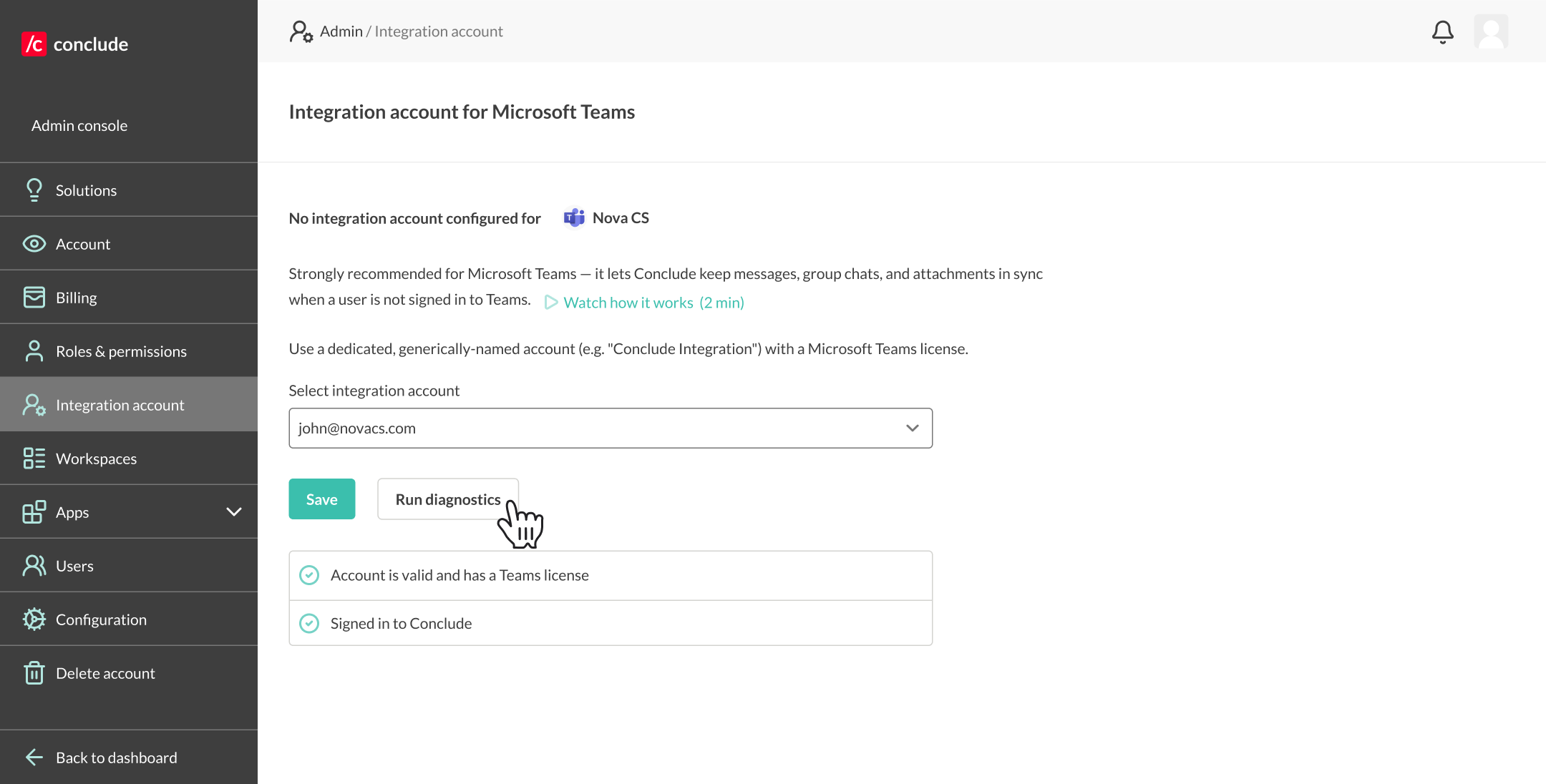
 * Select **Run diagnostics** to check if the account has a valid Teams license and if they are signed in to Conclude
 The account operates across the entire Microsoft organization. It will post any messages that don’t originate from a user with credentials in the same Microsoft tenant signed in with Conclude.
**Important information:** If the integration account is not yet signed in to Conclude, you will see a prompt to sign in and authorize Conclude to post messages on the account’s behalf. **The integration account must have a Microsoft 365 (Office 365) license that includes Teams.** It is *not* enough to have:
* Teams (free) – not compatible with enterprise apps
* Azure AD / Entra ID only – cannot use Teams
* Shared mailbox/service account without a full license – cannot post
**Additional tips:**
* Ensure the integration account is added to the team containing your connected channels. For private channels, manually add this account to the channel
* Once configured, messages from external users will be posted using the integration account
* This setup is recommended even when users exist on both sides, as it provides a fallback when credentials are not available for all users
The account operates across the entire Microsoft organization. It will post any messages that don’t originate from a user with credentials in the same Microsoft tenant signed in with Conclude.
**Important information:** If the integration account is not yet signed in to Conclude, you will see a prompt to sign in and authorize Conclude to post messages on the account’s behalf. **The integration account must have a Microsoft 365 (Office 365) license that includes Teams.** It is *not* enough to have:
* Teams (free) – not compatible with enterprise apps
* Azure AD / Entra ID only – cannot use Teams
* Shared mailbox/service account without a full license – cannot post
**Additional tips:**
* Ensure the integration account is added to the team containing your connected channels. For private channels, manually add this account to the channel
* Once configured, messages from external users will be posted using the integration account
* This setup is recommended even when users exist on both sides, as it provides a fallback when credentials are not available for all users