
Explanation
Core concepts
On this page
Conclude has three layers. Connect links conversations at the bottom, Apps add structured work on top of it, and Agents add AI assistance at the top.
This page explains the terms you will see across all three. Each term links to a page with more detail.
Accounts, workspaces, and identities
An account represents your organization in Conclude. Administrators enable capabilities and manage access. A workspace connects Conclude to a collaboration environment: a Slack workspace or a Microsoft Teams environment. Work happens in its channels and chats.
A person can have identities on more than one platform. Linking those identities lets Conclude recognize the same person across environments. Signing in, installing Conclude, and granting permission to a channel are separate operations. See accounts and workspaces.
Connections join conversations
A connection links two or more channels or chats, usually one in Slack and one in Teams. Messages, threads and files sync between them. Connect has three modes:
- Internal — both channels belong to your organization, one in Slack and one in Teams. Conclude is installed on both platforms. See Internal
- External — the other channel belongs to a customer, vendor or partner. You invite them by email, one channel pair at a time. Each company approves Conclude on its own platform. See External
- Bridge — a lasting link between two organizations, set up with one invitation. After that, either side can share channels, and the other side can connect to them. See Bridge
A connected channel doesn’t need an app, and an app doesn’t need a connection. When you install an app in a connected channel, you get Connected Apps.
Apps define how work is handled
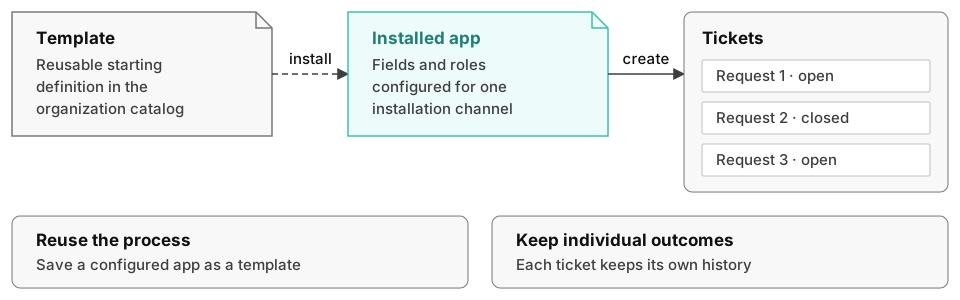
- Template — a ready-made app that isn’t installed anywhere yet. It is either built in or saved by your organization. Installing it gives the channel its own copy, so later changes to the template don’t affect it. See Templates
- App — a template installed in one channel. It decides how tickets are created, which fields they have, who takes part and what happens automatically. You set it up in the app editor. See Apps
- Ticket — one item of work in an app. People create it, comment on it and conclude it. An app can give tickets its own name, such as request. The technical reference calls a ticket an activity. See Lifecycle and Activity states
- Attribute — a field that every ticket in an app has, such as a title or a deadline. See Attributes tab and Reserved attribute names
- Role — who is involved in a ticket and what they can do, such as the person who owns it. See Roles tab and Role expressions
- Trigger — something the app does automatically when a ticket is created, commented on, edited or concluded. See Automation and Trigger events
Agents add AI teammates to channels and apps
Agent — an AI teammate that belongs to your organization, not to an app. You create agents in the Admin console. Each agent has its own user and can work in several apps and channels. See Agents
Deployment — an agent’s place in a channel. Each deployment has a mode, which also covers the tickets of the channel’s app:
- Mention: the agent answers when someone @mentions it
- Conversational: the agent also answers when someone writes its name
- Autonomous: the agent reads every message and decides whether to answer
- Off: the agent stays in the channel but doesn’t answer
See The mode.
Agents don’t need Connect or an app. A plain channel is enough.
Where you manage it
- Dashboard — Conclude’s web app. You sign in with Slack or Microsoft, and you manage tickets, apps and connections there. See the Dashboard quickstart
- Admin console — the part of the Dashboard that only admins can open. Admins use it to turn on Connect, Apps and Agents, manage users and billing, and set up workspaces. See Administration
Next, read Architecture to see how Conclude works with Slack and Microsoft Teams. If you are an admin setting up Conclude, go to Set up Conclude.