
How to
Working in connected channels
On this page
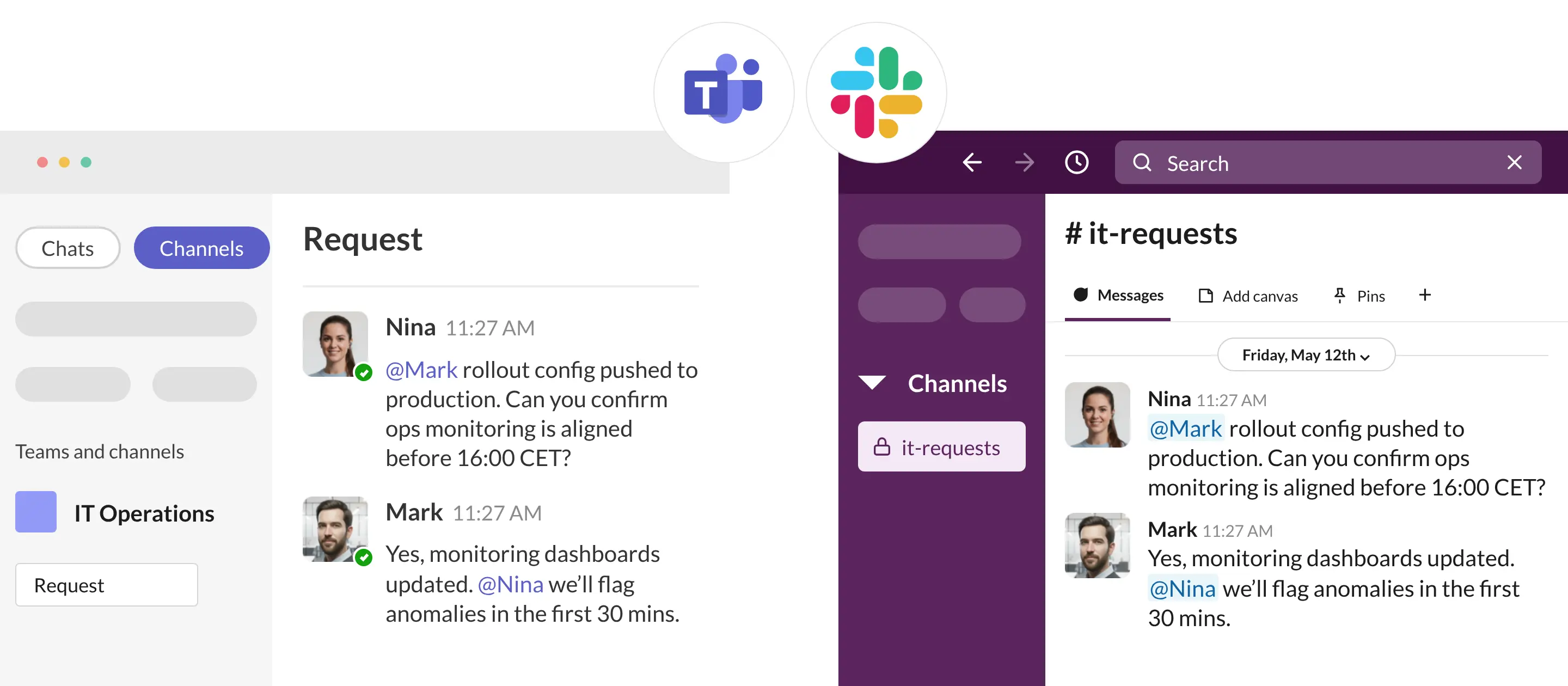
This page is for people who take part in connected channels and chats. You keep working in your Slack channel or your Microsoft Teams channel or chat. Conclude copies your messages and replies to the connected side, where colleagues or partners reply from their own platform.
Find the connected conversation
Conclude pins a message in every connected channel. It starts with Connection active, or External connection active when the other side is another company. It names the conversation on the other side. If the message has a Show members button, click it to see who takes part. A connected chat has a pinned card that lists its members instead.
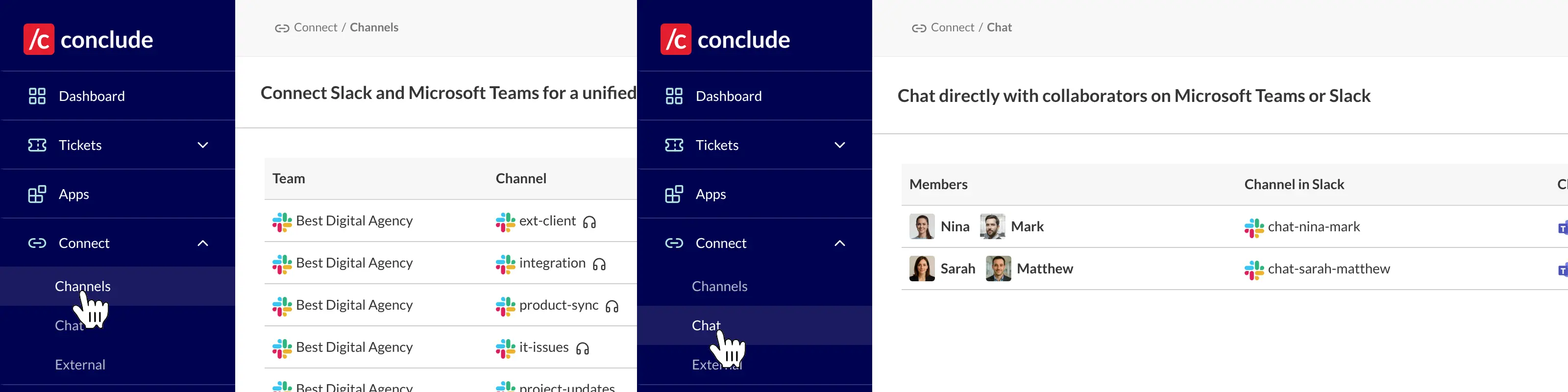
The Dashboard lists the connected channels and chats you are a member of, under Connect > Channels and Connect > Chat . Check the exact channel and team names before you post. A channel with a similar name may not be connected.
Sign in with your platform account
Click Sign in on the Conclude website and choose Slack or Microsoft Teams. Use the account you have in the connected workspace. Once you are signed in, Conclude posts your messages, mentions and reactions as you.
You don’t have to sign in. Your messages still sync, and Conclude posts them on your behalf with a header that names you. If sign-in fails, check that you chose the right account. Your organization’s SSO policy can also block it. Ask your admin if you think you should have access.
Take part in the conversation
- Send messages, and reply in the channel, the chat or a thread
- Use @mentions as usual. To mention someone at another company, type the full name without a space, such as
@EmmaGreen - React with common emoji, so the reaction looks the same on both platforms
- Share files and images. Depending on the connection’s settings, people on the other side get a copy, a link or nothing
- Edit or delete your messages as usual. The changes sync to the other side
Lists, links and code blocks sync, but they can look slightly different on the other platform. Slack and Teams also show threads differently. If context matters, quote the message you reply to.
Message syncing explains thread history, mentions and reactions. File and image sharing explains attachment policies.
Connect channels or start a chat
Your admin decides who can connect channels and start chats.
- To connect two channels, open Connect > Channels and click New connection. See Internal connections
- To start a chat with a new group of people, type
/c chatin Slack or/conclude chatin Teams. You can also click New chat under Connect > Chat . See Cross-platform chats
If you don’t see these options, ask your admin to check your Connect permissions.
Use Conclude inside Microsoft Teams
Conclude is in the Microsoft Teams app store. With the app installed, you see your connections inside Teams. If your permissions allow it, you can also create new ones there.
- In Teams, go to Apps and search for Conclude.
- Click Add.
- If Teams asks, approve the permissions for sign-in and access.
- Right-click the Conclude icon in the sidebar and select Pin, so it stays within reach.
If the installation fails, your Teams admin may need to approve the app. You can also run Conclude commands in Teams with /conclude or @Conclude. See All Commands (Microsoft Teams).
When something is missing
- A channel or chat isn’t in the Dashboard. Check that you are a member on both platforms. A new channel can take some time to appear
- A message didn’t sync. Check that you posted in the connected conversation, not in one with a similar name. If it keeps happening, send your admin the message link, the time and which platform you posted on
- A file arrived as a link, or not at all. That follows from the connection’s attachment policy. Ask your admin which policy applies
- A mention or your name looks wrong. Sign in with the right account. Your admin can also run diagnostics on the integration account
The troubleshooting guide has more checks.