
How to
Cross-platform chats
On this page
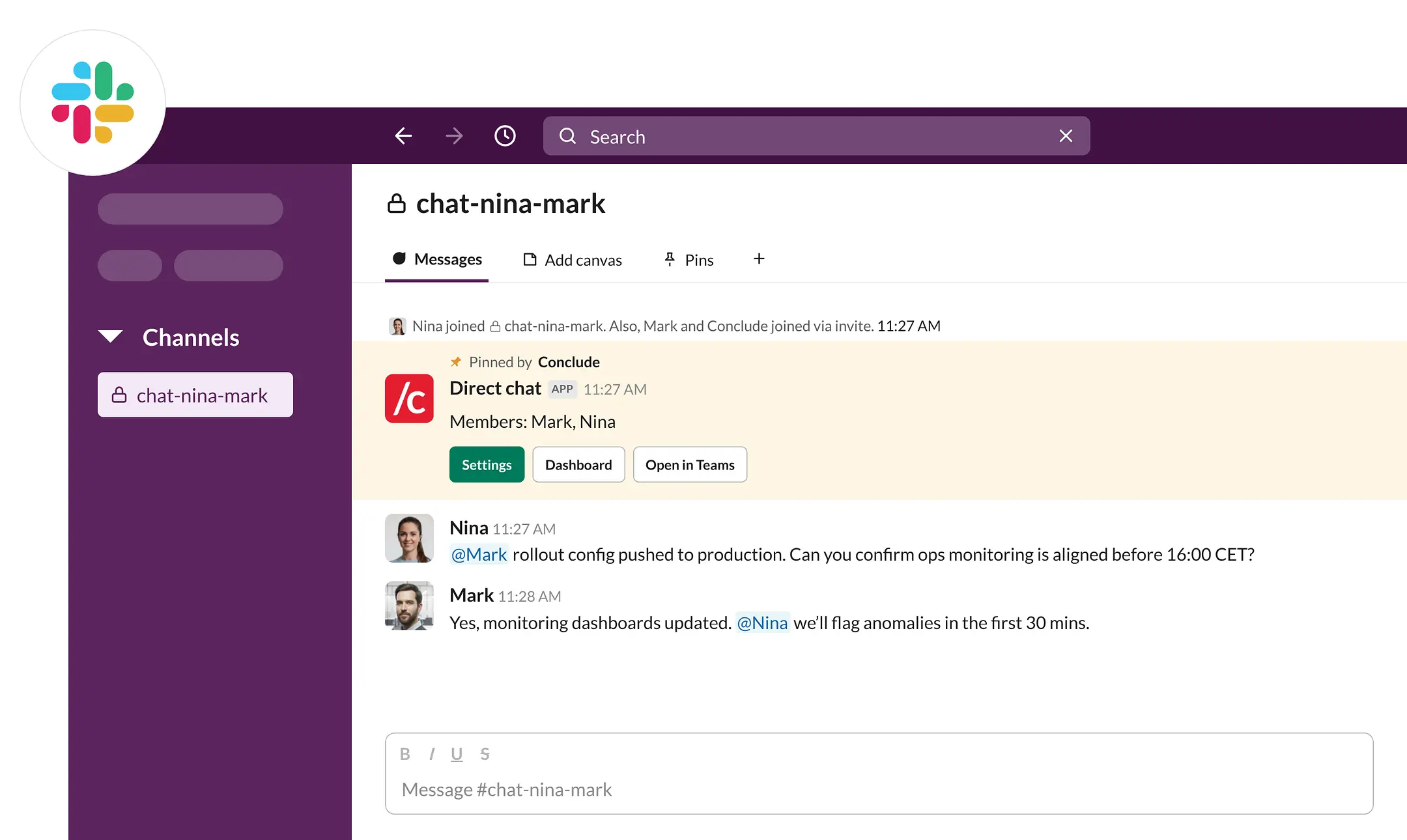
A cross-platform chat is a direct conversation that lives natively on both Slack and Microsoft Teams. Messages, files, emoji reactions and @mentions sync in real time. This page shows the three ways to start a chat, and how names and membership work once the chat exists. The video shows a chat from Slack.
When chats are available
Chats are part of Connect (internal). Your Conclude account needs at least two workspaces. Normally that is one Slack workspace and one Microsoft Teams tenant. Conclude picks the pair of workspaces where the members have accounts. If every workspace is on the same platform, Conclude creates the chat between two of them.
Connect (external) does not include chats. To chat with people in another organization, set up a Bridge. See Internal connections for the prerequisites.
Who can start a chat
The Create chats permission decides who can start a chat. An admin sets it under Admin console > Users and access > Roles & permissions . The choices are Admins, Everyone or Admins + specific users, depending on your plan. Account admins can always start a chat. If you don’t see the option to start a chat, ask your admin for access. See Roles and permissions.
Three ways to start a chat
- From Slack: type
/c chatin any channel - From the Dashboard: go to Connect > Chat and click New chat
- From Microsoft Teams: open the Conclude app, then Connect > Chat > New chat
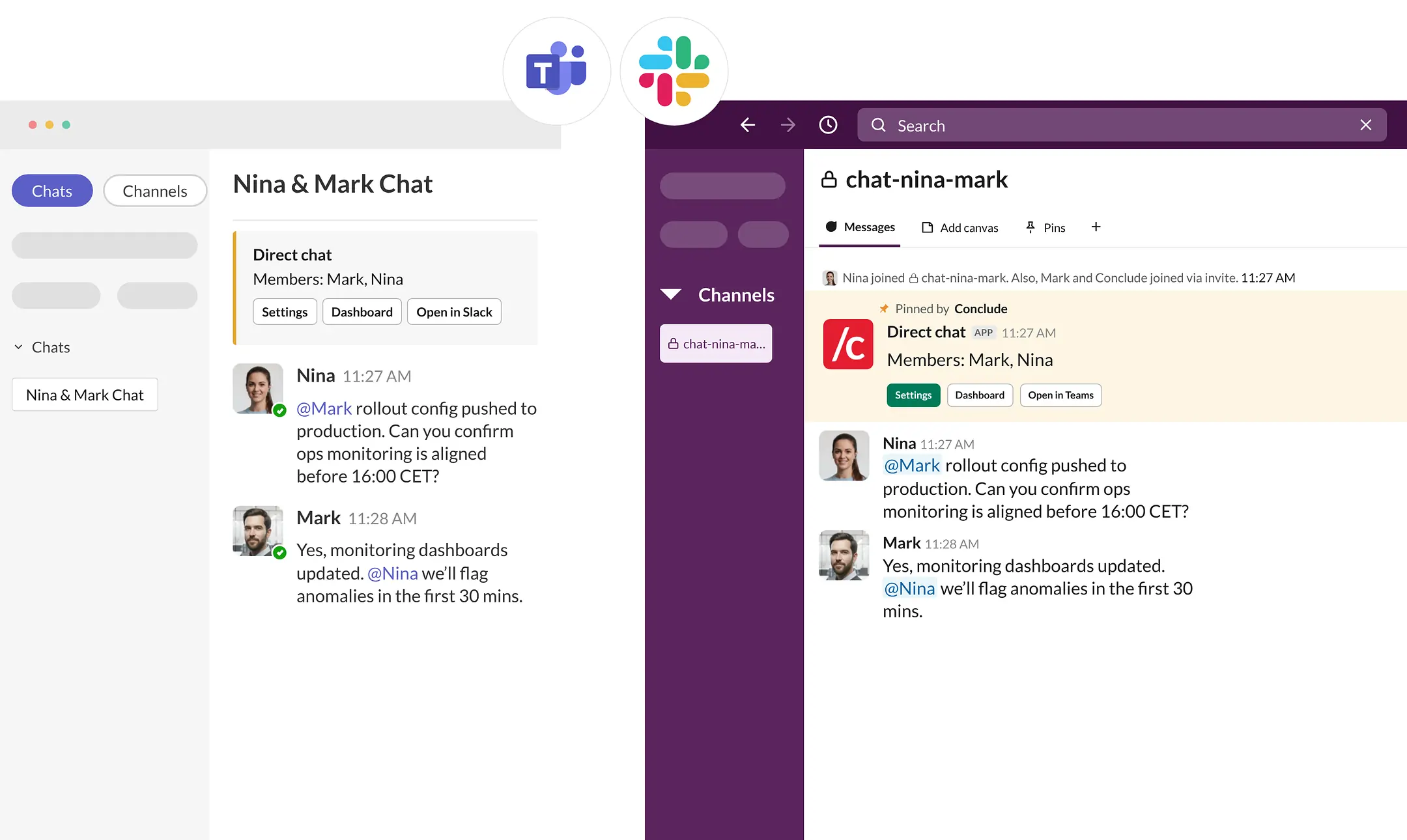
All three give the same result. You get one synced conversation, with a private channel on the Slack side and a group chat on the Teams side.
Create a chat from Slack
/c chat works in any Slack channel, public or private, and in a DM. It is one of the /c commands. See General commands.
Step 1: Run the command
In any Slack channel, type /c chat and press Enter.
Step 2: Pick a recent chat or start a new one
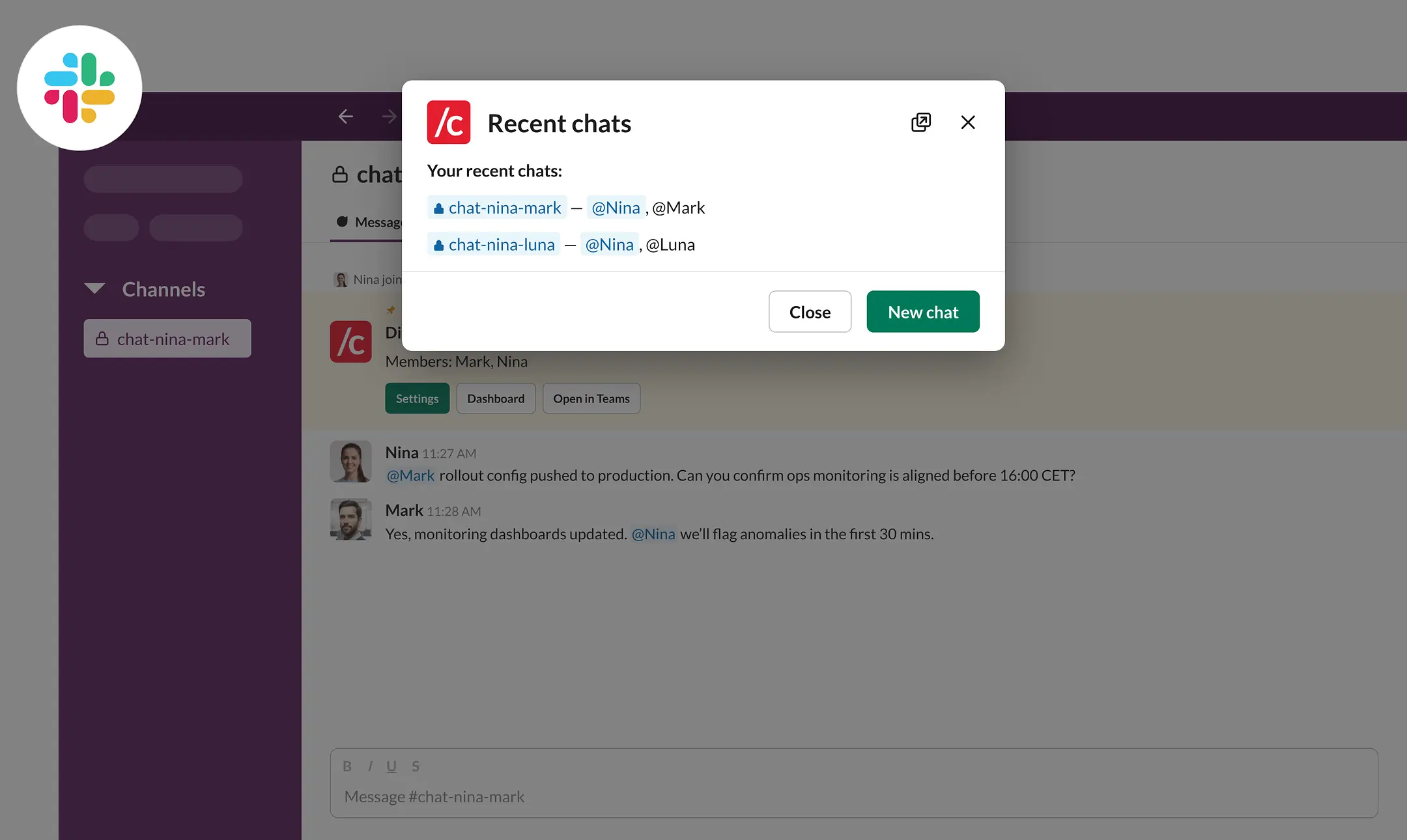
Conclude opens the Recent chats dialog. It lists the chats you took part in most recently. If you have no chats yet, the New chat dialog opens instead.
- Click a chat in the list to open it in Slack
- Click Show more to see older chats. This button appears when the list is long
- Click New chat to start a new conversation
Step 3: Choose members
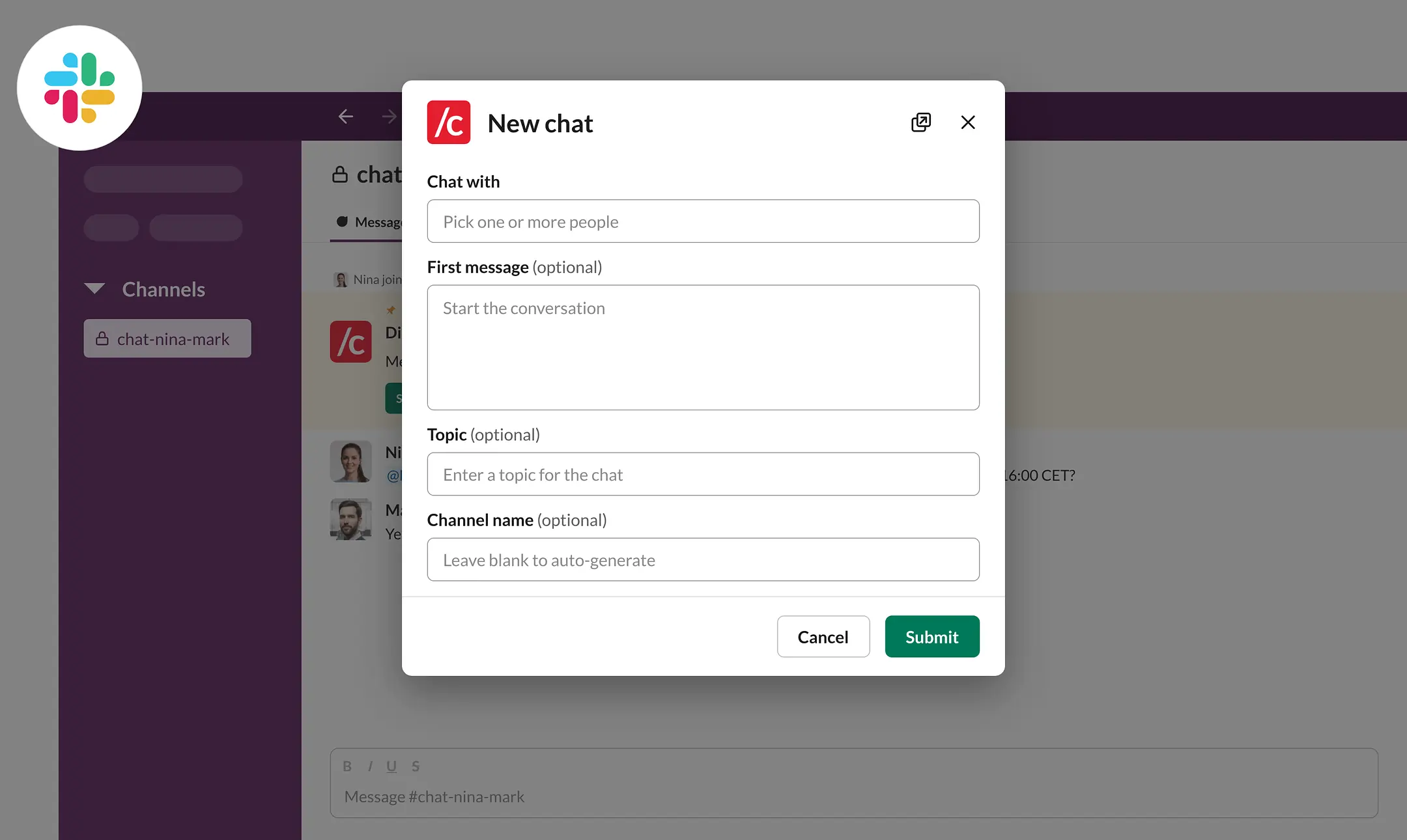
The New chat dialog opens. Start typing a name in the Chat with field. Conclude searches every connected Slack workspace and Microsoft Teams tenant in your organization. One chat can hold both Slack and Teams users.
If an admin has checked Display emails next to names when setting up chats under Admin console > Connect > Message display , the dialog shows each person’s email next to their name.
Step 4: Add a first message (optional)
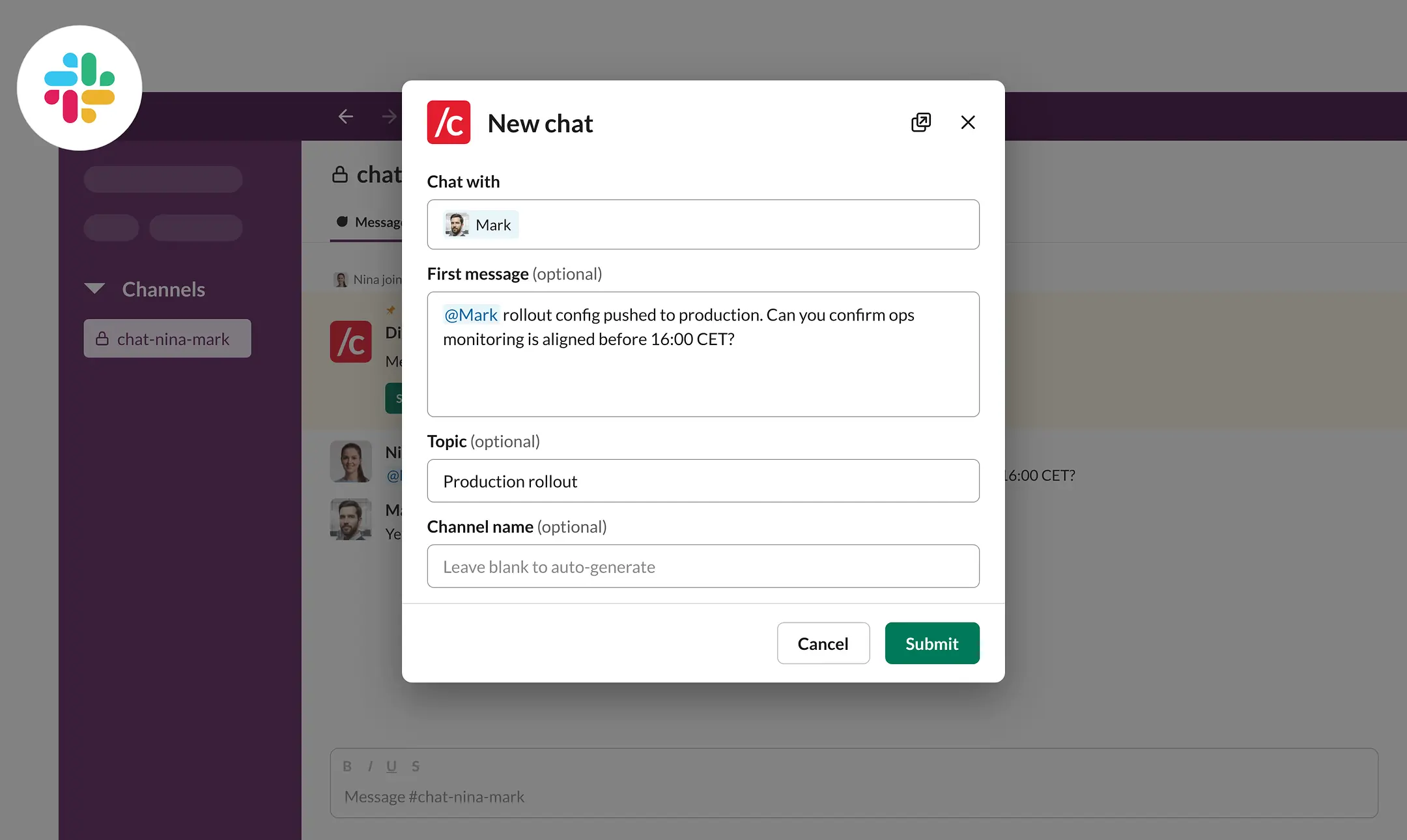
You can type the first message in the dialog. Conclude posts it on both sides as soon as the chat exists.
Topic and Channel name are optional. If you leave Channel name blank, Conclude generates a name. See Channel naming.
Step 5: Submit
Click Submit. Conclude creates a private channel on the Slack side and a group chat on the Teams side. It adds every member and posts the first message in both places.
Channel naming
If you don’t enter a name, Conclude builds one from the members’ first names in alphabetical order. Each platform gets the name in the form it expects.
Slack private channel
- The format is
chat_<member>_<member>_... - Conclude writes out up to four names in full, as long as the result stays under 40 characters. With a longer member list it writes the first names that fit, at most three, and adds
_N_more. For example,chat_alex_corey_diego_2_more - Slack channels created this way are always private. That matches how Teams group chats work
Microsoft Teams group chat
- Two people —
Chat between <member> and <member>, for exampleChat between Alex and Corey - Three or more — first names in alphabetical order, separated by commas. The same length rule as Slack applies. Extra members appear as
+N, for exampleAlex, Corey, Diego, +2
| Members | Slack channel name | Teams chat name |
|---|---|---|
| Alex, Corey | chat_alex_corey | Chat between Alex and Corey |
| Alex, Corey, Diego | chat_alex_corey_diego | Alex, Corey, Diego |
| Alex, Corey, Diego, Eli, Fay | chat_alex_corey_diego_2_more | Alex, Corey, Diego, +2 |
Add or remove members later
Every synced chat has a Conclude card pinned at the top of the conversation.
- Open the chat in either Slack or Teams.
- Click Settings on the Conclude card at the top of the conversation.
- Add or remove members in the Chat members field. The same dialog lets you change the Topic and Channel name.
Changes apply on both sides.
The card has two more buttons. Dashboard opens the chat in the Conclude Dashboard. Open in Teams or Open in Slack jumps to the same conversation on the other platform.
Create a chat from the Dashboard
The Dashboard lists every chat in one place. Go to Connect > Chat and click New chat. Conclude creates the chat on both platforms at once. Each member sees it in their own app, with the Conclude card and the first message, if you wrote one.
Create a chat from the Conclude app in Microsoft Teams
If the Conclude app is installed in Microsoft Teams, the Dashboard is embedded inside Teams. Open the app, then Connect > Chat > New chat .
What is created on each platform
- Slack gets a private channel with the prefix
chat_. It contains every member and a pinned Conclude card - Microsoft Teams gets a group chat named after its members. It contains every member and a pinned Conclude card
- On both platforms, messages, files, emoji reactions and @mentions sync in real time. See Message syncing and File sharing
Related: Internal connections, Working in connected channels, Troubleshooting.