Internal User Guide (Connect)
This guide is for users within an organization who use Conclude Connect to collaborate across Slack and Teams. For Admins, please see this Quickstart Guide and documentation on user roles and permissions.
Conclude keeps your conversations aligned by syncing messages, files, reactions, and more between connected channels and chats. You can keep working in Slack and Microsoft Teams as normal, and Conclude will mirror conversation activity between connected spaces – so everyone can follow and respond from their preferred platform.
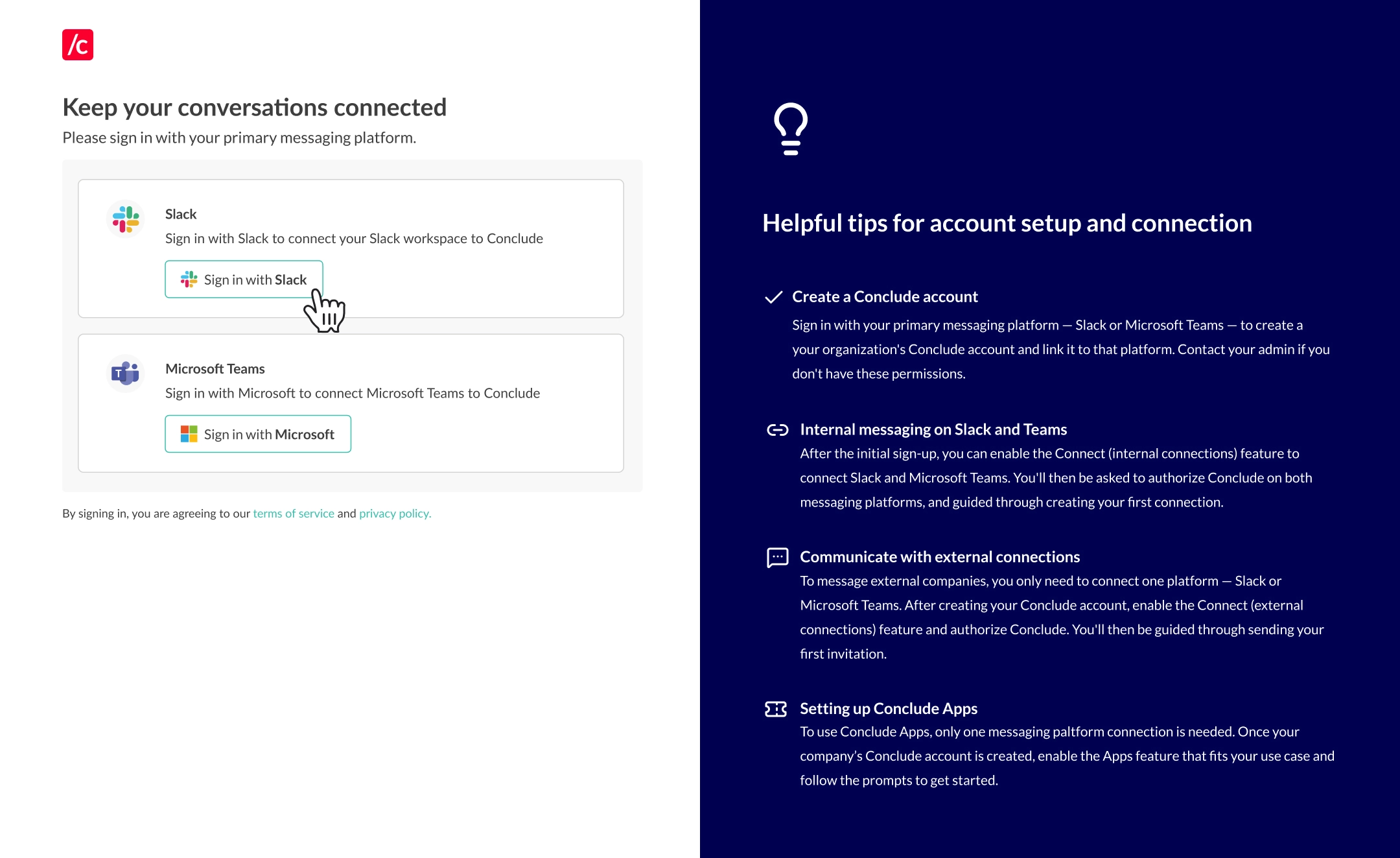
Sign in to Conclude (recommended)
Signing in is not required – messages will still sync as long as you are a member of a connected channel – but it’s recommended as it improves cross-platform @mentions and reactions.
To sign in, click the Sign in button in the navigation bar, then choose your platform (Slack or Teams). Next, you’ll be taken to the Dashboard (Conclude’s web UI).
Note: If you can’t sign in, it’s usually due to using the wrong account, missing permissions, or your organization’s SSO policies. Try signing in again with the account you use for that workspace, or contact your admin if you believe access should be enabled.
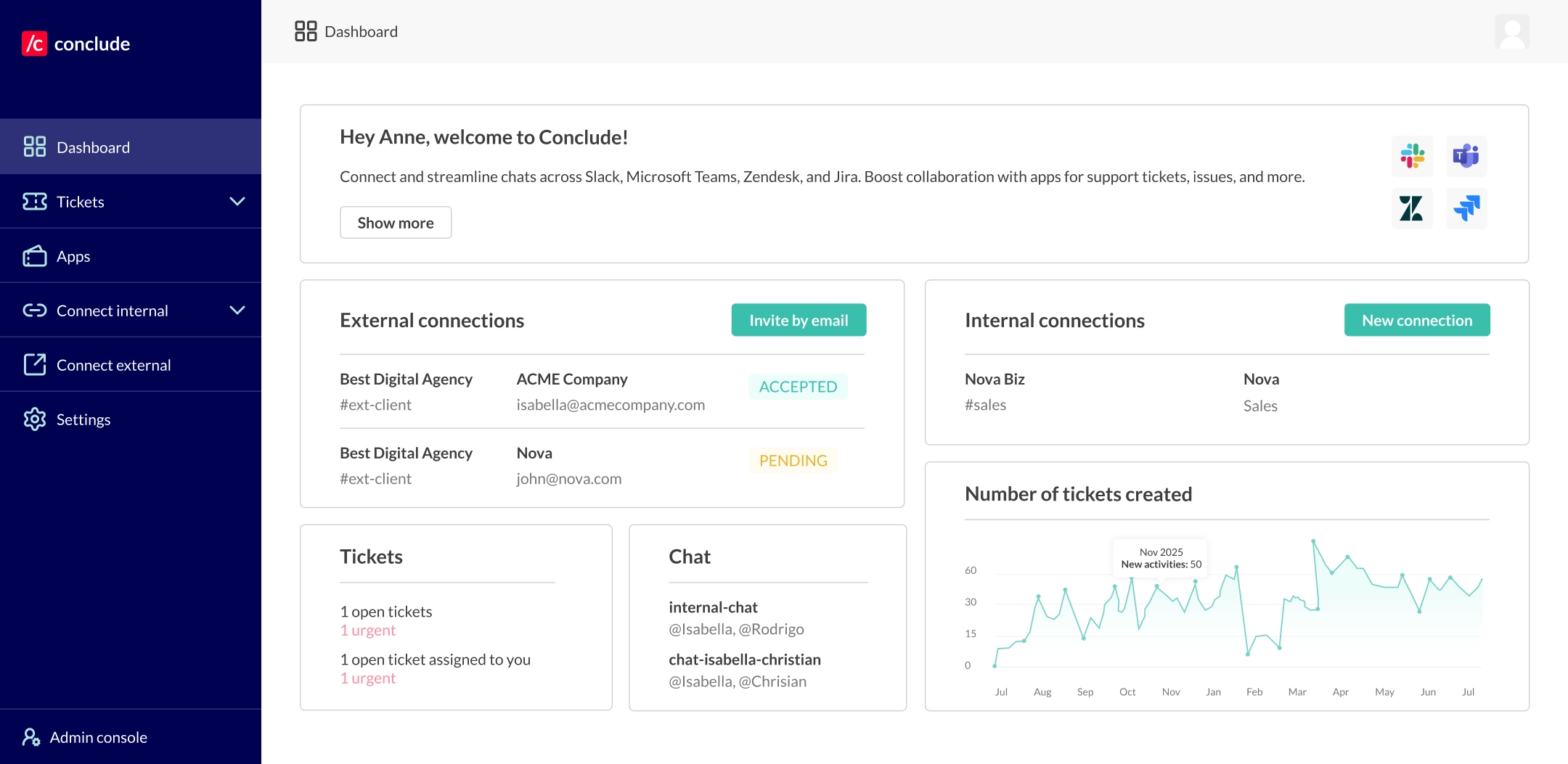
User Dashboard
The web UI is accessible from the Dashboard button at the top right of the website. Here, you can:
- See an overview of connected channels you are a member of
- Create new connections (depending on your permissions)
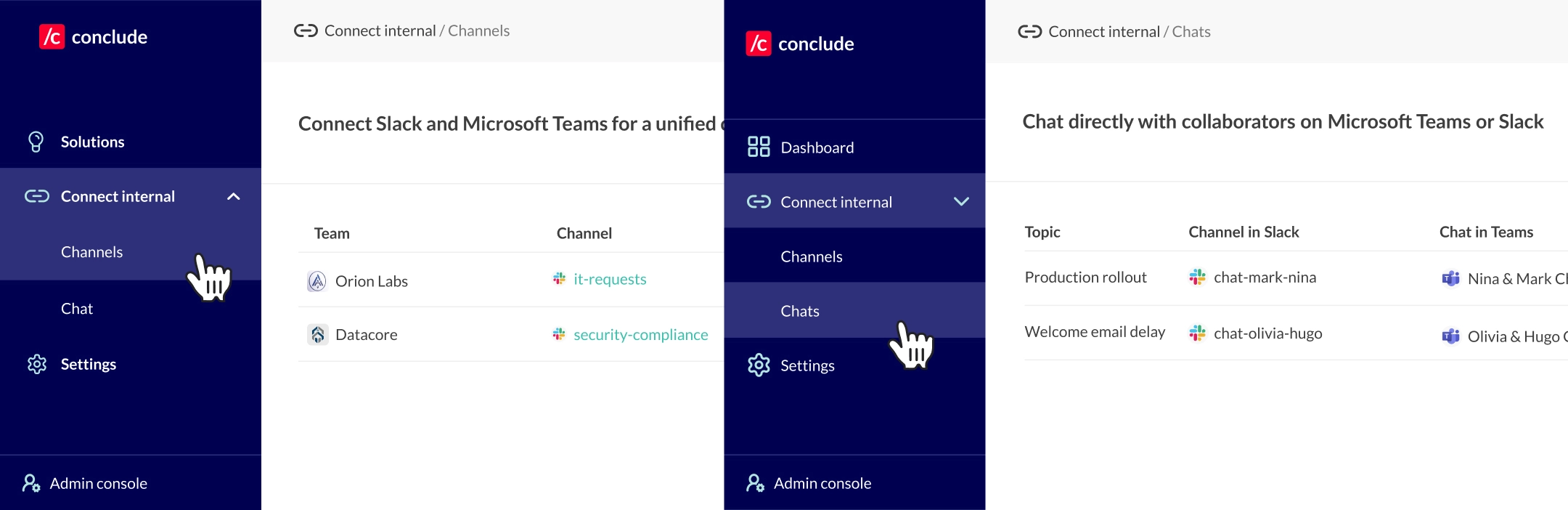
You can also access these areas from the sidebar: Connect internal > Channels or Connect internal > Chat. You will only see the channels and chats you are a member of.
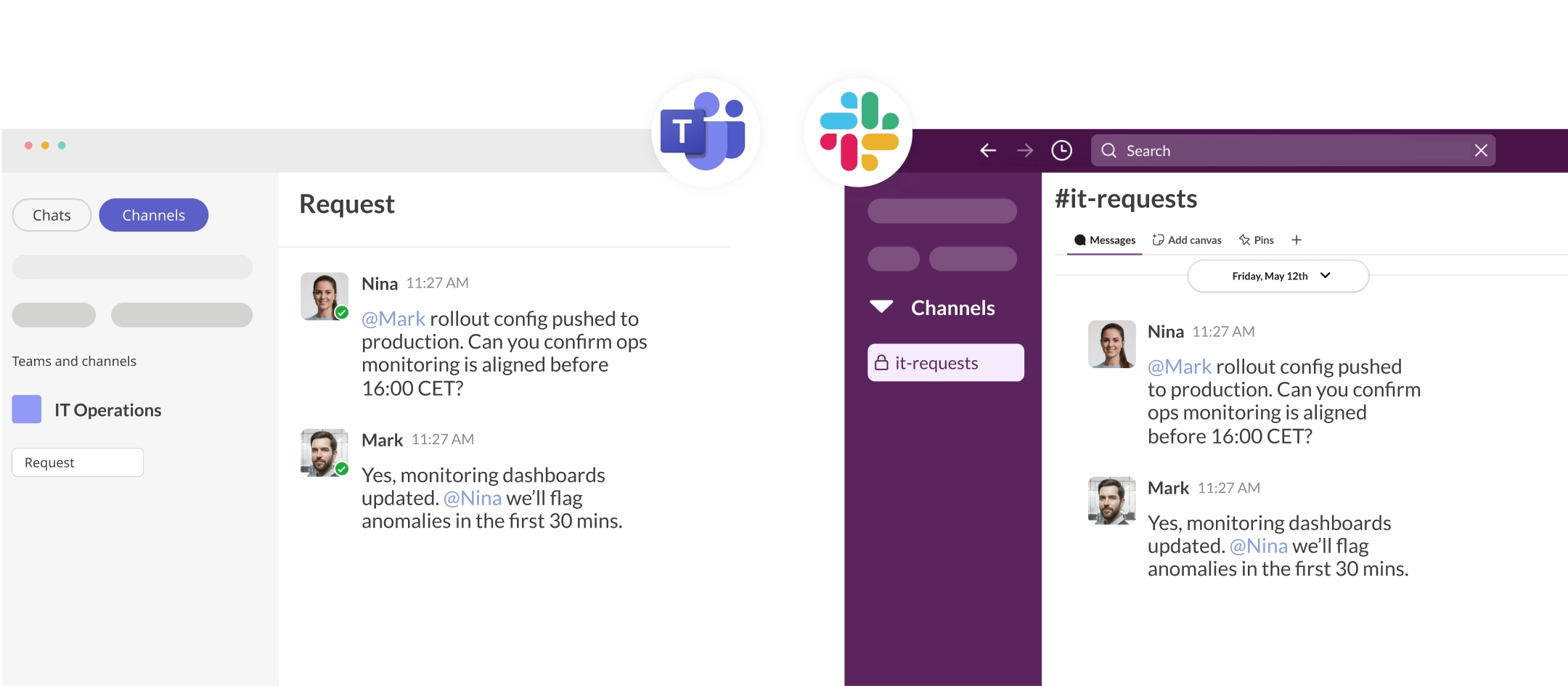
What happens in a connected channel or chat
You can start communicating in connected channels or chats immediately from Slack or Teams. In a connected channel or chat, you can:
- Send messages that will be synced to both platforms
- Edit or delete messages on Slack and Teams
- Use @mentions to tag your colleagues (works best when signed in)
- React to messages – use common emojis for consistent syncing
- Reply in the channel, chat, or thread to keep the conversation moving
- Share attachments (files and images) depending on your organization’s settings
Messages usually appear on the other platform within seconds. Formatting can also look slightly different between platforms (for example, lists, links, or code blocks), but it is supported.
How to tell if a channel or chat is connected
There are a few quick ways to confirm you’re in a connected space:
Look for the Conclude connection indicator in the channel or chat (for example, a pinned “Connection active” message, visible depending on your setup)
In the sidebar, open Connect internal > Channels or Connect internal > Chat to see whether the channel or chat is listed as connected
If you’re still unsure, ask your admin which Slack channels and Teams channels/chats are connected in your organization
Connecting existing channels or chats
Depending on your permissions, you can also connect Slack channels with Microsoft Teams channels or chats inside your organization. Admins decide which users can create connections and chats. Contact your admin for more information.
From Connect (internal) > Channels:
- Go to the Channels tab and click New connection
- Choose the Microsoft Teams team and Slack workspace you want to connect
- Select the channels or chats to connect
- You will only see channels you are a member of
- In the Select team dropdown, you will see Chat – these are for Teams chats that can be connected to a Slack channel
- Click Create to establish the connection
Once the connection is created, messages will sync automatically between the connected channel or chat.
Creating a new cross-platform chat
From Connect (internal) > Chats:
- Go to the Chats section under the Connect internal tab
- Click Create new chat
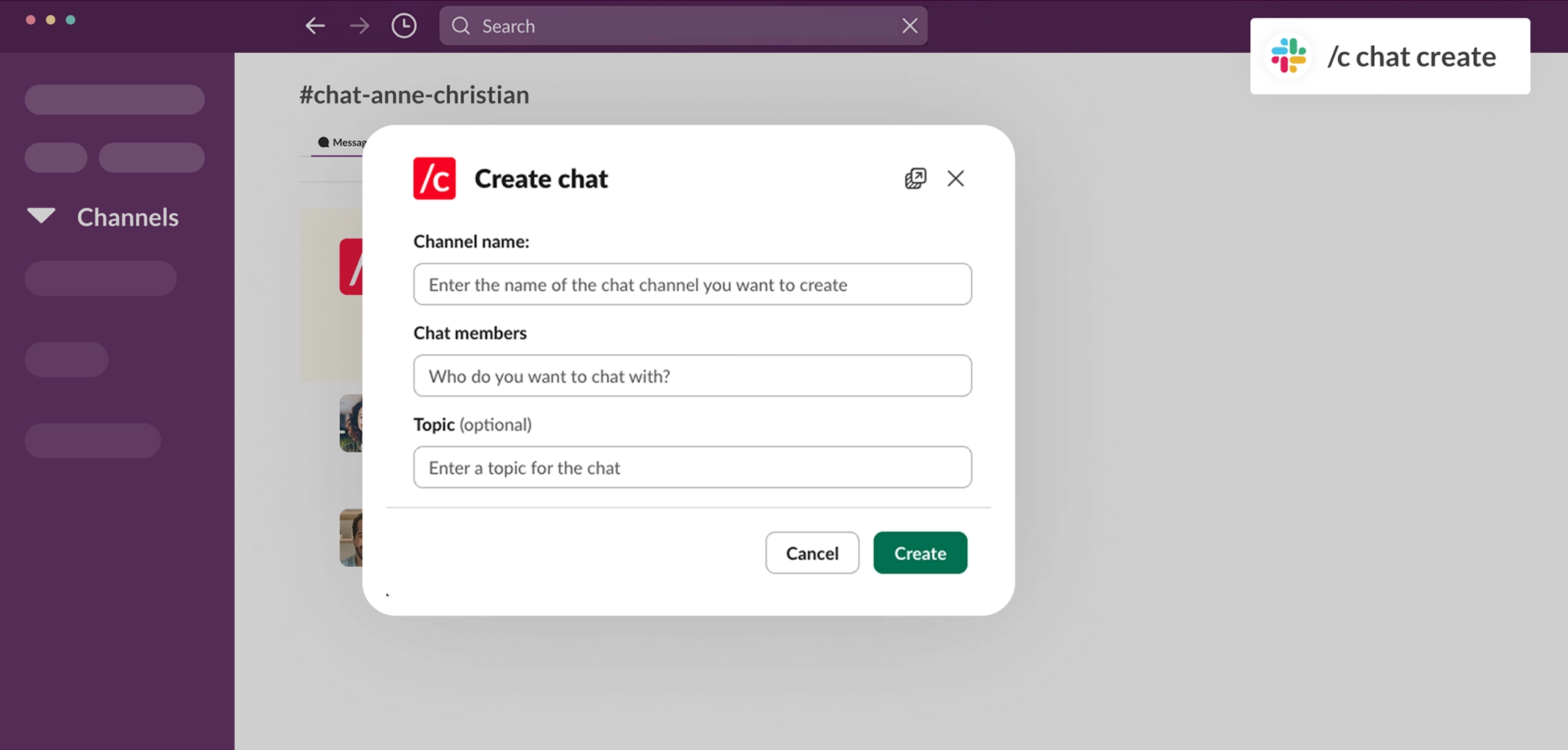
- Add chat members, enter a name for the private channel, optionally add a topic, then click Create
- This creates a Teams group chat and a private Slack channel with the selected members.
Slack shortcut (optional): type /c chat create in any Slack channel and follow the prompts (name, members, optional topic).
If you are unable to do this, contact your admin regarding permissions.
Using Conclude inside Microsoft Teams (optional)
Conclude is available in the Microsoft Teams app store. Once installed, you can use Conclude directly inside Teams to view your connections and, depending on your permissions, create and manage new ones.
How to install:
- In Teams, go to Apps and search for Conclude
- Once you have it, click Add
- If prompted, approve requested permissions (for Teams sign-in and access)
- Conclude will then appear in your Teams sidebar
If you have an installation error, you will need to contact your Teams admin.
Tip: right-click the Conclude icon and select Pin so it’s easy to access.
Other Conclude Connect features
Using @mentions across Slack and Teams
You can use @mentions as you normally would, but these work more reliably when users are signed in. Things to note:
- If a user isn’t signed in (or doesn’t exist on the other platform), the mention may show as plain text at first. Conclude will try to match it and convert it into a real mention on the receiving side
- If a user hasn’t signed into Conclude, Conclude can’t edit their messages or show feedback about whether the mention worked
Syncing message threads
- Conclude allows connected channels and chats to sync all of a thread, part of a thread, or none. How message threads are synced is configured by an admin
- Learn more about syncing message threads here and speak to your admin if you require a different setup
Sharing images and files
- Conclude allows users to sync images and files across platforms with granular controls per channel or connection. What you can do will depend on how your admin has set up the connection
- Learn more about file and image sharing here and speak to your admin if you need to implement or request different settings
Troubleshooting tips
See our Troubleshooting guide and Setup tips for more.
You can’t see the channel or chat you expect
- Confirm you’re a member of the Slack channel and the Teams channel/chat
- Refresh the page, or sign out and sign back in
- If it’s new, wait a bit and try again – new channels/users can take some time to appear, especially right after creation
- If it still doesn’t appear, ask your admin to confirm the connection and your access
Messages aren’t syncing
- Confirm you’re posting in the connected channel/chat (not a similarly named one)
- Close and reopen Slack or Teams (or reload the browser if using)
- If it continues, send your admin a message link and timestamp
Attachments aren’t coming through
- Attachment syncing depends on your organization’s settings and permissions
- If you share a file and it shows up as a link on the other side (or you’re receiving links, or attachments don’t appear at all), it’s due to the attachment settings for that specific connection
- File sharing may be turned off for the connection, or configured to share attachments as links instead of syncing files
Ask your admin what your organization supports for file syncing
@mentions or reactions aren’t working as expected
- For @mentions, check that users are signed in with the correct Slack or Microsoft account
- Some emojis may not sync across platforms – use common emoji reactions if you need them visible on both sides
- If mentions still aren’t reliable, your admin can also enable a Microsoft Teams integration user account to improve mention reliability. See more here.
Replies or threads look different
Slack and Teams structure their threads differently, so replies may appear slightly different across platforms
If context matters, quote the message you’re replying to or include a short reference