# Troubleshooting (Connect)
> Most connections and syncs work correctly right away – this guide covers the small number of edge cases and how to resolve them quickly.
Canonical HTML page: https://conclude.io/doc/developer/troubleshooting-guide-connect/
Last updated: 2026-08-06
---
This guide will help you quickly diagnose and resolve issues in Conclude Connect internal (same organization) and external (partner/customer) connections. Most connections and syncs work correctly right away – this guide covers the small number of edge cases and how to resolve them quickly.
**Useful references**
* [Integration account (Microsoft Teams)](https://conclude.io/doc/developer/microsoft-teams-integration-account/)
* [Channel mentions (external connections)](https://conclude.io/doc/developer/channel-mentions/)
* [File and image sharing settings](https://conclude.io/doc/developer/file-image-sharing/)
* [Message headers and thread syncing](https://conclude.io/doc/developer/message-syncing/)
## Before you troubleshoot (important)
### User sign-in (no admin required)
During onboarding, individual users can authenticate by clicking **Sign in with Slack** and/or **Sign in with Microsoft Teams**. This step does **not** require admin involvement and it is recommended.
### Admin setup (admin required)
For Conclude to work effectively (discover channels/chats, sync content, files, mentions, etc.), a **Slack workspace admin** and/or **Microsoft Teams tenant admin** must **add Conclude** and approve permissions.
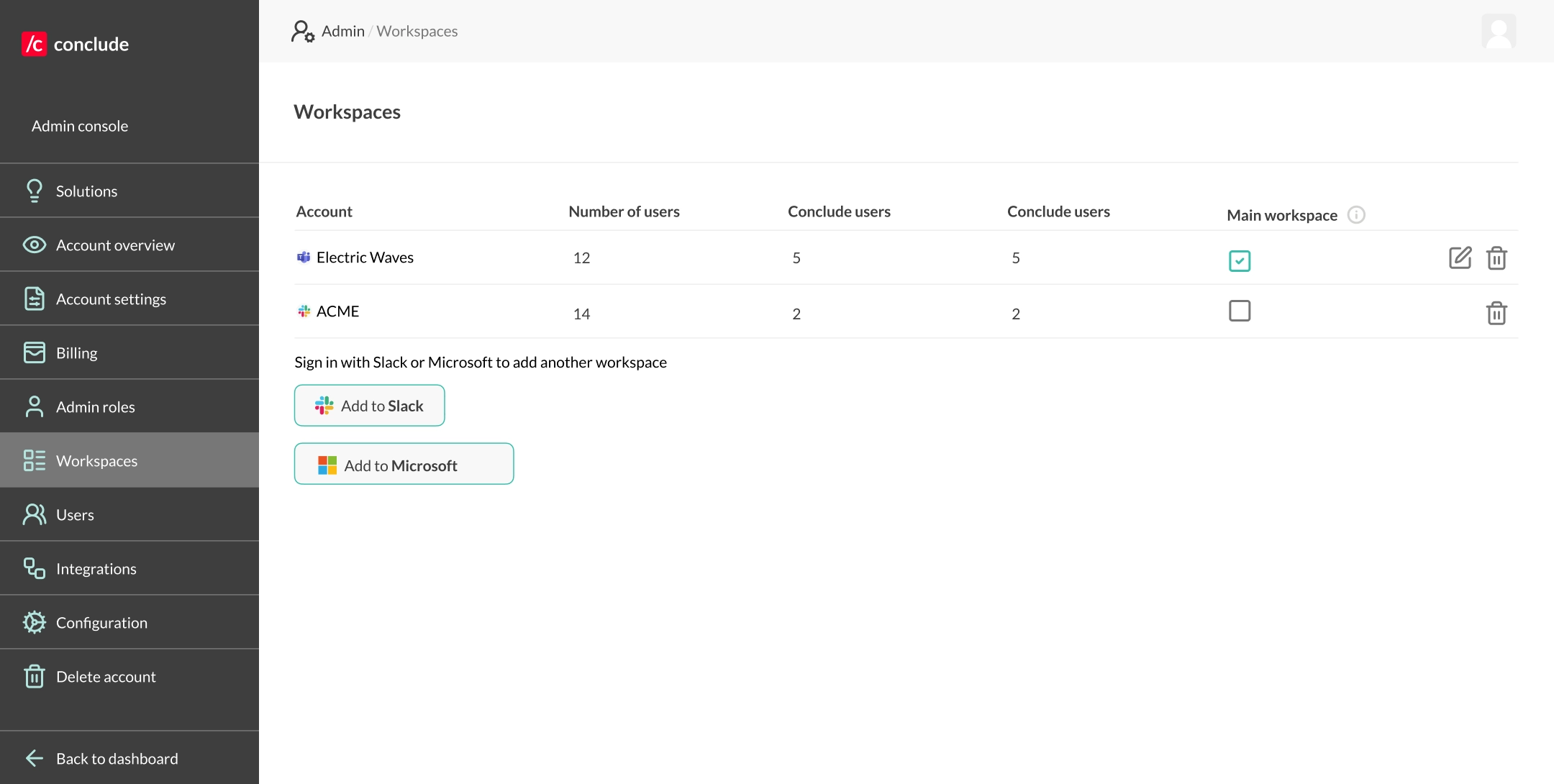
These permissions often include scopes that only admins can approve here: **Admin console > Workspaces > Add to Slack / Add to Teams**
### Platform account requirements
* **Slack:** Conclude can be installed and used with **free Slack workspaces**
* **Microsoft Teams:** Conclude requires a **paid Microsoft 365 / Teams plan**. Conclude can’t be installed on **free Teams** because free tenants typically don’t support the required **third-party app installation** and **tenant admin consent** (Microsoft Graph permissions) that Conclude needs to access and sync Teams channels/chats
---
## Common questions and configuration steps
### Jump to section:
* [Setting up your connection: finding channels and chats](#setting-up-your-connection-finding-channels-and-chats)
* [Locating a specific channel or chat](#locating-a-specific-channel-or-chat)
* [Message sync timing](#message-sync-timing)
* [Configuring the correct sender identity in Teams](#configuring-the-correct-sender-identity-in-teams)
* [Replies or threads look different](#replies-or-threads-look-different)
* [Configuring attachment and file behavior](#configuring-attachment-and-file-behavior)
* [Getting reliable @mentions and reactions](#getting-reliable-mentions-and-reactions)
* [Microsoft Teams integration account](#microsoft-teams-integration-account)
* [Merged users (duplicate accounts or email mismatch)](#merged-users-duplicate-accounts-or-email-mismatch)
* [Guest user issues](#guest-user-issues)
* [What to send to Conclude support (so issues get resolved fast)](#what-to-send-to-conclude-support-so-issues-get-resolved-fast)
### Setting up your connection: finding channels and chats
#### Likely causes
* **Permissions not granted** (Slack/Teams admin authentication not completed)
* **Missing access** (you’re not a member of the channel/chat, or it’s private/restricted)
* **Guest user limitations** (common in external scenarios)
* The channel/chat is **owned by another company** (you’re a guest, or it’s a shared channel you don’t own)
#### What to do (admin)
* **Verify permissions are granted**
* Go to **Admin console > Workspaces**
* Click **Add to Slack** or **Add to Teams** to re-trigger permissions if needed
* In Microsoft’s **Permissions Requested** screen:
* Check **“Consent on behalf of your organization”**
* Click **Accept**
* This ensures everyone in your organization can use Conclude
* **Confirm user access**
* Ensure the user is a member of the Slack channel and the Teams channel/chat
* Confirm the channel/chat isn’t private/restricted without the right members added
* **Confirm ownership**
* Make sure the user is not trying to create/manage connections for channels owned by another organization (guest/shared scenarios)
 ### Locating a specific channel or chat
#### Likely causes
* You’re not a member (or it’s private/restricted)
* The channel/chat is **owned by another company**
* **Duplicate user identity** (see **Merged users section below**)
#### What to do
* Confirm you’re a member of the channel you are trying to connect
* Confirm the channel/chat is owned by your organization (not a guest/shared case)
* Refresh, sign out, or sign back in to Conclude
* If it still doesn’t show, ask your admin to check **Merged users** (see section on merged users further below)
### Locating a specific channel or chat
#### Likely causes
* You’re not a member (or it’s private/restricted)
* The channel/chat is **owned by another company**
* **Duplicate user identity** (see **Merged users section below**)
#### What to do
* Confirm you’re a member of the channel you are trying to connect
* Confirm the channel/chat is owned by your organization (not a guest/shared case)
* Refresh, sign out, or sign back in to Conclude
* If it still doesn’t show, ask your admin to check **Merged users** (see section on merged users further below)
 ### Message sync timing
#### Likely causes
* Posting in the wrong channel/chat (similar name)
* Temporary platform delays (Slack/Teams events can rarely lag)
* Thread sync settings differ from what you expect (especially for older threads)
#### What to do
**Confirm you’re posting in the connected channel/chat:**
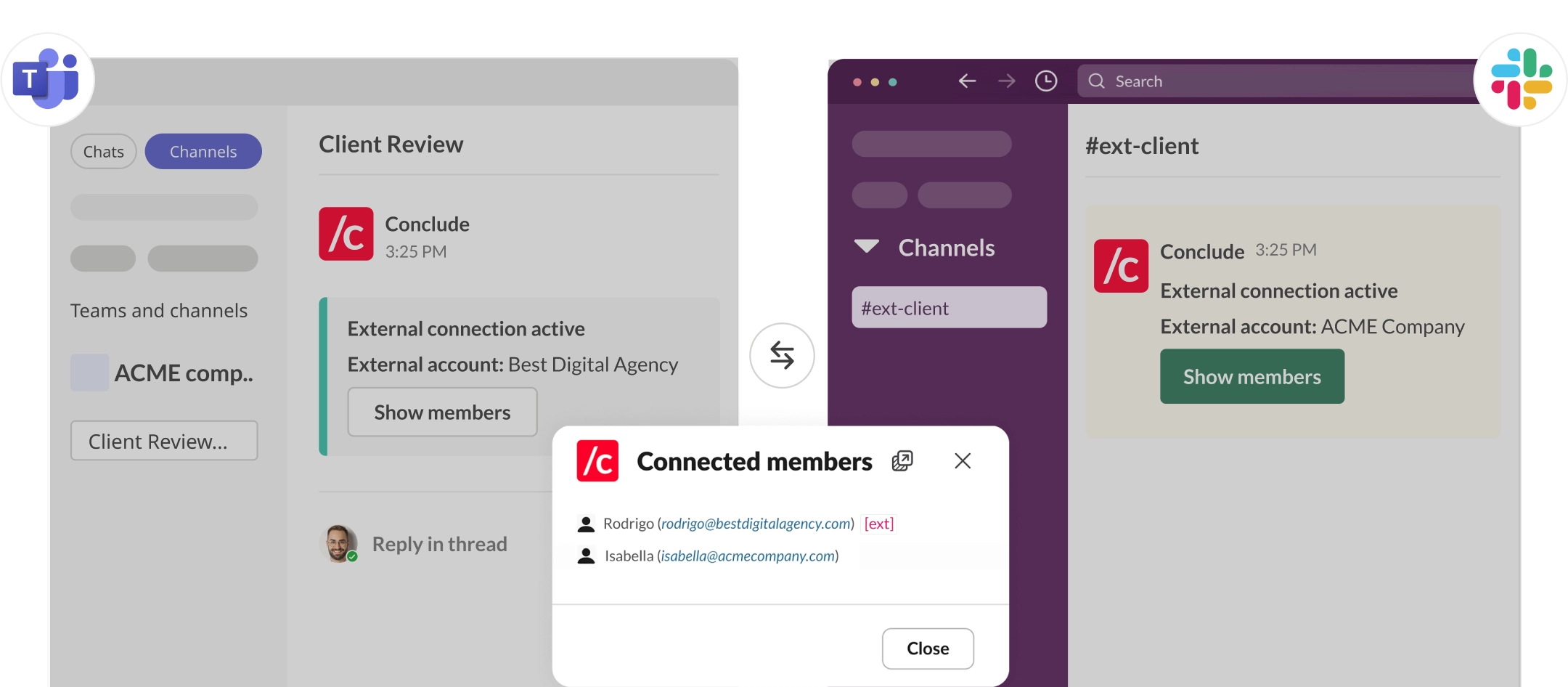
* In the connected channel, Conclude posts a pinned message
* **“Connection active”** (internal), or **“External connection active”** (external)
* This message shows what channel or chat it’s connected to
* Click **Show members** to verify who is included on both sides
### Message sync timing
#### Likely causes
* Posting in the wrong channel/chat (similar name)
* Temporary platform delays (Slack/Teams events can rarely lag)
* Thread sync settings differ from what you expect (especially for older threads)
#### What to do
**Confirm you’re posting in the connected channel/chat:**
* In the connected channel, Conclude posts a pinned message
* **“Connection active”** (internal), or **“External connection active”** (external)
* This message shows what channel or chat it’s connected to
* Click **Show members** to verify who is included on both sides
 * **If you’re replying inside an old thread**
* If the thread existed **before the connection was created**, syncing depends on your organization’s **thread syncing settings**.
* Check with your admin whether syncing is enabled for **existing threads**. [**More info here**](https://conclude.io/doc/developer/message-syncing/).
* Escalate to support
Email **support@conclude.io** with:
* Channel/chat names (both sides)
* Exact timestamp(s) (include timezone)
* Which direction is failing (**Slack to Teams** or **Teams to Slack**)
### Configuring the correct sender identity in Teams
#### What you might see
In Microsoft Teams, some synced messages appear to be posted by a different or random user. You may still see the “real sender’s” name in the message text.
#### Why it happens
This usually happens when Conclude can’t post as the real Teams user because their Teams credentials aren’t available/authorized. In that case, Conclude posts using a fallback identity.
#### How to fix (admin)
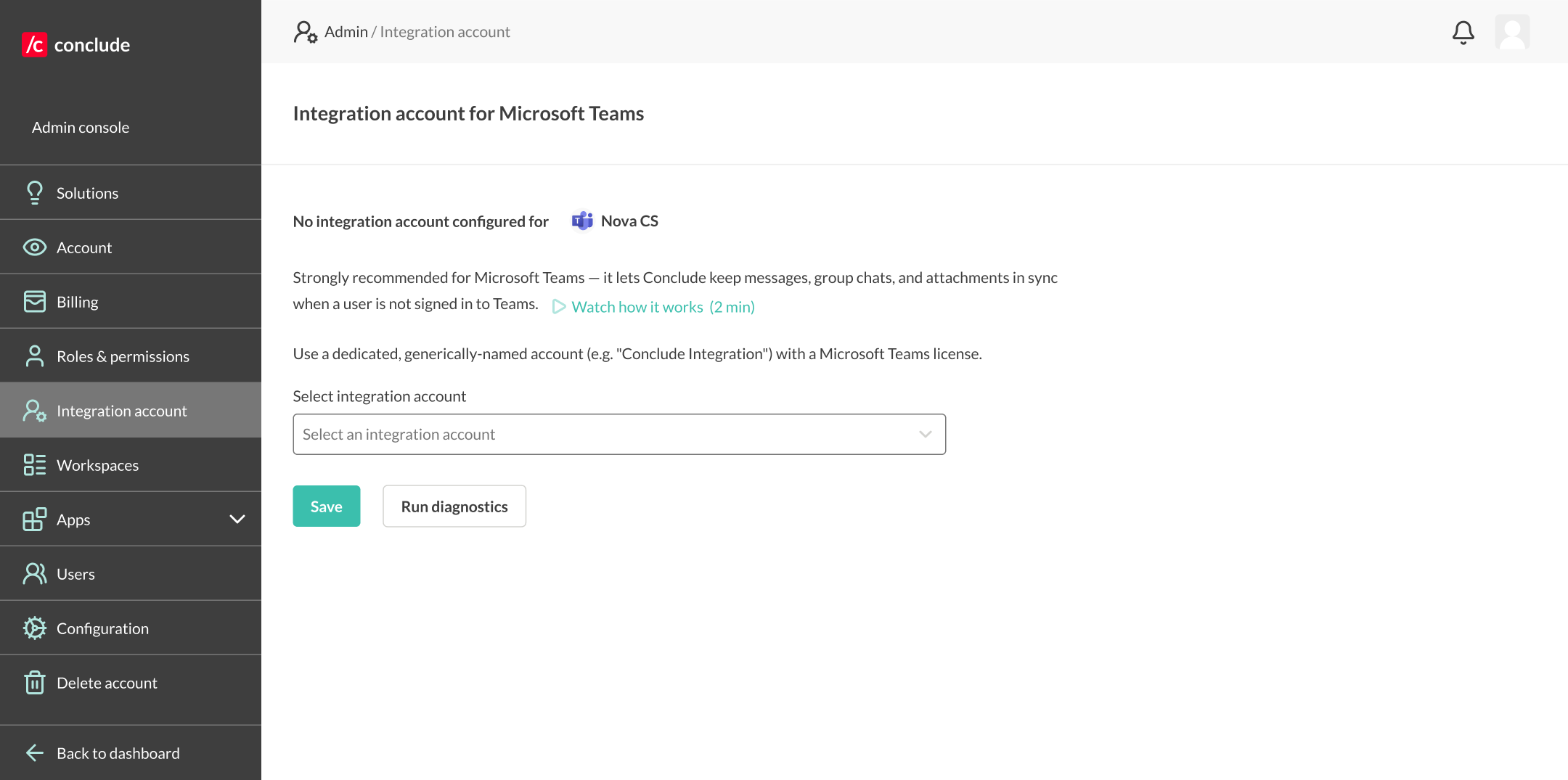
* Set up a [**Microsoft Teams integration account**](https://conclude.io/doc/developer/microsoft-teams-integration-account/) in Conclude (see section below)
* **Add the integration account to the Team and the specific channel** where messages are being synced
* For **private channels**, direct membership is required
* Verify the integration account has a valid **Microsoft 365 license, including Teams**
* After setup, test again by sending a new message
**Note:** this behavior is expected until the integration account is configured correctly (and added to the channel).
* **If you’re replying inside an old thread**
* If the thread existed **before the connection was created**, syncing depends on your organization’s **thread syncing settings**.
* Check with your admin whether syncing is enabled for **existing threads**. [**More info here**](https://conclude.io/doc/developer/message-syncing/).
* Escalate to support
Email **support@conclude.io** with:
* Channel/chat names (both sides)
* Exact timestamp(s) (include timezone)
* Which direction is failing (**Slack to Teams** or **Teams to Slack**)
### Configuring the correct sender identity in Teams
#### What you might see
In Microsoft Teams, some synced messages appear to be posted by a different or random user. You may still see the “real sender’s” name in the message text.
#### Why it happens
This usually happens when Conclude can’t post as the real Teams user because their Teams credentials aren’t available/authorized. In that case, Conclude posts using a fallback identity.
#### How to fix (admin)
* Set up a [**Microsoft Teams integration account**](https://conclude.io/doc/developer/microsoft-teams-integration-account/) in Conclude (see section below)
* **Add the integration account to the Team and the specific channel** where messages are being synced
* For **private channels**, direct membership is required
* Verify the integration account has a valid **Microsoft 365 license, including Teams**
* After setup, test again by sending a new message
**Note:** this behavior is expected until the integration account is configured correctly (and added to the channel).
 ### Replies or threads look different
This is actually quite normal.
#### Why it happens
Slack and Teams structure their threads differently, and Conclude’s behavior for threads that were created *before* Conclude was installed/connected can be configured by admins.
#### What to do
* If context matters, quote the message you’re replying to or add a short reference
* Admins can adjust thread syncing behavior:
* **Internal connections:** default is to sync full threads
* **External connections:** default is to sync part of the thread (first message + new replies). [More info here](https://conclude.io/doc/developer/message-syncing/)
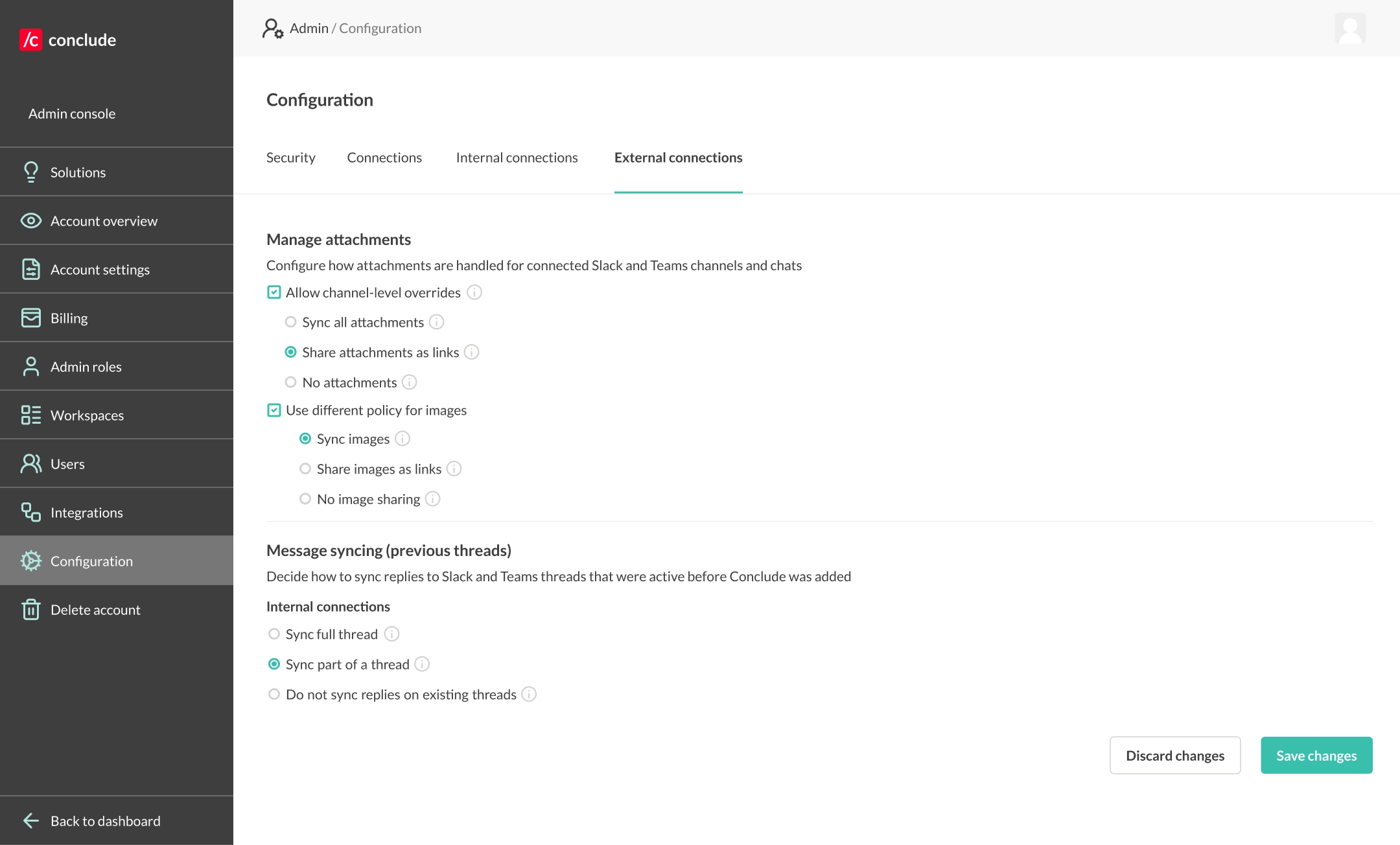
### Configuring attachment and file behavior
#### Likely causes
Attachment behavior depends on the **attachment policy** for the specific connection:
* **Sync all attachments (full copy)** requires Microsoft permission `Files.ReadWrite.All`
* **Share attachments as links** means recipients must have access to the originating platform to open them
* **No attachments** means attachments are omitted entirely. [More info here](https://conclude.io/doc/developer/file-image-sharing/)
#### What to do (end user)
* Ask your admin which attachment policy is enabled for this connection.
* If you receive links but can’t open them, you likely don’t have access to the originating platform (expected behavior).
#### What to do (admin)
* Review global settings (and per-connection overrides if enabled):
* **Admin console > Configuration > Manage attachments**
* Note: internal and external connections have separate sections.
* If you want full file/image sync:
* Grant `Files.ReadWrite.All`
* Enable **Sync all attachments / Sync images**
### Replies or threads look different
This is actually quite normal.
#### Why it happens
Slack and Teams structure their threads differently, and Conclude’s behavior for threads that were created *before* Conclude was installed/connected can be configured by admins.
#### What to do
* If context matters, quote the message you’re replying to or add a short reference
* Admins can adjust thread syncing behavior:
* **Internal connections:** default is to sync full threads
* **External connections:** default is to sync part of the thread (first message + new replies). [More info here](https://conclude.io/doc/developer/message-syncing/)
### Configuring attachment and file behavior
#### Likely causes
Attachment behavior depends on the **attachment policy** for the specific connection:
* **Sync all attachments (full copy)** requires Microsoft permission `Files.ReadWrite.All`
* **Share attachments as links** means recipients must have access to the originating platform to open them
* **No attachments** means attachments are omitted entirely. [More info here](https://conclude.io/doc/developer/file-image-sharing/)
#### What to do (end user)
* Ask your admin which attachment policy is enabled for this connection.
* If you receive links but can’t open them, you likely don’t have access to the originating platform (expected behavior).
#### What to do (admin)
* Review global settings (and per-connection overrides if enabled):
* **Admin console > Configuration > Manage attachments**
* Note: internal and external connections have separate sections.
* If you want full file/image sync:
* Grant `Files.ReadWrite.All`
* Enable **Sync all attachments / Sync images**
 ### Getting reliable @mentions and reactions
#### External mentions
When mentioning someone external to your organization, Slack or Teams’ autocomplete will not recognize them. This is because the autocomplete only knows about people who exist natively in your workspace or tenant. [More info here.](https://conclude.io/doc/developer/channel-mentions/)
#### Inside your organization
When messaging someone inside your organization, mentions across channels work smoothly **when users are signed in to Conclude and have credentials linked on both platforms**. If they do not have credentials on both platforms, the @name will not autocomplete, but the person will still receive the mention if you use their correct handle.
### What to do
* Encourage users to **sign in to Conclude** (the biggest improvement)
* Type the first and last name together, without a space, e.g., instead of typing @Emma Green, type @EmmaGreen
* If Slack/Teams still tries to autocomplete, press Escape after typing the name to close the suggestion, then continue typing the last name without a space
* If mentions are still unreliable for external connections, e.g., they are posted via a bot/fallback identity (not a real user), enable a **Microsoft Teams integration account**. [More info here](https://conclude.io/doc/developer/microsoft-teams-integration-account/)
#### Emoji reactions
Some emoji differences between Slack and Teams are expected. Use the more commonly used emojis if reactions must be visible on both sides.
### Microsoft Teams integration account
#### When you should use it
Strongly recommended for external connections and any scenario where not everyone has credentials on both platforms. It improves reliability for:
* Message posting
* @mentions (especially Slack to Teams)
It also helps when **messages in Teams appear to come from a fallback/random sender** (because real user credentials aren’t available). [More info here.](https://conclude.io/doc/developer/microsoft-teams-integration-account/)
#### Common issue: integration account isn’t working
#### Likely causes
* The integration account doesn’t have a proper Microsoft 365 license, including Teams
(Teams Free / Entra-only / unlicensed shared mailbox won’t work)
* The account isn’t signed in/authorized inside Conclude admin settings
* The integration account isn’t added to the relevant Team (and private channels if needed)
[Read more about how to assign Teams add-on licences to users](https://learn.microsoft.com/en-us/microsoftteams/teams-add-on-licensing/assign-teams-add-on-licenses).
#### What to do (admin)
The integration account must be **a member of the Team and the connected channel** (and **any private channels** where you expect posting).
* Create a generic Teams user (not tied to a real employee identity)
* Assign a valid Microsoft 365 license, including Teams
* In **Admin console > Integrations**
* Select the pre-created integration account from the drop-down, then click **Save**
* You can also select **Run diagnostics** to check if the account has a valid Teams license and if they are signed in to Conclude
* If you just added the account to the tenant:
* Refresh the user list in Conclude, or sign out/in to Conclude
* Add the integration account to:
* the Team(s) containing connected channels
* any private channels (direct membership is required)
### Merged users (duplicate accounts or email mismatch)
#### What it looks like
* When creating connections, you can see channels in Slack but not in Teams (or vice versa)
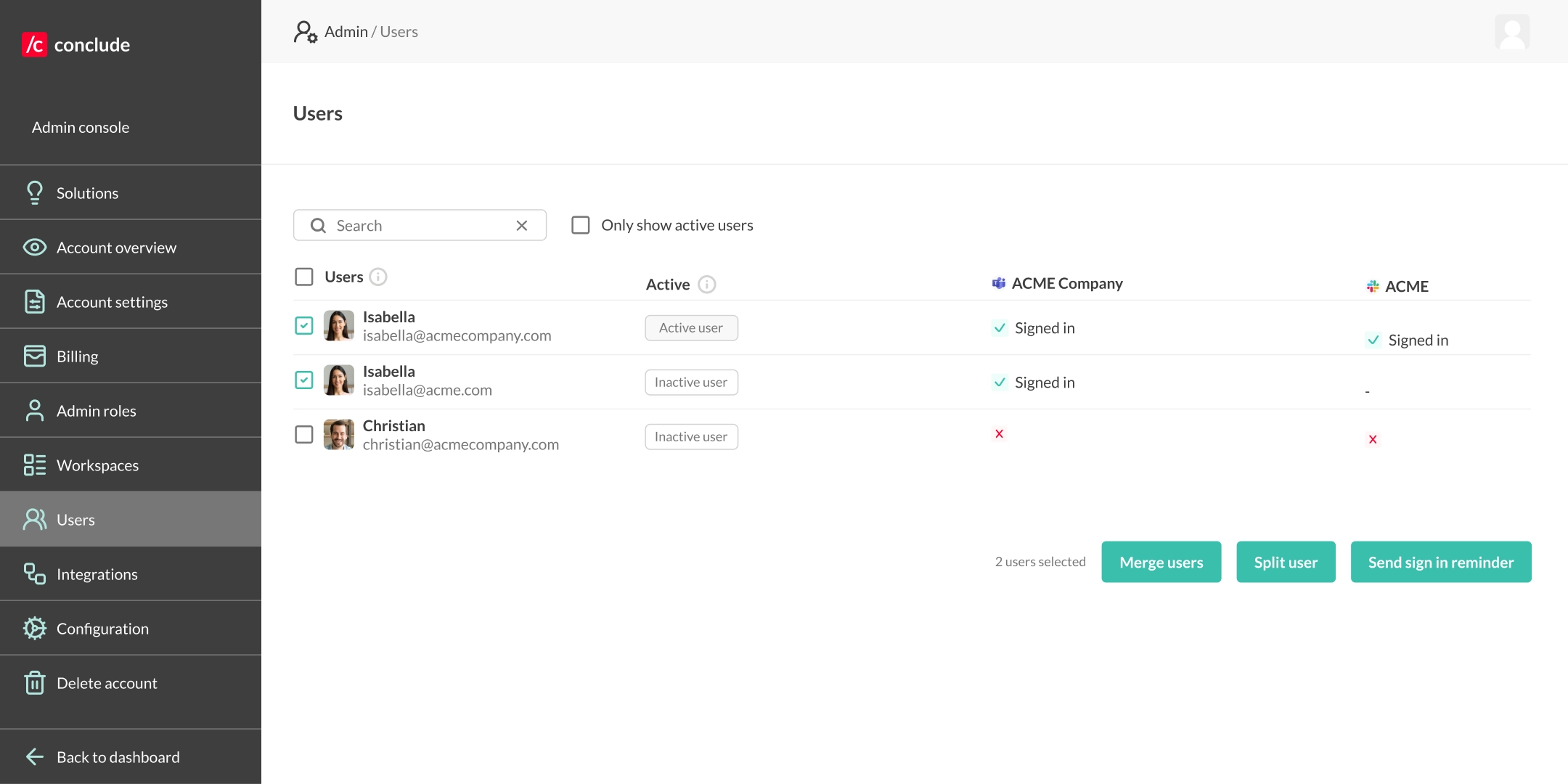
* The same person appears twice in Conclude: **Admin console > Users**
#### Why it happens
Some users have different email domains between Slack and Teams (or multiple email addresses). Conclude may not automatically merge them, which can affect visibility and identity-based features.
#### Fix (admin)
* In **Admin console > Users**, find duplicates and **merge user accounts** so the person has a unified profile.
### Guest user issues
#### What it looks like
A guest user can participate in synced channels, but cannot create/manage connections.
#### Why it happens
Due to platform restrictions, guest users can’t create or manage connections for channels/chats outside their own Slack workspace or Teams tenant.
#### How to fix it
Have a non-guest (full member) user in the relevant workspace/tenant set up or manage the connection.
### What to send to Conclude support (so issues get resolved fast)
When escalating to support@conclude.io, include:
* Connection type: **internal** or **external**
* Workspace/tenant names (or organization name in Conclude)
* Channel/chat names on both sides
* Exact timestamps (include timezone)
* Direction of failure (**Slack to Teams** or **Teams to Slack**)
* Whether an integration account is configured (and whether it’s licensed)
Most issues on this page resolve with a short admin check – support is on hand for anything that doesn’t.
## Useful references
* [Setup tips (Conclude Connect)](https://conclude.io/doc/developer/setup-tips-connect/)
* [Integration account (Microsoft Teams)](https://conclude.io/doc/developer/microsoft-teams-integration-account/)
* [Channel mentions](https://conclude.io/doc/developer/channel-mentions/)
* [File and image sharing settings](https://conclude.io/doc/developer/file-image-sharing/)
* [Message headers and thread syncing](https://conclude.io/doc/developer/message-syncing/)
### Getting reliable @mentions and reactions
#### External mentions
When mentioning someone external to your organization, Slack or Teams’ autocomplete will not recognize them. This is because the autocomplete only knows about people who exist natively in your workspace or tenant. [More info here.](https://conclude.io/doc/developer/channel-mentions/)
#### Inside your organization
When messaging someone inside your organization, mentions across channels work smoothly **when users are signed in to Conclude and have credentials linked on both platforms**. If they do not have credentials on both platforms, the @name will not autocomplete, but the person will still receive the mention if you use their correct handle.
### What to do
* Encourage users to **sign in to Conclude** (the biggest improvement)
* Type the first and last name together, without a space, e.g., instead of typing @Emma Green, type @EmmaGreen
* If Slack/Teams still tries to autocomplete, press Escape after typing the name to close the suggestion, then continue typing the last name without a space
* If mentions are still unreliable for external connections, e.g., they are posted via a bot/fallback identity (not a real user), enable a **Microsoft Teams integration account**. [More info here](https://conclude.io/doc/developer/microsoft-teams-integration-account/)
#### Emoji reactions
Some emoji differences between Slack and Teams are expected. Use the more commonly used emojis if reactions must be visible on both sides.
### Microsoft Teams integration account
#### When you should use it
Strongly recommended for external connections and any scenario where not everyone has credentials on both platforms. It improves reliability for:
* Message posting
* @mentions (especially Slack to Teams)
It also helps when **messages in Teams appear to come from a fallback/random sender** (because real user credentials aren’t available). [More info here.](https://conclude.io/doc/developer/microsoft-teams-integration-account/)
#### Common issue: integration account isn’t working
#### Likely causes
* The integration account doesn’t have a proper Microsoft 365 license, including Teams
(Teams Free / Entra-only / unlicensed shared mailbox won’t work)
* The account isn’t signed in/authorized inside Conclude admin settings
* The integration account isn’t added to the relevant Team (and private channels if needed)
[Read more about how to assign Teams add-on licences to users](https://learn.microsoft.com/en-us/microsoftteams/teams-add-on-licensing/assign-teams-add-on-licenses).
#### What to do (admin)
The integration account must be **a member of the Team and the connected channel** (and **any private channels** where you expect posting).
* Create a generic Teams user (not tied to a real employee identity)
* Assign a valid Microsoft 365 license, including Teams
* In **Admin console > Integrations**
* Select the pre-created integration account from the drop-down, then click **Save**
* You can also select **Run diagnostics** to check if the account has a valid Teams license and if they are signed in to Conclude
* If you just added the account to the tenant:
* Refresh the user list in Conclude, or sign out/in to Conclude
* Add the integration account to:
* the Team(s) containing connected channels
* any private channels (direct membership is required)
### Merged users (duplicate accounts or email mismatch)
#### What it looks like
* When creating connections, you can see channels in Slack but not in Teams (or vice versa)
* The same person appears twice in Conclude: **Admin console > Users**
#### Why it happens
Some users have different email domains between Slack and Teams (or multiple email addresses). Conclude may not automatically merge them, which can affect visibility and identity-based features.
#### Fix (admin)
* In **Admin console > Users**, find duplicates and **merge user accounts** so the person has a unified profile.
### Guest user issues
#### What it looks like
A guest user can participate in synced channels, but cannot create/manage connections.
#### Why it happens
Due to platform restrictions, guest users can’t create or manage connections for channels/chats outside their own Slack workspace or Teams tenant.
#### How to fix it
Have a non-guest (full member) user in the relevant workspace/tenant set up or manage the connection.
### What to send to Conclude support (so issues get resolved fast)
When escalating to support@conclude.io, include:
* Connection type: **internal** or **external**
* Workspace/tenant names (or organization name in Conclude)
* Channel/chat names on both sides
* Exact timestamps (include timezone)
* Direction of failure (**Slack to Teams** or **Teams to Slack**)
* Whether an integration account is configured (and whether it’s licensed)
Most issues on this page resolve with a short admin check – support is on hand for anything that doesn’t.
## Useful references
* [Setup tips (Conclude Connect)](https://conclude.io/doc/developer/setup-tips-connect/)
* [Integration account (Microsoft Teams)](https://conclude.io/doc/developer/microsoft-teams-integration-account/)
* [Channel mentions](https://conclude.io/doc/developer/channel-mentions/)
* [File and image sharing settings](https://conclude.io/doc/developer/file-image-sharing/)
* [Message headers and thread syncing](https://conclude.io/doc/developer/message-syncing/)