Troubleshooting (Connect)
This guide will help you quickly diagnose and resolve common issues in Conclude Connect internal (same organization) and external (partner/customer) connections.
Useful references
- Integration user account (Microsoft Teams)
- Channel mentions (external connections)
- File and image sharing settings
- Message headers and thread syncing
Before you troubleshoot (important)
User sign-in (no admin required)
During onboarding, individual users can authenticate by clicking Sign in with Slack and/or Sign in with Microsoft Teams. This step does not require admin involvement and it is recommended.
Admin setup (admin required)
For Conclude to work effectively (discover channels/chats, sync content, files, mentions, etc.), a Slack workspace admin and/or Microsoft Teams tenant admin must add Conclude and approve permissions.
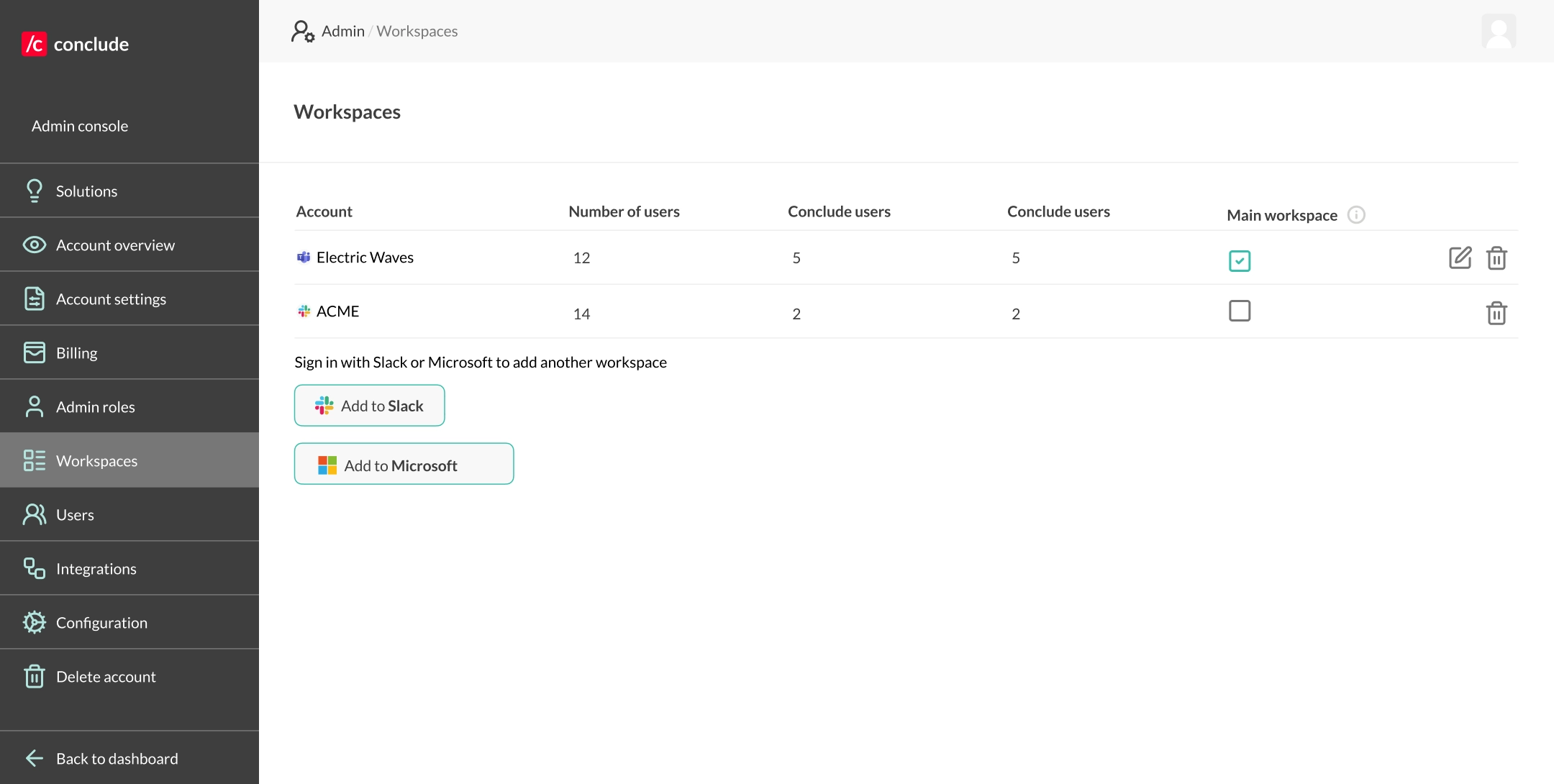
These permissions often include scopes that only admins can approve here: Admin console > Workspaces > Add to Slack / Add to Teams
Platform account requirements
- Slack: Conclude can be installed and used with free Slack workspaces
- Microsoft Teams: Conclude requires a paid Microsoft 365 / Teams plan. Conclude can’t be installed on free Teams because free tenants typically don’t support the required third-party app installation and tenant admin consent (Microsoft Graph permissions) that Conclude needs to access and sync Teams channels/chats
Common troubleshooting issues
Jump to section:
- You can’t get your connection to work / can’t find any chats or channels
- You can’t see the channel or chat you expect
- Messages aren’t syncing (or they sync with delays)
- Messages in Teams show the wrong sender (posted by a random user)
- Replies or threads look different
- Attachments aren’t coming through / Files show up as links
- @mentions (or reactions) aren’t working as expected
- Integration user account isn’t working
- Merged users (duplicate accounts or email mismatch)
- Guest user issues
- What to send to Conclude support (so issues get resolved fast)
You can’t get your connection to work / can’t find any chats or channels
Likely causes
- Permissions not granted (Slack/Teams admin authentication not completed)
- Missing access (you’re not a member of the channel/chat, or it’s private/restricted)
- Guest user limitations (common in external scenarios)
- The channel/chat is owned by another company (you’re a guest, or it’s a shared channel you don’t own)
What to do (admin)
- Verify permissions are granted
- Go to Admin console > Workspaces
- Click Add to Slack or Add to Teams to re-trigger permissions if needed
- In Microsoft’s Permissions Requested screen:
- Check “Consent on behalf of your organization”
- Click Accept
- This ensures everyone in your organization can use Conclude
- Confirm user access
- Ensure the user is a member of the Slack channel and the Teams channel/chat
- Confirm the channel/chat isn’t private/restricted without the right members added
- Confirm ownership
- Make sure the user is not trying to create/manage connections for channels owned by another organization (guest/shared scenarios)
You can’t see the channel or chat you expect
Likely causes
- You’re not a member (or it’s private/restricted)
- The channel/chat is owned by another company
- Duplicate user identity (see Merged users section below)
What to do
- Confirm you’re a member of the channel you are trying to connect
- Confirm the channel/chat is owned by your organization (not a guest/shared case)
- Refresh, sign out, or sign back in to Conclude
- If it still doesn’t show, ask your admin to check Merged users (see section on merged users further below)
Messages aren’t syncing (or they sync with delays)
Likely causes
- Posting in the wrong channel/chat (similar name)
- Temporary platform delays (Slack/Teams events can rarely lag)
- Thread sync settings differ from what you expect (especially for older threads)
What to do
Confirm you’re posting in the connected channel/chat:
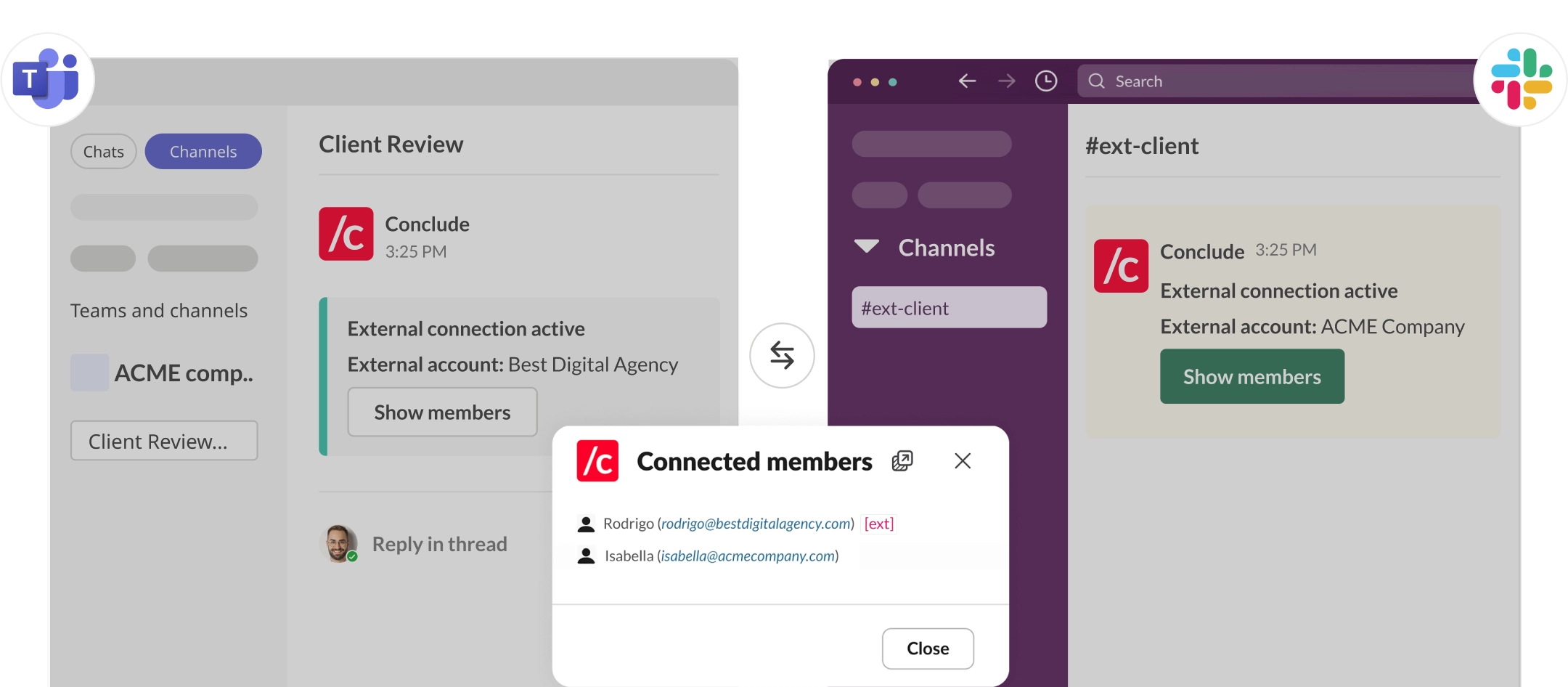
- In the connected channel, Conclude posts a pinned message
- “Connection active” (internal), or “External connection active” (external)
- This message shows what channel or chat it’s connected to
- Click Show members to verify who is included on both sides
- If you’re replying inside an old thread
- If the thread existed before the connection was created, syncing depends on your organization’s thread syncing settings.
- Check with your admin whether syncing is enabled for existing threads. More info here.
- Escalate to support
Email support@conclude.io with:- Channel/chat names (both sides)
- Exact timestamp(s) (include timezone)
- Which direction is failing (Slack to Teams or Teams to Slack)
Messages in Teams show the wrong sender (posted by a random user)
What you might see
In Microsoft Teams, some synced messages appear to be posted by a different or random user. You may still see the “real sender’s” name in the message text.
Why it happens
This usually happens when Conclude can’t post as the real Teams user because their Teams credentials aren’t available/authorized. In that case, Conclude posts using a fallback identity.
How to fix (admin)
- Set up a Microsoft Teams Integration User Account in Conclude (see section below)
- Add the Integration User to the Team and the specific channel where messages are being synced
- For private channels, direct membership is required
- Verify the integration user has a valid Microsoft 365 license, including Teams
- After setup, test again by sending a new message
Note: this behavior is expected until the Integration User Account is configured correctly (and added to the channel).
Replies or threads look different
This is actually quite normal.
Why it happens
Slack and Teams structure their threads differently, and Conclude’s behavior for threads that were created before Conclude was installed/connected can be configured by admins.
What to do
- If context matters, quote the message you’re replying to or add a short reference
- Admins can adjust thread syncing behavior:
- Internal connections: default is to sync full threads
- External connections: default is to sync part of the thread (first message + new replies). More info here
Attachments aren’t coming through / Files show up as links
Likely causes
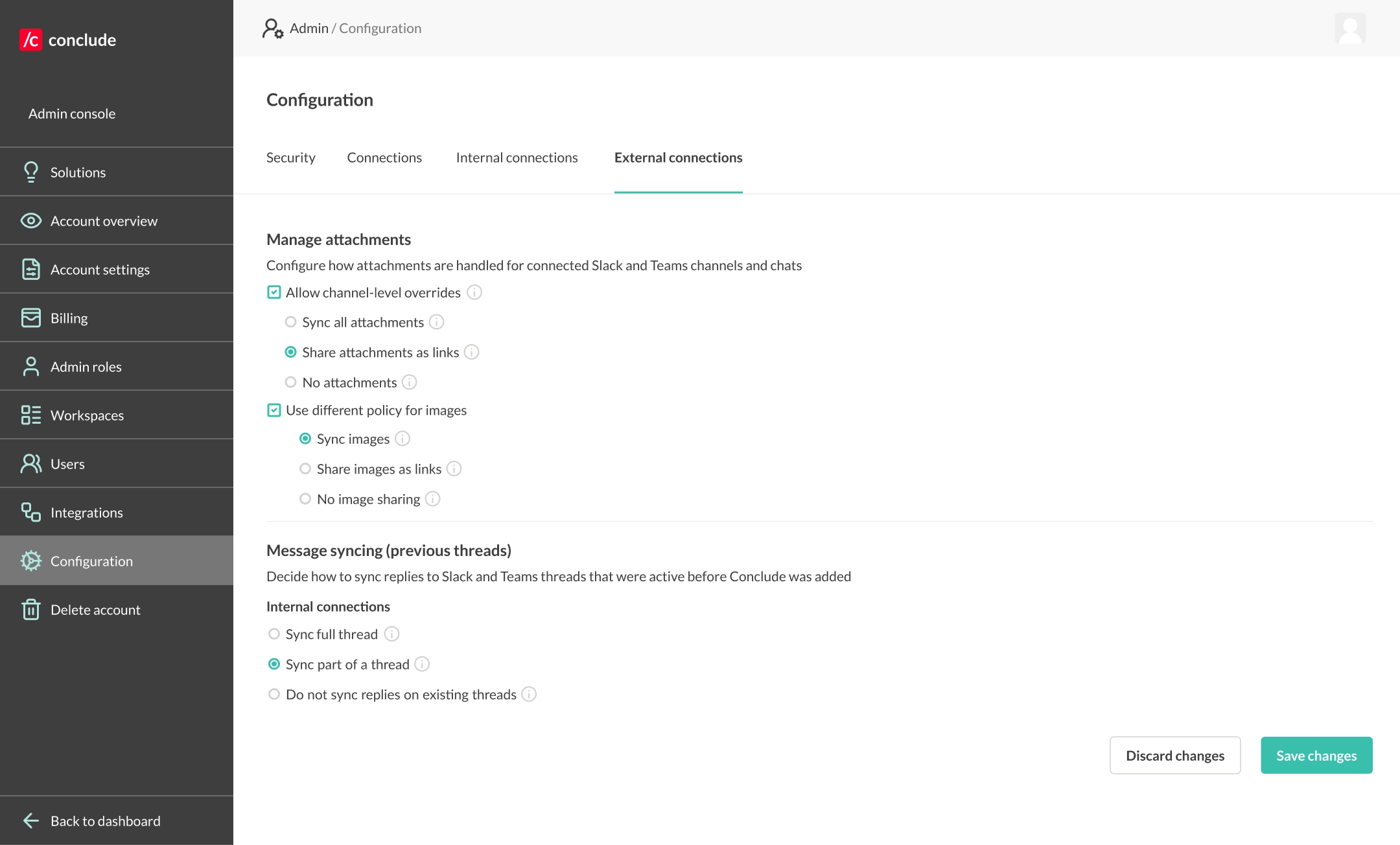
Attachment behavior depends on the attachment policy for the specific connection:
- Sync all attachments (full copy) requires Microsoft permission
Files.ReadWrite.All - Share attachments as links means recipients must have access to the originating platform to open them
- No attachments means attachments are omitted entirely. More info here
What to do (end user)
- Ask your admin which attachment policy is enabled for this connection.
- If you receive links but can’t open them, you likely don’t have access to the originating platform (expected behavior).
What to do (admin)
- Review global settings (and per-connection overrides if enabled):
- Admin console > Configuration > Manage attachments
- Note: internal and external connections have separate sections.
- If you want full file/image sync:
- Grant
Files.ReadWrite.All - Enable Sync all attachments / Sync images
- Grant
@mentions (or reactions) aren’t working as expected
Mentions: what’s normal (especially external)
For external connections, mentions may appear as plain text at first. Conclude then attempts to match and convert them into real mentions on the receiving side. More info here.
Likely causes
- Users aren’t signed in with the correct Slack/Microsoft account
- Mentions are posted via a bot/fallback identity (not a real user), which can reduce reliability – especially with Slack to Teams in external connections
What to do
- Encourage users to sign in to Conclude (the biggest improvement)
- If mentions are still unreliable for external connections:
- Enable a Microsoft Teams integration user account (recommended) More info here
Emoji reactions
Some emoji differences between Slack and Teams are expected. Use the more commonly used emojis if reactions must be visible on both sides.
Microsoft Teams Integration User Account
When you should use it
Strongly recommended for external connections and any scenario where not everyone has credentials on both platforms. It improves reliability for:
- Message posting
- @mentions (especially Slack to Teams)
It also helps when messages in Teams appear to come from a fallback/random sender (because real user credentials aren’t available). More info here.
Integration user account isn’t working
Likely causes
- The integration user doesn’t have a proper Microsoft 365 license, including Teams
(Teams Free / Entra-only / unlicensed shared mailbox won’t work) - The account isn’t signed in/authorized inside Conclude admin settings
- The integration user isn’t added to the relevant Team (and private channels if needed)
What to do (admin)
The integration user must be a member of the Team and the connected channel (and any private channels where you expect posting).
- Create a generic Teams user (not tied to a real employee identity)
- Assign a valid Microsoft 365 license, including Teams
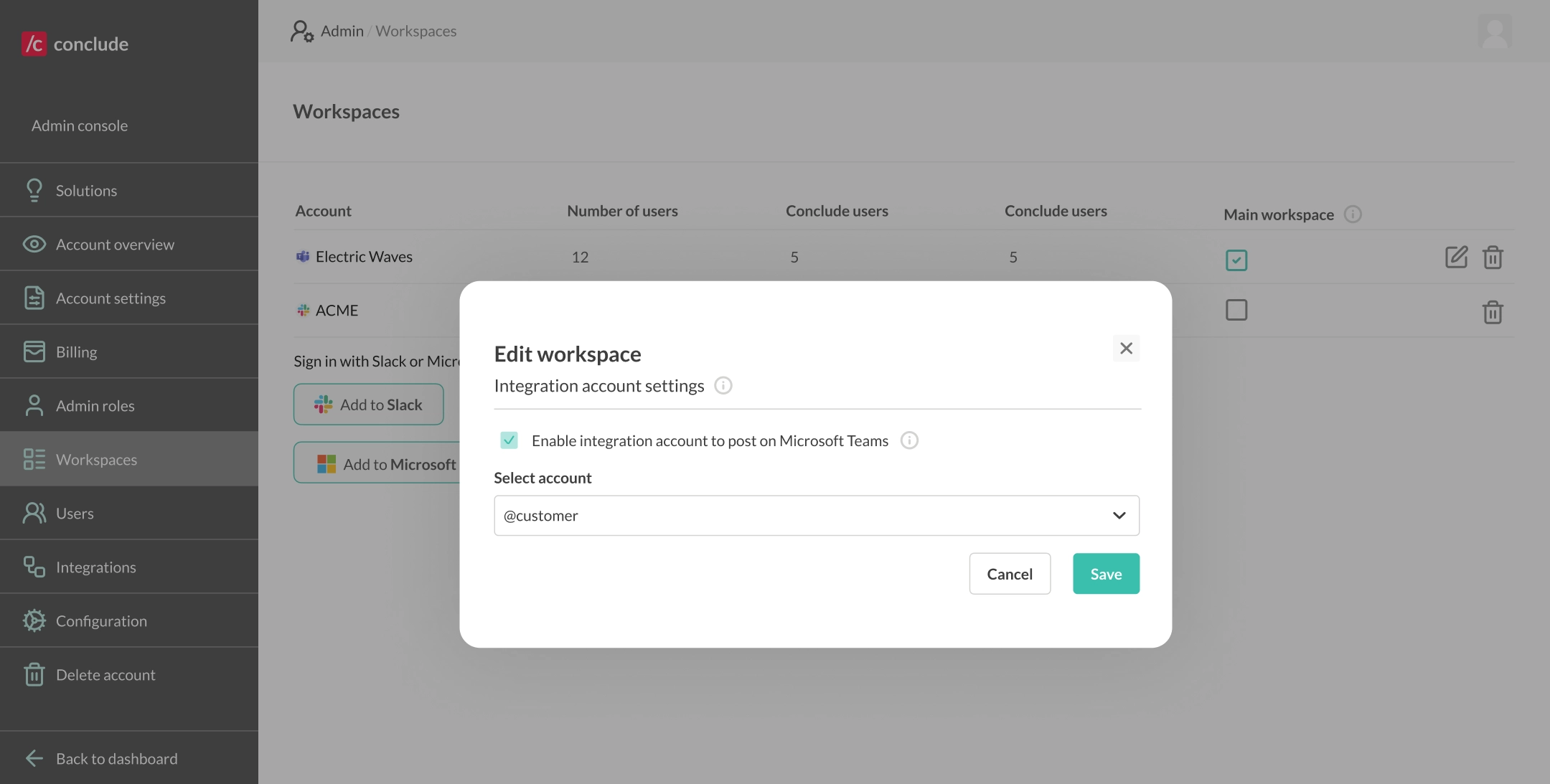
- In Admin console > Workspaces
- Click the edit (pencil) icon next to the Microsoft Teams account
- Select the integration account and sign in/authorize
- If you just added the account to the tenant:
- Refresh the user list in Conclude, or sign out/in to Conclude
- Add the integration user to:
- the Team(s) containing connected channels
- any private channels (direct membership is required)
Merged users (duplicate accounts or email mismatch)
What it looks like
- When creating connections, you can see channels in Slack but not in Teams (or vice versa)
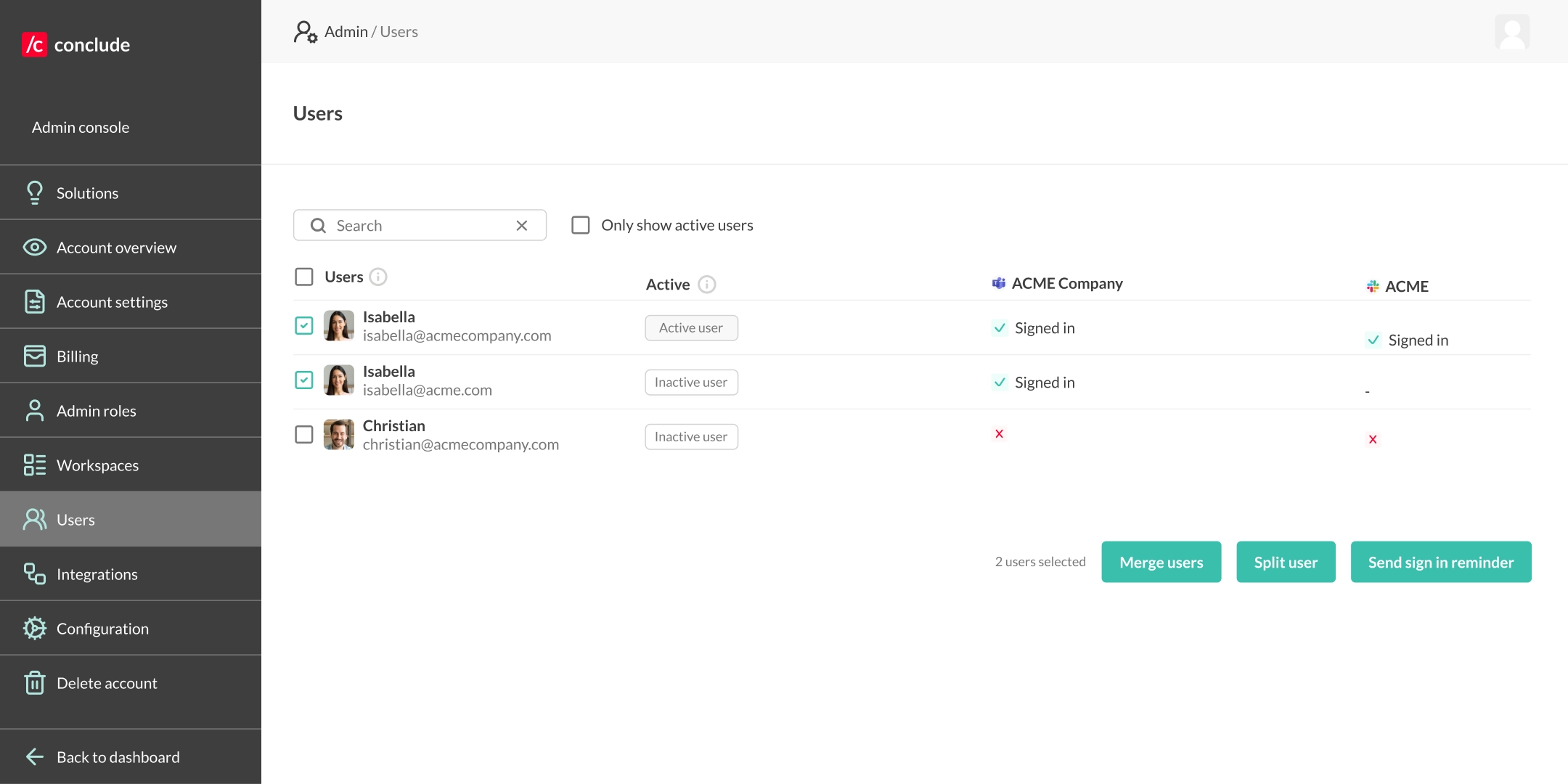
- The same person appears twice in Conclude: Admin console > Users
Why it happens
Some users have different email domains between Slack and Teams (or multiple email addresses). Conclude may not automatically merge them, which can affect visibility and identity-based features.
Fix (admin)
- In Admin console > Users, find duplicates and merge user accounts so the person has a unified profile.
Guest user issues
What it looks like
A guest user can participate in synced channels, but cannot create/manage connections.
Why it happens
Due to platform restrictions, guest users can’t create or manage connections for channels/chats outside their own Slack workspace or Teams tenant.
How to fix it
Have a non-guest (full member) user in the relevant workspace/tenant set up or manage the connection.
What to send to Conclude support (so issues get resolved fast)
When escalating to support@conclude.io, include:
- Connection type: internal or external
- Workspace/tenant names (or organization name in Conclude)
- Channel/chat names on both sides
- Exact timestamps (include timezone)
- Direction of failure (Slack to Teams or Teams to Slack)
- Whether an integration user account is configured (and whether it’s licensed)
Useful references