Integration account
Setting up an integration account for Microsoft Teams
An integration account enables Conclude to post messages on Microsoft Teams when no user account is available.
This account serves as a fallback for posting messages to channels and chats, ensuring consistent message synchronization and optimal functionality.
During onboarding, you can set up an account. We strongly recommend you do this or create an account following the steps below.
Important: the integration account must have a Microsoft 365 (Office 365) license that includes Teams. It is not enough to have:
- Teams (free) – not compatible with enterprise apps
- Azure AD / Entra ID only – cannot use Teams
- Shared mailbox / service account without a full license – cannot post
Read more about how to assign Teams add-on licences to users.
How it works:
- A Microsoft admin creates a generic user account (e.g. “Conclude integration” or “External user”) that isn’t associated with any physical person in the Microsoft admin system. Important: use a generic account, not a real user account, as messages will be posted under this identity when no user credentials are available.
- In Conclude’s Admin settings, the admin selects the user account and signs them in
- Once configured, Conclude will use the integration account to post messages that would be handled by the Conclude Bot
- This ensures that messages sync smoothly when user credentials aren’t available
Setting up an integration account:
- Navigate to Admin console > Integration account
- Select the pre-created integration account from the drop-down, then click Save
Note: only admins can access the Admin console (located at the bottom of the sidebar)
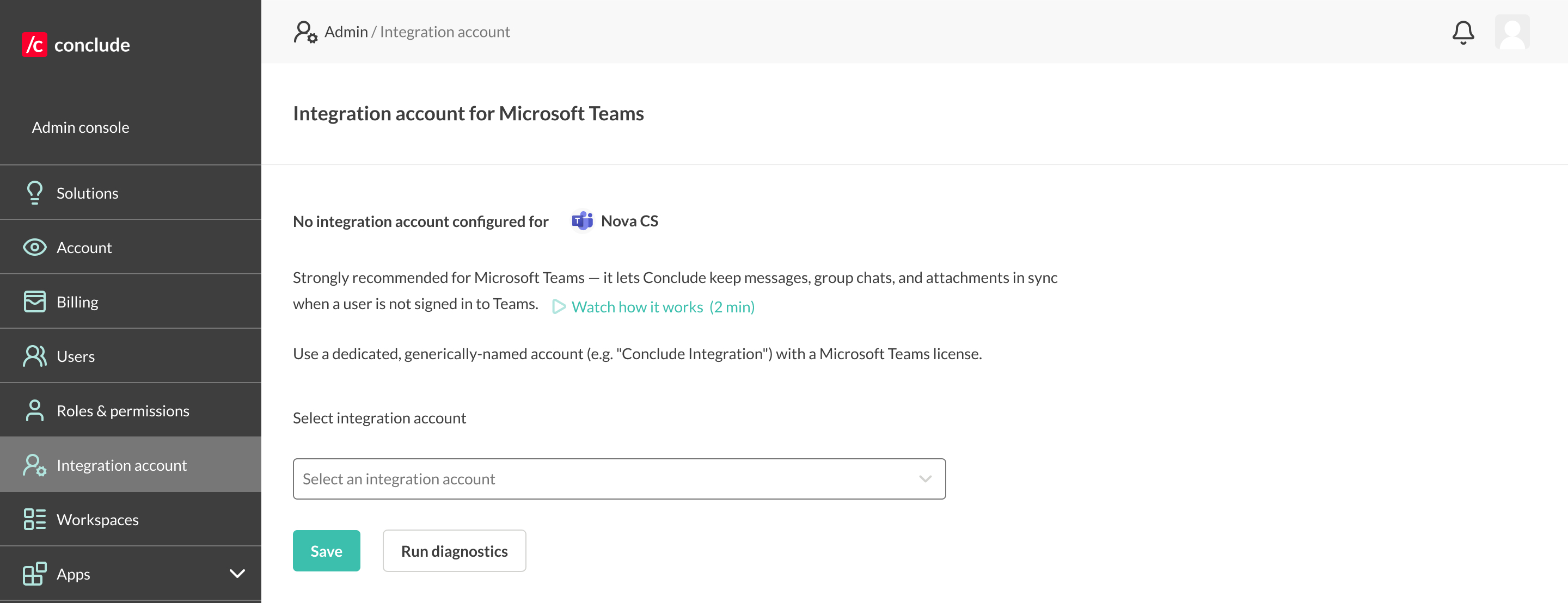
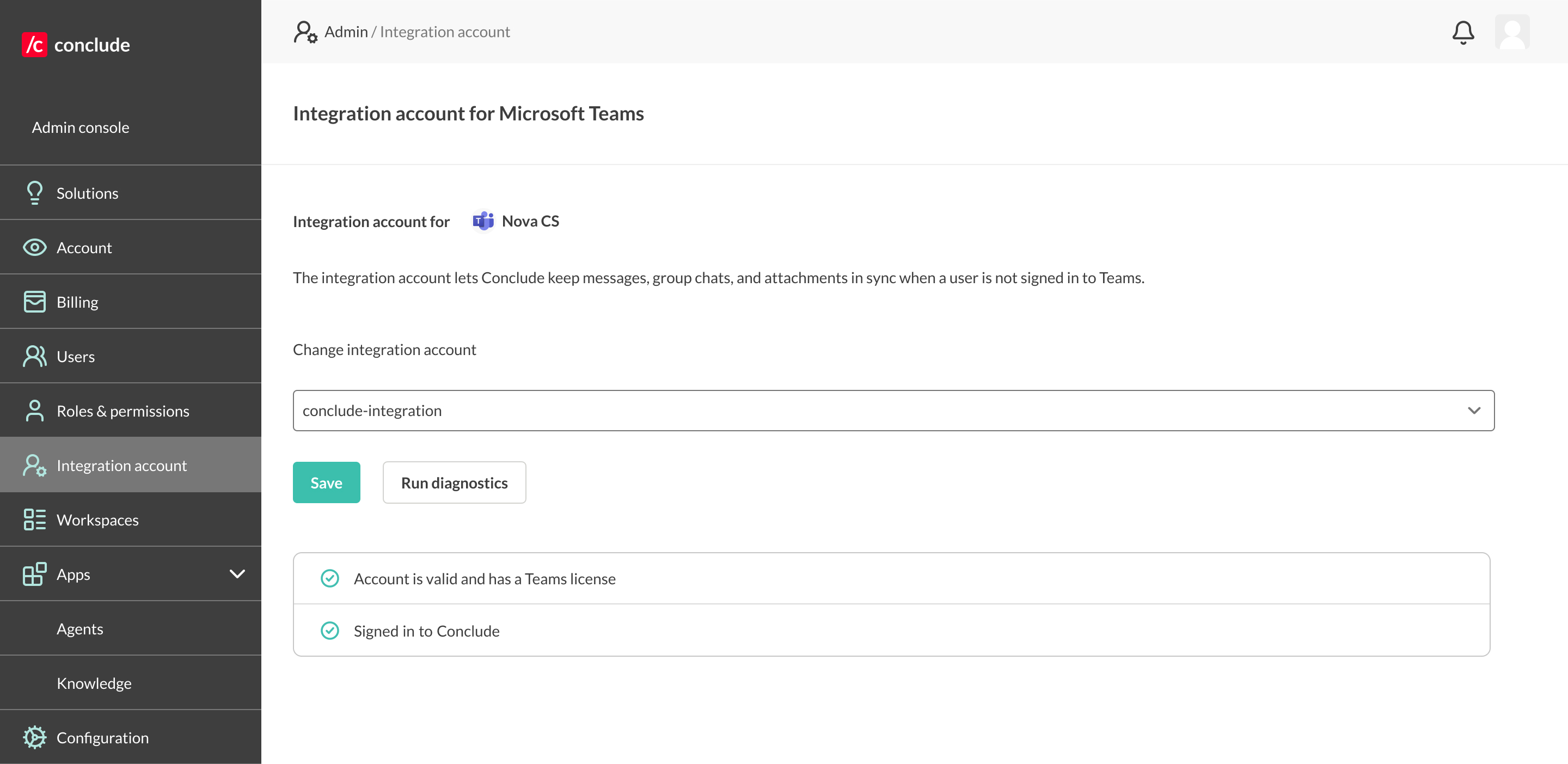
- You can also select Run diagnostics to check if the account has a valid Teams license and if they are signed in to Conclude
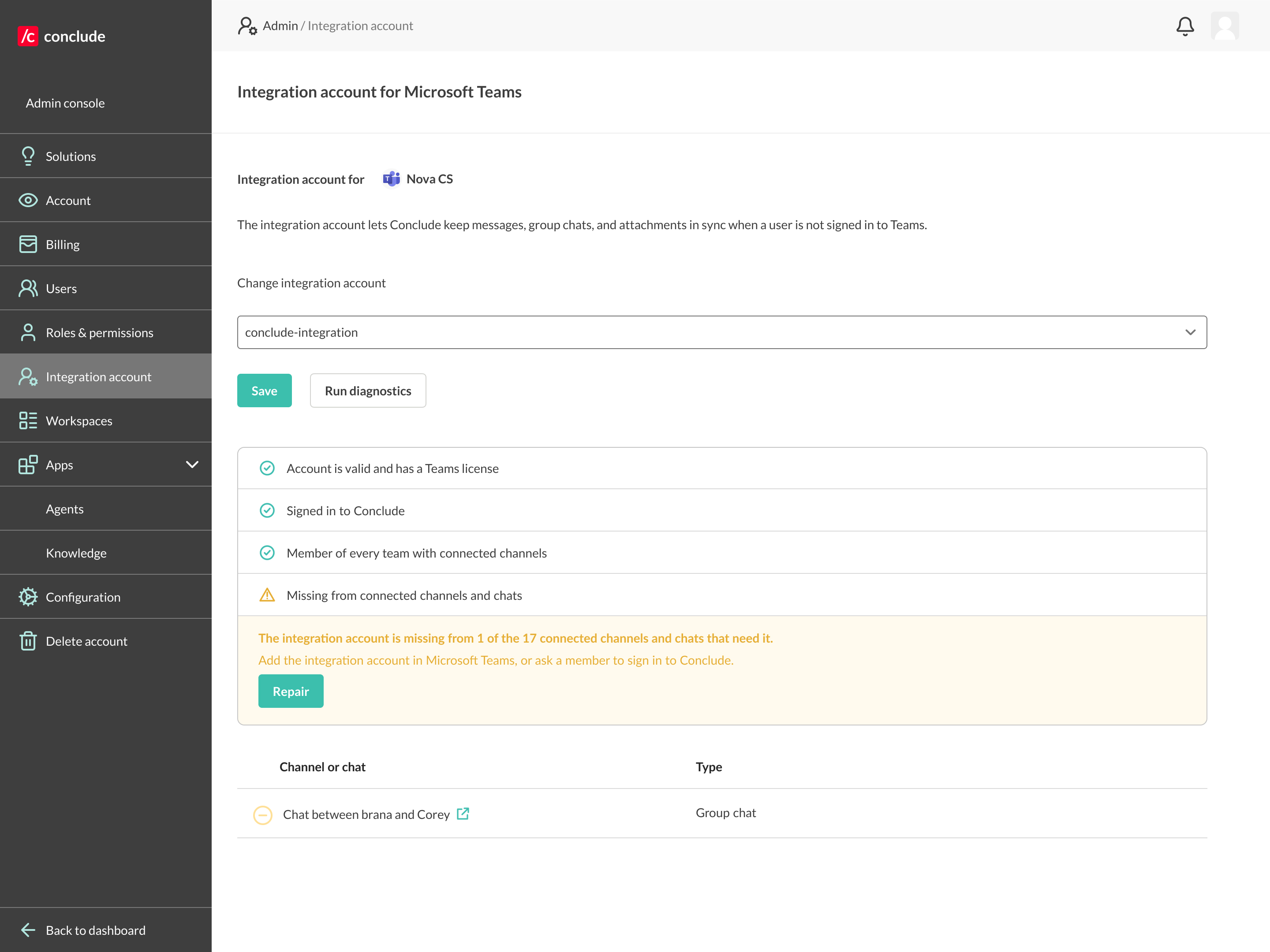
- If the integration account is missing, the diagnostics show how many connected channels or chats are affected and list them below the warning
- If the integration account is missing from a connected channel or chat, you can select Repair
- This will add the integration account to the relevant channel or chat; once repaired, the admin can see this marked as Added
The integration account operates across the entire Microsoft organization. It will post any messages that don’t originate from a user with credentials in the same Microsoft tenant signed in with Conclude.
Additional tips:
- Ensure the integration account is added to the team containing your connected channels. For private channels, manually add this account to the channel
- Once configured, messages from external users will be posted using the integration account
- This setup is recommended even when users exist on both sides, as it provides a fallback when credentials are not available for all users
For more, see the Conclude Connect External Quickstart Guide