Merge user accounts
This page explains how account administrators can merge user accounts in Conclude.
Merging is useful when the same person has separate Slack and Microsoft Teams accounts with different email addresses. It allows Conclude to treat the accounts as one user when matching people across connected workspaces, chats, and channels.
Note: Conclude automatically matches Slack and Microsoft Teams accounts that use the same email address. Manual merging is normally needed only when the same person uses different email addresses on the two platforms.
Important: Merge only accounts that belong to the same person. Merging changes how Conclude represents the user, but it does not merge, delete, rename, or disable the original accounts in Slack, Microsoft Teams, or Microsoft Entra. |
When to merge accounts
- The same person has one Slack account and one Microsoft Teams account with different email addresses
- The accounts should be treated as one user in Conclude for cross-platform chats and channel connections
- The selected accounts do not overlap on the same platform
When not to merge accounts
- The accounts belong to different people
- Both accounts already exist in Slack, or both already exist in Microsoft Teams
- One account is a duplicate, guest, legacy, or resource account that should not be available in Conclude. Hide that account instead
Important: Merging is designed for accounts without platform overlap. For example, one account may exist only in Slack and the other only in Microsoft Teams. When two accounts overlap on the same platform, hide the unwanted account or ask a workspace administrator to manage it in the source platform. |
Where to find the merge tools
Open the Users tab in the admin console. There are two ways to merge accounts:
- To merge two specific accounts, select them in the list and click Merge users (see “Merge two accounts manually” below).
- To review and merge likely duplicates in bulk, open the more (…) menu in the top-right corner and choose Merge duplicate accounts.
Merge two accounts manually
Go to Admin console → Users
Search for the person by name or email address.
Review the platform columns and email addresses to make sure the accounts belong to the same person and do not overlap on the same platform
Select the two accounts you want to merge
Click Merge users at the bottom of the page
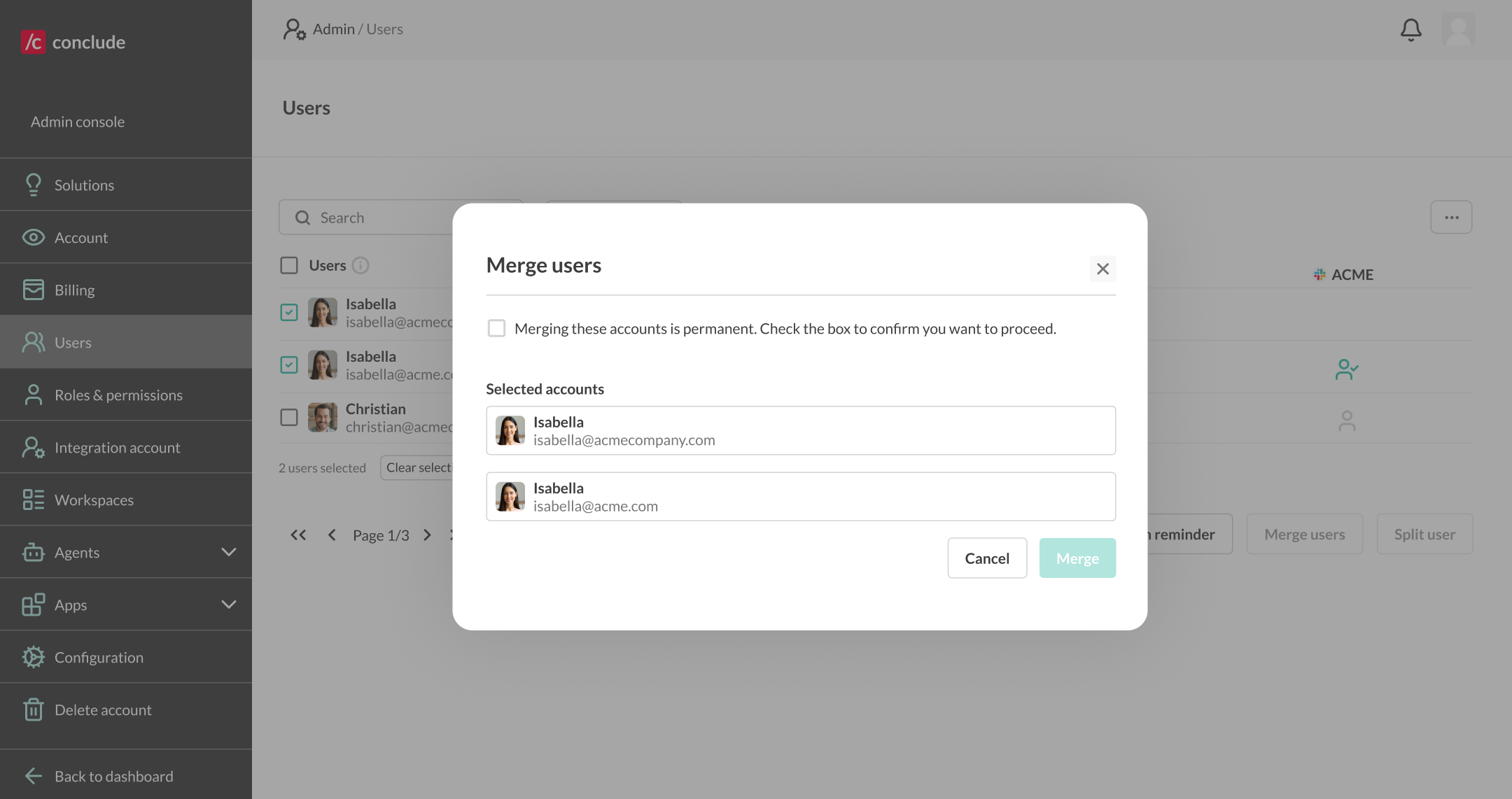
Review the accounts shown in the confirmation window
Select the confirmation checkbox, then click Merge
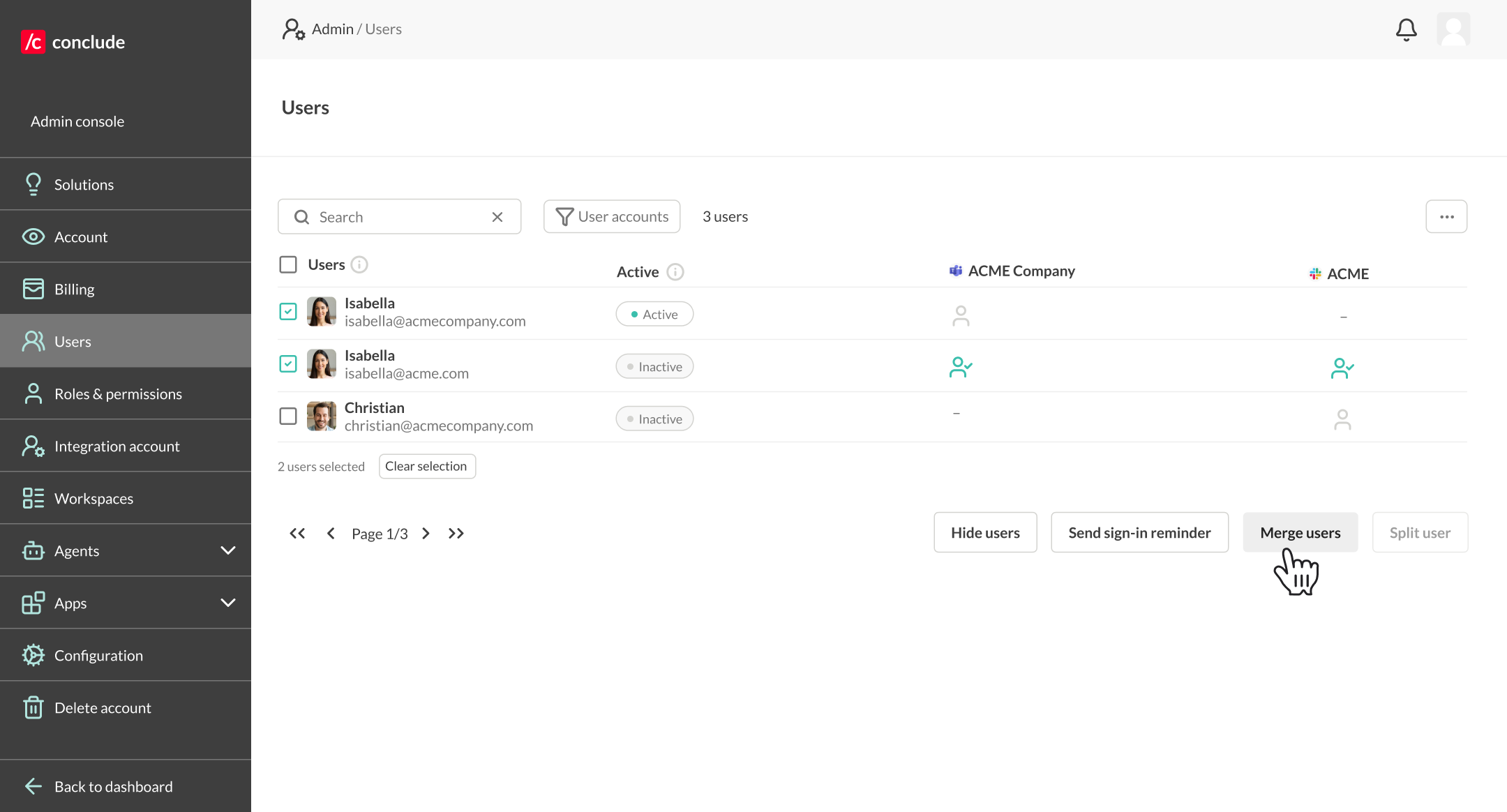
Before continuing, compare the email addresses and the Slack and Microsoft Teams columns. This helps confirm that you selected two platform-specific accounts for the same person rather than two different users or overlapping accounts.
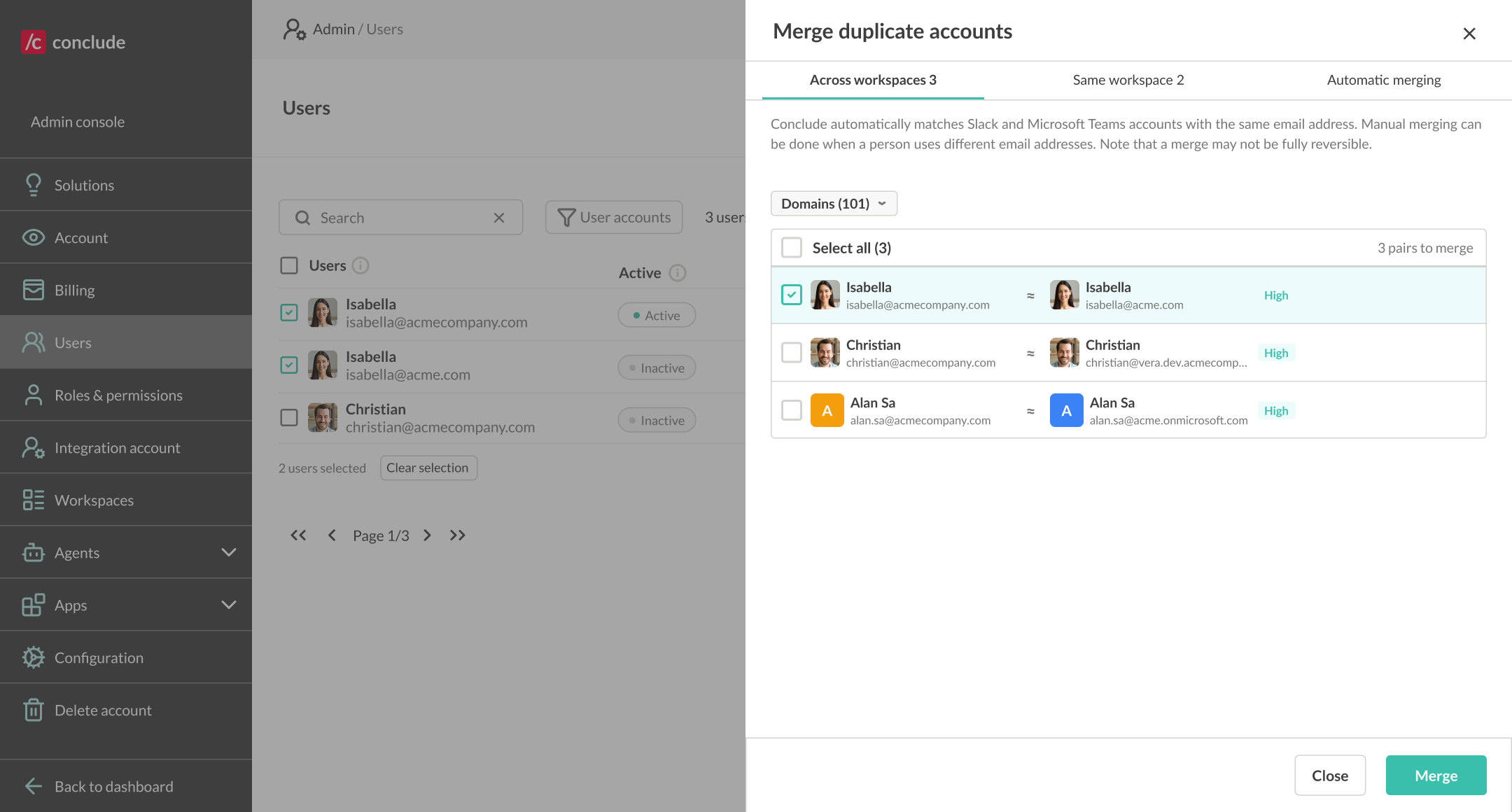
Merge duplicate accounts (in bulk)
The Merge duplicate accounts dialog helps you clean up duplicates at scale. Conclude groups likely duplicates into three tabs.
Across workspaces
Lists pairs where the same person has one account in Slack and one in Microsoft Teams under different email addresses. Each pair shows a match confidence, for example High.
- Select the pairs you want to merge, or use Select all.
- Click Merge.
Only accounts that do not overlap on the same platform appear here.
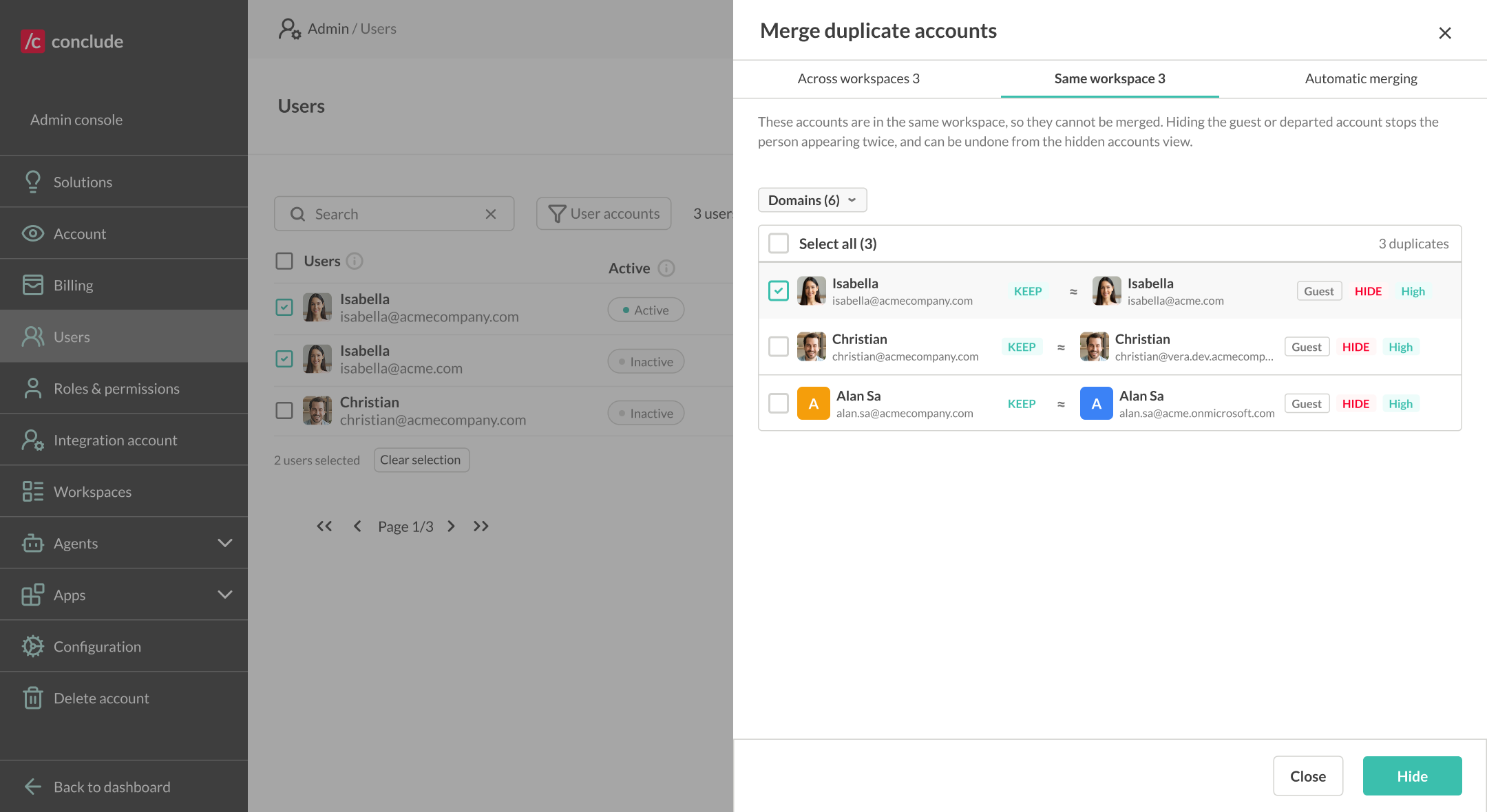
Same workspace
Shows accounts that appear twice within the same workspace. These cannot be merged, because both accounts exist on the same platform. Instead, keep the primary account and hide the duplicate, guest, or departed account:
- The account to retain is marked Keep.
- Click Hide on the duplicate or guest account.
Hiding stops the person appearing twice and can be undone from the hidden accounts view. Learn more about hiding user accounts.
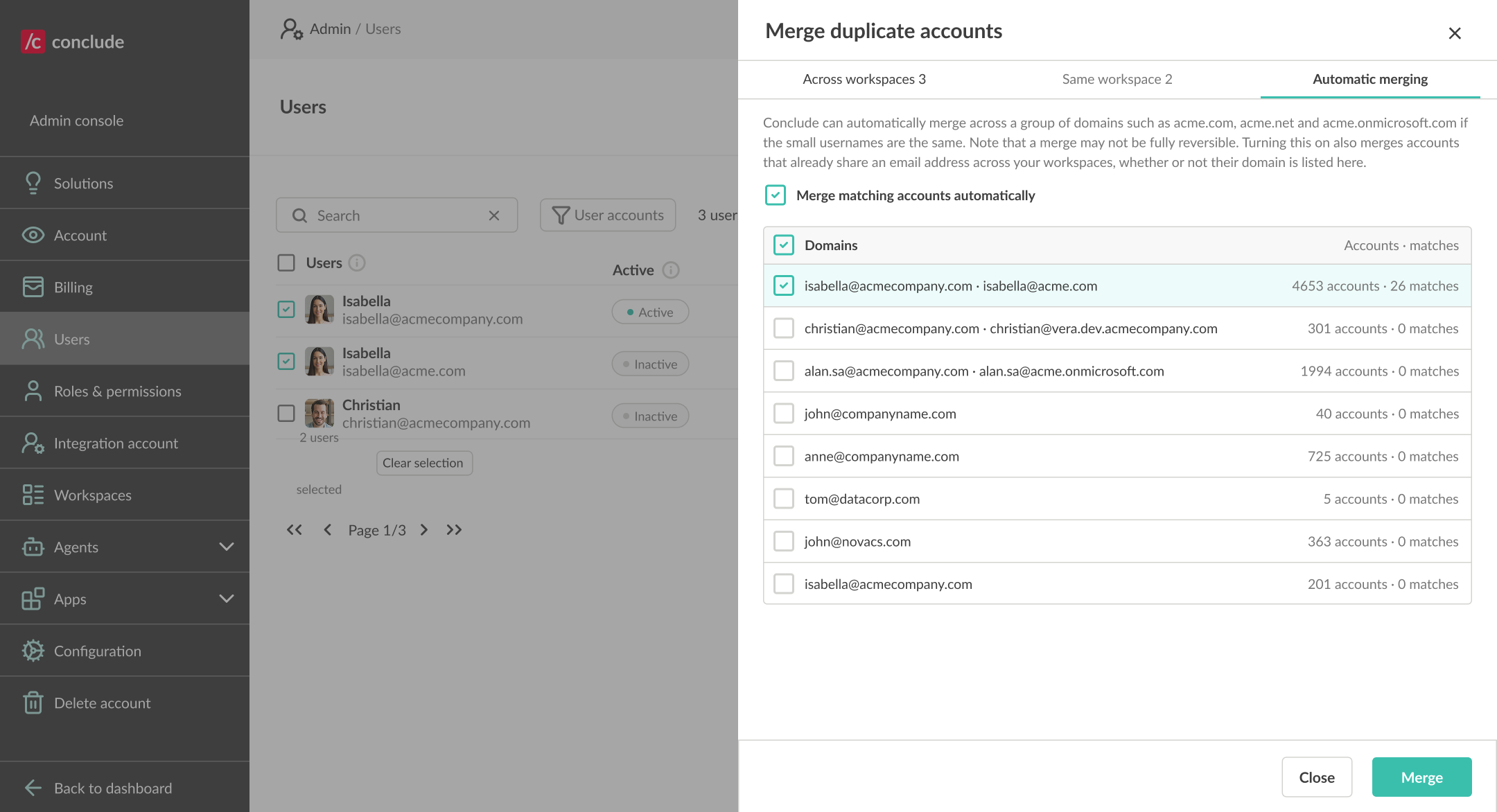
Automatic merging
Turn on Merge matching accounts automatically to let Conclude merge accounts across a group of related domains — for example acme.com, acme.net, and acme.onmicrosoft.com — when the email username is the same.
- Select the domain groups to include.
- Click Save.
Turning this on also merges accounts that already share an email address across your workspaces, whether or not their domain is listed.
What happens after accounts are merged
- Conclude treats the selected accounts as one user
- The user can be matched consistently across the connected Slack workspace and Microsoft Teams tenant
- The original Slack and Microsoft Teams accounts remain unchanged in their source platforms
- Merging in Conclude does not remove duplicate or guest accounts from Microsoft Teams, Slack, or Microsoft Entra
Merging or hiding an account
Merging and hiding solve different account-management problem. Learn more about hiding user accounts here.
| Action | Use it when |
|---|---|
| Merge users | The same person has separate Slack and Microsoft Teams accounts with different email addresses, and the accounts do not overlap on the same platform. |
| Hide an account | A duplicate, guest, legacy, or resource account should remain in Microsoft Teams or Slack but should not be available for selection in Conclude. |
Note: Conclude cannot delete user accounts from Slack, Microsoft Teams, or Microsoft Entra. If an account should be removed or disabled in the source platform, a workspace or tenant administrator must make that change there.