Manage email domains in the user directory
This page explains how account admins can control which email domains are shown in Conclude’s user directory and user selection lists. Large Slack workspaces and Microsoft Teams tenants can contain users from many domains, including guests, partner organizations, test accounts, or business units that do not need to appear in Conclude.
Email domain filtering lets admins limit the directory to the domains relevant for Conclude workflows.
Important: This is a visibility setting. It changes who Conclude lists and offers for selection; it does not delete, disable, or deactivate the user’s Slack or Microsoft Teams account.
What the setting controls
- Users whose domains are included can appear in the Conclude user directory and in Conclude-managed user pickers
- Users from domains that are not included are no longer shown when Conclude asks someone to select a user, including when creating a cross-platform chat with the `/c chat` command
- The same filtering applies to other Conclude activities that use the user directory or a Conclude-managed user selector.
- If no domains are selected, Conclude lists everyone.
- The setting does not remove the account from Slack or Microsoft Teams or change the person’s platform permissions or account status
Users who stay listed
To avoid hiding admins or actively used Conclude identities, some users remain listed even when their email domain is not included:
Workspace administrators and Conclude administrators
Users who have signed in to Conclude or have been active in Conclude recently
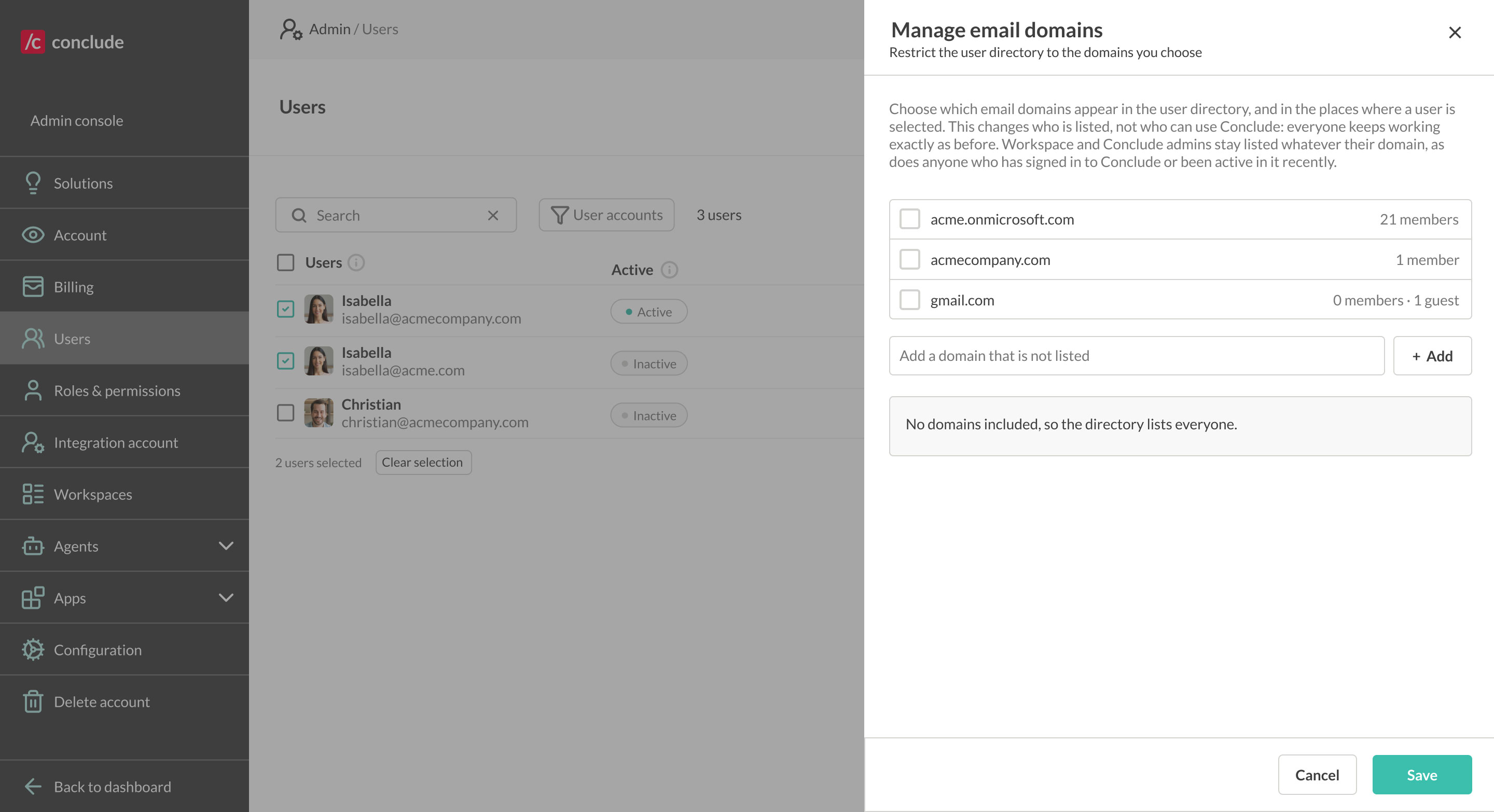
How to manage email domains
Go to Admin console → Users
Open the three-dot menu in the upper-right corner and select Manage email domains
Select the email domains you want to include in the Conclude user directory
If a domain you need is not shown, enter it under Add a domain that is not listed and click Add
Review the summary showing how many members and guests will stay listed or will no longer be listed
Click Save
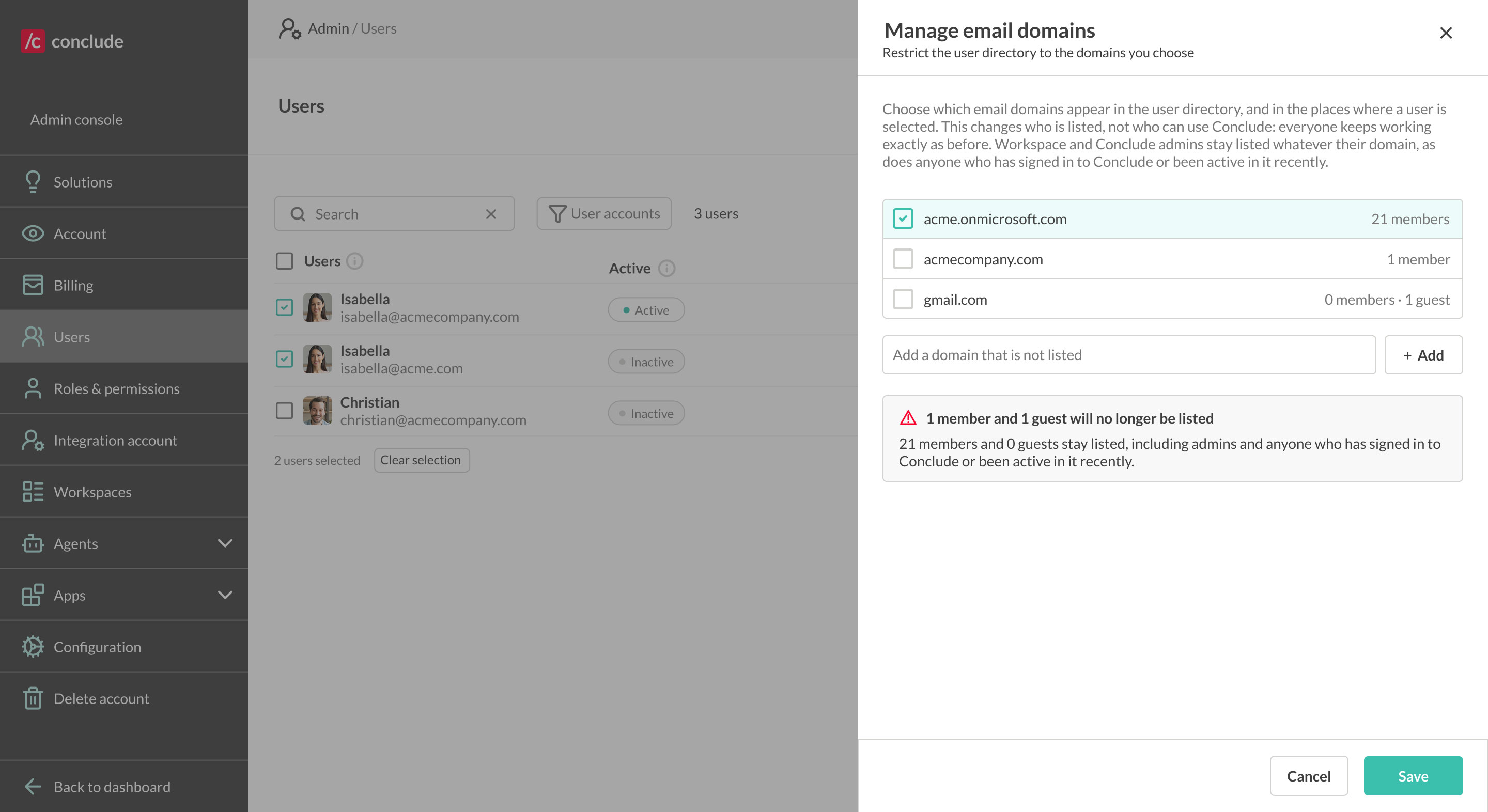
Example: A Microsoft Teams tenant contains users from company.com, partner.com, and guest accounts using other domains. If the admin includes only company.com, users from the other domains will no longer be offered in Conclude user selections, including `/c chat`, except for the users that Conclude keeps listed as described above. Their Microsoft Teams accounts are not changed.
When to use domain filtering
- Your Microsoft tenant contains a large number of users who are not relevant to Conclude
- You want user pickers to focus on one company, subsidiary, or set of approved domains
- Guest or partner domains create noise when users start chats or select people in Conclude
- You want a broad directory rule instead of hiding many individual accounts one by one
Domain filtering, hiding, and merging
Action | Use it when |
Manage email domains | You want to include or exclude broad groups of users based on email domain |
Hide user account | A specific account should not appear in Conclude, even though the account still has a valid purpose in Slack or Teams |
Merge user accounts | The same person has separate Slack and Microsoft Teams identities, and Conclude should treat them as one user |
Notes and expected behavior
- Domain filtering affects Conclude’s directory and user-selection experience; it is not a user lifecycle or deprovisioning feature
- Use Hide user account when you need to exclude a specific duplicate, resource, legacy, or guest account rather than an entire domain
- Use Merge user accounts when one person has separate Slack and Teams identities that should be treated as a single Conclude user