# File and image settings
> Configure your file and image settings for Conclude Connect. Stay in control of how your organization shares images and files.
Canonical HTML page: https://conclude.io/doc/developer/file-image-sharing/
Last updated: 2025-11-12
---
## Admin settings overview
Conclude Connect lets you customize how file and image attachments are shared between Slack and Microsoft Teams when messages are synced across connected channels or chats.
The **Configuration** page uses tabs for different settings: **Security**, **Connections**, **Internal connections**, and **External connections**. File and image policies are configured by connection type under these tabs.
This guide explains the available options, how they work, and what permissions are needed for each.
 ### Manage attachments (global policy)
This section lets you control how **file attachments** (e.g., PDFs, Word documents, etc.) are handled when messages are synced between Slack and Teams.
**Note:** you can also **allow channel-level overrides** so individual connections/channels can use a custom policy. Enable this in **Admin console > Configuration** then **Internal connections** or **External connections.** Check **Allow channel-level overrides.**
#### File attachment options
#### 1\. Sync all attachments (Default)
*Requires additional Microsoft permission:* `Files.ReadWrite.All`
* With this setting, Conclude **automatically copies files from one platform and uploads them into the connected platform’s thread**
* For example, if a user shares a document in Slack, that file will be uploaded and displayed natively in the corresponding Microsoft Teams channel, and vice versa
* This ensures a **frictionless experience** – everyone in the conversation sees the same file, without needing access to the other platform
* **Why permissions are needed:**
Conclude needs the Microsoft Graph permission `Files.ReadWrite.All` to access and upload files to the connected Teams channels on behalf of users. This allows the file to appear as if it was posted natively in Teams
#### 2\. Share attachments as links
*No additional permissions required.*
* Files are not copied across platforms. Instead, Conclude **inserts a link to the original file** in the synced message
* This link will point to where the file was originally posted (e.g., a link to a file shared in Slack will be posted in Teams)
* Only users who have access to both Slack and Teams will be able to open and view these links
* This is a good option when full sync isn’t necessary or when you want to avoid requesting elevated permissions from your IT team
#### 3\. No attachments
*No additional permissions required.*
* Conclude will **not include any files** when syncing messages
* If someone shares a file as part of a message, the synced version will include the text only, **attachments will be omitted** entirely
* This is ideal for organizations with **strict data handling or compliance requirements**, or where attachment syncing simply isn’t needed
### Configure attachments per connection (custom policy)
To configure file and attachment settings per channel or connection, start from the Dashboard:
* **Internal connections:** go to **Channels > Edit settings (pencil icon) > Attachment policy** OR **New connection > Settings > Attachment policy**
* **External connections**: go to **Connect external > Edit settings (pencil icon) > Attachment policy**
Uncheck **Use global attachment policy**, then choose one of the following: **Sync all attachments**, **Share attachments as links**, or **No attachments**.
**Note:** for **internal connections** one attachment policy applies to **both sides** of the connection, for **external connections,** each side can configure **its own** policy independently.
### Manage attachments (global policy)
This section lets you control how **file attachments** (e.g., PDFs, Word documents, etc.) are handled when messages are synced between Slack and Teams.
**Note:** you can also **allow channel-level overrides** so individual connections/channels can use a custom policy. Enable this in **Admin console > Configuration** then **Internal connections** or **External connections.** Check **Allow channel-level overrides.**
#### File attachment options
#### 1\. Sync all attachments (Default)
*Requires additional Microsoft permission:* `Files.ReadWrite.All`
* With this setting, Conclude **automatically copies files from one platform and uploads them into the connected platform’s thread**
* For example, if a user shares a document in Slack, that file will be uploaded and displayed natively in the corresponding Microsoft Teams channel, and vice versa
* This ensures a **frictionless experience** – everyone in the conversation sees the same file, without needing access to the other platform
* **Why permissions are needed:**
Conclude needs the Microsoft Graph permission `Files.ReadWrite.All` to access and upload files to the connected Teams channels on behalf of users. This allows the file to appear as if it was posted natively in Teams
#### 2\. Share attachments as links
*No additional permissions required.*
* Files are not copied across platforms. Instead, Conclude **inserts a link to the original file** in the synced message
* This link will point to where the file was originally posted (e.g., a link to a file shared in Slack will be posted in Teams)
* Only users who have access to both Slack and Teams will be able to open and view these links
* This is a good option when full sync isn’t necessary or when you want to avoid requesting elevated permissions from your IT team
#### 3\. No attachments
*No additional permissions required.*
* Conclude will **not include any files** when syncing messages
* If someone shares a file as part of a message, the synced version will include the text only, **attachments will be omitted** entirely
* This is ideal for organizations with **strict data handling or compliance requirements**, or where attachment syncing simply isn’t needed
### Configure attachments per connection (custom policy)
To configure file and attachment settings per channel or connection, start from the Dashboard:
* **Internal connections:** go to **Channels > Edit settings (pencil icon) > Attachment policy** OR **New connection > Settings > Attachment policy**
* **External connections**: go to **Connect external > Edit settings (pencil icon) > Attachment policy**
Uncheck **Use global attachment policy**, then choose one of the following: **Sync all attachments**, **Share attachments as links**, or **No attachments**.
**Note:** for **internal connections** one attachment policy applies to **both sides** of the connection, for **external connections,** each side can configure **its own** policy independently.
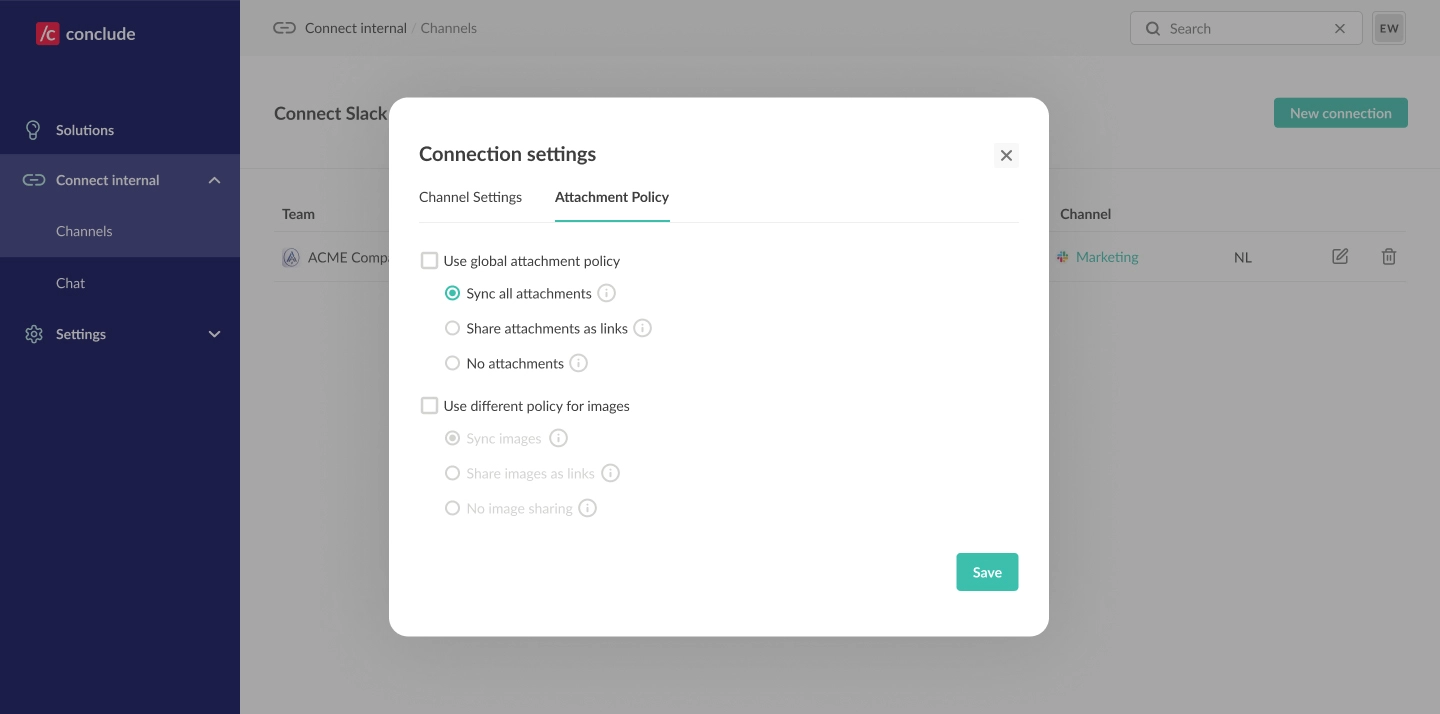 ### Use different policy for images
Admins can apply a separate policy for how **images** (e.g., PNG, JPG) are handled across Slack and Teams. Enable this by selecting **“Use different policy for images.”**
**Then choose one of the following:**
#### 1\. Sync images (Default)
*Requires additional Microsoft permission:* `Files.ReadWrite.All`
* Images are **copied and displayed natively** across platforms, just like files
* This gives users a smooth experience where images appear inline, without needing to follow links or switch platforms
* **Requires the same Microsoft permission (`Files.ReadWrite.All`)** to upload images to Teams on behalf of users
#### 2\. Share images as links
*No additional permissions required.*
* Instead of copying the image, Conclude will **insert a link to the original image**
* Only users who have access to both Slack and Teams will be able to view the image
#### 3\. No image sharing
*No additional permissions required.*
* Shared images will be **excluded** from synced messages entirely
* Text will sync as usual, but images will not appear on the other platform
### **Configure images per connection (custom policy)**
* **Internal connections:** go to **Connect Internal > Channels > Edit connection (pencil icon) > Attachment policy**, enable **Use different policy for images**, then choose **Sync images**, **Share images as links**, or **No image sharing**
* **External connections**: go to **Connect external > Edit settings (pencil icon) > Attachment policy**
**Note:** for **internal connections** one attachment policy applies to **both sides** of the connection, for **external connections,** each side can configure **its own** policy independently.
### Recommendations
* Choose **“Sync all attachments”** and **“Sync images”** if you want the most seamless experience and are able to grant the required Microsoft permission. This ensures everyone can see the same files and images without switching platforms
* Use **“Share as links”** when you want to avoid elevated permissions but still want to reference shared content
* If you work with clients or partners who do not have access to both Slack and Teams, avoid **“Share as links”** options, as they won’t be able to open the content
* If you prefer **not to grant the `Files.ReadWrite.All` permission** required for full sync, choose **“No attachments”** and/or **“No image sharing”** to prevent any cross-platform file sharing entirely
### Use different policy for images
Admins can apply a separate policy for how **images** (e.g., PNG, JPG) are handled across Slack and Teams. Enable this by selecting **“Use different policy for images.”**
**Then choose one of the following:**
#### 1\. Sync images (Default)
*Requires additional Microsoft permission:* `Files.ReadWrite.All`
* Images are **copied and displayed natively** across platforms, just like files
* This gives users a smooth experience where images appear inline, without needing to follow links or switch platforms
* **Requires the same Microsoft permission (`Files.ReadWrite.All`)** to upload images to Teams on behalf of users
#### 2\. Share images as links
*No additional permissions required.*
* Instead of copying the image, Conclude will **insert a link to the original image**
* Only users who have access to both Slack and Teams will be able to view the image
#### 3\. No image sharing
*No additional permissions required.*
* Shared images will be **excluded** from synced messages entirely
* Text will sync as usual, but images will not appear on the other platform
### **Configure images per connection (custom policy)**
* **Internal connections:** go to **Connect Internal > Channels > Edit connection (pencil icon) > Attachment policy**, enable **Use different policy for images**, then choose **Sync images**, **Share images as links**, or **No image sharing**
* **External connections**: go to **Connect external > Edit settings (pencil icon) > Attachment policy**
**Note:** for **internal connections** one attachment policy applies to **both sides** of the connection, for **external connections,** each side can configure **its own** policy independently.
### Recommendations
* Choose **“Sync all attachments”** and **“Sync images”** if you want the most seamless experience and are able to grant the required Microsoft permission. This ensures everyone can see the same files and images without switching platforms
* Use **“Share as links”** when you want to avoid elevated permissions but still want to reference shared content
* If you work with clients or partners who do not have access to both Slack and Teams, avoid **“Share as links”** options, as they won’t be able to open the content
* If you prefer **not to grant the `Files.ReadWrite.All` permission** required for full sync, choose **“No attachments”** and/or **“No image sharing”** to prevent any cross-platform file sharing entirely