External collaboration setup (Connect External)
Choosing an External Collaboration Setup
This page explains two ways to collaborate with external organizations on Slack and Teams using Conclude Connect. Use it to choose the setup that matches your business goals and governance model. Admins from the initiating company can use this Quickstart Guide if they have not yet signed up.
When to use this guide
- You want to collaborate across Slack and Microsoft Teams with people outside your organization
- You need to decide whether to use Conclude Connect External or Conclude Connect Internal
- You want a clear view of prerequisites and common challenges before setup
Key terms
- Initiating company – the organization that starts the connection setup and sends the invitation
- Invited company – the organization (usually, partners, clients, or vendors) receiving the invitation
- Connect External connections – the solution that allows the initiating company to send an invite to another company for them to authorize
- Connect Internal connections – the solution that enables the initiating company to connect Slack and Teams internally using Conclude; external collaboration happens through Teams shared channels, Slack Connect, or via guest access
Quick decision
Option 1: External connection (Conclude Connect External)
Use this when:
- The invited company can authorize Conclude in their environment
- Both organizations are willing to complete the setup steps
Option 2: Internal connection for external collaboration (Conclude Connect Internal)
Use this when:
- The invited company cannot authorize Conclude
- You can collaborate using an approved shared workspace method, then connect from your side only
Option 1: External connection (invited company authorizes Conclude)
What this setup is
The initiating company sets up an external connection to link a selected Slack channel with a selected Microsoft Teams channel/chat across two organizations. Both organizations authorize Conclude in their own environment.
Who does what
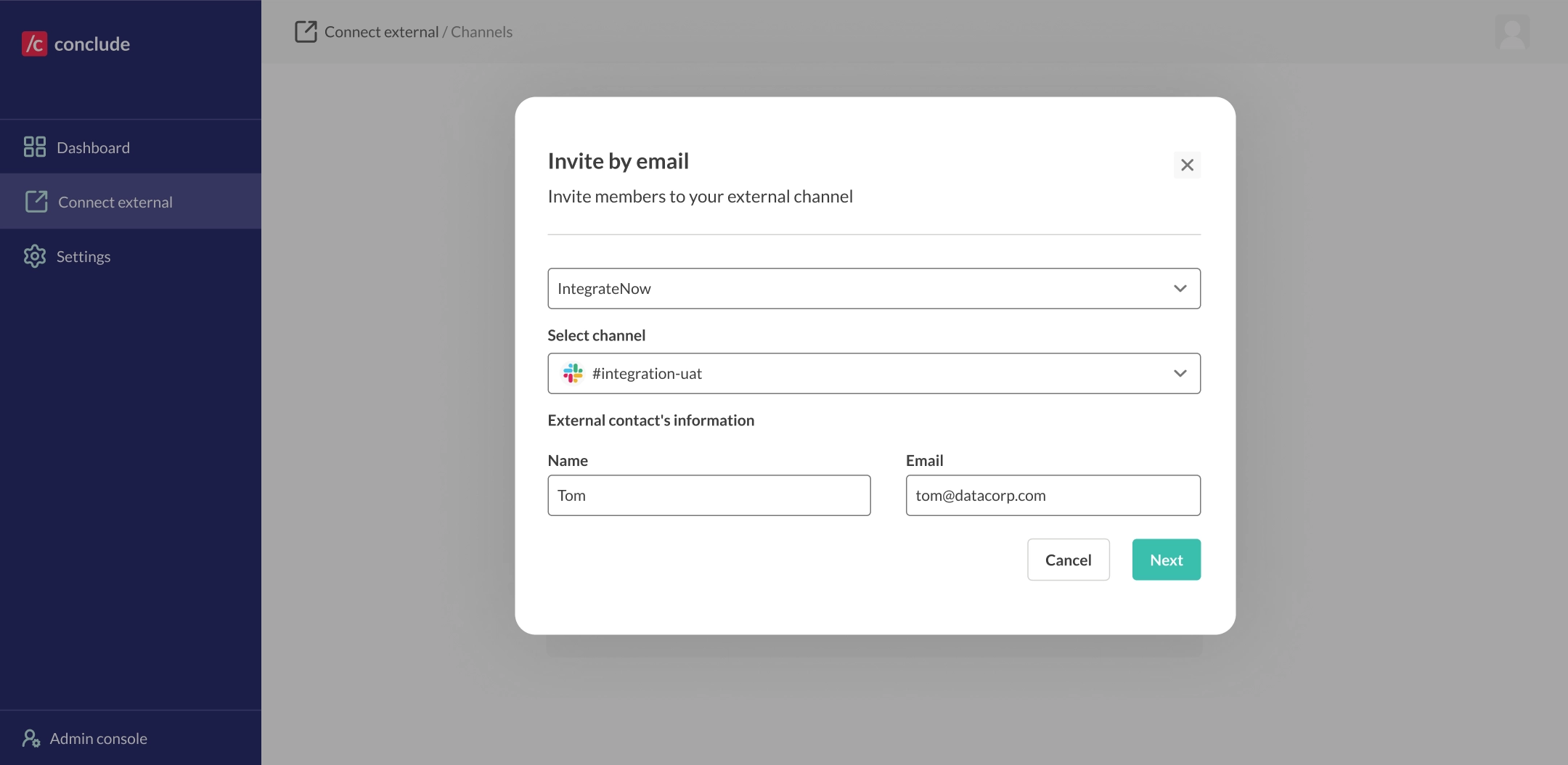
Initiating company
- Creates the connection and sends an invitation
- Selects the Slack or Teams channel or chat to connect (depending on where they initiate)
Invited company
- Authorizes Conclude in their Slack or Teams tenant
- Selects the relevant channel or chat on their side to connect
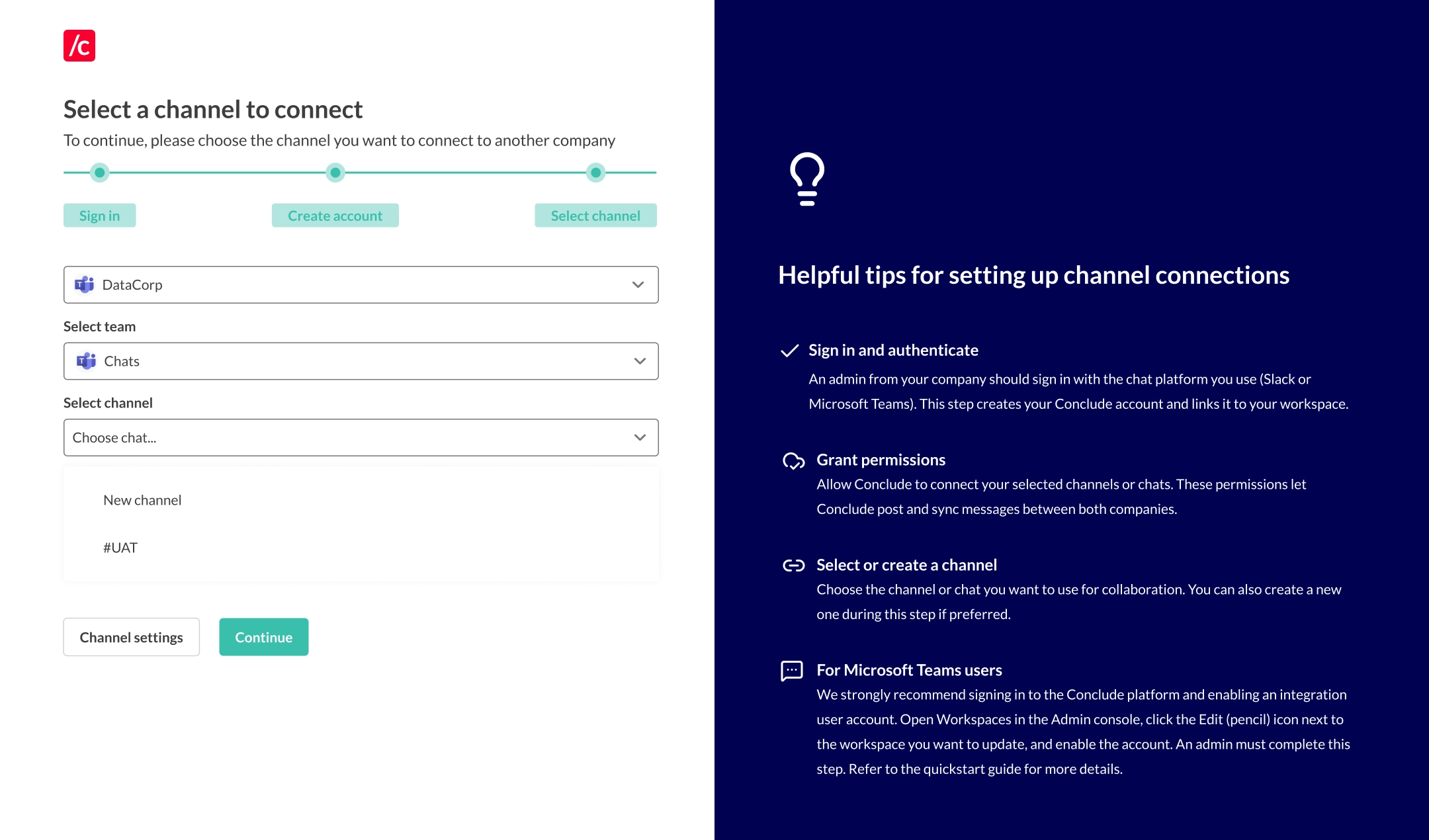
See this External Invitee Guide for more support and answers to IT admins’ most common questions.
Typical setup flow (start to finish)
- The initiating company creates a new external connection from the web UI using Conclude (Connect External) and sends an invitation to their partner or client
- The invited company authorizes Conclude by signing in (see this Quickstart Guide for more) and selects or creates a specific Slack channel or Teams channel/chat to connect
- Once connected, Conclude begins real-time syncing for messages and attachments based on the connection configuration
Things to be aware of
- Requires approval and involvement from both organizations
- Fastest and simplest option when both sides can authorize Conclude
- Clearer separation of responsibility because each organization authorizes in its own environment
Blockers
- The invited organization cannot easily approve new apps or integrations (see Option 2)
- Security review timelines delay authorization and slow down collaboration
- Admin permissions prevent the company from selecting the relevant channel or chat
Option 2: Internal connection for external collaboration (one company authorizes Conclude)
What this setup is
This is used when the invited company cannot authorize Conclude, and the initiating company needs to sync messages on both platforms. In this scenario, the initiating company first creates an approved shared space for external participants, then connects any channels/chats from their side using Conclude Connect Internal.
Required prerequisite
The initiating company must already have a shared collaboration method that external participants can access, such as:
- Slack Connect channels
- Microsoft Teams shared channels
- Guest access, or another approved external access method
Who does what
Initiating company
- Creates or configures the shared space for external participants using approved methods
- Creates the internal connection (connecting Slack and Teams) in Conclude
- Selects the channel and adds the external participants (if not already added)
Invited company
- Joins the shared space using the collaboration method chosen
- Does not authorize Conclude and works as normal
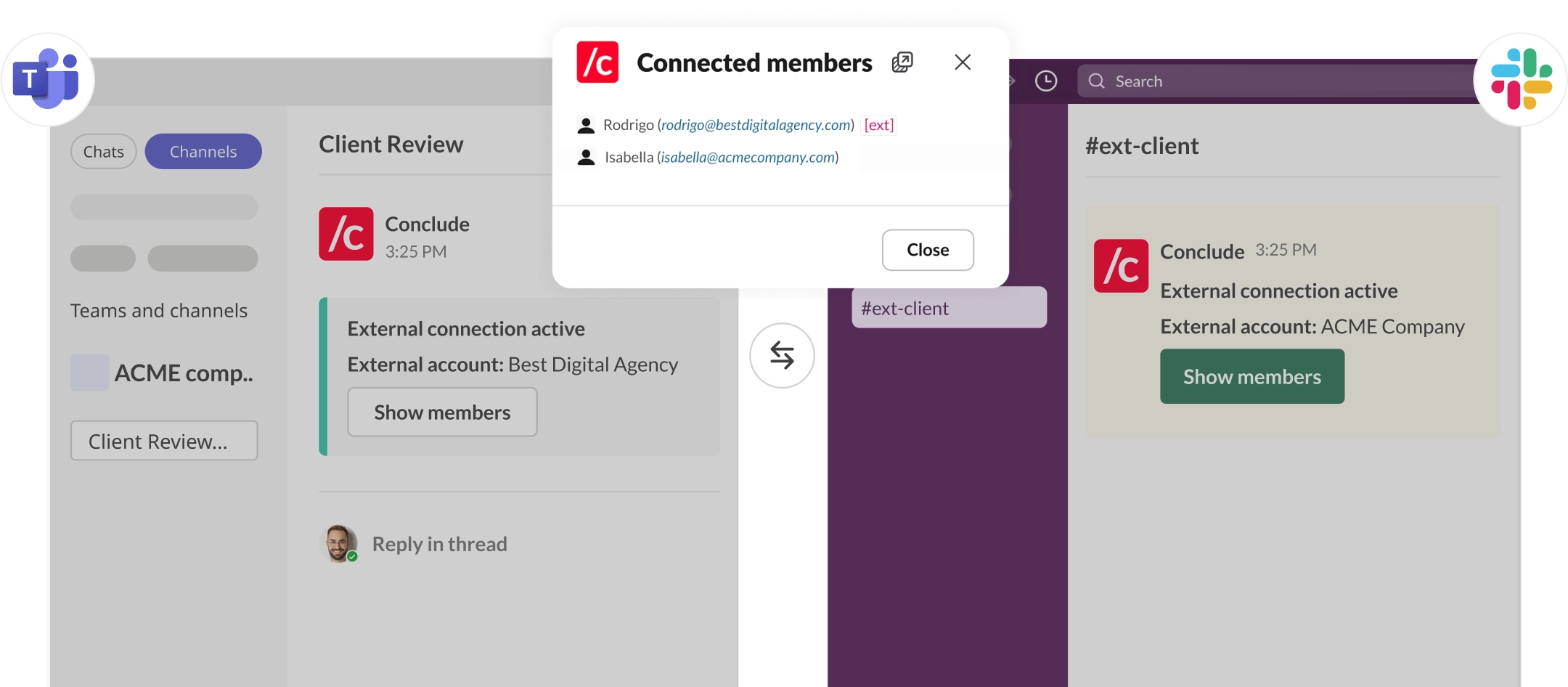
Typical setup flow (start to finish)
- The initiating company creates a shared collaboration space that allows external participants to be invited/added
- The initiating company selects the Slack channel and Teams channel/chat to connect (if required) for internal message syncing
- Participants are added to the shared space and work as normal; messages are synced based on the connection configuration
Things to be aware of
- There is no need for the invited company to authorize Conclude
- There may be more upfront work to establish a compliant, shared collaboration space
- More admin overhead; the inviting company must have accounts on Slack and Teams
Blockers
- Neither organization allows the required shared collaboration method
- External access is restricted by policy or tenant configuration
- The target channel or chat is not owned or accessible by the initiating organization (important)
Security notes
Conclude offers granular control for file and image sharing, including how messages and threads are synced for both internal and external connections. IT admins from both the inviting and invited companies can adjust settings for the channel connection in the Admin console.
Conclude is SOC 2 Type II certified and HIPAA compliant. For details on how Conclude handles data and what Conclude Connect stores, the best place to start is our Security page.
Frequently asked questions
Can we connect channels we don’t control?
In most cases, no. You typically need admin access or ownership in your environment to select and connect the target Slack channel or Teams channel/chat.
Do invited companies pay or need licenses?
No. The invited company does not need to purchase Conclude licenses to accept an external invitation. It is free for them to use unless they choose to initiate new connections themselves.
Which option should we choose if the other organization is slow to approve?
If they cannot authorize Conclude at all, use Option 2 (Connect Internal), with an approved shared collaboration method. If they can authorize, but timelines are slow, external connections may still be the better long-term approach once approved.
Can we start with one approach and switch later?
Yes. Some organizations start with the Connect Internal setup when app authorization is a blocker. You can switch to Connect External and reconnect the same existing channels on the initiating company side. However, if you do switch to the external model, it’s best to remove external guest users from the initiating company’s channel, as they will participate from their organization’s side of the connection.
Does Conclude bypass Slack or Teams permissions?
Conclude works within Slack and Microsoft Teams permission models. Users only participate in conversations they already have access to on their own platform. See our Security page for more.