Email integration setup
Conclude’s email integration lets your installed apps send and receive email directly from Slack or Microsoft Teams. When someone sends an email to your app’s dedicated email address, Conclude automatically creates a new ticket. Your team can reply directly from Slack or Teams, and the full email thread stays in the same ticket.
Enable email access
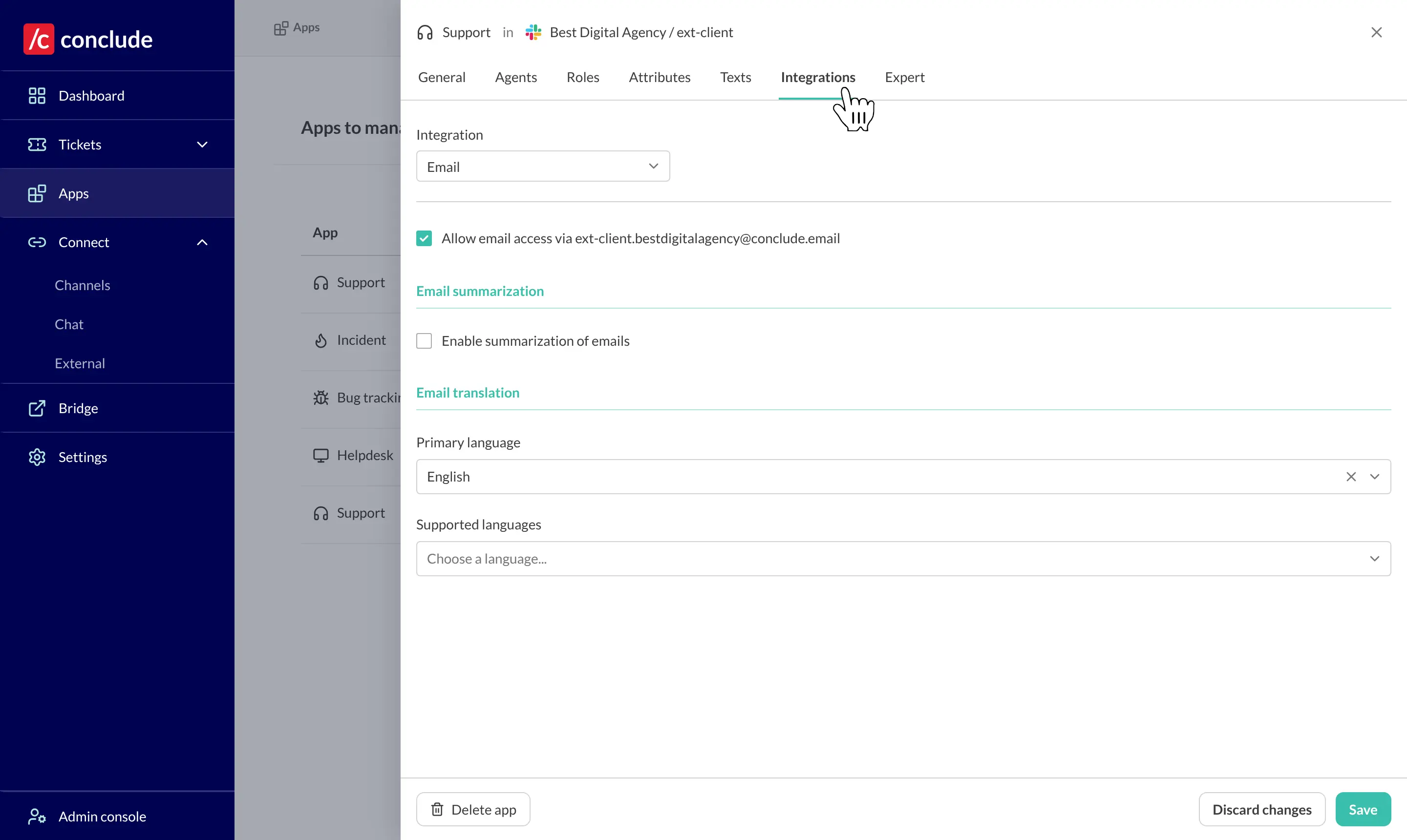
- Go to the user Dashboard (blue sidebar) and select Apps
- Navigate to the app you want to enable email access for and click the edit (pencil) icon. This will open the app’s settings
- Go to the Integrations tab, then choose Email
- Check Allow email access to activate the app’s email address, then Save changes
How it works
Sending an email to the app’s address creates a new ticket containing the incoming email (Slack example shown).
- Send an email to the app’s address (find it under the Integrations > Email tab as shown above)
- Click Reply in the ticket inside Slack or Teams
- Track it under Tickets located in the sidebar of the Dashboard
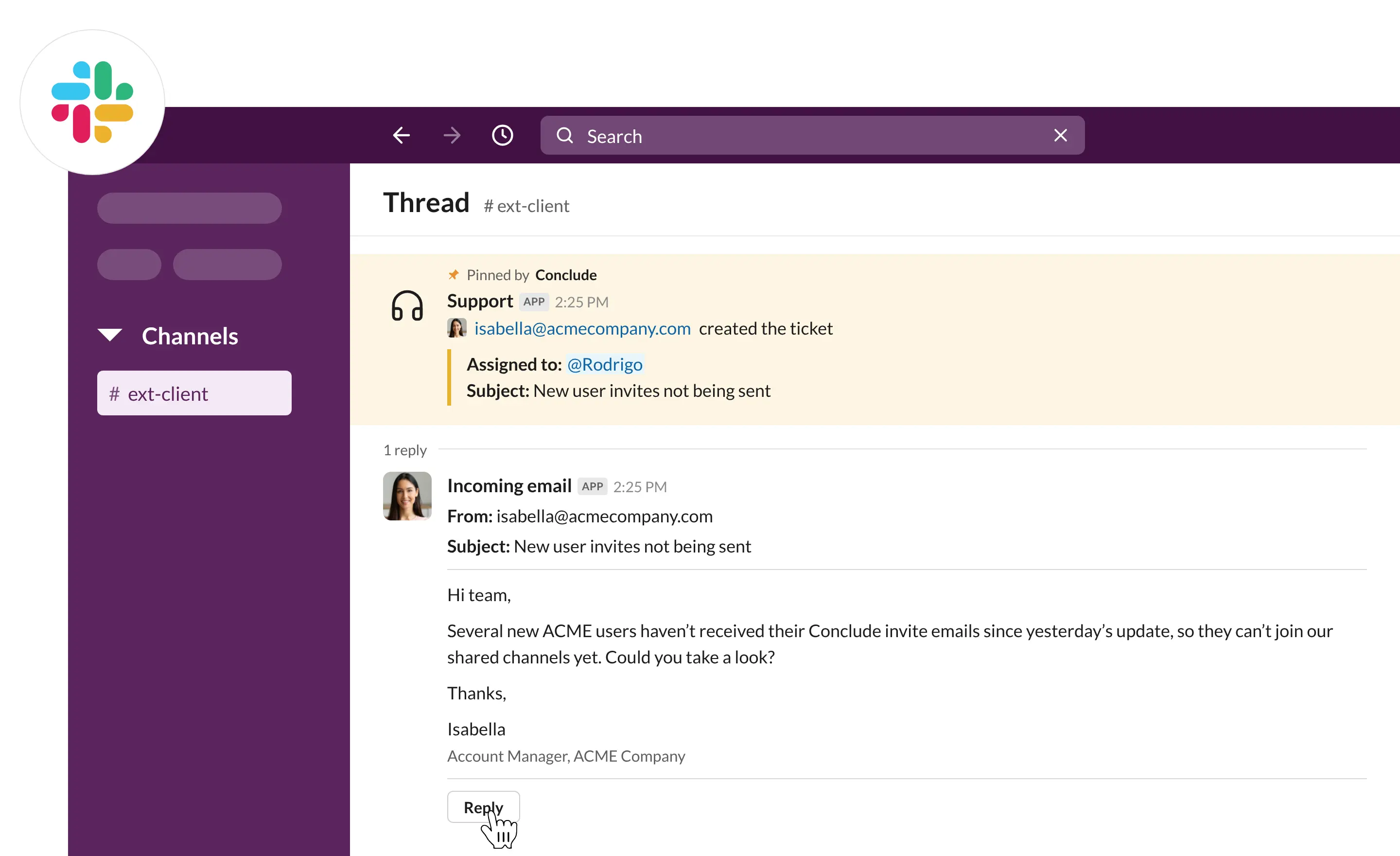
Click Reply to send a response without leaving Slack or Teams.
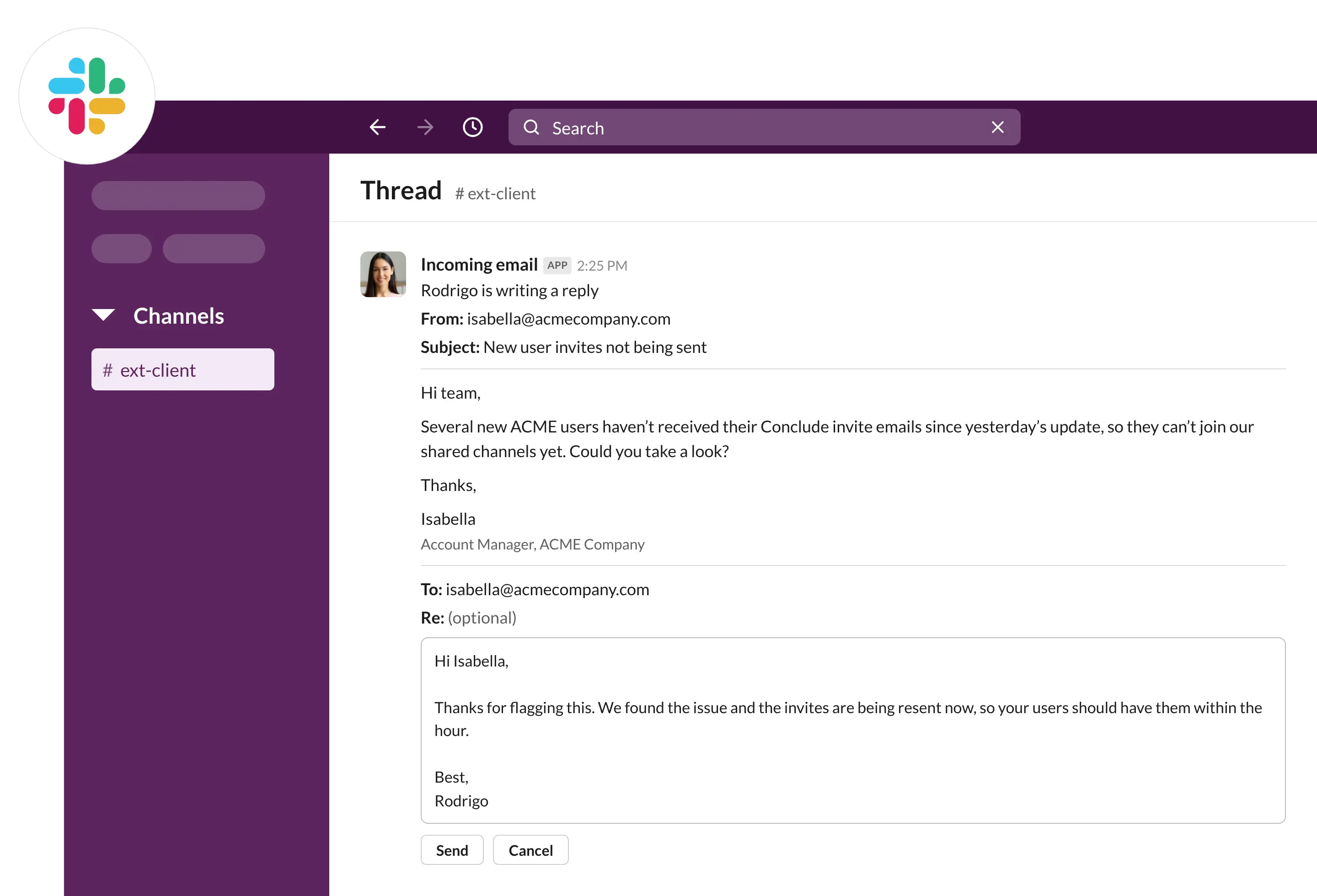
The full email thread will be captured and can also be viewed under Tickets. To summarize or translate incoming emails, see Email summarization and translation.