Email summarization and translation
Conclude gives you automatic email summarization and language translation directly in Slack or Microsoft Teams. Before you start, make sure your app has email access enabled. See Email integration setup.
Email summarization
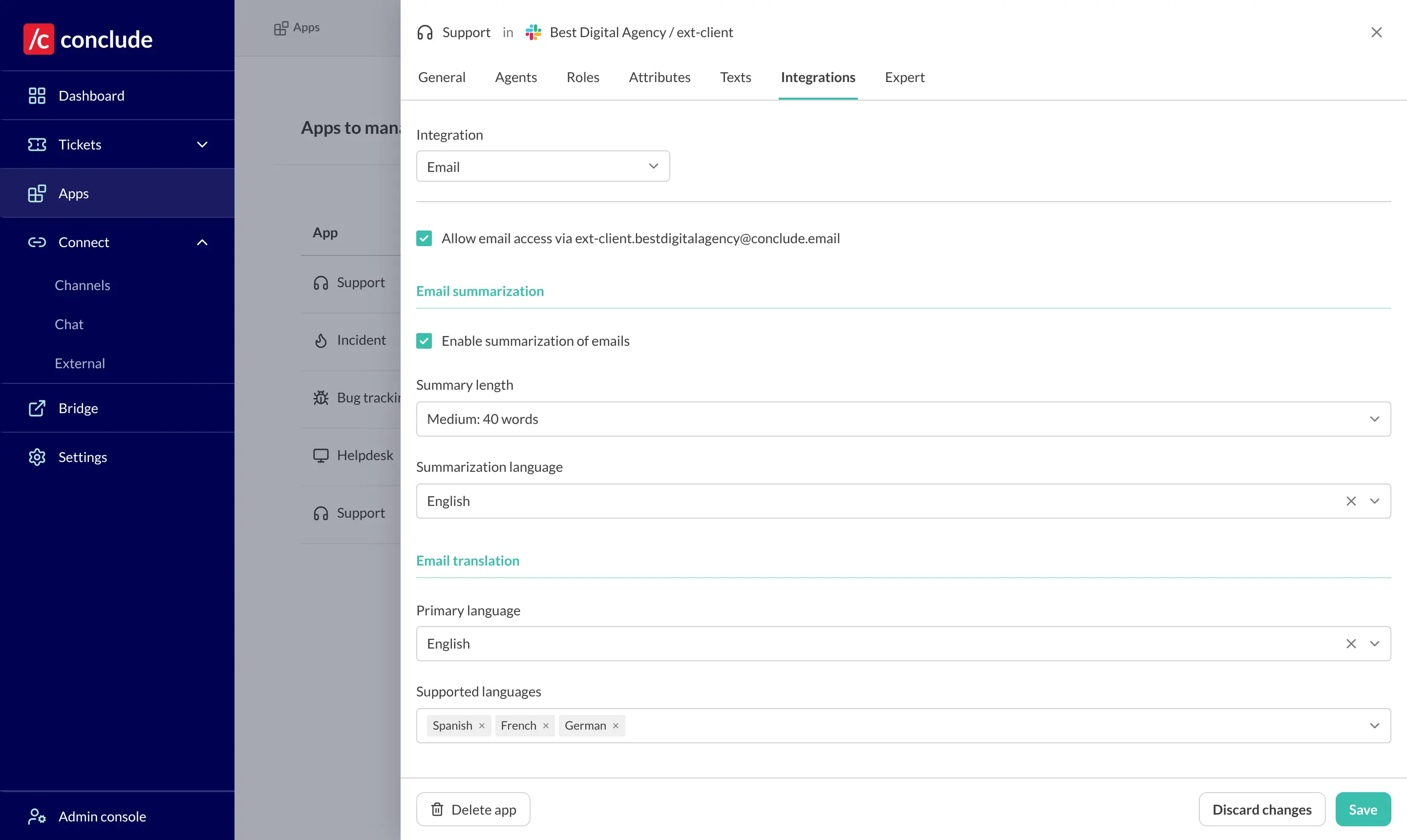
- To enable summarization, go to Apps from the sidebar of the Dashboard.
- Click the edit (pencil) icon of the app you want to modify
- Next, navigate to Integrations > Email and check Enable summarization of emails. Two additional fields will appear:
- Summary length – choose short, medium, or long
- Summarization language – choose the language for the generated summary
When an email arrives, Conclude uses OpenAI to generate a summary and adds it to the ticket’s Details field, which is editable. A copy of the original email remains available.
Email translation
In the same Integrations > Email tab, under Email translation, set the following:
- Primary language – this is the language your team works in. Replies you write in this language are translated into the sender’s language
- Supported languages – the languages you expect to receive customer emails in. Incoming emails will be translated into your primary language
Conclude uses Google Translate and supports up to 60 languages.
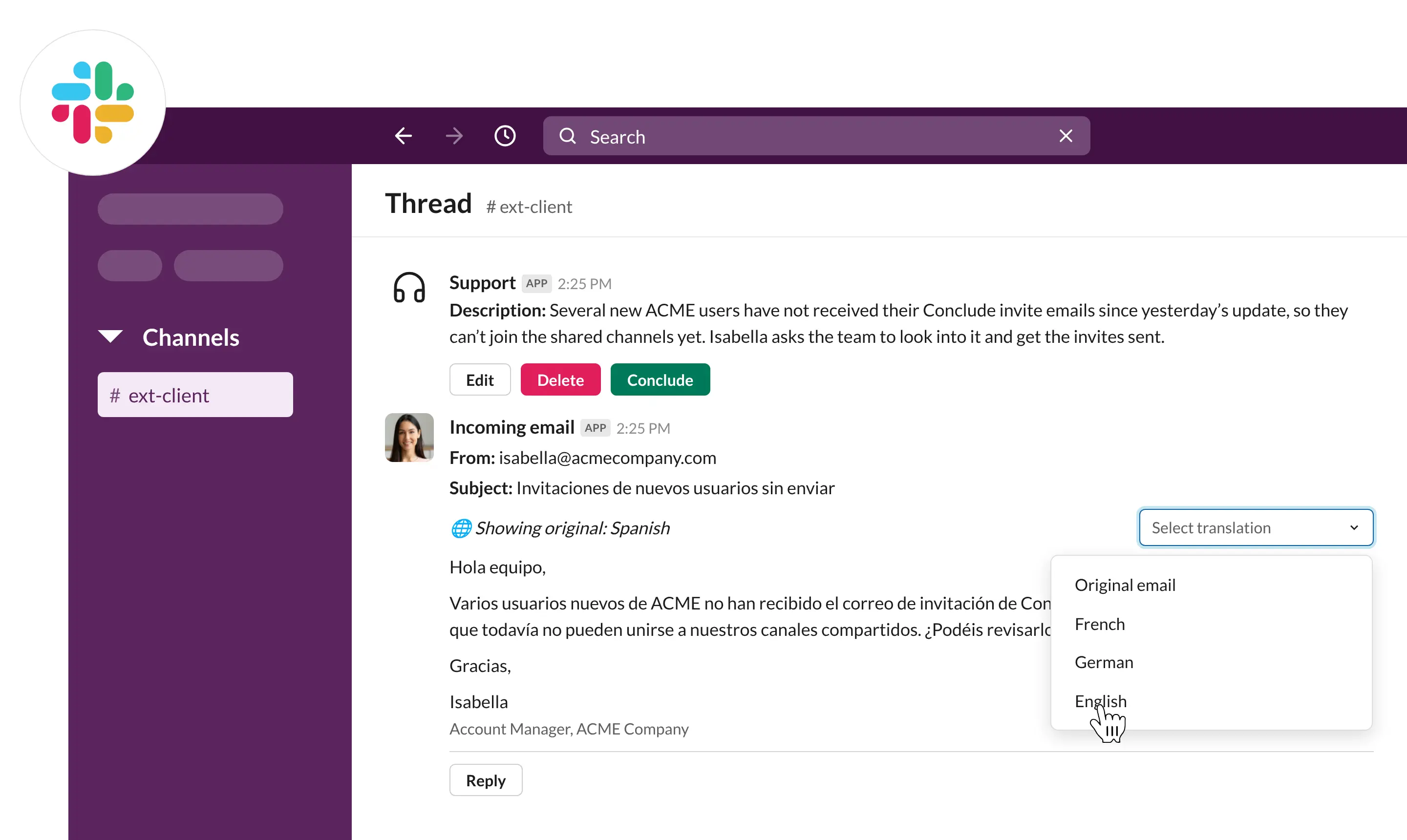
To translate an incoming email, select the language you want to translate it into (your preferred language).
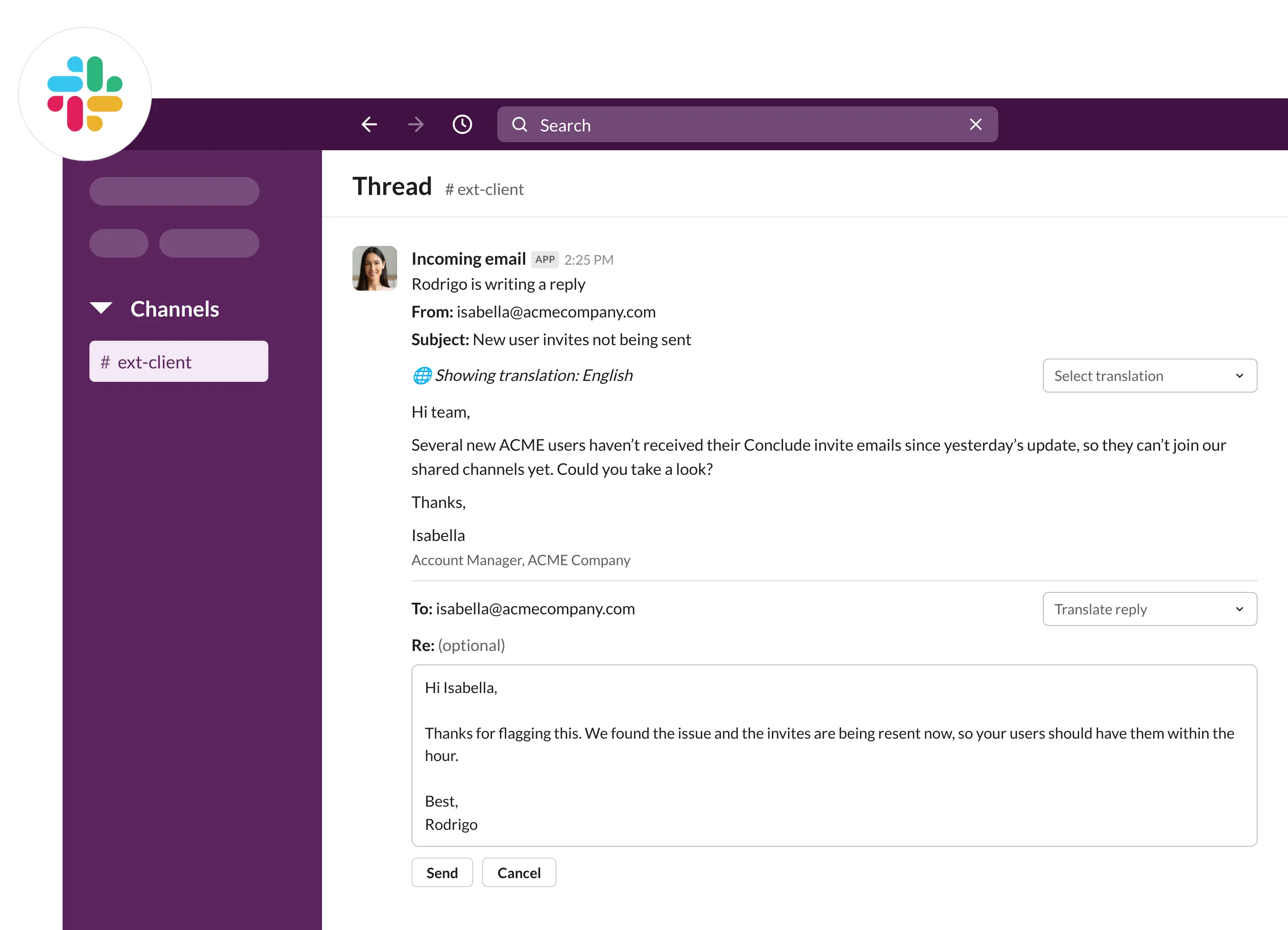
To respond, write the message in your preferred language then select the target language (receiever’s language). Next, click Translate reply for a preview before sending.