Default Dashboard
This page explains how account administrators can configure a default Dashboard for users in their organization and control whether users can customize their own Dashboard.
The Dashboard provides an overview of connections, chats, apps, tickets, and available metrics. By setting a default Dashboard, admins can choose which information users see when they open Conclude.
Configure the default Dashboard
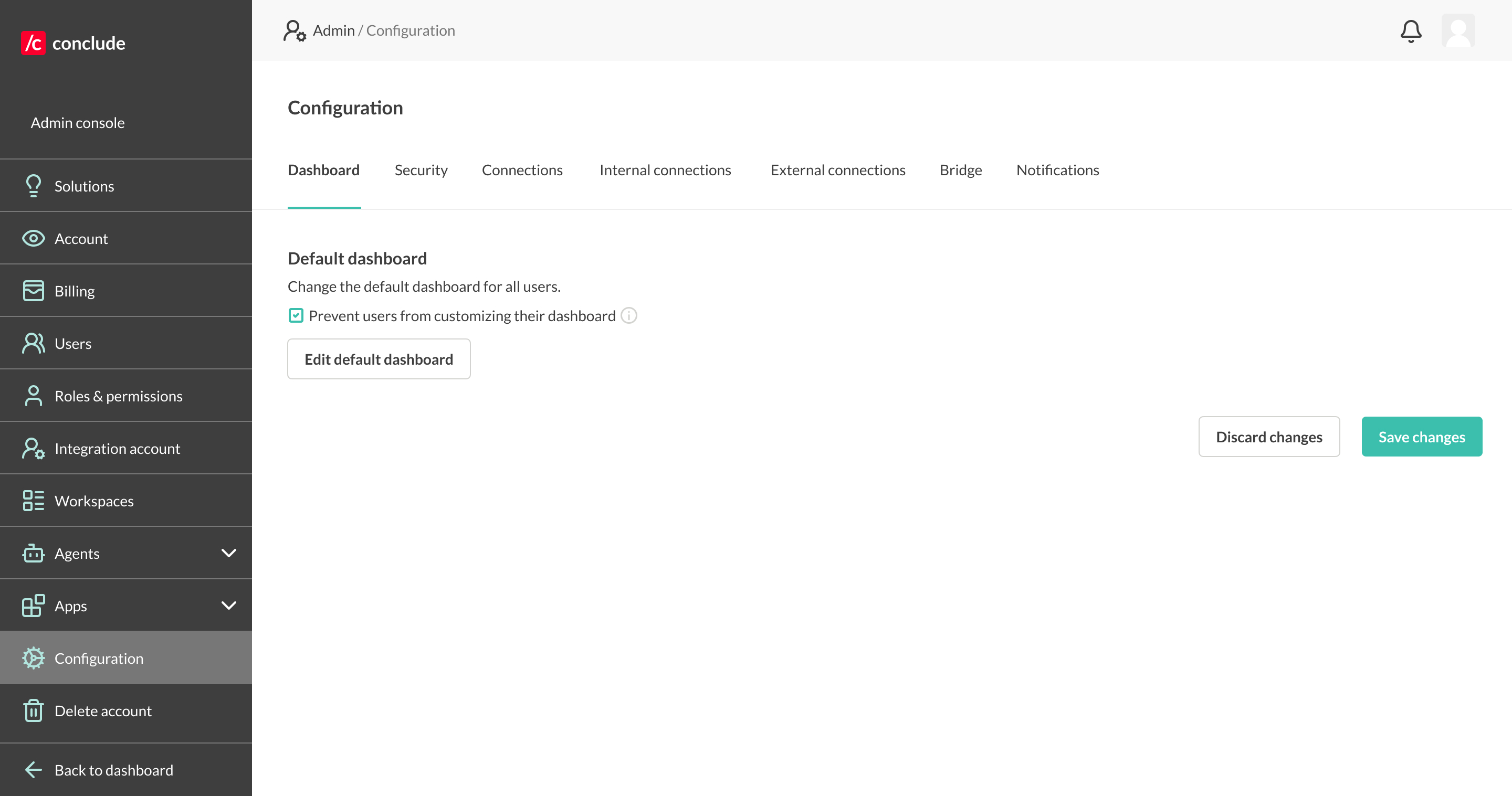
Go to Admin console > Configuration
Open the Dashboard tab
Click Edit default dashboard
Customize the Dashboard by adding, removing, and arranging the cards you want users to see
Click Save
To add a card, click the + button in the bottom-right corner. To remove a card, click the X in the top-right corner of the card.
You can select Revert to original dashboard to restore Conclude’s original Dashboard configuration.
Prevent users from customizing their Dashboard
By default, users can customize their own Dashboard.
To require users to use the organization’s default Dashboard:
- Go to Admin console > Configuration > Dashboard
- Select Prevent users from customizing their dashboard
- Click Save changes
When enabled, users cannot customize their own Dashboard. Organization admins can continue to edit the default Dashboard.
Allow users to customize their Dashboard
To allow users to customize their Dashboard again:
- Go to Admin console > Configuration > Dashboard
- Clear Prevent users from customizing their dashboard
- Click Save changes
Users can then customize the Dashboard based on the information and metrics most relevant to them.