Cross-platform chats
Start a direct chat that lives natively on both Slack and Microsoft Teams. Messages, files, reactions, and mentions sync in real time, so a person on Slack and a person on Teams can talk as if they were on the same platform.
This document covers the three ways to create a chat and how naming, membership, and editing function after the chat exists. This video shows the feature in action from Slack.
When the chat feature is available
The chat feature is part of Connect – cross-platform (inside your organization). Both Slack and Microsoft Teams must be added to your Conclude account, since the chat is built by combining users from both platforms. It is not available with Connect – cross-company (for external connections), where only one platform is added.
Who can use this feature
Access to the chat feature is controlled by your Conclude admin. Admins can open it to everyone on the team, limit it to admins only, or grant it to specific users. If you don’t see the option to start a chat, ask your Conclude admin to grant you access.
Three ways to start a chat
- From Slack: type
/c chatin any channel. - From the Conclude Dashboard: go to Connect → Chats and click New chat.
- From Microsoft Teams: open the Conclude app, then Connect → Chats → New chat.
All three flows produce the same outcome: one synced conversation with a private Slack channel on one side and a group chat on the Teams side.
Create a chat from Slack
The fastest way to start a chat is the slash command /c chat. It works in any Slack channel – public, private, or via DM – and is the same command your teammates already use for other Conclude actions.
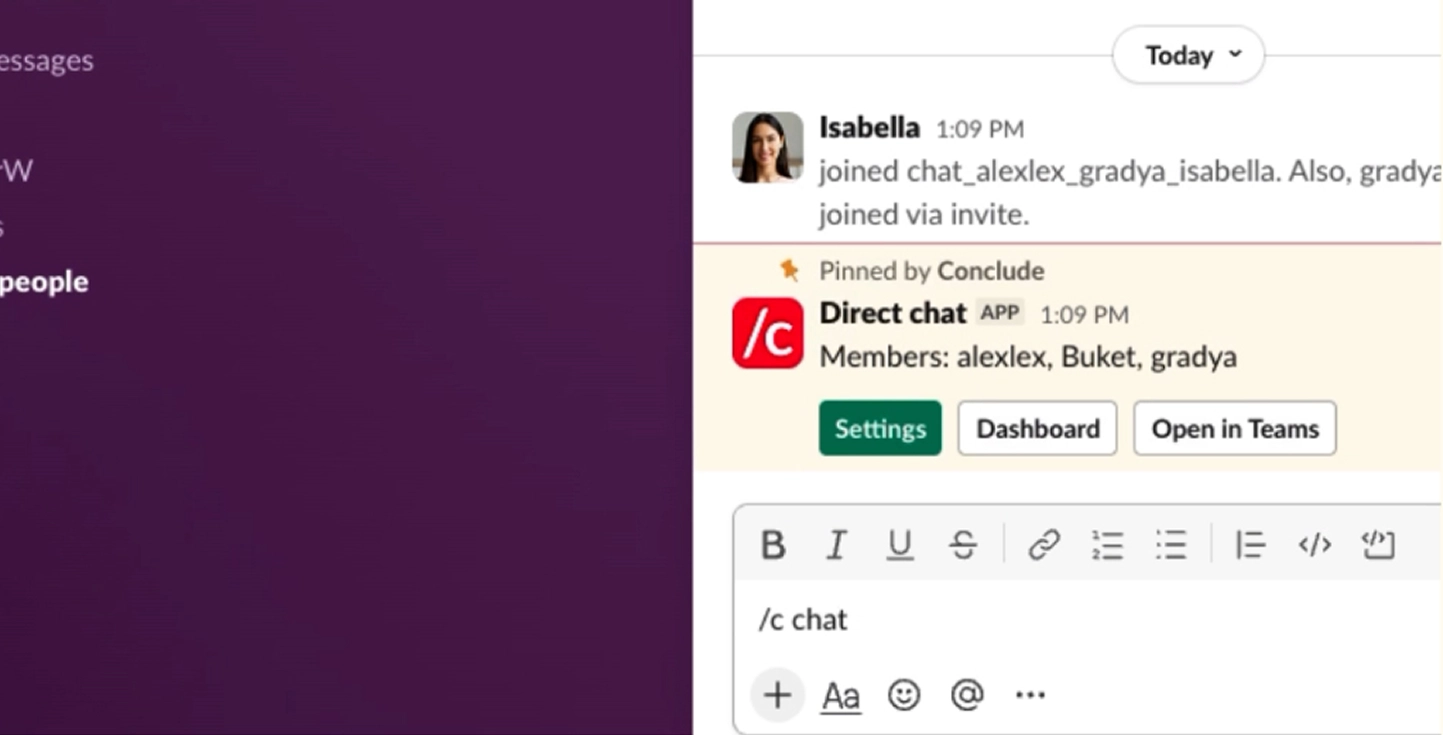
Step 1: Run the slash command
In any Slack channel, type /c chat and press Enter.
Step 2: Pick from Recent chats or start a new one
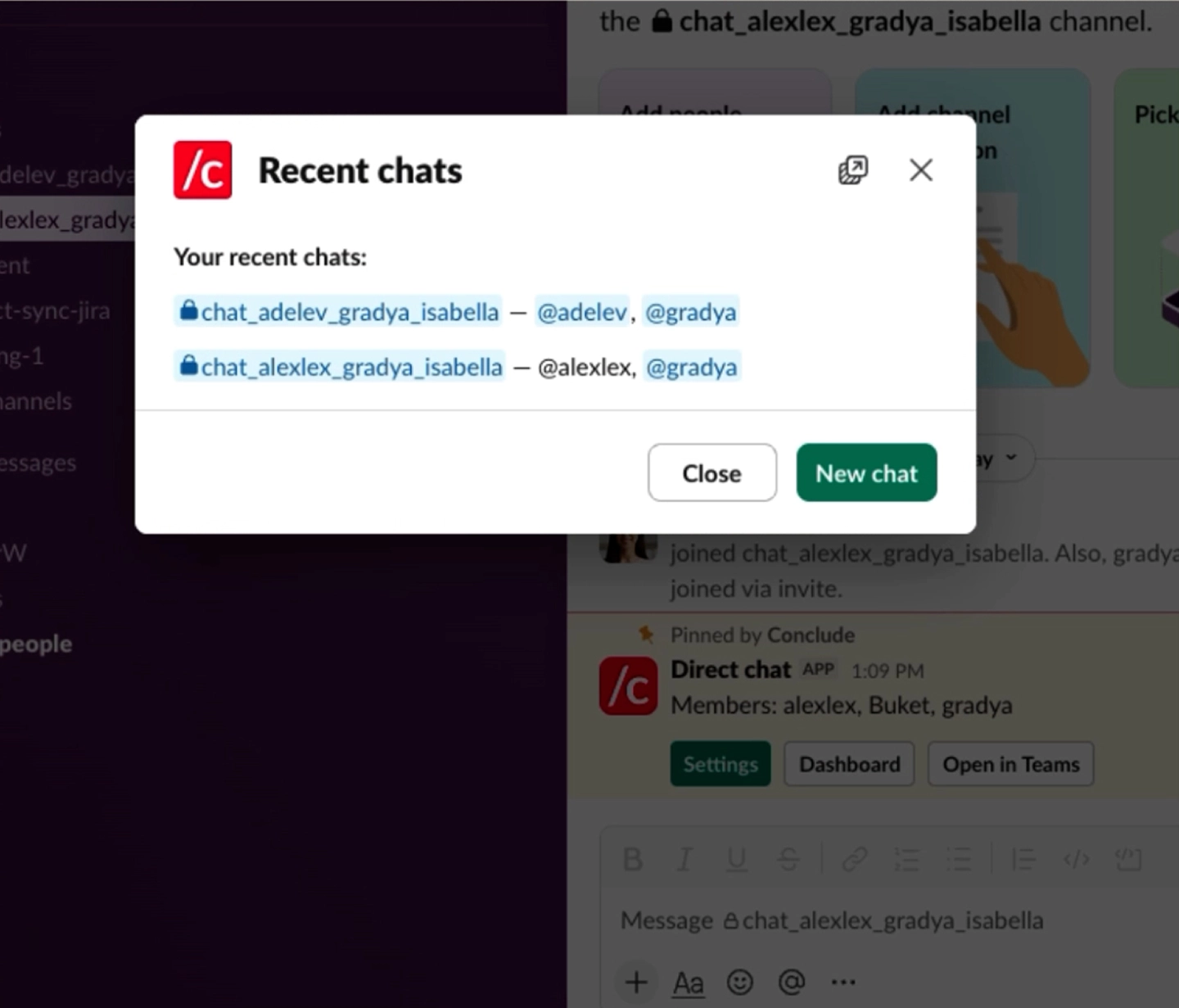
Conclude opens the Recent chats dialog. It lists the chats you have participated in most recently, so you can jump back into an existing conversation in one click.
- Click any chat in the list to open it in Slack
- Click Show more to load older chats
- Click New chat to start a fresh conversation
Step 3: Choose members
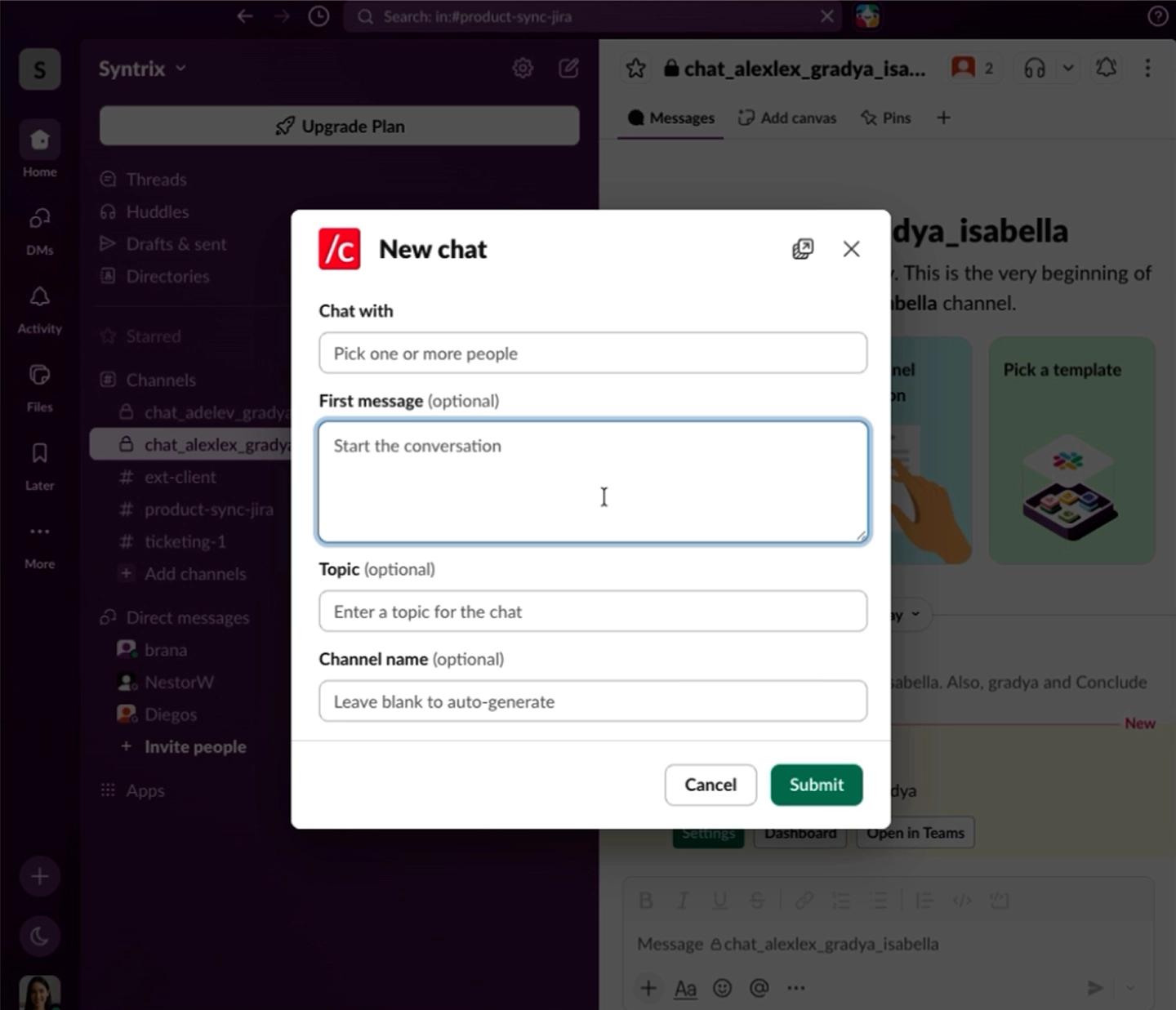
The New chat dialog opens. Start typing a name in the Chat with field – Conclude searches across every connected Slack workspace and Microsoft Teams tenant in your organization, so you can pick people no matter which platform they use.
As you add members, the dialog populates with their name and email. You can mix Slack and Teams users freely in the same chat.
Step 4: Add a first message (optional)
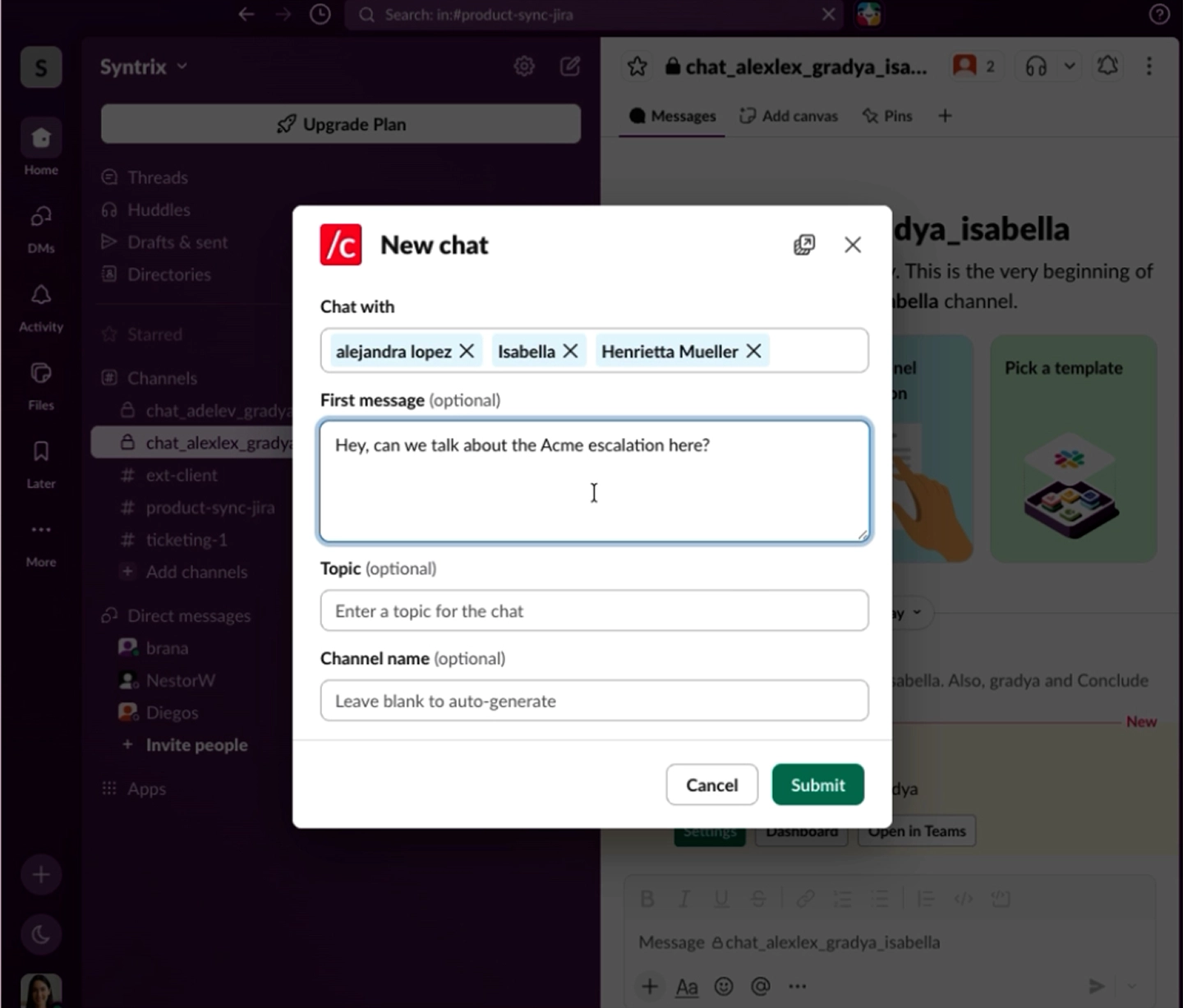
You can type the first message directly in the dialog. When you submit, it is delivered to every member as soon as the chat is created on whichever platform they happen to be using.
The Topic and Channel name fields are optional. Leave Channel name blank and Conclude will auto-generate it (see Channel naming below).
Step 5: Submit to create the chat
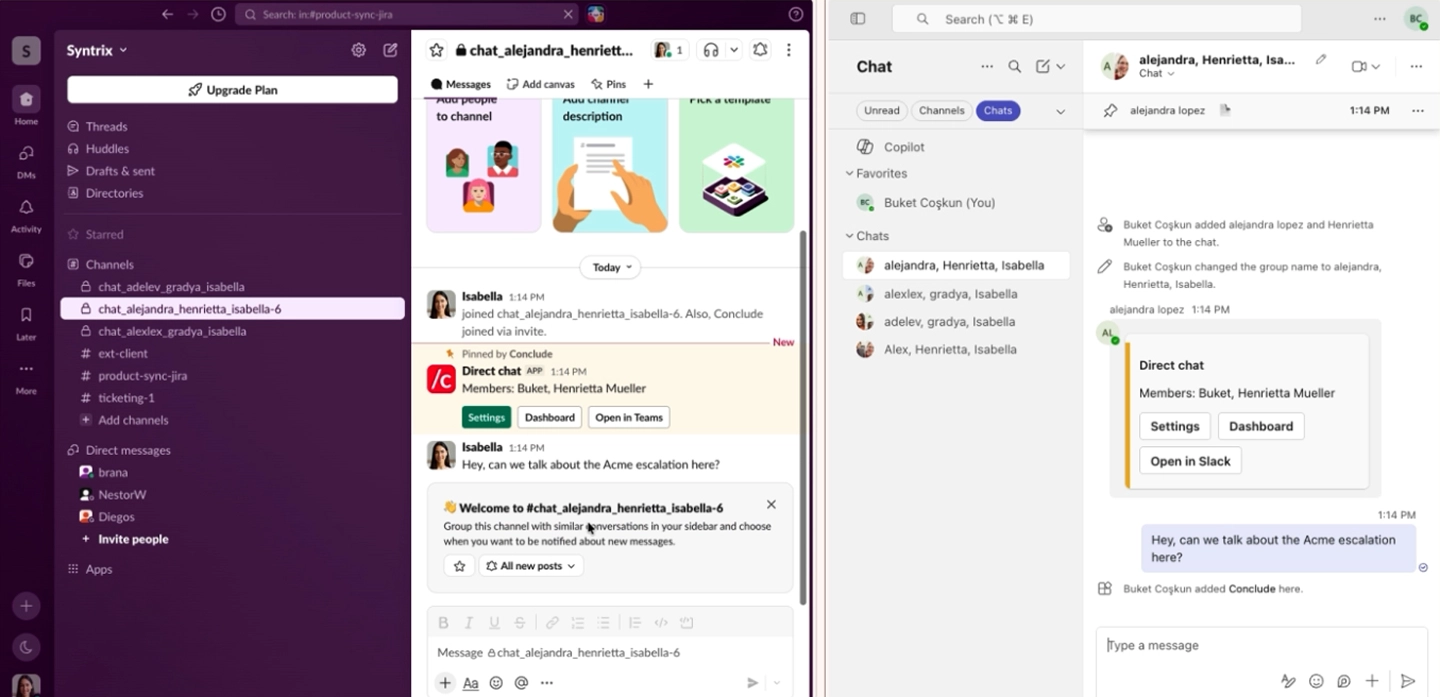
Click Submit. Conclude creates a private channel on the Slack side and a group chat on the Teams side, adds every member, and posts the first message in both places.
Slack and Microsoft Teams showing a synchronized cross-platform group chat
Channel naming
If you do not provide a name, Conclude auto-generates one that respects each platform’s conventions.
Slack – private channel
- Format:
chat_<member>_<member>_... - Member names are listed alphabetically
- For four or more members, Slack shows the first three names followed by
_N more(e.g.chat_alex_corey_diego_2 more) - Slack channels created this way are always private — this matches how Teams group chats behave and keeps the two sides consistent
Microsoft Teams – group chat
- For two people: Chat between <member> and <member> (e.g. Chat between Alex and Diego)
- For three or more: comma-separated member names, alphabetically
- For four or more members, Teams shows the first three names followed by +N (e.g. Alex, Corey, Diego, +2). Conclude matches this convention exactly
| Members | Slack channel name | Teams chat name |
|---|---|---|
| 2 people(Alex + Corey) | chat_alex_corey | Chat between Alex and Corey |
| 3 people | chat_alex_corey_diego | Alex, Corey, Diego |
| 4+ people | chat_alex_corey_diego_2 more | Alex, Corey, Diego, +2 |
💡 Renaming happens automatically: When you add or remove members later, Conclude regenerates the channel and chat names to reflect the new participants on both sides.
Adding or removing members later
Every synced chat has a Conclude card pinned at the top of the conversation. Use the Settings button on that card to manage members.
- Open the chat on either Slack or Teams
- Click Settings on the Conclude card at the top of the conversation
- Add or remove members from either platform
Changes apply on both sides. The Slack channel name and Teams chat name are regenerated to match the new member list, so the conversation stays consistent for everyone.
The Conclude card also includes Dashboard (open the chat in the Conclude web dashboard) and Open in Teams/Open in Slack (jump to the same conversation on the other platform).
Create a chat from the Conclude Dashboard
Admins and power users often prefer the web dashboard, where they can see every chat connection at a glance.
The chat is created on both platforms immediately. Members receive a notification on whichever app they have open.
Create a chat from the Conclude app in Microsoft Teams
If you have installed the Conclude app in Microsoft Teams, the dashboard is embedded directly inside Teams – no need to switch tabs.
This is the cleanest experience for Teams-first users as they never have to leave Teams to start a chat with someone on Slack.
What gets created on each platform
- On Slack: a private channel, prefixed with
chat_, containing every member and a pinned Conclude card - On Microsoft Teams: a group chat, named after its members, containing every member and a pinned Conclude card
- Everywhere: real-time sync of messages, files, emoji reactions and @mentions