
Explanation
Message syncing
On this page
Connect synchronizes messages and replies between the conversations in a connection. Slack and Microsoft Teams have different identity and conversation models, so the receiving platform may present the same interaction differently. This applies to internal, external and Bridge connections.
Edits and deletions sync in both directions. Conclude posts a message as its author when the author has signed in to Conclude on the receiving platform. Otherwise it posts on the author’s behalf, with a header that names them.
Message headers
In Admin console > Connect > Message display , choose how the sender appears in synced messages:
- Show @mention username for posted messages, the default
- Use “Firstname Lastname” on posted messages
- Show or hide the user’s email address. Conclude shows it by default
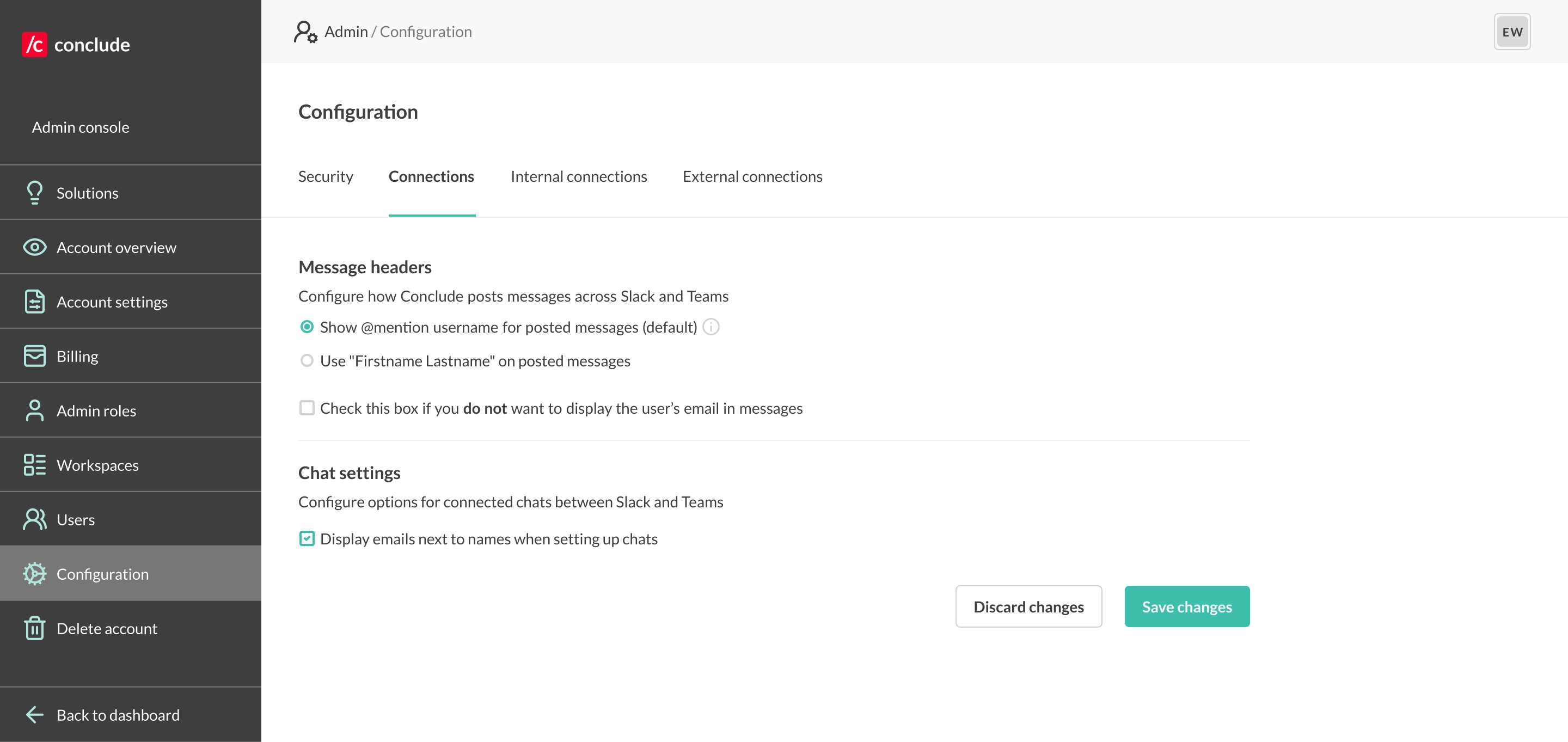
The header identifies the original sender. The account posting the message in Teams may be the integration account when the original user’s credentials are unavailable.
Existing threads
When someone replies to a thread that predates the connection, the history policy determines what context is sent. Configure the policy for each connection type on its tab under Admin console > Connect > Sync settings .
| Policy | Result | Default for |
|---|---|---|
| Sync full thread | Sends the complete thread history along with subsequent replies. | Internal connections |
| Sync part of a thread | Sends the first message for context, then synchronizes new replies. | External connections and Bridge |
| Do not sync replies on existing threads | Does not synchronize those replies; a message explains that syncing is unavailable. | None |
These settings govern replies to existing threads. Connecting channels does not imply that their entire historical message archives will be copied. Files and images have separate policies.
System and bot messages
By default, Connect syncs only messages that people write. Messages that bots and apps post stay on their own platform, and so do Teams system messages. Replies from Conclude agents always sync.
You can turn these messages on for each connection:
- Open Connect > Channels for an internal connection or Connect > External for an external one.
- Select Connection settings (pencil icon) on the connection, then the System and bot messages tab.
- Check the messages you want to sync, then select Save.
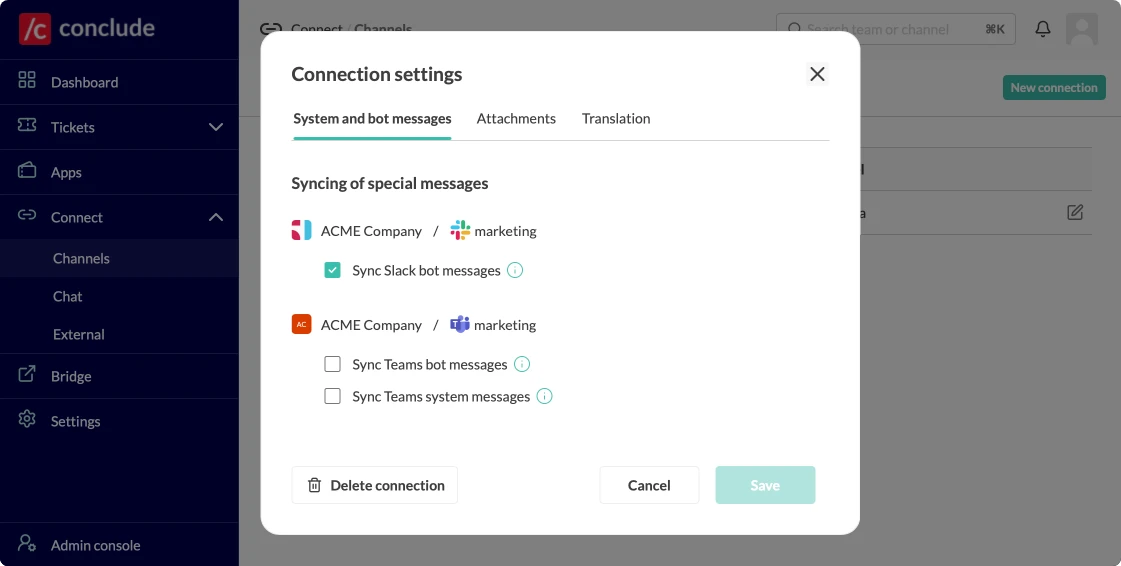
| Setting | What it syncs |
|---|---|
| Sync Slack bot messages | Messages that bots and apps post in the Slack channel. |
| Sync Teams bot messages | Messages that bots and apps post in the Teams channel. Only internal connections have this option. |
| Sync Teams system messages | Notices that a Teams call has started, with a link to join, and that it has ended, with its length and participants. |
Each setting covers the messages posted on its own side of the connection. For an internal connection, the dialog shows both sides. For an external connection, each company sets only its own side. Bridge connections don’t have these settings. Slack system messages, such as join notices, never sync.
Mentions
Conclude tries to turn a mention into a native mention on the receiving platform. A name may appear as plain text locally when the person exists only in the other company’s workspace; local autocomplete cannot find that external identity. Inside one organization, names autocomplete once the person has signed in to Conclude on both platforms.
Matching is case-insensitive and checks, in order:
- The user’s mention name, such as
@johnsmith. - First and last names together, with or without a space.
- Last name.
- First name.
Use the full name without a space, such as @EmmaGreen, when mentioning an external participant. If Slack proposes a local match, press Escape to dismiss it and continue typing.
Signed-in users with linked platform identities provide the best identity matching. Conclude cannot edit an unsigned-in user’s message to provide the same mention feedback. For Slack-to-Teams messages, bot posting can also prevent a mention from working, and Conclude may still confirm the mention; configure a licensed and authenticated Teams integration account as the fallback. Teams-to-Slack mentions generally work through the Conclude bot.
Reactions
The identity available on the receiving platform determines how a reaction is represented. Removing a reaction also removes its copy.
| Situation | Expected result |
|---|---|
| User is signed in and recognized on both platforms | The reaction can use that person’s identity. |
| Teams → Slack, no corresponding Slack user | Conclude’s bot posts the reaction. The original person’s identity is not shown, and Slack shows each emoji once, however many people reacted. |
| Slack → Teams, using the integration account | Only the most recent reaction can be represented through that account; earlier reactions are not shown as separate reactions. |
| Slack → Teams, neither the Conclude bot nor the integration account can post | The reaction is not synchronized. |
Emoji sets also differ. Use common emoji when the reaction needs to be recognizable on both sides. The fallback account must be Teams-licensed, authenticated in Conclude, and a member of the target conversation.
For missing messages, identities, or reactions, use the troubleshooting guide.