
How to
File and image sharing
On this page
A message can carry a file or an image. When Connect syncs that message, an attachment policy decides what happens to the attachment. Conclude copies it to the other platform, replaces it with a link, or leaves it out. This page is for the admins who choose that policy.
Where the settings live
You set attachment policies under Admin console > Connect > Sync settings . The page has a tab for each connection type your organization has enabled.
- Internal connections appears when Connect (internal) is enabled
- External connections appears when Connect (external) is enabled
- Bridge appears when Bridge is enabled
Each tab has its own attachment policy, under Manage attachments. See Internal connections, External connections and Bridge for the connection types.

File attachment policies
The policy on each tab applies to file attachments such as PDFs and documents. Pick one of three options.
| Policy | What the other platform gets | Microsoft permission |
|---|---|---|
| Sync all attachments (default) | A copy of the file, uploaded into the connected channel or chat as a native attachment. Everyone sees it, even without an account on the other platform. | Files.ReadWrite.All, to copy into Teams |
| Share attachments as links | A link to the original file where someone posted it. Only people with access to both platforms can open it. | None |
| No attachments | The message text, with a note that Conclude left out an attachment because attachment sync is off. | None |
Image policies
By default, images such as PNG and JPG follow the file policy. To treat them differently, check Use different policy for images on the same tab. Then pick one of these:
| Setting | Result |
|---|---|
| Sync images | Conclude copies the image and shows it inline on the other platform. Copying into Teams needs Files.ReadWrite.All. |
| Share images as links | The synced message links to the original image. Only people with access to both platforms can view it. |
| No image sharing | Conclude leaves images out. The text still syncs, with the same note as No attachments. |
If you uncheck Use different policy for images, Conclude clears the image policy. Images then follow the file policy again.
Overrides per connection
A single connection can use its own policy, but an admin has to allow it first. Under Internal connections or External connections, check Allow channel-level overrides. Until then, the policy controls don’t appear in the connection settings. The Bridge tab shows the same checkbox, but the Dashboard has no per-connection settings for Bridge connections.
Once overrides are allowed, set the policy for one connection:
- Open Connect > Channels for an internal connection or Connect > External for an external one.
- Select Connection settings (pencil icon) on the connection, then the Attachments tab.
- Uncheck Use global attachment policy.
- Choose Sync all attachments, Share attachments as links or No attachments. To handle images differently, check Use different policy for images and pick an image policy.
- Select Save.
The same controls appear under Settings while you create an internal connection, and while you review an external invitation before you send it. If you check Use global attachment policy again, Conclude discards the custom choice, and the connection follows the Sync settings page.
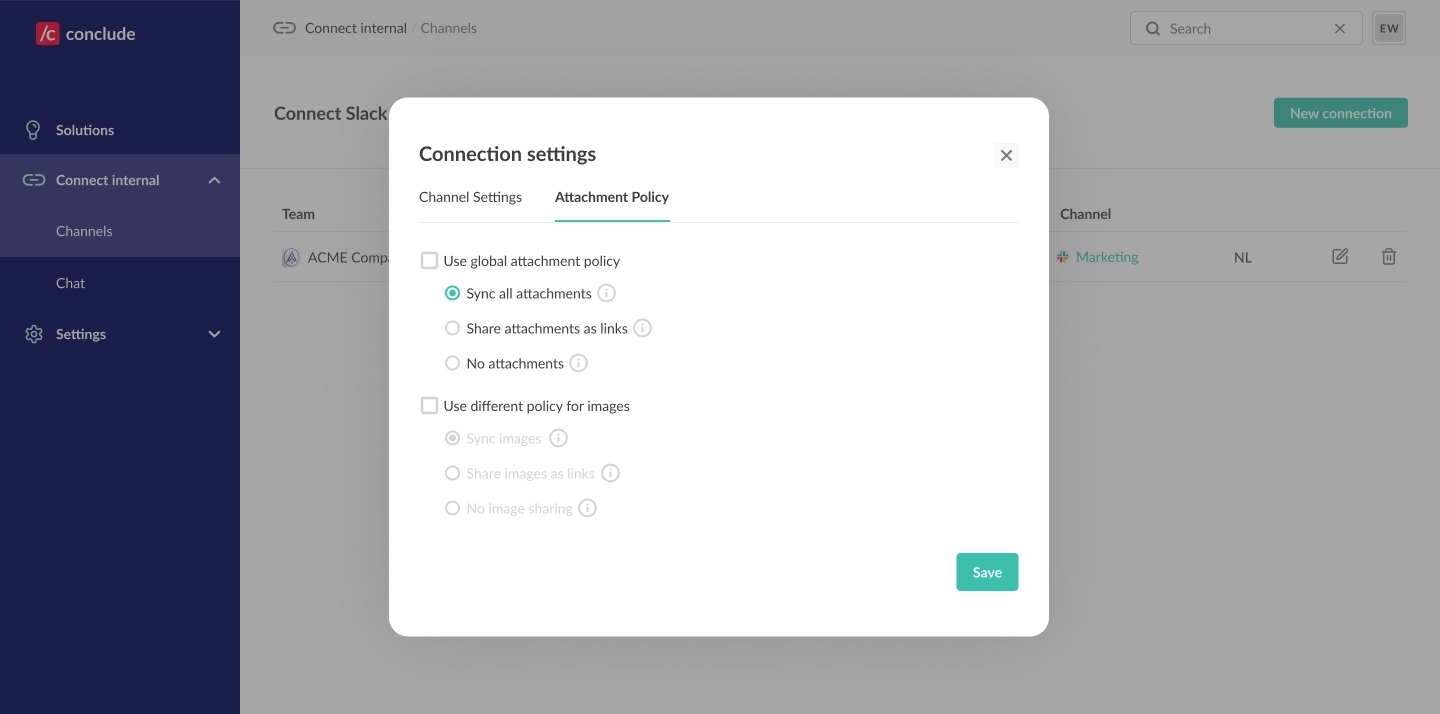
Two rules apply to overrides:
- Internal connections: one policy applies to both sides of the connection. When you save the policy, Conclude writes it to both endpoints
- External connections: each organization sets the policy for its own side. A message follows the policy of the organization that sent it. An organization can accept an external invitation before it has enabled external connections. Conclude then enables them, and it enables Allow channel-level overrides as well, so the accepting side can configure its own channel
Microsoft permissions
To copy a file or an image into Microsoft Teams, Conclude needs the Microsoft Graph permission Files.ReadWrite.All. It lets Conclude upload the attachment to the Teams channel on behalf of the user. Conclude requests this scope together with Files.Read.All.
Conclude only requests them when at least one enabled connection type could copy attachments. That is the case when any of these is true for that connection type:
- Its file policy is Sync all attachments, or no file policy is set
- Its image policy is Sync images
- Channel-level overrides are allowed
Linking to attachments and leaving them out need no extra permission. If a copy fails for lack of permission, Conclude posts a link to the file with a note instead. It also asks the user to sign in again. See Microsoft Teams permissions for the full list.
If files still don’t reach Teams, select Run diagnostics on the integration account page. Conclude posts through that account when the author has no Teams credentials, and the Conclude bot it otherwise falls back to can’t post files.
Choosing a policy
- Choose Sync all attachments and Sync images when everyone should see the same content without switching platforms, and you can grant the Microsoft permission
- Choose the Share as links options when you want to avoid the extra permission but still point to shared content
- Avoid the Share as links options on connections with clients or partners who don’t have access to both Slack and Teams. They cannot open the links
- Choose No attachments and No image sharing for strict data-handling or compliance requirements, or when you don’t want to grant
Files.ReadWrite.Allat all
Related pages
- Message syncing — what else is synced between platforms
- Troubleshooting — when a connection stops syncing