
Explanation
External connections
On this page
An external connection links conversations owned by separate organizations. The initiating company chooses its channel and sends an invitation. The invited company authorizes Conclude in its own environment and selects the channel or chat to connect.
Both companies keep their own workspace administration. The connection provides a shared conversation for any kind of joint work, including project delivery, supplier coordination, or customer collaboration.
Establish a connection
- The initiating company enables external Connect in Admin console > Solutions and installs Conclude on its platform.
- An authorized user creates an external connection from the Dashboard, selects the local channel, and sends an invitation.
- The invited company follows the invitation, authorizes Conclude, and chooses its conversation. Its platform administrator may need to approve installation.
- After setup, both sides verify a message and reply, sender identities, and file sharing.
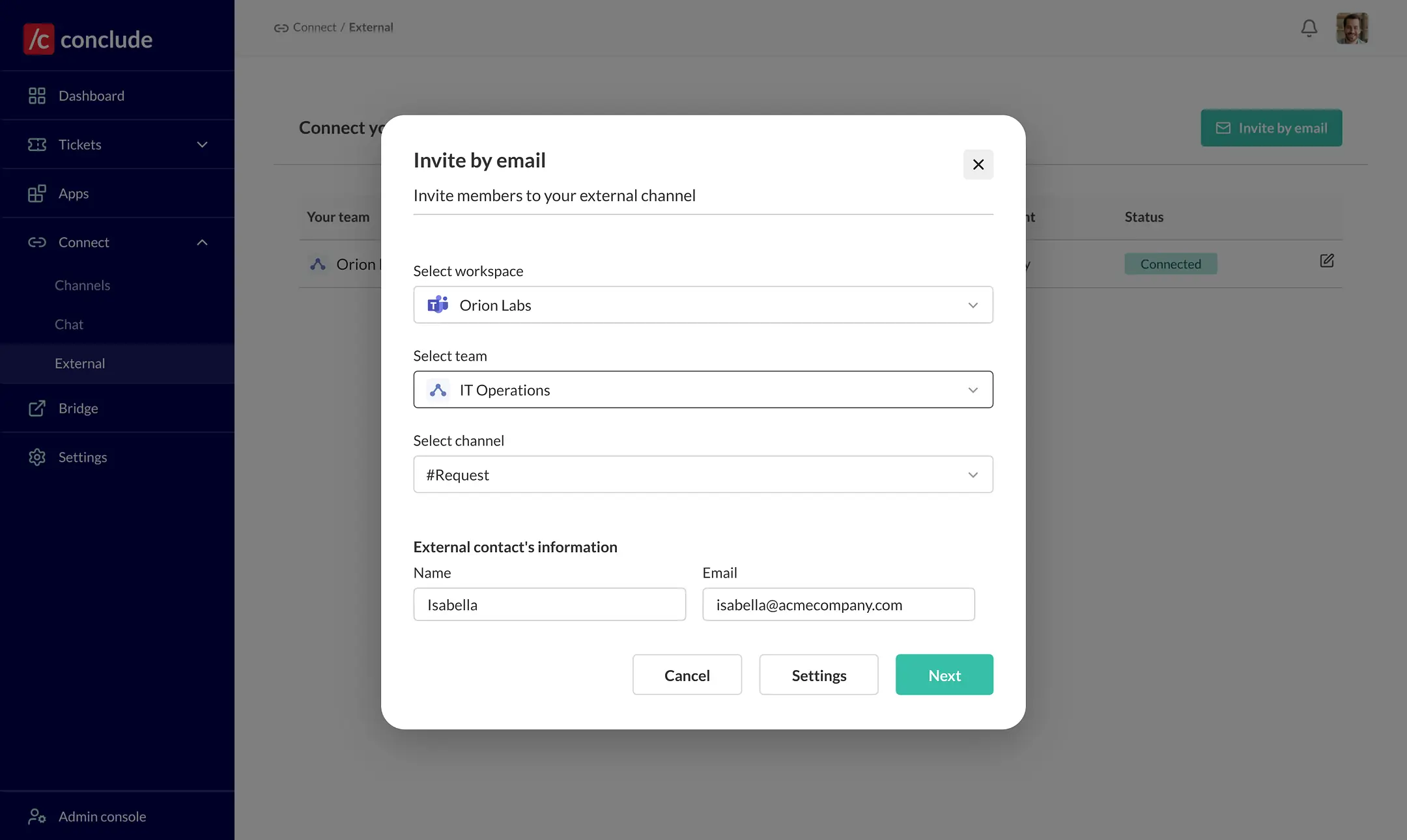
Use the External quickstart when sending an invitation and the invited-company setup guide when accepting one. If Teams is involved, set up the integration account before relying on messages from people who have no Teams identity in that tenant.
What the invited company authorizes
Accepting the invitation selects the conversation that will exchange messages. Platform authorization also grants the permissions necessary to operate the integration. Review the actual Slack scopes or Microsoft permissions; a Microsoft team-level permission is broader than a single channel.
The security policy explains what Conclude processes and retains. File and image policies determine whether attachments are copied to the other platform, sent as links, or omitted. Each side of an external connection configures its own attachment policy.
The Connect external channels permission controls who can initiate a connection. It does not bypass the invited company’s authorization.
When the other company cannot authorize Conclude
An alternative is to use a shared conversation already permitted by your organizations: a Slack Connect channel, a Microsoft Teams shared channel, or guest access. Your organization can then connect its Slack and Teams environments using an internal connection.
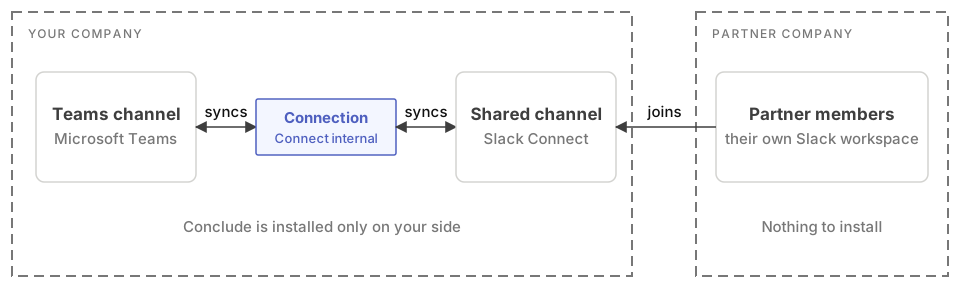
This requires your organization to administer both platform environments and to establish the shared space first. The other company participates through that existing sharing arrangement and does not authorize Conclude itself. Tenant restrictions, channel ownership, and guest policies still apply.
If you later move to a direct external connection, review membership in the old shared space so participants do not receive the same conversation through two routes.