
Explanation
Connected Apps
Connected Apps combines an app’s ticketing workflow with a channel connection. A ticket created on one side is visible on the other, and participants can follow replies, updates, and conclusions from their own Slack or Microsoft Teams environment.
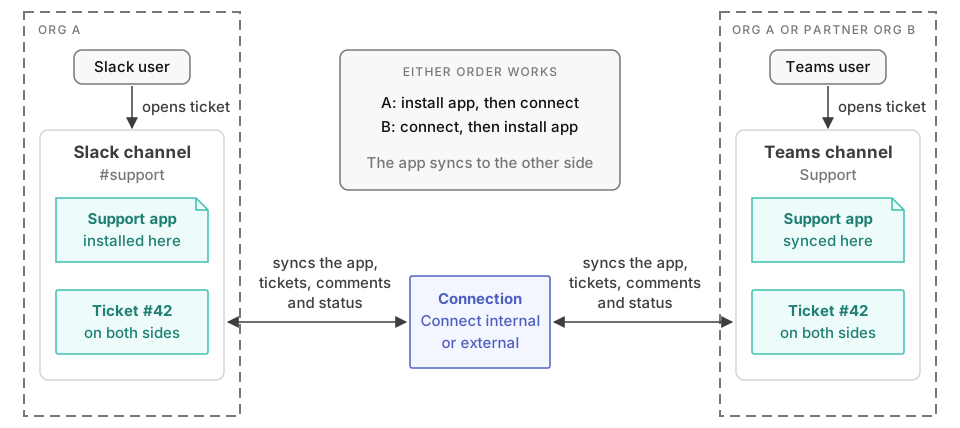
This works for internal collaboration and cross-company connections. An internal helpdesk can serve employees on both Slack and Microsoft Teams, and customer support can run over an external connection. A shared request process, an approval workflow, or an incident response process uses the same platform concepts. Building the app in the visual editor requires no software development skills.
Set up a connected app
- Enable Apps and the relevant Internal, External, or Bridge solution under Admin console > Solutions .
- Connect the two channels under Connect > Channels , Connect > External or Bridge . See Internal connections, External connections or Bridge.
- Open Apps in the Dashboard and click Install app. Choose a template, then the workspace, team and channel on your side of the connection.
- The next step shows the connected channel and says that the app will be enabled on both sides. Click Install.
- Conclude adds the app to the channel at the other end. Tickets, replies and status changes then sync between the two channels.
You can also install the app first and connect the channel afterwards. Conclude then enables the app on the other side when the connection is created. Install the app on the side that should own its configuration, because its settings apply to both channels. The Connected Apps quickstart walks through both orders with screenshots.
For thread-based tickets created from Teams messages, use the Teams channel’s Posts layout as described in the quickstart. If messages or updates are missing, check the connection and Teams integration account before changing the app definition.
Configure the app and connection
The app editor controls the work: fields, responsibility, labels, and integrations. Connect settings control the conversation, including existing-thread history and identity presentation. Attachment policies control file and image sharing.
Connecting channels does not grant the other company’s users administrative access to your account. Review Manage apps and the app’s own roles before delegating changes to a shared workflow.
An external system is optional. For example, Zendesk integration can synchronize the same work with a support system; it is an extension of the app rather than a prerequisite for Connected Apps.