
Explanation
Conclude Connect
On this page
Connect is the conversation layer at the base of the Conclude stack. It links conversations so people can work from their own Slack or Microsoft Teams environment. A connection pairs specific channels or chats. Messages and replies move between the two sides according to the connection’s settings; identities, attachments, and reactions follow the capabilities of each platform.
Three ways to connect
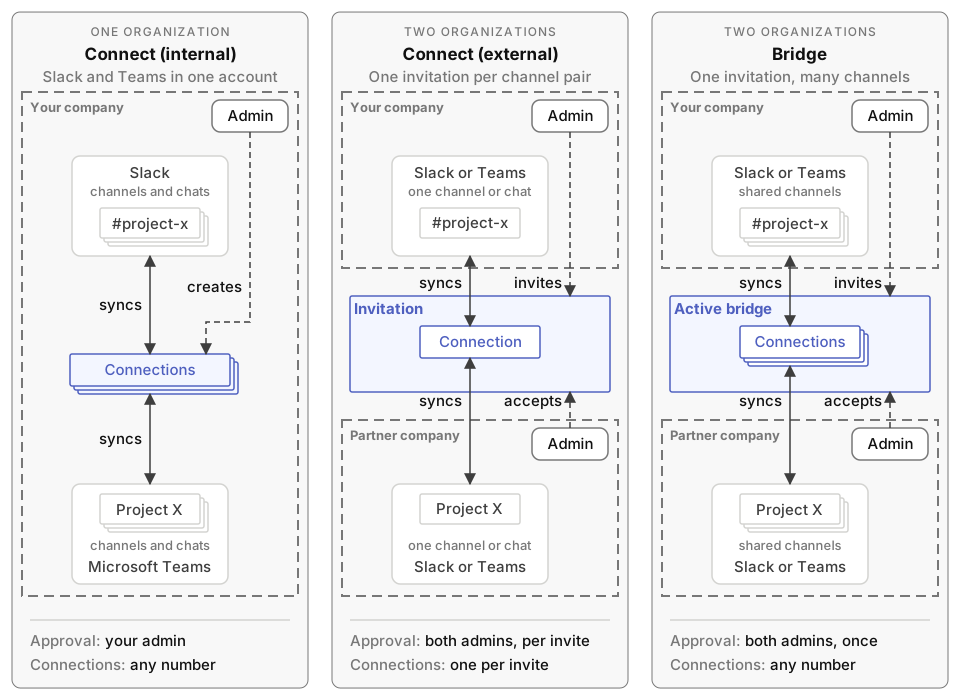
| Model | Participants | How channels become connected |
|---|---|---|
| Internal | One organization using Slack and Microsoft Teams | An authorized user selects channels or creates a cross-platform chat. |
| External | Separate organizations | One side sends an invitation; the other authorizes Conclude and selects its conversation. |
| Bridge | Separate organizations with an ongoing relationship | Administrators approve the relationship, then pair channels from lists each company chooses to share. |
Internal involves nobody outside your organization. It also works for external people who already sit in a Slack Connect channel, a Teams shared channel or a guest account. Use it that way when the other company cannot authorize Conclude. See Internal connections.
External needs both sides to act for every channel pair. The initiating company sends an invitation for one channel. An admin at the invited company then authorizes Conclude in its own environment. That admin also selects the channel on its side, or a chat if the company uses Microsoft Teams. See External connections.
Bridge is a lasting relationship between two organizations. An admin at the invited company accepts once. Each side then publishes the channels it is willing to connect. Either side pairs one of its own channels with a published channel, without a new invitation. There is one Bridge per pair of organizations, and a channel can be published to only one Bridge. Disabling the Bridge pauses all of its connections. Deleting it removes them. See Bridge.
What syncs
In every mode, a connection syncs messages, threaded replies, files and images, emoji reactions and @mentions in both directions. Some settings apply to a connection type, and others to a single connection. See Message syncing and File sharing. Internal connections and Bridges also support group chats across the two platforms. See Chats.
Connect and Apps
Install an app in a connected channel and you get Connected Apps, which gives both sides of the connection the same tickets. Agents can join a connected channel too.
More about Connect
- Setup tips lists what to check when you set up Connect for the first time
- Integration account keeps delivery reliable on Microsoft Teams
- Troubleshooting covers permission and syncing problems
- Working in connected channels and Cross-platform chats in the User guides show what people see and do day to day
- Active users (Connect) explains who counts as an active user
- The Connect, External and Bridge quickstarts take you through setup step by step