All Commands (Microsoft Teams)
Getting started
‼️ Important: To use /conclude commands in Microsoft Teams please review the following:
1. Install the Conclude app in Microsoft Teams
If you haven’t installed the Conclude app in Teams yet, you’ll need to do so before using the commands. You can find installation instructions in Step 3 of the Microsoft Teams Quickstart.
2. Sign in again if you already have the app installed
We’ve recently updated the Conclude app to support commands in Microsoft Teams. If you installed the app before this update, you’ll need to sign in to Conclude again to activate the new commands. This is a one-time step, and you won’t need to reinstall the app.
About commands
Conclude works with commands on Slack and Teams. In Microsoft Teams, you can run them in two ways: Teams’ slash menu (/conclude …) or by mentioning the bot (@Conclude …). They do the same things but behave differently. This page explains the difference, shows how to run a slash command, and highlights two you’ll use often – /conclude chat and /conclude connect.
In Slack, the equivalent slash command is /c (for example, /c chat create)
Two ways to run a command
| Slash commands | Bot mention | |
|---|---|---|
| How you type it | /conclude chat | @Conclude chat |
| Who sees it | Only you (ephemeral) | Everyone in the channel |
| Where it works | Wherever Conclude is installed | Wherever Conclude is installed |
Slash commands – /conclude
Slash commands are Microsoft Teams’ own “/” menu. When you press / in the message box, Teams lists the commands available there, including /conclude. Teams adds the / itself.
Teams registers a single /conclude command, and you type the action after it: /conclude chat, /conclude connect, /conclude status.
Slash commands are ephemeral — the command you send and Conclude’s reply are visible only to you (“Only you can see this message”). Nothing is posted to the channel until you choose an action that creates something, such as connecting a channel.
They appear only where Conclude is installed in that team or chat. Use the normal Type a message box, not the top search bar, and not the expanded New post box with a subject line.
Bot mention – @Conclude
Bot commands are plain words — new, connect, status. There is no /. In a channel or group chat, mention @Conclude before the command (for example @Conclude connect).
The message you post is visible to everyone in the channel, and Conclude replies in the thread. Use this when you want the request itself on the record in the thread.
When to use which:
- Use
/conclude… for quick, private setup e.g, to connect a channel, start a chat, check status, get help, without cluttering the channel - Use
@Conclude …when you want the request visible to the channel
How to run a slash command
- Click in the Type a message box in a channel or chat where Conclude is installed
- Type
/. Teams shows its command menu — start typing co and pick/conclude(“Chat with the bot or agent directly”) - Add the action after it, for example chat, connect, or help, then press Enter
- Conclude replies with a message only you can see. Follow the buttons or form in that reply
Not sure what’s available? Run /conclude help to list every command for the current channel, or /conclude info for a summary of what Conclude can do for your team.
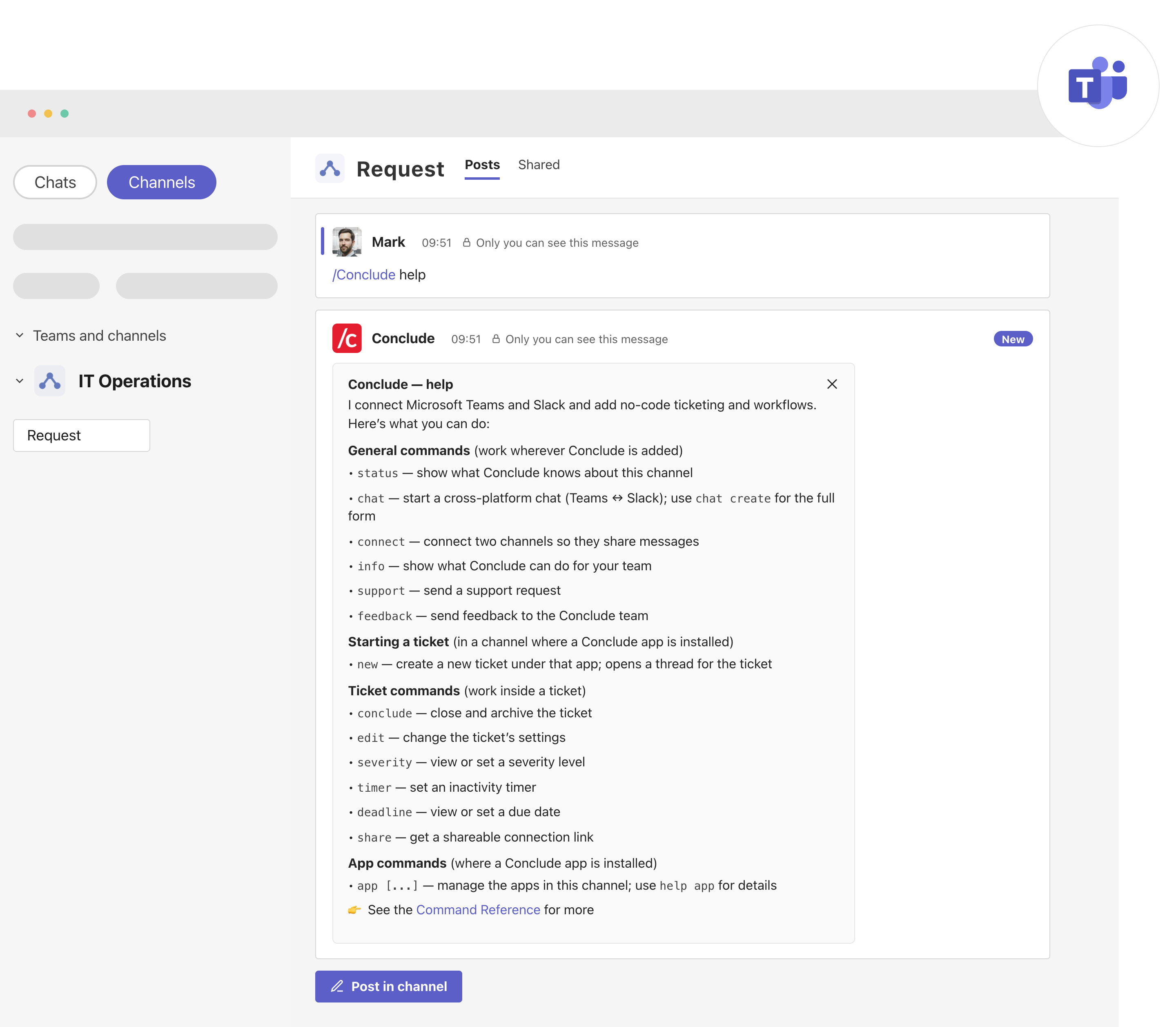
Command reference for Teams
Every command below runs as /conclude <command> (slash, private) or @Conclude <command> (mention, visible in the channel).
General commands
| Command | What it does |
|---|---|
chat | Start a cross-platform chat (Teams ↔ Slack); chat create opens the full form |
status | Show what Conclude knows about this channel or chat |
connect | Connect two channels so they share messages |
info | Show what Conclude can do for your team |
help | List the commands available here |
support | Send a support request |
feedback | Send feedback to the Conclude team |
Create a ticket — in a channel with a Conclude app
| Command | What it does |
|---|---|
new | Create a ticket under that app; opens a new thread for the ticket |
Ticket commands — inside a ticket thread
| Command | What it does |
|---|---|
conclude | Close and archive the ticket |
edit | Change the ticket’s settings |
severity | View or set a severity level |
timer | Set an inactivity timer |
deadline | View or set a due date |
share | Get a shareable connection link |
Where commands work
- Channels (with Conclude): all general commands, plus ticket and app commands when a Conclude app is installed.
- Group chats and 1:1 chats: a smaller set e.g.
status,chat,connect,info,support,feedback. Ticket and app commands don’t work in chats, because Conclude apps and the tickets they track live in Teams channels.
If you run a ticket or app command (such as new) in a chat, Conclude replies that those commands only work in a channel with a Conclude app.
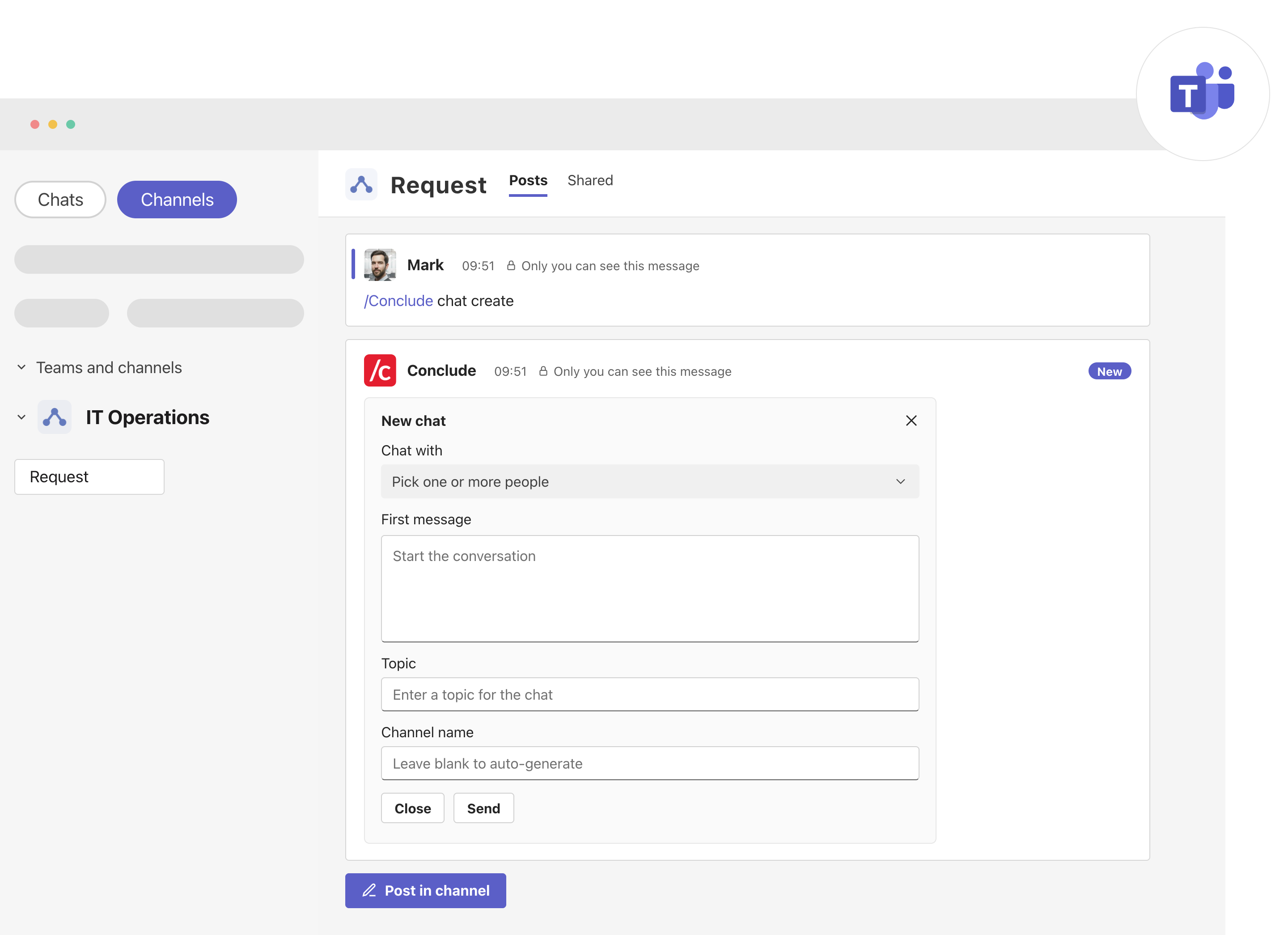
/conclude chat — start a cross-platform chat
/conclude chat starts a direct or group chat that spans a Teams chat and a Slack channel, so you can message and share files with people on the other platform without leaving Teams.
- Run
/conclude chat. Conclude shows a private card with quick options — New chat, and New chat with [partner] if you have a Bridge (for example, New chat with Syntrix) - Choose New chat to open the form. Pick one or more people, write a first message, and optionally set a Topic and Channel name. Leave the channel name blank to auto-generate it
- Click Send. Conclude creates a private Slack channel and a Teams group chat for those members, linked so messages and files sync both ways
To open the full form straight away, run /conclude chat create.
/conclude connect — connect two channels
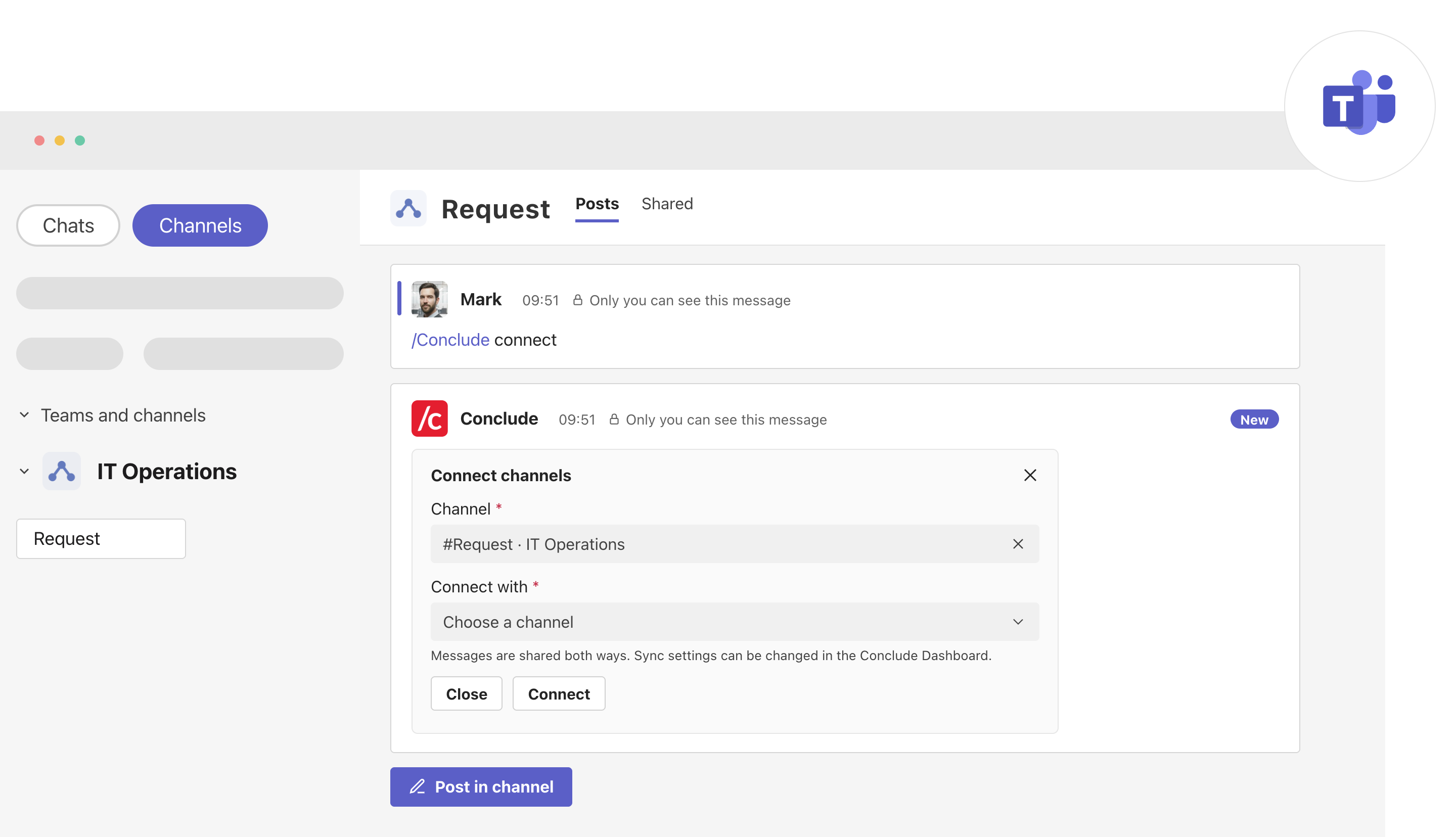
/conclude connect links a Teams channel with a channel on Slack (or another Teams tenant) so the two share messages both ways.
- Run
/conclude connectfrom the channel you want to connect. Conclude shows a private Connect channels card with that channel pre-filled - Under Connect with, choose the channel to link it to, then click Connect.
- Messages are shared both ways. You can change sync settings any time in the Conclude Dashboard
Each channel can be connected only once. If a channel is already connected, pick a different one.
Use connect to link channels inside your company. Connecting to another company (External) starts from an email invitation instead – see Connect — external collaboration setup for more.
Troubleshooting
/concludeisn’t in the “/” menu – Conclude isn’t added to that team or chat yet. The slash menu only lists Conclude where it’s installed – add Conclude, then try again- Nothing happens when you type the command – use the normal Type a message box. The top search bar and the expanded New post box (the one with a subject line) don’t trigger channel slash commands
- Install the Conclude app in Microsoft Teams or sign in again – if you haven’t installed the Conclude app in Teams yet, you can find installation instructions in Step 3 of the Microsoft Teams Quickstart. If it’s already installed, you’ll need to sign in to Conclude again to activate the new command features