
How to
Templates
On this page
This page is for anyone who installs apps, or who wants to reuse one configuration across channels.
When you edit a template, the apps already installed from it don’t change. When you edit an installed app, its template doesn’t change. A template opens in the same editor as an installed app, but without the Agents and Integrations tabs.
Bundled templates
Conclude ships ten templates. The installer lists them in this order until your organization saves templates of its own.
| Template | What it is for |
|---|---|
| Support | A support desk in Slack or Microsoft Teams |
| Incident management | Incidents and issues handled from chat |
| Bug tracking | Bug reports from Slack or Microsoft Teams |
| Jira integration | Tickets linked to a Jira project |
| Zendesk integration | Zendesk tickets handled from chat |
| Helpdesk | The support app with an additional category field |
| Generic (customizable) | A simple app meant to be modified |
| Approval | Approvals with a complete audit trail |
| Decision | Decision records |
| Minimal | The smallest working app |
The YAML for each template is on Examples. Four more files ship with the product but aren’t listed: contact-form, decision-options, privateshield and simple. To use one, install any template and paste the file’s YAML on the Expert tab.
Save an installed app as a template
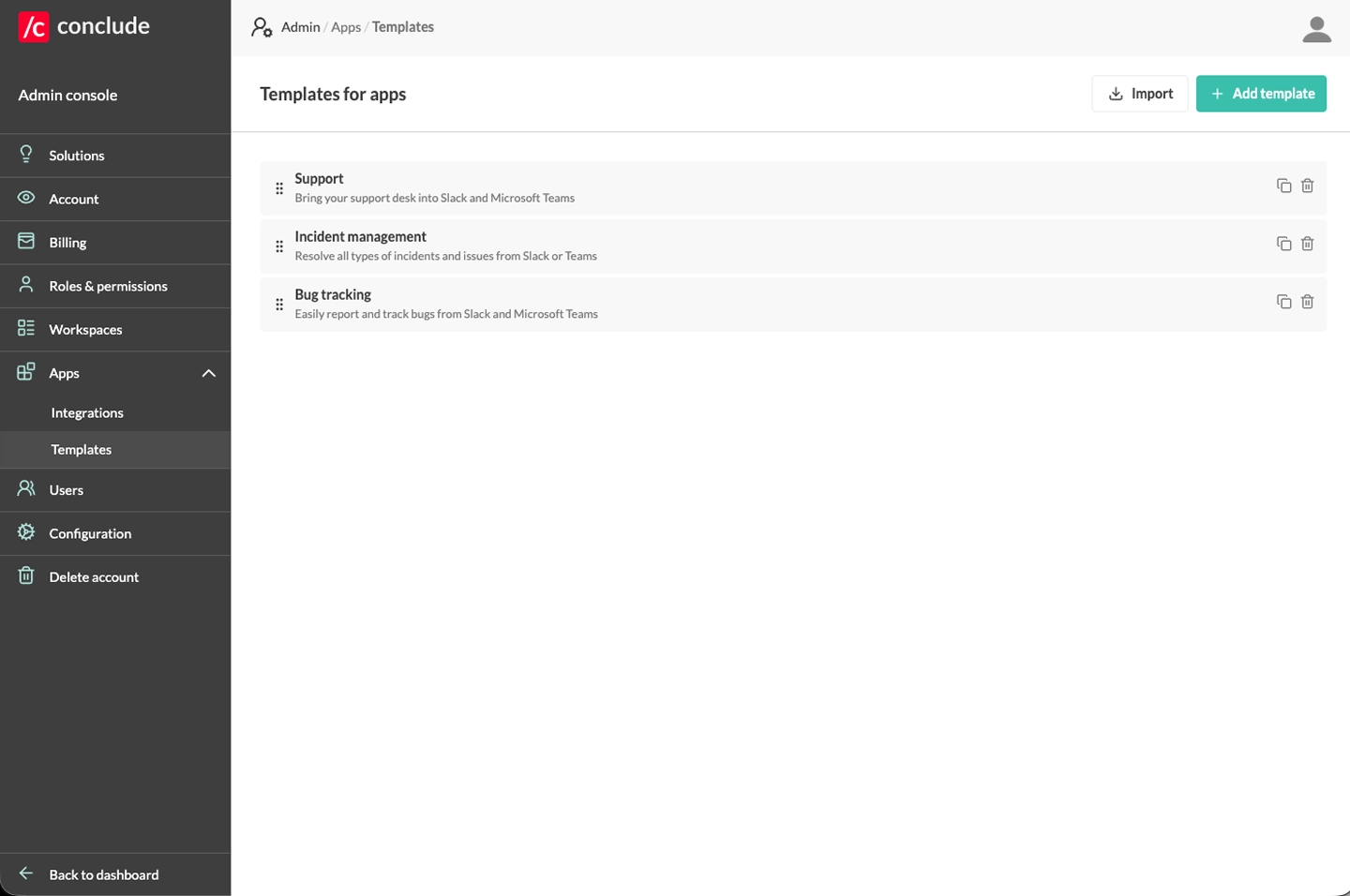
- Open Admin console > Apps > Templates and click Import.
- Choose Standard templates to copy one of the bundled templates. Choose Installed apps to copy an app installed in one of your channels. The Installed apps tab only appears when your organization has an installed app. An installed app is saved under its label, with its app name as the description.
- Click Add template instead to start from a basic app scaffold. The draft is listed as “New template” until you save it. A saved template is listed by its app’s label, or by its app name when it has no label.
The copy icon on a row duplicates a template as “
Once your organization has a template, the installer shows only your own templates. Import any bundled template you still want to offer. Templates are not shared between organizations.
An imported template keeps only the agent’s name in each agent reference. An install then finds the agent by name instead of by key.
Order the list
Drag templates in the Templates tab to reorder them. The installer uses the same order. A new, imported or duplicated template goes to the end of the list.
The public GitHub catalog
The GitHub repository conclude-app/apps holds the same files. It was last updated in September 2025 and uses an older format. Use the bundled templates and Examples instead.
Next
- Example apps helps you choose which template to start from
- The editor is where you change a template or an installed app
- Lifecycle shows what happens when an app is edited or deleted