
How to
On this page
This page is for app builders who want an app to receive email and answer it from the ticket channel. The YAML keys are listed under Email connector.
Enable email for an app
- In the Dashboard, select Apps in the sidebar. Click the pencil (edit) icon of the app to open it in the editor.
- Go to the Integrations tab and keep Email selected in the Integration picker.
- Tick Allow email access via … and click Save.
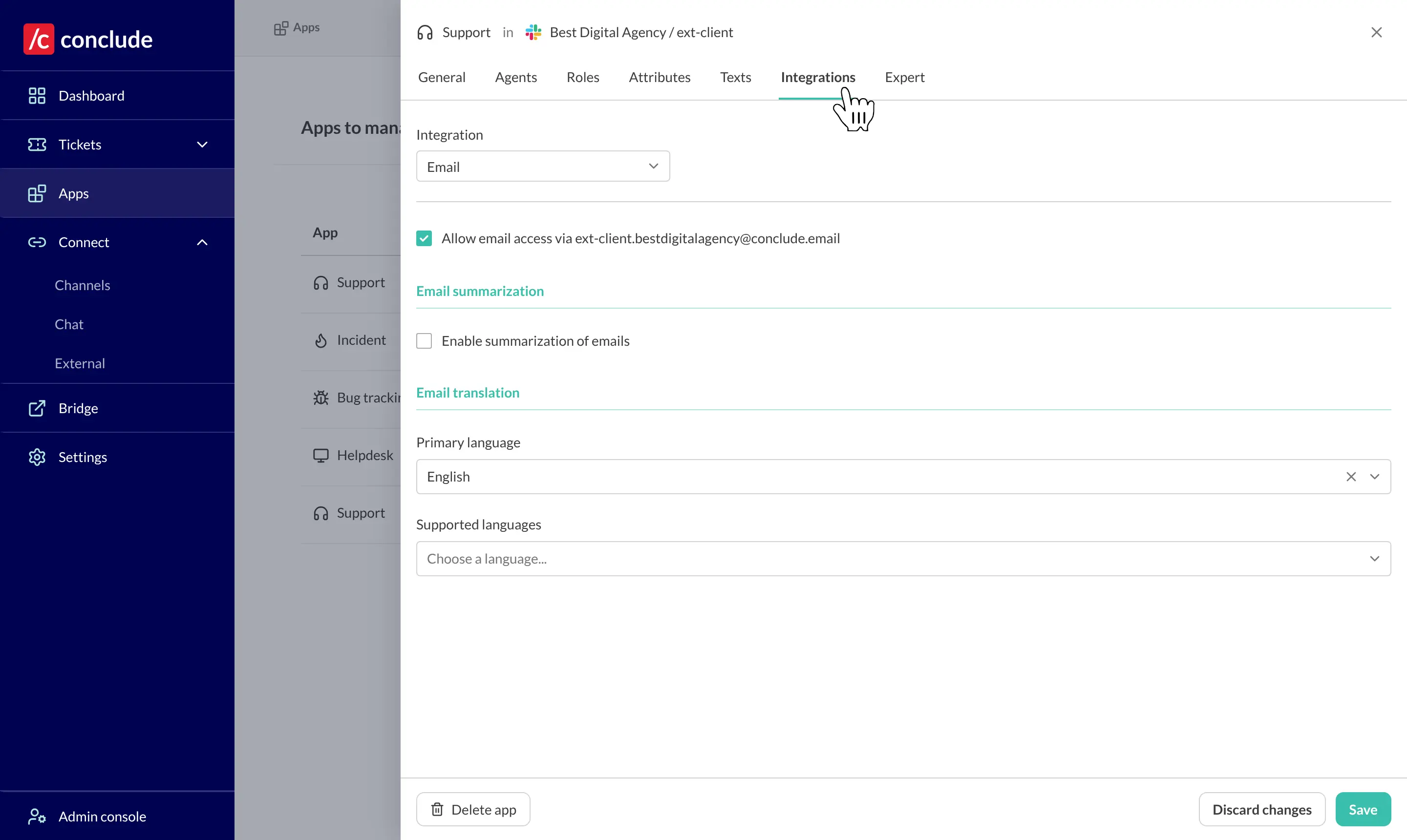
If your Slack workspace has a short name, the checkbox label shows <channel>.<short name>@conclude.email at once. Otherwise <connector id>@conclude.email appears after the first save.
How a message becomes a ticket
Each new email creates one ticket with its own channel. Conclude posts the message there with a Reply button. It uploads the attachments to the channel, and it stores the detected language in the email.language attribute. The ticket is also listed under Tickets in the Dashboard.
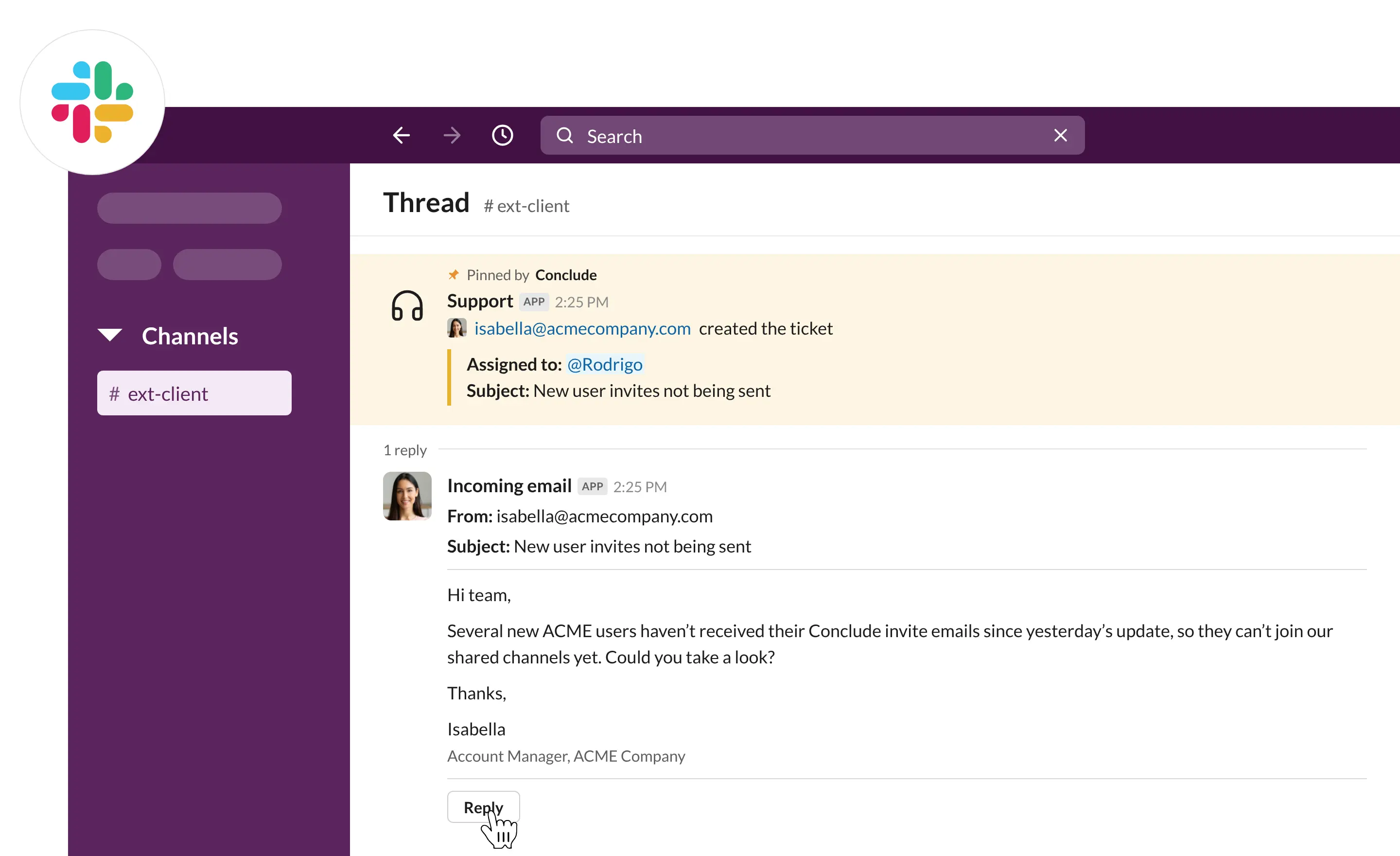
Later messages in the same thread land in the same ticket. If that ticket is concluded, Conclude reopens it and unarchives its channel.
Conclude drops definite spam. It keeps likely spam and adds a [SPAM] prefix to the subject. When no app matches the address, the sender gets an automatic “recipient could not be found” reply. Conclude skips that reply when the message is itself an auto-reply.
Replies
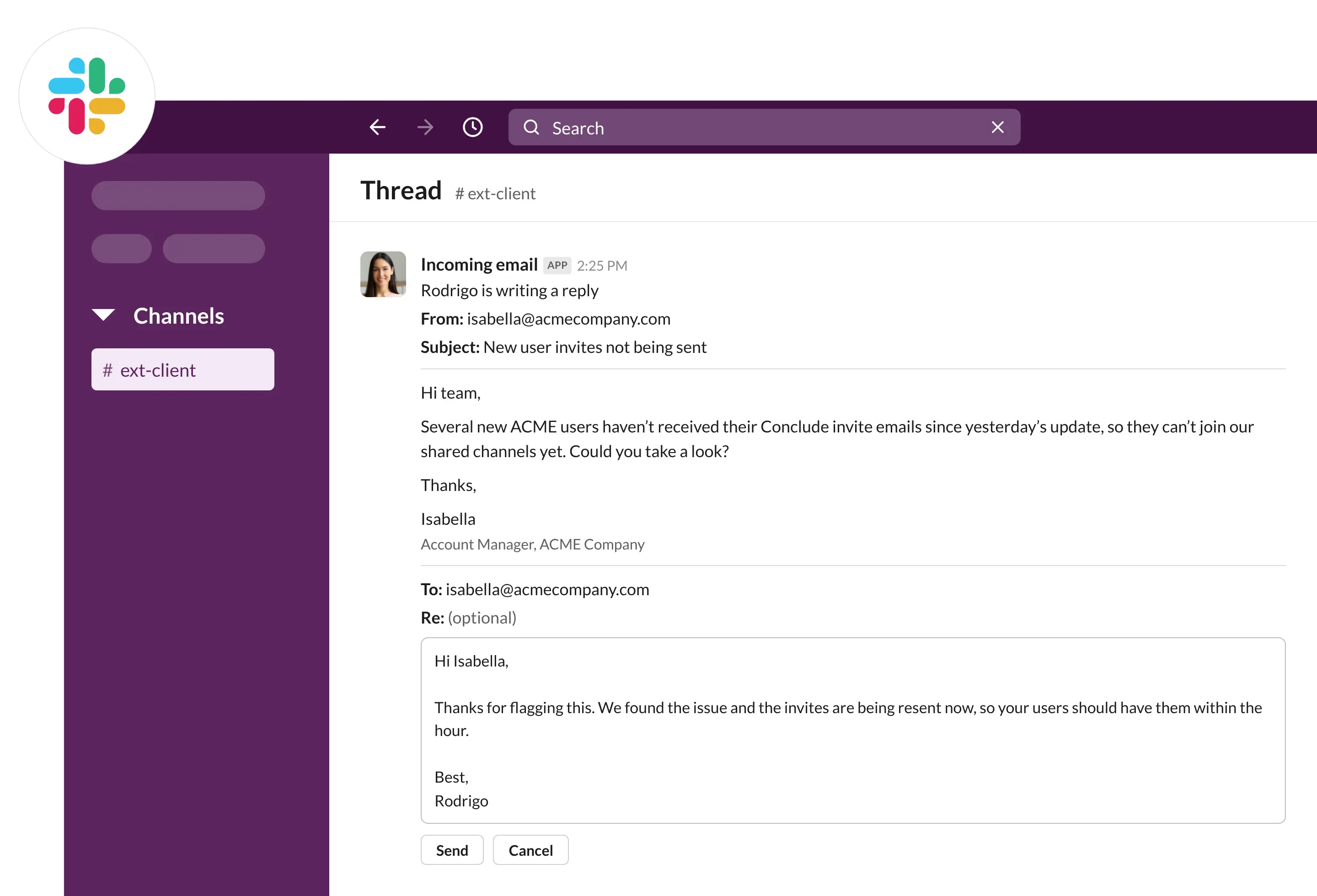
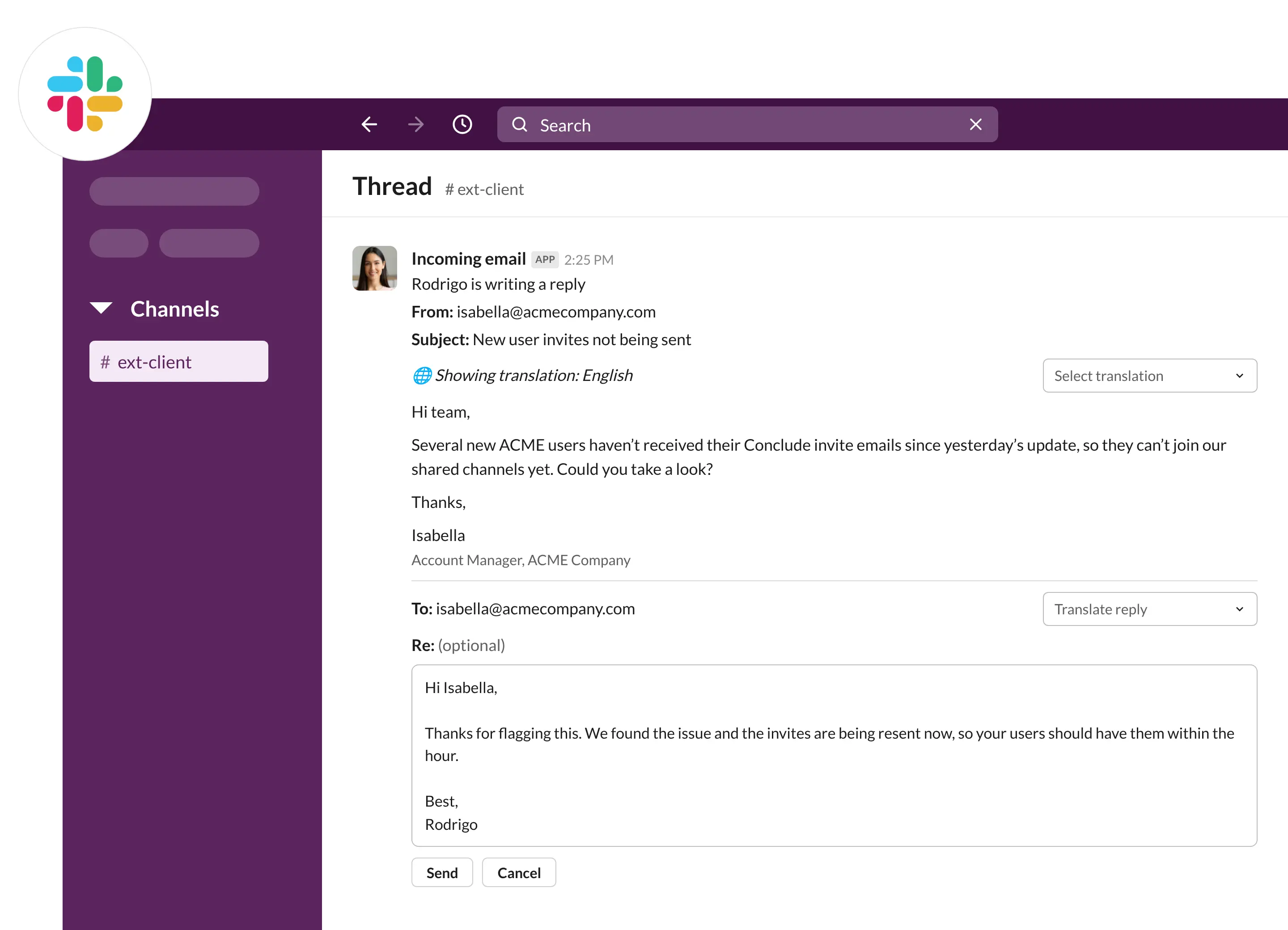
Click Reply in the ticket channel, write the response and click Send. The reply goes out from the app’s address. If the connector YAML sets from and replyTo, Conclude uses those addresses instead. Either way, it records the reply in the ticket.
Attribute mapping
By default the email subject fills the title attribute, and an empty subject becomes -. The trimmed body fills body.
An attributeMap under emailConnector chooses which email fields fill which attributes. Each entry has external for the email field and internal for the attribute name. It can also have a defaultValue.
emailConnector:
  attributeMap:
    - external: subject
      internal: title
    - external: from.address
      internal: contactEmail
The available fields are subject, body, from, from.address, from.name, to, to.address, to.name, cc and reply_to. The reference example writes from.email, but the product stores the sender address as from.address. Mail relayed through an anonymous-sender service contributes only the subject.
Custom domain via SendGrid
An app can also receive mail on your own subdomain. The public endpoint POST /v1/email/<connector id> accepts SendGrid Inbound Parse posts, which carry the full MIME message in the email field.
- Run
/c app email-connectorin the app’s channel to print the connector ID. Conclude creates the ID on demand. - In SendGrid, authenticate your domain. Then point an MX record for a subdomain such as
support.example.comtomx.sendgrid.net. Your regular mail keeps working. - Create an Inbound Parse webhook for that host. Set the destination to
https://api.conclude.io/v1/email/<connector id>, turn spam checking on and tick the raw MIME option.
Mail to any address at the subdomain now reaches the app. Set from and replyTo in the YAML so replies carry your domain.
AI summaries and translation
Email summarization. Tick Enable summarization of emails. Then choose a Summary length and a Summarization language. Brief is 20 words, Medium is 40 words and Detailed is 60 words. When a ticket is created, an AI model summarizes the email into the body attribute, or into the attribute named by summarize.output in YAML. Conclude leaves text that is too short to summarize as it is. If the summarization language differs from the detected language, it translates that text instead.
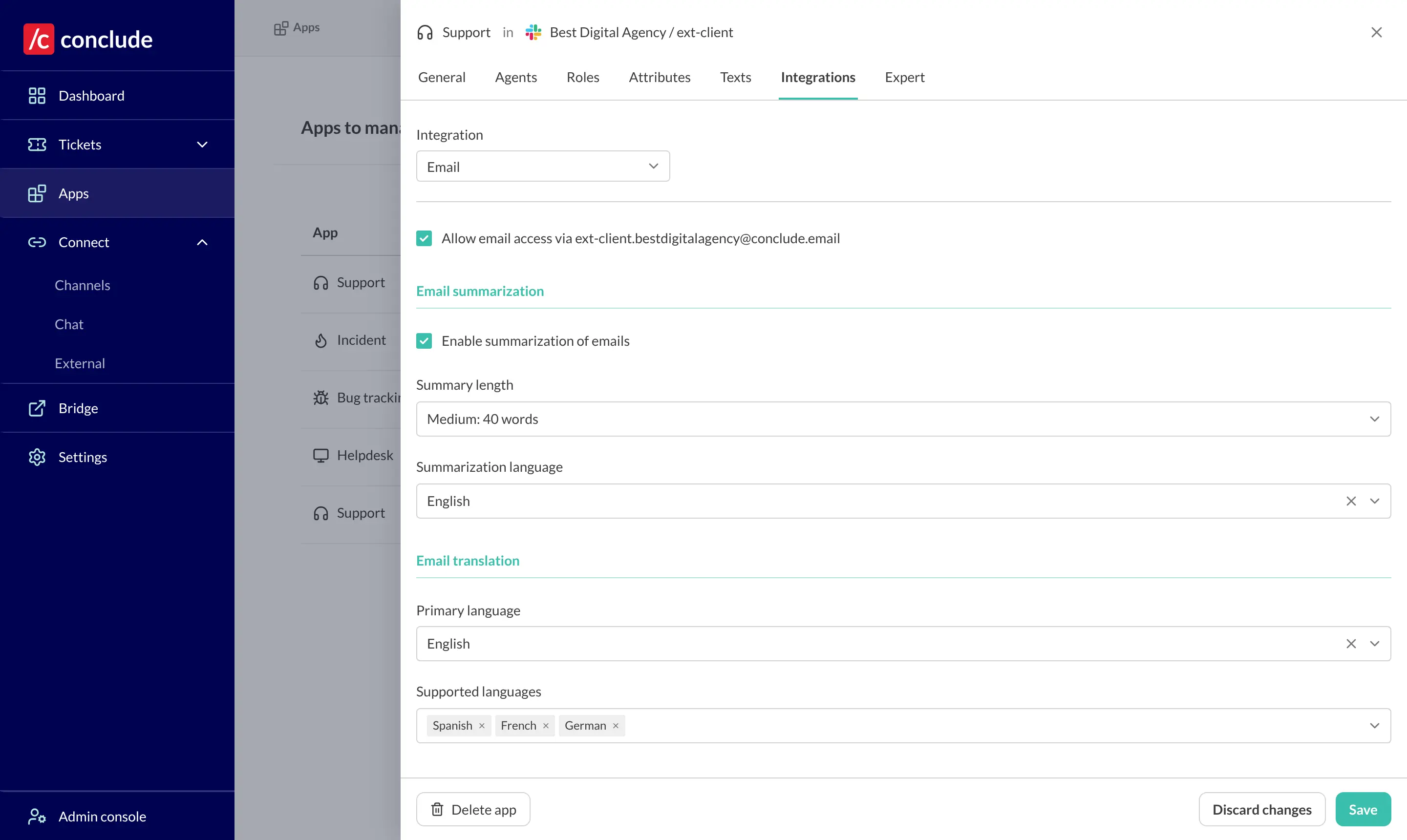
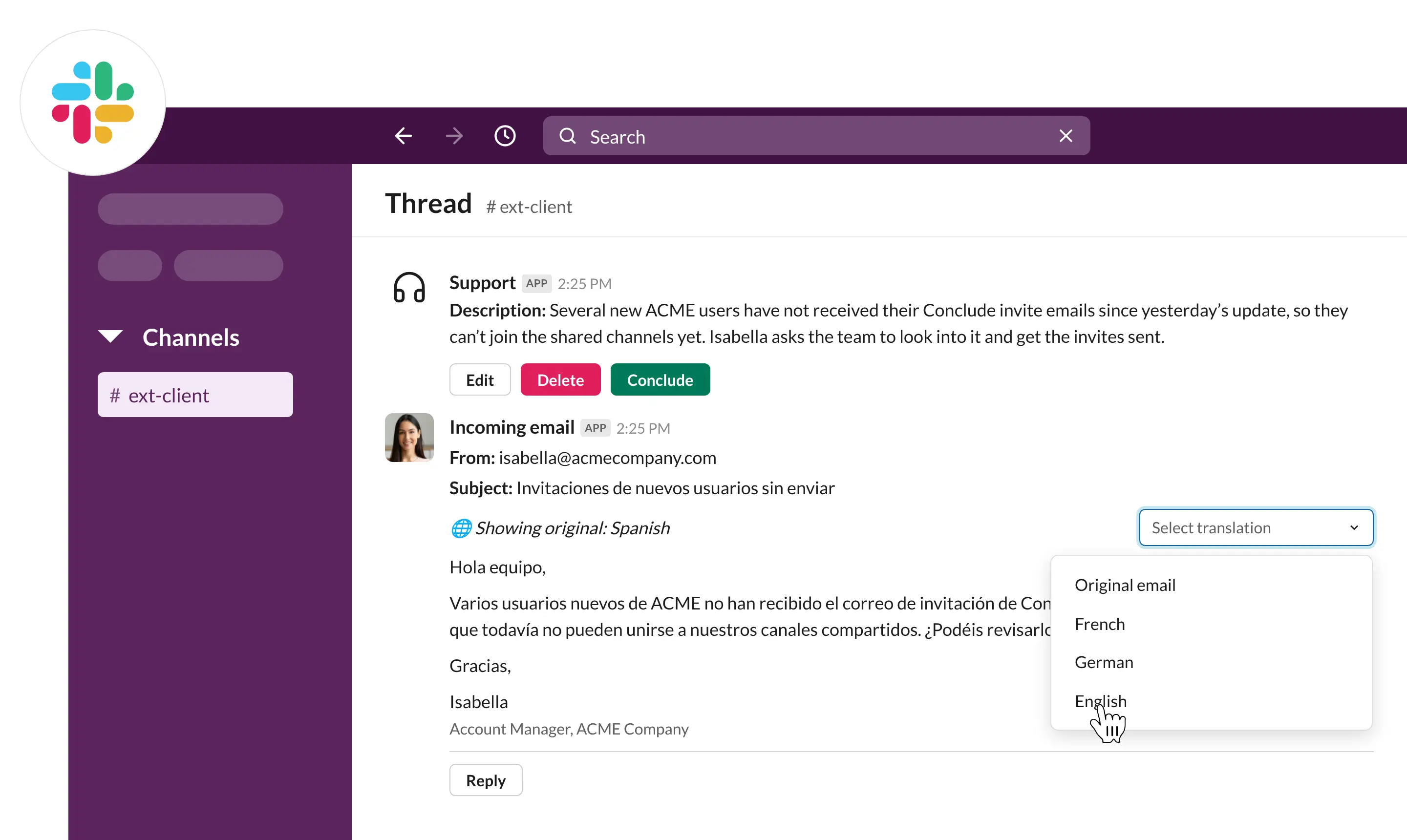
Email translation. Choose a Primary language, which is English by default, and one or more Supported languages. With a supported language set, the email block shows a Select translation menu that switches between the original and each supported language. The reply form shows a Translate reply menu that translates your draft before you send it. Translation uses Google Cloud Translation.
The preprocess key exists in YAML only. It runs a prompt over each inbound body before Conclude posts it. See Email connector.