
How to
Attributes
On this page
The Attributes tab lists the fields that every ticket of an app has. You add, reorder and edit them here. The attributes reference has the YAML keys and defaults behind each control.
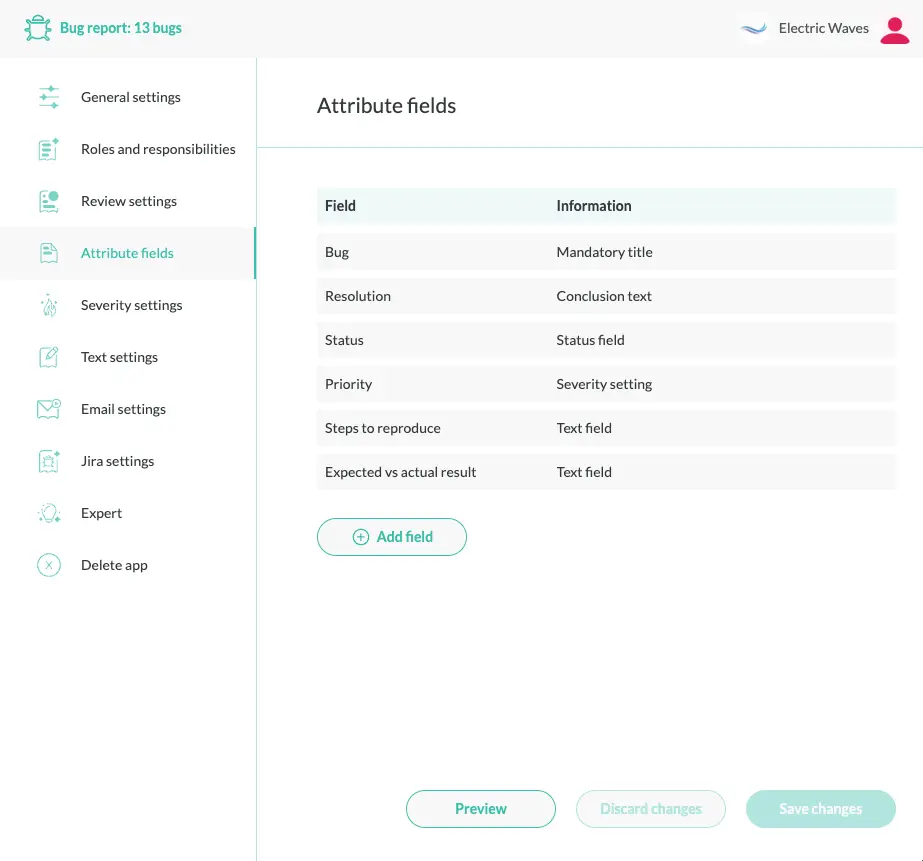
The attribute list
Each row shows the field’s label. The Information column shows the type or the reserved role. It also shows the mandatory and postmortem flags, and any restricted visible value. The list order is the field order on the create, edit and conclude forms.
- Reorder: drag a row to its new position
- Edit: select the edit icon next to the label
- Add: select Add attribute below the list
Adding and editing an attribute
The Add attribute and Edit attribute dialogs share these fields.
| Field | What it sets |
|---|---|
| Label | The text shown with the field. Required. |
| Name | The identifier. Use lower-case letters, numbers and underscores. Required. Fixed for title, conclusion and severity. |
| Type | string, text, select, button, user, link or tag. Required. See Types. |
| Multi-select | Lets the user pick several options. Shown only for select, never for severity. |
| Mandatory field | The field cannot be empty. |
| Postmortem field | The field is hidden until the ticket is concluded, and then you can edit it. Not shown for title, conclusion or severity. |
| Placeholder | The text shown in the empty input. |
| Default value | The value the field starts with. It accepts macros. See Default values. |
Apply saves the dialog and Cancel discards it. If you add an attribute whose name already exists, nothing happens.
In the Edit dialog, Delete removes the attribute. title and conclusion have no Delete button.
The editor matches edits by name. Changing an existing attribute’s Name has no effect, or overwrites the attribute that already has the new name. Delete the attribute and add it again, or rename it in YAML on the Expert tab.
The Type list leaves out markdown, markdownLine and html. Declare and edit those attributes in YAML.
Options for select fields
The dialog shows an option list when the type is select. It also shows the list when the attribute already has options. Drag options to reorder them. Select Add option to add one. Select an option’s edit icon to change or delete it. Each option needs a Name and a Label. A duplicate name is not added.
The dialog has no fields for the option keys state, external, filter and the per-option trigger. Apply keeps their values, and you set them in YAML. See Options. For status, see Statuses.
Reserved attributes
The names title, body, conclusion, deadline, status and severity have built-in meaning. See Reserved attribute names. In the editor they work like this.
- You can reorder and relabel
titleandconclusion. You cannot rename or delete them.titleis always mandatory - You cannot rename
severity. It has no Multi-select or Postmortem checkbox. Its levels are managed in the severity settings - You edit
bodyandstatuslike any other attribute. Thestatebinding onstatusoptions exists only in YAML
Visibility, who can edit, and display
The dialog has no controls for visible, hint, viewers, editors, display, description, important, readonly, style or an attribute trigger. Set them in YAML on the Expert tab. See Visibility, viewers and editors, Display templates and Per-attribute triggers. The role expressions come from the Roles tab.
Applying the Edit dialog keeps these keys. visible is the exception. It survives only as exactly always, create, edit or conclude. The values never, nonempty and combined values are reset to the default.
Severity settings
The Severity section below the list manages the reserved severity attribute. The attribute is a select with six fixed levels and editable labels.
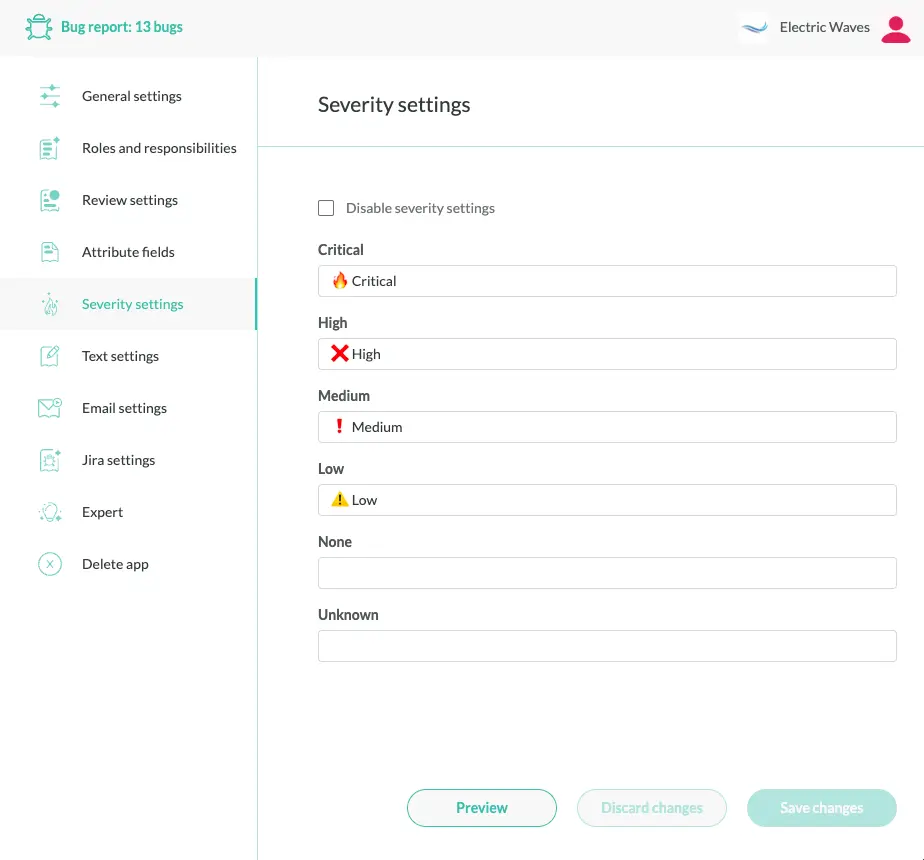
- Disable severity settings is checked when the app has no
severityattribute. Clear it to add the attribute with all six levels and default labels. A default label is an emoji and the level name. Check it again to remove the attribute - Each level has one input that sets the label users see. The level names
critical,high,medium,low,noneandunknownare fixed. If you clear a label, that level is removed
The severity field appears on the edit and conclude forms, but not on the create form. Set visible in YAML to change that. To edit the attributes: list as YAML, use the Expert tab.