
Explanation
Conclude Apps
On this page
This chapter is for people who build or administer apps. If you only open and answer tickets, read the Dashboard quickstart instead.
What an app is
An app defines one kind of work. Install it in a Slack or Microsoft Teams channel, and the channel knows how to handle that work. In every other way it stays an ordinary channel.
An app can cover anything from a classic ticketing workflow to the everyday routines inside your company:
- a support app for cases from customers
- a helpdesk app for IT or facilities requests, such as a broken chair
- a bug or incident app for bug reports and incidents
- an approval app for contracts that need legal approval
- a decision app for decisions the team needs to make, from the first proposal to the final decision
- an onboarding app for new hires or new vendors
Every app starts from a template, a ready-made definition of one kind of work. You install a template in a channel and adapt it in the editor in the Dashboard. No code is needed, so anyone can build an app. An admin decides who may install apps. Build an app without code walks you through it.
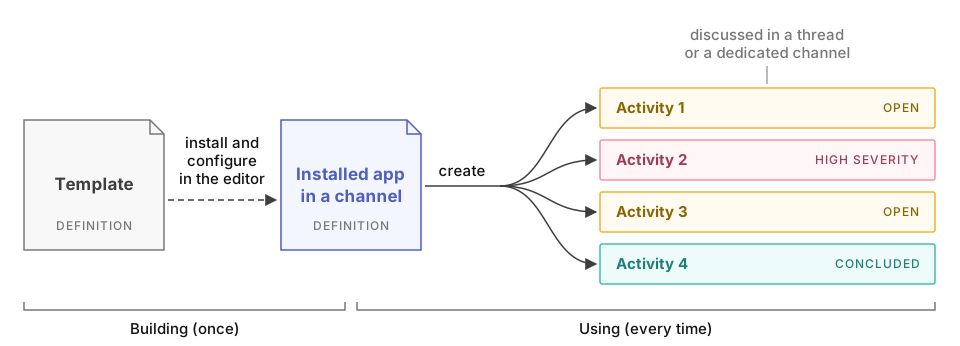
A template is an app definition that isn’t installed in any channel. Conclude ships a set of templates, and your organization can create its own. See Templates.
Each item of an app’s work is an activity. In a support app, an activity is one customer case. In a decision app, it is one decision. People create an activity, work on it together and conclude it when the work is done.
Building blocks of an app
An app brings together four building blocks. You set each one in the editor in the Dashboard.
| Building block | What it defines | Where you set it |
|---|---|---|
| Attributes | The title, details, category and other information each activity stores | Attributes tab |
| Roles | The default assignee, who is invited to each activity, where alerts go and who can use the app | Roles tab |
| Conversation | Where people discuss an activity, in a thread or in a channel of its own | General tab |
| Conclusion | The result of the work, saved with the activity when someone concludes it | Attributes tab |
The General tab also sets what the app calls its activities, such as request or incident. The Texts tab changes the labels and messages people see. To go further, add automation, such as triggers, scripts and agents, or integrations with email, web forms, Jira and Zendesk.
Where apps run
Apps run in Slack, Microsoft Teams and the Dashboard. People open and work on activities in chat or in the Dashboard, where they appear as tickets. You also install, edit and monitor apps in the Dashboard.
An app can also run over a channel connection. With Connected Apps, an app installed in a connected channel also appears in the channel at the other end, so people on both sides work on the same activities.
In this chapter
- Build an app without code takes you through building, installing and running a first app
- Editor has one page per tab, from General to Expert
- Lifecycle covers activity states and which event fires at each step
- Automation covers triggers, scripting and agents inside an app
- Templates covers the bundled templates and how to save your own
- Example apps shows six kinds of work, the template each one starts from, and best practices for designing an app
- Integrations covers email, web forms, Jira, Zendesk and lookup
YAML keys, defaults and limits are in the reference.