
How to
Merge user accounts
On this page
Account administrators merge user accounts in the Admin console. Merge two accounts when the same person has a Slack account and a Microsoft Teams account with different email addresses. After a merge, Conclude treats the two accounts as one user. It then matches that person across connected workspaces, chats and channels.
When to merge accounts
- The same person has one Slack account and one Microsoft Teams account with different email addresses
- Conclude should treat the accounts as one user for cross-platform chats and channel connections
- The selected accounts are not members of the same workspace
When not to merge accounts
- The accounts belong to different people
- Both accounts are members of the same workspace, for example the same Slack workspace or the same Microsoft Teams tenant
- One account is a duplicate, guest, legacy or resource account that should not be available in Conclude. Hide that account instead
Merging works only for accounts that do not share a workspace. Usually one account exists only in Slack and the other only in Microsoft Teams. If two accounts share a workspace, Conclude refuses the merge. Hide the unwanted account, or ask a workspace administrator to deal with it in the source platform.
Where to find the merge tools
Open Admin console > Users and access > Users . The merge tools appear only when your organization has at least two workspaces. There are two ways to merge accounts:
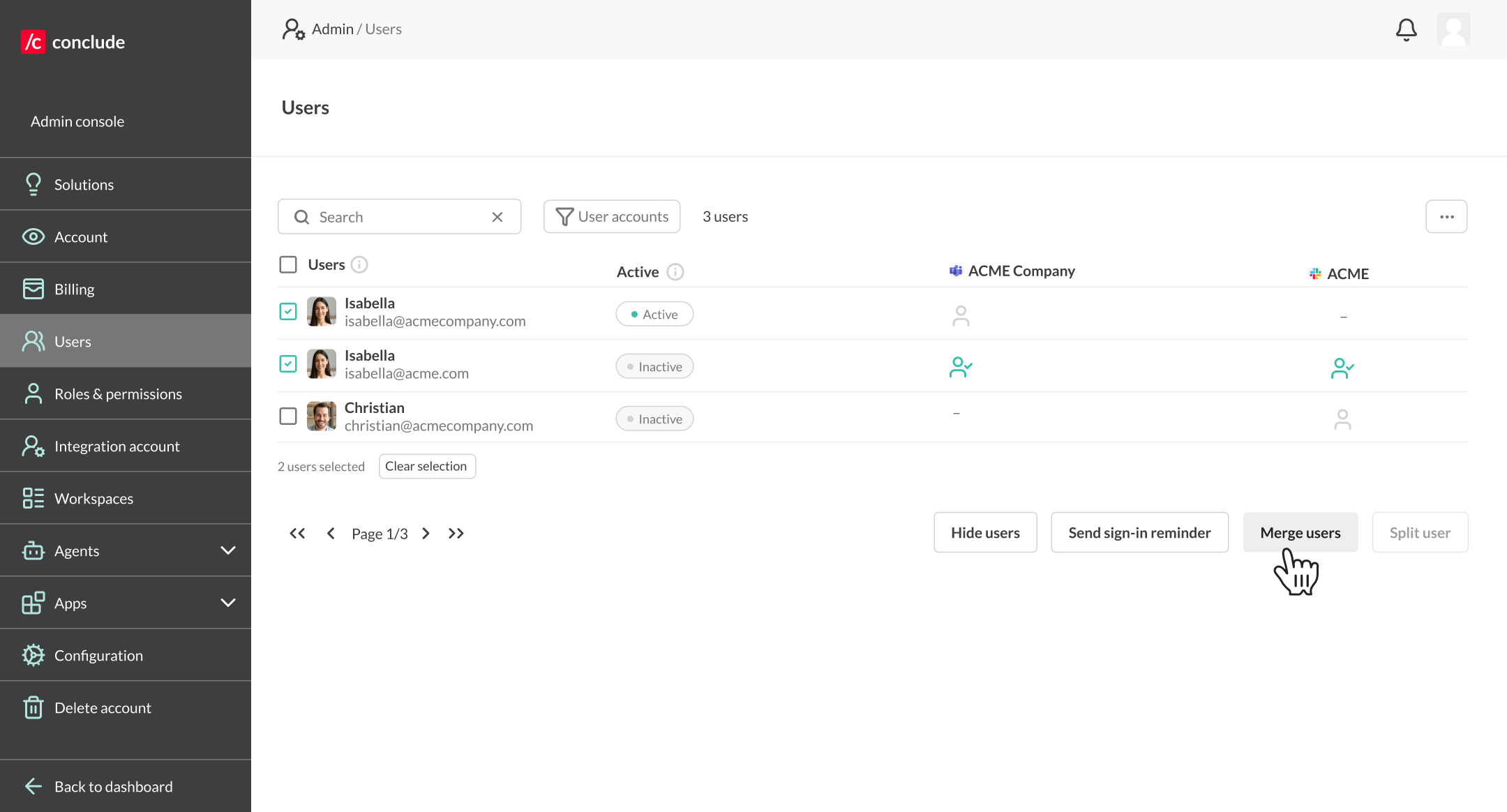
- To merge two specific accounts, select them in the list and click Merge users. See Merge two accounts manually
- To review and merge likely duplicates in bulk, open the page tools (…) menu and choose Merge duplicate accounts
Merge two accounts manually
- Go to Admin console > Users and access > Users .
- Search for the person by name or email address.
- Compare the email addresses and the workspace columns. There is one column per connected Slack workspace or Microsoft Teams tenant. Check that both accounts belong to the same person and do not share a workspace.
- Select the two accounts you want to merge.
- Click Merge users in the action bar. The action bar appears when you select accounts. The button works only when you select exactly two accounts and they do not share a workspace.
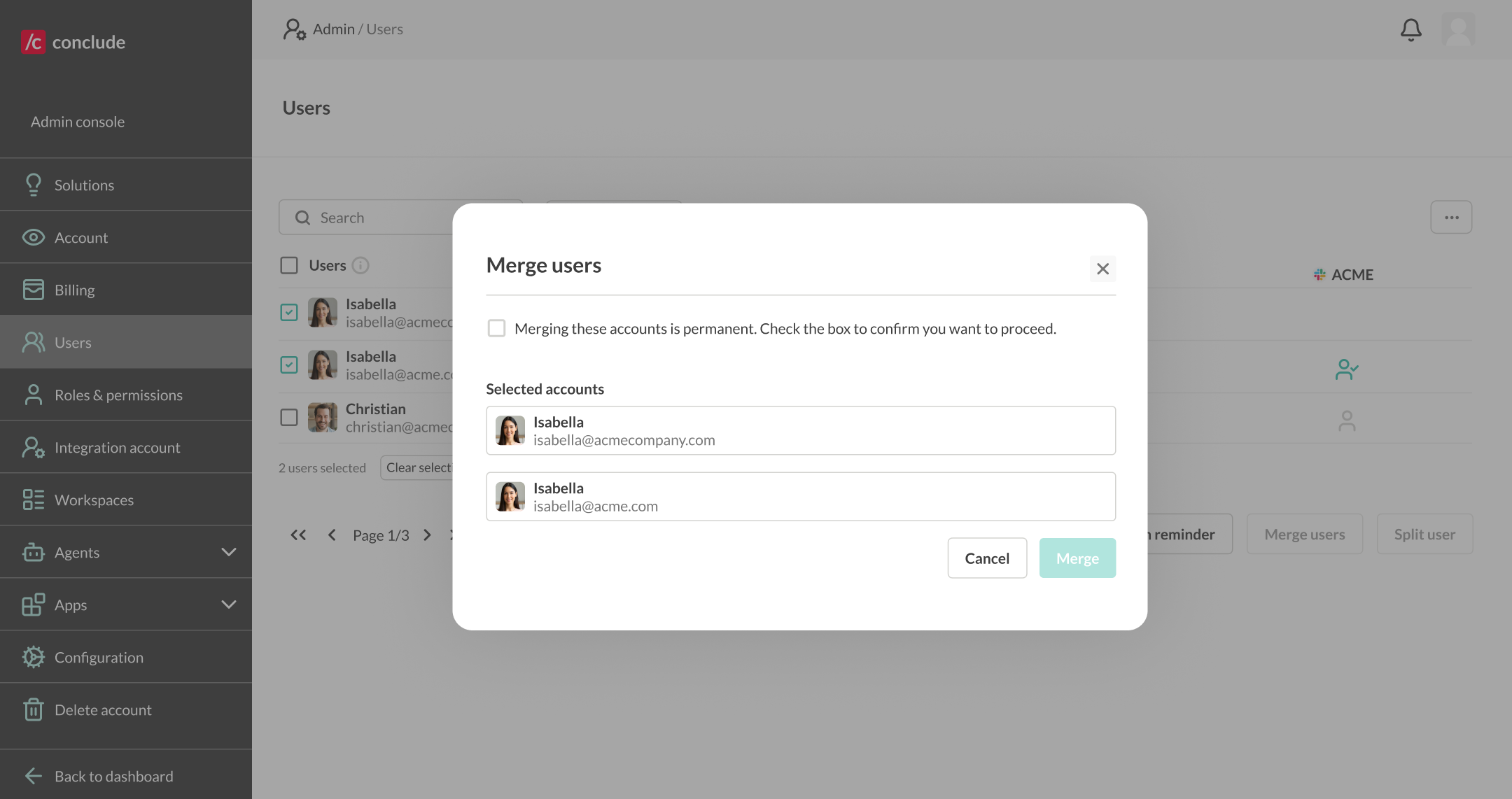
- Look through the accounts shown in the confirmation window.
- Select the confirmation checkbox, then click Merge.
Merge duplicate accounts in bulk
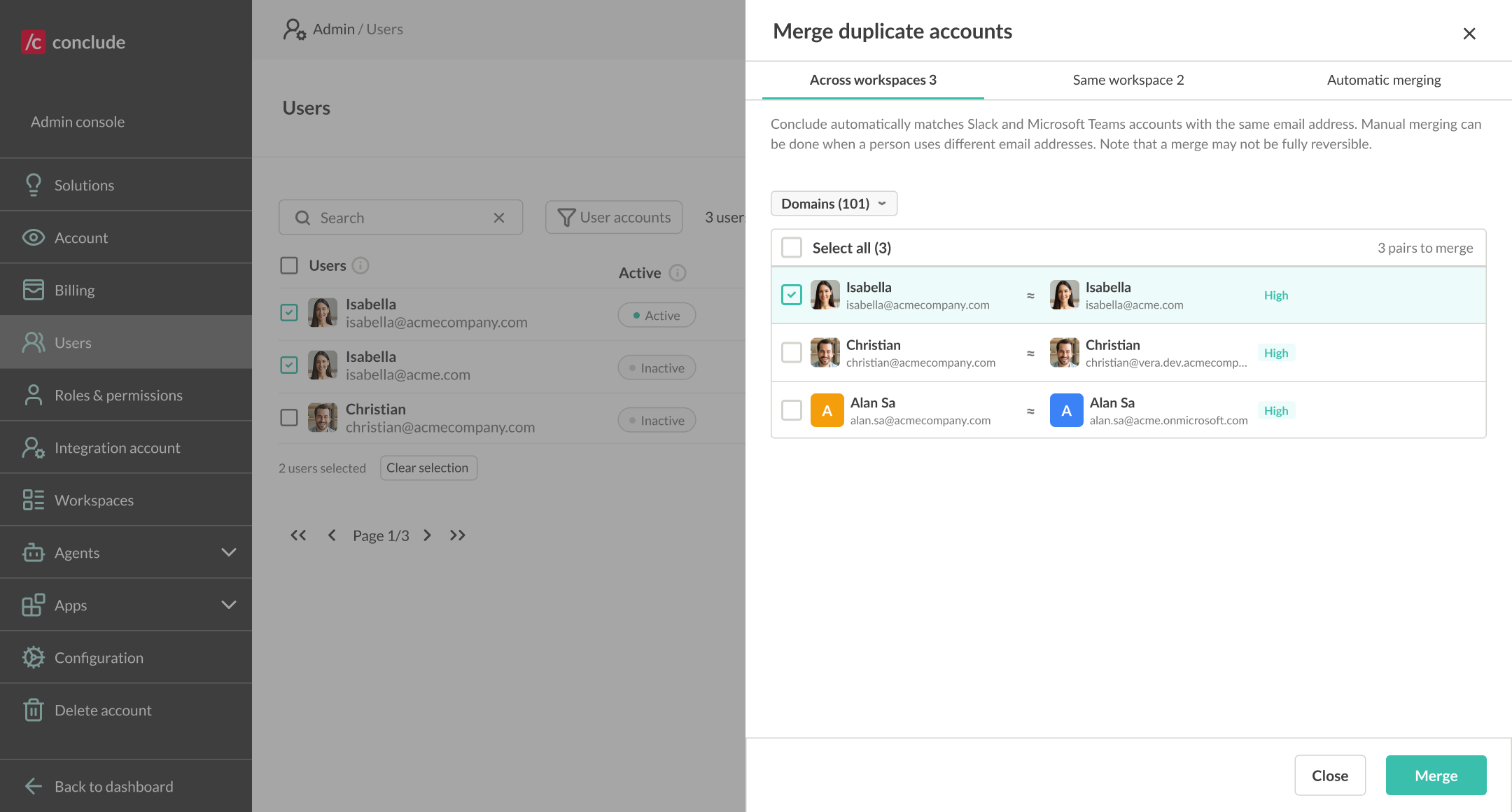
The Merge duplicate accounts drawer groups likely duplicates into three tabs. A domain filter on the first two tabs narrows the list to the email domains you choose.
Across workspaces
This tab lists pairs where the same person seems to have one account in each of two workspaces, under different email addresses. For example, one account in Slack and one in Microsoft Teams. Each pair shows a match confidence of High, Medium or Low. Hover over the badge to see what the score is based on. Low means that only the name matches, so check those pairs yourself.
- Select the pairs you want to merge, or use Select all.
- Click Merge.
An account appears on this tab only when it exists in a single workspace.
Same workspace
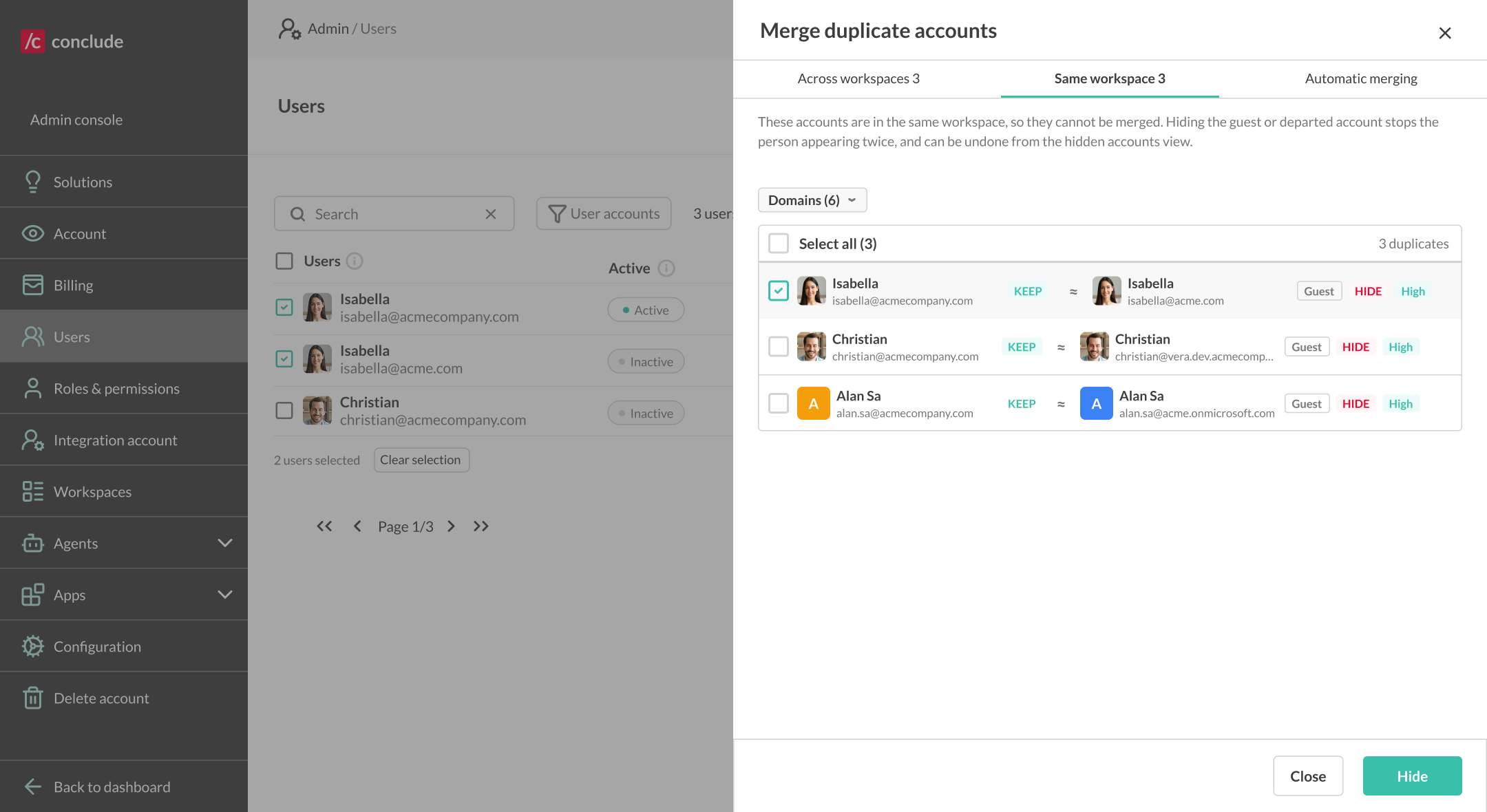
This tab shows accounts that appear twice within the same workspace. Conclude cannot merge them, because both accounts exist in the same workspace. Keep the primary account and hide the duplicate, guest or departed account.
- Conclude marks the account to keep with Keep. It marks the other one with Hide and adds the reason, which is Guest, External or Left the workspace
- Select the rows to act on, then click Hide
Hiding stops the person from appearing twice. You can undo it from the hidden accounts view. See Hide user accounts.
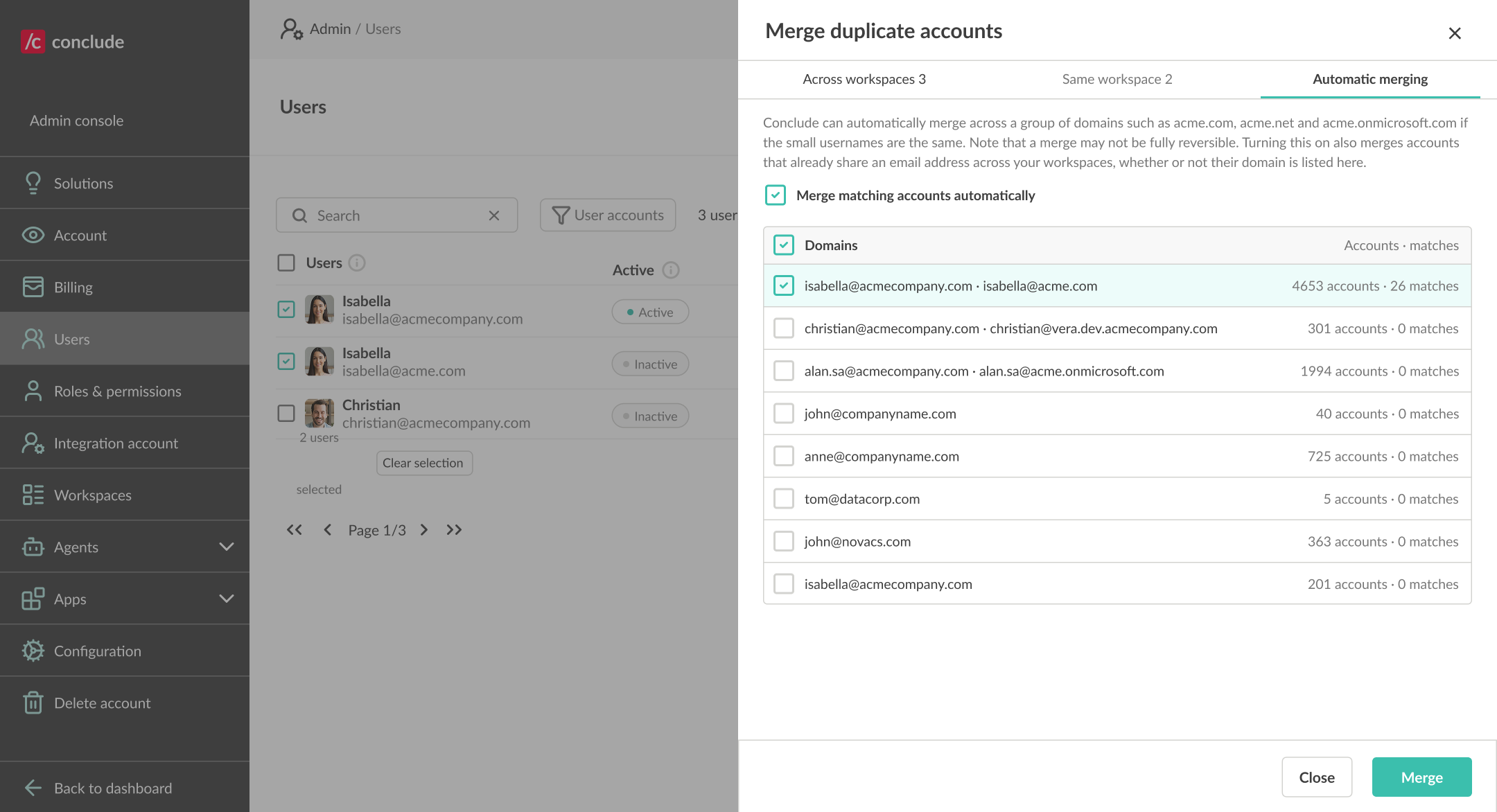
Automatic merging
Turn on Merge matching accounts automatically to let Conclude merge accounts across a group of related domains, such as acme.com, acme.net and acme.onmicrosoft.com. Conclude merges two such accounts when the email username is the same and the account names do not contradict each other.
- Select the domain groups to include. Automatic merging stays off until you select at least one group.
- Click Save.
This setting also merges accounts that already share an email address across your workspaces. It does that whether or not their domain is listed.
What happens after accounts are merged
- Conclude treats the selected accounts as one user
- Conclude matches the user consistently across the connected Slack workspace and Microsoft Teams tenant
- The original Slack and Microsoft Teams accounts stay unchanged in their source platforms
- A merge in Conclude does not remove duplicate or guest accounts from Microsoft Teams, Slack or Microsoft Entra
- You can separate a merged user again if the accounts have different email addresses. Select the user and click Split user
Merging or hiding an account
Merging and hiding solve different problems.
| Action | Use it when |
|---|---|
| Merge users | The same person has separate Slack and Microsoft Teams accounts with different email addresses, and the accounts do not share a workspace. |
| Hide an account | A duplicate, guest, legacy or resource account should remain in Microsoft Teams or Slack but should not be available for selection in Conclude. |
Conclude cannot delete user accounts from Slack, Microsoft Teams or Microsoft Entra. To remove or disable an account there, a workspace or tenant administrator must make that change in the platform itself.