
How to
Hide user accounts
On this page
Account administrators can hide a user account in Conclude. Conclude then stops offering that account when people select users for chats, channel connections or other activities. Hide duplicate, guest, legacy and resource accounts this way.
When to hide an account
- A person has a duplicate or outdated account
- A Teams-only or Slack-only account should not be selected for cross-platform chats
- A guest account should not be used in Conclude
- The account belongs to a meeting room, desk, service or another non-user resource
- The account has a valid purpose in Microsoft Teams or Slack, but it should not be available in Conclude
Hide an account
- Go to Admin console > Users and access > Users .
- Search for the person by name or email address.
- Look through the accounts shown and select the one you want to hide.
- Click Hide user at the bottom of the page.
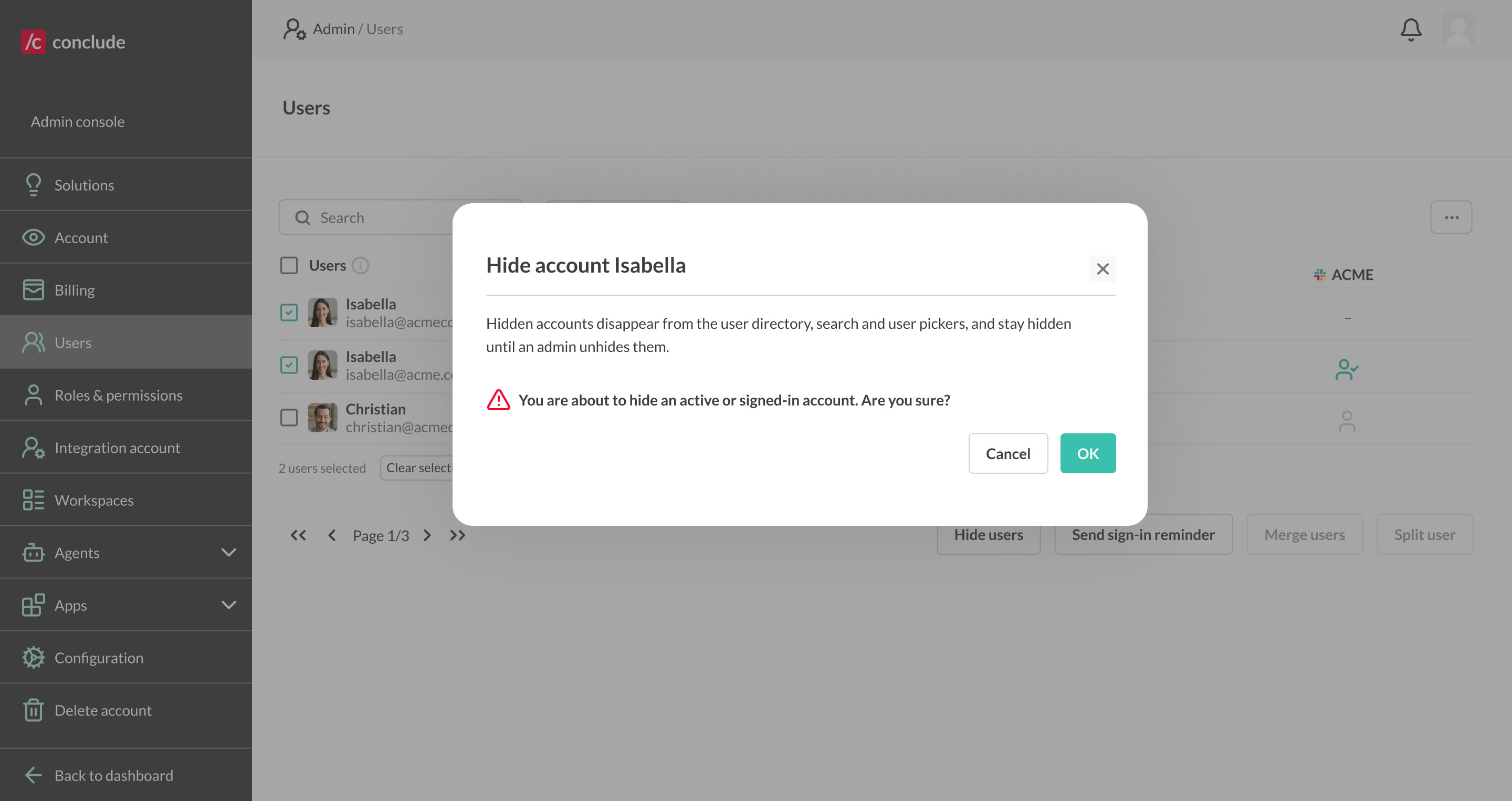
- Read the confirmation message and click OK.
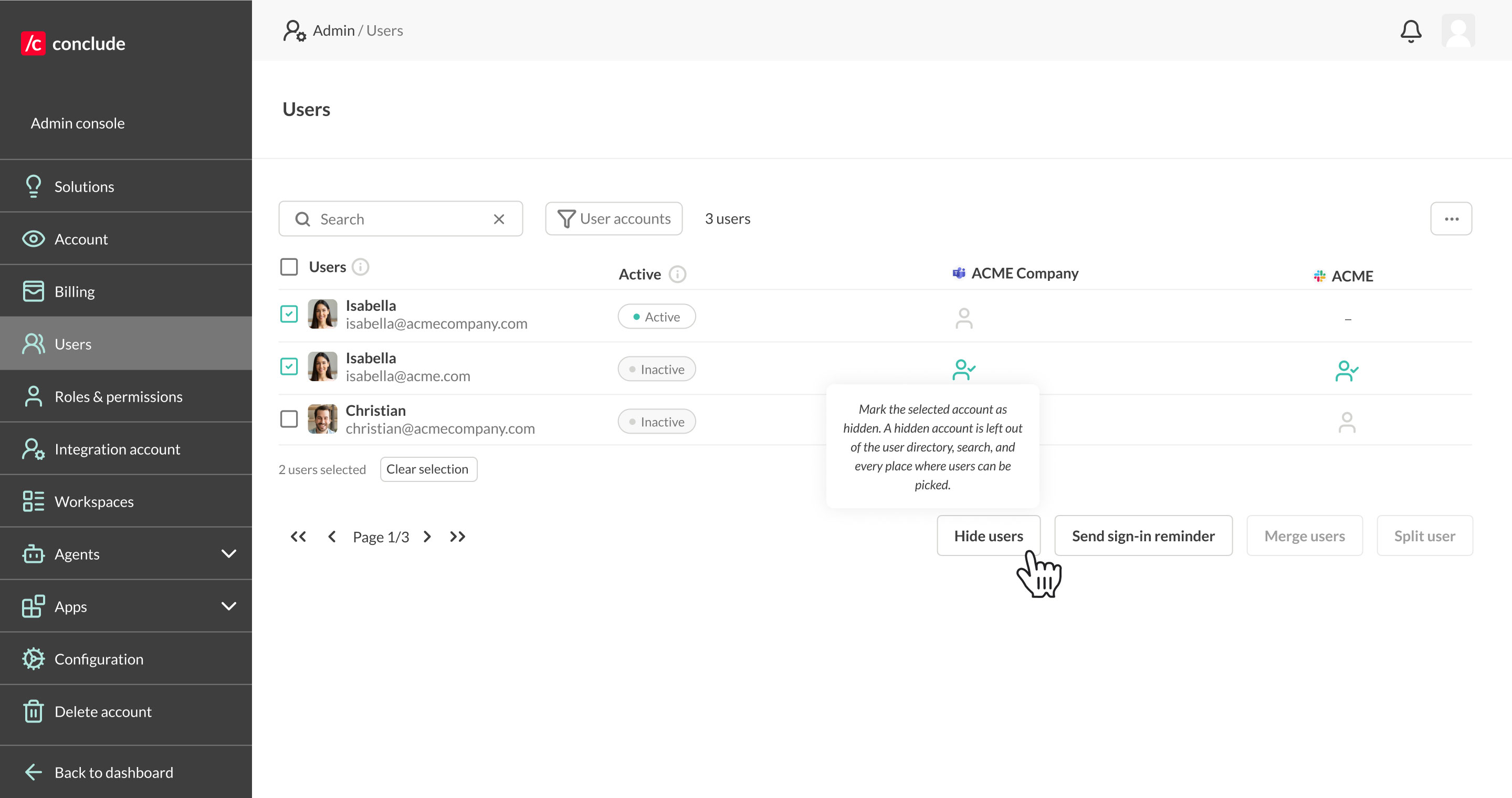
You can also click a user row to open the account details. Hide user and Unhide user are on that page too. You cannot hide your own account, and Conclude skips deleted accounts.
If the account is active or signed in, Conclude shows an extra warning before it hides the account.
Hide several accounts
- Go to Admin console > Users and access > Users .
- Use the search field and the account filters to narrow the list.
- Select the accounts. To select every account in the filtered list, use the Users checkbox in the table header.
- Click Hide users and confirm.
For example, search for an email domain, filter the list to External & guests, select the results and hide them together.
View hidden accounts
- Go to Admin console > Users and access > Users .
- Open the filter that currently shows User accounts.
- Select Hidden accounts.
In this view you can search hidden accounts by name or email address. The other filters do not apply here. The list shows at most 500 matches, so narrow the search to find the rest.
Unhide an account
- Go to Admin console > Users and access > Users .
- Change the account filter to Hidden accounts.
- Select the account you want to restore.
- Click Unhide and confirm.
The account appears again in the user directory, search results and user pickers. Conclude does not hide it again automatically.
Resource accounts
Microsoft Teams tenants often hold accounts that are not people. Examples are meeting rooms, desks, shared mailboxes, devices and service accounts.
Conclude classifies these as resource accounts and hides them for you. Review them under Hidden accounts and unhide any account that Conclude classified wrongly.
Hiding compared with merging
Hiding and merging solve different problems. For the merge steps, see Merge user accounts.
| Action | Use it when |
|---|---|
| Hide an account | The account should stay available in Microsoft Teams or Slack but should not be shown or selected in Conclude. |
| Merge users | The same person has separate Slack and Microsoft Teams accounts with different email addresses, and Conclude should treat them as one user. |