
How to
Workspaces
A workspace is a Slack workspace or a Microsoft Teams tenant that has been added to your account. Admin console > Organization > Workspaces lists them. On that page an admin can:
- Add or remove a workspace
- Tick one workspace as the Main workspace, the one most of your users are in
- Edit the settings of a Microsoft Teams workspace, which hold its integration account. Slack workspaces have no settings
If a workspace is not listed, an admin adds it by signing in with Slack or Microsoft from that page. Removing the last workspace also deletes the Conclude account. The page is read-only while the account is suspended.
Adding a workspace has two distinct steps:
- Signing in with a Slack or Microsoft account verifies identity only. It does not add Conclude to the workspace or grant permissions there.
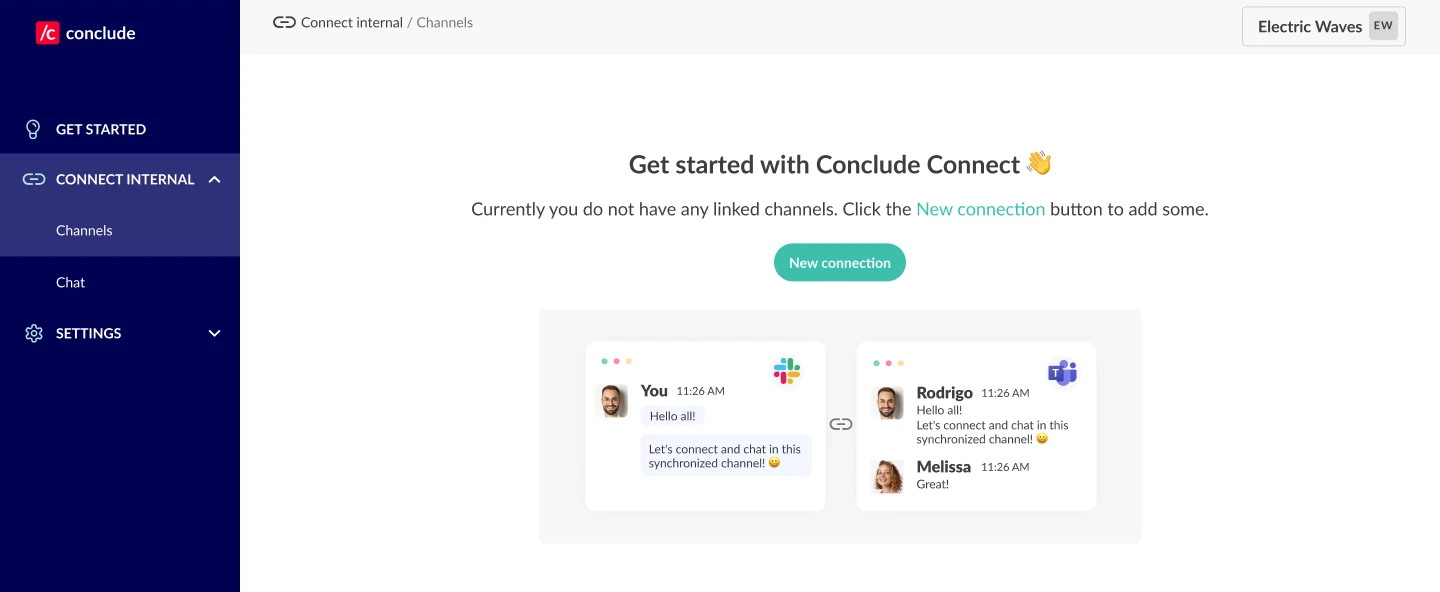
- Installing the Conclude app happens when you enable a solution under Solutions, for example Connect – internal or Connect – external. Conclude then asks you to add it to the platform. That grants the permissions it needs to sync messages.
Internal connections need Conclude in both Slack and Microsoft Teams. External connections need it on your primary platform only.
What Conclude asks for when you install it is listed under Slack permissions and Microsoft Teams permissions.