
How to
Microsoft Teams integration account
On this page
This page is for Microsoft 365 and Conclude admins who run Connect on Microsoft Teams.
Setting up an integration account for Microsoft Teams
An integration account lets Conclude post messages to Teams channels and chats when the author of the message has no credentials in the tenant. You can set it up during onboarding, or follow the steps below.
How it works
- A Microsoft 365 admin creates a generic user account that belongs to no person, for example “Conclude integration”. Conclude posts under this identity when no user credentials are available
- In the Conclude Admin console, an admin selects the user account and signs it in
- Once the account is set up, Conclude posts as it whenever it cannot post as the author of the message. Without the account, Conclude falls back to the Conclude bot, which cannot post file attachments. It then falls back to another channel member’s credentials. A message posted with a member’s credentials carries a fallback notice, and admins get a system alert
Setting up an integration account
- Open Admin console > Organization > Integration account . Only admins can open the Admin console. You find it at the bottom of the sidebar.
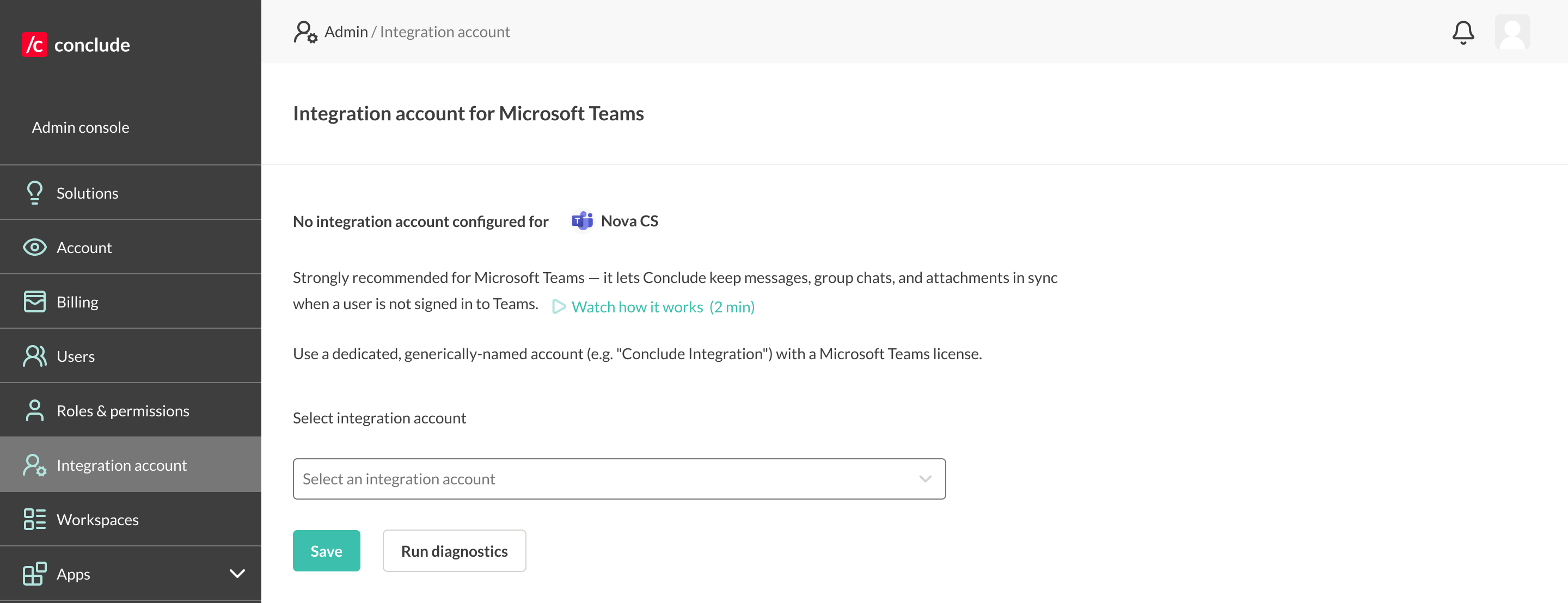
- Select the integration account you created from the drop-down, then select Save. To run a workspace without one, select Integration account not needed. The Admin console then stops flagging the workspace.
- Until the account has signed in to Conclude, the page shows Not signed in. Select Authorize with Microsoft and sign in as the integration account to authorize Conclude.
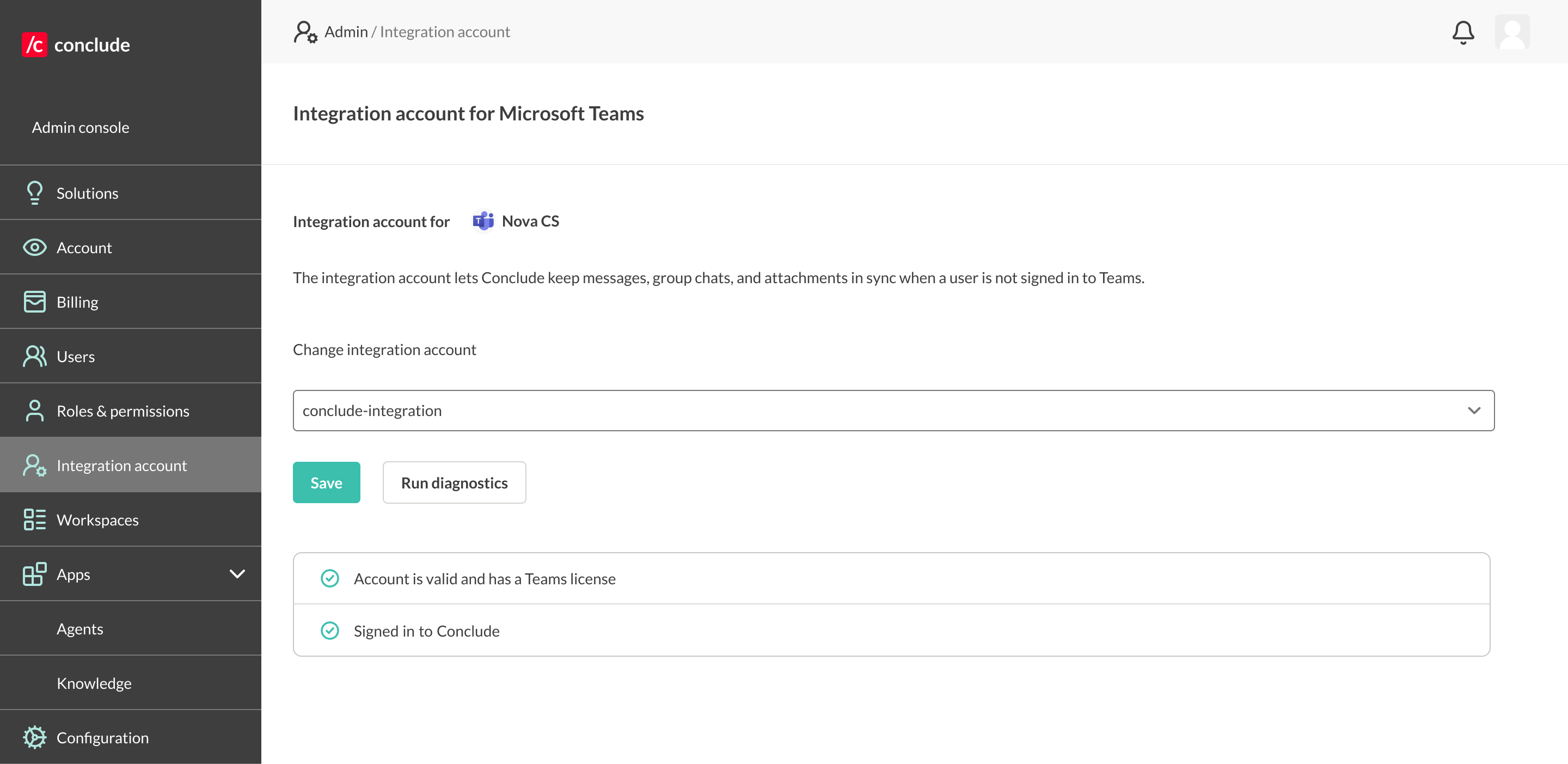
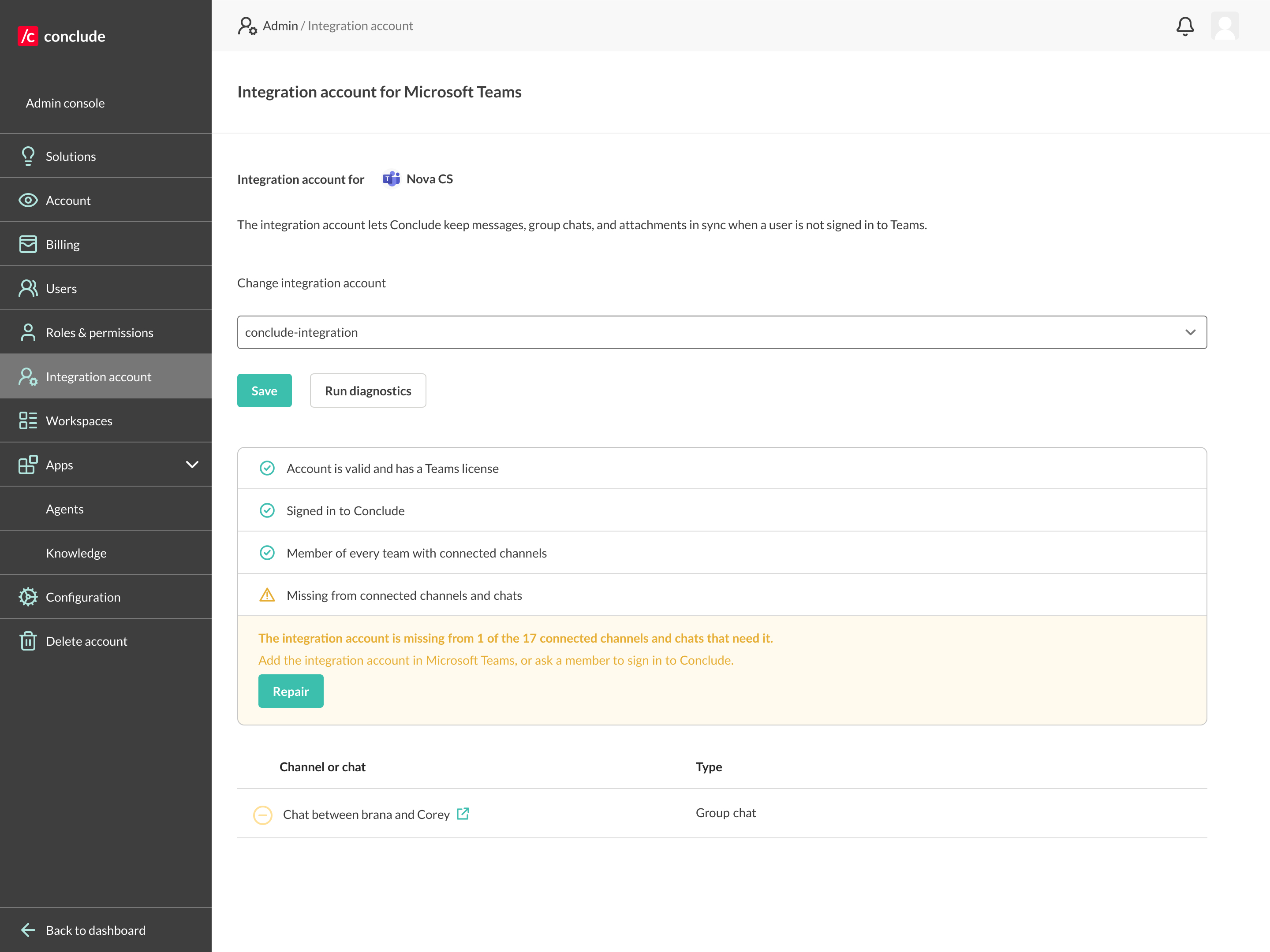
- Select Run diagnostics. The diagnostics check that the account exists in the directory and is signed in to Conclude. They also check that it has Microsoft Graph access and a Teams license. Finally, they check that it is a member of every team and connected channel or chat that needs it. If the integration account is missing from connected channels or chats, the diagnostics show how many are affected and list them below the warning. Channels and chats you are not a member of are listed without a name.
- If the integration account is missing from connected channels or chats, select Repair. Conclude adds the account to each listed channel and chat, one at a time. It uses the credentials of a channel member who is signed in to Conclude. Each row is then marked Added or Failed. Repair cannot add the account to a team. It also cannot add the account to a shared channel hosted by another Microsoft 365 tenant. In those cases an owner adds it in Microsoft Teams instead.
You set one integration account per Microsoft 365 tenant, which is one Teams workspace in Conclude. It applies to every connected channel and chat in that tenant.
Additional tips
- Add the integration account to every team that contains connected channels. Conclude cannot add team members itself. For a private channel, add the account by hand or use Repair
- Set up the account even when users exist on both sides. It is the fallback when credentials are not available for every user
Related pages
- Internal, External and Bridge connections are where the integration account is needed
- Troubleshooting helps when messages come from a fallback sender or do not sync
- The Connect External quickstart walks through the guided setup