
Explanation
Administer Conclude
On this page
This chapter is for account owners and account admins. You open the Admin console at the bottom of the Dashboard sidebar. To install Conclude for the first time, start with Set up Conclude.
The Admin console
This chapter follows the console’s sidebar. The sidebar has Solutions at the top and five sections below it. A section opens to show its pages. The search icon at the top of the sidebar finds a page by its name or by what it holds, such as “invoices” for Billing. A billing admin who is not an account admin sees only Account and Billing.
- Solutions switches Connect, Apps, Agents and Integrations on or off, and installs Conclude on Slack and Microsoft Teams
- Organization holds the account, billing, the workspaces, the Microsoft Teams integration account and organization-wide settings
- Users and access holds the users, roles and permissions, API keys, security and the audit log
- Agents, Apps and Connect hold the settings of each solution. A section is listed while its solution is on
- Reference lists what Conclude asks Slack and Microsoft for, and the open source software it ships with
The account owner also sees Delete account on the Account page. It does not appear inside the Microsoft Teams app. Scripting is switched on per organization, and the console has no control for it.
Scopes of control
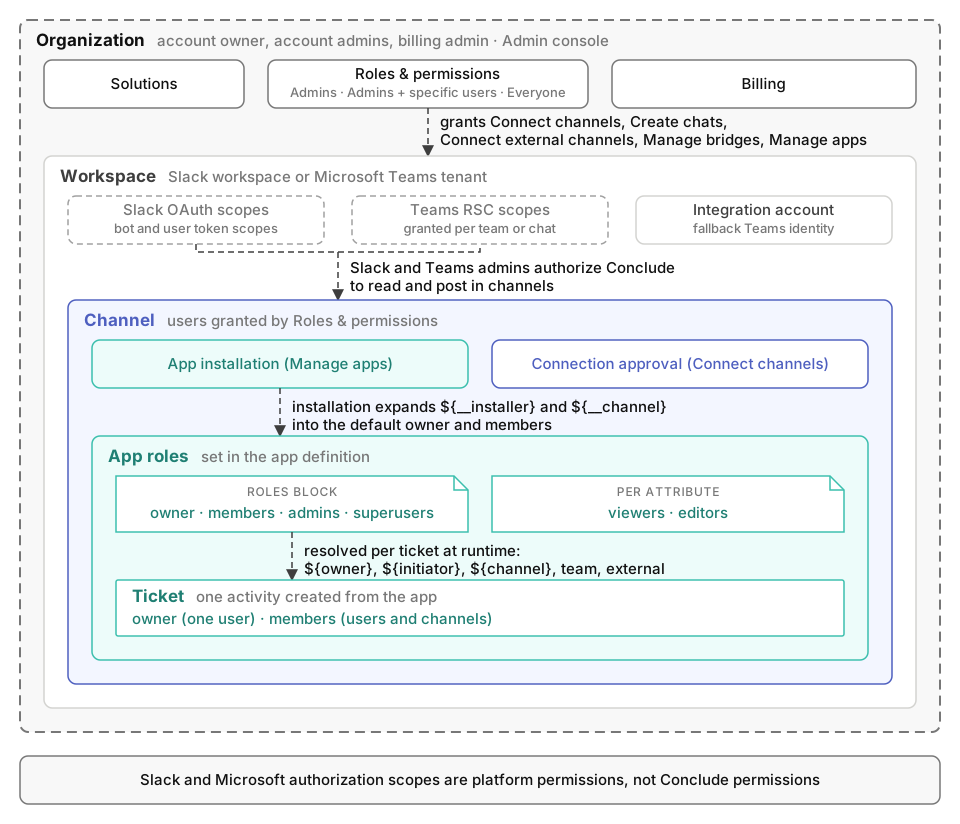
Organization
Account admins are included in every permission.
Roles & permissions has four Connect permissions: Connect channels, Create chats, Connect external channels and Manage bridges. It has one Apps permission, Manage apps. Each permission is listed only while its solution is on.
You set each permission to Admins, Admins + specific users or Everyone. On Starter you cannot change the level. Pro offers Admins and Everyone. Enterprise adds Admins + specific users.
Workspace
A workspace is one Slack workspace or one Microsoft Teams tenant. Installing Conclude grants it the platform’s authorization scopes. On Slack these are the bot and user token scopes. On Microsoft Teams they are the resource-specific (RSC) scopes. Delegated Graph scopes are granted by each signed-in user or by a tenant admin.
On Teams, the integration account is a generic Microsoft account. It posts when no user’s credentials are available.
Channel
Connections and app installations are per channel. Teams RSC permissions reach only the team or chat where Conclude is installed. An app’s Who has access setting on the Roles tab offers two choices. The default is members of the install channel. The other is everyone on the team.
App roles
Each app defines an owner and members on the Roles tab. Admins and superusers can only be defined in YAML, in the roles block. ${initiator} is the ticket’s creator.
App roles are separate from account roles. An app admin is not an account admin.
Ticket
Each ticket is a thread in the app’s channel. In channel mode, each ticket gets its own channel. A ticket’s members are the people the app’s roles invite. A ticket has at most one owner. Without an owner it is unassigned.
Superusers hold rights only where a role expression names ${superusers}. That is usually an attribute’s editors.
Related pages
- Organization, Security, Third-party licenses
- Active users (Connect) and Active users (Apps) explain what drives billing