Ticketing in Slack and Microsoft Teams: Choose Your Setup
 Conclude Team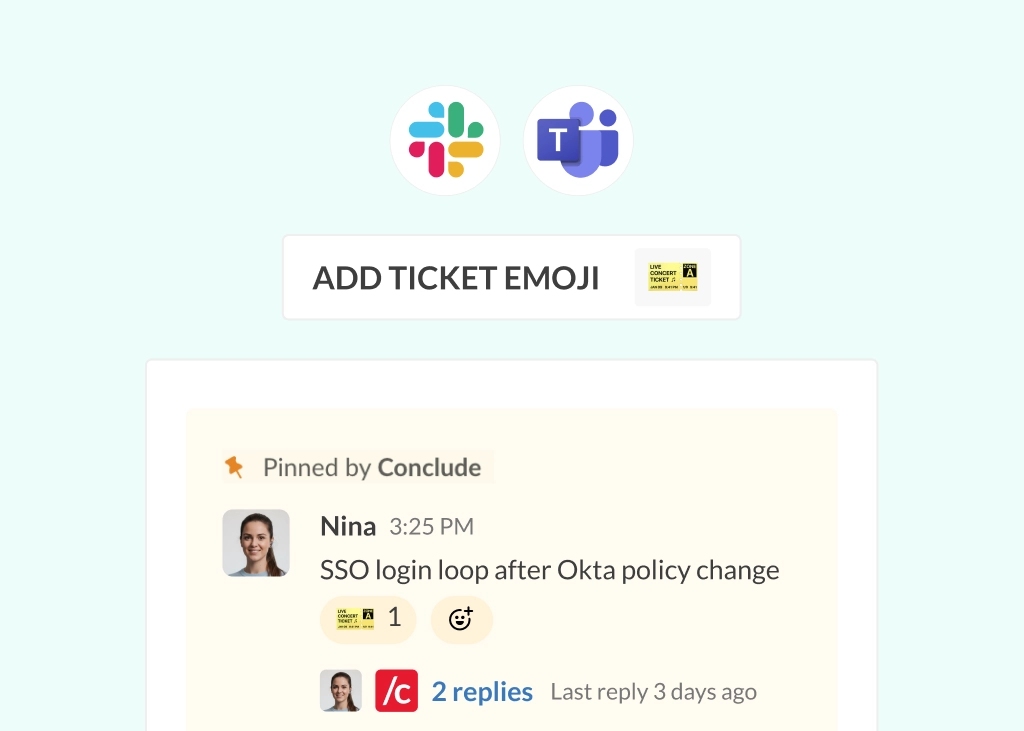
Your team already works in Slack or Microsoft Teams, yet ticketing often lives somewhere else: in inboxes, portals, or separate systems that pull people out of their flow. That disconnect adds up quickly.
The issue isn’t that teams use different tools for different tasks; it’s the constant context switching. According to Asana’s Anatomy of Work Index, employees use around 10 apps daily and switch between them roughly 25 times. But using ticketing in Slack and Microsoft Teams helps eliminate that disconnect.
This article is your guide to setting up a Slack ticketing system or a Microsoft Teams ticketing system using Conclude Apps. Whether you need a native ticketing solution or want to integrate with Zendesk or Jira, each approach is built for a different type of team, based on the work you do and the tools you already use.
Solution 1: Slack or Teams-Native Ticketing
In this setup, tickets are created, discussed, and resolved directly in Slack or Microsoft Teams. In Slack, a ticket is either opened and then branched from the main channel or opened directly from a chat by placing the ticket emoji on the message.
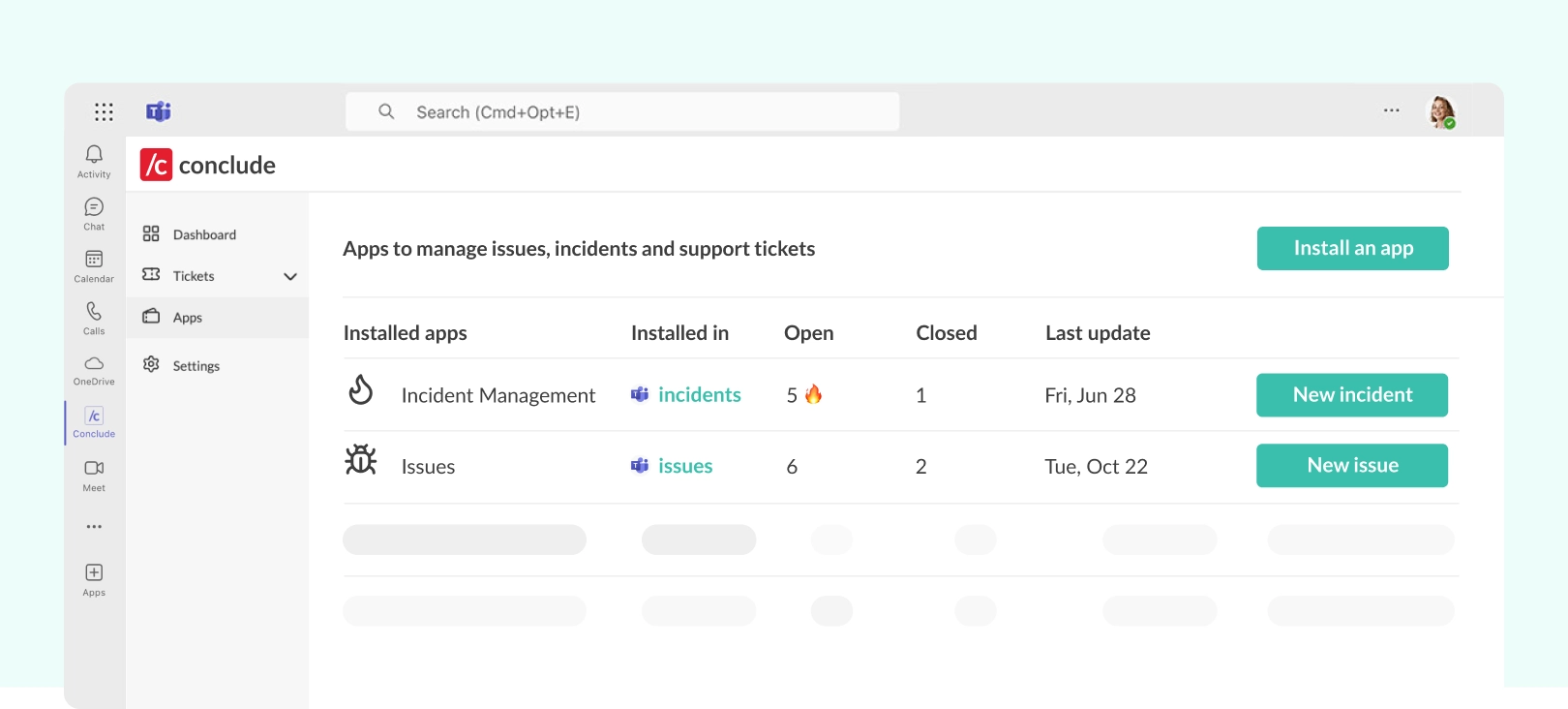
Teams can get started quickly by selecting preconfigured app templates inside their Slack and Teams channels, or directly from the Conclude Dashboard.
Once set up, Conclude’s AI-powered email summaries and translations in 60 languages can be activated to support multilingual ticketing. This native chat ticketing setup is designed for workflows where teams handle requests such as IT support, engineering, operations, marketing, product updates, HR queries, and more.
How it works
A Conclude app is added to a channel on Slack or Teams, for example: #it-support, #marketing, or #product.
From there, teams can configure the apps in two ways under Apps > App editor > General settings and by selecting App mode in the Dashboard. App editor can be accessed by clicking the edit (pencil) icon next to the installed app, depending on the permissions your admin has enabled.
- Thread mode: each request is opened as a new threaded message, becoming a thread within the main channel. Turn a message into a ticket with the ticket emoji (in Slack only). Chats remain organized within these threaded messages, reducing visual clutter and making it easy to follow without creating additional channels
- Channel mode: each ticket gets its own temporary channel, where teams work while the task is active. Once the ticket is resolved, the channel disappears from the Slack or Microsoft Teams sidebar while remaining visible in the Conclude Dashboard. This is the default for Microsoft Teams
In both cases, your work stays in the channel from start to finish. All tickets are centralized in the Dashboard, where you can track progress, manage workloads, and monitor activity across channels.
Explore Apps for Slack and Apps for Microsoft Teams for more details.
Solution 2: Zendesk + Slack/Teams
For support teams working with external customers and vendors, ticketing requires more structure. Systems like Zendesk handle SLAs, reporting, and customer history, but the conversations needed to resolve tickets often happen elsewhere.
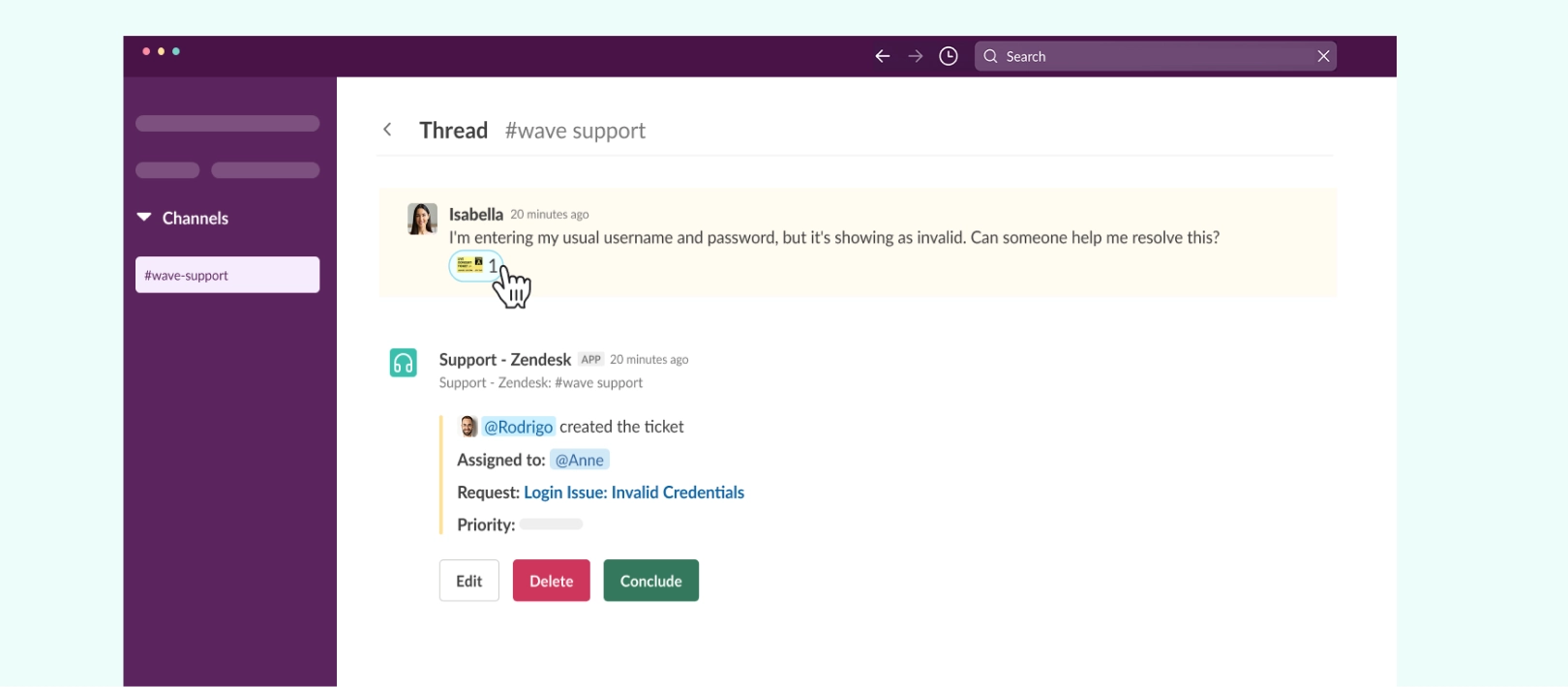
This setup offers a Zendesk integration, keeping Zendesk as the system of record, while allowing teams to manage tickets directly in Slack or Microsoft Teams.
It works well for support teams that want to reduce back-and-forth between tools and keep agents focused on resolving issues using Zendesk.
How it works
After integrating Zendesk with Slack or Teams, support teams can bring ticketing and team conversations into a single place, enabling them to manage requests without switching tools or losing context. With this setup:
- Tickets are created automatically – when a customer request comes in, a Zendesk ticket is created and shared in the relevant channel (in Slack or Teams). From there, agents can review, discuss, and resolve the issue directly in chat
- All updates stay in sync: actions taken in Slack or Teams are reflected in Zendesk, and vice versa, so the ticket remains complete and up-to-date without manual input
- Customer conversations can happen in chat: in some cases, teams work directly with customers in shared Slack channels (conversational ticketing). When an issue is raised, an emoji reaction can turn that message into a ticket, which syncs to Zendesk while the conversation continues
Solution 3: Jira + Slack/Teams
For engineering and DevOps teams using Jira, work often starts in their messaging tools. Bugs are reported, questions are asked, and discussions happen in channels, while issue management and tracking live in Jira. This split creates gaps between conversations and tickets. By connecting Slack or Teams with Jira Cloud, this setup keeps work and conversations aligned.
Jira remains the source of truth while bringing ticket-related work into Slack or Teams, so updates, discussions, and decisions stay connected. Issues are tracked in Jira, while the chat program becomes the place where teams collaborate and move work forward.
This integration is made for teams that rely on Jira for speed and clarity and supports fast-moving, complex workflows without losing context between tools.
How it works
Activate your Jira integration from the Solutions tab of the Admin console. After authorizing your Jira account and following the steps, you can link your Jira projects. Once set up, you can:
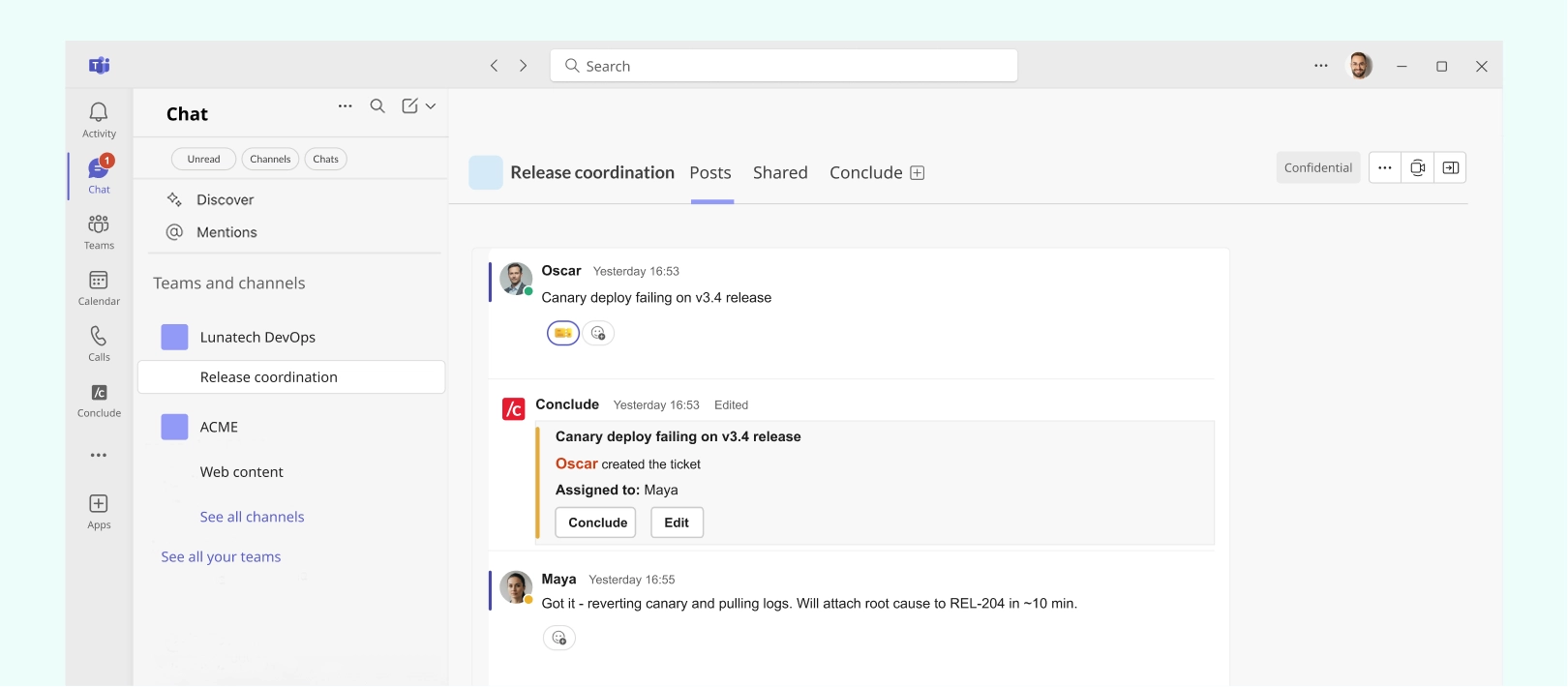
- Create Jira issues directly from Slack or Teams: When a bug or issue is mentioned in a channel like
#engineering, it can be turned into a Jira ticket immediately - Keep updates in sync automatically: changes made in Slack or Teams are reflected in Jira, and status updates from Jira appear back in the channel, so everyone stays aligned
- Maintain clear ownership: users are mapped between Slack and Jira or Microsoft Teams and Jira, so tickets are assigned and tracked accurately
To explore this in more detail, read our Slack and Jira integration article covering benefits, use cases, and how it works in practice.
Which Solution Is Right for Your Team? (Decision Matrix)
Each solution is built for a different type of team. Use this matrix to quickly identify which setup fits your workflow, tools, and support needs:
Solution | Best For | System of Record | Platform |
Slack or Teams native ticketing | IT Helpdesk | Conclude Dashboard | Slack & Teams |
Zendesk + Slack/Teams | Customer Support | Zendesk | Slack & Teams |
Jira + Slack/Teams | Engineering | Jira Cloud | Slack & Teams |
How to Get Started With Your Ticketing Solution
Getting set up doesn’t require changing your existing tools, just choosing the right structure and putting it in place:
Step 1: Pick Your Solution
Start by choosing the approach that matches your workflow.
- If your work is mostly IT helpdesk tickets or internal task management, go with Conclude Apps for ticketing and issue tracking
- If you’re supporting customers, use Conclude Apps with Zendesk for Slack and Teams
- If you’re managing work across multiple teams, such as engineering (tracking bugs, product feedback), or operations and product teams coordinating projects, choose Conclude Apps with the Jira integration for Slack and Teams
Step 2: Activate Conclude Apps From The Dashboard
After signing up for Conclude, activate Apps – ticketing and issue tracking from the Admin console. Follow the instructions and install the Conclude app template of choice in the Slack or Teams channel where requests already happen, such as #it-support, #support, or #engineering.
This ensures that future tickets are created and handled where conversations naturally occur.
See the Dashboard Quickstart Guide for details on how to get started.
Step 3: Connect Zendesk or Jira (optional)
If you’re already using Zendesk or Jira, activate these integrations from the Solutions tab of the Admin console and follow the steps to configure them correctly.
Once configured, tickets will sync automatically, so your system of record stays up to date without extra work. If you’re using Slack or Teams-native ticketing, you can skip this step.
Get started quickly by following our Quickstart Guide for Jira and Quickstart Guide for Zendesk integrations.
Bring Ticketing into Slack or Teams Without Changing Your Tools
Most teams can get ticketing running in Slack and Microsoft Teams without friction. The real challenge is choosing a solution that fits your workflow, your team, and the tools you use.
Conclude Apps let you bring ticketing into Slack or Microsoft Teams and manage everything directly in chat, or integrate with tools like Zendesk or Jira.
That flexibility enables you to adapt ticketing to your team, not the other way around, so you can stay aligned, reduce context switching, and keep work moving.
Connected Apps – Ticketing Across Slack and Teams
For those looking for even more functionality, Conclude’s latest release, Connected Apps, combines its Slack and Microsoft Teams integration with workflow ticketing. As well as creating and working on Jira tickets from Slack, they can install Conclude’s Jira Integration on Slack or Teams, connect their channels, and work on Jira issues and tickets across both platforms.
In larger organizations where there may be a need for more visibility, or when working with clients on different platforms, this solution solves the issue of context switching, keeping everyone aligned all without leaving their platform of choice – whether that’s Slack, Teams, or Jira. Learn more about Connected Apps here.
Ready to bring ticketing into Slack or Teams? Get started with Conclude today.
Frequently Asked Questions
Can Slack be used as a ticketing system?
Yes. With Conclude Apps, you can manage ticketing directly in Slack or Microsoft Teams. This setup is ideal for internal teams handling IT requests, HR queries, or marketing tasks, where tickets can be created, tracked, and resolved with your messaging platform of choice.
Does the Zendesk integration work for both Slack and Teams?
Yes. Conclude offers integrations for both Slack and Microsoft Teams. With the Slack integration, teams can create and comment on Zendesk tickets and receive ticket updates in channels. With the Zendesk Teams integration, users can create, view, and update support tickets, including adding internal notes and public replies from within Teams.
Conclude’s Zendesk integration is designed to keep Zendesk as the system of record while bringing ticket-related work into Slack or Teams.
Can I use the Jira integration in Microsoft Teams?
Yes. Jira Cloud can be integrated with Microsoft Teams, allowing users to receive updates, search issues, and collaborate on tickets directly within Teams. Use Atlassian’s or Conclude’s integration to set this up.