3 Ways to Set Up Slack-Teams External Collaboration With Conclude
 Sian Bennett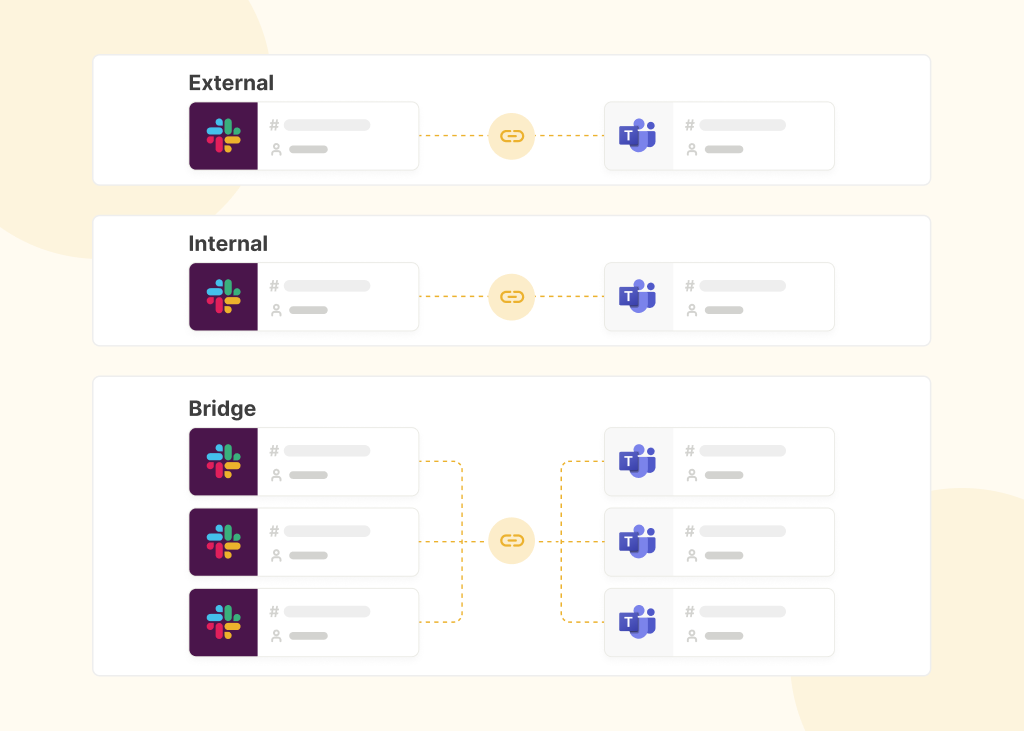
When a customer, vendor, or partner uses a different messaging platform, Slack-Teams external collaboration can get tricky. It can quickly turn into duplicated updates via emails, context switching across different messaging platforms, juggling multiple accounts, and even delayed decisions.
Conclude Connect solves this by syncing messages between a specific Slack channel and a specific Teams channel or chat, so both organizations can keep using their preferred platform while maintaining a single aligned conversation.
In this guide, we cover three ways organizations can set up Slack and Teams collaboration, depending on the type of relationship they’re managing.
Key Terms (Used Throughout This Guide)
- Initiating company – the organization that starts the connection setup and sends the invitation (when using Conclude Connect External connections)
- Invited company – the organization (partners, clients, vendors, or other companies) that receives the invitation and collaborates through the connected channel or chat
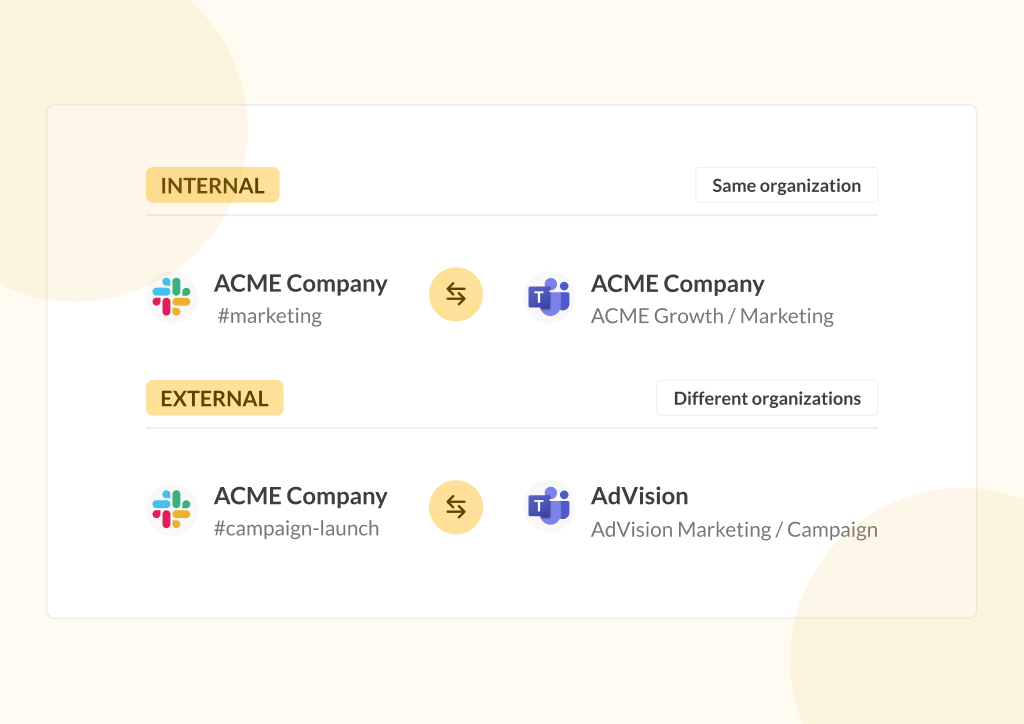
- External collaboration – allows the initiating company to send an invite to another company; the invited company authorizes Conclude and connects a specific Slack channel or Teams channel/chat
- Internal collaboration – enables the initiating company to connect Slack and Teams internally using Conclude; external collaboration happens through Teams shared channels, Slack Connect, or via guest access
- Bridge – this solution establishes a trusted relationship between two organizations at the workspace or tenant level, so both organizations can independently create and manage multiple Slack and Microsoft Teams channel connections
Jump to:
- Option A: Direct External Collaboration (Connect External)
- Option B: External Collaboration (Connect Internal)
- Option C: Connect Two Organizations (Conclude Bridge)
Quick Overview: Which Option Fits Your Setup?
- Choose External when the invited company can authorize Conclude with minimal friction, and you want a scoped, repeatable way to connect a channel or chat
- Choose Internal when the invited company cannot authorize third-party tools, and collaboration needs to happen through shared channels, Slack Connect, or guest access
- Choose Bridge when you need a company-level connection with another organization, in circumstances like a merger, acquisition, subsidiary, or ongoing partner relationship
We will explain everything in detail in the following guide. Ready to get started? Conclude is free for 14 days.
Option A: Direct External Collaboration (Conclude Connect External)
If you’re collaborating with a partner or customer across Slack and Microsoft Teams, Conclude Connect for external collaboration is the most direct setup. The invited company approves a scoped connection to a specific channel or chat, and Conclude syncs messages only within that agreed collaboration space.
What This Option Is
- After the initiating company sends an invitation via email, a company admin follows the link to authorize Conclude for Slack or Microsoft Teams for that connection only
- The invited company creates or selects the exact Slack or Teams channel – or a Teams chat – they want to connect
- Conclude syncs messages only across that connection
For invited companies receiving the invite request:
- You’re only approving a scoped connection to that specific channel or chat
- You’re not approving access to your entire workspace or tenant
- You’re not holding a user licence or paying for Conclude
How This Setup Works
- Receive the email invite (typically handled by a Slack or Teams admin)
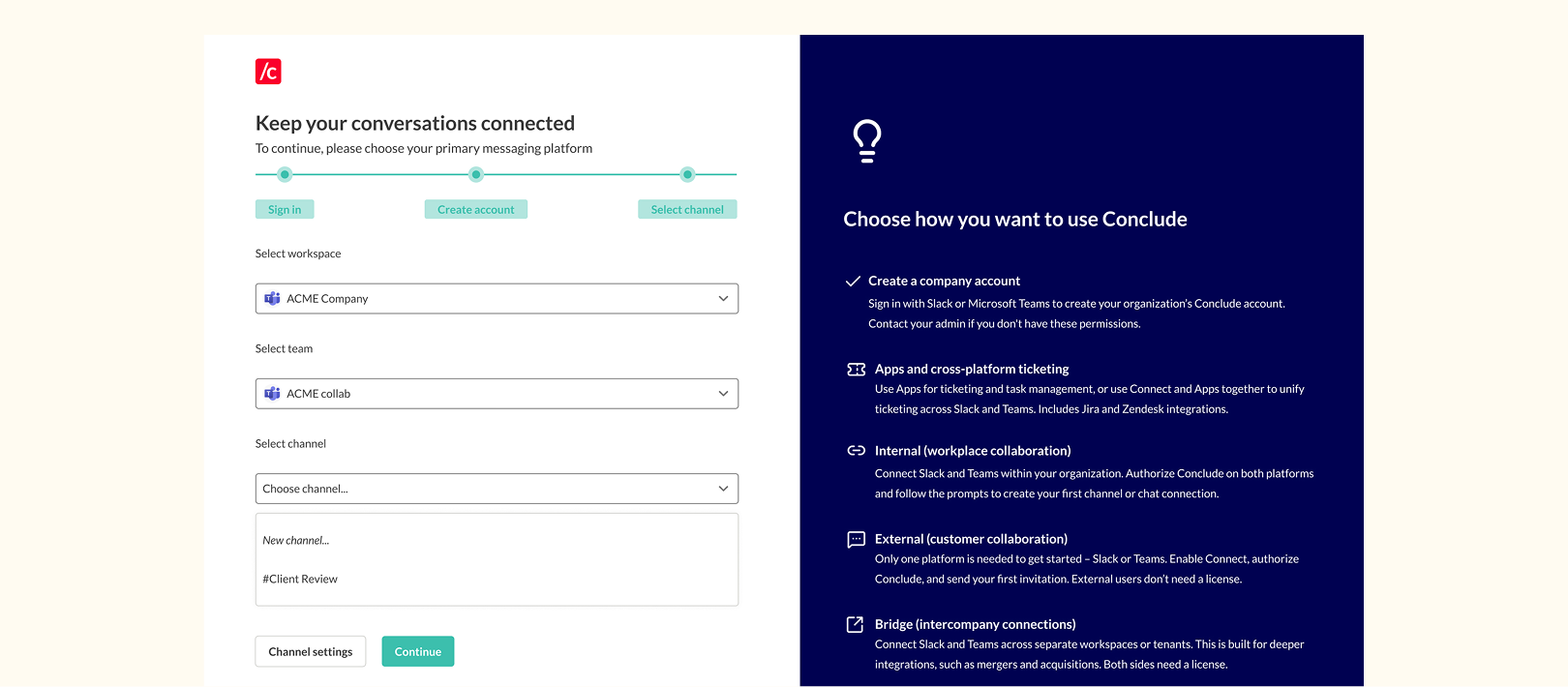
- Authorize Conclude for the relevant messaging platform
- Select or create a channel or chat to connect
- Begin two-way sync between the connected channel or chat
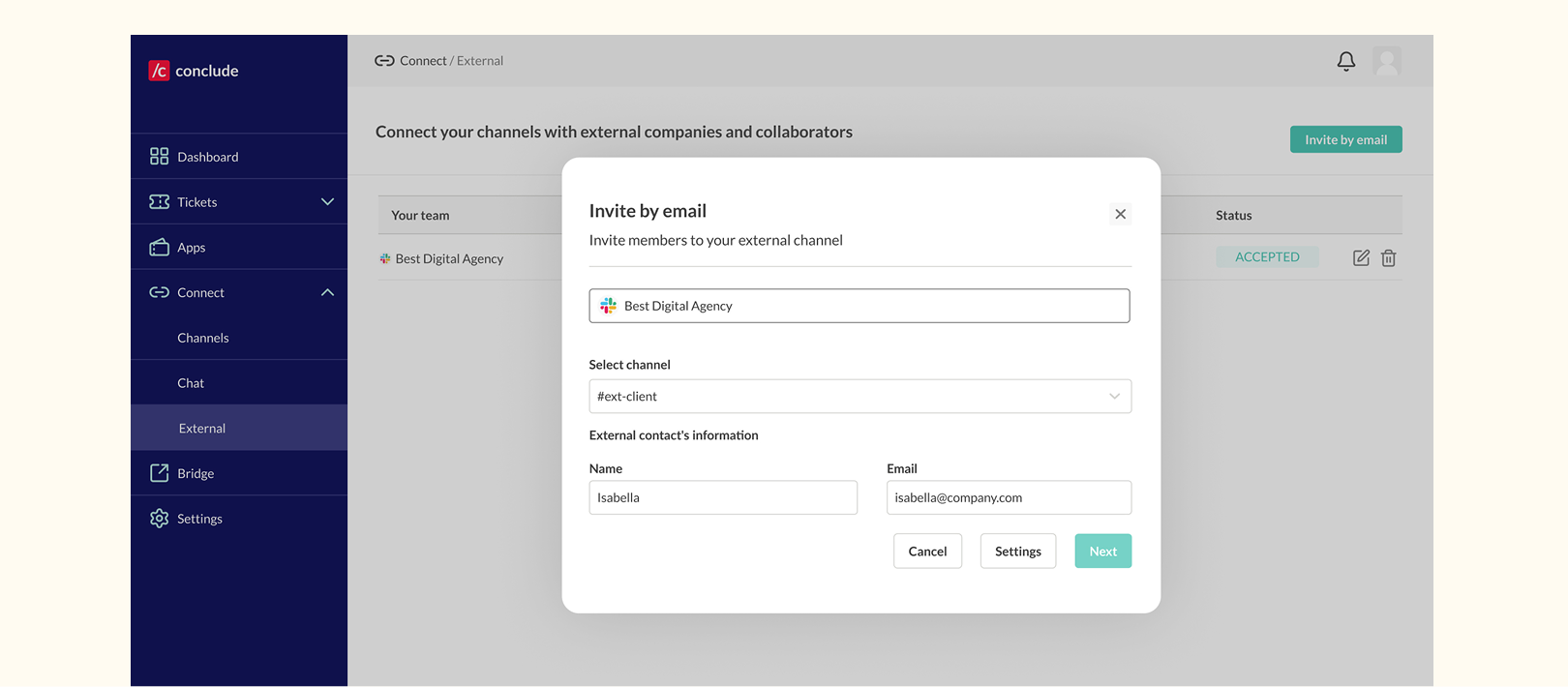
Supported Connection Types
- Microsoft Teams: all types of channels and chats are supported for creating and accepting external connections
- Slack: all types of channels are supported for creating and accepting external connections
You can also create the channel or chat during setup:
- Initiating company – can create a new Slack channel or Teams channel/chat during the request flow
- Invited company – can create a new Slack channel or Teams channel/chat during the acceptance flow
Pros
- Clear scope and control – companies choose what’s connected
- Once connected, no further steps are required
- Repeatable pattern for future projects (or partners)
When This Option Works Best
- Works well when the invited company can authorize Conclude with minimal friction
- The initiating company usually manages one messaging platform (either Slack or Teams)
- The setup is repeatable and scalable for connecting with multiple external companies, such as consultants and agencies
Things to Consider
- Requires approval on the invited company side to authorize Conclude as a Slack-Teams integration before use
- May involve a security review depending on your organization’s policies
Option B: External Collaboration Without Conclude Installation (With Connect Internal)
This option lets the external company participate without authorizing or installing Conclude in their Slack workspace or Microsoft Teams tenant. With this setup, the initiating company uses Conclude Connect for internal connections to connect Slack and Microsoft Teams inside their organization, then link the relevant channels so messages stay aligned across platforms. They then invite clients to connect via shared Teams channels, Slack Connect, or using guest access options.
That channel or linked chat can be either:
- A new external collaboration space that they set up, or
- An existing external channel they already use with customers or partners (for example, a Slack Connect channel or a Teams shared/guest channel)
What This Option Is
- The initiating company connects Slack and Teams internally and invites the external company to collaborate
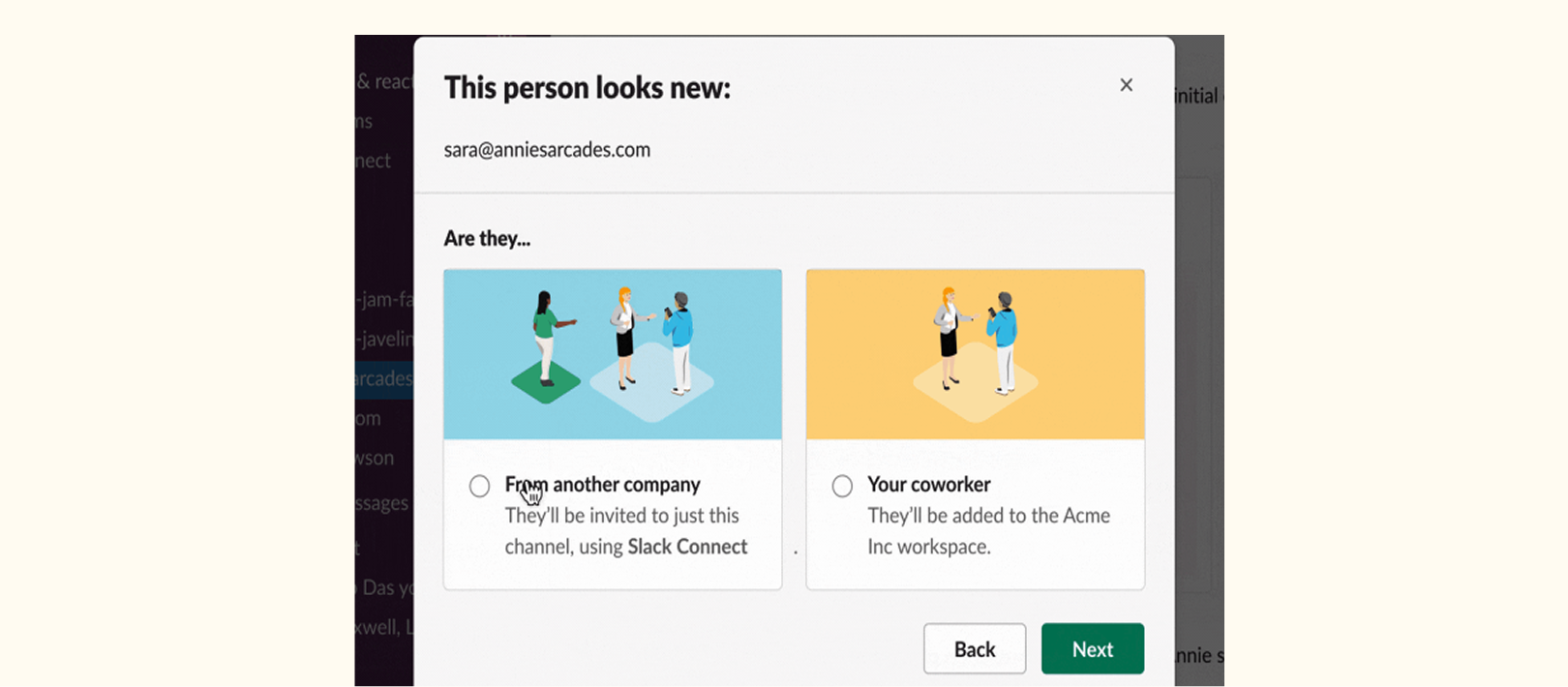
- External collaboration happens through shared or guest access in Slack or Teams, such as:
- Slack Connect channels
- Microsoft Teams shared channels (part of Teams Connect)
- Guest-enabled channels (where permitted)
For invited companies receiving the invite request:
- The invited company is using the approved external collaboration method for their own platforms (for example, joining a Slack Connect channel or a Teams shared channel)
- The invited company is not authorizing Conclude
- The invited company is not holding a user license or paying for Conclude
Important note: Licensing applies to the initiating company’s users participating in connected channels (i.e., active users). The external company users are not counted, and there is no cost to them.
How This Setup Works
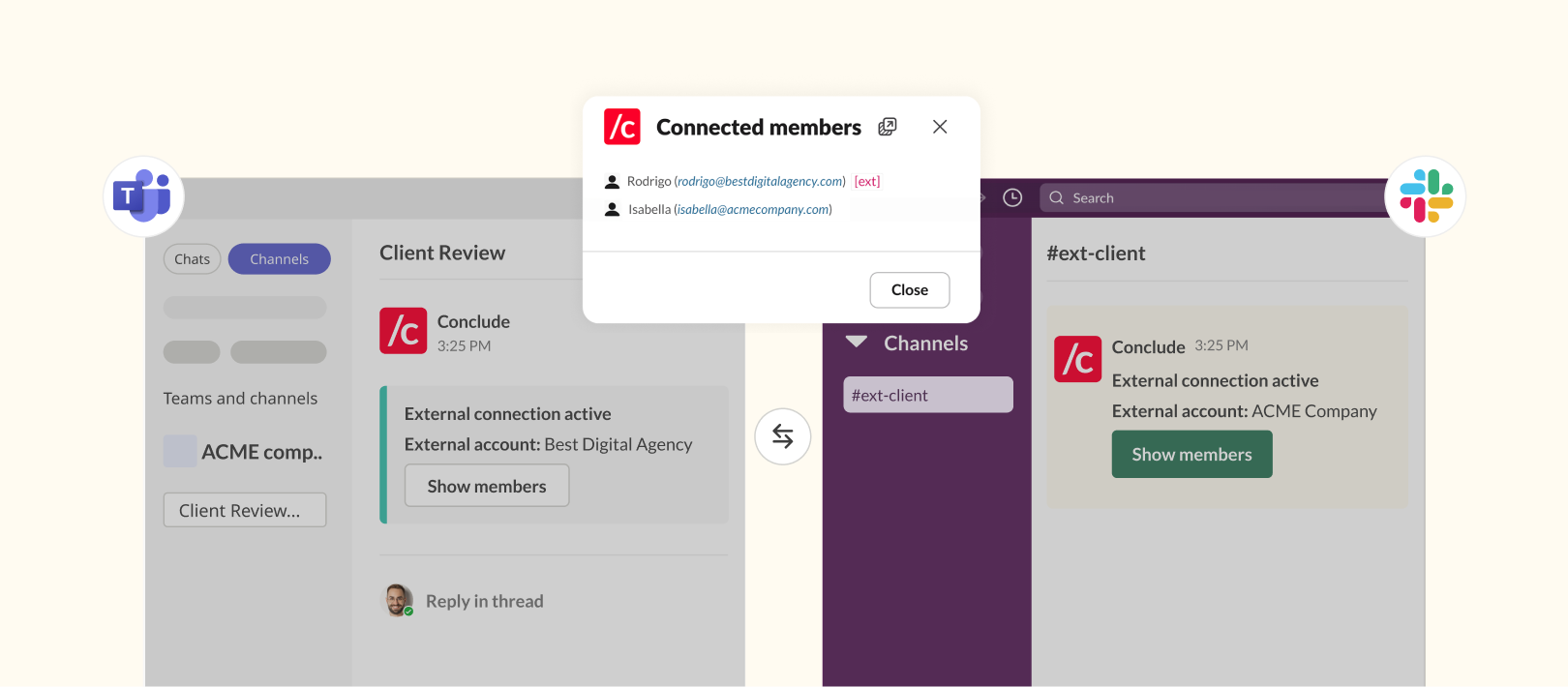
- The initiating company connects the relevant Slack channel to the relevant Teams channel/chat using Conclude to create the collaboration space
- They then invite external users to collaborate in one of those channels or chats (via Slack Connect, Teams shared channels, or guest users)
- External participants work as normal in their platform, and messages stay aligned across Slack and Teams on the initiating company side
Supported Connection Types
- Slack: all types of channels are supported, including Slack Connect channels, where Slack Connect is being used
- Microsoft Teams: all types of channels are supported, including shared channels, where guest users are supported
Pros
- No Conclude authorization, cost, or installation required for the invited company
- Lower internal friction if third-party apps are restricted
- The initiating company manages everything on their side (setup + connections) while the invited company doesn’t need to manage anything in Conclude
- External users stay within their existing platform experience and governance model
- The initiating company reduces platform switching by connecting both platforms internally (if they choose to)
When This Option Works Best
- Works well when the invited company prefers not to authorize third-party tools, or when internal policy makes app approvals slow or complex
- The external company uses a different messaging platform from the initiating company, but the initiating company needs to keep things aligned on both platforms without switching
- A good fit when collaboration is already expected to happen via Slack Connect or Teams Shared Channels
- The initiating company is comfortable managing both Slack and Teams internally
Things to Consider
- Collaboration depends on shared channel or guest access policies, configuration, and admin approvals on both sides
- The initiating company carries more operational overhead (two platforms plus an external collaboration setup)
- Practical limitation – the initiating company typically needs to connect channels they own and manage, rather than channels they’re only invited into
Option C: Connect Two Organizations (Conclude Bridge)
Not every relationship is a single project. When two organizations expect to collaborate continuously – across multiple teams, departments, or channels – Conclude Bridge is the better option.
Rather than setting up one channel connection at a time, Bridge establishes a trusted relationship between two organizations at the workspace or tenant level using a single invite. Once that relationship exists, both organizations can independently create and manage multiple channel connections as collaboration grows – without repeating the setup process for every new team or project.
This makes Bridge a natural fit for mergers and acquisitions, subsidiaries, long-term strategic partnerships, and other enterprise relationships where collaboration is expected to expand over time.
What This Option Is
- The initiating company sends a single company-level invitation to another organization
- Once accepted, a trusted relationship is created between both companies (note: neither gains access to the other company’s workspace or tenant; only the connected channels are shared)
- This relationship allows both companies to independently create and manage multiple Slack and Microsoft Teams channel connections, with granular admin controls on each side
For invited companies receiving the invite request:
- A Slack or Microsoft Teams admin accepts the company-level invitation
- Accepting the invitation does not automatically share channels, conversations, or historical data
- The invited company decides which channels it wants to share and approves individual channel connections
- Once the relationship is established, the invited company can create additional channel connections without waiting for another invitation from the initiating company
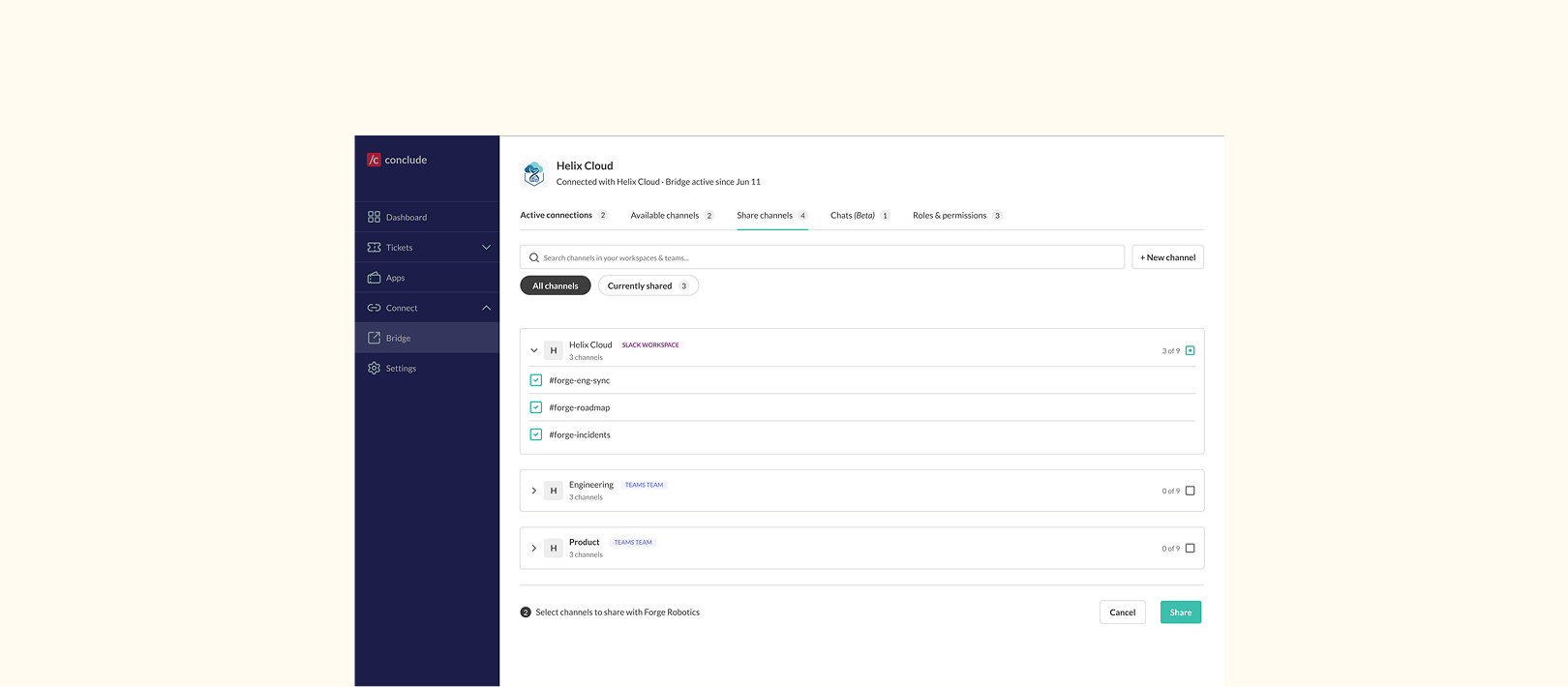
How This Setup Works
- The initiating company sends a Bridge invitation to another organization
- An administrator at the invited company accepts the invitation
- Each organization chooses which channels it wants to make available and shares these
- Channel connections are shared and linked
- Connected Slack and Microsoft Teams channels begin syncing in real time
- As collaboration grows, either organization can create additional channel connections without repeating the organization-level setup
Supported Connection Types
- Slack workspace ↔ Microsoft Teams tenant
- Slack workspace ↔ Slack workspace
- Microsoft Teams tenant ↔ Microsoft Teams tenant
- Multiple channel connections within a single organizational relationship
- Additional channel connections can be added at any time without creating a new organizational invitation
Pros
- One company-level invitation instead of repeated invitations for every new collaboration
- Both organizations can independently create and manage new channel connections
- Easily scales as more departments and teams begin working together
- Reduces administrative overhead for long-term collaborations
- Preserves existing Slack and Microsoft Teams workflows
- Real-time synchronization across connected channels
- Enterprise-grade security, governance, and administrative controls
When This Option Works Best
- Mergers and acquisitions
- Subsidiaries
- Long-term strategic partners
- Enterprise ecosystems
- Organizations collaborating across many departments
- Relationships expected to grow over time
Things to Consider
- Both organizations need to establish their relationship before collaboration can begin, and both require an account and licenses with Conclude (Bridge is an Enterprise solution)
- Enterprise IT or security teams may need to review the solution before approval
- Bridge is designed for long-term organizational relationships, so it may be more than is required for short-term projects or one-off collaborations, where Connect External remains the simpler option
Comparing External Collaboration Models
Here’s how Connect External, Connect Internal, and Bridge compare:
| Comparison | Connect External | Connect Internal | Bridge |
|---|---|---|---|
| Approvals required | The invited company authorizes Conclude to connect a specific Slack channel or Teams channel/chat using one invite per channel connection | The invited company approves Slack Connect, Teams Shared Channels, or guest access. No Conclude authorization required | Both organizations approve a one-time company-level Bridge relationship. After that, additional channel connections do not require a new organizational invitation |
| Operational overhead | Low. The initiating company typically manages one messaging platform for each connection | Medium. The initiating company manages Slack and Teams internally, plus the external collaboration setup | Low once established. Both organizations can independently create and manage new channel connections as collaboration grows |
| Governance boundaries | Explicitly scoped to the selected channel or chat | Governed by each organization’s Slack Connect, Teams Shared Channel, or guest access policies | Governance is established at the organization level, while individual channel connections remain independently approved and managed |
| Scalability | Well suited to individual projects or a small number of recurring collaborations | Suitable where one organization manages multiple collaboration spaces internally | Designed for long-term, multi-team collaboration across many shared channels and departments |
| Typical relationship | Agencies, clients, vendors, consultants, project-based collaboration | Organizations that already manage both Slack and Teams internally, or when clients are unable to install Conclude in their Slack or Teams workspace | Mergers & acquisitions, subsidiaries, strategic partners, enterprise ecosystems, long-term agency/client relationships |
| Common challenges | App approvals, security reviews, and admin availability on the invited company side | Shared channel policies, guest access configuration, and additional administration by the initiating company | Initial company-level approval, enterprise security review, and governance planning before scaling collaboration |
| Practical limitations | Requires the invited company to authorize Conclude | The initiating company generally needs to own the channels it connects | Best suited to long-term relationships; may be unnecessary for one-off projects or a small number of channel connections |
Security and Review Considerations
All three connection options are designed to keep collaboration scoped and controlled, but they may still require review from IT, security, or workspace admins – especially when external access, third-party authorization, or an organization-level relationship is involved.
Conclude offers granular control for file and image sharing, as well as how messages and threads are synced for internal, external, and Bridge connections. IT admins from the inviting and invited company can adjust settings for each channel connection.
Conclude is SOC 2 Type II certified and HIPAA compliant. For details on how Conclude handles data and what Conclude Connect stores, the best place to start is our Security page.
If you’re still not sure if Conclude is right for you, we suggest trying a low-risk pilot approach:
- Start with a single channel or chat, defined members, and a clear purpose
- Expand once the workflow, approvals, and governance model are proven
Summary
Not every collaboration model fits every organization. The right choice comes down to the type of relationship you’re managing, and how much it’s expected to grow:
- External is ideal for scoped collaboration with customers, vendors, or agencies
- Internal works well when one organization manages both collaboration platforms
- Bridge is designed for M&As, or organizations building long-term relationships across multiple departments or business units, where collaboration is expected to grow over time
Conclude is free to use for 14 days. Learn more about our Pricing or get started here.
Frequently Asked Questions
Do both organizations need to install Conclude?
This depends on the setup you have chosen.
External: Yes. Both organizations authorize/install Conclude to set up the connection (the initiating company sends the invite, and the invited company authorizes Conclude to accept it and connect a specific channel/chat).
Internal: No. Only the initiating organization installs and uses Conclude. The other organization participates through Teams shared channels, Slack Connect, or guest access.
Bridge: Yes. Both sides have licenses for Conclude in their respective workspaces or tenants.
Who needs to approve the setup on each side?
It depends on your policies, but approval is typically handled by a Slack or Teams admin, plus IT or security if your organization reviews third-party tools or external access.
Do invited companies pay or need licenses?
In most cases, the invited company does not need to purchase Conclude licenses to accept an invitation. It is free for them to use unless they choose to initiate new connections themselves. Bridge users do need a license to connect shared channels and chats.
Can we start with one approach and switch later?
Yes. Organizations often begin with Connect External or Connect Internal for individual projects. For example, some start with Connect Internal when app authorization is a blocker – connecting Slack and Teams internally and inviting external users into the channel via guest access or shared channels. If the other company later agrees to authorize Conclude, you can switch to Connect External and reconnect the same existing channels on the initiating company side.
As collaboration grows – or becomes a long-term organizational relationship – you may also transition to Bridge without changing the way teams collaborate day to day.
Important: if you do switch to the external model, it’s usually best to remove external guest users from the initiating company’s channel, since those users will participate from their organization’s side of the connection.
When should we choose Conclude Bridge instead of Connect External?
Bridge is the better choice when:
- The relationship is ongoing rather than project-based
- Many teams or departments collaborate
- Both organizations want to independently create new shared channels
- The collaboration is part of an M&A, subsidiary relationship, or strategic partnership
- The organization expects collaboration to continue growing over time
For smaller collaborations with agencies, customers, or vendors, Connect External remains the simpler option.
What connection types are supported?
On the Slack side, channels are supported, including Slack Connect channels and those with guest users. On the Microsoft Teams side, standard channels, private channels, shared channels, and chats are supported.
An important limitation to note is that the organization creating the connection must own the channel it wants to connect. In other words, you can’t connect a channel you’ve only been invited to.
Can I create a new channel or chat during setup?
Yes. If a suitable channel or chat doesn’t exist yet, it can be created and connected during the request flow or the acceptance flow.
What’s the fastest way to run a low-risk pilot?
Start with a single channel or chat, limit membership to the people who need it, define the purpose clearly, and expand only once the workflow and approvals are proven.