2 Ways to Set Up Slack-Teams External Collaboration With Conclude
 Sian Bennett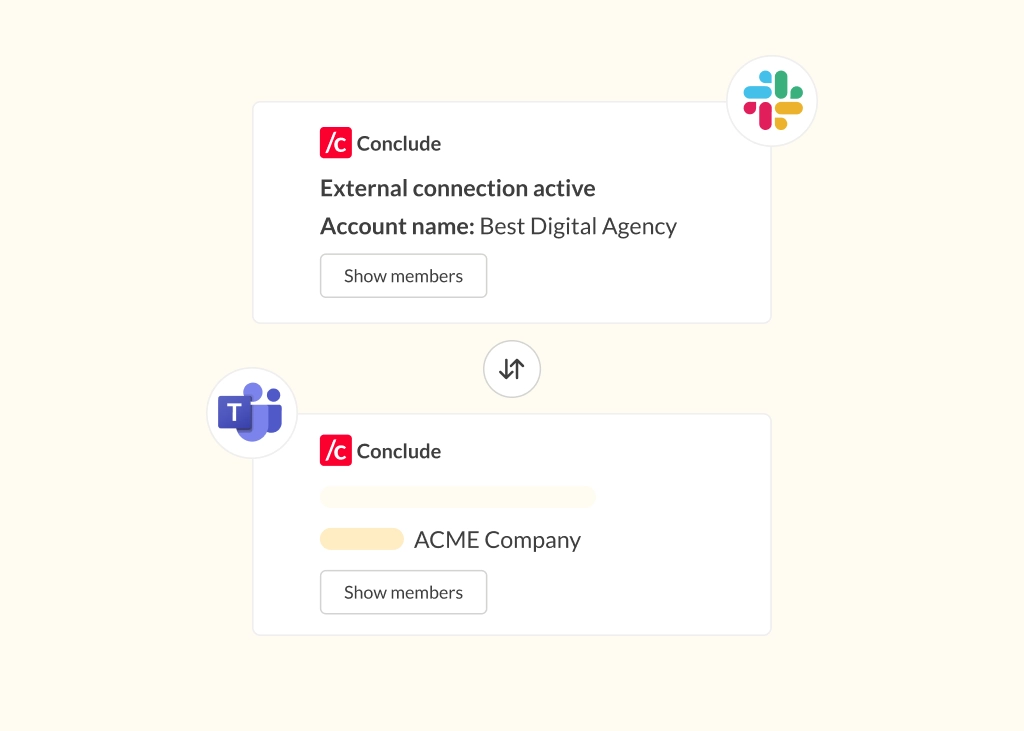
When a customer, vendor, or partner uses a different messaging platform, Slack-Teams external collaboration can get tricky. It can quickly turn into duplicated updates via emails, context switching across different messaging platforms, juggling multiple accounts, and even delayed decisions.
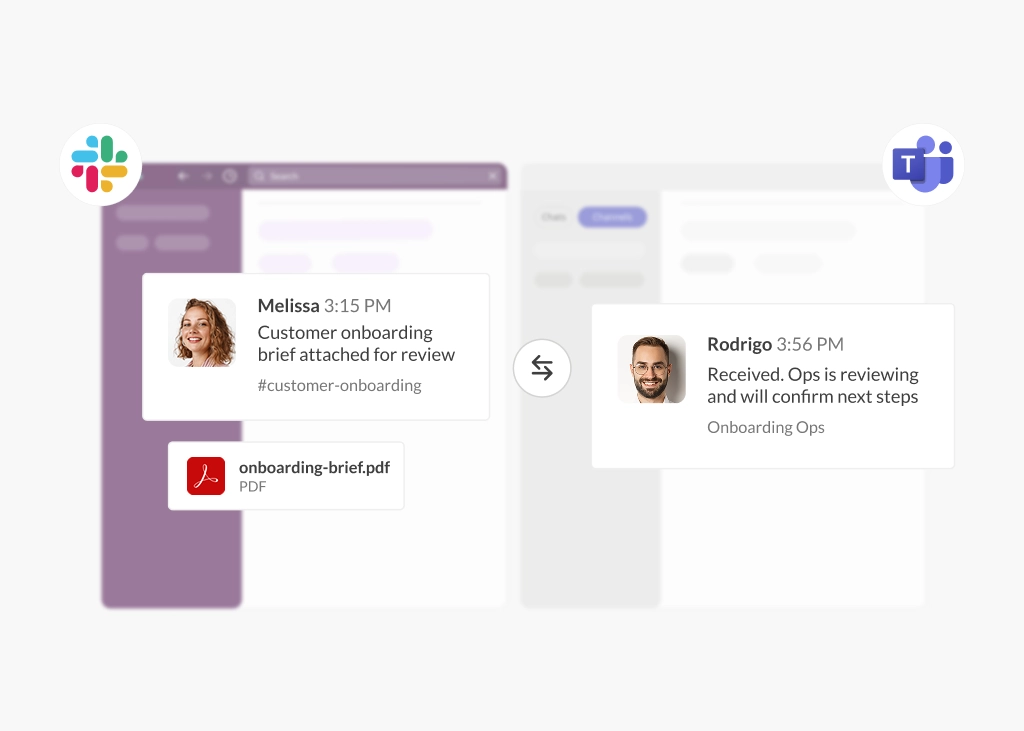
Conclude Connect solves this by syncing messages between a specific Slack channel and a specific Teams channel or chat – so both organizations can keep using their preferred platform, while maintaining a single aligned conversation.
In this guide, we cover two ways to connect Slack and Teams with external companies.
Key Terms (Used Throughout This Guide)
- Initiating company – the organization that starts the connection setup and sends the invitation (when using Conclude Connect External connections)
- Invited company – the organization (usually, partners, clients, or vendors) receives the invitation and collaborates through the connected channel or chat
- Connect External connections – this solution allows the initiating company to send an invite to another company; the invited company authorizes Conclude, and connects a specific Slack channel or Teams channel/chat
- Connect Internal connections – this solution enables the initiating company to connect Slack and Teams internally using Conclude; external collaboration happens through Teams shared channels, Slack Connect, or via guest access
Quick Overview: Which Option Fits Your Setup?
- Choose Conclude Connect External when the invited company can authorize Conclude with minimal friction, and you want a scoped, repeatable way to connect a channel or chat
- Choose Conclude Connect Internal when the invited company cannot authorize third-party tools, and collaboration needs to happen through shared channels, Slack Connect, or guest access
We will explain everything in detail in the following guide. Ready to get started? Conclude is free for 14 days.
Option A: Using Conclude Connect for External Connections
If you’re collaborating with a partner or customer across Slack and Microsoft Teams, Conclude Connect for external connections is the most direct setup. The invited company approves a scoped connection to a specific channel or chat, and Conclude syncs messages only within that agreed collaboration space.
What This Option Is
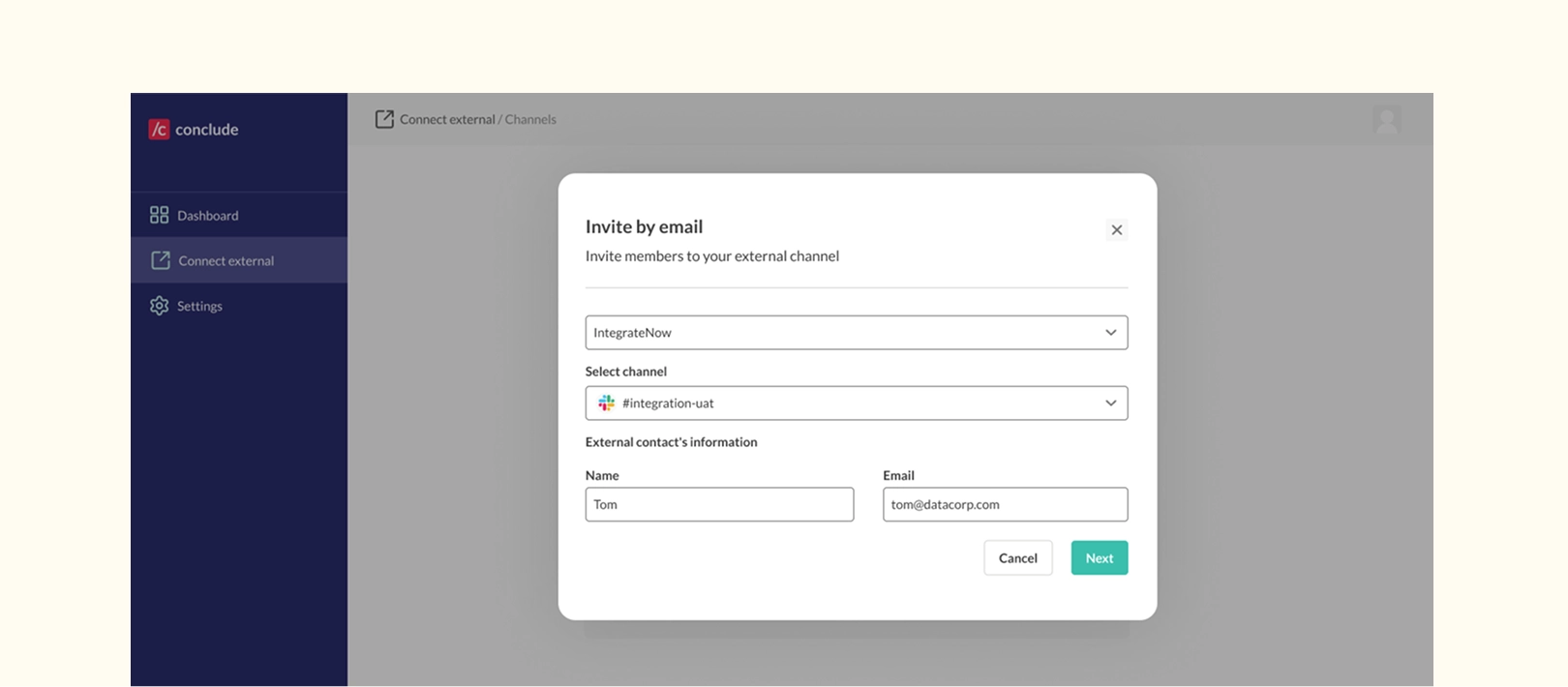
- After the initiating company sends an invitation via email, a company admin follows the link to authorize Conclude for Slack or Microsoft Teams for that connection only
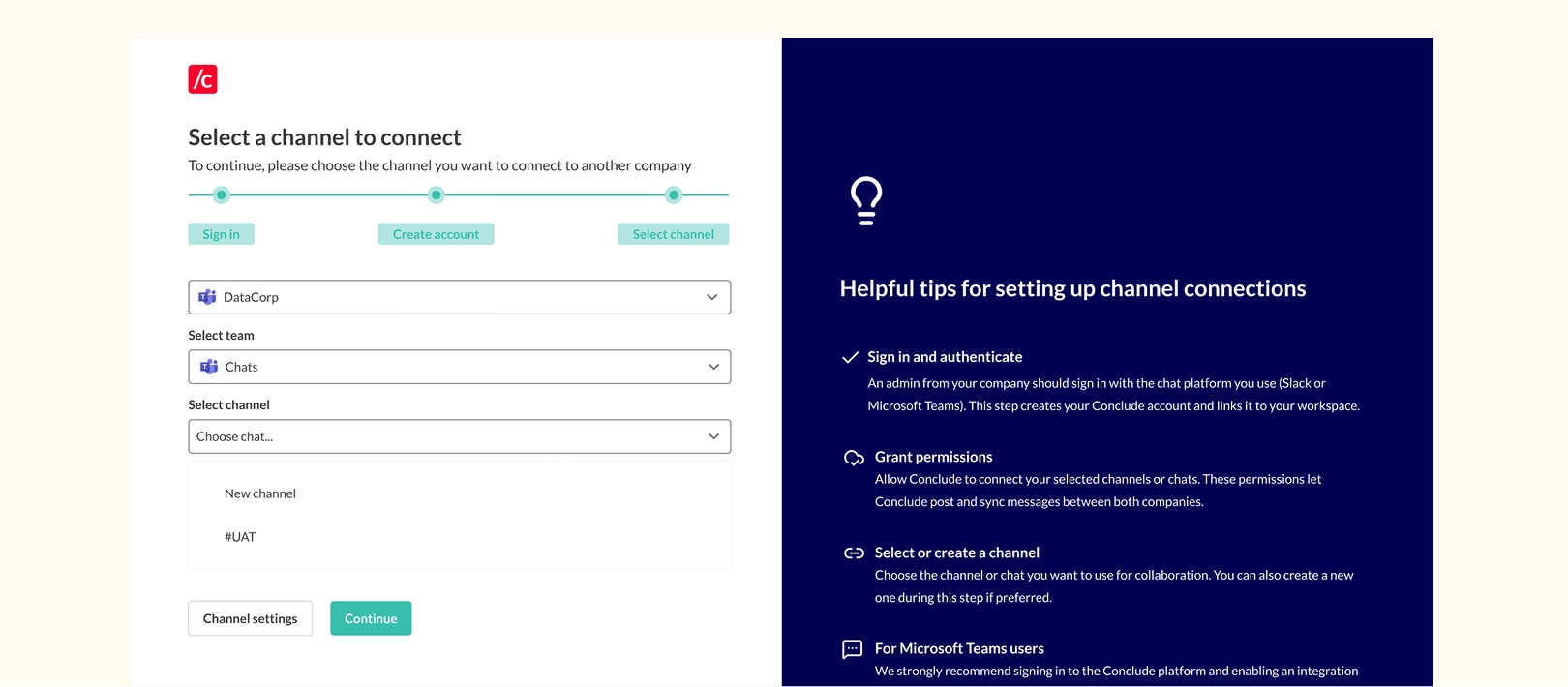
- The invited company creates or selects the exact Slack or Teams channel – or a Teams chat – they want to connect
- Conclude syncs messages only across that connection
For invited companies receiving the invite request:
- You’re only approving a scoped connection to that specific channel or chat
- You’re not approving access to your entire workspace or tenant
- You’re not holding a user licence or paying for Conclude
How This Setup Works
- Receive the email invite (typically handled by a Slack or Teams admin)
- Authorize Conclude for the relevant messaging platform
- Select or create a channel or chat to connect
- Begin two-way sync between the connected channel or chat
Supported Connection Types
- Microsoft Teams: all types of channels and chats are supported for creating and accepting external connections
- Slack: all types of channels are supported for creating and accepting external connections
You can also create the channel or chat during setup:
- Initiating company – can create a new Slack channel or Teams channel/chat during the request flow
- Invited company – can create a new Slack channel or Teams channel/chat during the acceptance flow if needed
Pros
- Clear scope and control – companies choose what’s connected
- Once connected, no further steps are required
- Repeatable pattern for future projects (or partners)
When This Option Works Best
- Works well when the invited company can authorize Conclude with minimal friction
- The initiating company usually manages one messaging platform (either Slack or Teams)
- The setup is repeatable and scalable for connecting with multiple external companies, such as consultants and agencies.
Most Common Concerns
- Requires approval on the invited company side to authorize Conclude as a Slack-Teams integration before use
- May involve a security review depending on your organization’s policies
Option B: Using Conclude Connect Internal (for External Collaboration)
This option lets the external company participate without authorizing or installing Conclude in their Slack workspace or Microsoft Teams tenant. In exchange, the initiating company manages the connection across both messaging platforms and sets up external collaboration space using native access, such as Teams shared channels, Slack Connect, or guest access.
With this setup, the initiating company uses Conclude `Connect for internal connections to connect Slack and Microsoft Teams inside their organization, then links the relevant channels so messages stay aligned across platforms.
That channel can be either:
- A new external collaboration space that they set up, or
- An existing external channel they already use with customers or partners (for example, a Slack Connect channel or a Teams shared/guest channel)
What This Option Is
- The initiating company connects Slack and Teams internally and invites the external company to collaborate
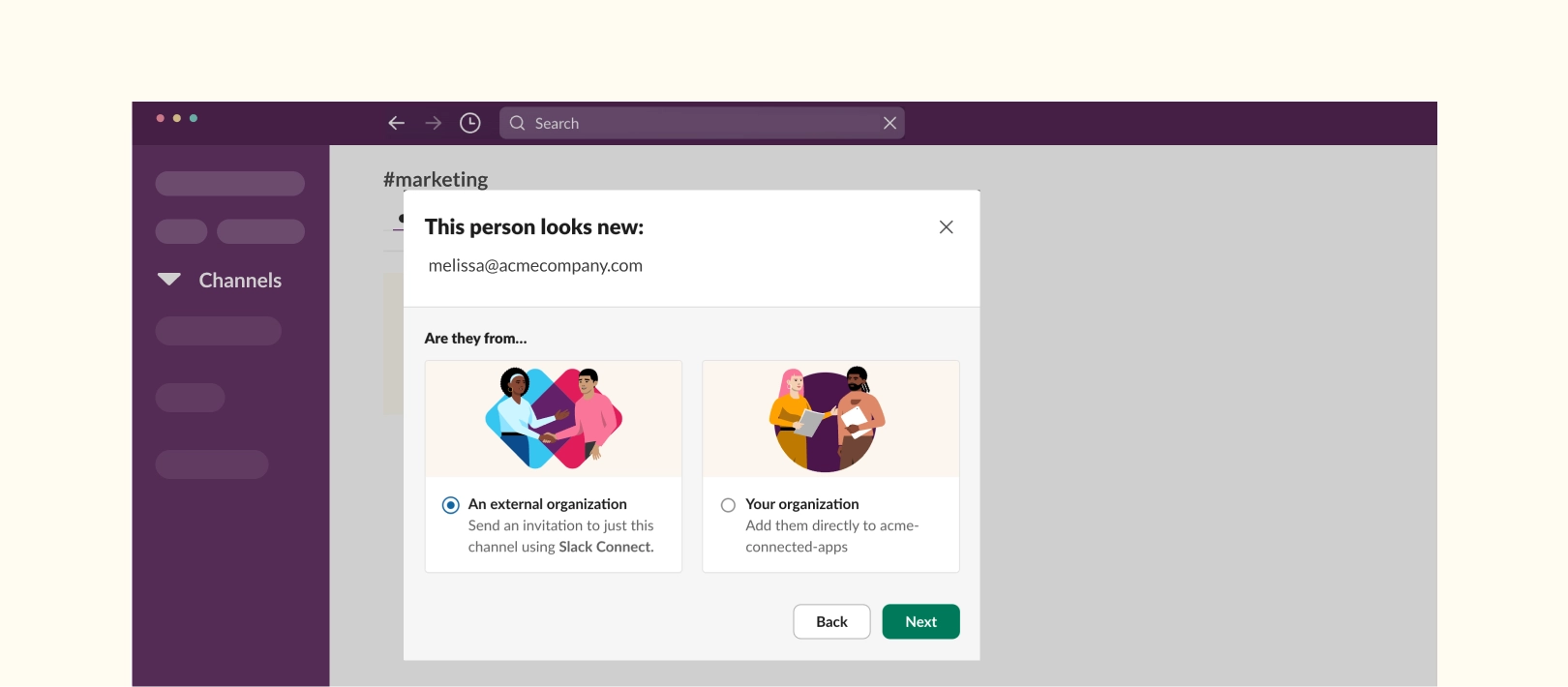
- External collaboration happens through shared or guest access in Slack or Teams, such as:
- Slack Connect channels
- Microsoft Teams shared channels (part of Teams Connect)
- Guest-enabled channels (where permitted)
For invited companies receiving the invite request:
- The invited company is using the approved external collaboration method for their own platforms (for example, joining a Slack Connect channel or a Teams shared channel)
- The invited company is not authorizing Conclude
- The invited company is not holding a user license or paying for Conclude
Important note: Licensing applies to the initiating company’s users participating in connected channels (i.e., active users). The external company users are not counted, and there is no cost to them.
How This Setup Works
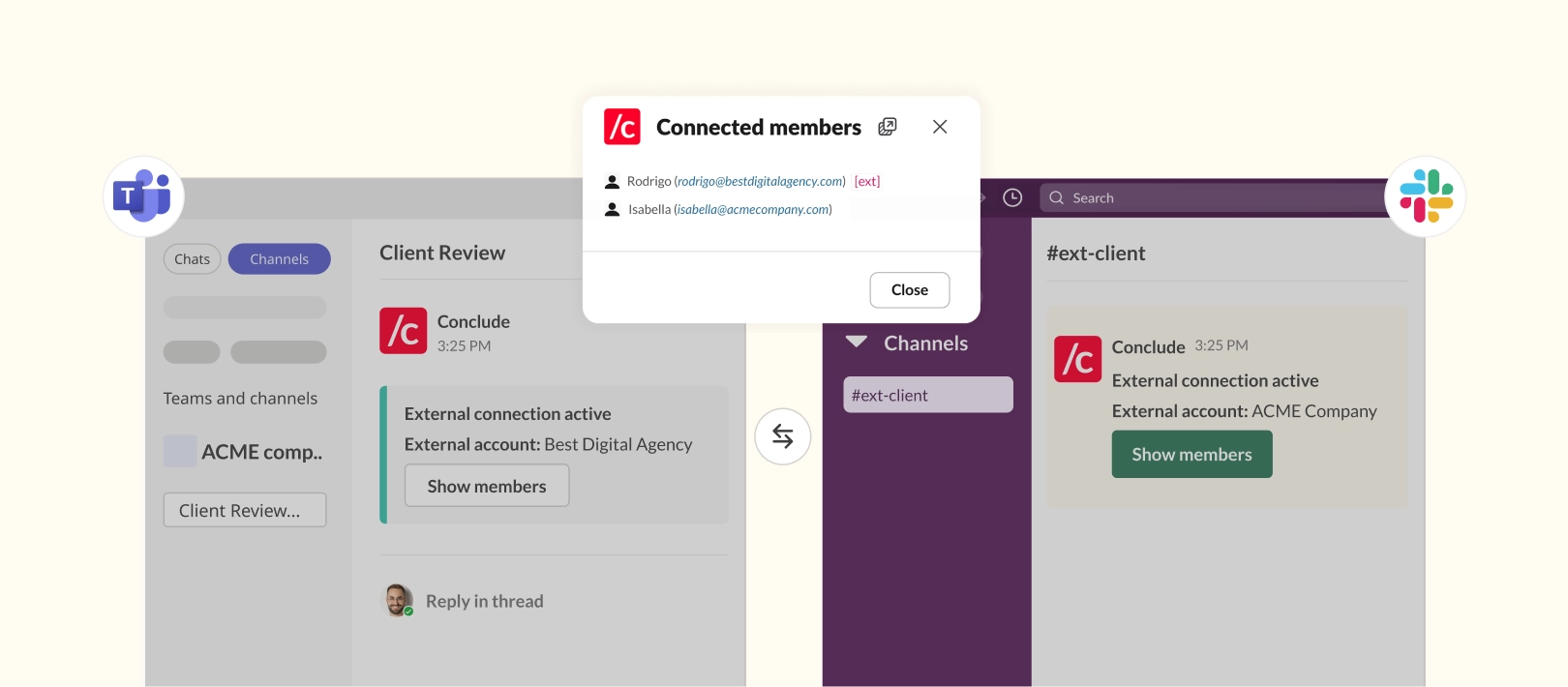
- The initiating company connects the relevant Slack channel to the relevant Teams channel/chat using Conclude to create the collaboration space
- They then invite external users to collaborate in one of those channels or chats (via Slack Connect, Teams shared channels, or guest users)
- External participants work as normal in their platform, and messages stay aligned across Slack and Teams on the initiating company side
Supported Connection Types
- Slack: all types of channels are supported, including Slack Connect channels, where Slack Connect is being used
- Microsoft Teams: all types of channels are supported, including shared channels, where guest users are supported
Pros
- No Conclude authorization, cost, or installation required for the invited company
- Lower internal friction if third-party apps are restricted
- The initiating company manages everything on their side (setup + connections) while the invited company doesn’t need to manage anything in Conclude
- External users stay within their existing platform experience and governance model
- The initiating company reduces platform switching by connecting both platforms internally (if they choose to)
When This Option Works Best
- Works well when the invited company prefers not to authorize third-party tools, or when internal policy makes app approvals slow or complex
- The external company uses a different messaging platform from the initiating company, but the initiating company needs to keep things aligned on both platforms without switching
- A good fit when collaboration is already expected to happen via Slack Connect or Teams Shared Channels
- The initiating company is comfortable managing both Slack and Teams internally
Most Common Concerns
- Collaboration depends on shared channel or guest access policies, configuration, and admin approvals on both sides
- The initiating company carries more operational overhead (two platforms plus an external collaboration setup)
- Practical limitation – the initiating company typically needs to connect channels they own and manage, rather than channels they’re only invited into
Conclude Connect External vs Internal at a Glance
Approvals Required
- Conclude Connect External – the invited company authorizes Conclude to connect a specific Slack channel or Teams channel/chat
- Conclude Connect Internal – the invited company approves external access in their own platform (Teams shared channels, Slack Connect, or guest access) – no Conclude authorization on their side
Operational Overhead
- Conclude Connect External – the initiating company usually manages one messaging platform (Slack or Teams) for the connection
- Conclude Connect Internal – the initiating company manages both Slack and Teams internally, plus the external collaboration setup
Common Challenges
- Conclude Connect External – challenges are typically app approval, security review, and admin availability on the invited company side
- Conclude Connect Internal – challenges are typically shared channel or guest access policies, configuration, and cross-org admin approvals
Governance Boundaries
- Conclude Connect External – scoping is explicit; the connection is limited to the specific channel or chat you select
- Conclude Connect Internal – governance depends on each organization’s external collaboration policies (Teams shared channels, Slack Connect, guest access)
Practical Limitations
- Conclude Connect External – requires the invited company to authorize Conclude to complete the connection
- Conclude Connect Internal – the initiating company typically needs to connect channels they own and manage, not channels they’re only invited into
Security and Review Considerations
Both connection options are designed to keep collaboration scoped and controlled, but they may still require review from IT, security, or workspace admins – especially when external access or third-party authorization is involved.
Conclude offers granular control for file and image sharing, as well as how messages and threads are synced for both internal and external connections. IT admins from the inviting and invited company can adjust settings for the channel connection.
Conclude is SOC 2 Type II certified and HIPAA compliant. For details on how Conclude handles data and what Conclude Connect stores, the best place to start is our Security page.
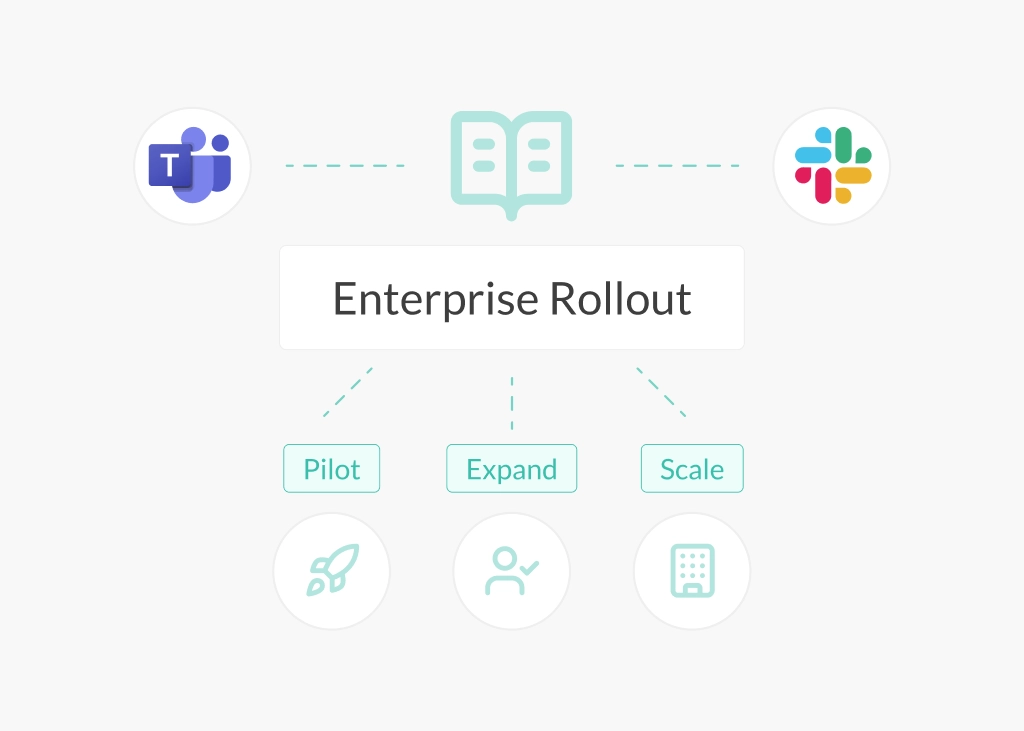
If you’re still not sure if Conclude is right for you, we suggest trying a low-risk pilot approach:
- Start with a single channel or chat, defined members, and a clear purpose
- Expand once the workflow, approvals, and governance model are proven
Conclude is free to use for 14 days. Learn more about our Pricing or get started here.
Frequently Asked Questions
Do both organizations need to install Conclude?
This depends on the setup you have chosen.
Conclude Connect External: Yes. Both organizations authorize/install Conclude to set up the connection (the initiating company sends the invite, and the invited company authorizes Conclude to accept it and connect a specific channel/chat).
Conclude Connect Internal: No. Only the initiating organization installs and uses Conclude. The other organization participates through Teams shared channels, Slack Connect, or guest access.
Who needs to approve the setup on each side?
It depends on your policies, but approval is typically handled by a Slack or Teams admin, plus IT or security if your organization reviews third-party tools or external access.
Do invited companies pay or need licenses?
No. The invited company does not need to purchase Conclude licenses to accept an external invitation. It is free for them to use unless they choose to initiate new connections themselves.
Can we start with one approach and switch later?
Yes. Some organizations start with Conclude Connect Internal when app authorization is a blocker – for example, by connecting Slack and Teams internally and inviting external users into the channel via guest access or shared channels. If the other company later agrees to authorize Conclude, you can switch to Conclude Connect External and reconnect the same existing channels on the initiating company side.
Important: if you do switch to the external model, it’s usually best to remove external guest users from the initiating company’s channel, since those users will participate from their organization’s side of the connection.
What connection types are supported?
On the Slack side, channels are supported, including Slack Connect channels and those with guest users. On the Microsoft Teams side, standard channels, private channels, shared channels, and chats are supported.
An important limitation to note is that the organization creating the connection must own the channel it wants to connect. In other words, you can’t connect a channel you’ve only been invited to.
Can I create a new channel or chat during setup?
Yes. If a suitable channel or chat doesn’t exist yet, it can be created and connected during the request flow or the acceptance flow.
What’s the fastest way to run a low-risk pilot?
Start with a single channel or chat, limit membership to the people who need it, define the purpose clearly, and expand only once the workflow and approvals are proven.