Slack Task Management: How to Turn Conversations Into Action
 Conclude Team
Slack task management is becoming a standard way of working for teams that already run their day in chat. Requests are made through channels, threads, and direct messages, and they often need immediate action. Instead of moving that work into a separate system, many teams now manage tasks where those conversations already happen.
The issue with traditional task management is the extra step. Switching between Slack and a dedicated task management tool slows execution, separates tasks from their context, and increases the likelihood that smaller action items will be missed. Over time, that creates gaps in ownership and visibility.
Research from Microsoft shows that collaboration is increasingly centered on digital work platforms, where communication, coordination, and execution happen in one place. For modern, fast-moving teams, Slack is no longer just for messaging; it’s where work gets done.
In this article, we’ll cover why teams use Slack for task management, the different ways to manage tasks in Slack, and when a basic Slack task manager is no longer enough. We’ll also look at how Conclude Apps support more structured workflows inside Slack, and how Connected Apps help extend task management across Slack and Microsoft Teams.
Why Teams Are Using Slack for Task Management
For many teams, Slack is already where questions come in, decisions get made, and next steps are agreed on. Then someone has to take what was said on Slack and turn it into a task elsewhere. That extra step slows things down and increases the likelihood that smaller requests go untracked.
Now, more teams are cutting that step out. Instead of moving work into another system, they create and manage tasks directly in Slack, where those action items first appear. This means:
- No more switching tools – there’s no need to pause, open a separate platform, and recreate the task. Teams can assign, track, and act on work immediately, which speeds up execution and removes context switching
- Context stays attached to tasks – when a task is created inside Slack, it stays connected to the original conversation. That makes it easier to understand what needs to be done, why it matters, and who is involved
- Improved visibility across teams – action items are no longer buried in chat history or scattered across tools. Teams can see what needs to be done directly alongside the discussion, which reduces missed tasks and unclear ownership
When tasks live where conversations happen, teams spend less time managing work and more time actually doing it.
Different Ways To Manage Tasks in Slack
There isn’t a single “best” way to manage tasks in Slack. The right approach depends on how your team works, how much structure you need, and how you want to manage tasks in Slack over time.
A small team handling quick requests will manage tasks differently than a cross-functional team running multiple projects. The same applies to teams that need simple follow-ups versus those that require approvals, tracking, and reporting.
In most cases, the approach comes down to three factors:
- Team size – smaller teams can manage tasks directly in conversations with minimal structure. As teams grow, they usually need clearer ownership, tracking, and visibility across channels
- Workflow complexity – simple tasks can be handled directly in Slack. More complex workflows, such as multi-step processes or recurring tasks, require more structure
- Collaboration needs – if tasks remain within a single team, basic Slack workflows may be sufficient. If work involves multiple teams or stakeholders, task management needs to be more consistent and visible
Understanding these differences makes it easier to choose the right level of structure, without adding unnecessary complexity.
Here are our top Slack task management recommendations, how they work, and who they’re best for. Read on to find the right solution for you.
Create Dedicated Slack Channels For Small Requests and Tasks
One of the simplest ways to manage tasks in Slack is to create dedicated Slack channels for requests and action items. Instead of letting tasks get buried across multiple conversations, teams centralize them in specific spaces where work can be tracked more easily.
It’s one of several easy Slack productivity tips that teams already implement in their day-to-day to help reduce distractions, improve visibility, and keep work organized in one place.
How Slack Channels for Tasks Work
Teams create channels specifically for tasks, like #marketing-requests, #design-requests, or #ops-tasks. A channel can be created for tasks related to a specific department, project, or team. These channels serve as a single place for incoming requests, making it easier to see what needs attention and who is responding.
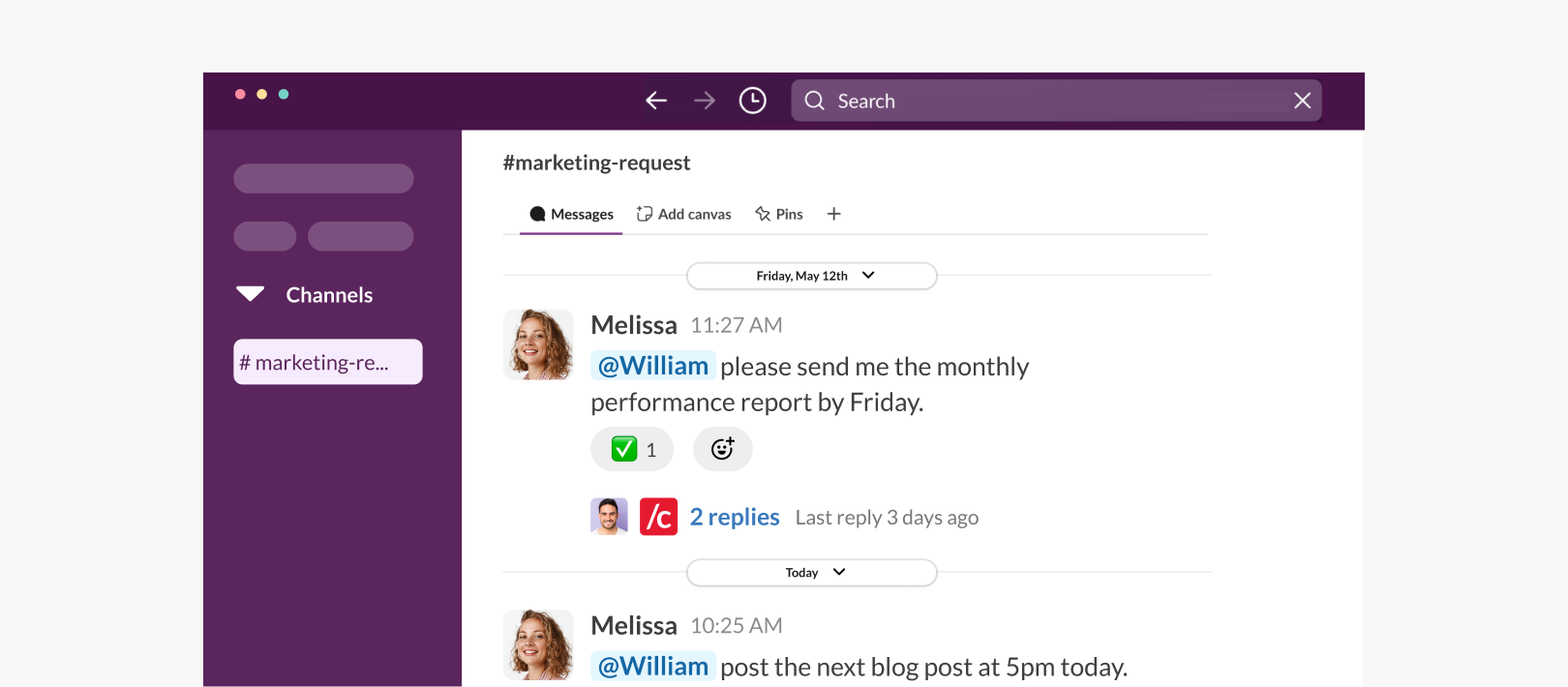
Threads can then be used to manage each request individually, so updates, clarifications, and decisions stay connected to the original message, and the full context is always easy to follow without cluttering the main channel
By keeping requests in one place, teams reduce the risk of action items getting lost across multiple channels. It also becomes easier to scan incoming work and prioritize what needs to be handled first.
Limitations of Using Slack Channels for Tasks
- Tasks can still get lost – as the volume of work increases, messages move quickly, and tasks can easily get lost, and threads may be hard to find
- No structured tracking or visibility – there is no structured way to track progress or status, making it harder to understand what is in progress or has been completed without checking each thread
- Difficult to manage ownership – over time, this solution is difficult to scale. Ownership and accountability become less clear, and teams start to lose visibility across requests
Recommended For
This solution works well for small teams that need a shared space to coordinate tasks without formal tracking or reporting. When tasks are quick, informal, and handled within one team, this setup is usually enough. However, as tasks become more structured or involve multiple stakeholders, you’ll need a more reliable way to manage tasks in Slack.
Use Slack Lists for Lightweight Task Tracking
Slack Lists are a built-in feature that allows teams to turn messages into simple, trackable items without leaving the platform. Instead of relying only on channels and threads, teams can convert messages into tasks and manage them in shared lists.
How Slack Lists Work
Any message in a channel can be converted into a list item. On the message, select more actions > organize > add to list. Choose to add the item to an existing list, or create a new one.
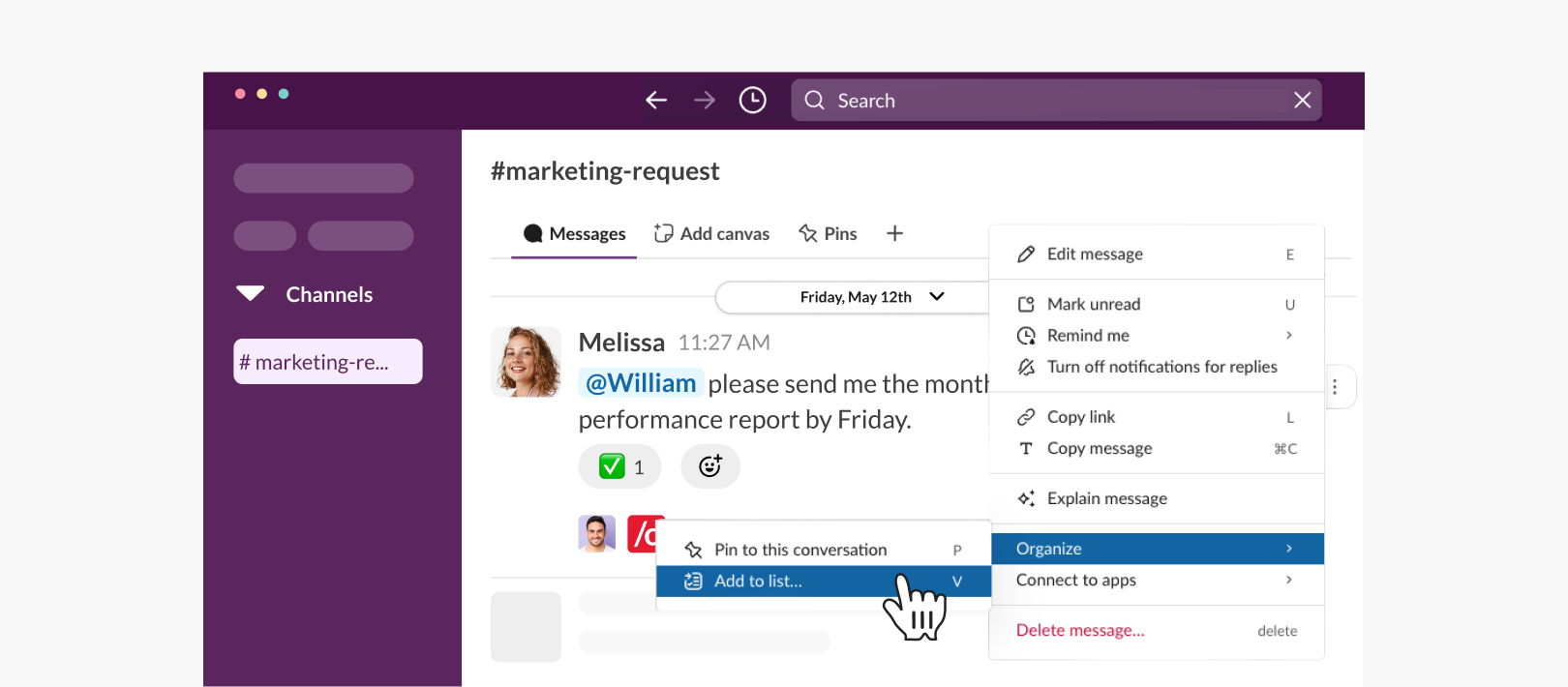
From the list, you can also include simple fields, such as deadlines, assignees, and status updates. You can also save filtering, sorting, and layout preferences to get a personalized view of the most relevant tasks for you.
Slack Lists can also be shared with others, including external partners, through Slack Connect, which allows some level of collaboration beyond a single workspace.
Read this Slack help center article for a full guide on how to use lists.
Limitations of Slack Lists
Lists add structure but still require manual input and ongoing maintenance to stay accurate. As usage grows, several limitations start to appear:
- Manual list and task creation required – there’s no automatic capture of action items, which means extra effort and a higher risk of tasks being missed
- No unified view across lists – if your team uses multiple lists for different projects, you need to check each one individually to understand your workload
- Item limits – Slack Lists have limits that vary by plan. For example, the Pro plan allows up to 1,000 items per list. Once you hit the limit, Slack automatically archives the oldest items, which can cause issues over time
- Invite-only visibility – lists are only visible to people who are invited to them, unlike channels. In larger teams, it can lead to multiple lists being created for the same purpose without others knowing
- Known collaboration bugs – when working with external users via Slack Connect, Slack Lists have been reported as unreliable by some users. Tasks assigned to external collaborators may not appear in their list view, and workflow automations often fail when external users interact with items
Recommended For
Slack Lists work best for teams in the same organization that need simple task creation and tracking without introducing a separate system. As task volume increases or external collaboration on tasks becomes necessary, a more advanced, seamless task management solution will be needed.
Surface Tasks With Slack’s AI Agent
At the beginning of 2026, Slack introduced Slackbot, a context-aware AI agent. Slackbot is designed to be a personal assistant across all your work in Slack. For task management, Slackbot can summarize channels, threads, and direct messages, and answer questions based on your communication history.
How Slackbot Works
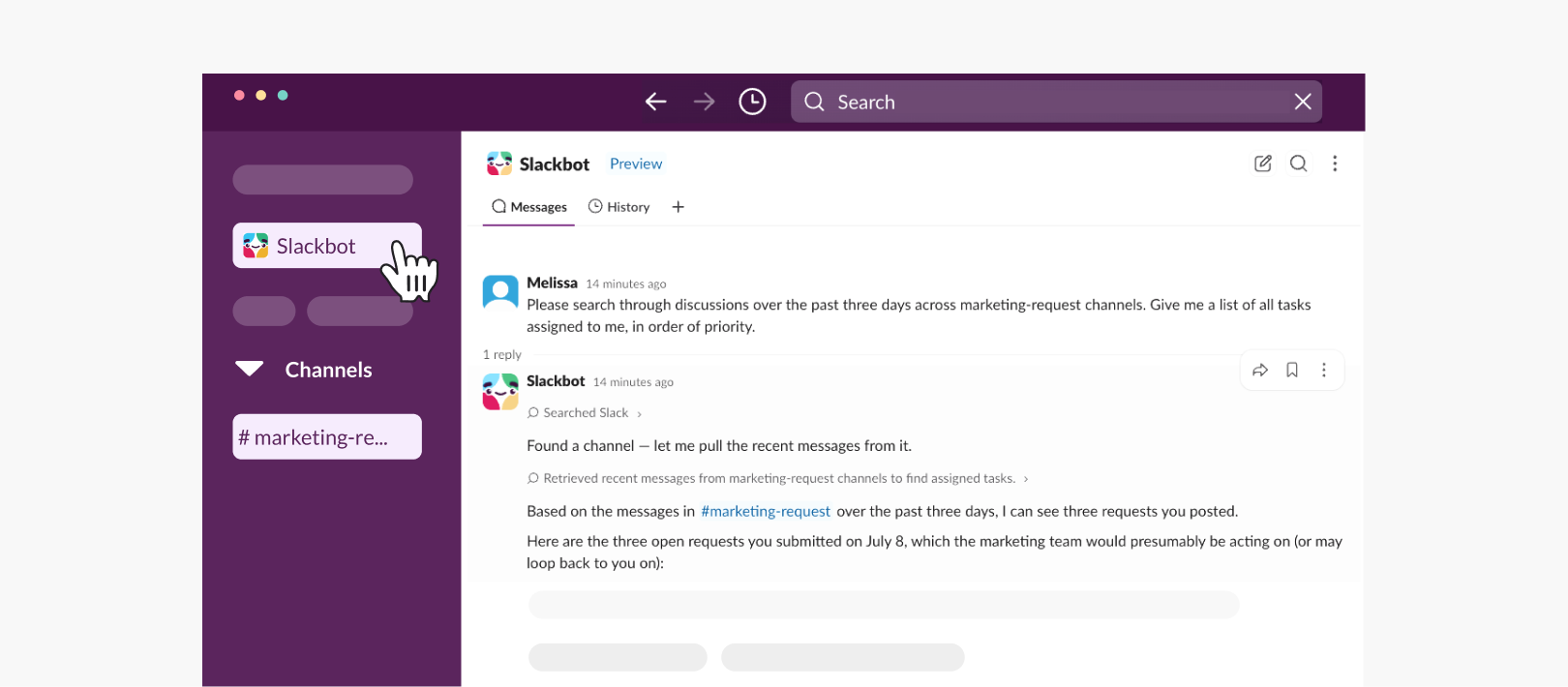
Teams use Slack’s AI agent to identify potential tasks and stay on top of ongoing work. Slackbot can create AI-generated summaries to help you quickly understand what happened in a channel or thread, especially after time away or when managing multiple conversations.
Slackbot makes it easier to spot requests, decisions, and follow-ups that may require action, without the need to scroll through long message histories. Simply ask the Slackbot key questions to receive task-related updates immediately.
Limitations of Slackbot
- Not a task management solution – Slack’s AI agent helps surface tasks, but it does not manage them – it is more of a personal productivity layer. It cannot be used as a task manager on its own
- No ownership or tracking – AI can surface potential tasks, but ownership, status updates, and coordination still need to happen elsewhere
Recommended For
Slack’s AI agent works best when the main challenge is surfacing tasks rather than true task management. It helps individuals catch up, understand what’s important, and extract buried tasks in conversations. However, you can pair Slackbot with the next solution: Slack’s workflow builder.
Automate Repetitive Tasks With Slack’s Workflow Builder
Slack’s Workflow Builder is a no-code tool that lets teams automate everyday workflows inside Slack. Teams can create custom workflows with triggers that can send messages, collect information, route requests, or connect to other tools.
Teams can use it for task management by turning incoming requests into structured task-intake flows directly in Slack. Instead of handling requests manually in messages, teams can standardize how work is submitted and tracked.
How Slack Workflow Builder Works
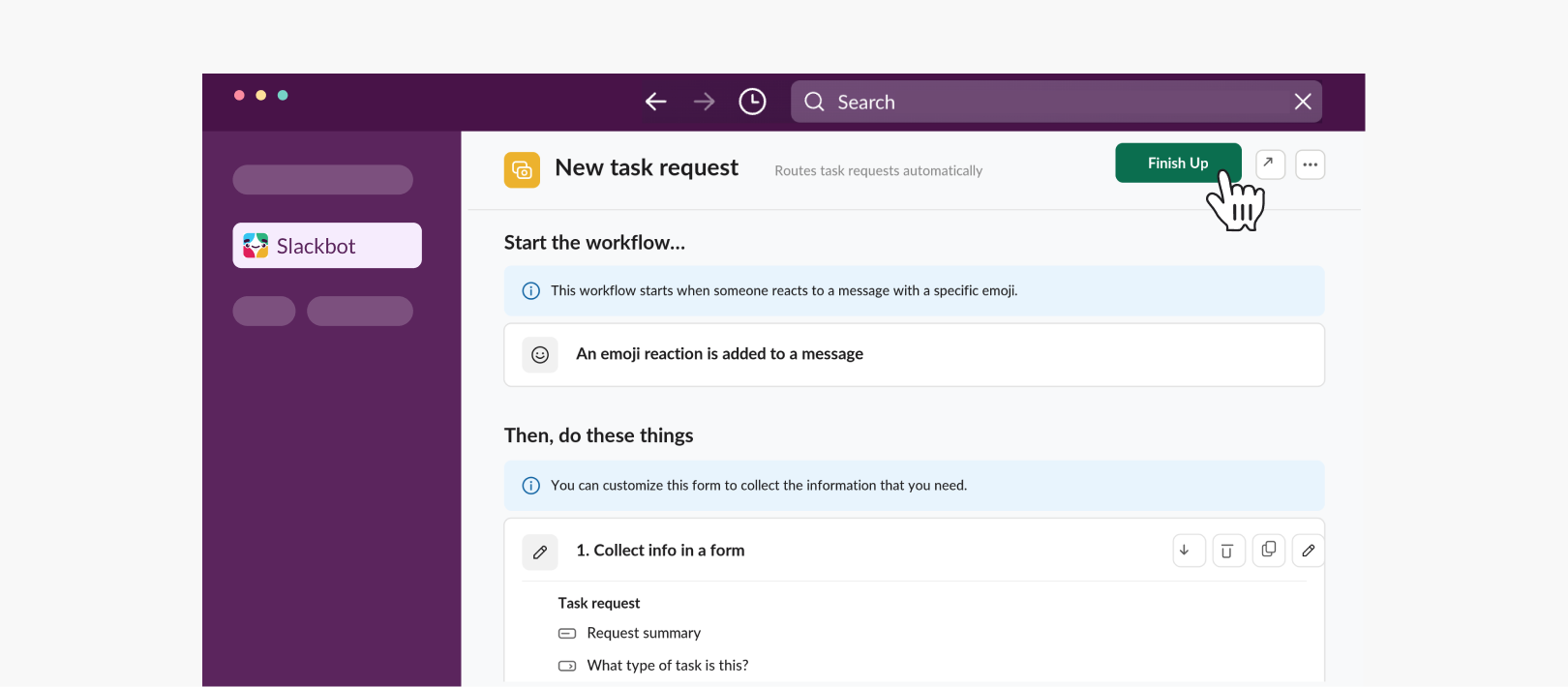
Teams can opt to build a workflow using a template or from scratch. You start by choosing the trigger, the steps that follow the trigger (these are your actions), and even variables. Adjust the access permissions and add workflow managers, and your workflow is ready to publish.
For task management, a simple workflow may look like this:
- When a request comes through via a message on a channel, you react with an emoji. This emoji reaction triggers the workflow
- The workflow opens a form that asks for task request details, including the required action, deadline, owner, and more
- Once submitted, the task is sent to the right channel or person automatically
External tools like Zoom, Salesforce, and Jira can also be connected to your workflows, so you can bring in your existing tools and reduce platform switching. Similarly, you can invite external organizations to access your workflows using Slack Connect.
Read this guide on how to build a workflow in Slack for a detailed breakdown.
Limitations to Slack Workflow Builder
- Not a complete task management system – Workflow Builder helps create task flows, but it does not provide a full system for managing tasks from start to finish
- No dashboard or central tracking: There is no built-in dashboard or queue to track all tasks in one place. Progress, status updates, and completion tracking still need to be handled manually or in another system
Recommended For
Slack Workflow Builder works well for teams that want to standardize how tasks are submitted and routed inside Slack. It is useful for handling repetitive requests and reducing manual coordination. However, teams with more complex workflows or tracking needs will require a more complete task management solution.
Turn Conversations Directly Into Tasks With Conclude Apps
Most Slack task setups still rely on lists or manual tracking. Conclude Apps introduces a different model: tasks are created and managed directly from conversations, not separate from them.
Instead of static task lists, work becomes conversation-connected workflows inside Slack. Conclude Apps turns Slack into a conversational ticketing system where tasks, requests, and approvals stay tied to the messages that created them.
How Conclude Apps Works
Conclude offers built-in templates or allows teams to customize their own app, including for task management.
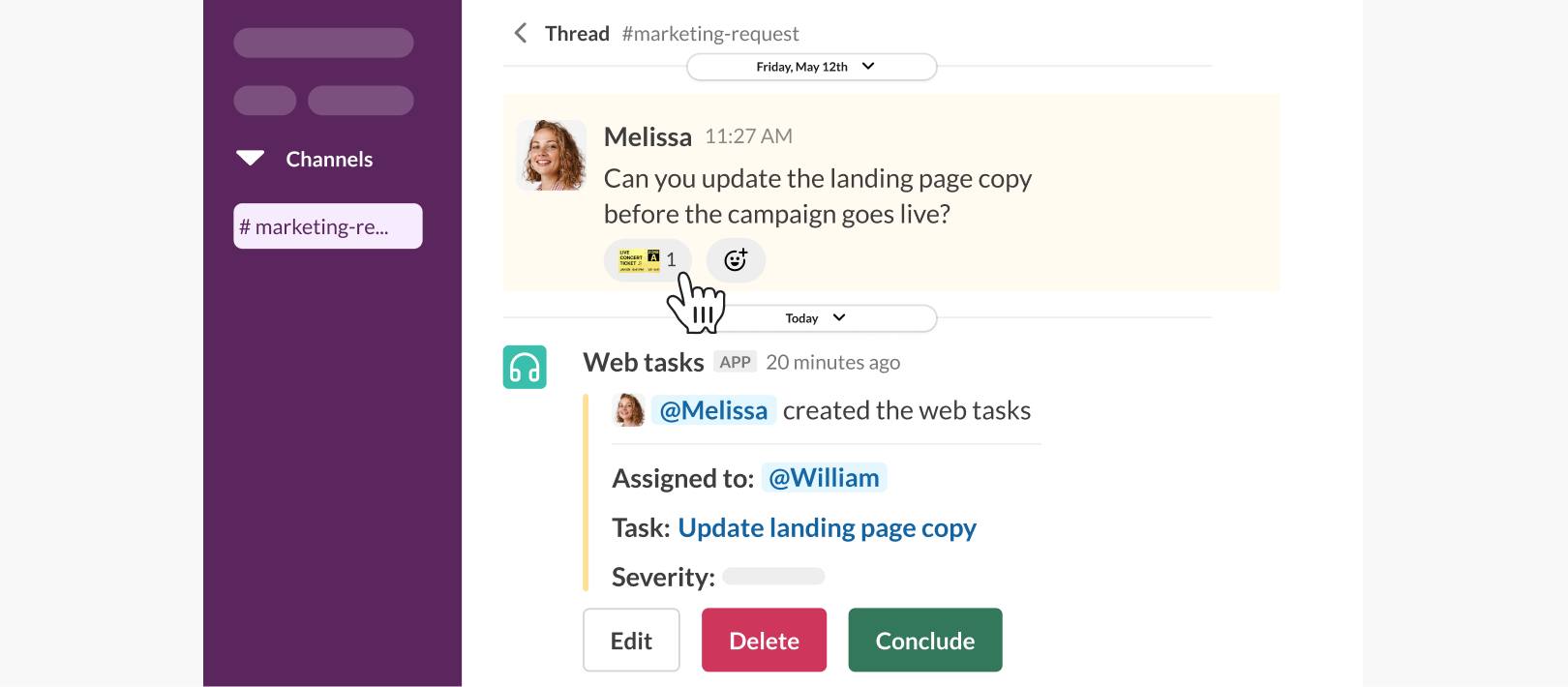
Once created and installed, teams can create a ticket immediately with a simple command or emoji, depending on where they are:
- Channel-based Tasks: From a dedicated channel like
#marketing,#sales, or#support, teams can type/c newto create a new task or ticket. This creates a temporary channel branching from the original, giving the task a focused space for collaboration without adding noise. Once completed, the channel is archived, but remains accessible in the Dashboard, so no information is lost - Thread-based Tasks: Tasks can also be created directly from threaded messages. Responding with a ticket emoji turns a conversation in a thread into a structured task. Updates, assignments, and progress stay connected to that thread, making it easy to follow
Benefits of Conclude Apps for Task Management
Conclude Apps provides an end-to-end task management solution, including:
- Turn conversations into tasks instantly – messages can be converted into tasks via a simple command or emoji – no additional manual effort required
- Create flexible workflows – teams can build no-code ticketing templates for different task management use cases, from Project Management to IT Support.
- Integrate with Jira and Zendesk – add the Jira integration or Zendesk integration to your ticketing workflow to sync all tasks and updates in real-time
- Connect to external Slack workspaces – with Conclude Connect for external collaboration, teams can link additional Slack workspaces across companies to enable collaborative task management
- Track everything from the Dashboard – all tasks are stored in the Conclude Dashboard, where teams can monitor progress, review task history, and reopen tickets when needed
Recommended For
Conclude Apps works best for teams that need a complete, trackable task-ticketing workflow system directly in Slack. It is particularly useful for fast-moving internal teams like IT, HR, Marketing, Product, and Operations, where tasks need to be created, assigned, and completed quickly without losing context.
Managing Tasks Beyond Slack
Even if Slack is the center of your day-to-day work, it’s rarely the only platform teams use. Many larger organizations also rely on Microsoft Teams, either across different departments or when working with clients, partners, or stakeholders.
When work is split across platforms, conversations happen in different places, requests come in from multiple channels, and teams lose visibility into what needs to be done. Keeping tasks aligned requires switching tools, repeating updates, or manually reconnecting context.
This doesn’t mean your task management inside Slack has to change. The goal is still the same: capture work where it starts and keep it connected to the conversation. That’s where Connected Apps comes in. Maintain the same conversational workflow in Slack and connect it to Microsoft Teams for a cross-platform task management solution.
Conclude Apps for Managing Tasks Across Slack and Microsoft Teams
For teams working across platforms, Connected Apps removes the need to choose one system over another. You can connect ticketing across Slack and Microsoft Teams, so workflows stay consistent, conversations remain connected, and task management continues where work actually takes place.
Once you’ve installed your app and connected your Slack and Teams accounts, teams can convert a message into a ticket using a ticket emoji from Slack or Teams. Any updates – ticket creation, replies, statuses, file uploads – will appear on both platforms in real time.
Just like Conclude Apps, you can integrate Jira and Zendesk so all platforms stay automatically synchronized. All tickets and updates can be monitored from the Dashboard.
For a step-by-step on how to create a cross-platform ticketing app across Slack and Teams, read our Connected Apps Quickstart Guide.
Benefits of Connected Apps for Task Management
- Bi-directional synchronization – tickets, updates, and messages are updated in both Slack and Teams in real time
- External workflows – Connected Apps is ideal for external task management, including Customer Support and client-agency collaboration
- One-platform collaboration model – teams can continue using their preferred platform without duplicate licensing requirements
For more details on Connected Apps and how it differs from Conclude Apps, read this breakdown of all Conclude solutions.
Recommended For
Connected Apps is best for teams looking for a seamless cross-platform task management ticketing solution. It is especially useful for teams managing tasks with external clients, vendors, or stakeholders who do not want to adjust their current workflow or migrate to a different tool.
Turning Slack Into Your Task Management System
Slack is no longer just a communication tool. For many teams, it has become the place where decisions are made, and work actually moves forward. As a result, task management is shifting closer to conversations. Instead of moving work into separate systems, teams are handling it directly inside Slack
The right setup depends on how your team operates: smaller teams can stay organized with simple approaches, while more complex workflows require a clearer structure to keep everything aligned as more people and dependencies are involved.
That’s where a complete conversational task management becomes valuable. It allows teams to manage work where it happens, without losing context or switching between tools.
Conclude supports both ends of that spectrum: Conclude Apps bring structured workflows directly into Slack, turning conversations into trackable work. Connected Apps extend the same model across Slack and Microsoft Teams, so teams can collaborate without being limited to a single platform.
If you’re looking to bring task management into your Slack conversations, get started with Conclude today.
Frequently Asked Questions
Does Slack have a built-in task manager?
Slack does not have a fully built-in task management system. However, it does offer additional features like reminders, Slack Lists, and its Workflow Builder, which allow users to create their own task management system. However, these features are limited and are not designed for managing structured workflows, assigning ownership across teams, or tracking progress at scale.
What is the best task manager for Slack?
The best task manager for Slack depends on your team’s workflow complexity and collaboration needs. For simple task tracking, built-in features like Slack Lists may be enough.
For more advanced use cases, teams often use dedicated tools that integrate directly with Slack. Solutions like Conclude Apps allow teams to create, assign, and manage tasks directly from Slack conversations, while keeping context connected.
The key is choosing a solution that fits how your team works, without adding unnecessary complexity or forcing constant tool switching.
Can you use Slack as a project management tool?
Slack can support lightweight project management, especially for teams that prioritize fast communication and collaboration. Channels, threads, and integrations make it possible to coordinate work, share updates, and manage tasks in one place.
However, Slack on its own does not provide full project management capabilities such as timeline planning, dependency tracking, or detailed reporting. For more complex projects, teams often combine Slack with workflow tools or task management systems that add structure while keeping communication centralized.
How do you use Slack for task management?
Teams use Slack for task management by capturing and acting on work directly from conversations. This can include creating dedicated channels for requests, using threads to organize discussions, setting reminders, or turning messages into tasks using Slack Lists.
More advanced setups involve building workflows with Slack’s Workflow Builder, or using integrations that allow teams to create and manage tasks without leaving Slack. This approach reduces context switching and keeps tasks connected to the conversations where they originated.
How do you create a task from a Slack message?
There are several ways to create a task from a Slack message, depending on the level of structure needed. Basic methods include saving a message, setting a reminder, or adding it to a Slack List.
For more structured workflows, teams can use message actions, reactions, or commands to convert a message into a task. Tools like Conclude Apps offer a native ticketing solution directly inside Slack that allows users to turn messages into trackable tasks instantly, with a simple emoji.
Conclude keeps all updates, ownership, and progress connected to the original conversation, so teams can capture action items in real time and manage them without leaving Slack.