Top Slack Productivity Tips for Remote and Hybrid Teams (2026)
 Conclude Team
Slack is a popular messaging app for many remote and hybrid teams. With 27% of remote-capable employees globally now fully remote – and 53% more working hybrid – Slack plays a central role in how distributed teams stay connected and get work done.
But like any powerful tool, it can become overwhelming. Notifications, cluttered channels, and unclear processes can make it hard to focus and keep track of what matters.
This guide shares practical Slack productivity tips to help reduce noise, stay organized, and create smarter workflows – whether you’re in the office or working from home. With the right approach, Slack can support how your team works and help you get more done without getting buried in messages.
To help you take Slack even further, Conclude’s solutions help you to manage tasks and projects – and also connect Slack with Microsoft Teams.
Ready to boost your team’s productivity in Slack? Start your free trial.
Reduce the Noise
A constant stream of Slack notifications can be one of the biggest challenges of remote work. Alerts, mentions, and channel clutter can distract you from focused work and make it difficult to stay on top of what matters. Context switching between conversations and tools also drains your productivity and focus.
If you want to cut down on distractions and improve your workflow, try the following four Slack productivity hacks to quieten the chaos.
Set Do Not Disturb Hours
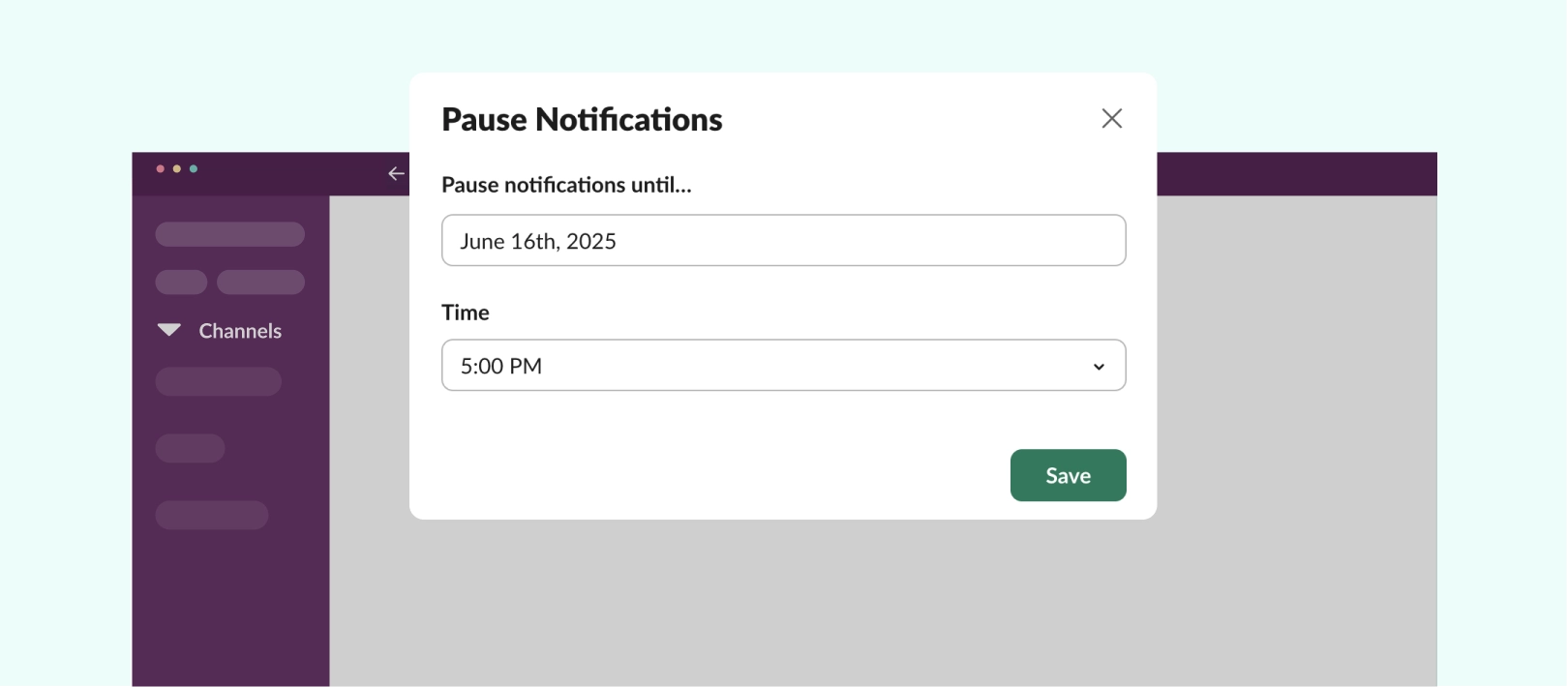
The Do Not Disturb (DND) feature in Slack allows you to pause notifications during specific hours, enabling you to focus or step away without missing anything important. When you turn DND on, notifications and mentions are paused, and your teammates see a DND icon next to your name. If they need to reach you for something urgent, they can still override it once a day.
You can enable DND quickly from your Slack profile menu, set a custom schedule to pause notifications automatically, or use handy slash commands like /dnd for 15 minutes when you need a quick break.
Only Show Unread Direct Messages
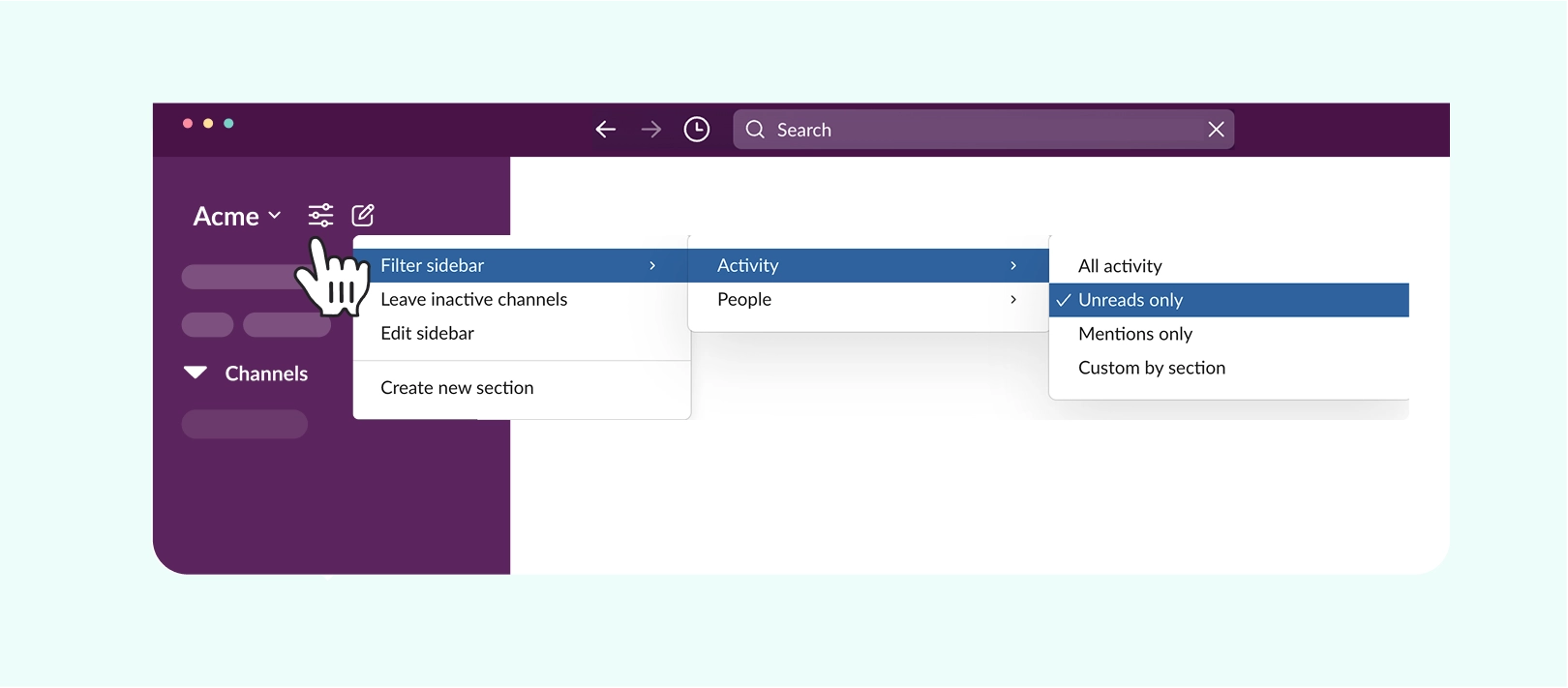
If your Slack sidebar feels cluttered, you can filter it to only show unread direct messages. This helps you quickly focus on the conversations that need your attention.
Here’s how to do it:
- In the sidebar, click the Manage my sidebar icon
- Go to Filter sidebar > Ticket
- Select Unreads only
Now, only DMs with unread messages will appear in your sidebar.
Mute Occasionally Used Channels
We all have those Slack channels that we’re part of but don’t really use, like company updates or occasional project groups. You might not want to leave them entirely, but you also don’t need a constant flood of notifications distracting you from your work.
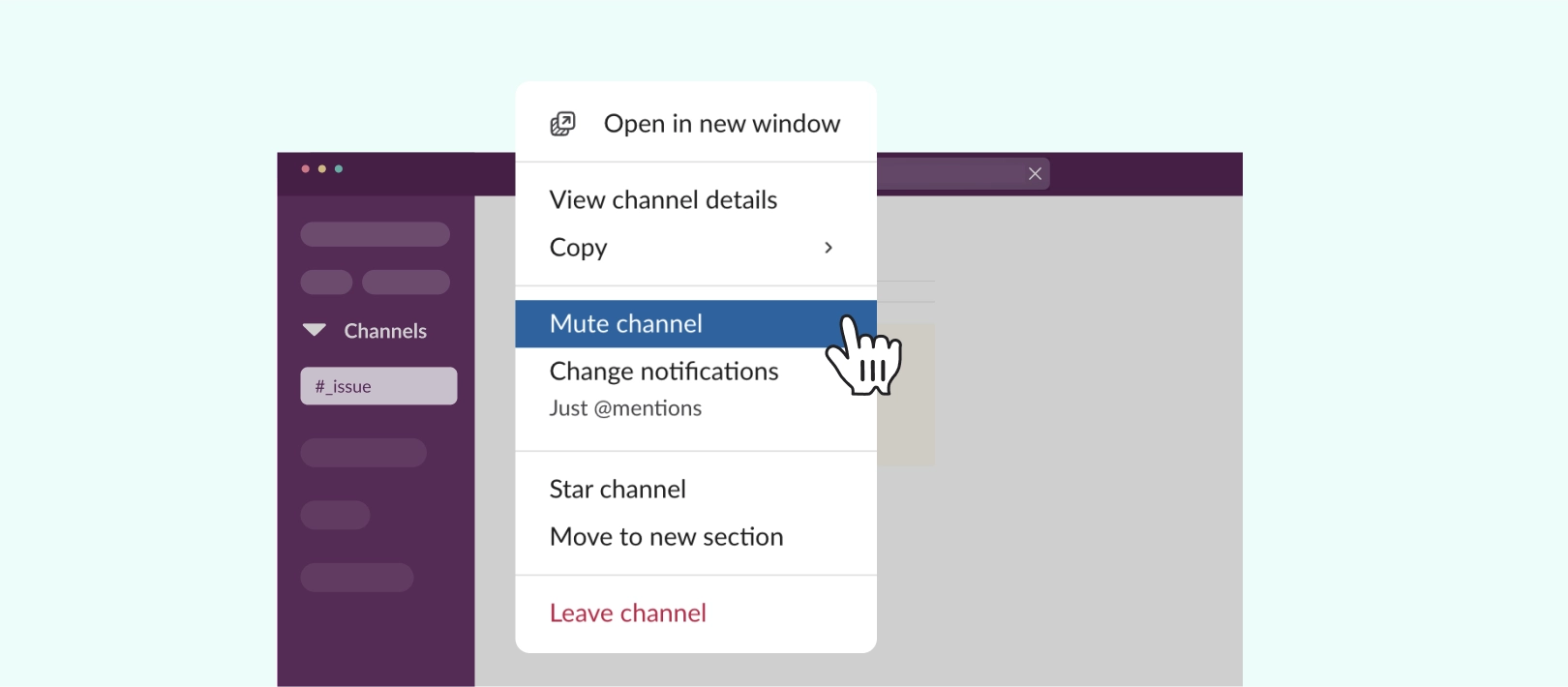
If you’re part of channels that don’t need your constant attention, you can mute them to stop getting alerts for every new message.
Just hover over the channel, right-click, and select Mute channel. You’ll still see the channel in your sidebar, and you’ll still get mentions, but you won’t be distracted by constant notifications.
Leave or Archive Inactive or Irrelevant Channels
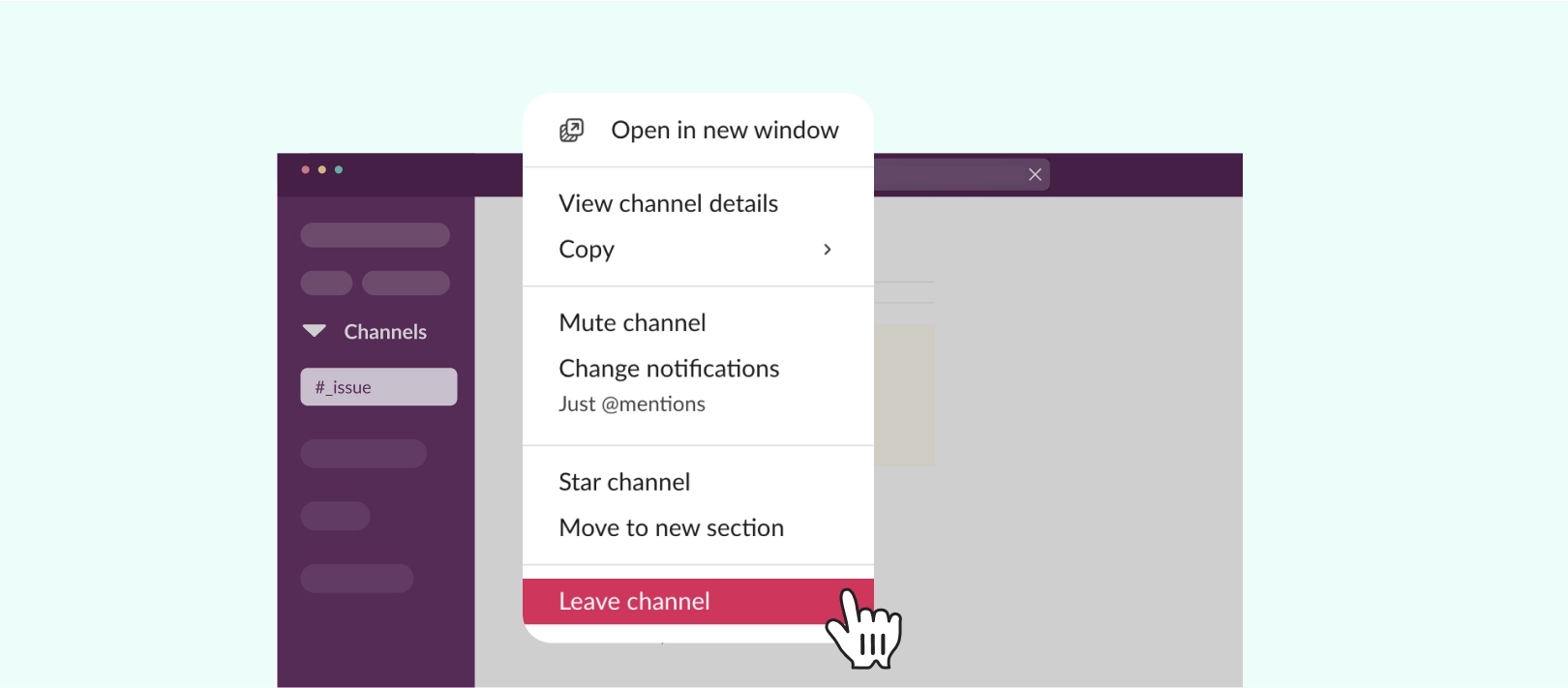
To keep Slack from getting cluttered, leave any channels that are no longer relevant. For instance, when a project wraps up, leave or archive the related channels. If you’ve finished collaborating with a client, archiving or leaving those channels can also clear up space.
If a channel was used for a project that’s now complete, archiving it is a great way to keep your sidebar tidy and focused on what matters now. Archiving removes it from your sidebar but keeps the messages accessible for future reference.
- To leave a channel: click the channel name, then choose Leave channel
- To archive a channel: click the channel name, go to Settings, and select Archive channel for everyone
Organize Your Slack Workspace
When your Slack workspace isn’t well organized, it can be hard to find the information you need. Messages get lost, and it takes longer to get work done. With a few simple Slack hacks, you can create a workspace that’s clear and easy to manage.
Group Channel Categories
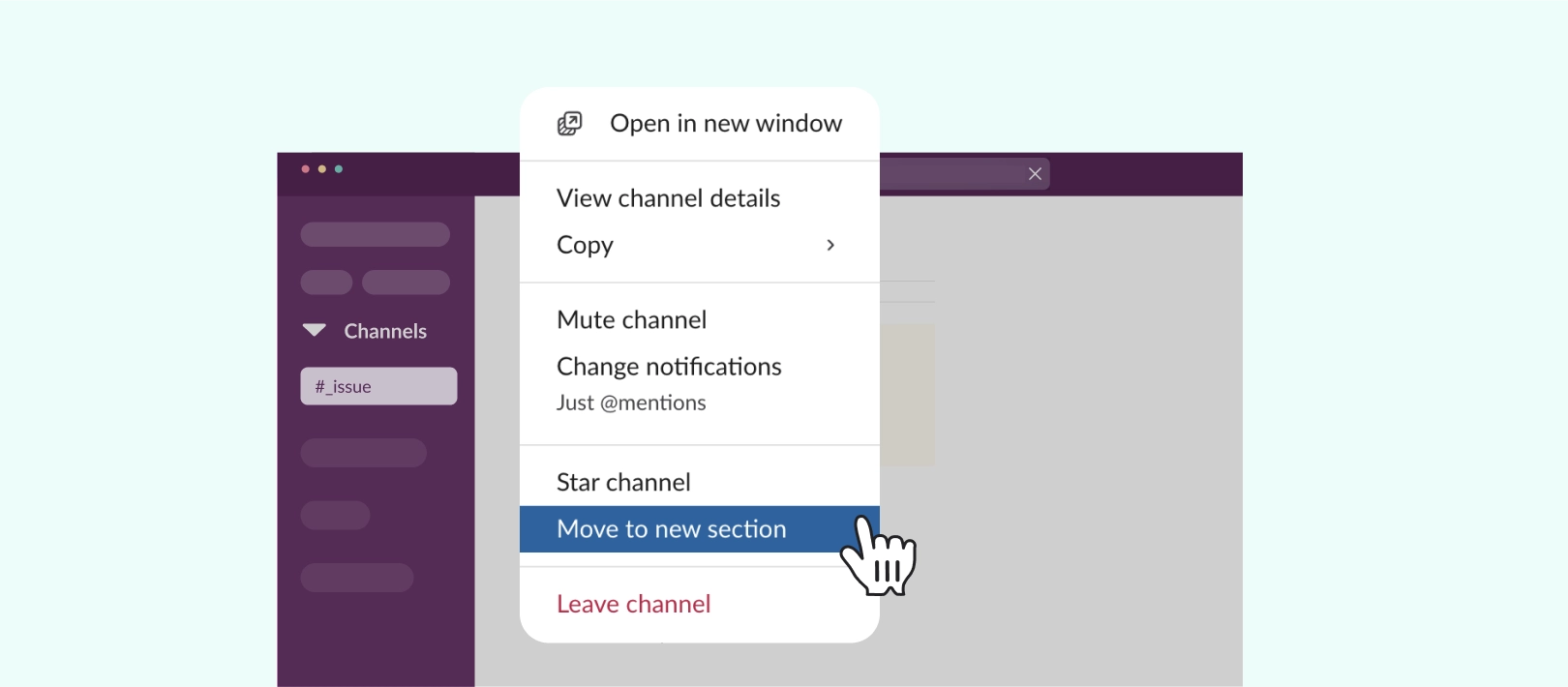
Too many channels crowding your sidebar? Creating custom sections helps you group conversations by topic, team, or priority, making it easier to stay organized and manage notifications.
Here’s how:
- Right-click a channel in your sidebar
- Select Move to new section
- Give the section a clear, descriptive name
- Drag other relevant channels into this new section
This quick tweak can make it much easier to navigate Slack, especially when you’re juggling multiple projects or teams.
Use Threaded Messages to Reduce Distractions
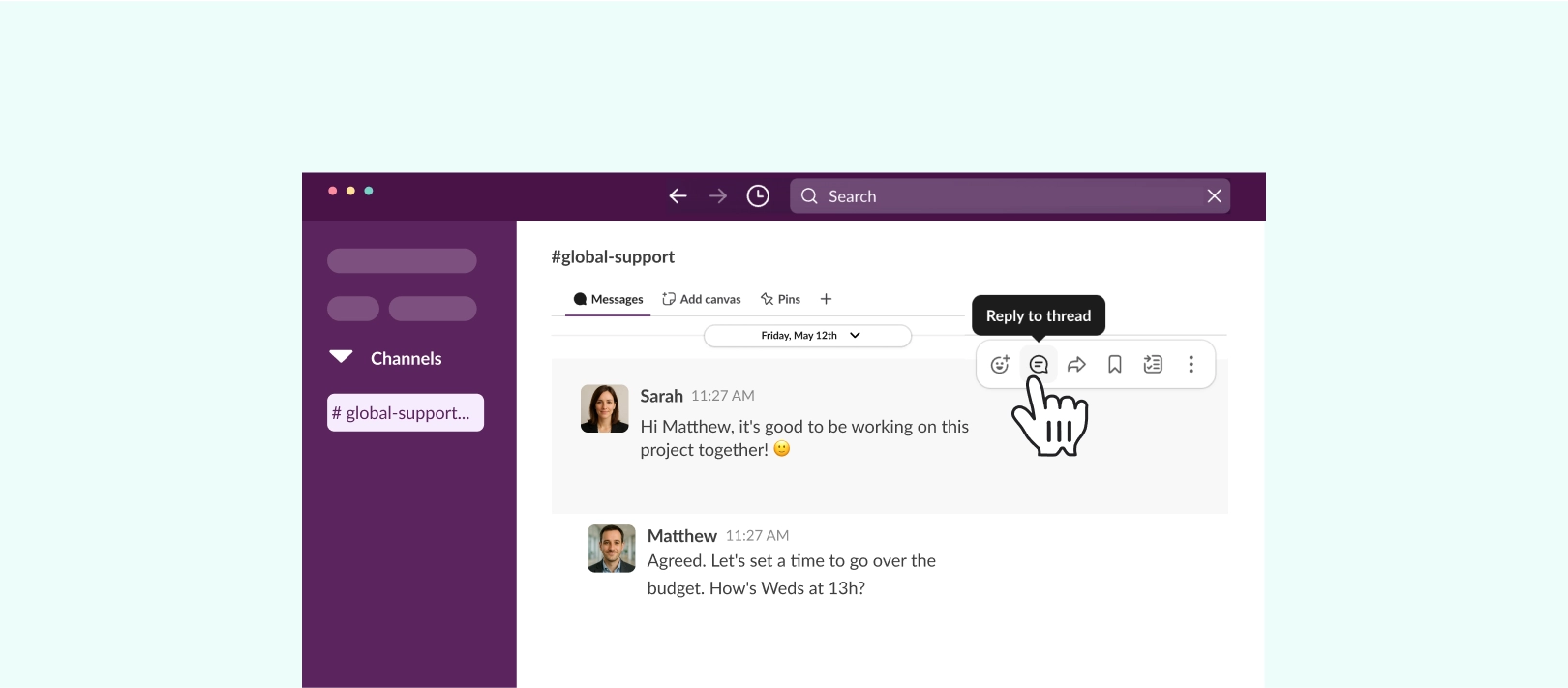
Using threads in Slack are ideal for keeping discussions organized and reducing clutter in busy channels. Instead of overwhelming everyone, threads let you keep replies about a specific message in one place – perfect for sharing feedback or asking follow-up questions.
You can even ask for follow-ups directly in public channels, so everyone stays in the loop without switching to DMs. If you’re done with a thread and don’t want updates, turn off notifications for it.
To create a thread:
- Hover over the message you want to reply to
- Click the Reply in thread icon
- Start typing your response
For remote and hybrid workers, using threads with other Slack tools like reminders helps you stay organized and keep your workspace focused.
Pin or Save Important Messages
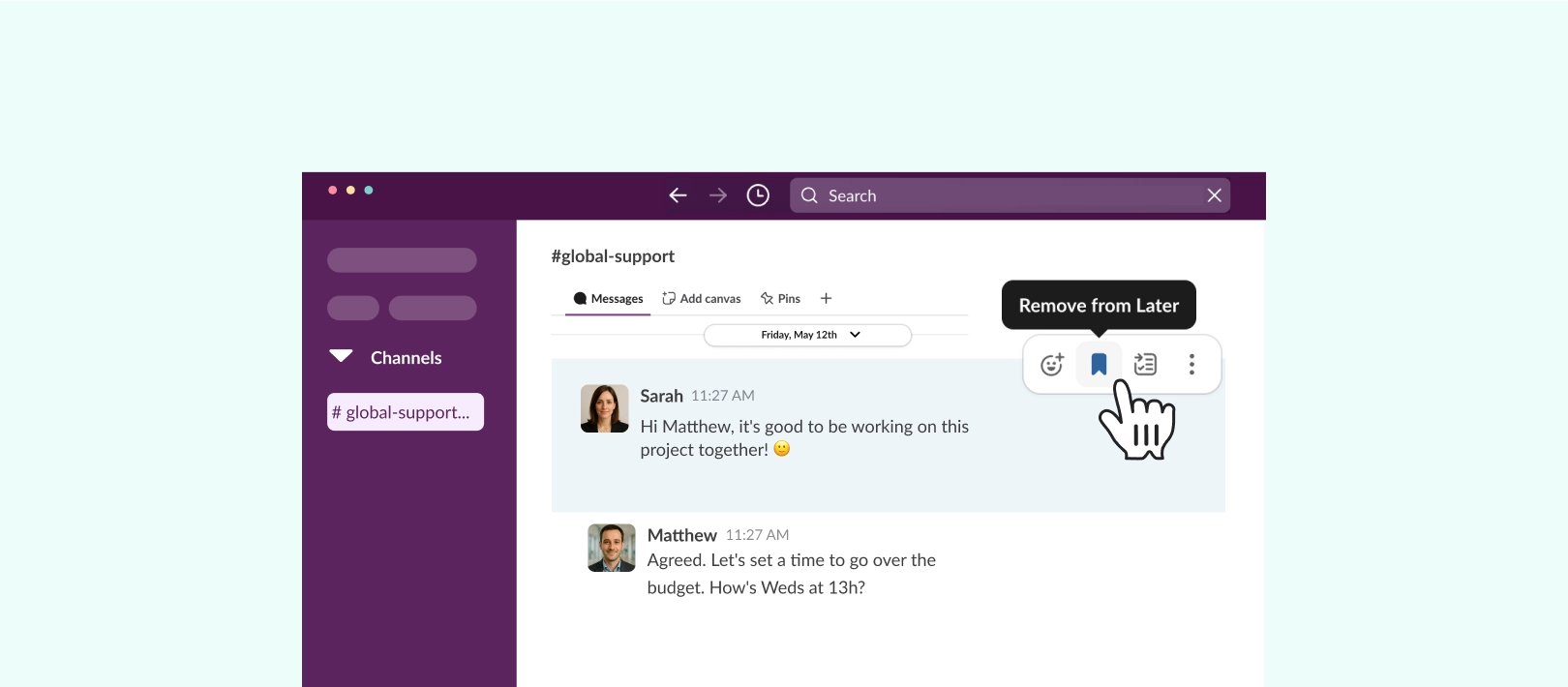
Pinning or saving messages in Slack helps you keep key details at hand without losing track of information. Pinned items stay in the channel for everyone to see, while saved items are just for you. This way, you avoid wasting time searching for important links, project details, or resources you need often.
To save a message or file:
- Hover over the message or file you want to save
- Click the Save icon to add it to your Later view
- In your Later view, you’ll find it under In progress, Archived, or Completed, depending on where you’ve placed it
To pin a message in a channel:
- Hover over the message you want to pin
- Click the three dots (More actions) button
- Select Pin to channel
- View Pinned items in the channel details pane
This way, you can decide whether to keep it personal (saved) or shared (pinned), depending on what your team needs.
Search Messages or Shared Files Easily
It’s easy to lose track of where you saw that file or message, especially in busy Slack channels. Fortunately, Slack’s built-in file browser can help you find what you need quickly.
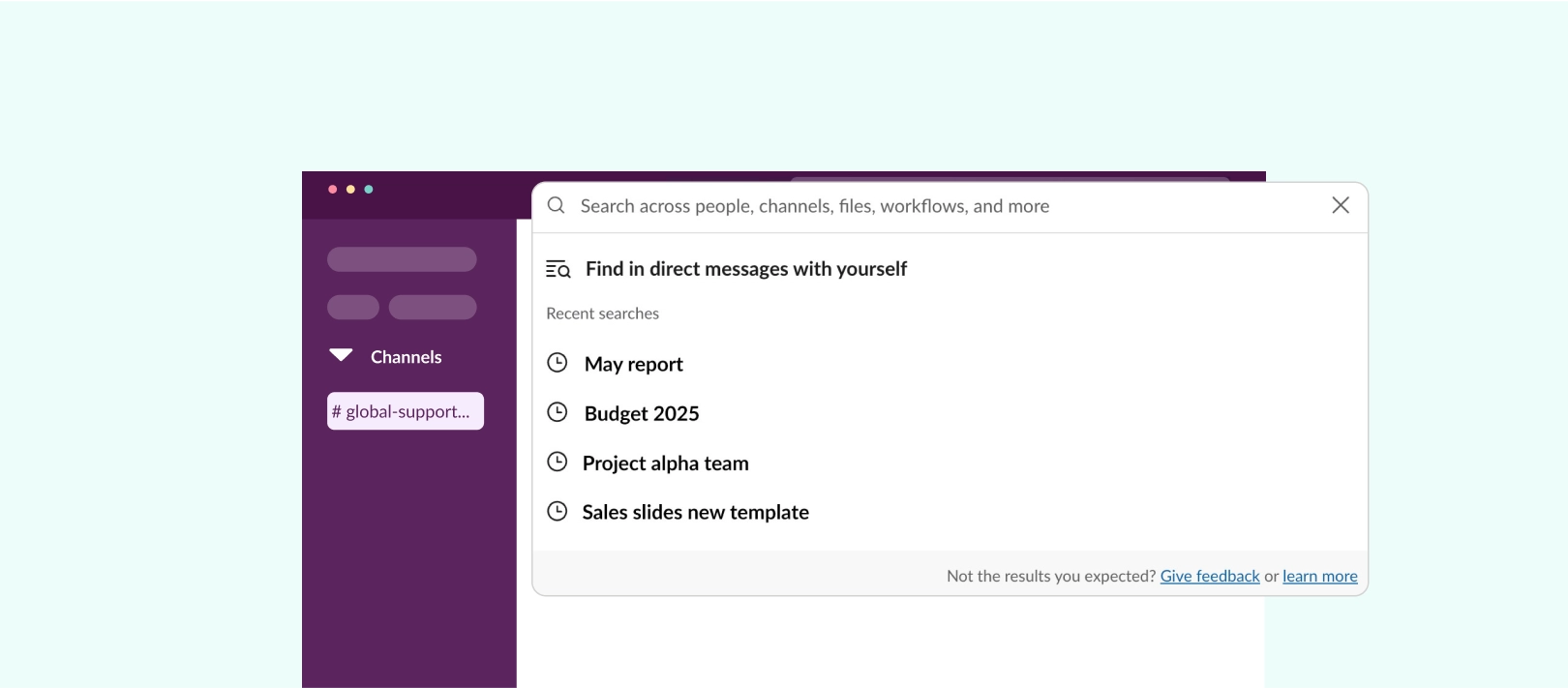
Instead of scrolling through endless conversations, you can use Slack’s search bar at the top of your workspace to quickly find files and messages:
- In your workspace, locate the search bar at the top of the page
- Start typing a keyword or phrase related to the message or file you want to find
- Use the filters (like File or Channel) to narrow down the search results
Make the Most of Slack’s Automations and AI Agent
Slack offers several intelligent features to enhance productivity inside your conversations, such as their Workflow Builder to automate repetitive processes, and their content-aware AI Agent Slackbot, for general day-to-day work support.
Instead of just triggering notifications, Slackbot can now help teams surface information, guide workflows, and respond to common requests directly in conversations. So work keeps moving without switching tools or manually following up on routine tasks.
By combining automation with AI-driven assistance, teams can reduce manual effort, standardize processes, and stay focused on higher-value work.
Automate Repetitive Tasks with Slack’s Workflow Builder
Slack’s Workflow Builder helps you automate repetitive tasks without writing any code. Use it to standardize how your team handles requests, shares updates, or coordinates feedback.
Instead of sending repetitive reminders or clarifications, you can attach forms to a channel. The forms collect the necessary information to move requests forward, while any related discussions can occur in threads, keeping everything organized and easy to find.
For more information, check out this detailed guide to using Slack’s Workflow Builder to streamline your processes.
You can also use the Workflow Builder on Slack Connect channels with external partners, replacing back-and-forth emails and keeping work transparent and streamlined.
Use Slackbot as a Built-In AI Agent for Work
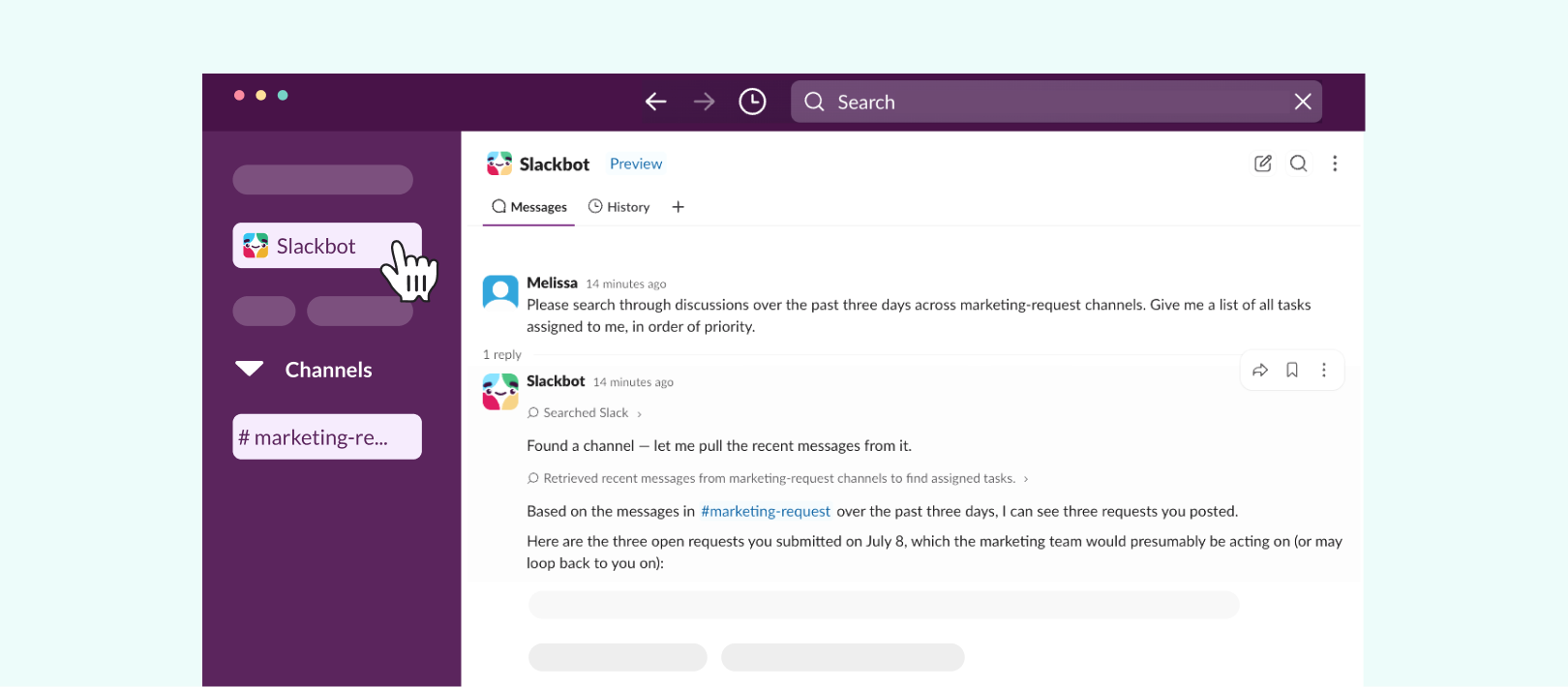
Slackbot is an AI agent designed to support your day-to-day work inside Slack. With agentic AI technology, Slackbot can reason, take action, and handle multi-step workflows based on the prompts you give it.
Slackbot can help you go beyond task tracking and actively support how work gets done across your team, including:
- Find answers across your workspace – by searching messages, channels, files, and connected apps
- Summarize activity – in channels, threads, documents, or files to quickly catch you up
- Help you prepare for meetings – using recent conversations, shared files, and calendar context
- Analyze content – including PDFs, spreadsheets, charts, and presentations
- Draft content – briefs, summaries, and professional documents
- Schedule meetings – based on your Google or Outlook calendar availability
Slackbot works within your existing permissions, so it will only access and work on what you already allow it to see. Learn more about how Slackbot works as a context-aware AI agent.
Use Conclude to Improve Team Collaboration
Slack already offers a wide range of productivity features that help teams work more efficiently. Conclude extends Slack’s capabilities by helping teams reduce context switching, streamline operations, and manage work more effectively without changing how they already use Slack.
Conclude provides two solutions that support different aspects of team collaboration:
- Conclude Connect – helps teams communicate across Slack and Microsoft Teams, both internally and with external partners, without switching platforms or duplicating conversations
- Conclude Apps – bring task management and ticketing into Slack, allowing teams to manage requests, workflows, and updates directly within their channels
Together, these solutions help teams stay aligned, keep work visible, and reduce the need to jump between tools.
Improve the way your team works in Slack. Start your free trial and unlock smarter task management for remote teams.
Conclude Apps for Slack Ticketing
Conclude Apps bring conversational ticketing directly into Slack. Instead of managing requests in separate tools, teams can create, track, and resolve tickets within existing channels.
Conclude Apps can be used across a range of use cases, including task management, support workflows, incident management, and internal requests. Because they’re fully customizable, teams can build workflows that fit how they already work, rather than adapting to rigid systems.
With Conclude Apps, teams can:
- Open tickets directly from chat using the ticket emoji
- Open tasks or tickets that branch from any channel where an app is installed
- Summarize incoming emails before they become tickets
- Route work to the right team or workflow
- Track progress through structured workflows from request to resolution
- Sync with Jira and Zendesk using bi-directional integrations
After signing up on the website and adding Conclude to your Slack workspace, as admin will need to activate the Apps – ticketing and issue tracking solution from the Admin console. You can install apps from the Dashboard by following the prompts, or from Slack. Learn more with the Apps Quickstart Guide.
Get a quick tour of Conclude’s new-look Slack home here:
Open Tickets from a Dedicated Slack Channel
Once the app is installed in a dedicated Slack channel (e.g. #marketing, #sales, or #support), you can open a new task or ticket by typing /c new. This creates a temporary channel which is branched from the main one. This channel is now a focused space to collaborate on projects and tasks without creating extra noise.
When the ticket, task or project is complete, the channel is archived but remains visible in Conclude’s web dashboard. Here you can find a record of all open and closed tasks and tickets – so important information is never lost.
Turn Slack Messages Into Tickets
If you’d prefer to keep ticket discussions inside the original message thread, you can opt to update the app settings in the Conclude dashboard to support threaded tickets. This isn’t enabled by default but it’s a handy way to open tickets in one channel. All updates (including who the task or ticket is assigned to) can be seen from Conclude’s web dashboard.
Once configured, teammates can react to a message with the ticket emoji to create a ticket directly from the thread. Any updates or replies stay in one place, making it easier to follow the conversation.
For more details on how to enable this, check Step 4 of the Customer Support Quickstart Guide.

Looking for ticketing across both Slack and Microsoft Teams? Explore how Connected Apps extends this experience across platforms.
Link Slack and Microsoft Teams Using Conclude Connect
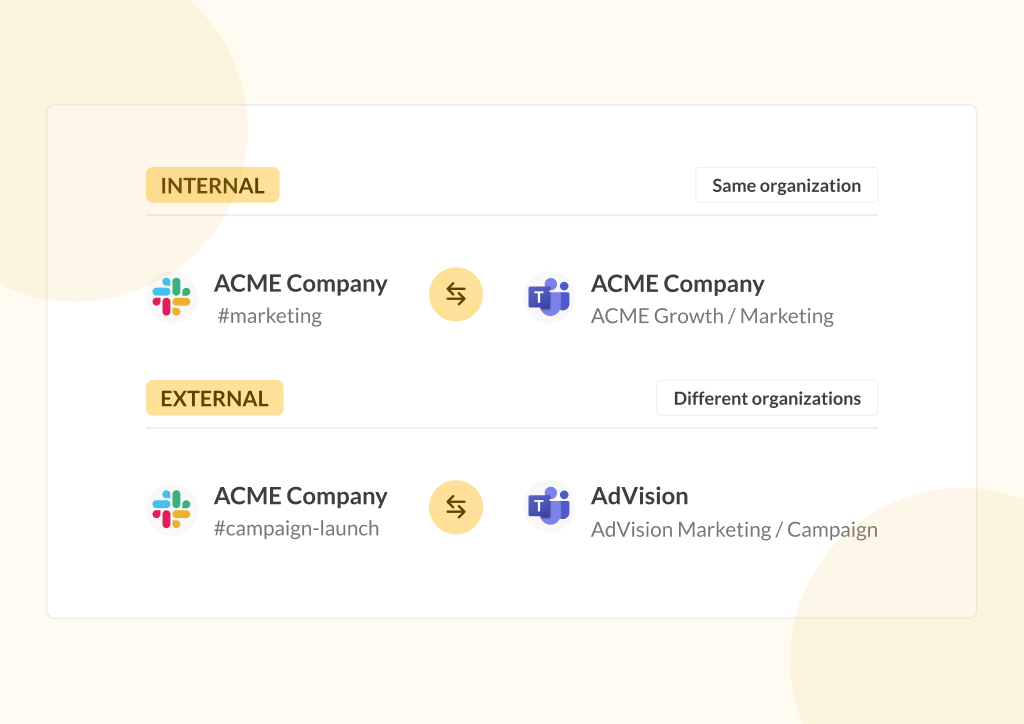
Conclude Connect allows teams to work seamlessly across Slack and Microsoft Teams by connecting both platforms and synchronizing conversations in real time. It supports both internal and external collaboration, so teams can stay aligned without switching tools or changing how they work.
Whether you’re collaborating across departments or working with clients and partners, Conclude Connect ensures everyone can stay on their preferred platform while still participating in the same conversations.
With Conclude Connect, teams can:
- Work across Slack and Microsoft Teams in one connected environment
- Collaborate in real time with synchronized messages and updates across platforms
- Reduce the need for duplicate accounts and licenses
- Work with customers, partners, and external organizations using different communication tools
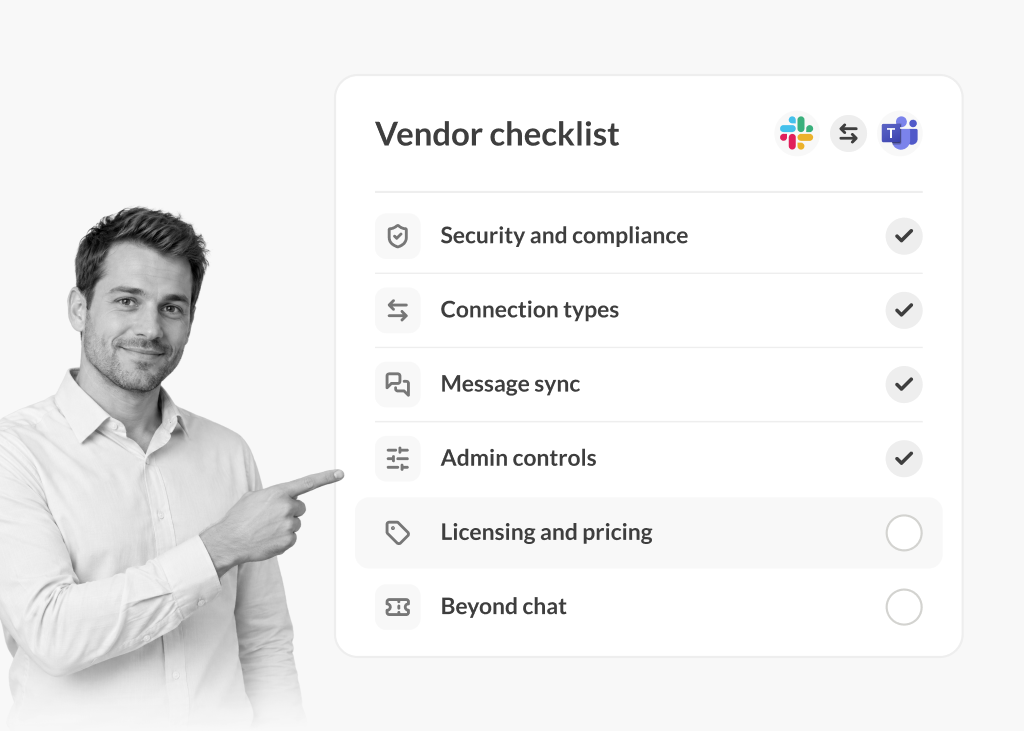
Explore how Conclude Connect compares to Slack Connect and see how it can save your team time and reduce distractions.
Make Slack Work for Your Team
If your Slack workspace feels noisy or cluttered, these Slack productivity tips can help you cut through the chaos. From simple tweaks like showing only unread channels to using threads, Workflow Builder, and Slackbot, these tips give you back control and clarity, so you can focus on what matters most.
Beyond these simple improvements, Conclude offers additional productivity solutions that can take your team’s efficiency even further.
With Conclude Apps, you can turn everyday Slack messages into structured tickets or collaborate on projects from a branched channel, making it easier to manage internal tasks and projects. With Conclude Connect, you can optimize cross-team and cross-company communication by integrating Slack with Microsoft Teams for greater productivity gains
Ready to see how Conclude can help you be more productive? Get started free, or book a demo.
Frequently Asked Questions
What are the best Slack productivity tips?
The best way to stay productive in Slack is to reduce distractions, stay organized, and use smart tools to streamline your workflow. Start with quick wins like setting Do Not Disturb hours, muting or leaving channels you don’t need, and showing only unread conversations in your sidebar. Group channels into sections, use threads to keep replies tidy, and pin or save key messages for quick access.
How do I stay focused when working remotely on Slack?
Set do not disturb (DND) hours to pause notifications during deep work. Mute low-priority channels, hide conversations with no unread messages, and leave channels that aren’t relevant. These small changes keep your sidebar clear and your attention where it matters.
How do I make Slack less overwhelming?
To make Slack less overwhelming, start by muting or leaving channels you don’t need, and only show unread channels in your sidebar. Group similar channels together in sections to keep everything organized, and pin or save key messages for easy access later. Lastly, use threaded messages to keep conversations focused and reduce clutter.
How do I use Slack to its full potential?
Leverage Slack’s built-in features. Use Slackbot as an AI-powered assistant to help find information, summarize conversations, draft content, and support day-to-day tasks, alongside Workflow Builder to automate repetitive processes like gathering updates or managing requests. Organize your conversations with threads, channel sections, and pinned messages to stay efficient.
For greater productivity, install Conclude Apps to turn Slack messages into tasks or tickets, or collaborate on projects from a branched channel. Install and use apps in any channel and customize them to fit your team’s needs, including project management, support tickets, and customer service.
What Slack features help with productivity?
Slack offers several features to boost productivity: Do Not Disturb (DND) to block distractions; pinned and saved messages for easy reference; Workflow Builder to automate tasks; and Slackbot, an AI assistant that surfaces information, summarizes content, and supports workflows directly within Slack.
Add Conclude Apps for advanced task and ticket management inside Slack, and use Conclude Connect to integrate Slack with Microsoft Teams, keeping your communication synchronized across both platforms.