Slack and Teams Vendor Checklist: 6 Questions to Ask Before You Buy
 Sian Bennett
 Conclude Team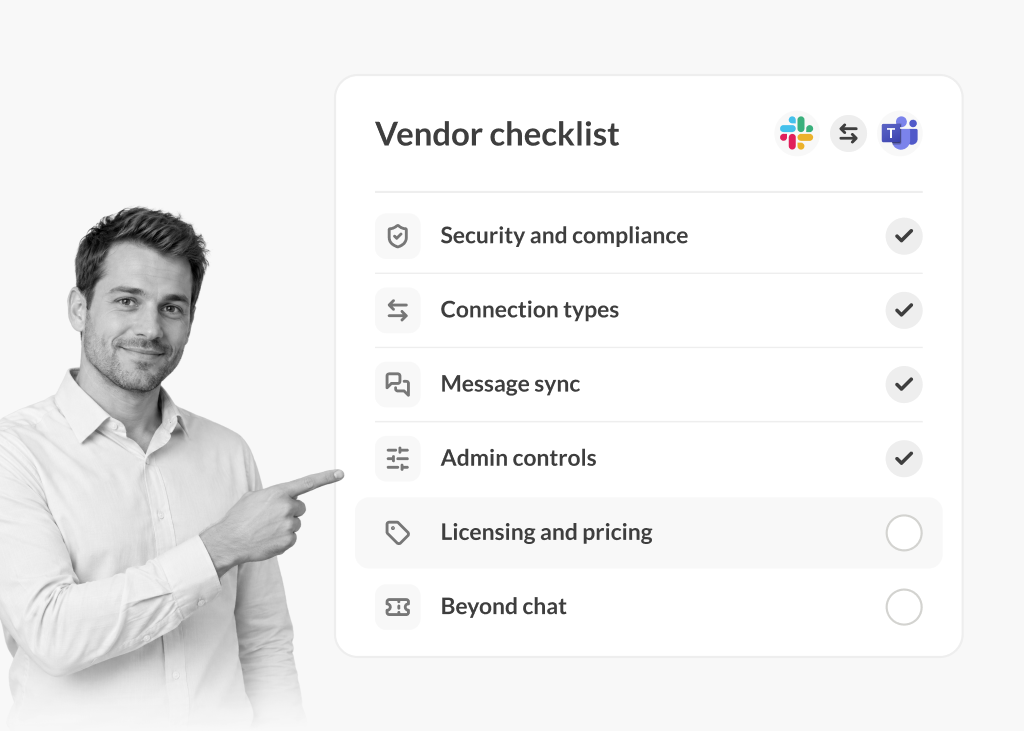
When companies grow through acquisitions, have subsidiaries, or work closely with partners, Slack and Microsoft Teams can end up running side by side. Connecting the two has become a routine IT project, with many people searching for answers on places like Reddit. But the answers are mixed.
Solutions to integrate Slack and Teams do exist, but they may be limited in scope (like Zapier triggers), or can only handle part of the company’s needs (such as not syncing bi-directionally). The challenge is figuring out which vendors offer an integration that works as expected – which is where this Slack and Teams vendor checklist comes in.
During our own research we’ve seen vendors make security claims that are hard to verify, or publish comparison pages that are biased or out of date. This checklist aims to clarify what questions to ask when looking for a Slack and Teams integration that actually works.
It sets out six questions to ask before you trial or buy, so you can check claims at the source rather than taking anyone’s word for it – including ours.
If you’re looking for more information on how to connect Slack and Microsoft Teams, connecting Teams chats to Slack or creating channel links between the two platforms, see our other guides that are linked here.
The Checklist at a Glance
| Topic | What to ask | What good looks like |
|---|---|---|
| 1. Security and compliance | Can I see the SOC 2 Type II report and HIPAA or ISO status? | Reports available through a trust center or on request, plus clear answers on what data is stored |
| 2. Connection types | Does the solution connect teams internally, across subsidiaries and/or with other companies? How do they work? | Whichever suits your use case, ideally all three for maximum flexibility, with granular controls for each; the solution should be simple to set up and manage |
| 3. Message synchronization | Do threads, mentions, files, and chats actually sync? | Channels and chats should sync bi-directionally and look the same on both sides |
| 4. Admin controls and rollout | Can admins control who connects what, and roll out without code? | Role-based permissions, file, image and bot policies, and no-code setup |
| 5. Licensing and pricing | Who pays on each side of a connection, and is pricing published? | Clear rules per connection type, with published pricing |
| 6. Features that go beyond chat | Does the solution offer other product integrations such as ticketing or agentic AI? | Look for a platform that offers more than just a connection so you can reduce tool creep |
1. Security and Compliance You Can Verify
Can I see your SOC 2 Type II report and/or other reports?
A “SOC 2 compliant” logo isn’t the same as an audited SOC 2 Type II report, which checks how security controls work over months rather than on a single day. Any credible vendor should be able to share it. It’s also worth asking what the integration stores – if it keeps copies of your messages or files, that’s a third system your data now lives in.
What to ask
- Can we review your current SOC 2 Type II report?
- Are you HIPAA compliant, and how is that documented?
- Do you hold ISO 27001 certification?
- How do you meet GDPR requirements, and can you provide a DPA?
- How is data encrypted in transit and at rest?
- Do you store message content and files, or only the metadata needed to run the connection?
- Which Slack and Microsoft Teams permissions does the integration request?
Red flag
Certifications listed on a website with no trust center or report available on request, or vague answers about what data is stored and where.
Tip: If you’ve read claims about a vendor’s security on a competitor’s site, check the vendor’s own trust center. Certifications change, and secondhand descriptions are often out of date.
How Conclude Handles This
Conclude is SOC 2 Type II certified, HIPAA compliant, and GDPR compliant. All data is encrypted using TLS 1.2+ in transit and AES-256 at rest. Reports and policies are in the Vanta Trust Center, and more detail is on the Security page.
Conclude Connect doesn’t store message content or files – only the metadata needed to run the connection – and requests only the Slack and Microsoft Teams permissions it needs. A HIPAA BAA and a custom DPA are available on the Enterprise plan.
For a deeper review, see our Slack Teams compliance checklist.
2. Connection Types
Can you connect Slack and Teams channels and chats in the same company, across subsidiaries, or externally with other companies?
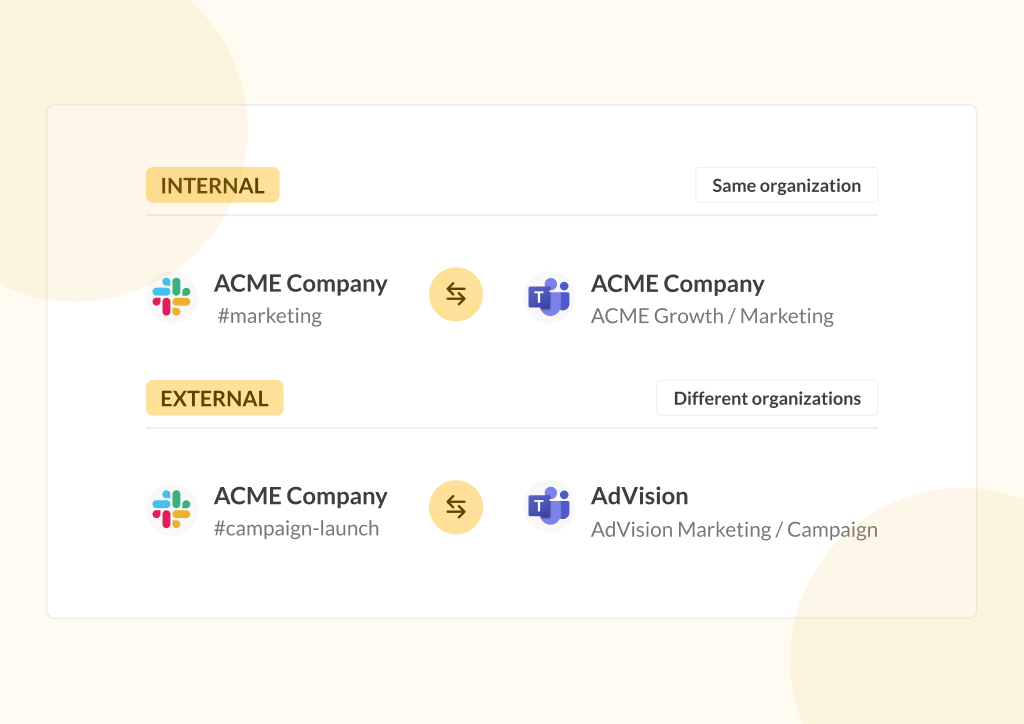
Many organizations may eventually require more than one type of connection. Teams within the same company might use different platforms (IT running on Slack is a prime example), subsidiaries or acquired businesses may run their own setup with separate admins, and customers and partners may be on another platform – and don’t want to revert to email. Each needs different controls.
What to ask
- Can you connect Slack and Teams users within one organization?
- Can you connect separate Slack or Teams setups within one company, such as subsidiaries?
- Can you connect with customers, partners, and suppliers?
- Can you connect Slack to Slack and Teams to Teams?
- Can you connect Teams chats as well as channels?
- Can either side start a connection – from Slack or from Teams?
Red flag
A tool built for one scenario and sold as a complete solution. You may need a second vendor for the next acquisition or partner – which could get expensive, be challenging to manage, and contribute to tool creep.
How Conclude Handles This
Conclude Connect has three connection types: Internal for teams in the same organization with the same admin, Bridge for separate setups within one company (different admins), such as subsidiaries or during M&A, as well as connecting with vendors and partners; and External for working with other companies.
Bridge uses one intercompany invite to cover multiple connections. External invites can be sent from either Slack or Teams, and each connection requires an invite. Conclude also connects Slack to Slack and Teams to Teams.
3. Message Sync
Do threads, mentions, files, and chats sync in both directions, and are they editable?
Some tools say they sync messages between Slack and Teams, but in practice they turn each message into a ticket or funnel everything into a shared inbox. When assessing a vendor, look for connections that sync conversations bi-directionally on both sides. If threads collapse into one stream, mentions arrive as plain text, or messages never arrive, people quickly go back to email.
What to ask
- Do threaded replies stay threaded on both sides?
- Do @mentions work on the other platform?
- Do files and images sync?
- Are edits, deletions, and reactions reflected?
- Do rich text formatting and emojis come through as intended?
- What happens to replies on older messages, or threads started before the connection?
- Does it work in private and shared Teams channels?
Red flag
“Messages sync” with no detail on threads or files – or messages are opened as tickets. Before you trial or buy, request a demo using your own scenarios to make sure that it meets your needs.
How Conclude Handles This
Conclude syncs channels and chats between Slack and Teams, including threads, @mentions, files, edits, deletions and emoji reactions. Some features, like synced reactions, require users to be signed in to Conclude. Admins can also choose whether threads started before a connection sync in full, in part or not at all, and messages can be translated into up to 60 languages. See how we handle message and thread syncing and @mentions for users.
4. Admin Controls, Governance and Rollout
Can admins control who connects what – and what gets shared between platforms?
IT needs to decide which channels can be connected, who can set up connections, and what happens to shared data. This can be critical if you work in a company with strict policies. Also, if you need to add code to set up a channel connection, that’s not scalable at an enterprise level.
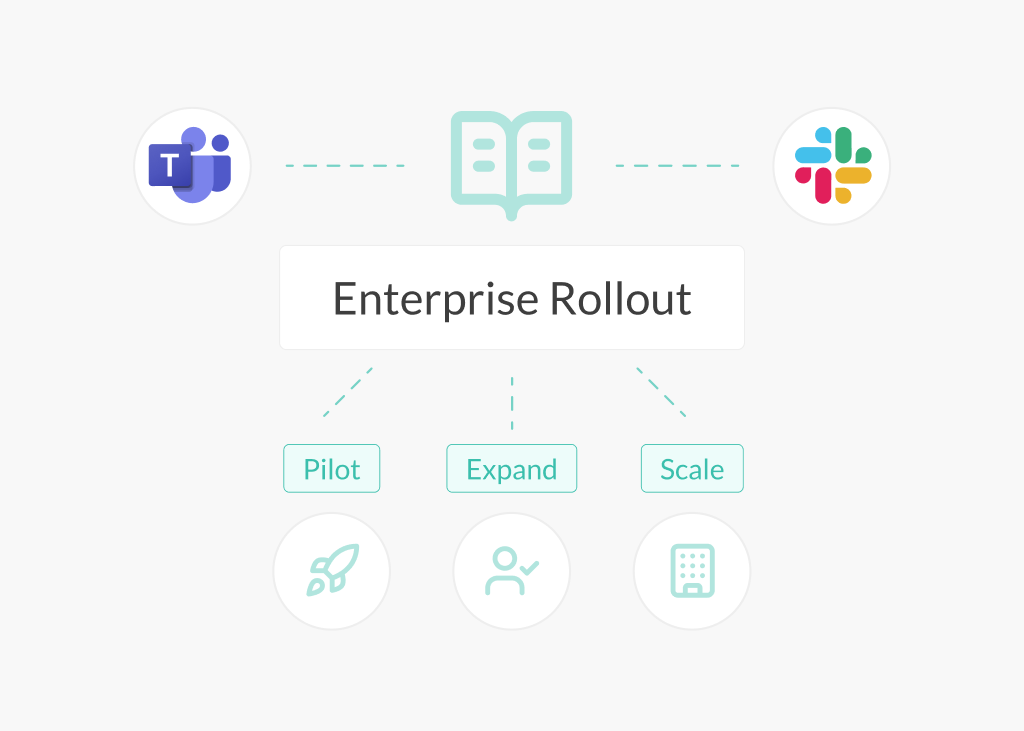
Lack of admin control can stall a rollout after the pilot. Governance also covers what crosses between platforms – files, images, bot messages and older threads – and whether the integration works alongside your existing retention and eDiscovery tools. For a step-by-step pilot and phased rollout plan, see our Slack-Teams rollout guide to unify communications for enterprise customers.
What to ask
- Can admins connect channels without using a code snippet?
- Do new connections require admin approval?
- Can you set who is allowed to connect channels, create chats, or manage connections?
- Can you set file and image policies per connection type and per channel?
- Can you turn bot messages and Teams system messages on or off per channel?
- Can admins review, rename, or remove inactive connections?
- Can you get connection logs if you need to investigate an issue?
- Does it work alongside native retention, legal hold, and eDiscovery tools in Slack and Teams?
Red flag
Users connecting channels with no admin oversight, a single on/off switch for file sharing instead of real policies, setup that needs code or professional services for every new connection, or no way to get logs when something goes wrong.
How Conclude Handles This
Granular admin controls have been one of our most requested features, so we have built our platform with this in mind. Conclude Connect also needs no code or complex integration work to get started.
Admins add a Slack workspace or Teams tenant, enable Connect in the Admin console, and can connect channels and chat in the Dashboard, depending on permissions. Admins also decide who can connect channels, create chats, connect external channels (if activated), and manage Bridge connections.
They can set company-wide defaults for files, images, bot messages and Teams system messages – separately for Internal, External and Bridge – with exceptions per channel. See how file and image sharing settings work.
5. Licensing and Pricing
Who needs a license on each side of a connection – and can you see pricing before talking to sales?
Some vendors charge only the company that sets up the connection, while others charge both sides. This affects total cost, and it matters to partners who may not want to buy a tool just to talk to you. Published pricing matters too: it lets you build a budget and a shortlist before booking demos.
What to ask
- Does licensing differ by connection type?
- Is it priced per user, per channel, per workspace or per connection – and what counts as a billable user?
- If connecting externally, does the invited company need its own license?
- Is there a public pricing page, and what’s included in each plan?
- Is there a free trial?
Red flag
Licensing that only becomes clear after several calls, vague responses, a lack of clear information up front, or no published prices – not even a starting point.
How Conclude Handles This
Conclude charges per active user – someone from your company who takes part in external-facing channels, is assigned tickets, or helps resolve them – and publishes plans and prices on the Pricing page. Internal users are counted, Bridge users are counted on both sides, and customers and partners in External connections are never counted. Users don’t need both a Slack and a Teams license, Enterprise pricing is tailored, and you can try Conclude free for 14 days.
6. Features That Go Beyond Chat
Does the solution integrate with other tools, or offer ticketing and AI agents?
Once Slack and Teams are connected, requests start crossing platforms too. IT tickets, approvals, and support questions often get logged on one platform, leaving the other side without visibility. A platform that syncs tickets across both – and with tools like Jira and Zendesk – means you don’t need another tool to fill the gap.
What to ask
- Can a ticket created in Slack be updated and resolved from Teams?
- Can workflows and approvals run in Slack and Teams?
- Does it integrate with Jira, Zendesk or your existing helpdesk – and does the sync go both ways?
- Are AI agents available on both platforms?
- Which features are available today?
Red flag
Roadmap promises presented as current features. Ask to see them in a demo.
How Conclude Handles This
Conclude Connect is one of three solutions on the Conclude platform. With cross-platform ticketing, tickets created in Slack sync to Teams and vice versa, so both sides can update and resolve them from their own platform.
Using Conclude Apps, this solution can also be integrated with Jira and Zendesk for three-way sync – for example, a ticket raised in Slack can be worked on in Teams and tracked in Jira.
With Conclude Agents, AI teammates work alongside your team in channels and threads to help answer questions and handle tickets.
Using This Slack and Teams Vendor Checklist
The right vendor depends on your setup, but the questions stay the same. Ask for evidence rather than claims: a SOC 2 Type II report you can read, a demo using your own channels and scenarios, admin controls you can test, and prices you can see before a sales call.
Then hold every vendor to the same checklist (including us). Once you’ve shortlisted vendors, our guide to unified communications for enterprise covers how to roll the chosen integration out in phases.
Want to see Conclude in action? Start a free 14-day trial or book a demo.