Connect Slack & Microsoft Teams: How to Create Channel Links
 Sian Bennett
Slack and Microsoft Teams often coexist within the same organization, across different departments, business units, or teams. They can also create a barrier when collaborating with external partners who use a different platform. In either case, moving everyone into the same tool isn’t always practical.
Fortunately, you can connect Slack and Teams channels so both sides can communicate from the platform they already use. By creating a channel-to-channel connection, messages and other supported content can sync between Slack and Microsoft Teams without requiring everyone to work in the same tool.
In this guide, we’ll explain how Slack and Microsoft Teams channel links work, the difference between internal and external connections, which channel types you can connect, and how to create and manage channel links with Conclude Connect.
This guide focuses specifically on channels. If you want to connect conversations outside channels, learn how to connect Microsoft Teams chats with Slack. For a broader look at the different ways you can communicate between the platforms, see our ultimate guide on how to connect Slack and Microsoft Teams.
Why Disconnected Slack and Teams Channels Create Problems
Slack and Microsoft Teams don’t provide native two-way synchronization between channels. When one group works in Slack and another works in Teams, their conversations remain separate.
This can create several problems:
- Manual work – people copy messages, updates, and files between channels to keep both sides informed
- Fragmented conversations – discussions, files, and decisions become split between Slack and Teams, making it harder to see the full context
- Missed information – important updates or context may only be shared in one channel – or via email – leaving people out of the loop
- Platform switching – employees have to monitor both platforms to follow the same project or workflow, adding unnecessary work to everyday communication
- Communication silos – teams can end up with separate versions of the same conversation, limiting visibility and making it harder to stay aligned
These problems are part of the broader challenge of Slack and Teams interoperability. When employees also have to move between the two tools repeatedly, platform switching can add further friction. If the main problem is two disconnected channels, linking them directly allows communication to flow between Slack and Teams without requiring users to monitor both.
Internal vs External Slack and Teams Channel Links
Slack and Microsoft Teams channel links generally fall into two scenarios: connecting channels between separate organizations or connecting channels within the same organization.
What Does Linking a Slack Channel to Microsoft Teams Mean?
A channel link connects a Slack channel with a Microsoft Teams channel so supported communication can sync between them while users continue working from their existing platforms.
Slack channel ↔ Microsoft Teams channel
This is different from migrating Slack users or content to Microsoft Teams, setting up one-way notifications, or simply sharing a Slack channel URL in Teams. A channel link creates an ongoing connection between the two channels.
External Channel Links
External channel links connect Slack and Microsoft Teams channels that belong to different organizations. For example, your team might work in Slack while a client, agency, vendor, or partner uses Microsoft Teams.
Connecting the channels lets both sides keep working in their existing communication environments rather than moving the collaboration to one platform.
Internal Channel Links
Internal channel links connect Slack and Microsoft Teams channels across environments within the same organization. This is useful when different departments use different platforms, the organization operates multiple workspaces or tenants, or teams retain different communication systems following a merger or acquisition.
Instead of restructuring existing channels around a single platform, teams can retain their current channel setup and communicate between both platforms.

Create Slack and Microsoft Teams Channel Links With Conclude Connect
Conclude Connect lets you create direct channel connections between Slack and Microsoft Teams for both internal and external collaboration. You can link existing channels or create new ones during setup. Once connected, all your communication syncs between the two channels.
For a broader overview, see our guide to connecting Slack and Microsoft Teams.
Which Slack and Microsoft Teams Channel Types Can You Connect?
Conclude Connect supports most Slack and Microsoft Teams channel types. The person creating the connection also needs the appropriate access to each channel.
Slack channels
- Public channels
- Private channels
The person creating the connection must be a member of the Slack channel.
Microsoft Teams channels
- Standard channels
- Private channels
- Shared channels
The person creating the connection must belong to the tenant that owns the channel and be a member of the Teams channel.
Guest users
Guest users can participate in connected channels, and their messages will sync between platforms. However, they can’t create or manage connections for channels outside their own workspace or tenant.
How to Create an External Slack and Teams Channel Link
Conclude Connect External connects individual Slack and Microsoft Teams channels between separate organizations. Both sides can continue using their existing channels while communication syncs between them.
When using this solution, only the inviting organization needs a Conclude license. External participants don’t need a Conclude subscription, but they do need a Conclude account to connect their channels.
Create the External Channel Connection
To link a Slack channel to a Microsoft Teams channel (or vice versa) across different organizations:
- Sign up for Conclude and sign in using your primary communication platform, either Slack or Microsoft Teams
- Go to Admin console > Solutions > Connect – external and enable it
- Add Conclude to your primary communication platform when prompted
- Go to Dashboard > Connect > External and select Invite by email
- The external admin accepts the invitation and authenticates their Slack or Microsoft Teams environment
- They select the relevant team and channel to connect, or create a new channel for the connection
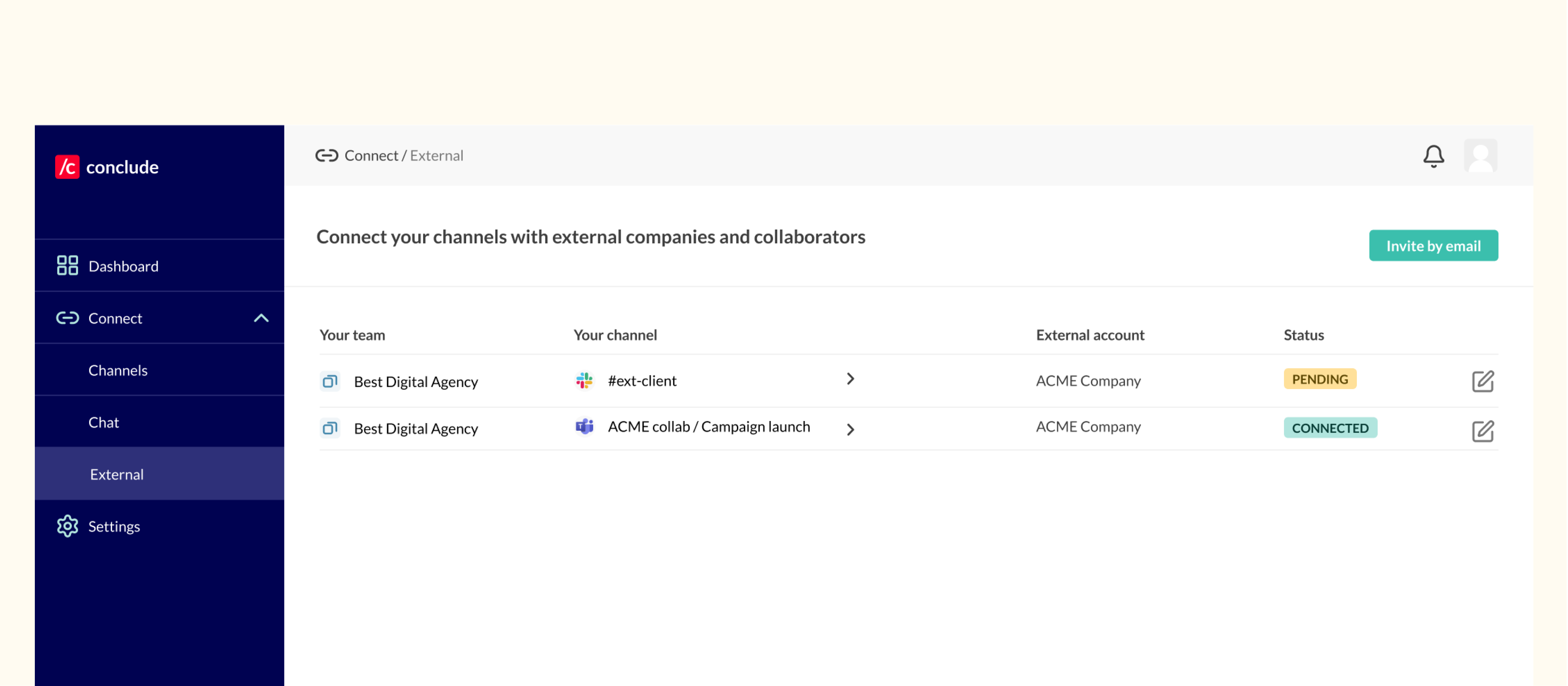
Once the connection is established, messages, files and images begin syncing between the channels.
If you’re using Microsoft Teams, set up a Microsoft Teams integration account. This allows Conclude to post messages when user credentials aren’t available, helping ensure consistent message delivery across connected channels.
For more detailed setup instructions, see the Connect External Quickstart Guide.
Connecting Multiple Channels Between Organizations
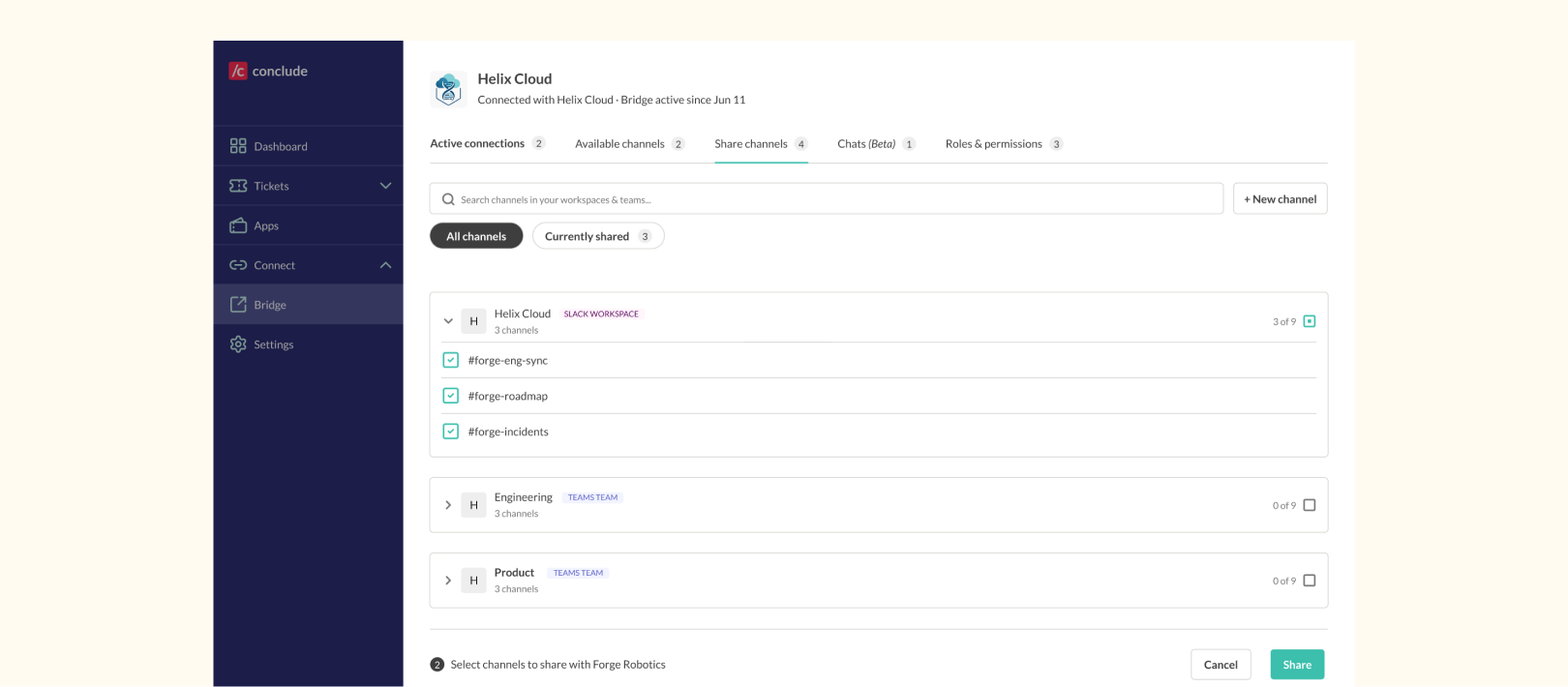
If you regularly collaborate across multiple channels with another organization, Conclude Bridge removes the need to send a separate invitation for every connection. One admin sends a single invitation at the company or workspace level. Once approved, each side can independently share and connect as many channels as needed.
Learn more about connecting Slack and Microsoft Teams with Conclude Bridge.
For more ways to collaborate with teams outside your organization, explore our guide to Slack and Microsoft Teams external collaboration, including when to use Connect External or Conclude Bridge.
How to Create an Internal Slack and Teams Channel Link
Conclude Connect Internal connects Slack and Microsoft Teams environments managed by the same admin, typically within the same organization. Once connected, communication can sync between the selected channels.
Create the Internal Channel Connection
To connect a Slack channel to a Teams channel within your organization:
- Sign up for Conclude and link the relevant Slack and Microsoft Teams accounts
- Go to Admin console > Solutions > Connect – internal and enable it
- Go to Dashboard > Connect > Channels and select New connection
- Select the Slack channel you want to connect
- Select the corresponding Microsoft Teams channel
- Establish the connection
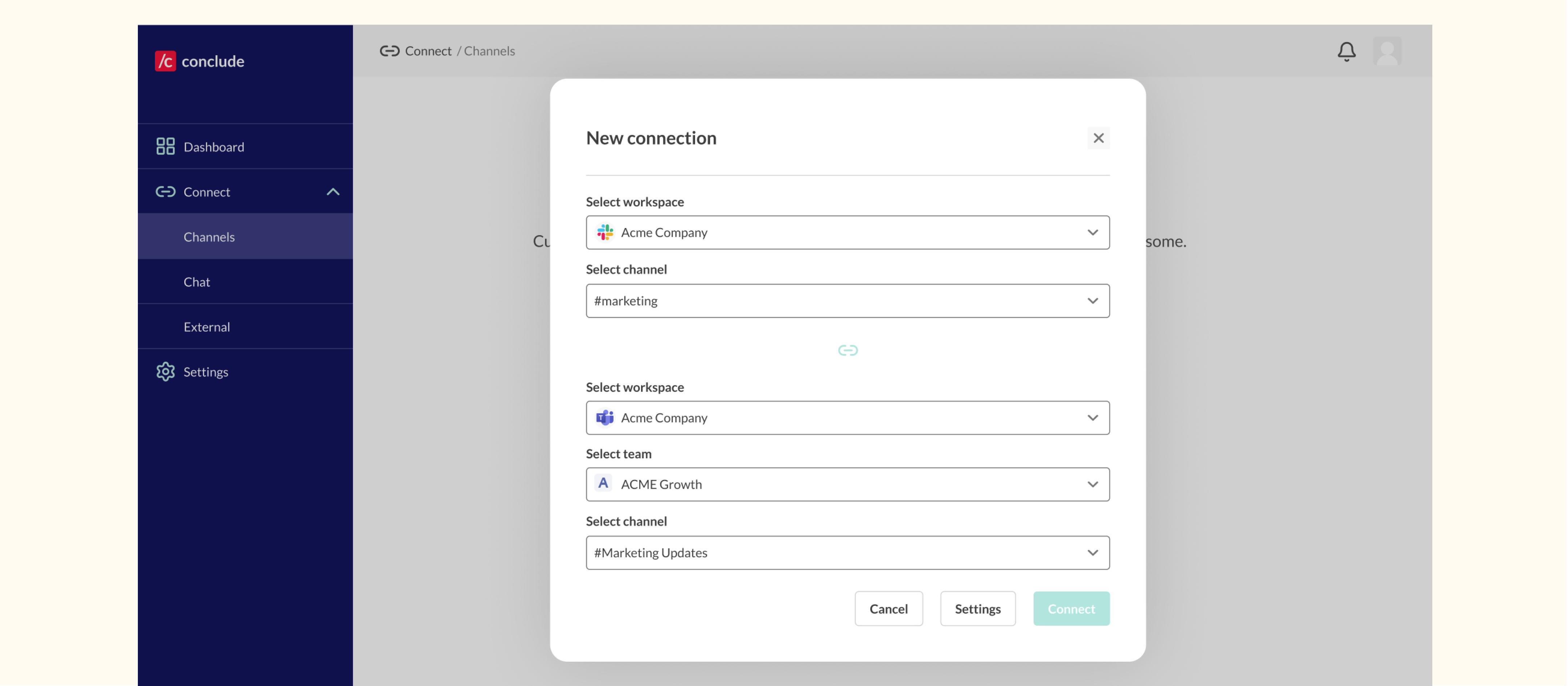
Once connected, communication begins syncing between the two channels.
If you’re using Microsoft Teams, set up a Microsoft Teams integration account to provide a fallback for message posting when user credentials aren’t available.
For more detailed setup instructions, see the Connect Internal Quickstart Guide.
Connecting Channels Across Multiple Workspaces or Tenants
Organizations with multiple Slack workspaces or Microsoft Teams tenants can connect channels between these environments using Connect Internal when the same admin has access to both accounts.
To add another workspace or tenant:
- Go to Admin console > Workspaces
- Select Add to Slack or Add to Microsoft
- Add the relevant workspace or tenant to Conclude
- Once added, select that environment when creating an Internal channel connection
Admins can also remove or disconnect environments from the Admin console.
If the Slack and Teams environments have different admins, Conclude Bridge provides another option. One admin sends a company- or workspace-level invitation, and once approved, each side can share and connect channels independently. This is useful for subsidiaries with their own IT setup, organizations with regional admins, or teams coming together through a merger or acquisition.
What Can You Share Across Connected Slack and Teams Channels?
Once you connect Slack and Teams channels, supported messages, threads, files, and other communication can sync between them. Admins can configure what is shared and how it appears across the connected channels.
Messages and Threads
Admins can choose how message threads sync between connected channels:
- Full threads – sync the complete conversation history
- Partial threads – share the first message for context, followed by new replies
- No replies – exclude thread replies when less information needs to be shared
By default, Internal connections sync full threads, while External connections use partial thread syncing. Users can also edit and delete messages across connected channels.
Files and Images
You can also share files and images between connected channels. Depending on your configuration, you can:
- Sync files so they appear natively on both platforms
- Share files as links instead
- Exclude files or images from the connection
User Identity and Communication Features
Connected channels also support communication features and user information such as:
- @mentions
- Reactions
- Username display
- First and last name display
- The option to show or hide email addresses
Admins can manage all of these settings from Admin console > Configuration.
Connect Slack and Teams Channels Without Changing Platforms
Slack and Microsoft Teams channels can work together without requiring everyone to move onto the same platform. With Conclude Connect, you can choose the connection option that fits how your Slack and Microsoft Teams environments are managed, from internal channel links to external and multi-admin connections.
Ready to connect your Slack and Teams channels? Start your free 14-day trial.
Frequently Asked Questions
Can you connect a Slack channel to a Microsoft Teams channel?
Yes. You can connect a Slack channel to a Microsoft Teams channel so that supported messages, threads, files, and other communication sync between the two. Users can keep working in their existing platforms instead of moving conversations into a single tool.
How do I connect a Slack channel to a Microsoft Teams channel?
You can connect a Slack channel to a Microsoft Teams channel using Conclude Connect. Use Connect Internal when the same admin manages both environments, Connect External for individual channel connections between organizations, or Conclude Bridge when different admins need to establish a workspace- or tenant-level connection. Once connected, supported communication can sync between Slack and Microsoft Teams.
What types of Slack and Teams channels can I connect?
Conclude Connect supports public and private Slack channels, as well as standard, private and shared Microsoft Teams channels. The person creating the connection must be a member of the channels they want to connect. For Microsoft Teams, they must also belong to the tenant that owns the channel.
Can I connect a private Slack channel to Microsoft Teams?
Yes. Conclude Connect supports private Slack channels. The person creating the connection must be a member of the private Slack channel and have the appropriate access to the Microsoft Teams channel they want to connect.
Can I connect Slack and Teams channels between different organizations?
Yes. Connect External is designed for individual channel connections between organizations, and only the inviting organization needs a Conclude license. For larger or ongoing relationships involving multiple channels, Conclude Bridgelets admins establish a company- or workspace-level connection once, then independently share and connect channels without sending a new invitation for each one.
What syncs between connected Slack and Microsoft Teams channels?
Connected Slack and Microsoft Teams channels can sync messages, threads, files, and images. Conclude also supports features such as @mentions, reactions, and more. Admins can configure how this content and information is shared between connected channels.