How to Connect Slack and Microsoft Teams (2026)
 Sian Bennett
This post answers the question: how can I connect Slack and and Microsoft Teams?
According to Okta’s 2024 Businesses at Work report, most companies now use around 93 different apps across their teams, with large companies deploying an average of 231. As tech stacks grow, it’s becoming more difficult to maintain clear, connected communication, especially if teams rely on different platforms like Microsoft Teams and Slack.
Here are some common scenarios:
- A consulting firm or agency using Slack has external partners or clients they need to stay in touch with, but the only way is by using Teams
- A company in the middle of a merger finds that different departments are resistant to changing to a new platform due to workflows and familiarity
- A marketing team working in Microsoft Teams needs to collaborate with IT, who use Slack, on a special project
In each case, a lack of chat interoperability creates friction and slows down collaboration. This article explores how to connect Slack and Microsoft Teams so everyone can communicate without switching tools.
Looking for a solution that integrates Slack and Microsoft Teams? Get started free or book a demo here.
Why Interoperability Between Messaging Programs Matters
Without good connection and chat interoperability between messaging platforms like Microsoft Teams, Slack, or Google Chat, teams working in parallel struggle to stay aligned. Important updates get missed, context is lost, and communication is dispersed across siloed channels.
Connecting Microsoft Teams and Slack isn’t just about convenience; it’s about creating a unified, efficient, and collaborative workplace.
Without chat interoperability:
- Teams duplicate work and conversations due to a lack of visibility
- Conversations get lost in siloed channels and departments
- There are misaligned goals across departments or projects
- Reduced visibility over critical issues with delayed responses
- Increased IT overhead to manage disconnected systems
This fragmentation often leads to silo mentality where departments operate in isolation – reducing collaboration and slowing down decision-making. In some cases, teams create unapproved workarounds, known as shadow messaging, to keep projects moving and stay aligned, which can introduce risk and compliance concerns.
Why Connect Microsoft Teams and Slack?
- Unified communication – when Microsoft Teams and Slack are connected, organizations can implement a consistent communication strategy across departments. This leads to improved productivity and higher employee engagement
- Improved collaboration – team members can communicate without missing context or switching apps from their preferred platform. Workflows flow more naturally, boosting productivity and reducing cognitive load
- Fewer workplace silos – if one department works in Slack and another in Teams, critical updates may not reach key stakeholders. Connecting platforms breaks down these silos
- Greater visibility – when stakeholders can see and respond to important conversations in real-time, issues are resolved faster, and collaboration becomes more proactive. This results in great operational efficiency
See also: How to connect Microsoft Teams chats with Slack
Slack and Microsoft Teams Connection Tools
Mio was a previously available tool that enabled linking between Slack and Teams channels. However, Mio has since discontinued this integration and is focused on chat interoperability between Google Workspace and Microsoft 365, as well as Google Chat and Slack.
This left many organizations searching for a reliable, secure alternative. Although there are a few technical options available for connecting Slack and Teams, many require significant IT involvement, and none offer seamless two-way functionality.
Here are some examples of manual workarounds and technical integration methods:
Manual Workarounds and Technical Integrations
Webhooks
You can use incoming or outgoing webhooks to relay messages between platforms, but these are typically one-way and require setup in both apps. They’re useful for pushing alerts or notifications, but not ideal for real-time chat. This blog explains it well.
APIs and Custom Bots
Advanced teams could build custom middleware using the Slack and Microsoft Teams APIs. While powerful, this approach requires ongoing maintenance, version control, and strict security protocols. Many companies don’t have the resources to dedicate to this.
Third-party Automation Tools
Platforms like Zapier can bridge simple workflows between Slack and Teams, such as creating a message in one app when a trigger happens in the other. But these are also limited and not suitable for bi-directional, real-time conversations.
These workarounds are better suited to specific use cases and do not replicate scalable, everyday messaging between individuals or departments.
Conclude Connect for Direct Chat and Two-way Syncing
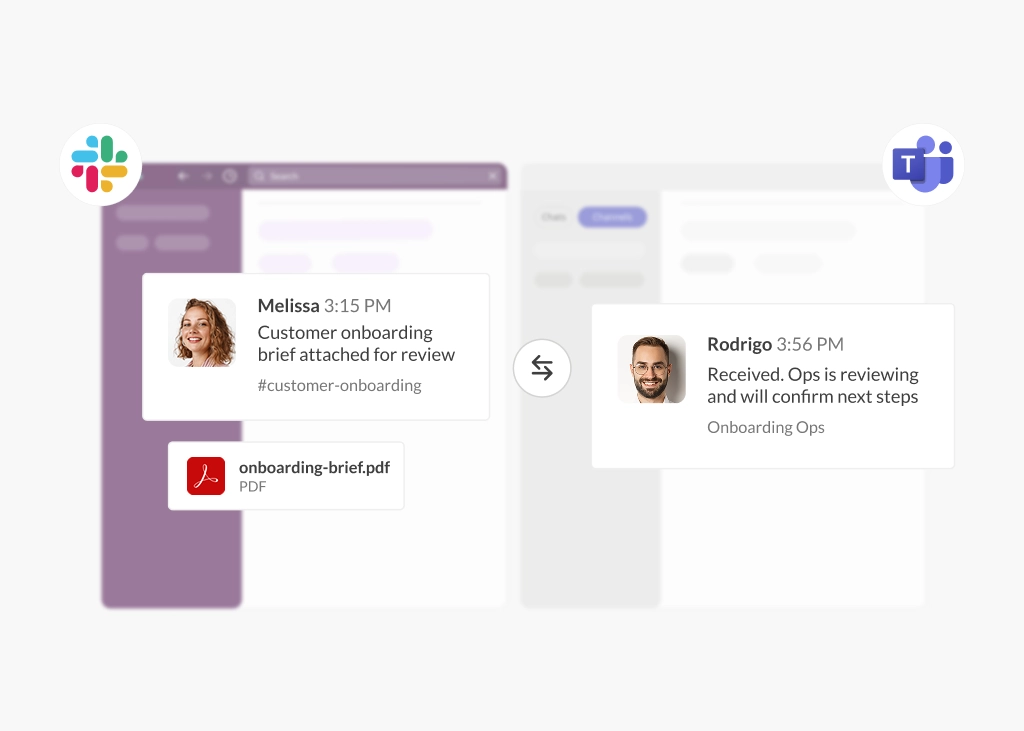
For true chat interoperability, Conclude Connect is the best solution. It enables real-time, two-way messaging between Microsoft Teams and Slack without switching platforms or writing custom code. It offers seamless, secure, bi-directional synchronization and admins can manage file and image sharing settings at a channel level if required.
Whether you’re facilitating communication between internal teams or working with partners and clients, Conclude offers solutions to ensure smooth collaboration across both platforms.
Link Internal Channels and Chats
Connect departments and teams inside your organization that use different messaging apps. For example, a technical or product team using Slack can collaborate directly with customer support in Microsoft Teams – without switching platforms. Learn more here.
Connect with Partners and Clients
Enable secure, structured conversations with your partners and clients (e.g., agencies, vendors, or customers) without requiring them to join your workspace. Maintain control while extending communication to external collaborators with an automatic sign-out feature for additional security.
Granular configuration settings provide admins control over file syncing, image handling, and thread synchronization (partial or full). Learn more here.
Conclude Connect Key Features
Some of the main features allow you to carry out actions on connected channels and chats on Slack and Microsoft Teams, including:
- Send, receive, edit, and delete messages
- Granular file and image sharing settings per channel
- Sync threaded messages and use @mentions
- Sync part or all of a thread (external connections)
- See reactions synced on both sides (when signed in to Conclude)
- Language translation (up to 60 languages)
- Rich text formatting, emojis (inside messages)
- Sync bot messages from Slack to Teams (configurable per channel connection)
- Use
/c chat createfrom Slack to create and connect a chat in Teams
Why Choose Conclude Connect?
Conclude Connect offers a simple, controlled way to connect Slack and Microsoft Teams without forcing tool consolidation or introducing tricky workarounds. Alongside bidirectional and real-time message syncing, Conclude Connect includes a central Admin console and Dashboard that give IT and workspace owners clear visibility into connected channels, active users, and account status.
Admins can manage solutions, users, workspaces, and configuration from one place, making it easier to govern cross-platform communication as teams and usage scale. Optional ticketing support extends this further, with native integrations for Jira and Zendesk.
Key reasons to choose Conclude Connect:
- Fast setup with minimal configuration
- Real two-way message syncing between Slack and Microsoft Teams
- No context switching – teams stay in their preferred platform
- Support for both internal and external communication
- Centralized control and visibility via the Admin console
- Customizable dashboard for monitoring connections, chats, and tickets
- Enterprise-grade security and compliance (SOC 2 Type II and HIPAA)
- Scales easily as teams, workspaces, and usage grow
- Optional ticketing with Jira and Zendesk support
The core problem we’re tackling at Conclude is the fragmentation of communication tools. In many companies, you’ll find teams using Slack, with others using Microsoft Teams, and often there’s no easy way for these platforms to talk to each other. It creates silos of information that hinder collaboration and efficiency.” – Conclude CTO, Lars Knoll
How to Connect Slack and Microsoft Teams Using Conclude
Setting up Conclude Connect is fast, secure, and requires no coding. Most people don’t believe how fast and non-technical the setup is. Get an overview of everything below:
Setting Up Internal Connections
Best for different departments across your organization working on Slack and Teams, but can also be used during mergers and acquisitions.
- Create your Conclude account – sign up using your Slack and Microsoft Teams accounts
- Add your workspaces – you’ll need to add both your Slack workspace and Microsoft Teams tenant to Conclude (admin permissions are required)
- Enable Conclude (internal connections) from the Solutions tab of the Admin console
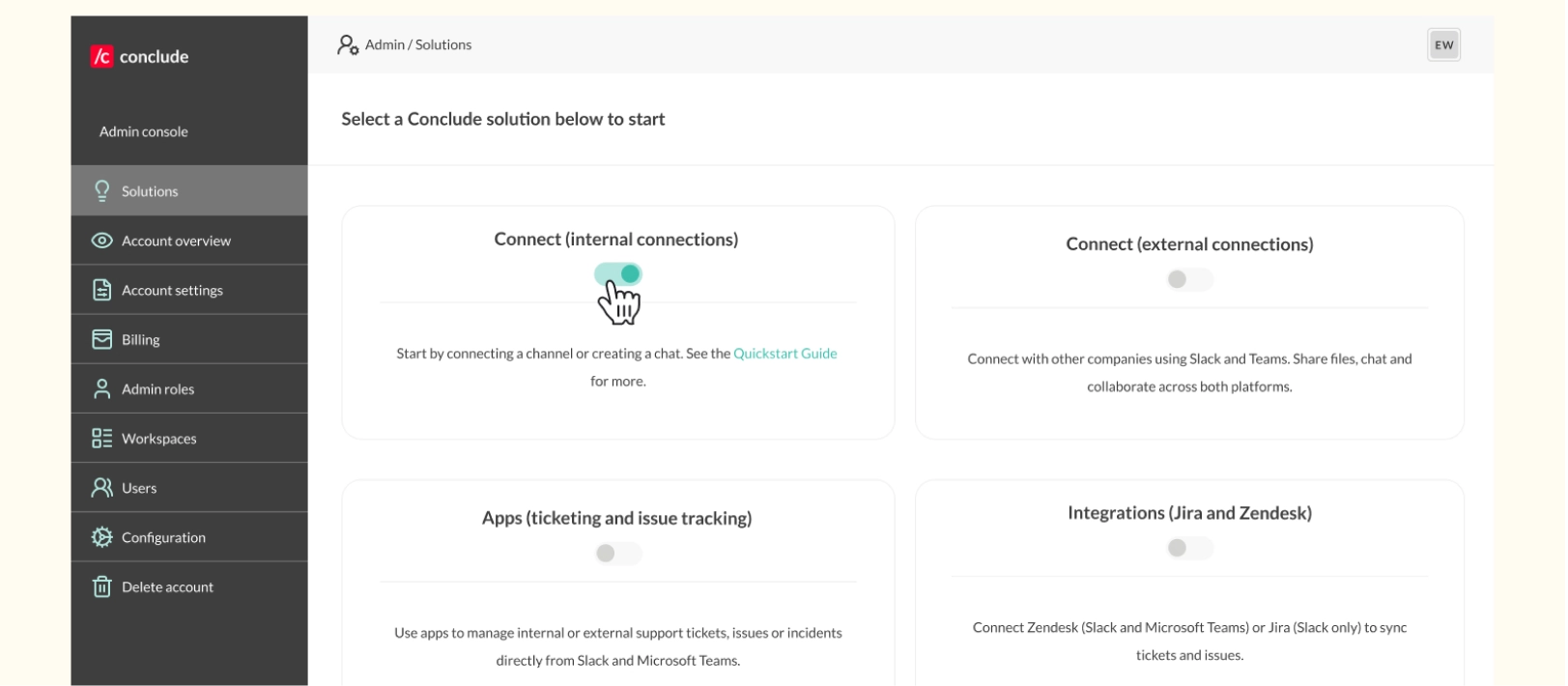
- Connect channels – go to the Connect internal > Channels tab in the sidebar of the user dashboard; click New connection and select the workspace, team, and channel that you want to connect
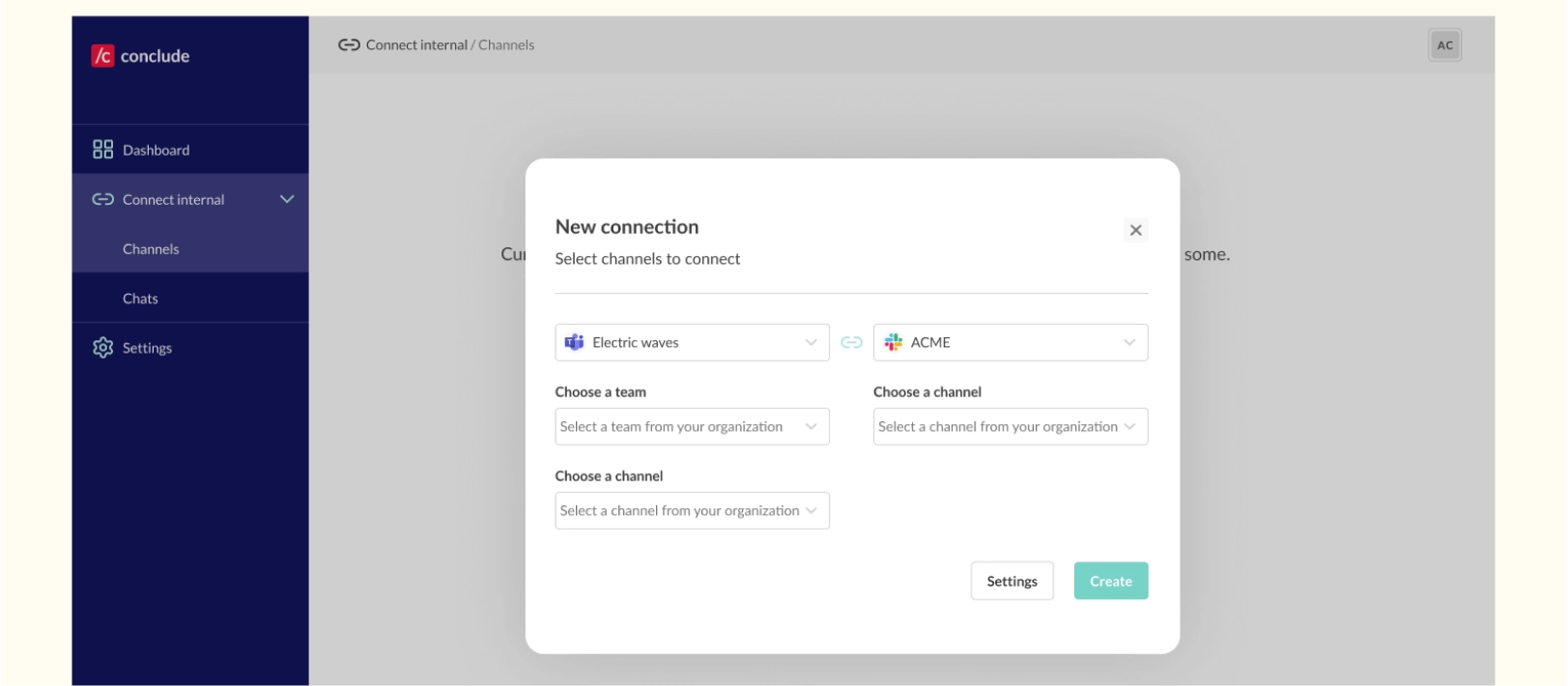
- Create chats (optional) – Go to Connect internal > Chats and select New chat to select chat members and link a channel in Slack with a chat in Teams
- Set up an integration user account – add an integration user on Microsoft Teams for smoother message posting. Learn why this step is important here.
- Start messaging – channels and chats will sync automatically between Slack and Teams
See the Quickstart Guide for internal connections, or watch this video for more:
Setting Up External Connections
Best for connecting with clients, vendors, or partners outside your organization.
- Create your Conclude account – sign up here. You only need to sign in with one platform to use Conclude for external connections
- Enable Connect (external connections) from the Solutions tab of the Admin console and add your Slack or Teams workspace
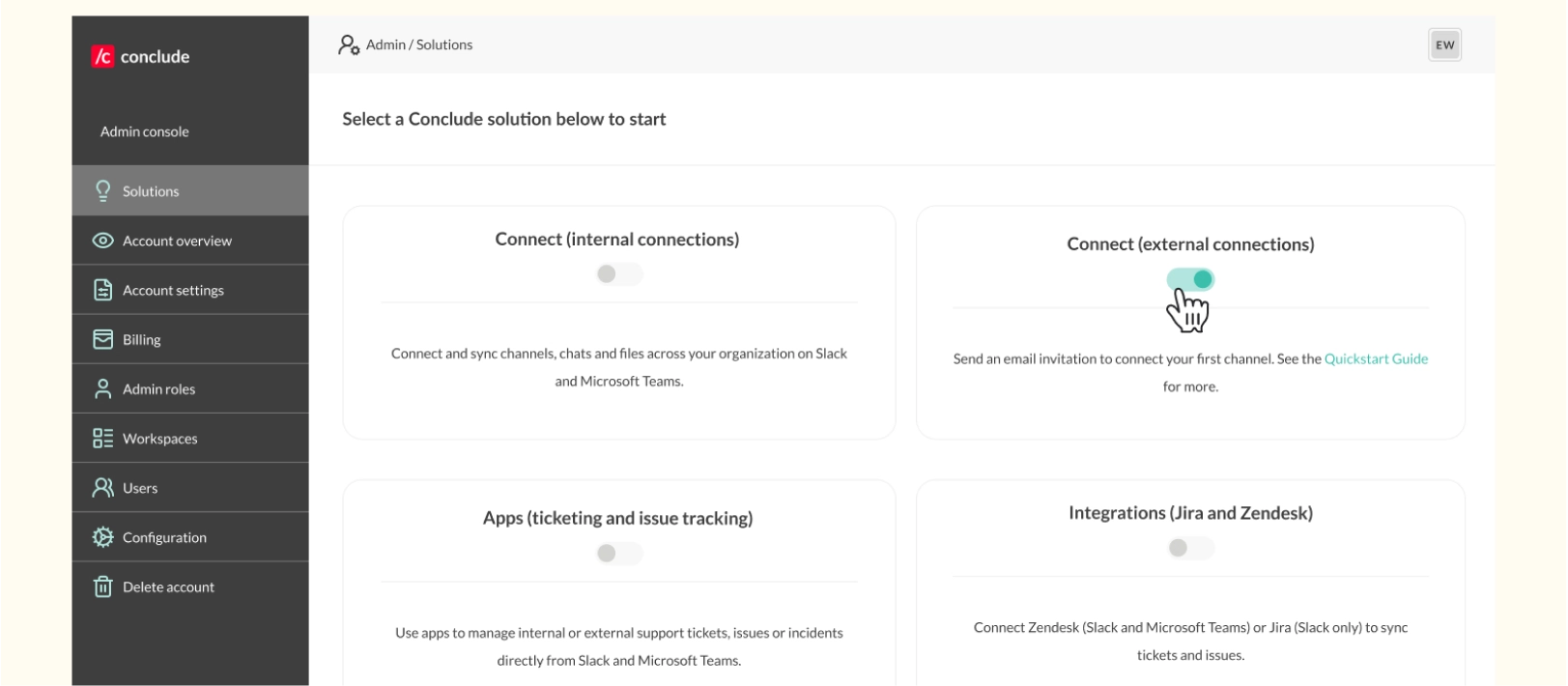
- Send invites – navigate to the user dashboard and select Connect > External, then Invite by email (the first email and invitation link requires admin approval at the company you are connecting with)
- Invite accepted – the external company will either add Conclude to Slack or Microsoft Teams and authenticate; they will select a team and channel to connect with your channel, or create a new channel to collaborate in
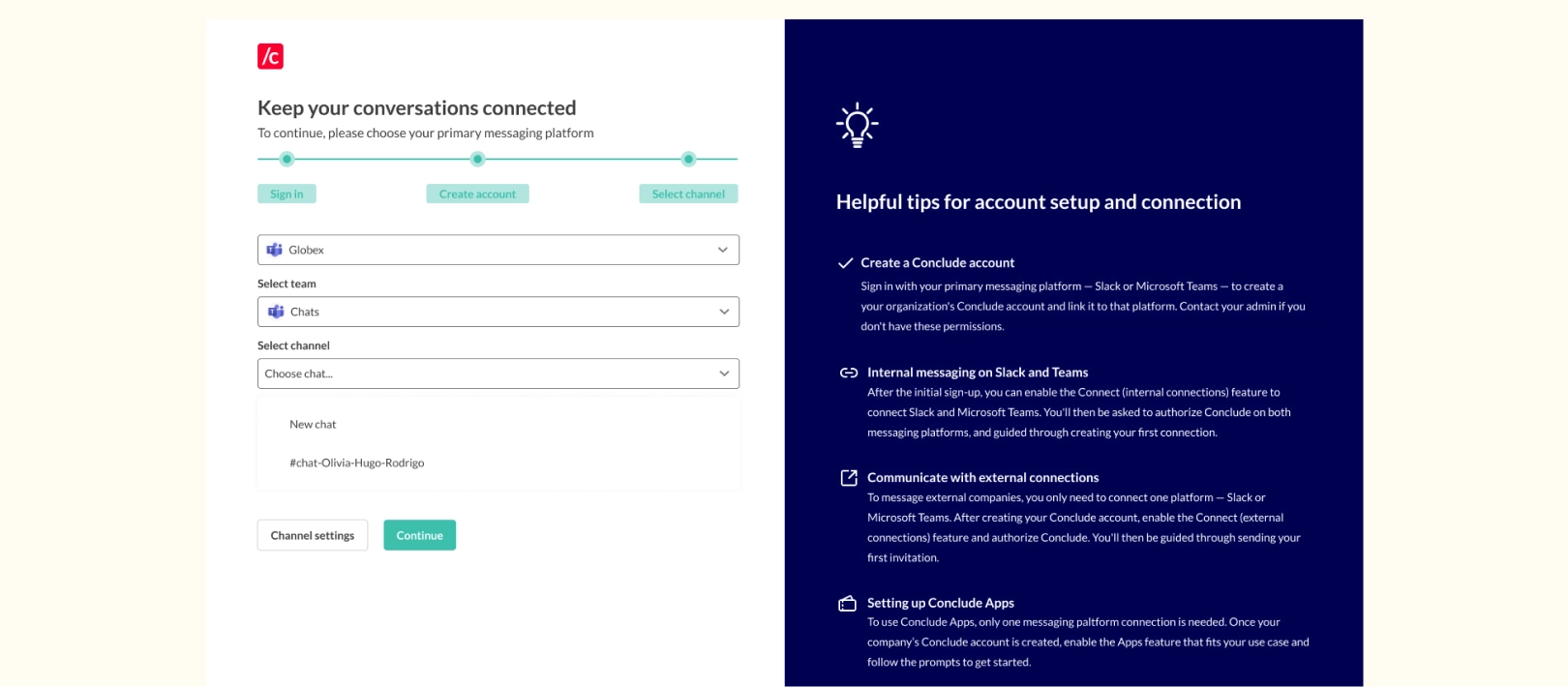
- Set up an integration user account – add an integration user on Microsoft Teams for smoother message posting. Learn why this step is important here.
- Start messaging – channels will sync automatically between Slack and Teams
For a more detailed overview, see the Quickstart Guide for external connections or watch this video for more:
The Final Word
There are still very few out-of-the-box solutions that reliably connect Slack and Microsoft Teams. Most alternatives rely on custom builds, ongoing maintenance, or brittle workarounds that don’t scale.
Conclude Connect closes that gap with a secure, enterprise-ready integration that works immediately, without forcing teams or partners to change how they communicate. It combines true two-way message syncing with centralised admin control, giving IT teams the governance they need to manage cross-platform communication at scale.
Optional ticketing adds structured support workflows when required, with native integrations for Jira and Zendesk. By choosing the right integration approach, organisations can reduce silos, minimise context switching and cognitive overload, and maintain control as usage grows, creating a more connected, governed, and scalable work environment.
Ready to connect Slack and Microsoft Teams – without complexity? Start your 14-day free trial or book a demo to find out more.
Frequently Asked Questions
How can I integrate Slack and Microsoft Teams?
You can integrate Slack and Teams using technical workarounds such as APIs, webhooks, or custom-built bots, but these approaches usually require engineering effort, ongoing maintenance, and careful governance.
Conclude Connect is the leading solution that links users, channels, and chats across both platforms for direct, real-time communication, with no coding required and no disruption to existing workflows.
What are the best tools for Slack and Teams chat interoperability?
Most Slack and Microsoft Teams interoperability solutions are either partial integrations or custom builds. Conclude Connect is an out-of-the-box solution that enables secure, two-way chat between Slack and Microsoft Teams, including support for internal teams and external partners. It also includes admin controls and monitoring for a deeper level of compliance and security, which many lightweight tools lack.
Is this Slack and Microsoft Teams integration secure for enterprise use?
Yes. Conclude Connect is built for enterprise environments, with SOC 2 Type II compliance and HIPAA certification, centralised admin controls, and configuration options that help organisations govern cross-platform communication securely as usage grows.
Why is Conclude Connect a preferred choice over other integration tools?
Conclude Connect goes beyond basic message forwarding or one-way message triggers. It offers two-way message synchronisation, supports both internal and external communication, and includes centralized admin control, dashboard visibility, and enterprise-grade security (SOC 2 Type II and HIPAA certifications).
Setup takes minutes, with no technical configuration, making it suitable for organisations that need to scale without adding operational overhead.
Should I migrate or integrate Slack and Teams?
It depends on your goals – migration and integration solve different problems. If your teams or partners need to keep using both platforms, integration is the better choice. Migration makes sense when an organisation is standardising on a single platform, while integration is the better option when teams, departments, or partners need to continue using both Slack and Microsoft Teams.
In these cases, integration avoids disruption while still reducing silos and context switching. Read our full guide on Slack–Teams migration vs integration.
Can I use both the internal and external collaboration features?
Yes. Conclude Connect supports both internal and external communication, allowing organisations to manage cross-team communication and to collaborate with partners, vendors, or clients across Slack and Microsoft Teams without expanding guest access or forcing everyone onto the same platform. Once you have an account, you can use both solutions.
Does Conclude Connect support ticketing or structured workflows?
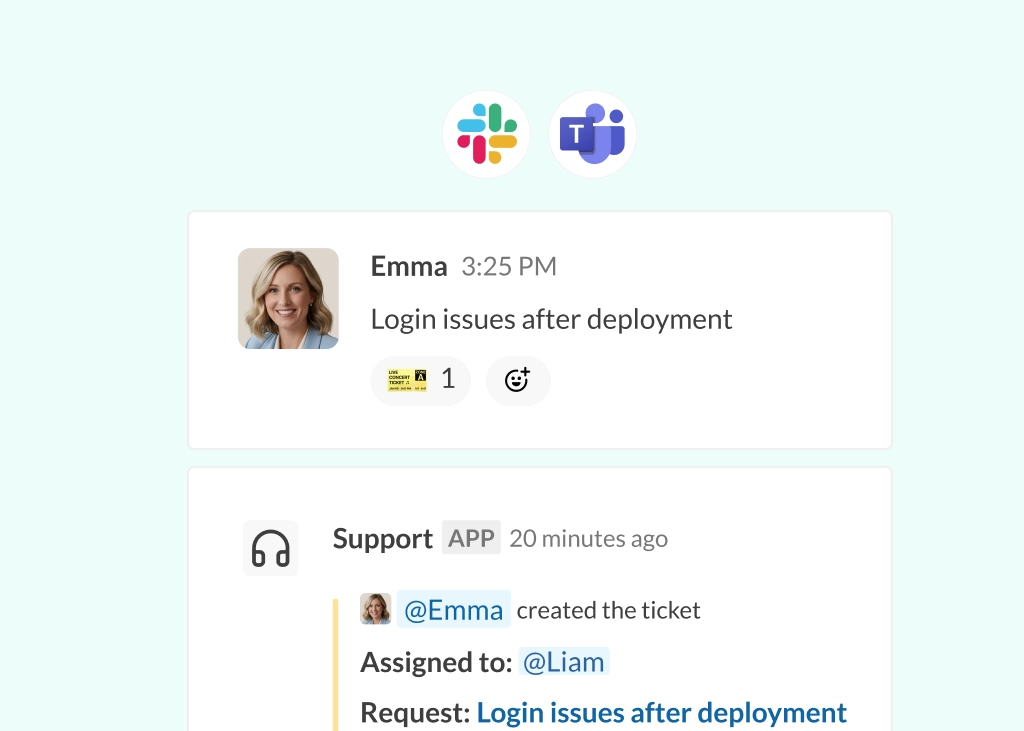
Ye, using Conclude Apps or our Jira and Zendesk integrations, but these are optional features. Conclude Connect integrates with Jira and Zendesk, enabling teams to create and manage tickets directly from Slack (Jira and Zendesk) or Microsoft Teams (Zendesk only) when structured support workflows are needed.