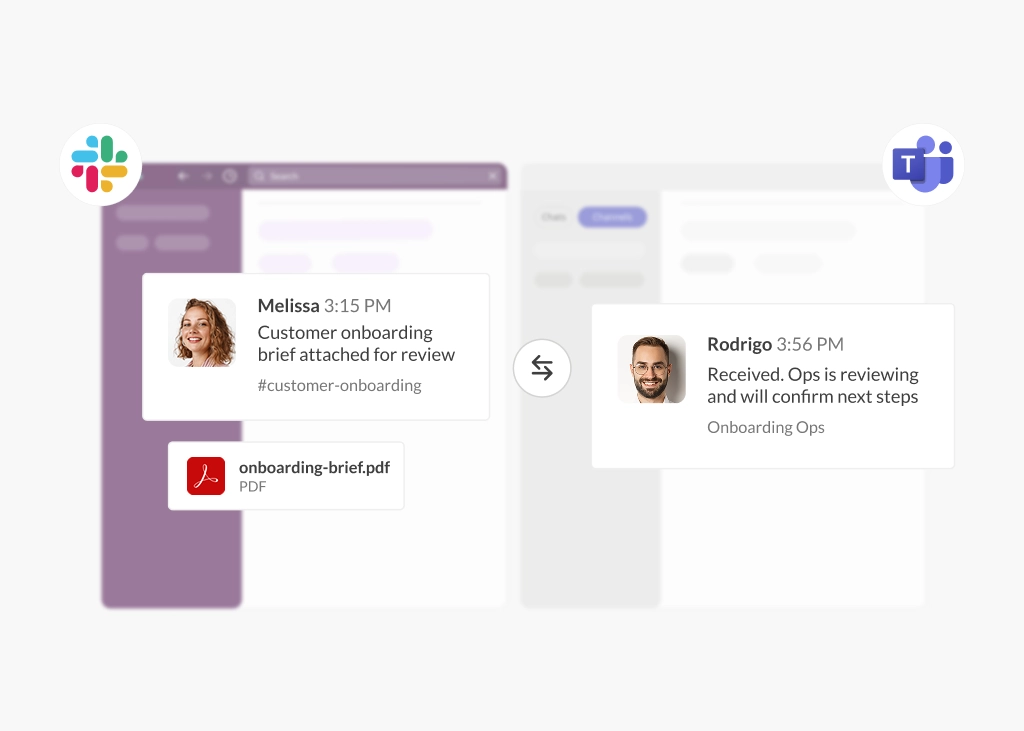
Connect Microsoft Teams to Slack: An Enterprise Rollout Playbook
 Conclude Team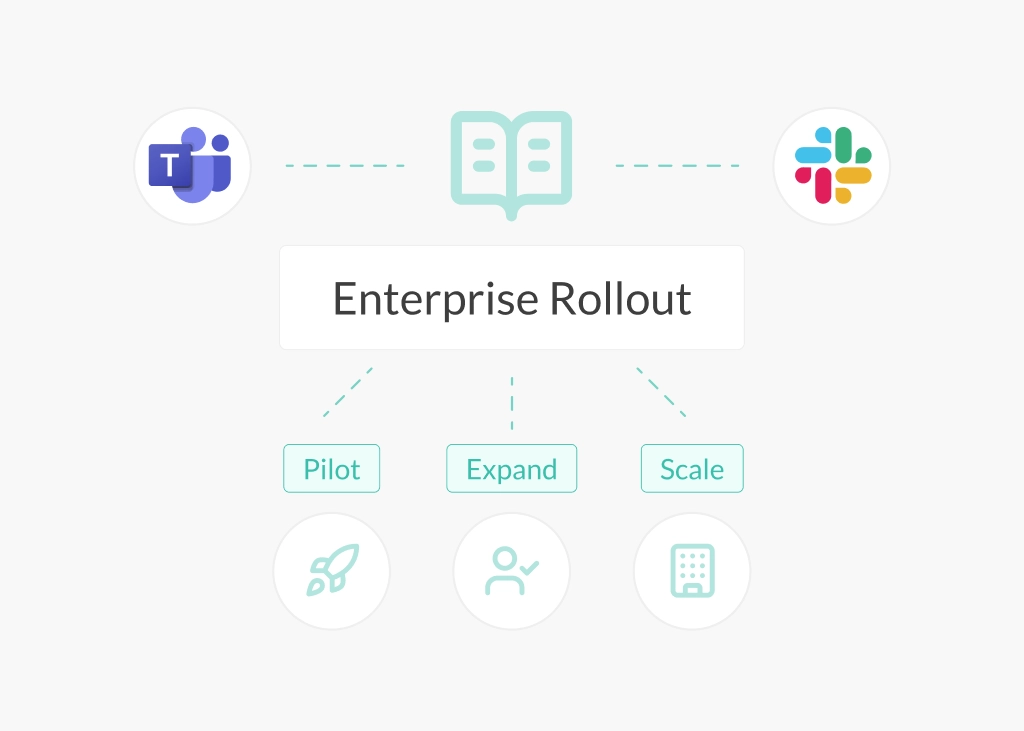
Connecting Microsoft Teams to Slack is easy to pilot and hard to scale. The technical setup is only one part of the work – the bigger challenge is rolling it out in a way that stays controlled, with clear scope, predictable data handling, and defined ownership.
This guide is for IT, security, and operations leaders planning a structured rollout. It focuses on the decisions and steps that reduce risk during adoption, so cross-platform collaboration stays consistent and manageable as usage expands.
What This Guide Is and Isn’t
What this is: a change management guide for rolling out Teams to Slack chat interoperability at enterprise scale, including ownership, guardrails, pilot, communications, training, and measurement.
What this isn’t: a step-by-step installation guide, a migration or consolidation strategy, or a replacement for Slack and Teams’ native compliance, retention, and eDiscovery controls.
If you’re currently evaluating chat interoperability solutions, see our comprehensive Slack and Teams Compliance Checklist.
Why Connect Microsoft Teams to Slack?
Before you configure any software, it helps to agree on why the connection is necessary. The goal is not just to add another integration to your stack, it’s to give your teams reliable visibility across platforms and establish clear norms for how they work together.
Most organizations fall into one of these common scenarios:
- Operational Necessity – Corporate, IT and business units, might be required to use Microsoft Teams, while engineering and product teams are on Slack
- Strategic Visibility – Leaders need a way to see what is happening across the business without forcing a disruptive migration or consolidating everyone onto one platform
- Mergers and Acquisitions – When companies are acquired, immediate communication between different platforms is needed. Waiting months for a full tenant migration to start collaborating isn’t an option
- Partner Collaboration – Connecting with partners, vendors, or clients who use a different messaging platform is often required. Guest accounts may create licensing costs, and using two platforms adds friction. Connecting channels and chats allows teams to collaborate without forcing platform adoption
Define the Rollout Scope and Ownership
Now that you’ve defined your use case, the next step is to define the rollout scope and assign clear ownership to prevent “scope creep”. Many rollouts fail when the scope is unclear or when ownership is shared across too many teams.
In Scope
- Identifying which specific Teams channels or chats will be connected to Slack
- Determining which Slack channels require connection
- Establishing the approval workflow for new connections
- Setting rollout pace, such as one department per week
- Determining whether connections will be internal only or if external partner connections are needed
Out of Scope
- Full platform consolidation or migration
- Re-platforming existing ticketing or helpdesk workflows
- Redesigning the entire corporate identity management system
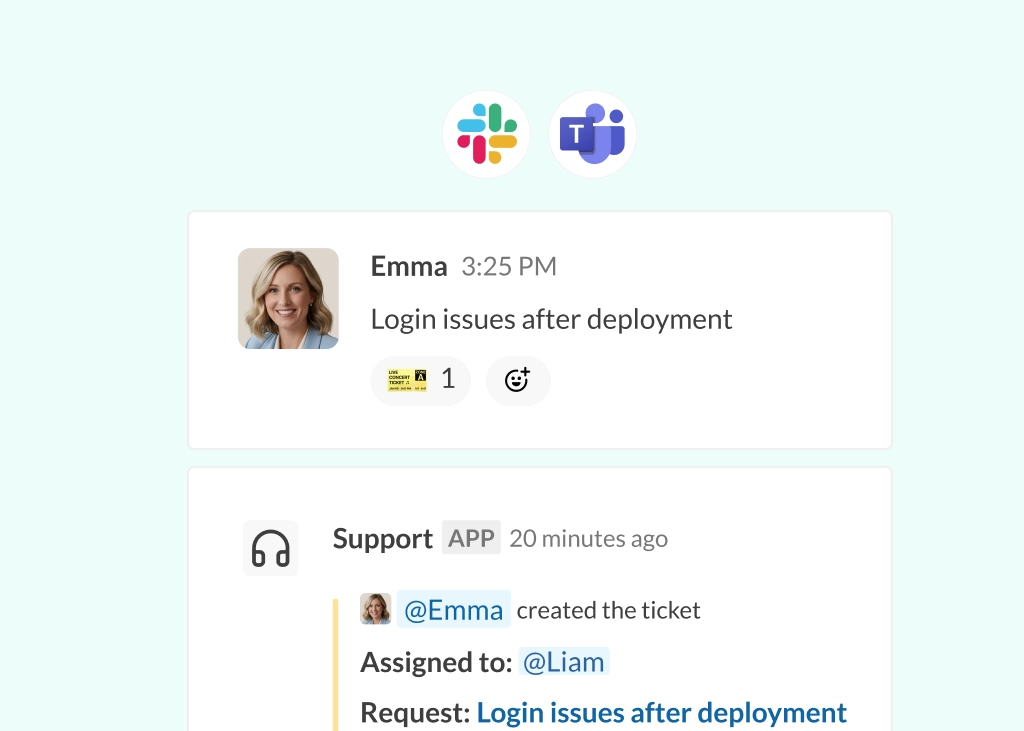
Note: While ticketing and helpdesk integration is out of scope for this playbook, Conclude Apps supports ticketing workflows in Slack and Teams and includes Jira and Zendesk integrations. Treat this as a separate project with its own rollout plan.
Ownership Model
Assign clear roles to ensure accountability:
- IT Platform Owner: responsible for the technical configuration and ongoing health of the integration
- Security Approver: validates that data handling meets compliance standards
- Change Lead: manages the communication schedule and feedback loops
- Department Champions: these are the “power users” within specific teams, like engineering, who can model correct usage for their peers
Governance and Security Alignment Before the Pilot
Security and governance teams often worry that cross-platform communication will reduce auditability. Before you start a pilot, align on the governance and security basics. The goal is to avoid discovering exceptions and edge cases after the rollout has already begun.
Confirm Data Handling Expectations
- What will be synced between Slack and Teams (messages, files, reactions)
- How attachments will be handled for each connection (sync, links, or disabled)
- What is stored (if anything), and what can be provided on request for compliance review
Define Administrative Controls
- Who can create connections, and who approves them
- How connections are named and documented so their purpose is clear
- How issues are escalated when something breaks
Document the Guardrails
- When to use a connected channel vs when to keep conversations platform-specific
- How you will review connections periodically to confirm they are still needed
- How to handle sensitive or regulated information
Pilot Plan: Choose Teams and Define Criteria
A pilot should test both the connection and the operating model. Keep the scope small enough to manage, but real enough to reveal the issues you will face at scale.
Pilot Selection Criteria
Choose teams with a real cross-platform communication problem, not teams volunteering just to try a new tool. You need a clear pain point and a manager who will provide candid feedback and hold the team accountable for using the connection.
Example: a typical pilot may involve 2-4 teams and 5-10 connected channels or chats, depending on your organization’s size.
Entry Criteria (Before you Start)
- Governance sign-off is complete, including who can approve new connections and how change requests will be handled
- A pilot owner is identified, responsible for tracking progress and escalating blockers
- Naming standards are agreed, so connected channels follow a consistent convention (e.g.,
#proj-namein both platforms) - A support plan is ready, so pilot users know where to ask for help
- An internal communications plan is drafted, including the rollout message and FAQ
Exit Criteria (Ready to Expand)
- Teams actively use connected channels as the default, rather than reverting to email or duplicate posting
- Less duplication across tools (e.g., fewer repeated updates and “can someone check the other platform?” messages)
- Fewer escalations caused by missed context
- Support volume is manageable, and recurring issues are understood before expanding
Communicate the Change and Train Users
Technical implementation is usually easier than changing human behavior. The technology might work perfectly on day one, but if people do not understand why the connection matters or how it fits into their workflow, they will ignore it or work around it. To succeed, your communication plan needs to give each group the specific information they care about – not a generic “here’s a new tool” announcement.
Messaging by Persona
- End Users: focus on their daily workflow. Explain what changes, what stays the same, and give clear guidance on “when to use what”
- Team Leads: set expectations for decision-making. Show them how to prevent duplicate decisions across platforms
- IT and Security: show them exactly what is controlled, how rules are enforced, and where they can review activity logs
Training Formats
Avoid long, mandatory training. Instead, offer short sessions (15–20 minutes) backed by a written quick start checklist users can reference later. Office hours where users can bring real workflow questions often work better than formal presentations. People learn faster by solving their own problems, not watching hypothetical demos.
Establish Concrete Usage Norms
- Decisions: agree on where final decisions live if a discussion spans both platforms
- Use Threads: encourage replies in threads to keep conversations organized
- One Conversation: discourage “splitting” the conversation to private DMs, which breaks visibility
Rollout: Expand Safely, Not All at Once
A controlled rollout is easier to support and easier to govern than a big launch. Expand in phases to validate behavior, resolve recurring issues, and refine guidance before the next group is added.
Phased Approach
- Phase 1 (Pilot) – single team or project group with high-touch support
- Phase 2 (Departmental) – expand to adjacent departments, such as Sales or CSM
- Phase 3 (Org-wide) – Enablement for the wider organization, supported by self-service documentation
Pause and Rollback Plan
Always have a safety valve. Define what triggers a pause in the rollout, like a specific number of support tickets or a security concern. Decide in advance who has the authority to hit the “pause” button and how you will communicate any delays to the business.
Measuring Success and Keeping It Running
Change management does not end when the software is deployed. To make sure the solution is actually helping your team, you need to monitor how it is used and whether the rollout is staying within the guardrails you set.
Success Metrics
- Adoption – are people actually using the connected channels?
- Support Burden – is the volume of “how-to” tickets going down over time?
- Qualitative Feedback – are teams reporting fewer missed updates and less duplication?
- Governance Outcomes – are connections being approved and managed in accordance with the rules you set?
Reporting Cadence
Review these metrics weekly during the pilot to catch issues early. During the broader rollout, shift to a monthly review to track longer-term trends. The goal is to confirm real improvements and spot issues before they spread.
How Conclude Connect Fits In
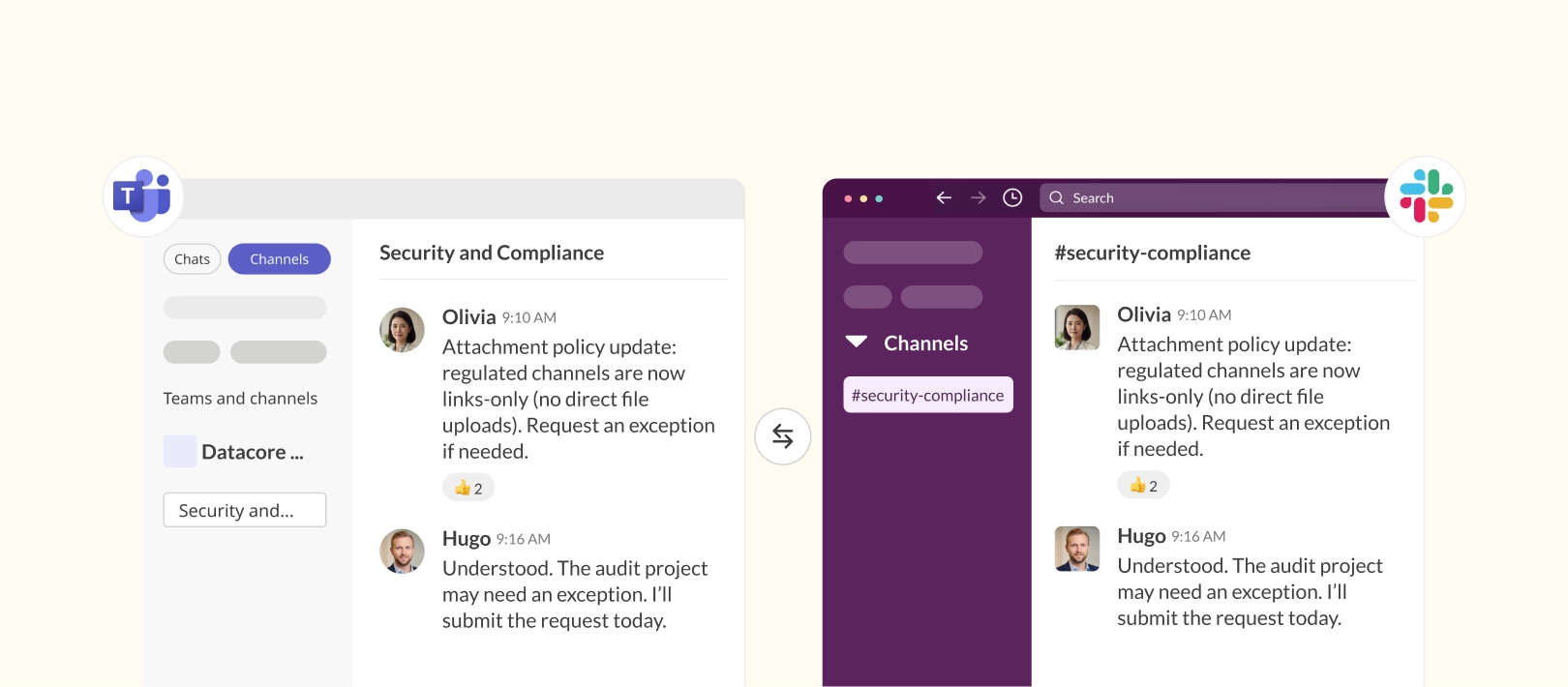
Conclude Connect is a Microsoft Teams and Slack integration that links selected Teams chats and channels to Slack, keeping messages and files in sync in real time for internal and external connections. It’s a robust solution for controlled rollouts, where connections are explicit and scoped to the conversations you choose.
What Conclude Enables
- Connect specific Slack channels with Teams channels or chats so cross-team collaboration is possible, without switching tools
- Choose how attachments are handled per connection – sync files, share links, or disable file sharing for sensitive conversations
- Support external partner collaboration when you need to work across organizational boundaries
Security and Data Handling
Conclude Connect does not bypass either platform’s permissions and never grants new access. Importantly, it does not store user messages or files. It retains message metadata for cross-platform reconciliation, ensuring that your data retention policies remain within your primary platforms.
Metadata can be provided on request to support compliance review when additional context is needed. Conclude is SOC 2 Type II certified, HIPAA compliant, and GDPR compliant. You can learn more about Conclude’s Security Policy here.
Treat Integration as a Strategy, Not a Task
Successfully connecting Microsoft Teams to Slack is not just about moving data between two apps. It is about enabling people to work together with less friction.
When you treat this integration as a strategic initiative, you prevent the common pitfalls of shadow IT and fragmented conversations. By applying a clear change management strategy, you build a bridge that supports cross-platform collaboration while keeping scope, ownership, and governance expectations clear – and importantly, giving your teams the visibility they need.
Ready to start your pilot? Get 14 days free to see how Conclude Connect works for your team.
Frequently Asked Questions
What is the safest way to connect Microsoft Teams to Slack?
A safe approach is to use a secure connection layer like Conclude Connect that does not store message content or files. See our Security Policy for more. You’ll also need governance: define who can create or approve connections, restrict connections to specific approved channels or chats, and document the rollout and controls so it holds up to security and compliance review.
How do IT teams maintain security when connecting Microsoft Teams and Slack?
Start by verifying that your integration tool supports granular channel controls. Beyond technical specifications, look for a solution that does not store message content or files and retains only the metadata required to operate and support the connection. This allows you to rely on the native retention policies of Microsoft Teams and Slack, rather than managing a duplicate data set in a third-party tool.
Does Conclude Connect store Teams or Slack messages when syncing?
No. Conclude Connect does not store user messages or files. It only retains the message metadata (such as timestamps and IDs) needed to sync conversations between platforms. Note: Conclude Apps does store structured task data from tickets. See Security for more details.
What is the difference between a technical setup guide and a rollout guide?
A technical setup guide focuses on “how” to configure the software, like setting API keys and permissions. A rollout guide, like this article, focuses on “who” and “why.” It defines the governance, training, and communication plans you need to ensure employees actually adopt the new workflow and use it safely.
How do you roll out Teams to Slack integration across an enterprise?
Start with a pilot group to validate your governance model and usage norms before expanding. Choose a team with a real cross-platform communication challenge and a manager who’s willing to provide feedback.
Once the pilot meets your exit criteria – like positive adoption signals and fewer duplicated updates – you can move to a phased rollout. Expand to adjacent departments first, then enable the wider organization with self-service documentation. Always define clear ownership, establish approval workflows, and keep a pause plan ready in case issues arise.
What should a rollout checklist include for cross-platform communication?
Your rollout checklist should cover governance, communication, and measurement. Start with governance sign-off, where you define who can approve connections and how they’ll be managed.
Prepare a communication plan that gives end users, team leads, and IT/security stakeholders the specific information they care about. Establish usage norms, like where decisions will be recorded and how to handle threaded conversations. Finally, define success metrics such as adoption rates, support ticket volume, and qualitative feedback, then set a reporting cadence to track progress throughout the rollout.